BLINK
BLINK on iPOSpays is an advanced transaction search and filtering tool that helps users quickly locate, review, and manage transaction data across the iPOSpays portal. It provides role-based access, powerful filtering capabilities, and downloadable transaction reports to simplify transaction investigations and reconciliation processes.
This document explains how ISOs, Agents, Merchants, and Store Managers can access and use BLINK on the iPOSpays portal to quickly search, filter, view, and download transaction data.
Feature Compatibility
- Minimum Required Build: Not Applicable
- Supported Processors: Not Applicable
- Supported Fee Types: Not Applicable
- Supported User Roles: ISO, Agent, Merchant, Store Manager
Key Features
- Faster transaction search experience across large transaction volumes
- Advanced role-based filtering based on user permissions
- Instant downloadable reports for reconciliation and record management
- Simplified transaction investigation and monitoring
- Transaction history is available for up to 12 months
- Available filters and categories vary based on user role and permissions
How to Access BLINK
Step 1: Log In to the iPOSpays Portal
Log in to the iPOSpays Portal using your ISO, Agent Office, Merchant, or Store Manager user credentials.
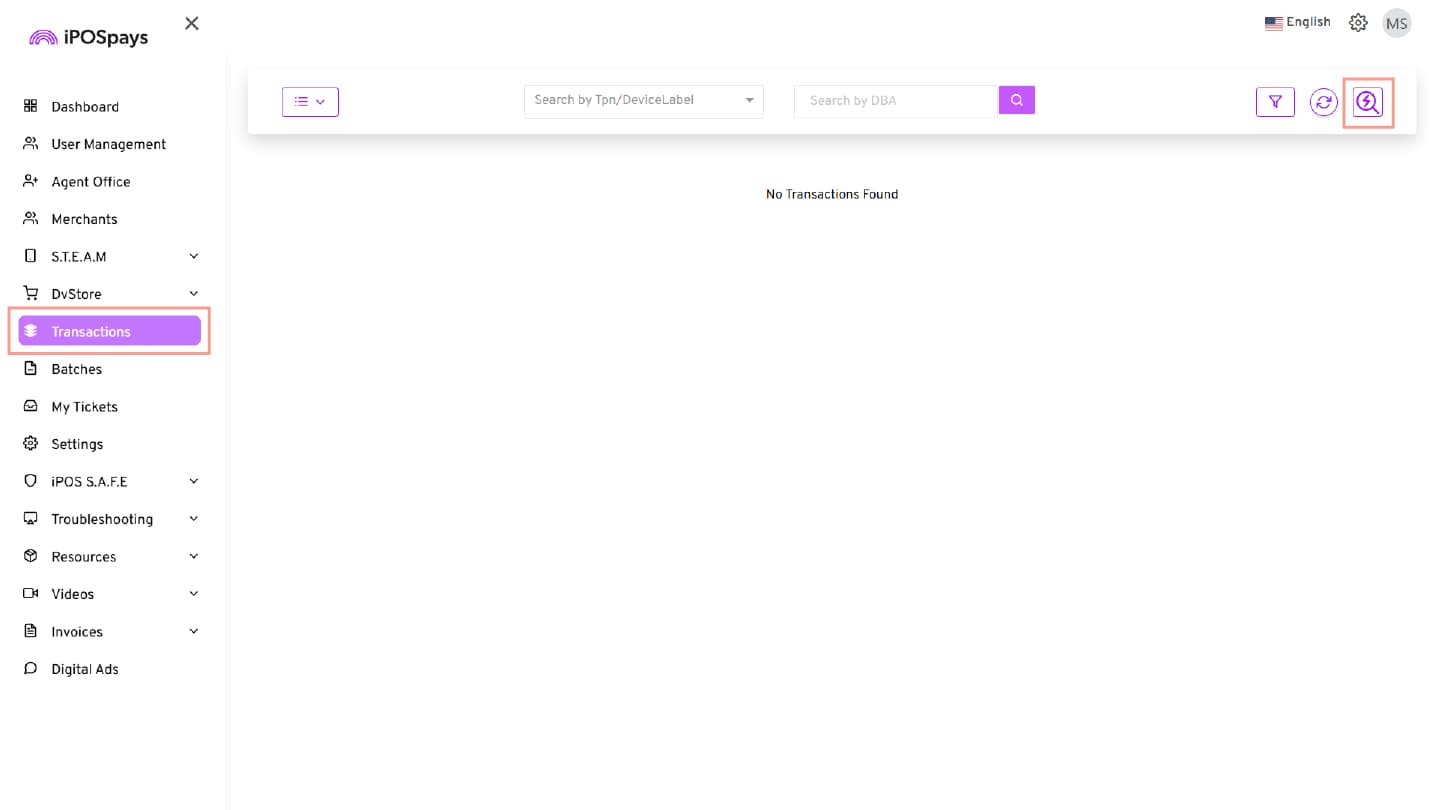
Step 2: Navigate to Transactions
From the dashboard, navigate to the Transactions section.
Step 3: Open BLINK
On the right side of the Transactions module, click the lightning bolt (⚡) icon.
You will be redirected to the BLINK page in a separate browser tab.
Access BLINK Filters
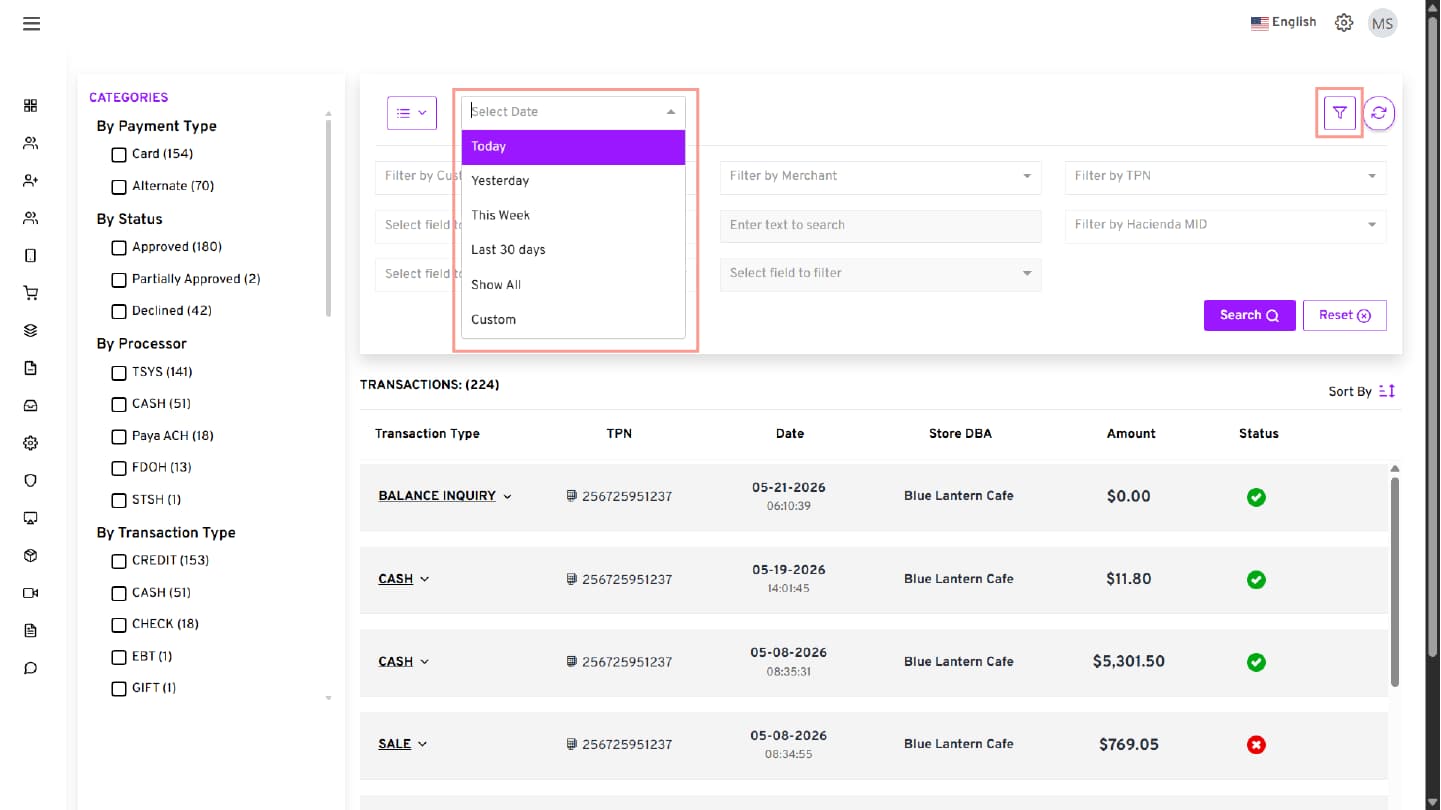
Step 1: Select a Date Filter
Use the Select Date dropdown to filter transactions based on the required date range.
Available date options:
- Today
- Yesterday
- This Week
- Last 30 Days
- Show All
- Custom
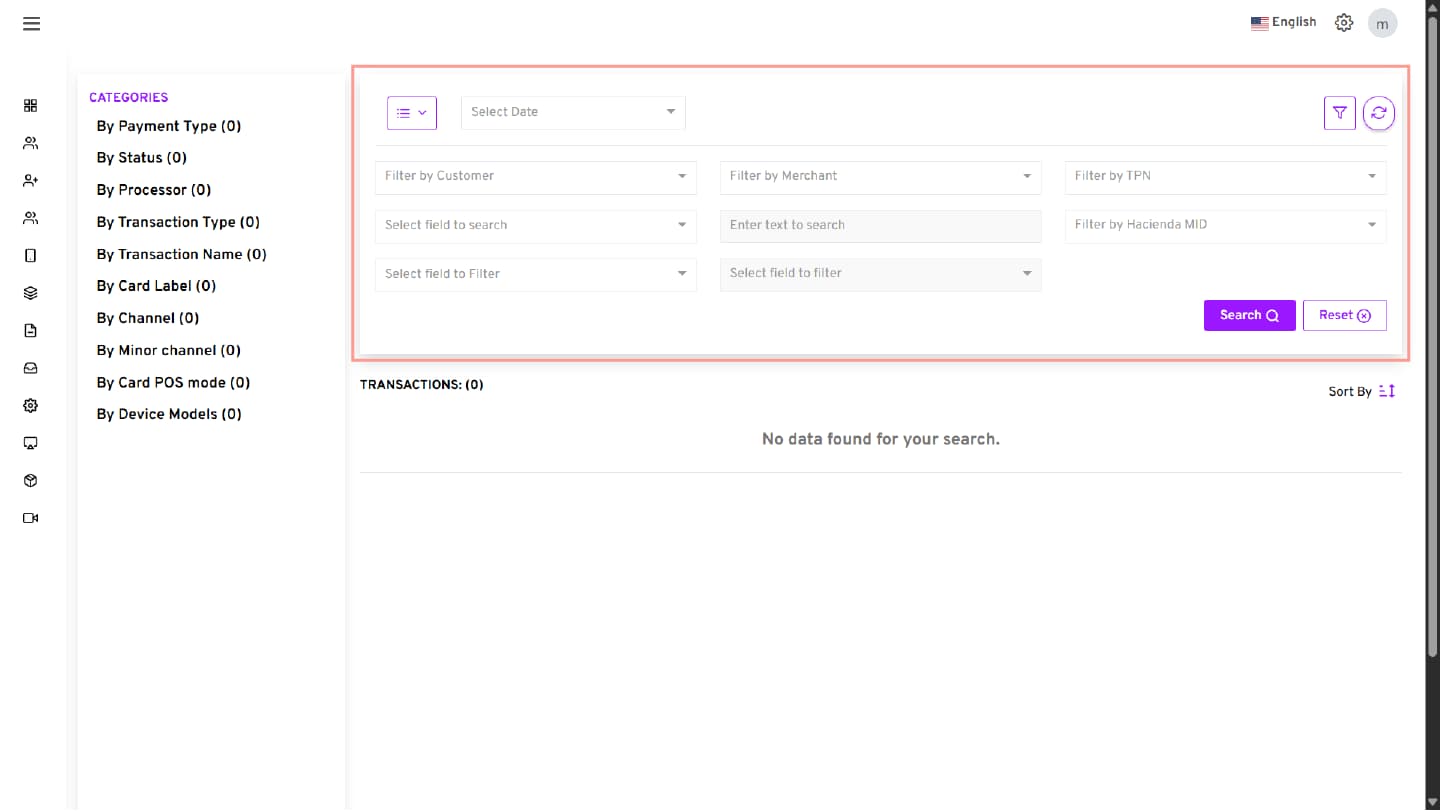
Step 2: Open Additional Filters
Click the Filters icon located on the upper right corner to expand the advanced search options.
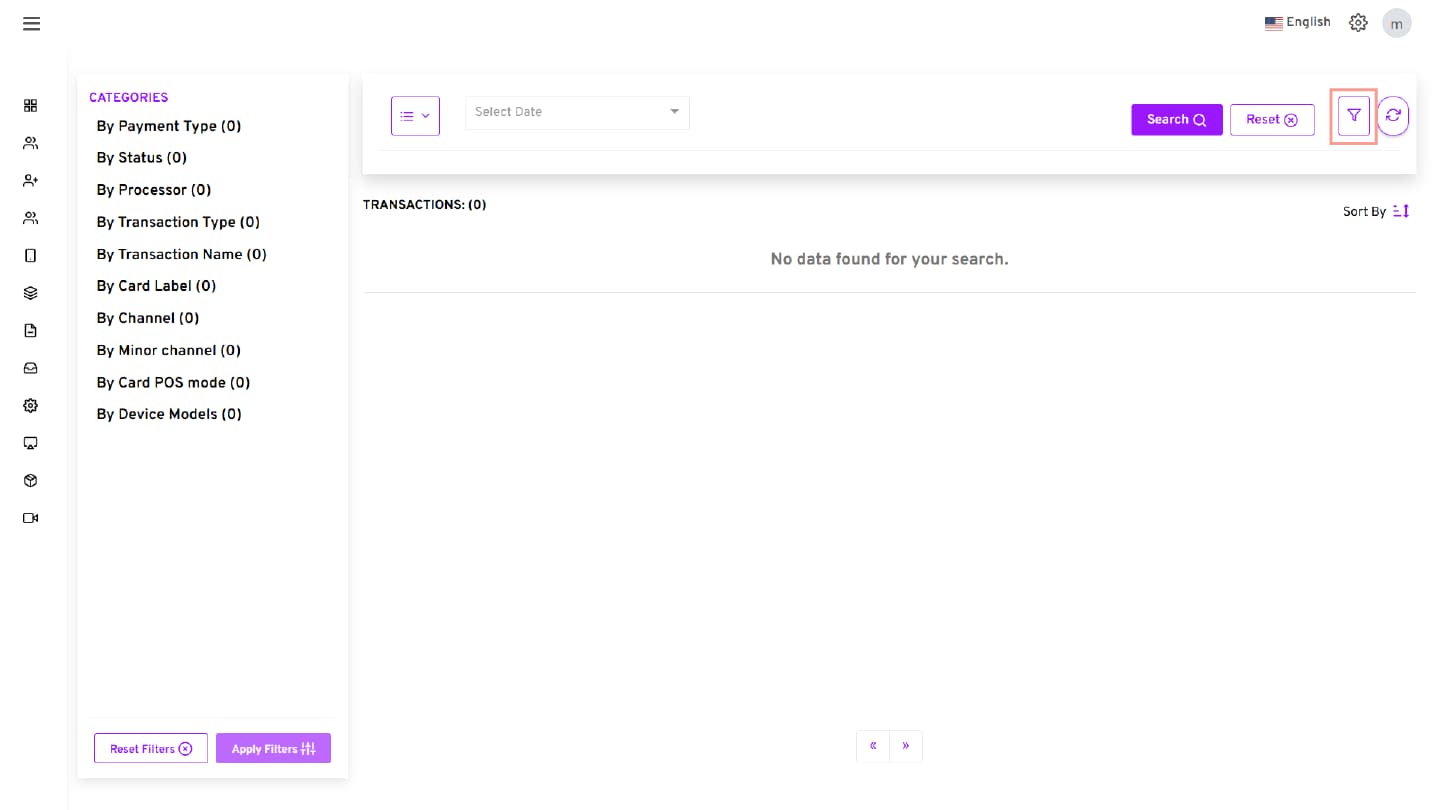
The available filter options may vary based on the user role and assigned permissions.
The following filters will be available for an ISO:
- Filter by Customer
- Filter by Merchant
- Filter by TPN
- Filter by Hacienda MID
- Select field to search
- Enter text to search
- Select field to filter
Step 3: Select Search Fields
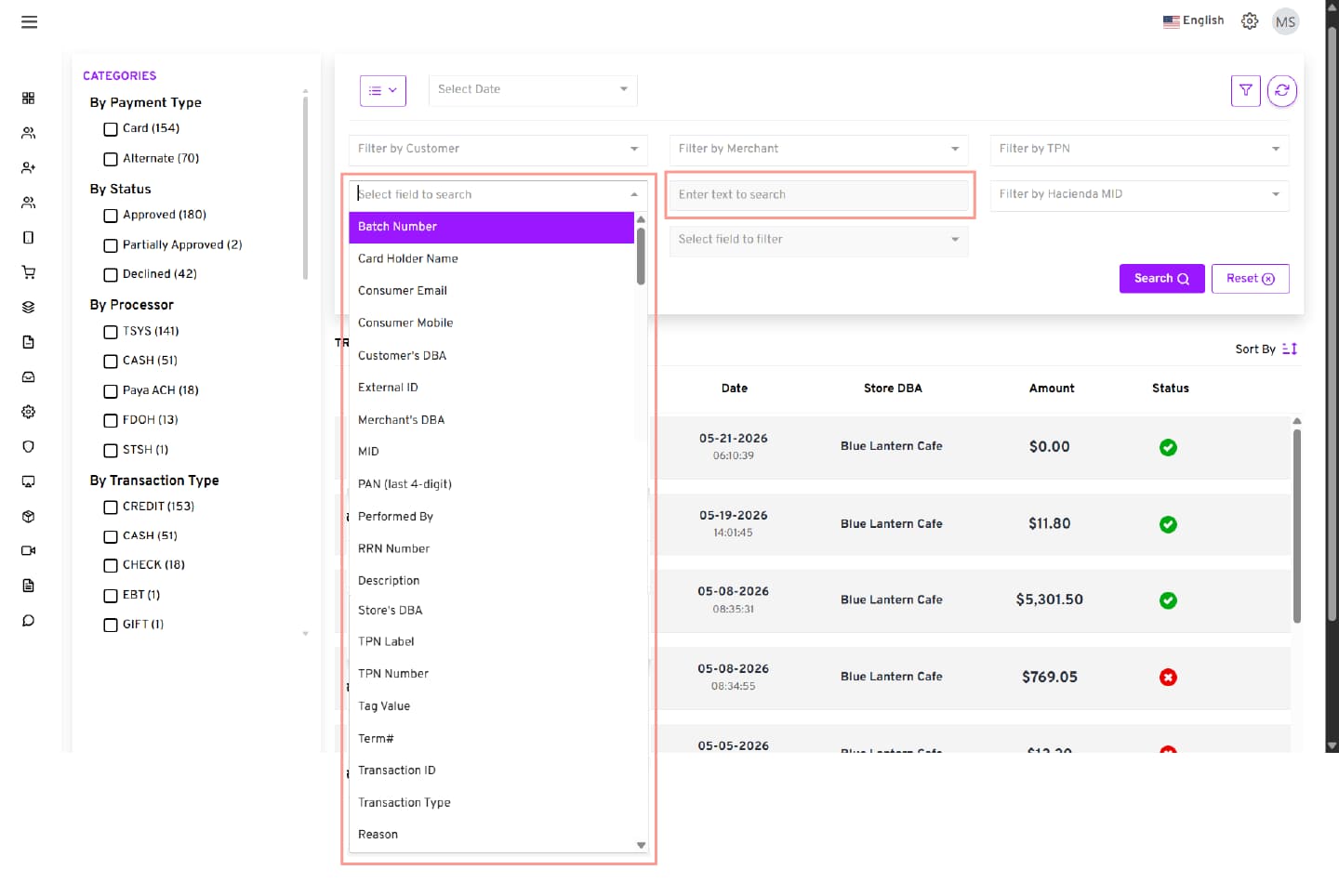
- Use the Select field to search.
- To select from the Available options:
- Batch Number
- Card Number
- Card Holder Name
- Consumer Email
- Consumer Mobile
- Customer’s DBA
- External ID
- Merchant’s DBA
- MID
- PAN (last 4-digit)
- Performed By
- RRN Number
- Description
- Store’s DBA
- TPN Label
- TPN Number
- Tag Value
- Term#
- Transaction ID
- Transaction Type
- Reason
In the Enter text to search field, enter the corresponding search value to retrieve matching transaction results.
Step 4: Select Filter Categories
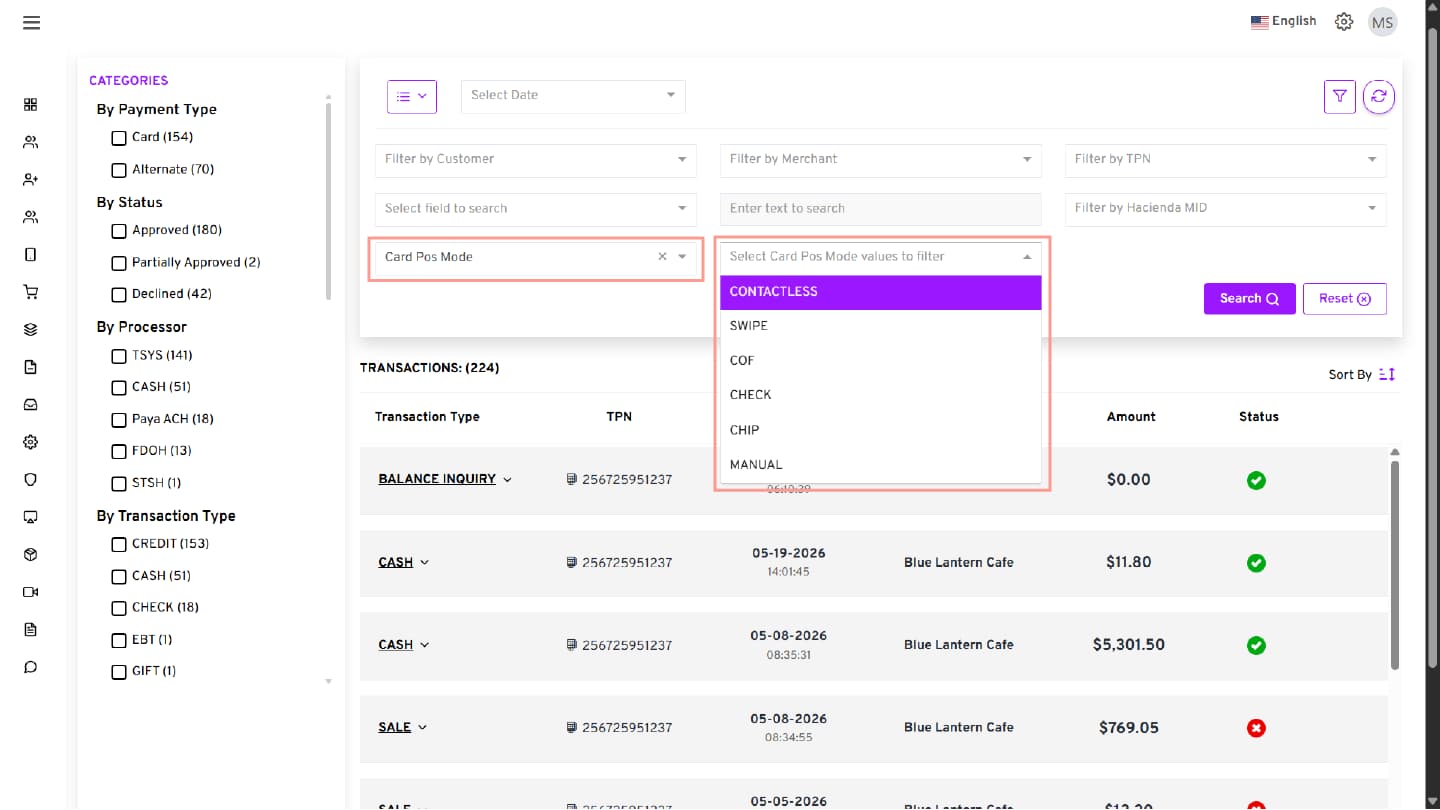
Use the Select field to filter dropdown to apply additional category-based filters.
Available filter categories:
- Card Pos Mode
- Channel
- Device Models
- Minor Channel
- Payments
- Processor
- Status
- Transaction Name
- Transaction Type
- Loyalty Program
- ACH Status
Step 5: Apply Filter Values
Select the required filter values from the corresponding drop-down lists based on the selected filter category. Available options vary depending on the selected category.
Step 6: Apply Filters
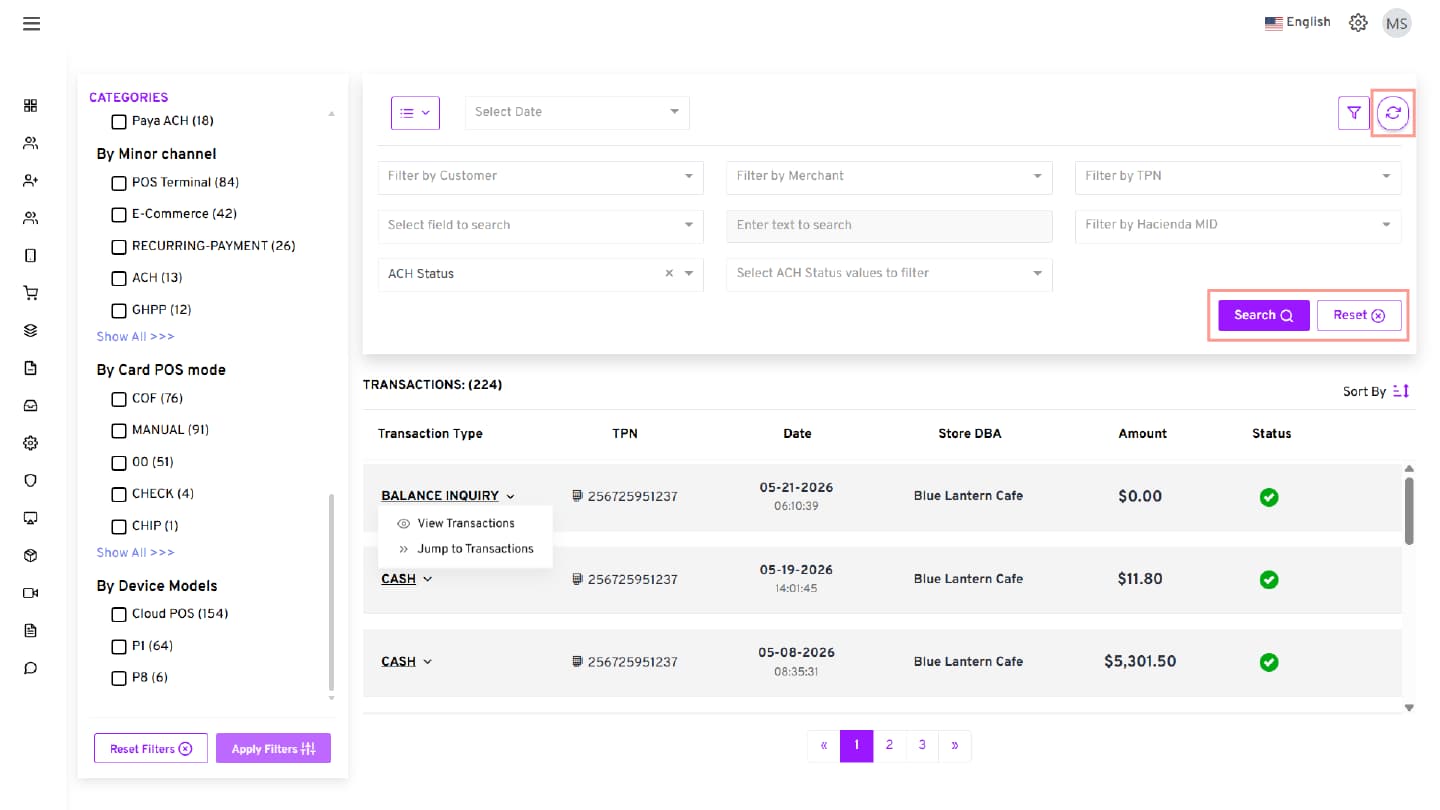
Click Search to display matching transaction results based on the selected search criteria and applied filters.
Step 7: Refresh Transaction Results (Optional)
Click the Refresh icon available beside the filter icon to reload and refresh the latest transaction results on the BLINK page.
Step 8: Reset Filters (Optional)
To remove the selected filters, click Reset next to Search.
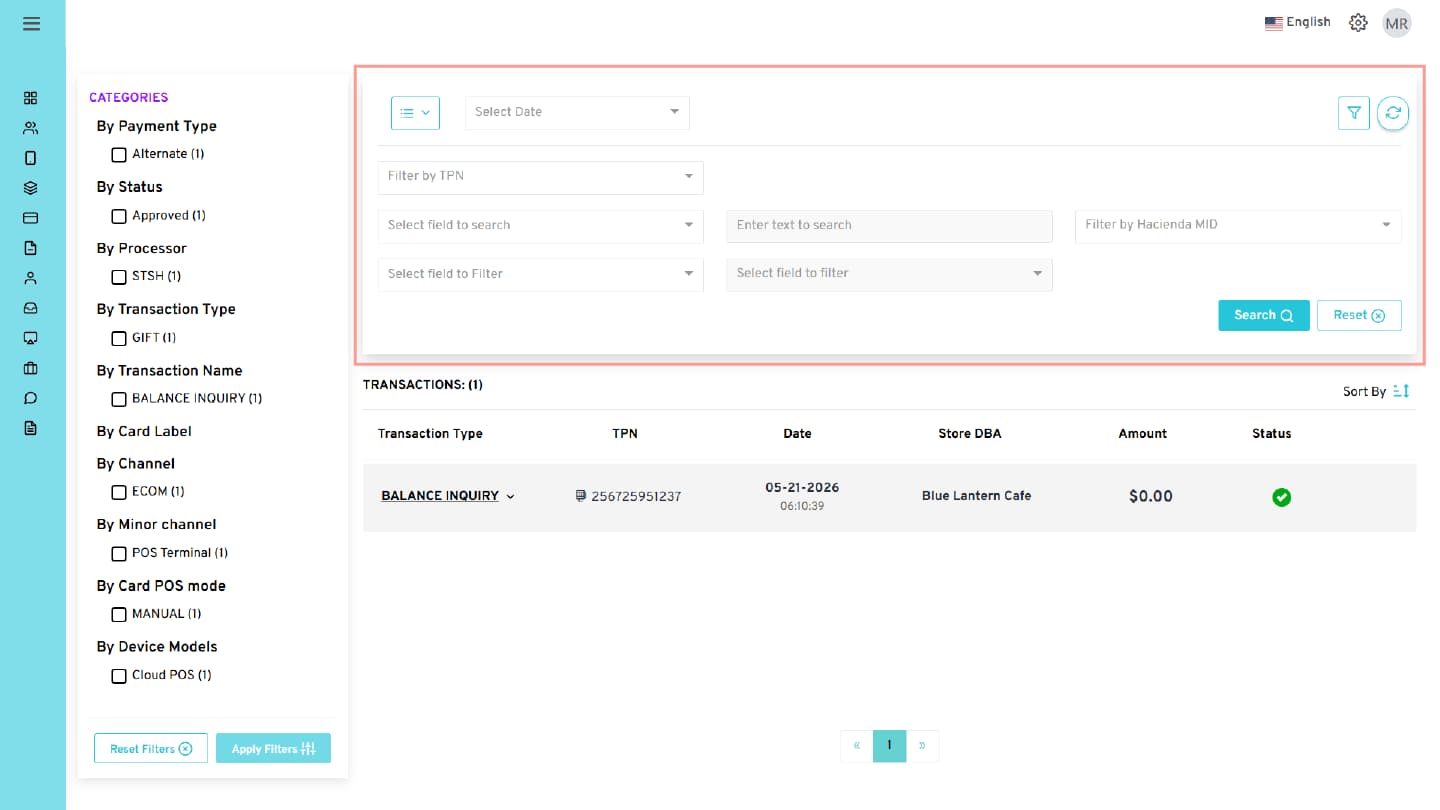
How to Apply Category Filters from the Side Panel
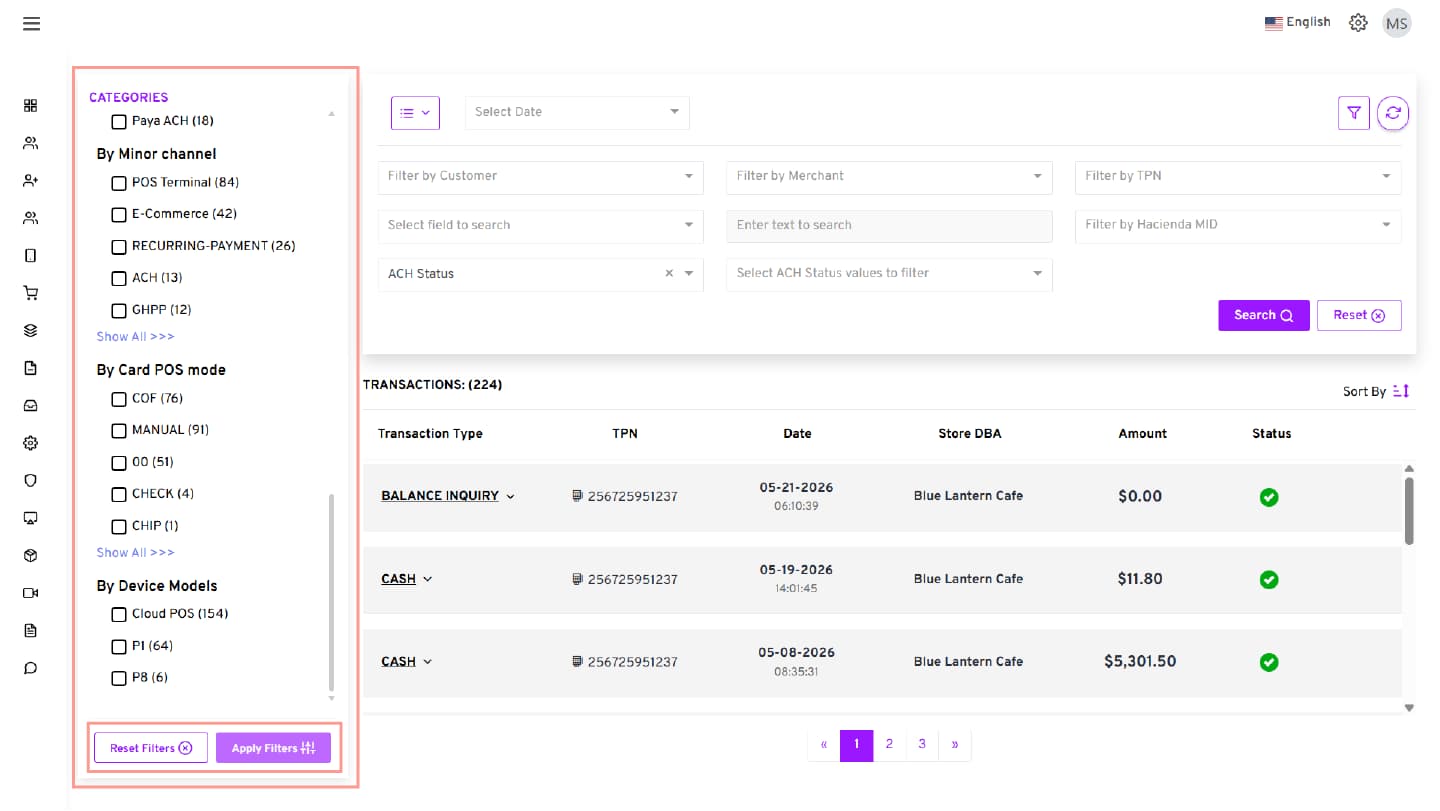
BLINK allows users to apply category-based filters from the left-side Categories panel to further narrow down transaction results after performing a search.
Step 1: Enter Search Criteria
On the BLINK page, enter the required search criteria using the available search fields.
The available filter options may vary based on the user role and assigned permissions.
You can search using filters such as:
- Filter by Customer
- Filter by Merchant
- Filter by TPN
- Filter by Hacienda MID
- Select field to search
- Enter text to search
You can also apply additional filters using the Select field to filter dropdown.
Step 2: Apply the Search
- After entering the required search criteria, click Search.
- The transaction results will be displayed, and the left-side Categories panel will become available with filter values and counts.
Step 3: Select a Category Filter
From the left-side Categories panel, select the required filter category.
Available categories include:
- By Payment Type
- By Status
- By Processor
- By Transaction Type
- By Transaction Name
- By Card Label
- By Channel
- By Minor Channel
- By Card POS Mode
- By Device Models
Step 4: Select Filter Values
Click the checkbox beside the required filter values.
Example:
- Card
- Approved
- TSYS
- CREDIT
Multiple filter values can be selected at the same time.
Step 5: View Filtered Transactions
The transaction list refreshes automatically and displays the matching transaction results.
The filtered transaction results display details such as:
- Transaction Type
- TPN
- Date and Time
- Store DBA
- Amount
- Transaction Status
Step 6: Reset Filters (Optional)
To remove all applied filters, click Reset on the search page.
All selected filters will be cleared, and the full transaction list will be displayed again.
How to Sort Transaction Results
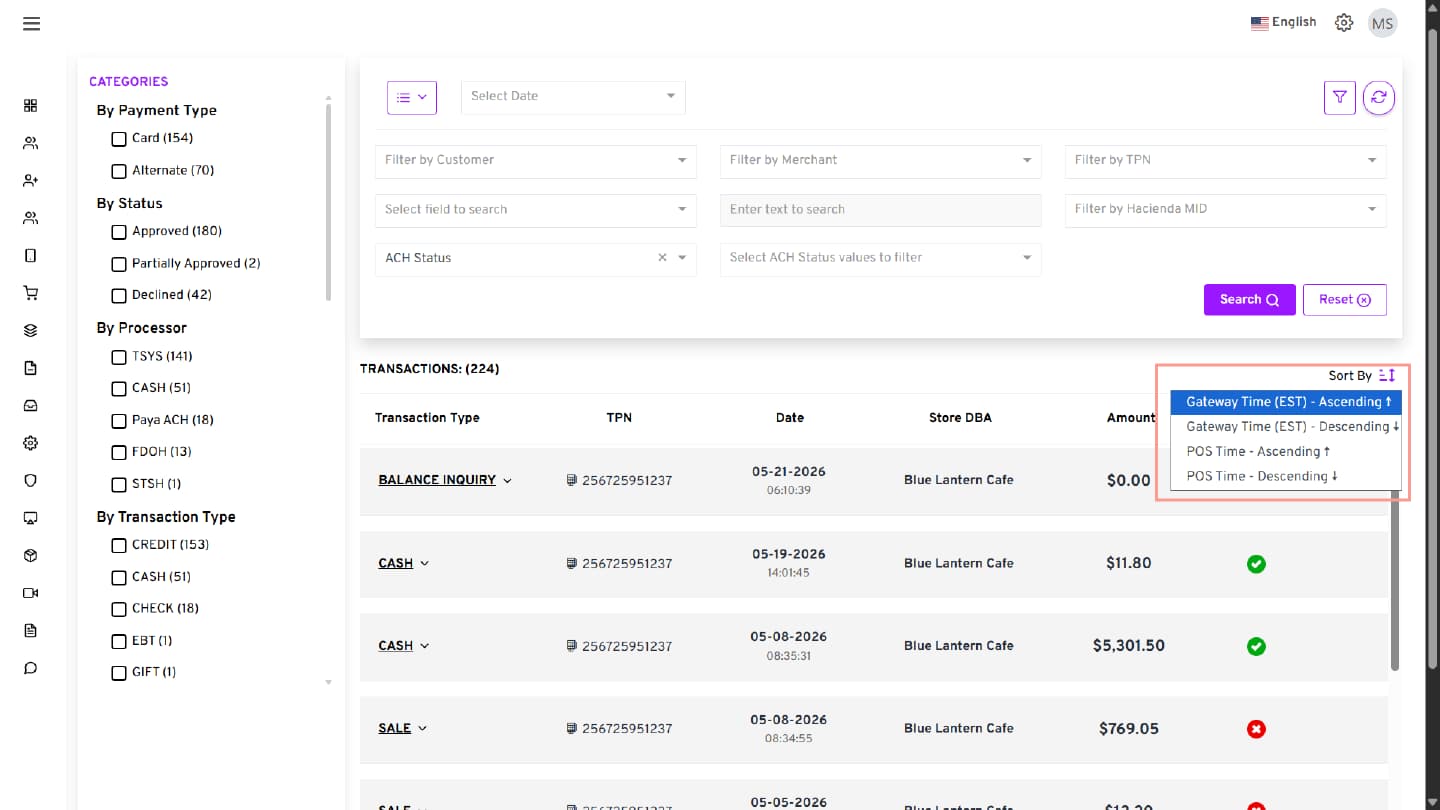
BLINK allows users to sort transaction results based on Gateway Time or POS Time in ascending or descending order to quickly review the latest or oldest transactions.
Step 1: Perform a Transaction Search
- Enter the required search criteria and apply the necessary filters.
- Click Search to display the transaction results.
Step 2: Open the Sort Options
In the transaction results section, click the Sort By icon available on the top-right side of the transaction list.
The following sorting options will be displayed:
- Gateway Time (EST) - Ascending
- Gateway Time (EST) - Descending
- POS Time - Ascending
- POS Time - Descending
Step 3: Select the Required Sort Order
- Click the required sorting option.
- The transaction list will automatically refresh and display transactions based on the selected sorting order.
Step 4: Review Sorted Transactions
Verify the reordered transaction results in the transaction list.
The sorted results display details such as:
- Transaction Type
- TPN
- Date and Time
- Store DBA
- Amount
- Transaction Status
How to View Transaction Details
BLINK allows users to view transaction details directly from the search results.
Step 1: Select a Transaction Type
- Click on the transaction type (Example: Sale).
Two options will appear:
- View Transactions – Opens the transaction details within the BLINK page
- Jump to Transactions – Redirects to the Transactions module in iPOSpays to view the transaction details
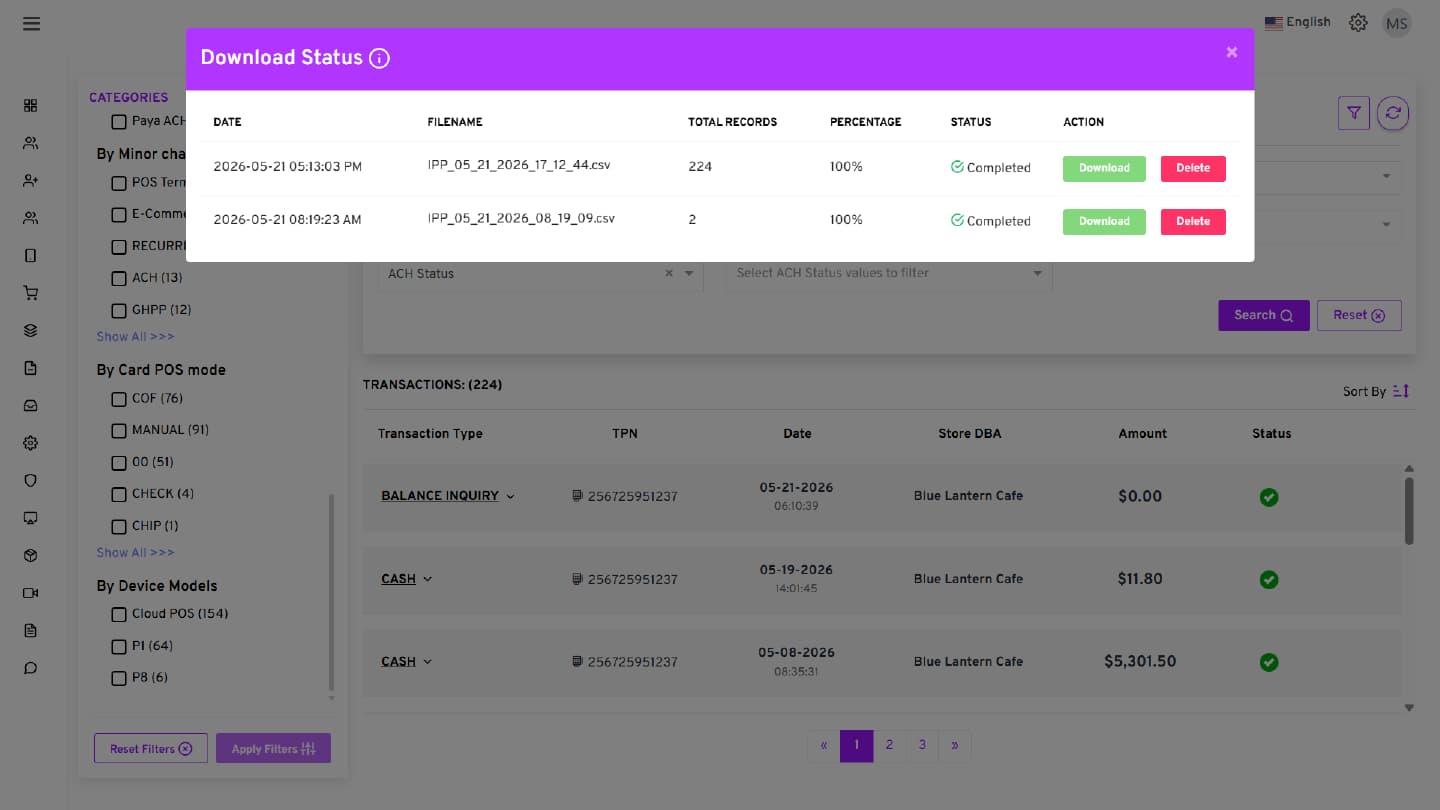
How to Download Transactions
BLINK allows users to export filtered transaction data.
Step 1: Open the Action Menu
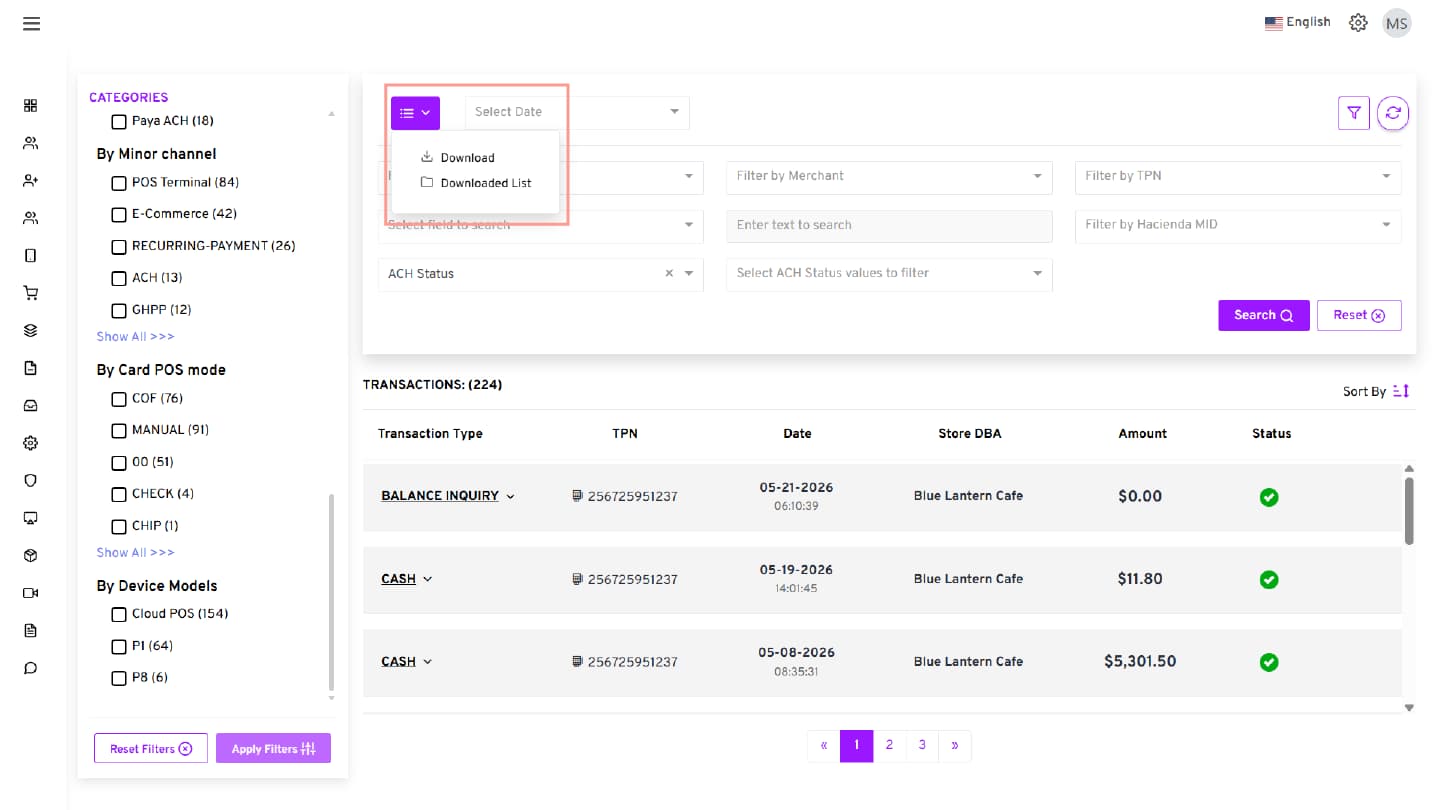
Click the Action Menu (≡), then select one of the following options from the dropdown menu:
- Download the transaction report.
- Downloaded List to view previously downloaded transaction reports.
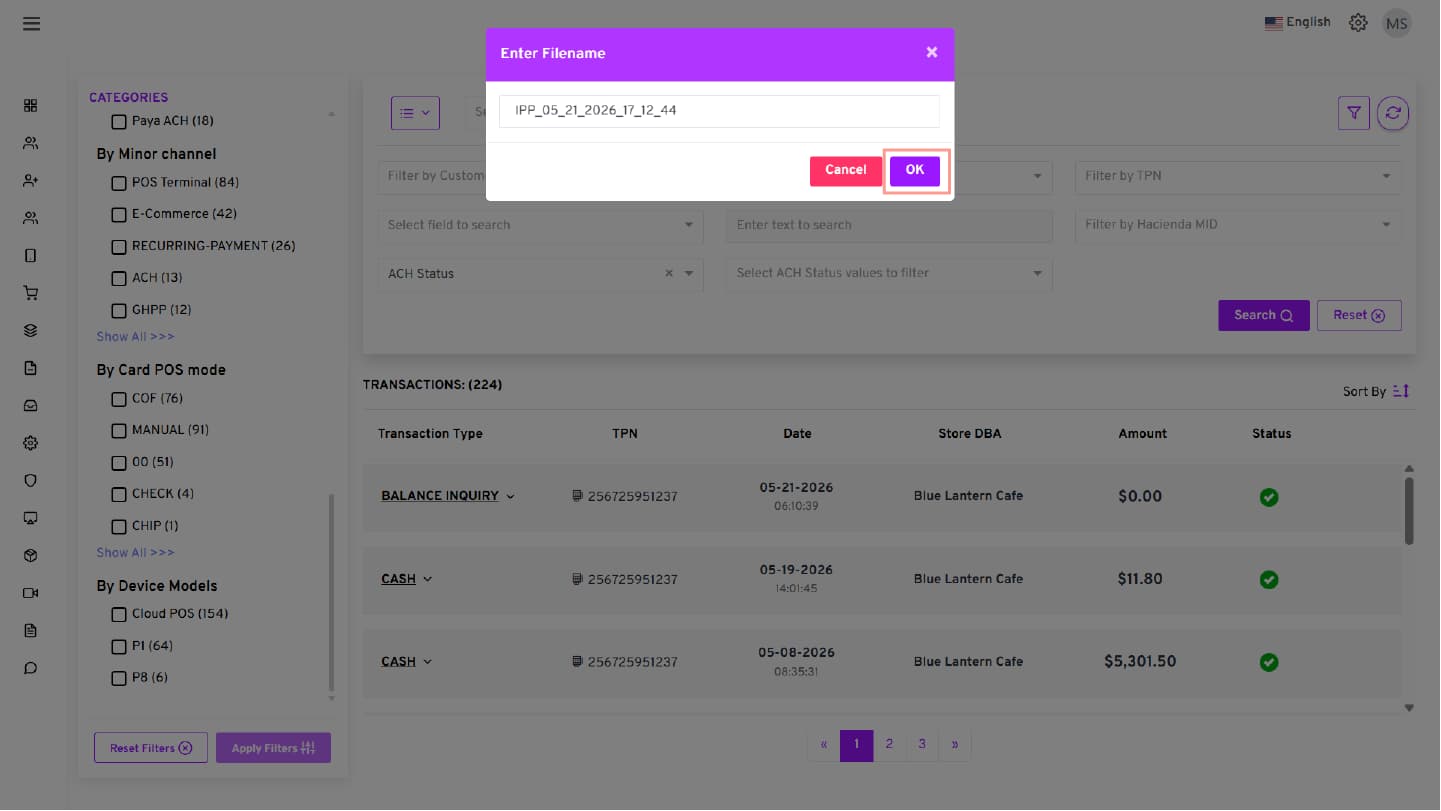
Step 2: Enter File Name
-
If you click Download, enter the desired file name when prompted to download the transaction report.
-
Click OK.
The download progress will be displayed on the screen.
Step 3: Download the File
Once processing is complete, click Download.
By default, the file is saved in the computer’s Downloads folder. If the browser is configured to ask where to save files, a prompt will appear before the download begins.
Role-Based Access in BLINK
The available search filters, categories, and transaction visibility in BLINK vary based on the user role logged into the iPOSpays Portal.
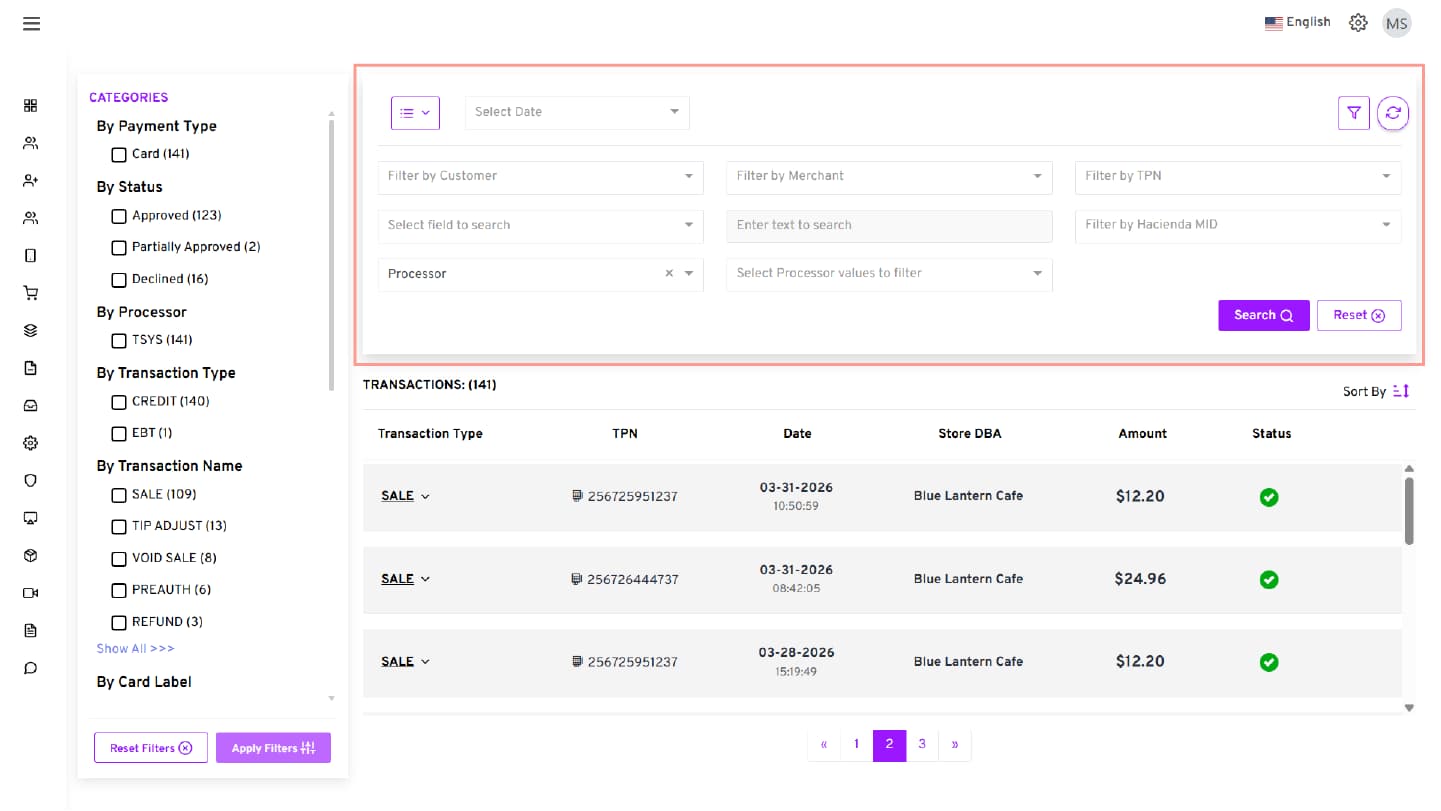
A. ISO and Agent Office Access
ISOs and Agents can investigate merchant transactions, review transaction activity, and monitor transactions across multiple merchants and locations.
Available search filters include:
- Filter by Customer
- Filter by Merchant
- Filter by TPN
- Filter by Hacienda MID
- Select field to search
- Enter text to search
- Select field to filter
Available side panel categories include:
- By Payment Type
- By Status
- By Processor
- By Transaction Type
- By Transaction Name
- By Card Label
- By Channel
- By Minor Channel
- By Card POS Mode
- By Device Models
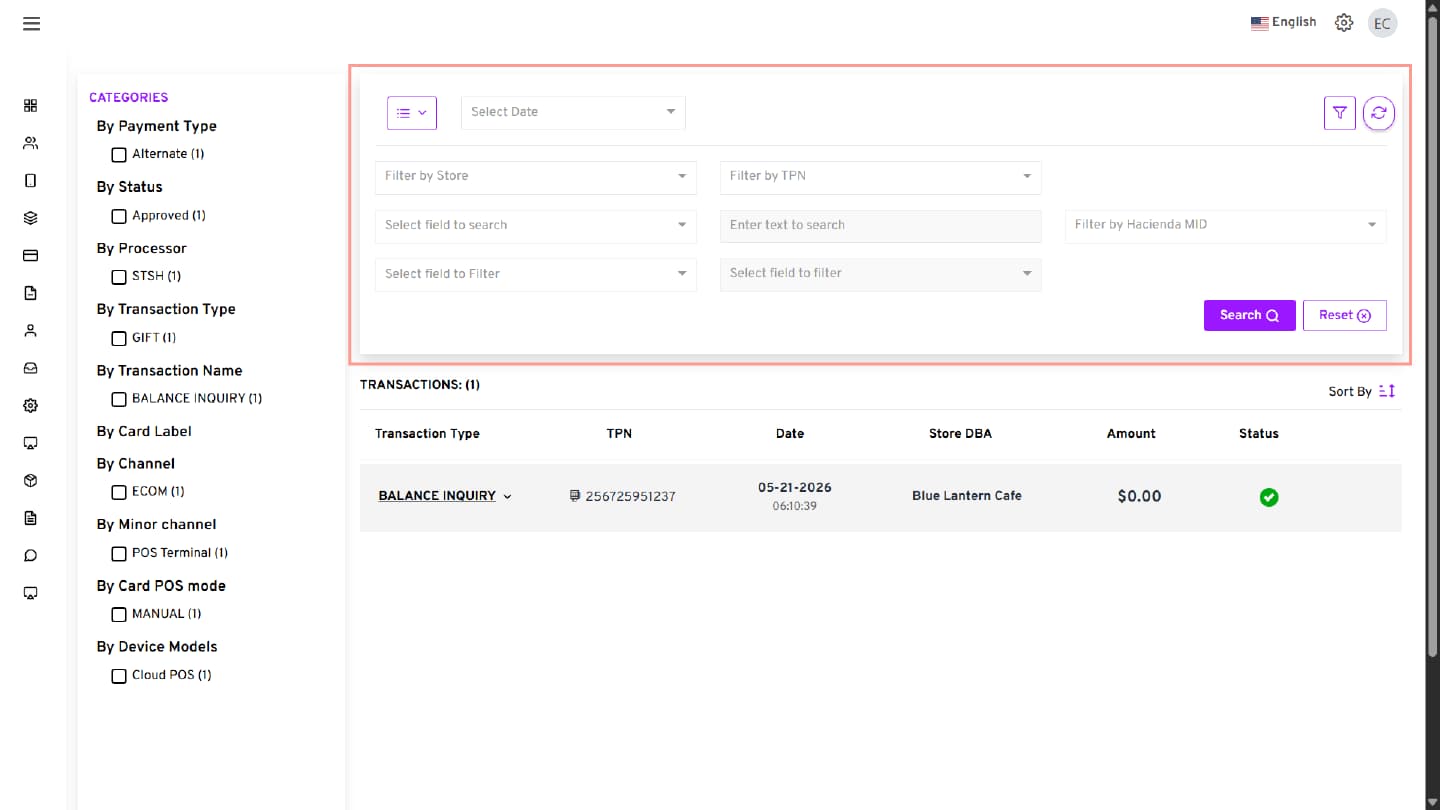
B. Merchant Access
Merchants can search transactions related to their business locations only. They can review transaction activity, investigate payment issues, and download transaction reports for reconciliation and internal records.
Available search filters include:
- Filter by Store
- Filter by TPN
- Filter by Hacienda MID
- Select field to search
- Enter text to search
- Select field to filter
Available side panel categories include:
- By Payment Type
- By Status
- By Processor
- By Transaction Type
- By Transaction Name
- By Card Label
- By Channel
- By Minor Channel
- By Card POS Mode
- By Device Models
C. Store Manager Access
Store Managers can access transaction data only for their assigned store locations, and the available search filters and categories are limited based on assigned store permissions. They can monitor daily transaction activity, review payment statuses, and track transactions only for their assigned store locations.
Available search filters include:
- Filter by TPN
- Filter by Hacienda MID
- Select field to search
- Enter text to search
- Select field to filter
Available side panel categories include:
- By Payment Type
- By Status
- By Processor
- By Transaction Type
- By Transaction Name
- By Card Label
- By Channel
- By Minor Channel
- By Card POS Mode
- By Device Models