How to Adjust Tips on iPOSpays
Tip adjustment in iPOSpays enables merchants to modify tip amounts for completed transactions before batch settlement. This functionality is available across supported channels, with adjustment options varying based on configuration and transaction source.
Supported Channels
Tip adjustment is supported on the following channels in iPOSpays:
- POS
- CloudPOS
- iPOSgo! (Android)
- Generate Payment Form (GHPP)
Tip Adjustment on the Payment Terminal (POS)
Step 1: Access Tip Adjustment
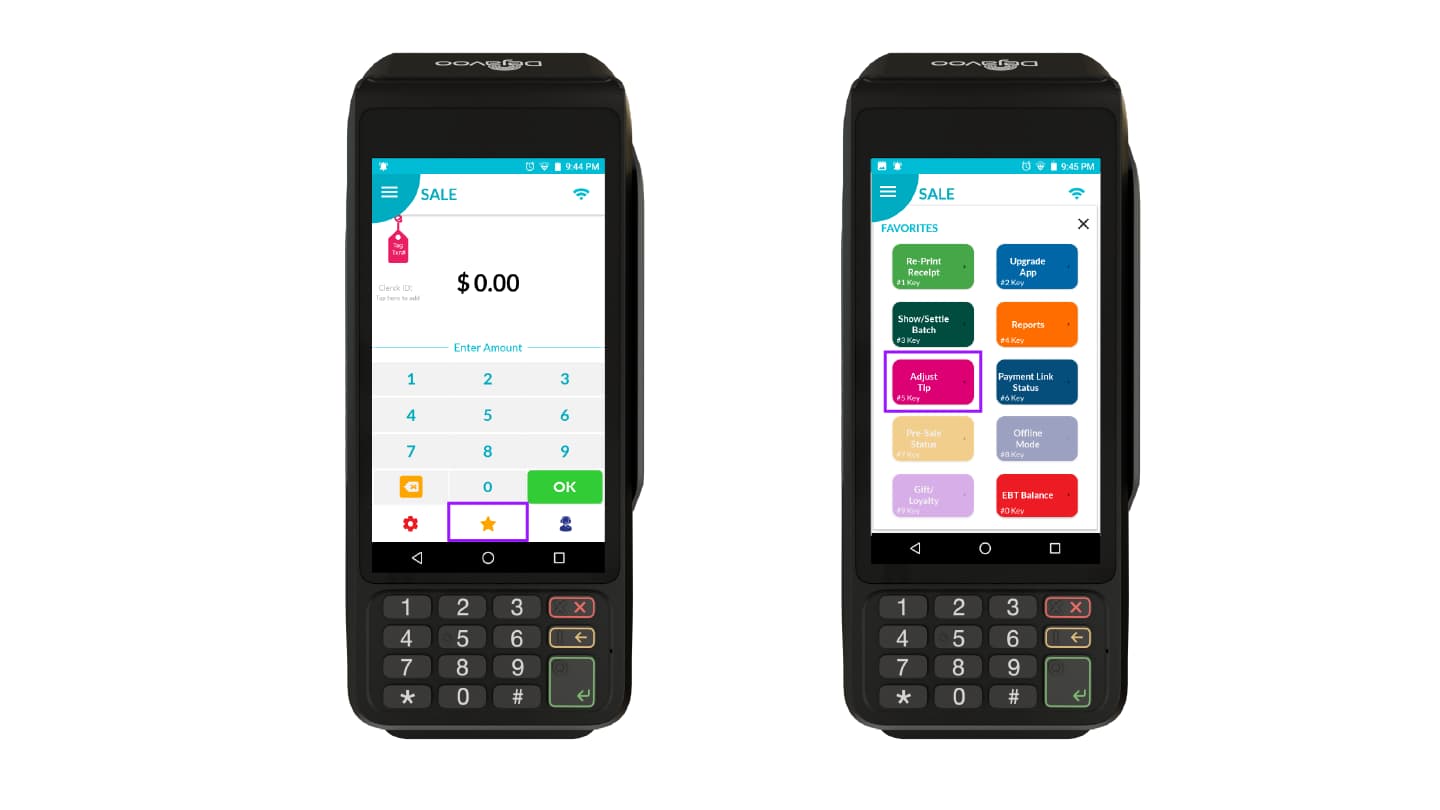
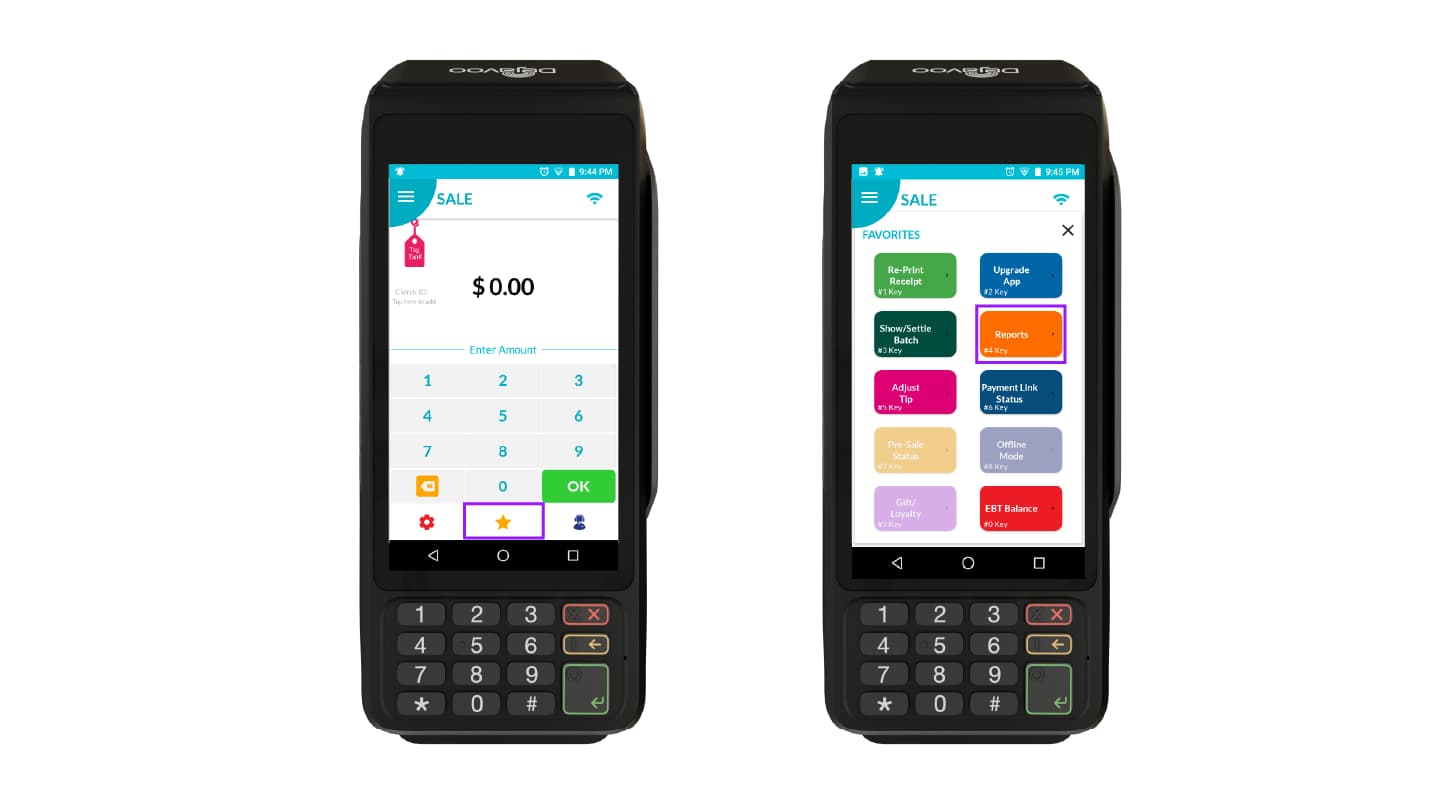
- From the terminal Home Screen
- Tap the Star (★) icon to open Favorites
- Select Adjust Tip
Step 2: View and Adjust Tips
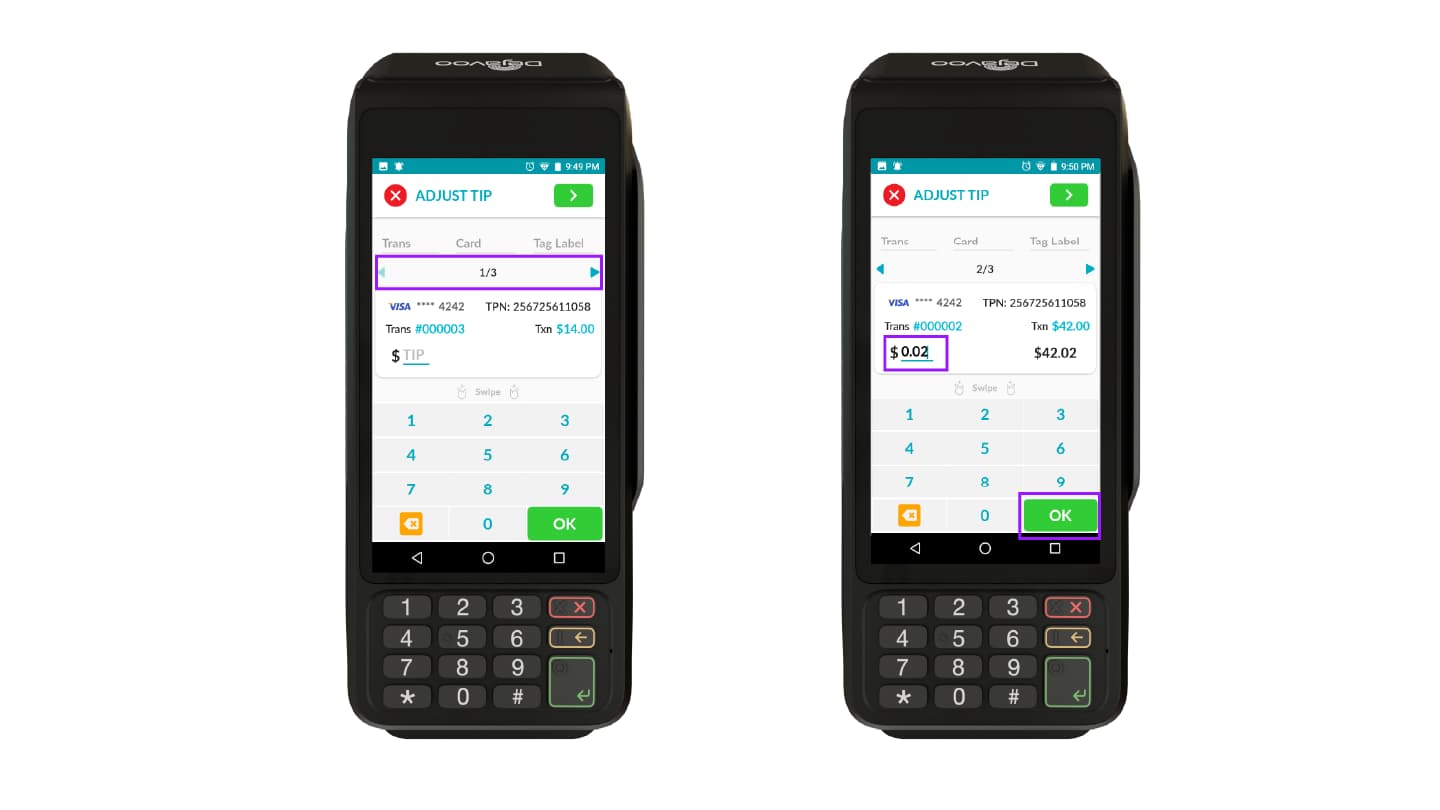
- Swipe to view transactions from:
- The configured TPN
- Other TPNs within the same store (if the store has multiple TPNs)
- Select a transaction
- Enter the tip amount
- Tap OK to proceed to the Tip Summary screen
Step 3: Review and Process
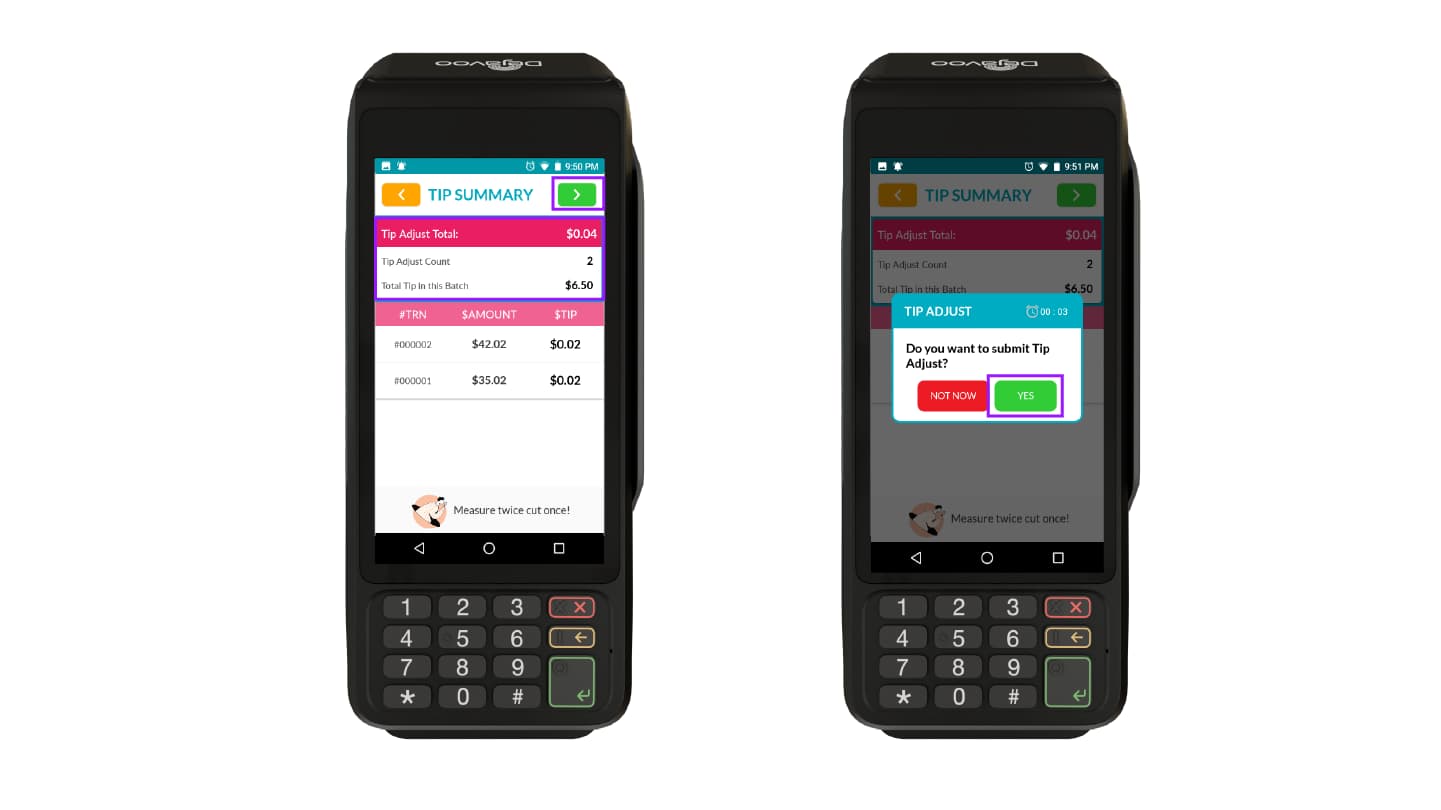
- View the Tip Summary
- Tap the green arrow button in the top-right corner of the screen to continue
- A confirmation dialog box appears. Tap Yes to proceed
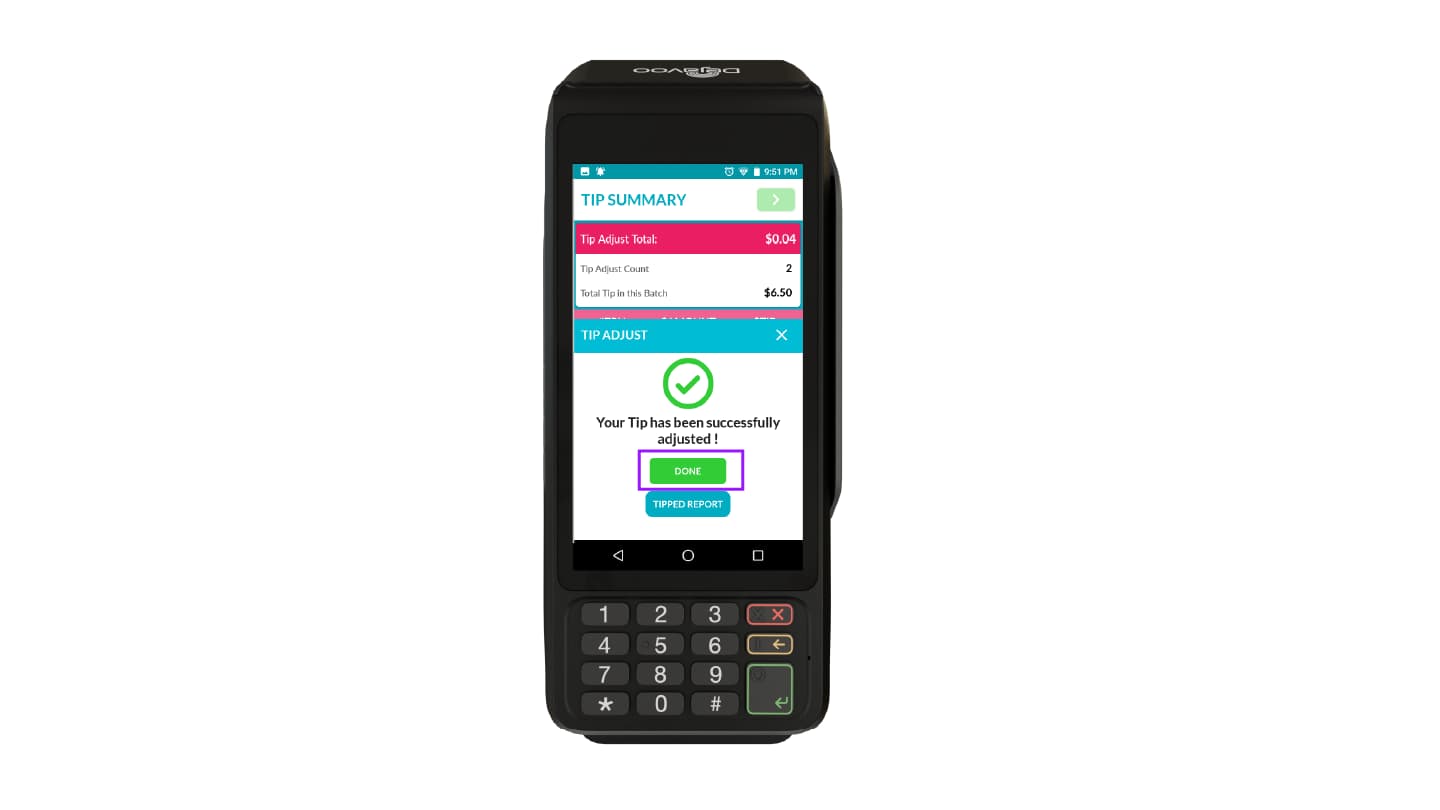
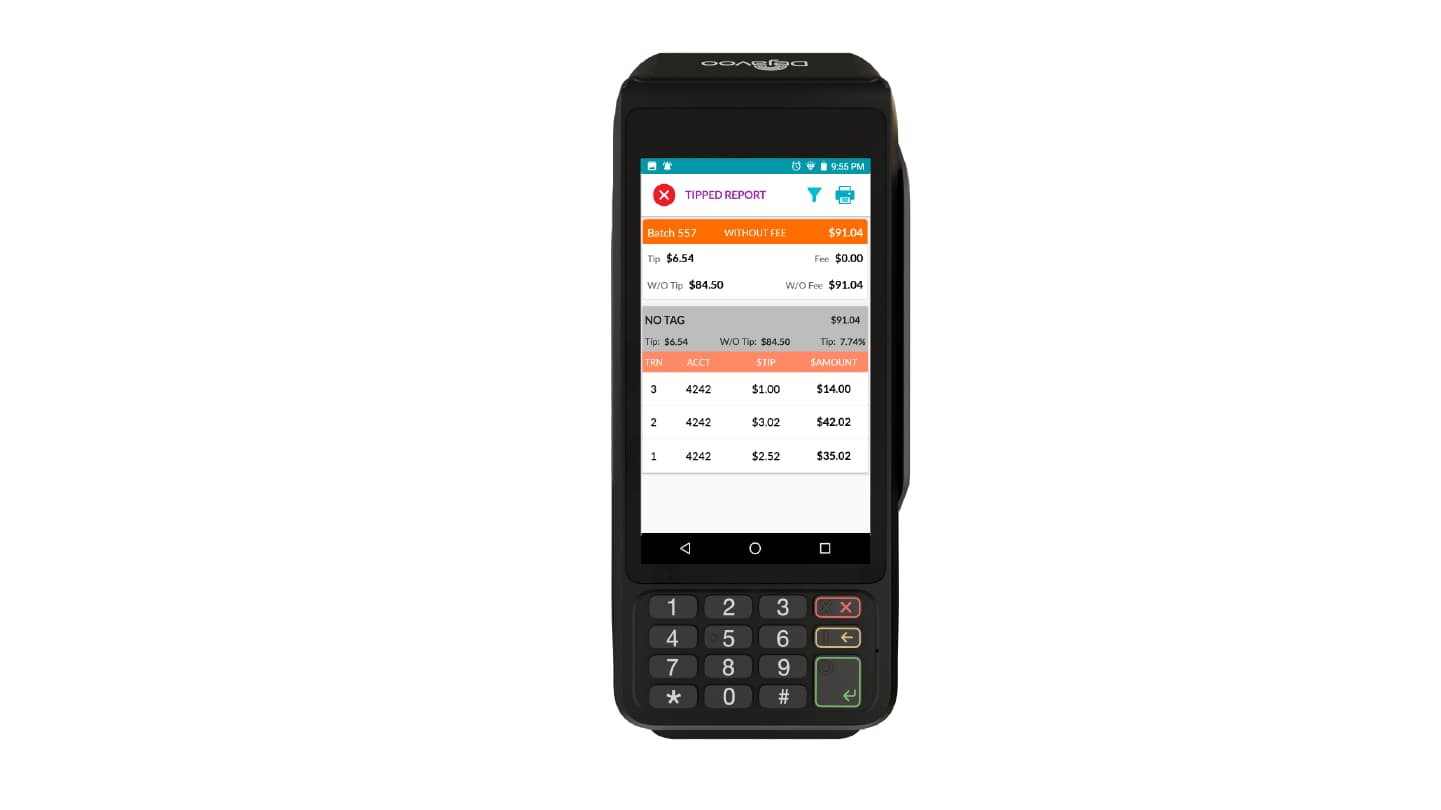
- A success notification appears. Tap Done to continue or Tipped Report to view the report screen
Access and Generate Reports
- Tap Favorites and select Reports
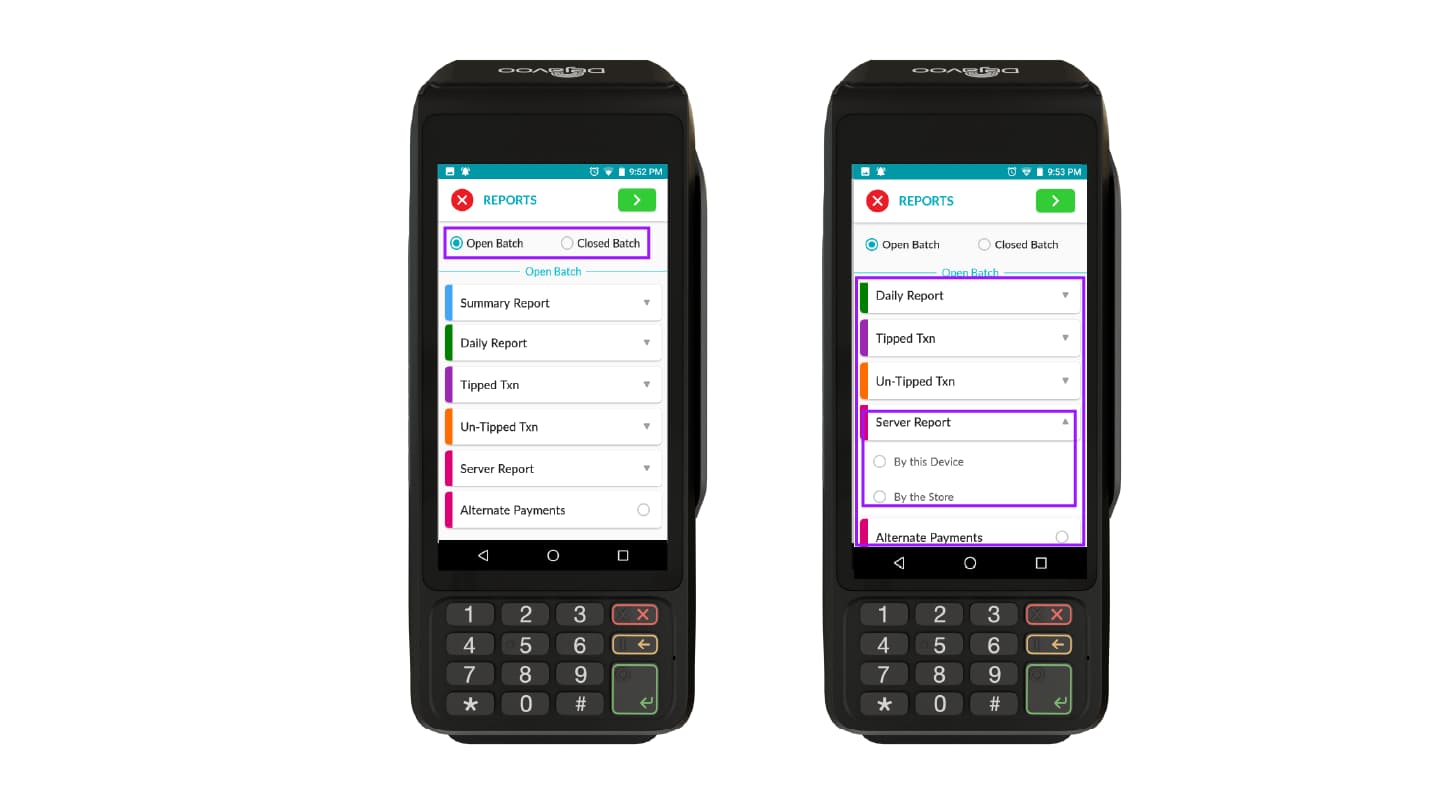
- Choose Open Batch or Closed Batch, as required
- Select the Report type you want to view:
- Summary Report
- Daily Report
- Tipped Transactions
- Un-Tipped Transactions
- Server Report
- Alternate Payments
- Configure any available report options, such as By this Device or By the Store (if applicable)
- Tap the green arrow button in the top-right corner of the screen to generate the report
Tip Adjustment on CloudPOS
Merchants using CloudPOS can adjust tips either per transaction (TPN-level) or by store, depending on the option selected under Tip Management.
Tip adjustments can only be performed on open batches. Once a batch is closed, tip adjustments cannot be made.
Step 1: Log In
Log in to the iPOSpays Portal using a Merchant account.
Step 2: Open Batch
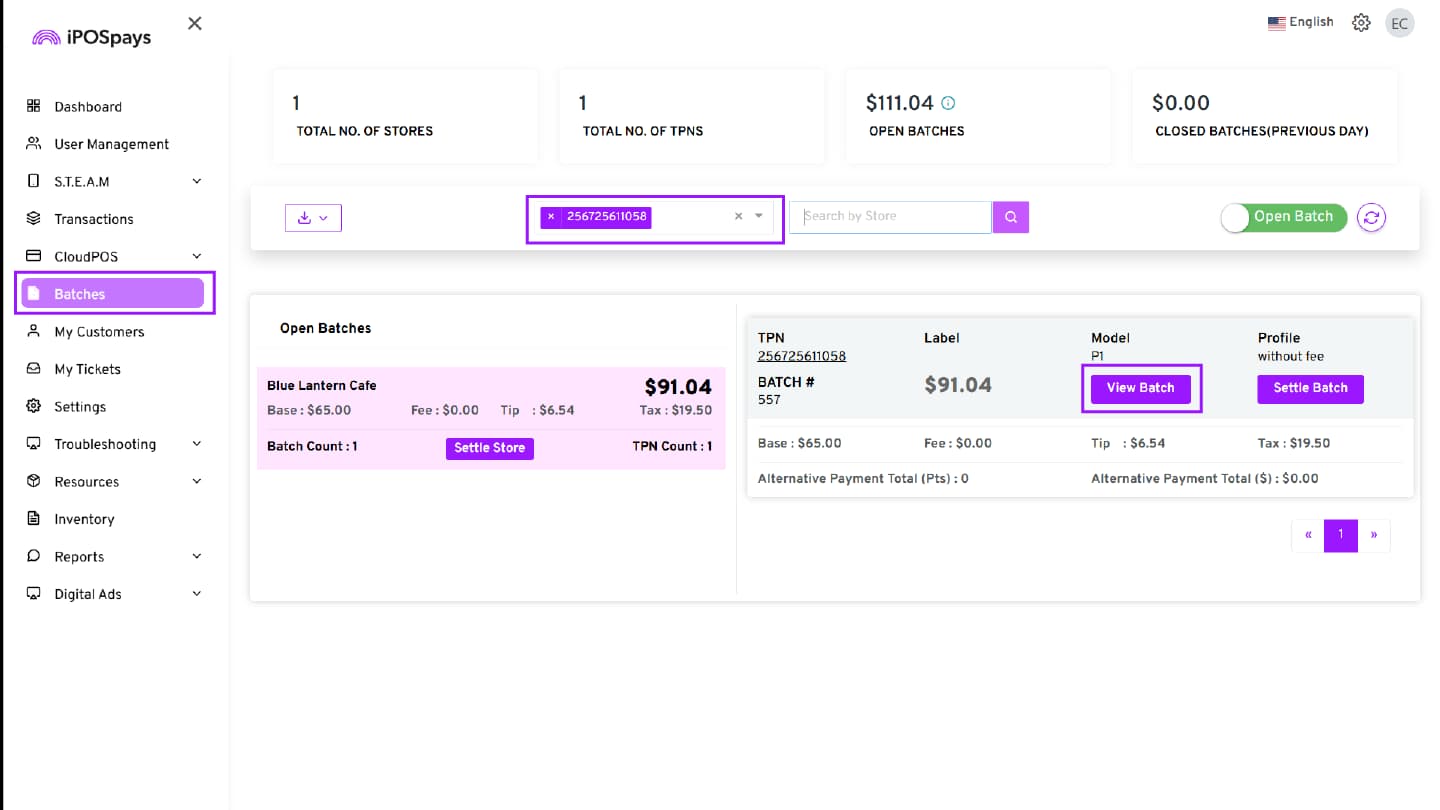
- Navigate to Batches from the left menu
- Search and select the required TPN, or select the required Store using the search box
- Open an Open Batch
- Choose the required TPN (Terminal Payment Number) if multiple TPNs are available for the selected store
- On the right-hand side of the batch details, click View Batch
Step 3: Open Tip Management
- The Batch Details screen opens, displaying the transaction summary and payment details
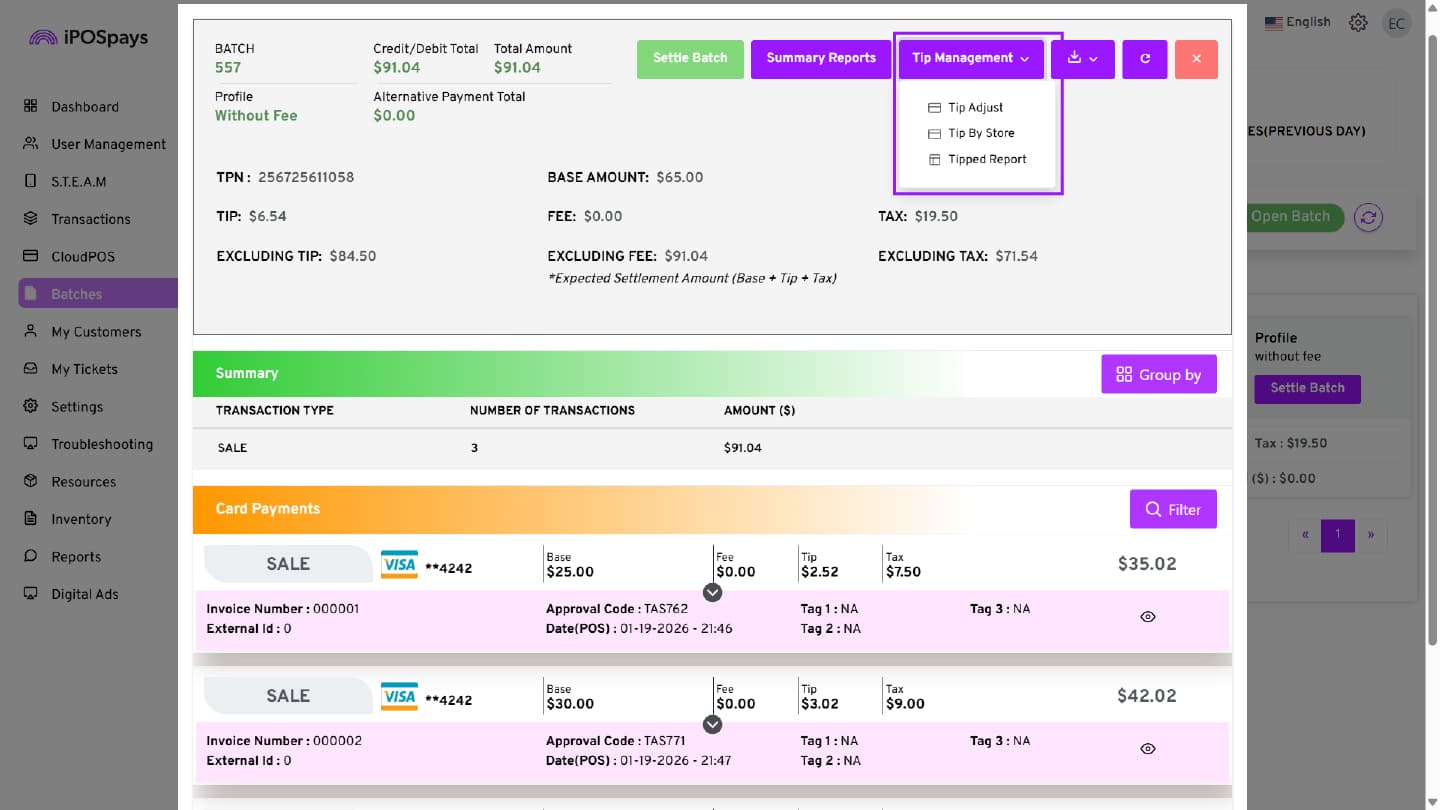
- Click the Tip Management drop-down in the top-right corner of the Batch screen
- Select one of the following options:
- Tip Adjust – Adjust tips for transactions from the selected TPN only
- Tip By Store – View and adjust tips for all TPNs within the same store
- Tipped Report – View a report of all tipped transactions
Step 4: Adjust Tip Amount
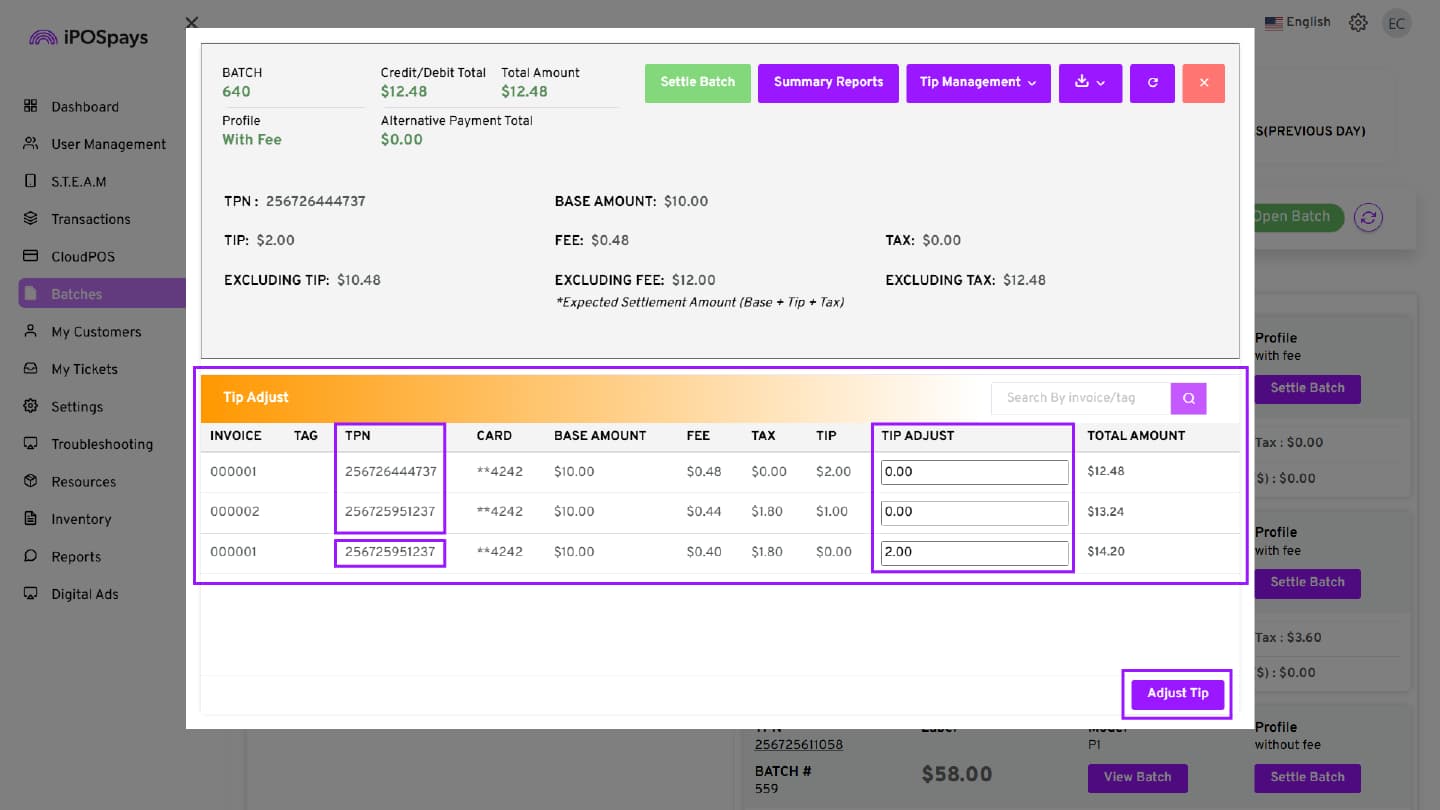
- Select Tip Adjust
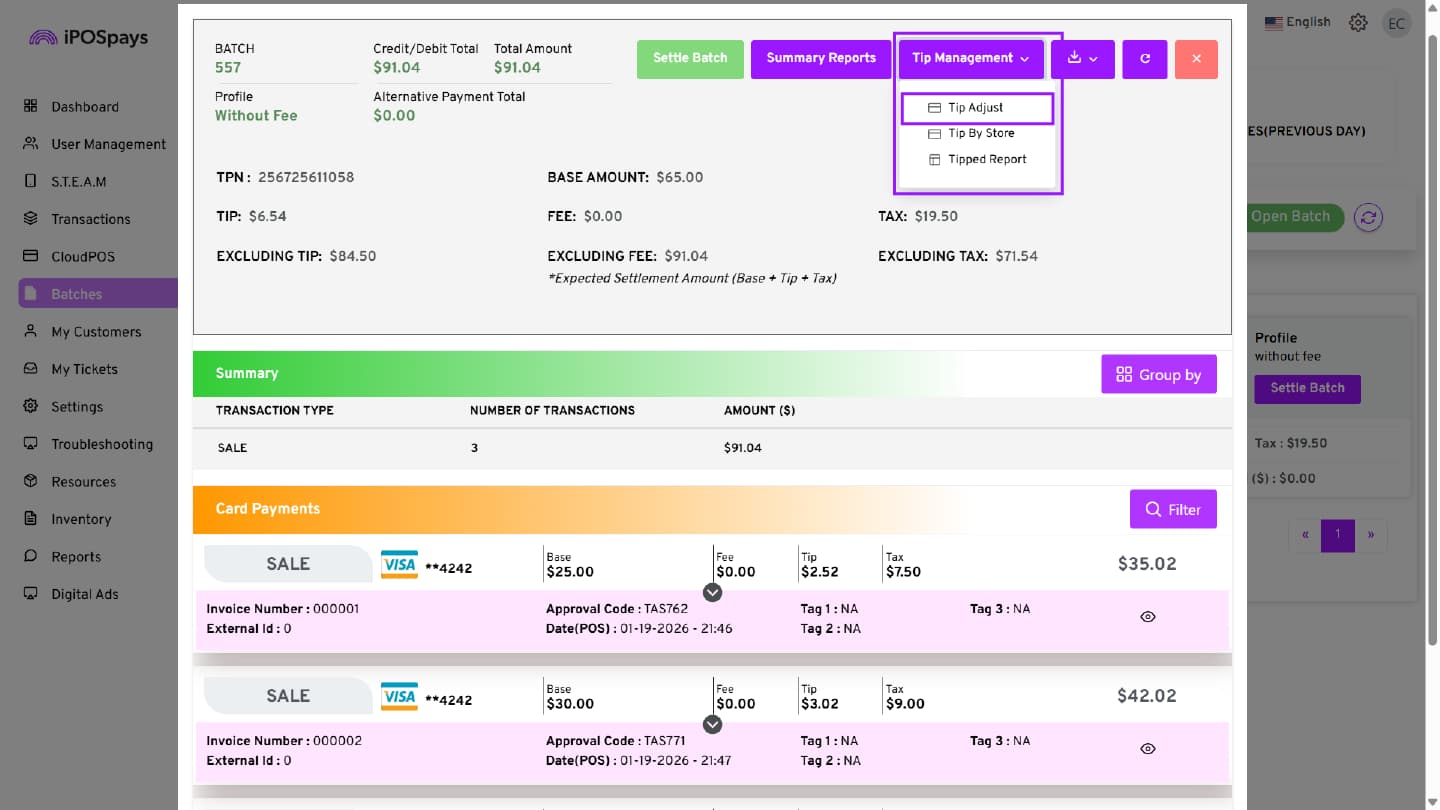
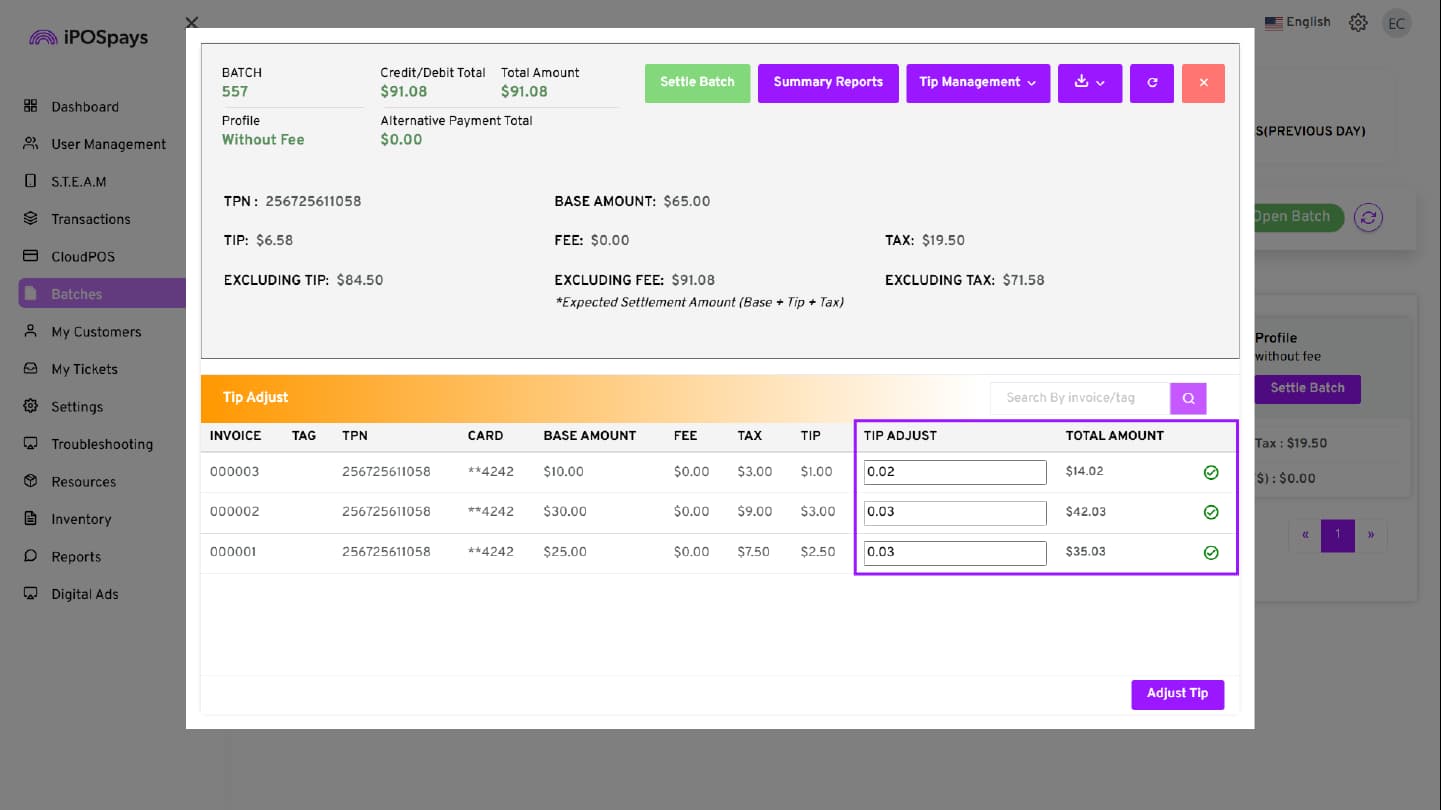
- In the Tip Adjust screen, locate the transaction
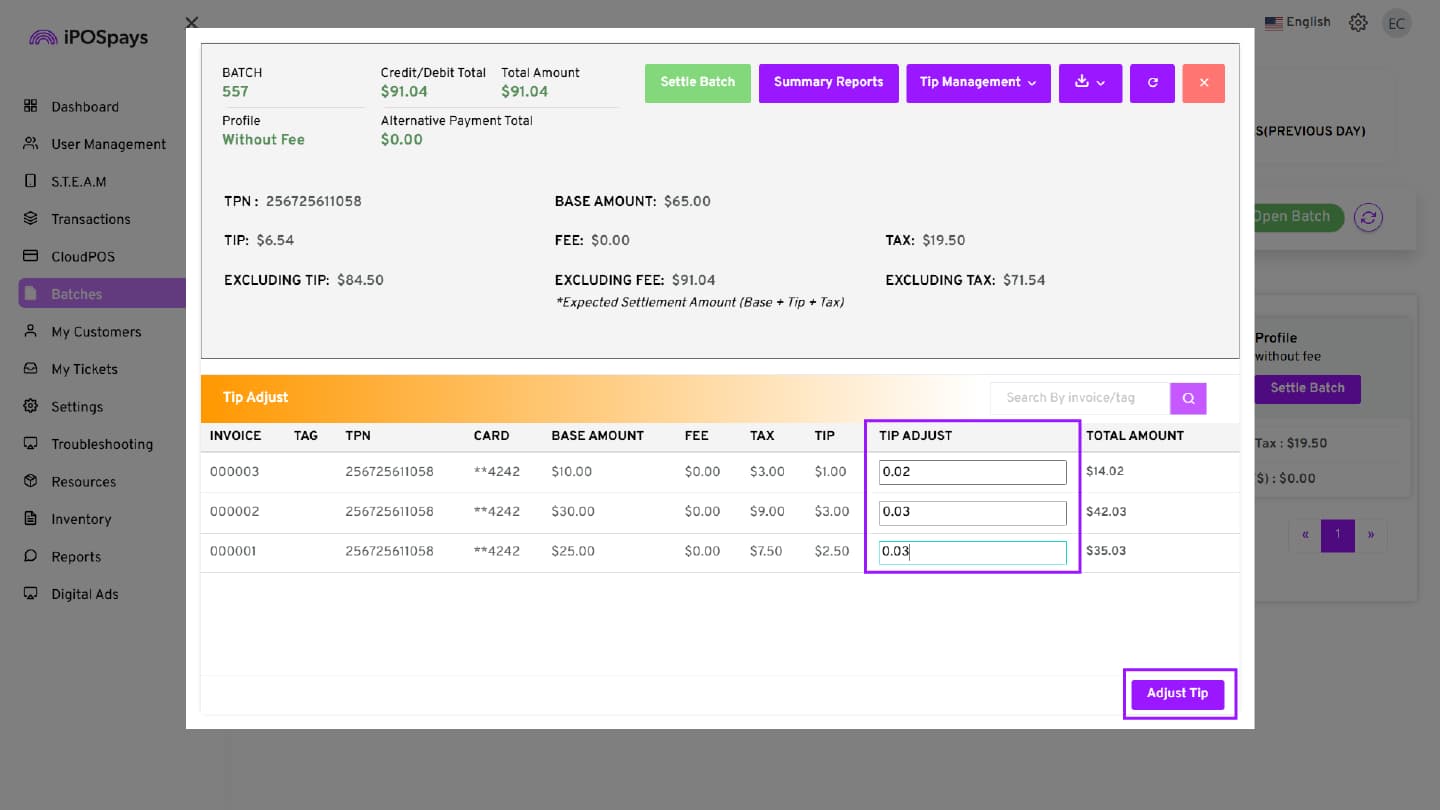
- Enter the desired value in the Tip Adjust field
- The Total Amount updates dynamically based on the entered tip value
- Review the updated total to ensure accuracy
- Click Adjust Tip
- A confirmation message is displayed, indicating that the tip has been successfully updated
Step 5: Adjust Tip By Store
Use this option to adjust tips for transactions across all TPNs under the same store.
- Click Tip By Store
- All transactions for TPNs within the same store with Tip enabled will be displayed
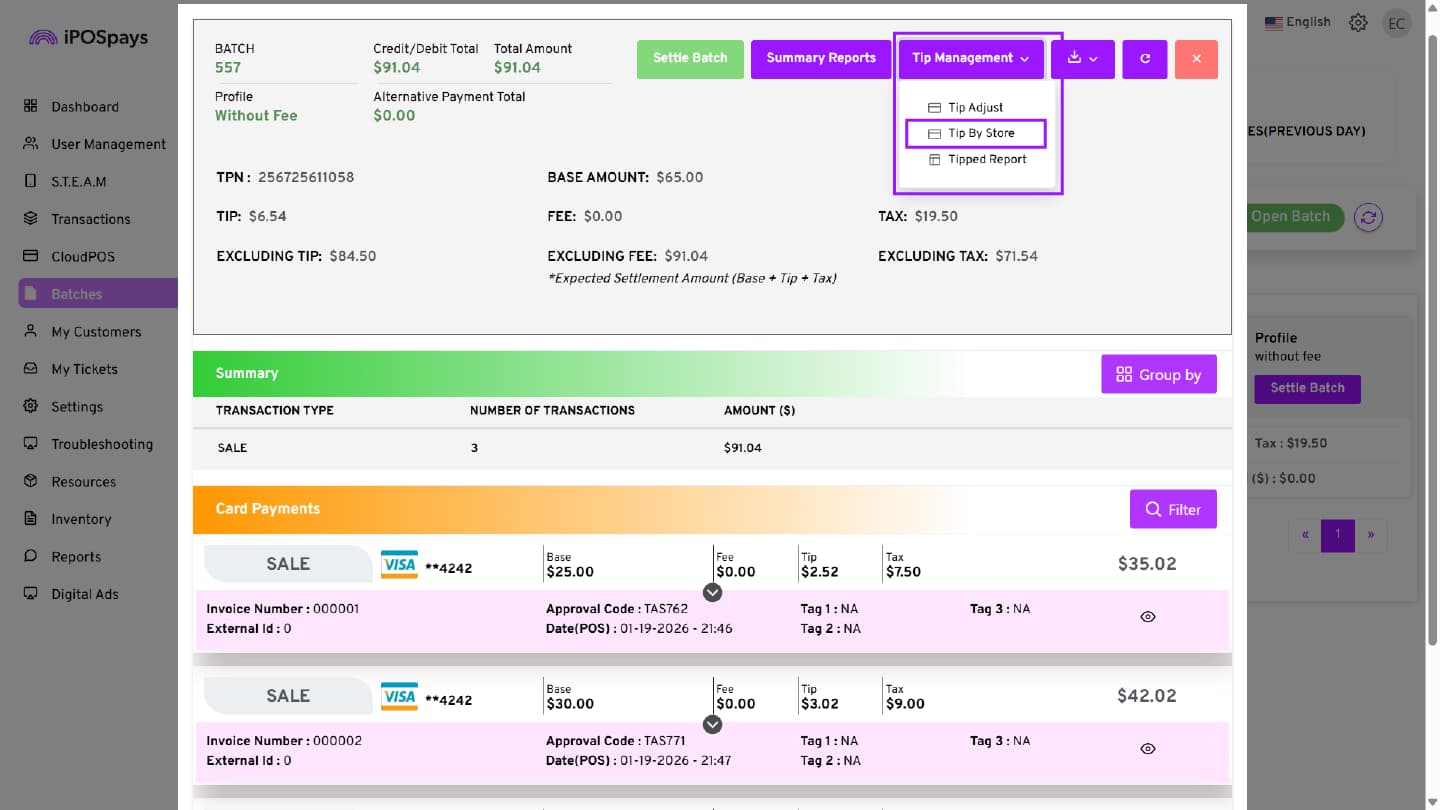
- In the Tip Adjust screen, locate the required transaction. All TPNs assigned under the same store are displayed
- Enter the desired value in the Tip Adjust field
- The Total Amount updates dynamically based on the entered tip value
- Review the updated total to ensure accuracy
- Click Adjust Tip
- A confirmation message is displayed, indicating that the tip has been successfully updated
Step 6: View Tipped Report
- Select Tipped Report
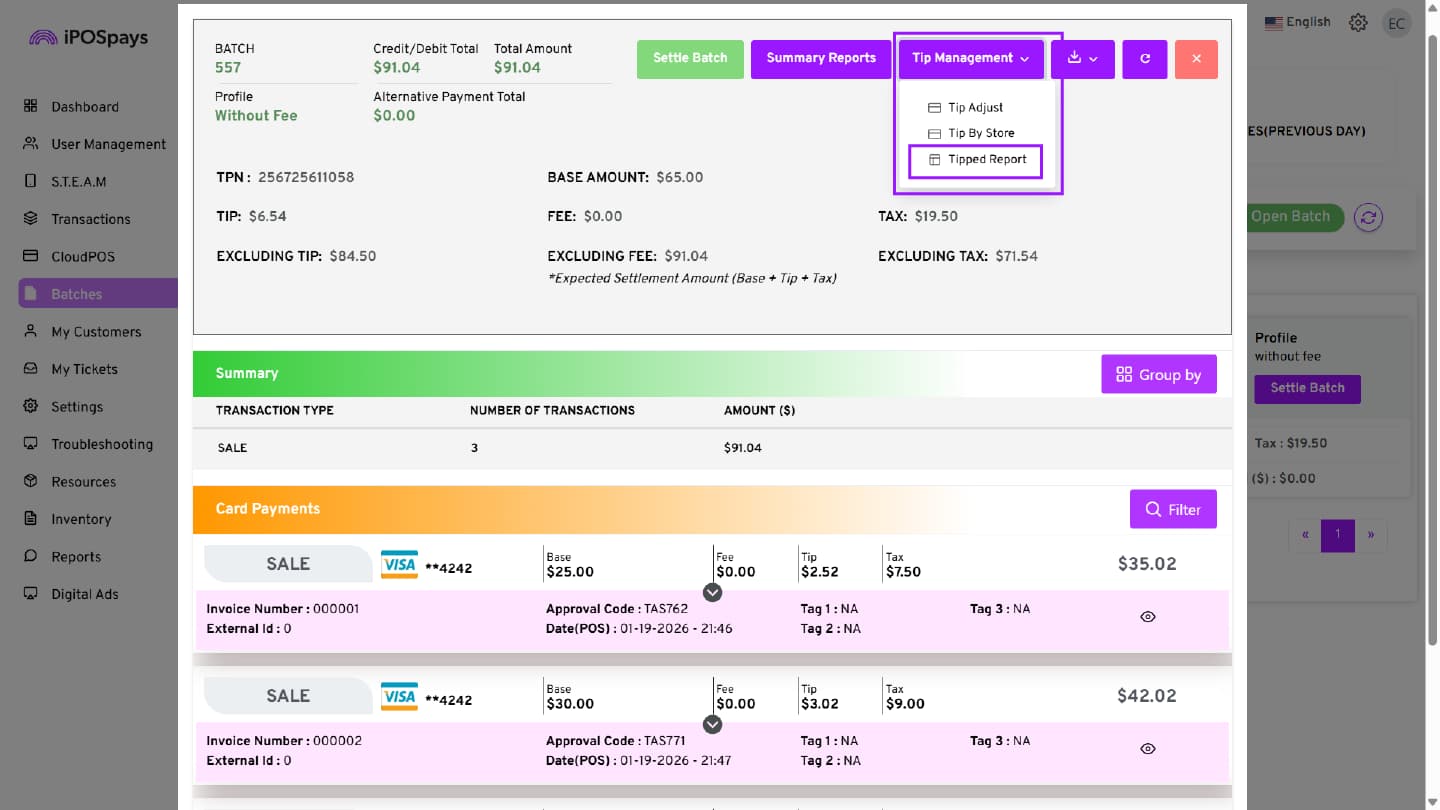
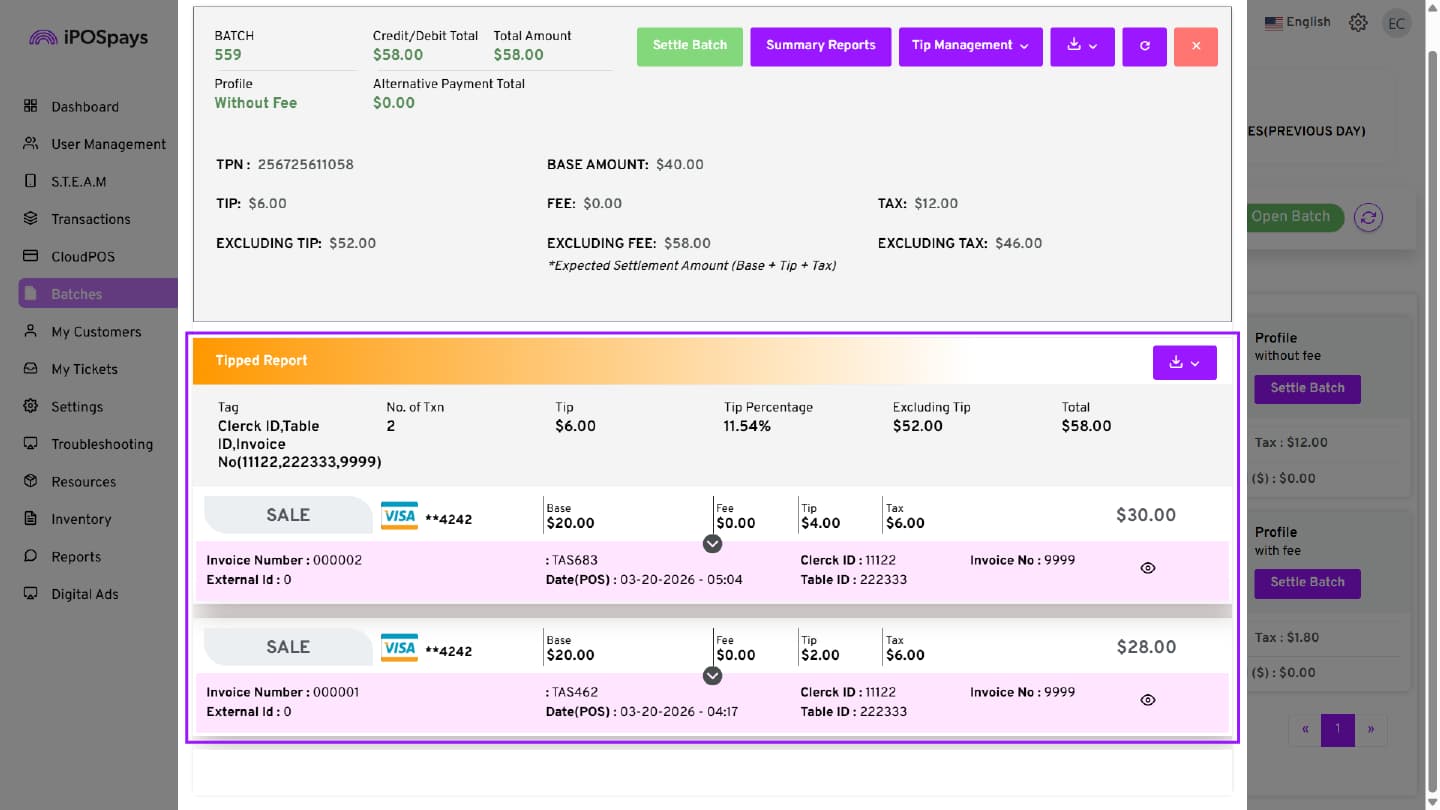
- The Tipped Report screen displays all tip-adjusted transactions
- Review the details as required
Tip Adjustment for GHPP Transactions
For transactions processed through GHPP, tip adjustments are handled using Additional Auth after batch settlement.
Refer to the More Options in GHPP Transactions section in the Generate Payment Form on iPOSpays document for detailed information.
Tip Adjustment on iPOSgo! (Android)
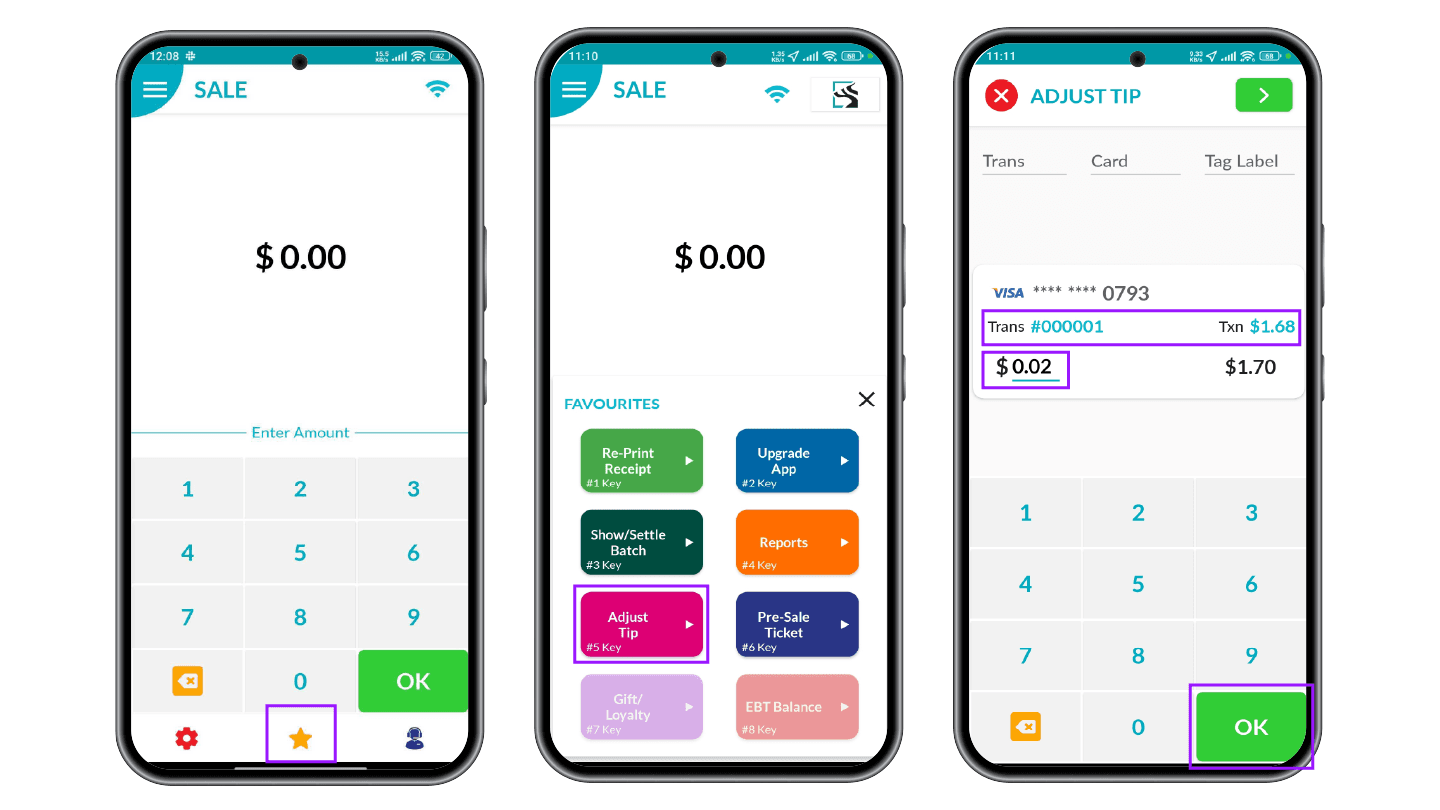
Step 1: Access Tip Adjustment
- From the Home Screen, tap the Star (★) icon to open Favorites
- Select Adjust Tip
Step 2: View and Adjust Tips
- Select the required transaction
- Enter the tip amount you want to adjust
- Tap OK to proceed to the Tip Summary screen
Step 3: Review and Process
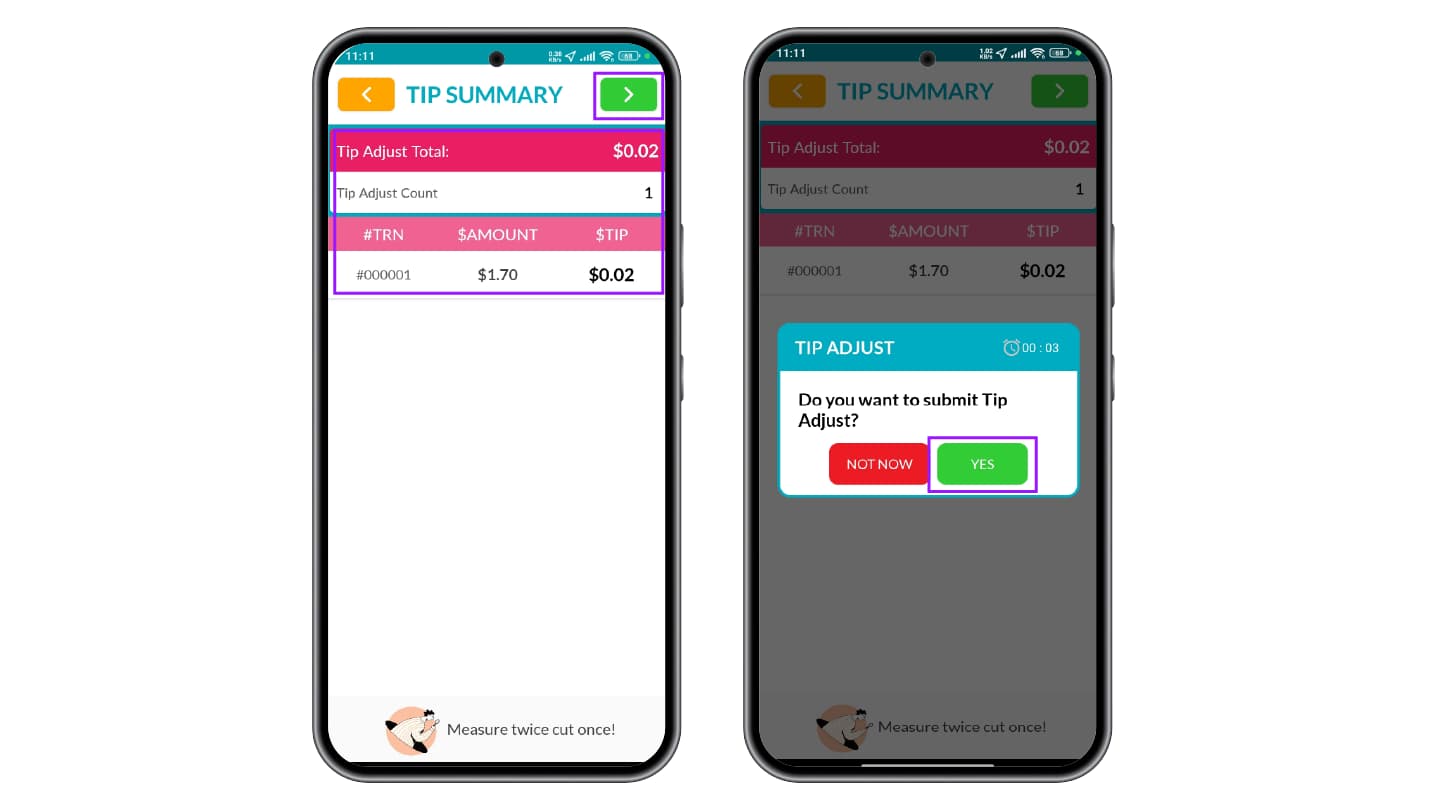
- Review the Tip Summary
- Tap the green arrow button in the top-right corner of the screen to continue
- In the confirmation dialog box, tap Yes to proceed
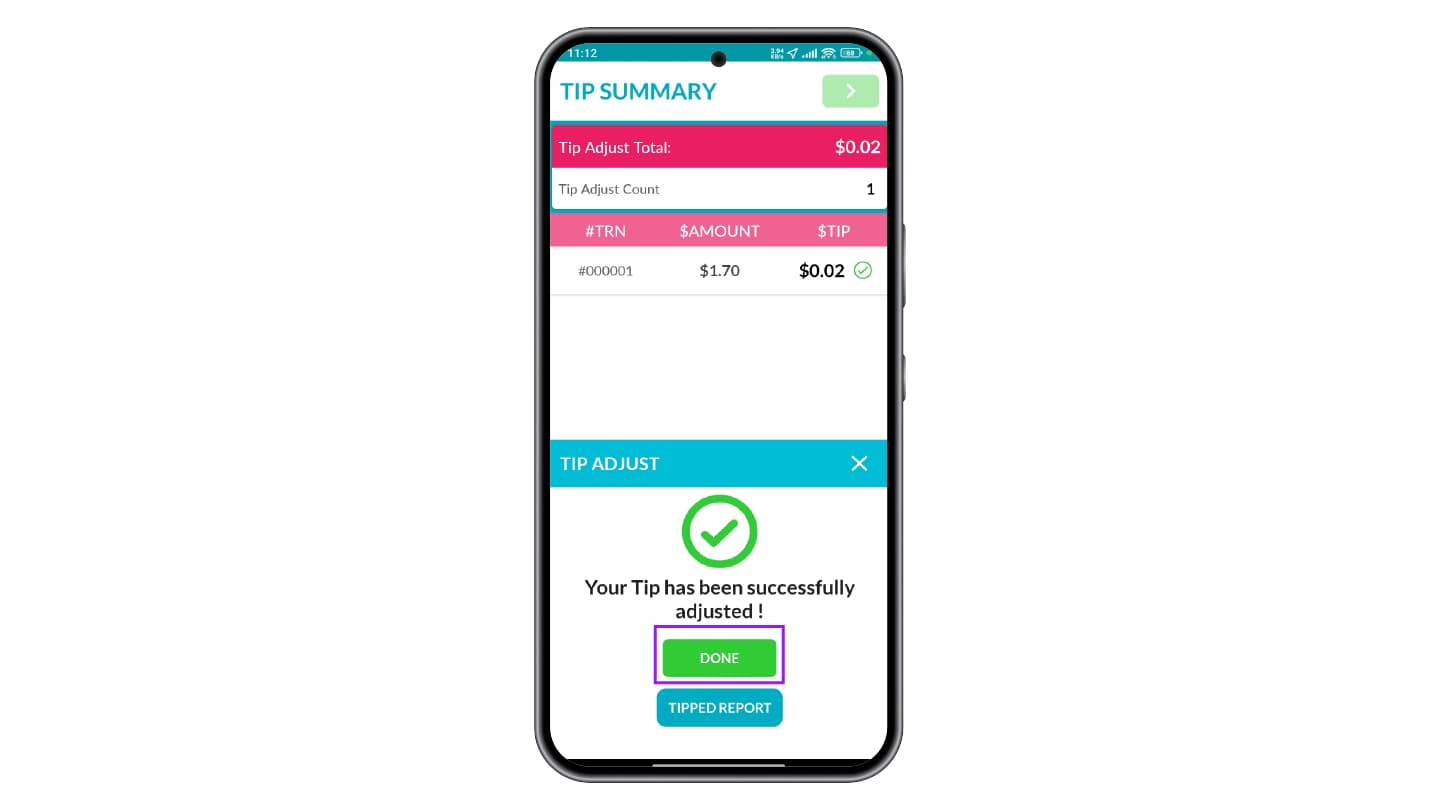
- A success notification is displayed. Tap Done to continue or Tipped Report to view the report screen
Access and Generate Reports
- Tap Favorites and select Reports
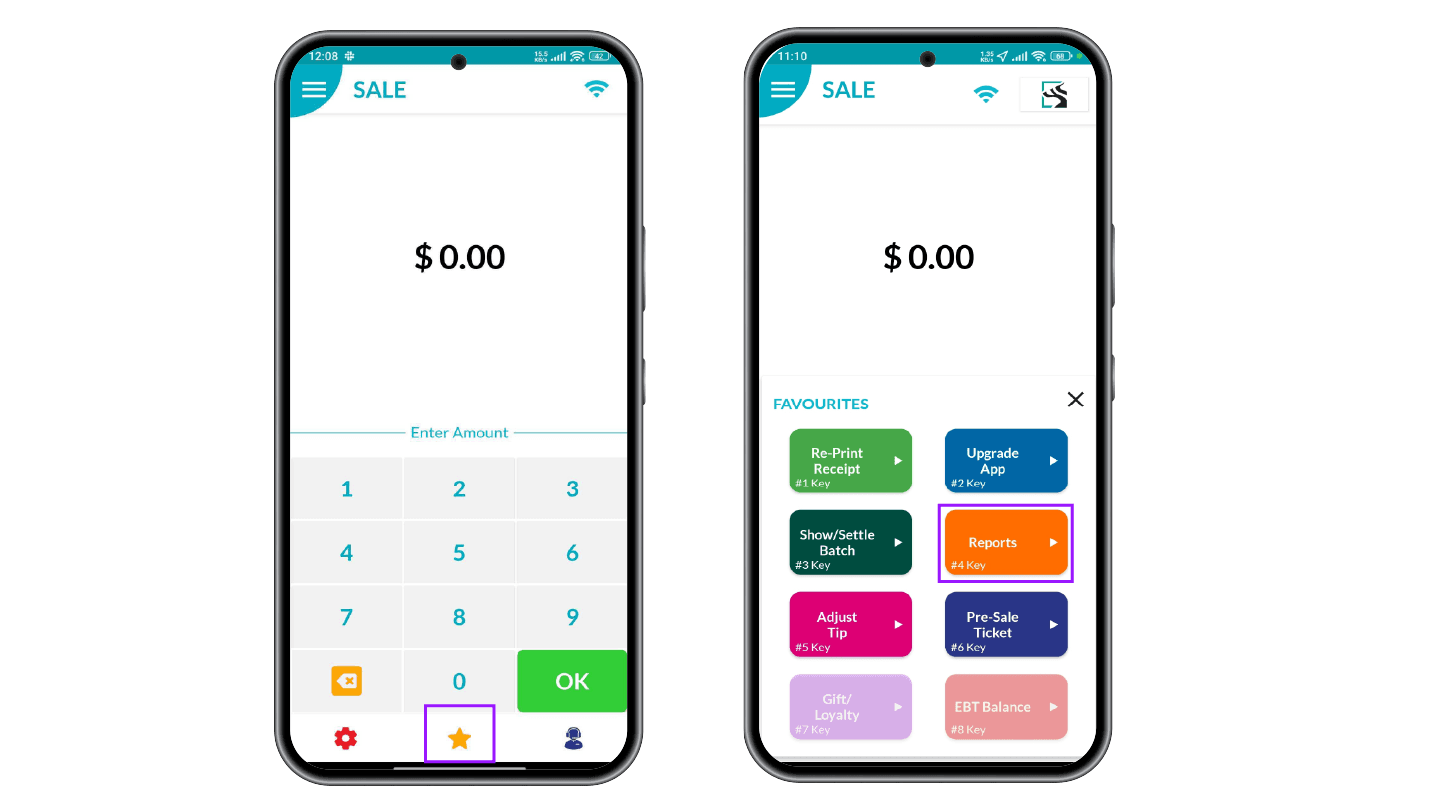
- Choose Open Batch or Closed Batch, as required
- Select the report type:
- Summary Report
- Daily Report
- Tipped Transactions
- Un-Tipped Transactions
- Server Report
- Alternate Payments
- Configure available report options (such as By this Device or By the Store, if applicable)
- Tap the NEXT button to generate the report
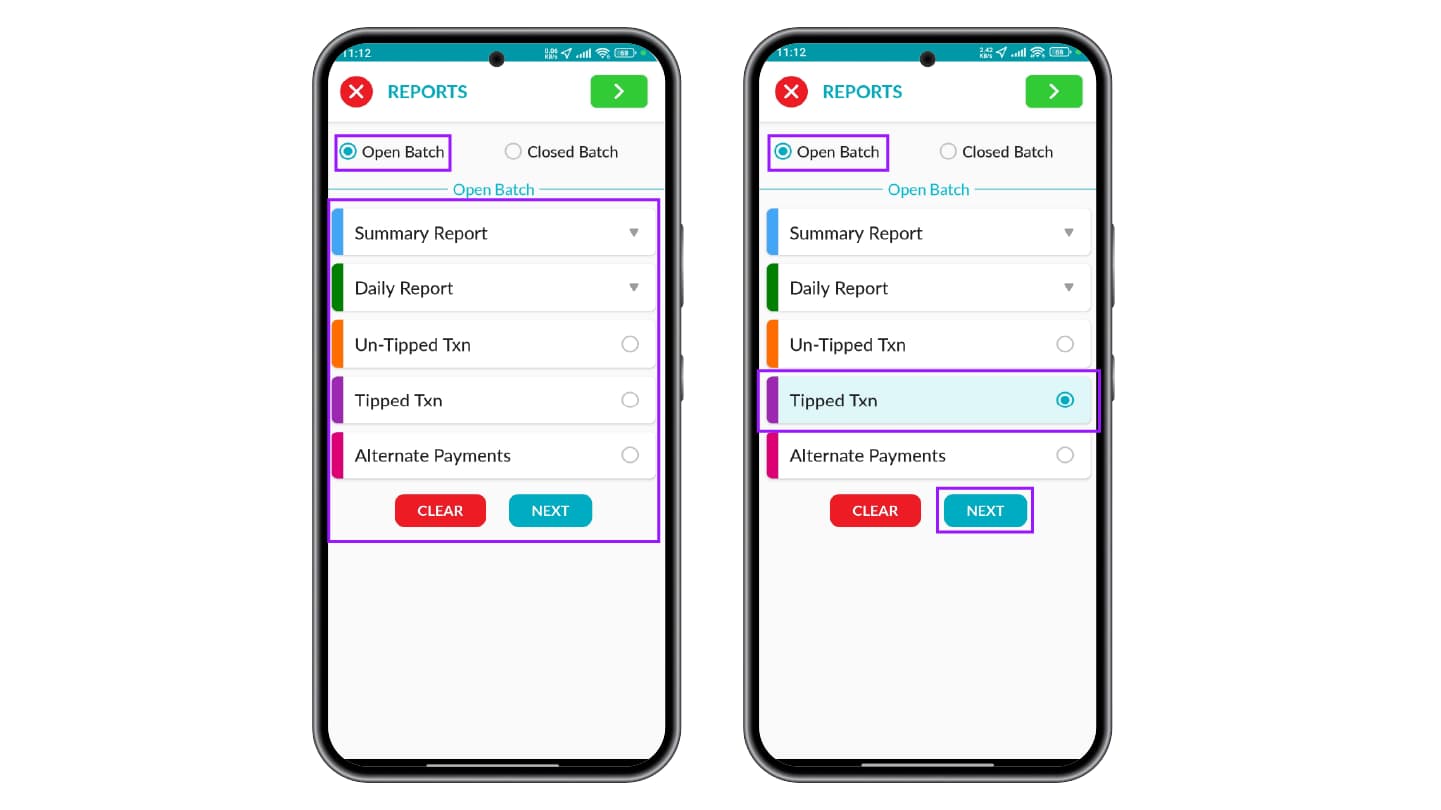
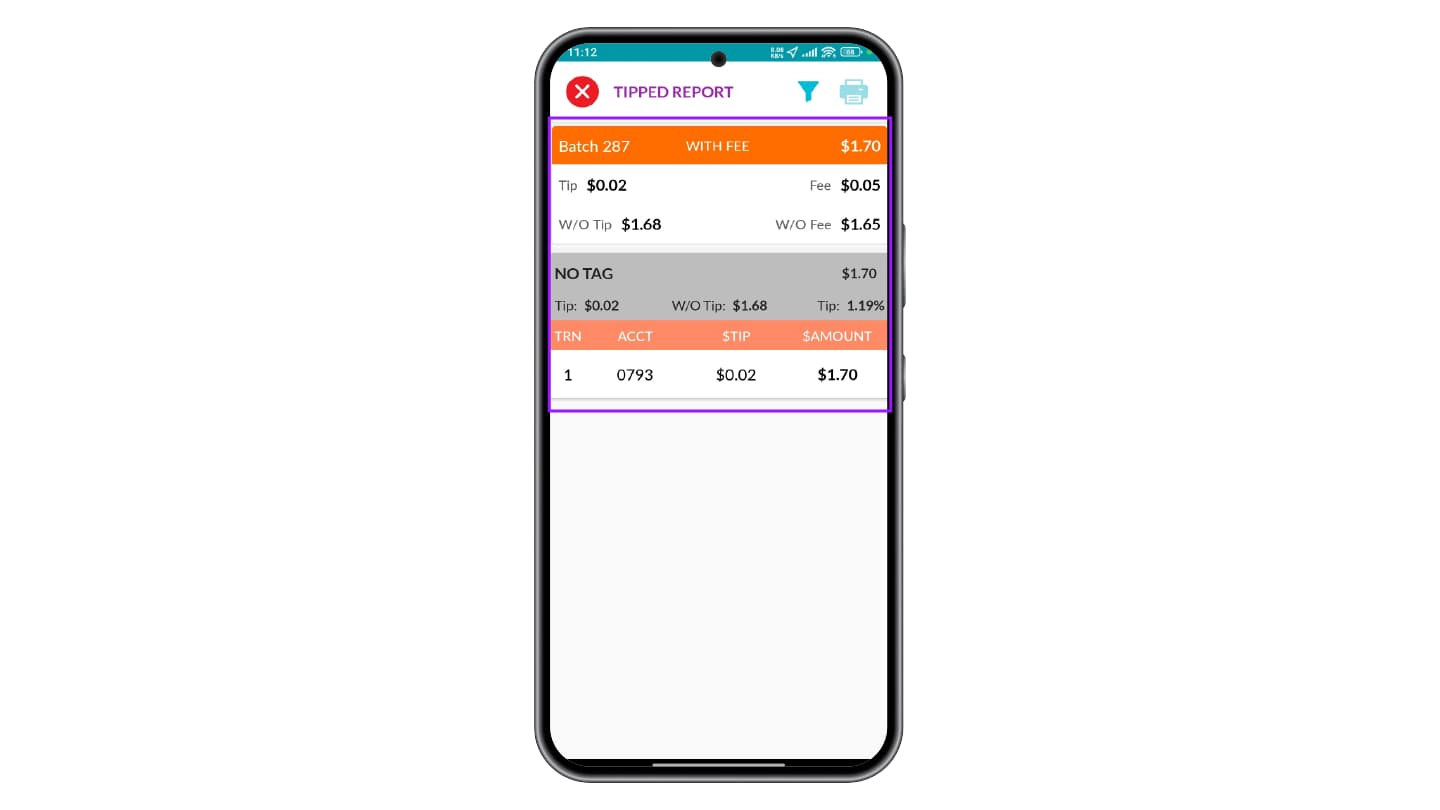
In iPOSgo! (Android), tip adjustments can only be performed on open batches. Once a batch is closed, tip adjustments cannot be made.