How to Configure Card Types and Related Settings for Your Merchants’ TPNs
iPOSpays allows ISOs to configure the payment types and related transaction settings available on their merchants’ TPNs. These settings control which payment types the TPN can accept, including Credit, Debit, EBT, Cash, Gift, Prepaid, and ACH.
This document explains how to configure these payment types and related settings for your merchants’ TPNs in the iPOSpays portal.
Feature Compatibility
- Supported Platforms:
- Payment Terminals (POS)
- CloudPOS
- iPOSgo!
Access the Card Type Settings
- Log in to the iPOSpays portal using your ISO credentials.
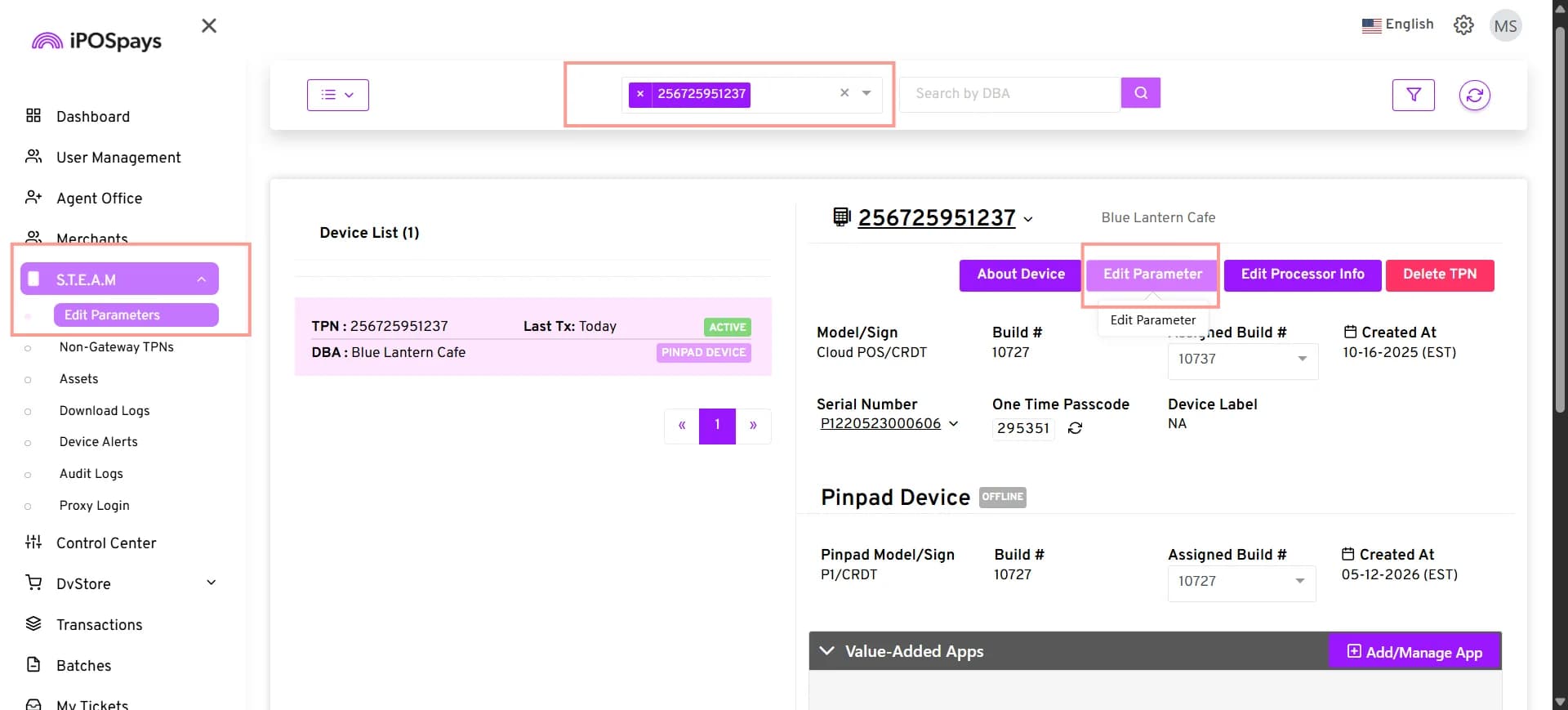
- Go to S.T.E.A.M → Edit Parameters.
- Search for and select the required merchant TPN.
- Click Edit Parameters.
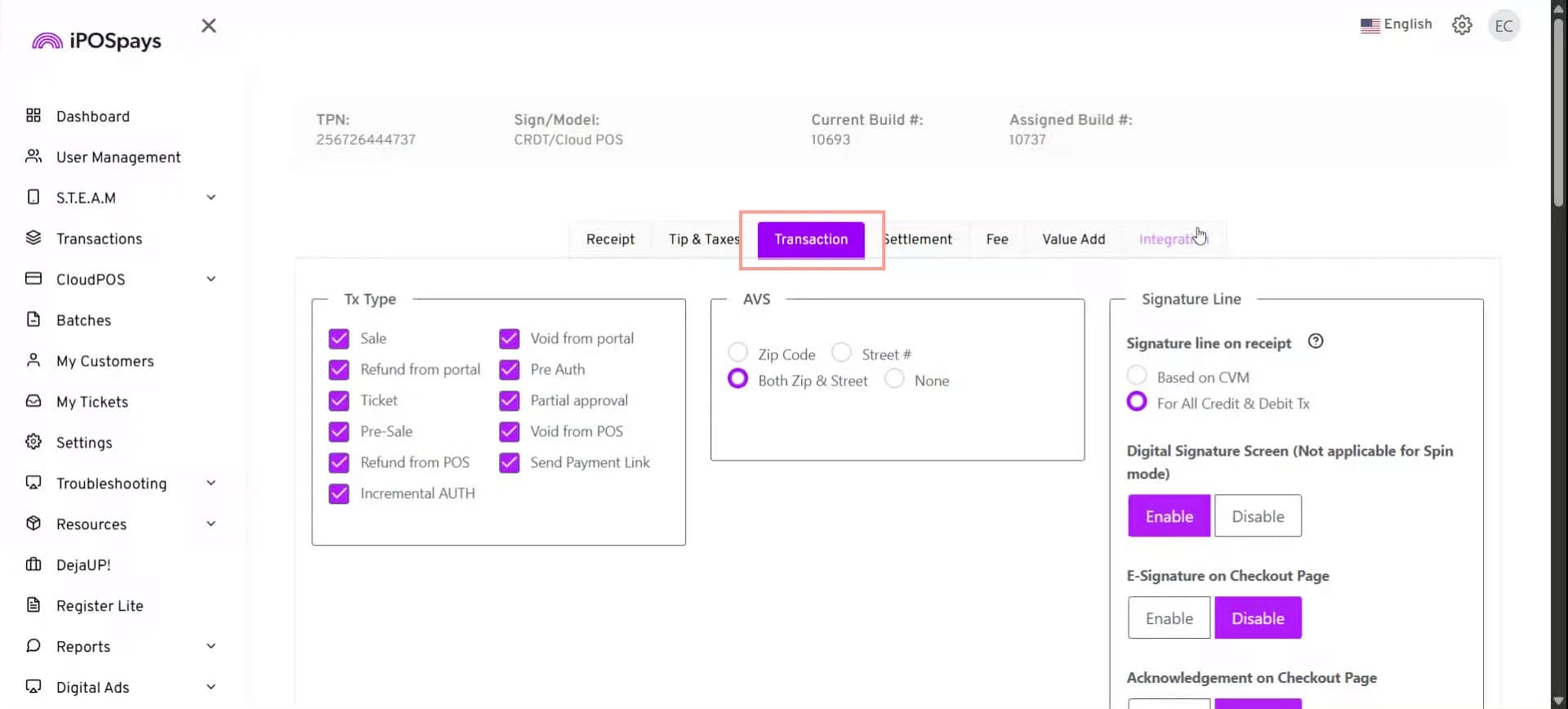
- Go to the Transaction tab.
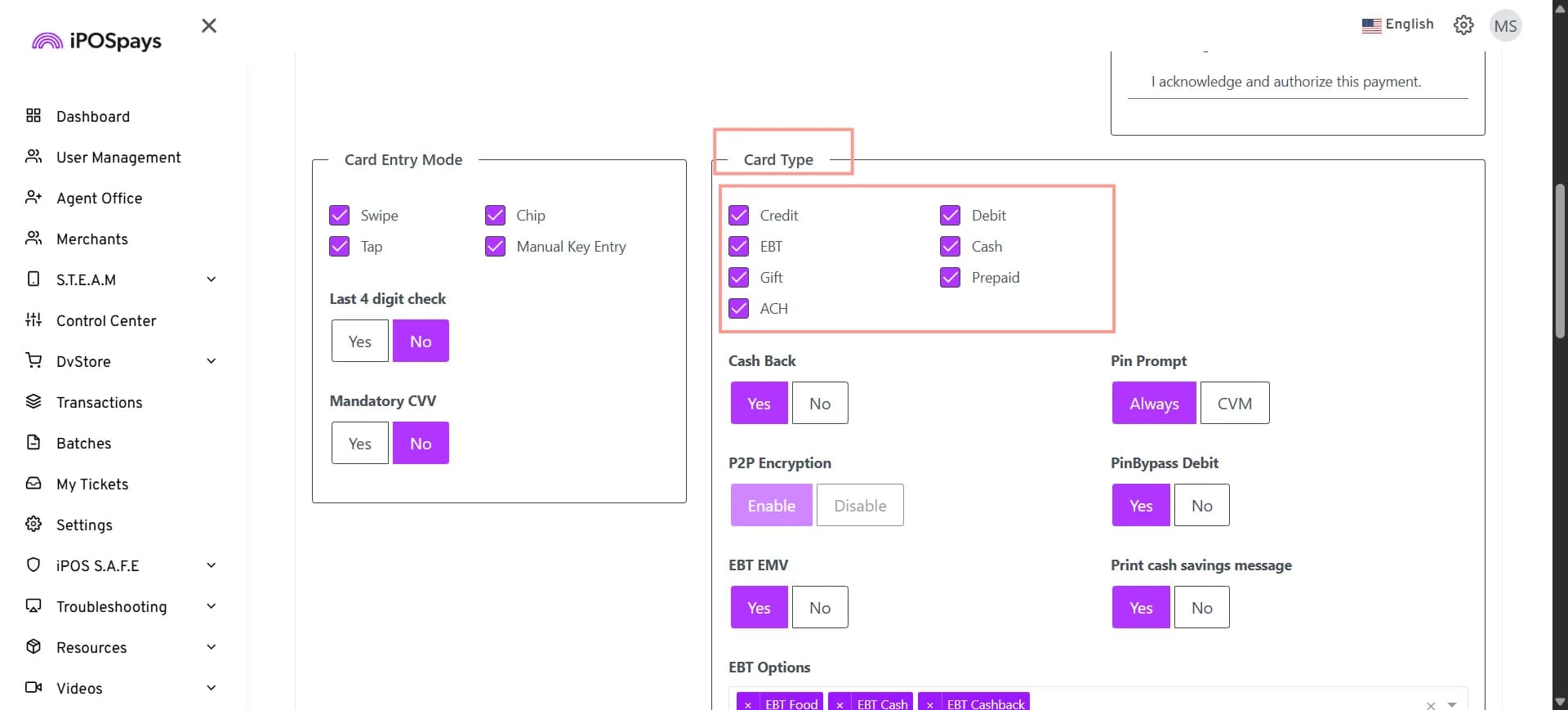
- Scroll down to the Card Type section.
Configure Card Types
Under Card Type, select the payment types that the merchant needs to accept.
- Credit – Select Credit to enable credit card transactions for the TPN.
- Debit – Select Debit to enable debit card transactions for the TPN.
- EBT – Select EBT to enable Electronic Benefit Transfer transactions for the TPN. When EBT is enabled, additional EBT settings become available.
- Cash – Select Cash to enable cash as a payment type.
- Gift – Select Gift to enable gift card transactions.
- Prepaid – Select Prepaid to enable prepaid card transactions.
- ACH – Select ACH to enable Automated Clearing House (ACH) transactions.
Configure Additional Card Type Settings
After selecting the required card types, configure the following settings based on the merchant’s requirements.
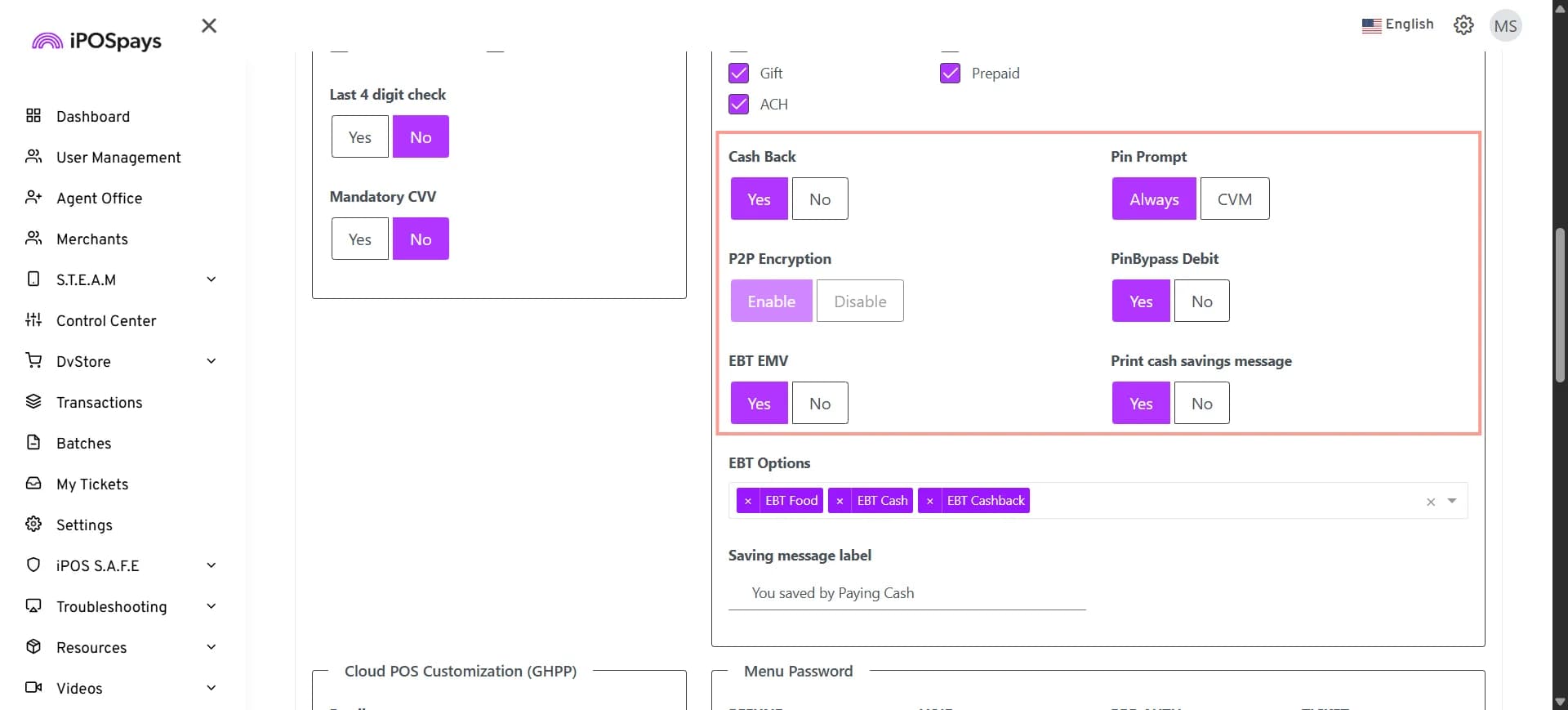
Cash Back
Under Cash Back:
- Select Yes to enable cash-back transactions.
- Select No to disable cash-back transactions.
PIN Prompt
Under PIN Prompt:
- Select Always to always prompt for PIN entry.
- Select CVM to use the card’s configured Cardholder Verification Method.
P2P Encryption
Under P2P Encryption:
- P2P Encryption is enabled by default.
- The ISO/Merchant cannot change or disable this setting.
PIN Bypass Debit
Under PIN Bypass Debit:
- Select Yes to allow PIN bypass for debit transactions.
- Select No to disable PIN bypass.
Configure EBT Settings
When EBT is enabled, configure the following EBT settings.
EBT EMV
Under EBT EMV:
- Select Yes to enable EMV processing for EBT transactions.
- Select No to disable EBT EMV.
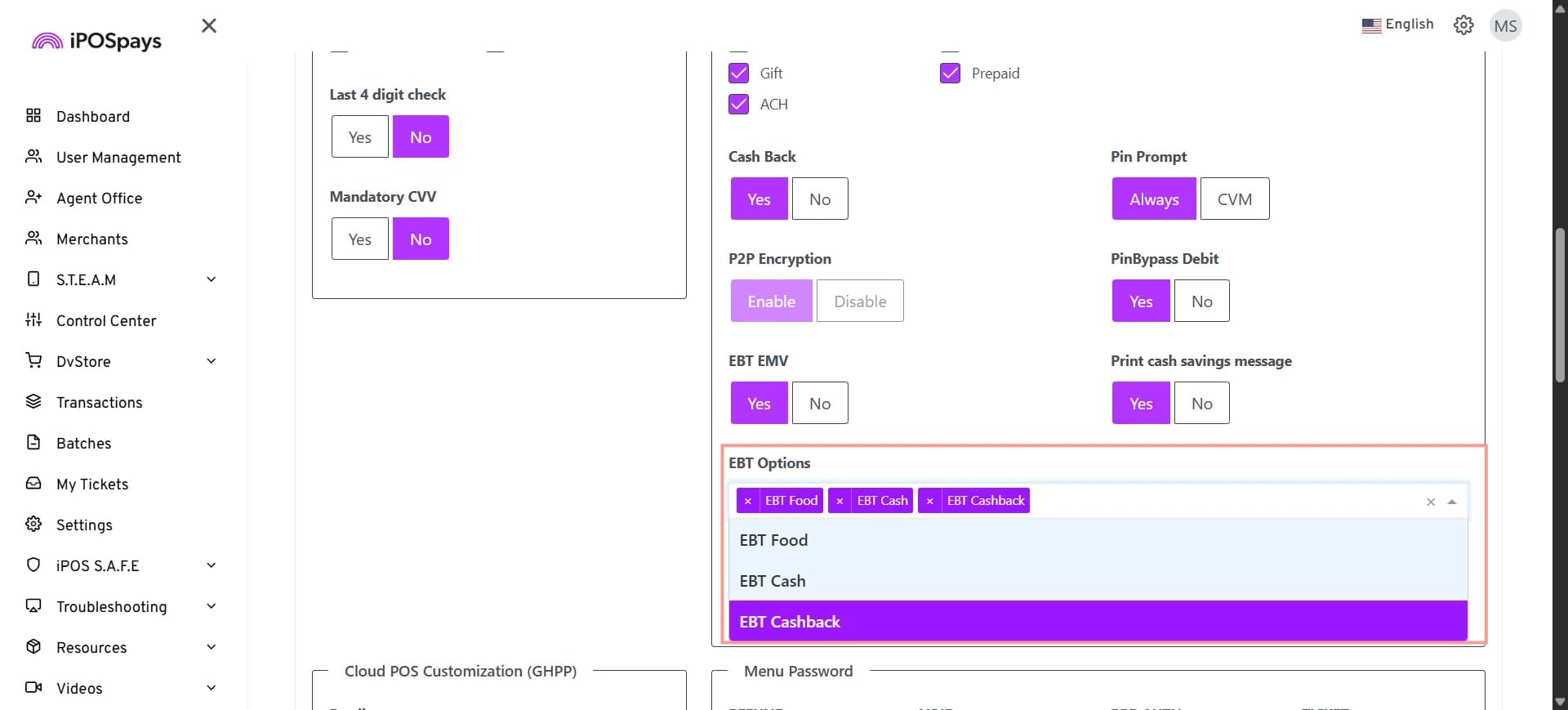
EBT Options
Under EBT Options, select the EBT transaction types supported by the merchant.
Available options include:
- EBT Food
- EBT Cash
- EBT Cashback
Select the required EBT options based on the merchant’s requirements.
EBT EMV is enabled by default for new POS TPNs on the latest supported build, so no additional configuration is required.
Print Cash Savings Message
Under Print Cash Savings Message:
- Select Yes to print the cash savings message on the receipt.
- Select No to disable the message.
If you select Yes, the Saving Message Label field appears.
Enter the message you want to display on the receipt. For example: You saved by Paying Cash
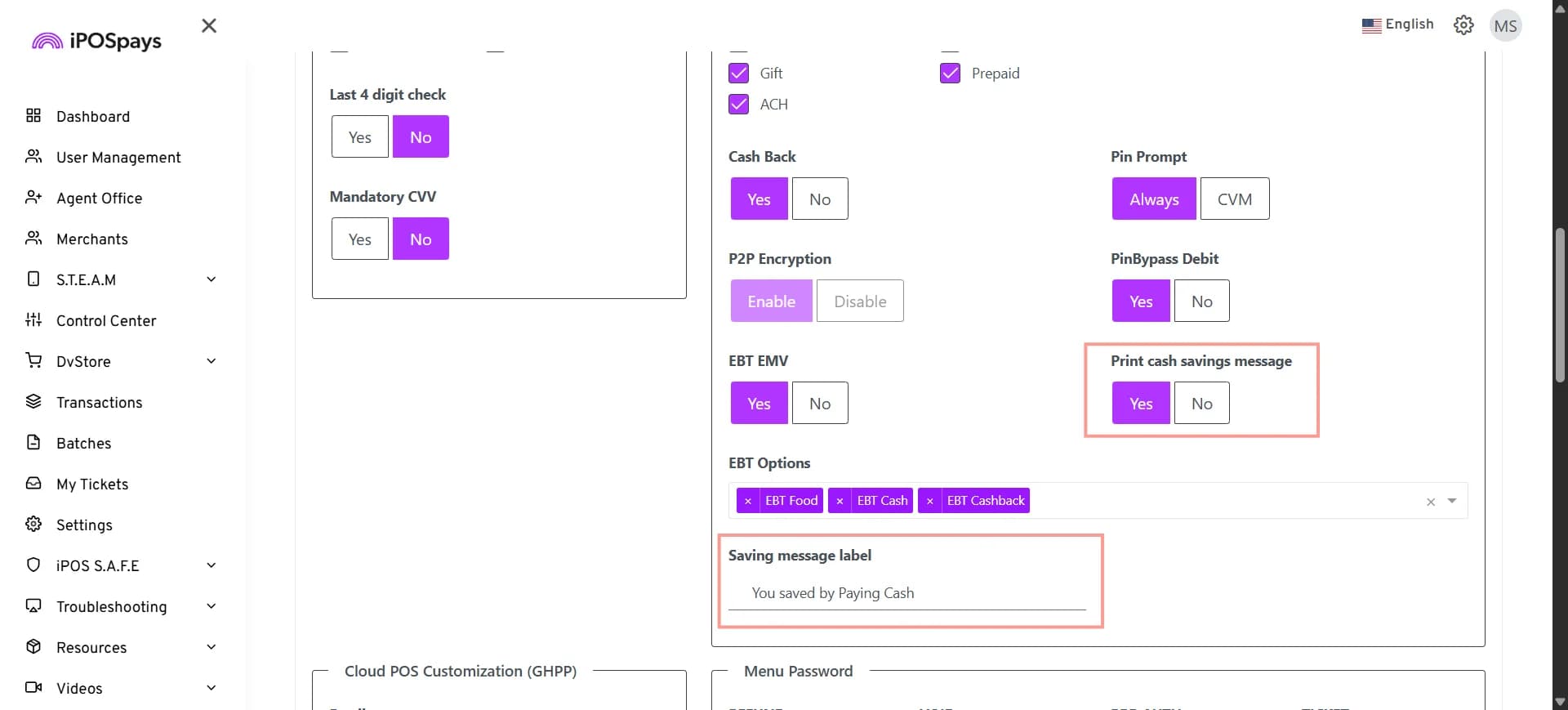
- The Saving Message Label cannot contain special characters.
- The Saving Message Label cannot exceed 32 characters.
Save the Card Type Settings
After configuring the required card types and settings:
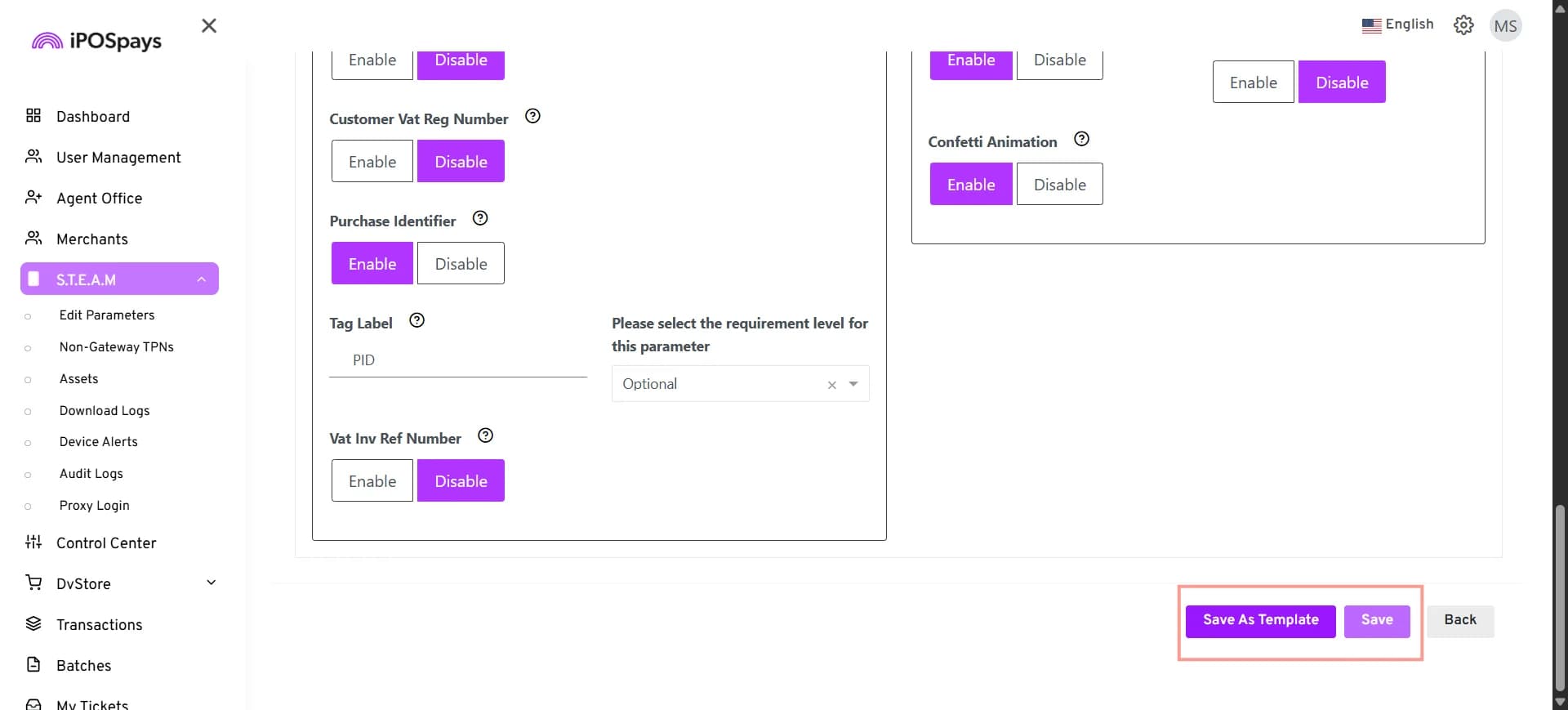
- Click Save to apply the configuration to the selected TPN, or click Save As Template to save the configuration as a reusable template.
- The Parameter Updated Successfully confirmation message appears.
- Perform a parameter update on the merchant’s payment terminal to apply the updated settings.