How to Enable and Configure Tips on iPOSpays
This document explains how ISOs and Merchants can enable and configure tipping options using the iPOSpays Portal, and how tips are presented and accepted on the payment terminal during a transaction.
Supported Channels
The following channels support Tip configuration and processing on iPOSpays:
- POS
- CloudPOS
- iPOSgo! (iOS & Android)
Steps to Enable Tips from the iPOSpays Portal
Tips can be configured on the payment terminal to enable gratuity collection during transactions. Both ISOs and Merchants can configure tip settings in the terminal parameters under the Tip & Taxes tab.
Step 1: Log In to iPOSpays Portal
Log in to the iPOSpays Portal using ISO credentials.
Step 2: Navigate to Terminal Settings
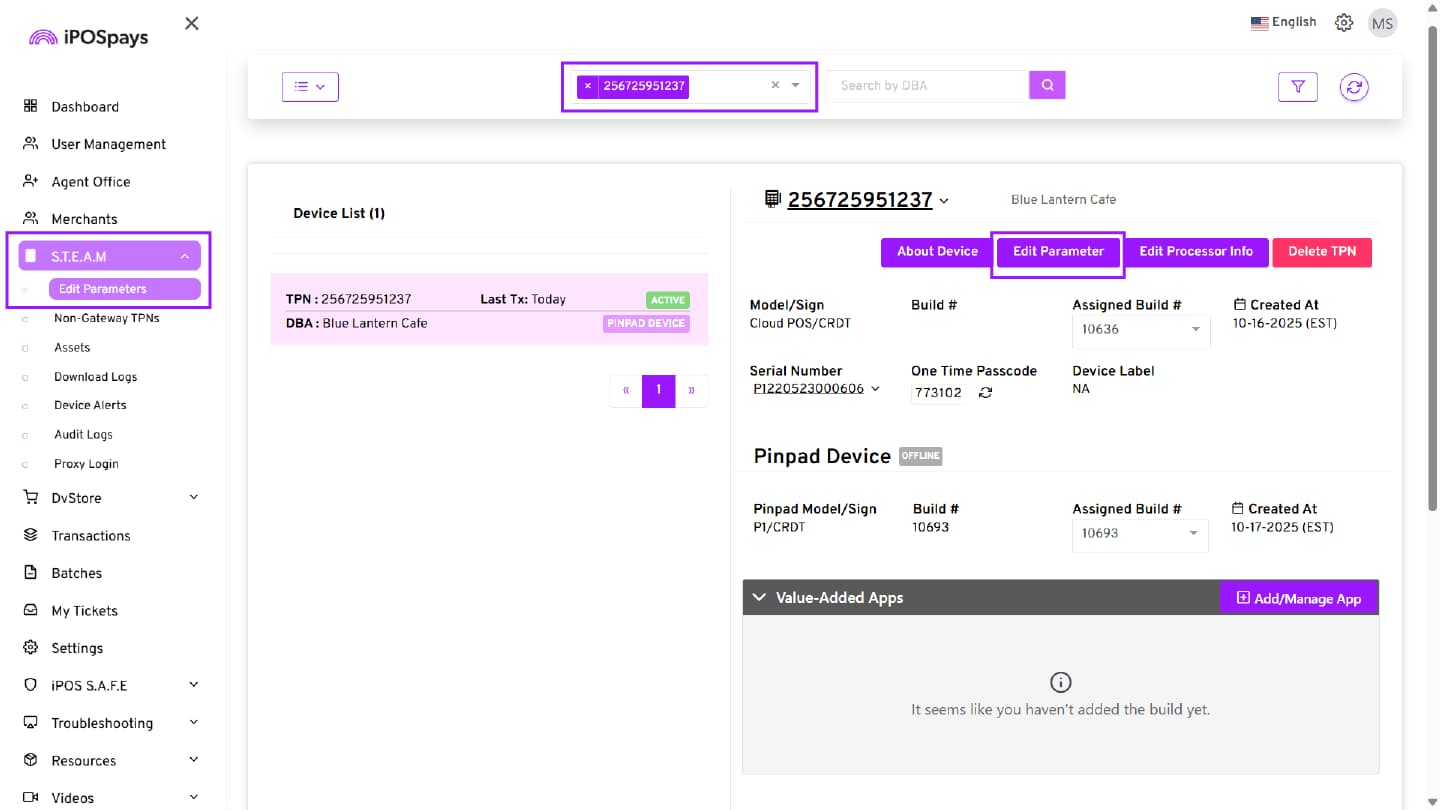
- Click S.T.E.A.M from the left menu
- Select Edit Parameters
Step 3: Search and Select the Payment Terminal (TPN)
- Use the search box to find the required TPN
- Select the TPN
- Click Edit Parameter
Step 4: Configure Tip Settings
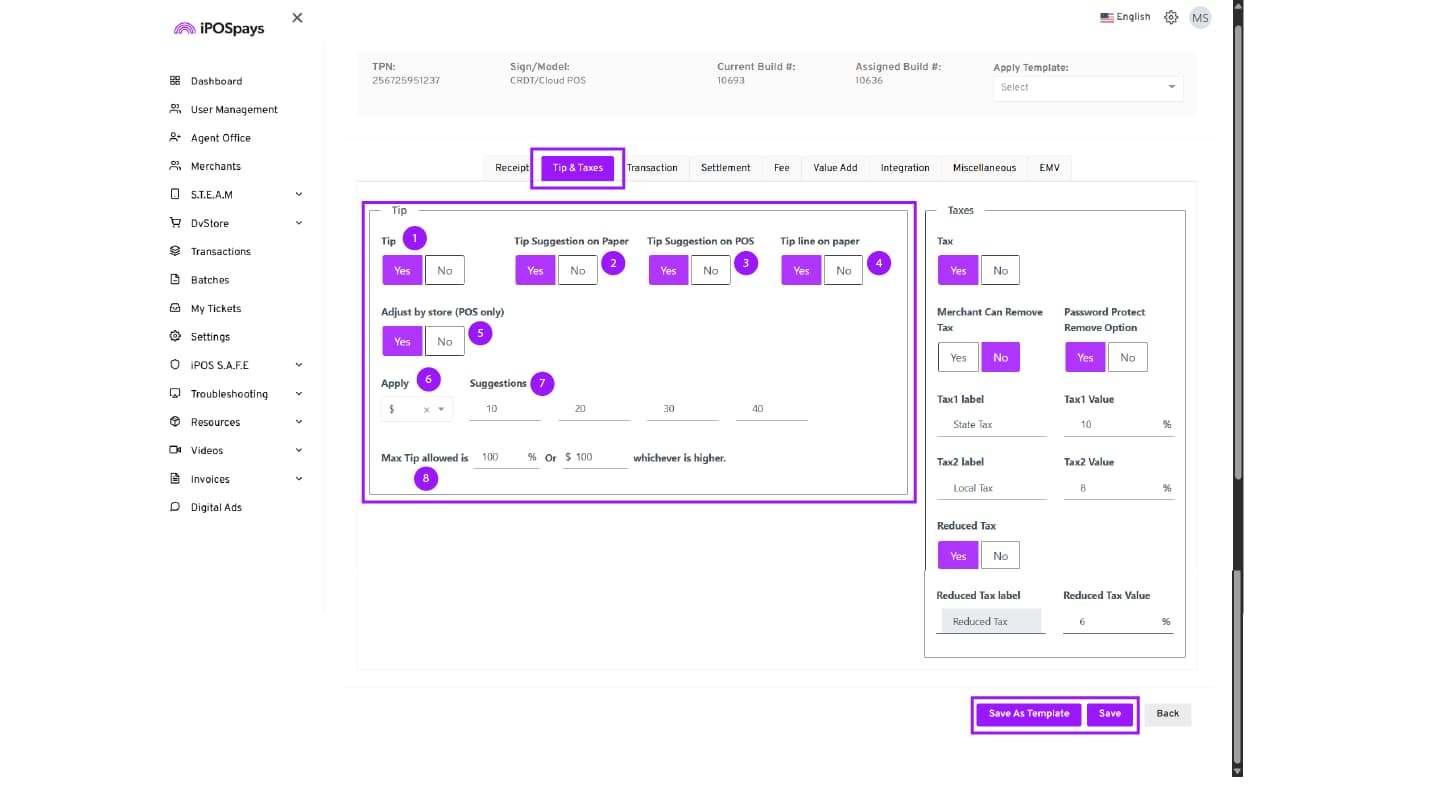
Navigate to Tip & Taxes and configure the required tip settings.
Tip Options
1. Tip Enable merchants to accept tips on transactions.
2. Tip Suggestion on Paper Enable printing of suggested tip percentages on the customer receipt.
3. Tip Suggestion on POS Enable tip suggestions on the payment terminal during checkout.
4. Tip Line on Paper Enable printing of a tip line on the receipt for manual tip entry.
5. Adjust by Store (POS Only) Enable to allow tip adjustment at the store level. When enabled, merchants can:
- View and adjust tips from multiple TPNs linked to the same store.
- Use a single terminal to manage tips across store-level terminals.
To ensure transactions from other TPNs appear on this terminal, the Tip option must also be enabled for those TPNs within the same store.
6. Apply Choose how tip suggestions are calculated:
- Percentage (%)
- Fixed Amount ($)
7. Suggestions Enter the desired tip values (for example: 10, 20, 30, 40).
8. Maximum Tip Limit Configure the maximum allowed tip:
- Percentage (e.g., 10%)
- Dollar amount (e.g., $10)
The system applies whichever limit is higher.
Step 5: Save and Update Terminal
After configuring the parameters, you have two options:
- Save – Apply the current parameter configurations directly to the selected TPN.
- Save as Template – Save the current parameter configurations as a reusable template.
Merchants can enable and configure tips by following the same steps described above using their Merchant login credentials.
Download Parameter and Update Terminal
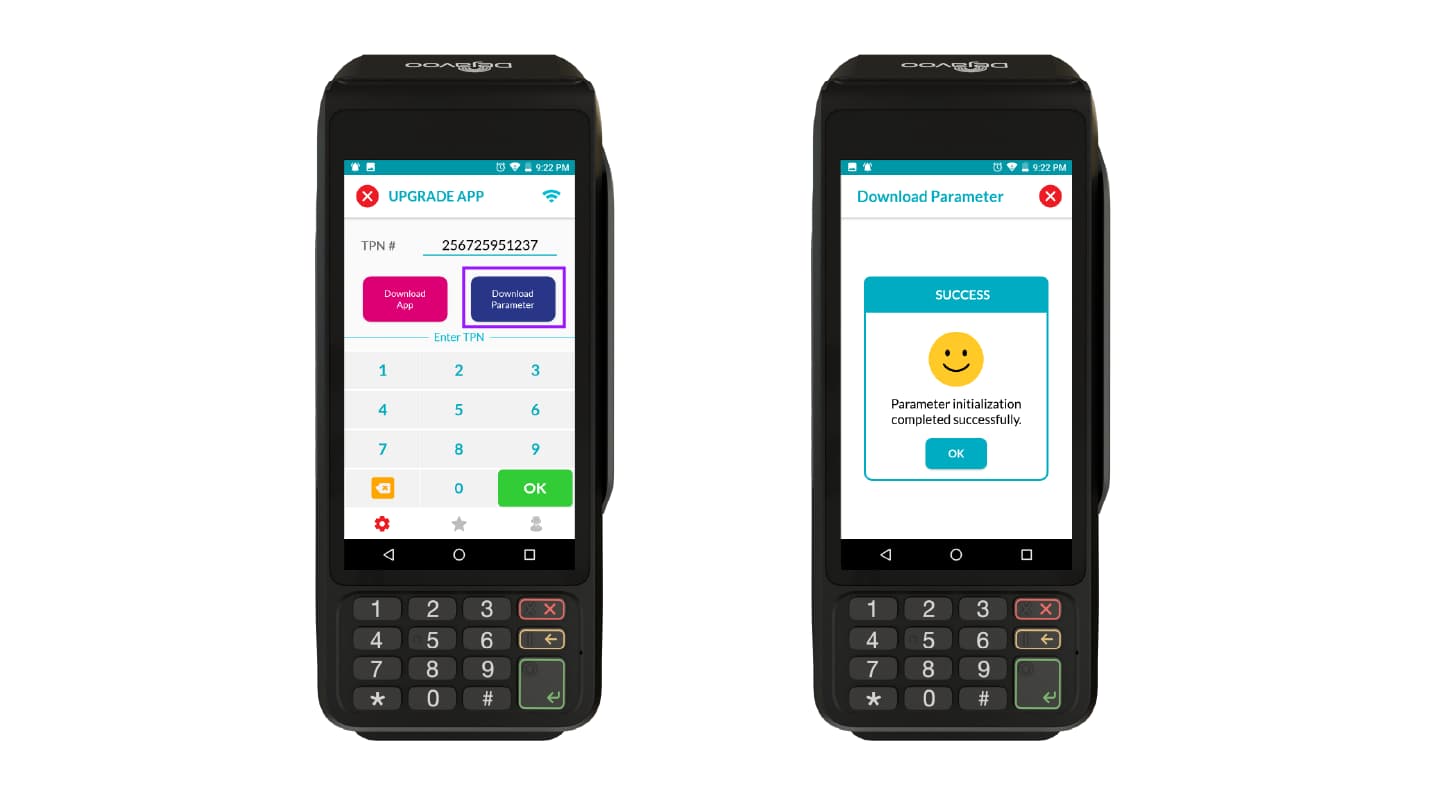
- Enter the TPN on the terminal.
- Perform a parameter update on the device by clicking Download Parameter.
- A SUCCESS prompt will appear on the device.
- Tap OK to proceed.
- Changes take effect after the update is completed.
How to Add Tips During a Transaction on a Payment Terminal
Once tips are enabled for the Terminal Profile Number (TPN), you can add a tip during a transaction directly on the payment terminal.
Steps to Add Tips During a Transaction
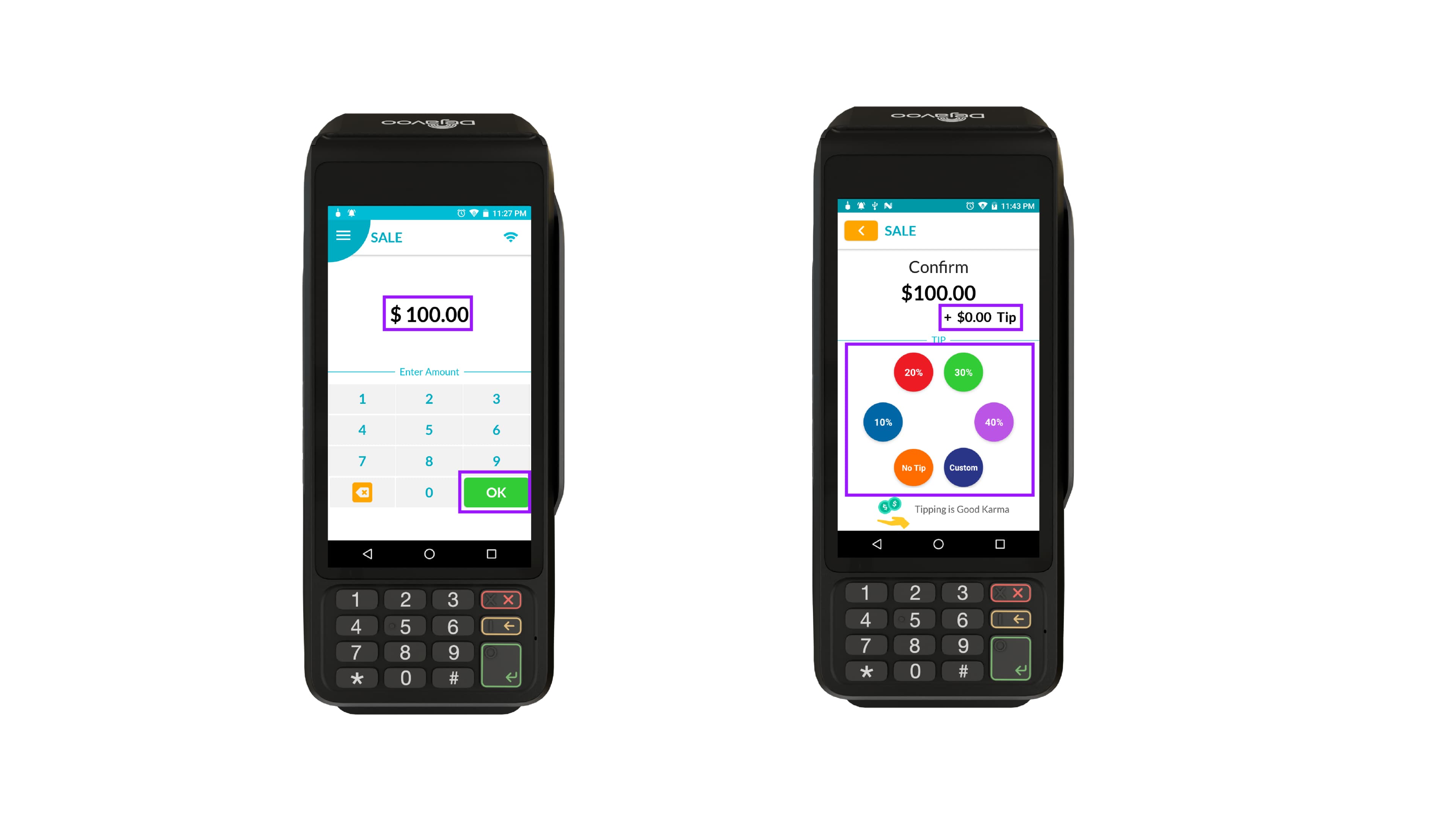
Step 1: Enter the Transaction Amount
- Open the DvPayLite app on your device.
- Enter the transaction amount.
- Click OK to continue.
Step 2: Add a Tip
- If the tip has been enabled for the TPN, the Tip screen will appear with options to add a tip.
- You may select:
- Custom Tip
- No Tip
- Percentage-based Tips
- If a tip is added:
- A breakdown screen appears showing the Sale amount, taxes if enabled, and Tip.
- Below that, you will find two available options:
- CHANGE TIP – Modify the tip amount.
- PAY – Proceed with the updated amount.
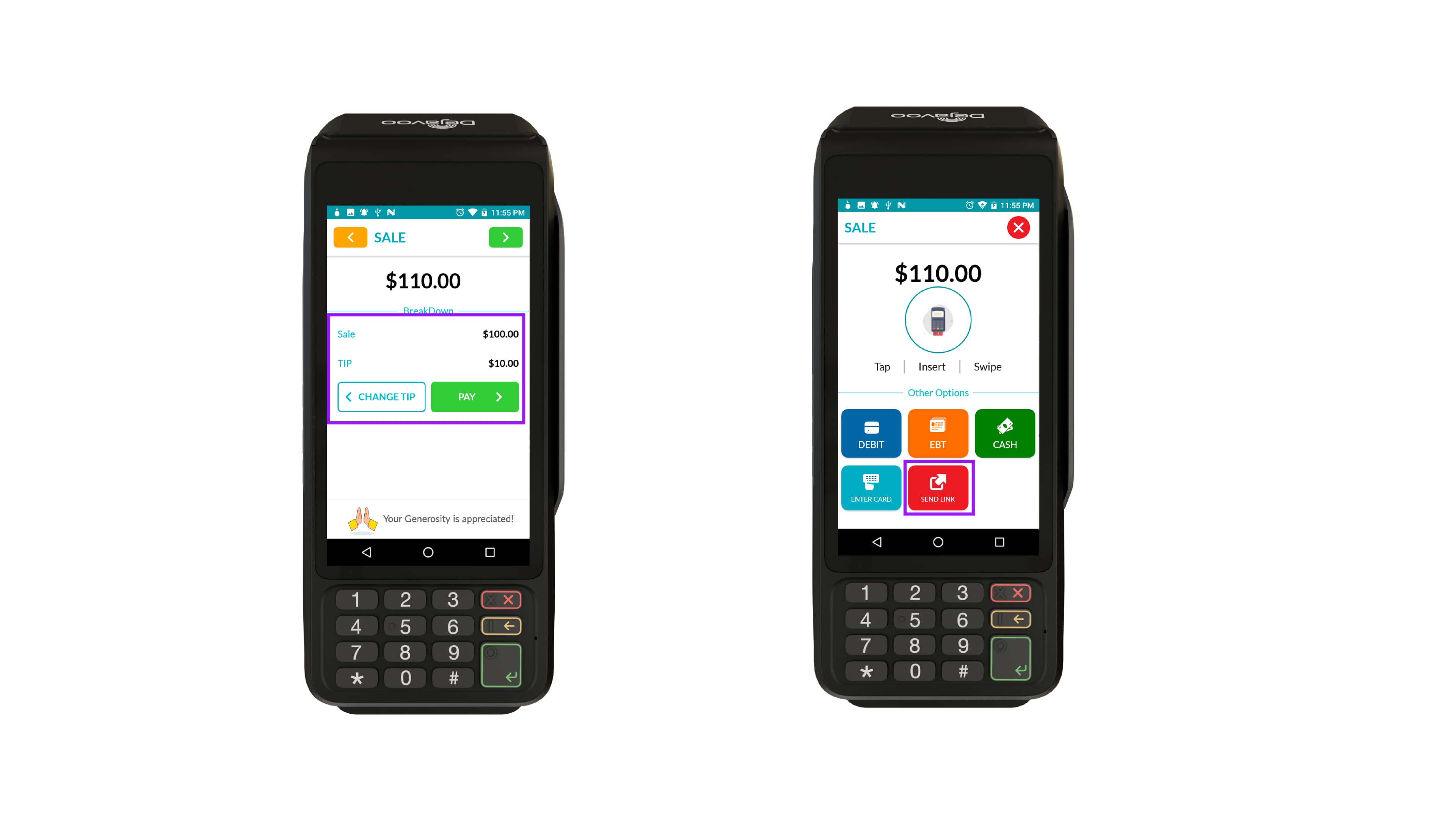
Step 3: Complete the Transaction
- Once the tip is added, select the payment method on the terminal.
- Proceed to complete the transaction.
How to Add Tips During a Transaction on iPOSgo! (iOS & Android)
Once tips are enabled for the Terminal Profile Number (TPN), you can add a tip during payment in the iPOSgo! application.
Steps to Add Tips During a Transaction
- Open the iPOSgo! app on your mobile device.
- Enter the TPN and click Download Parameter.
- Once the parameter is successfully downloaded, a dialog box appears. Click Proceed to continue.
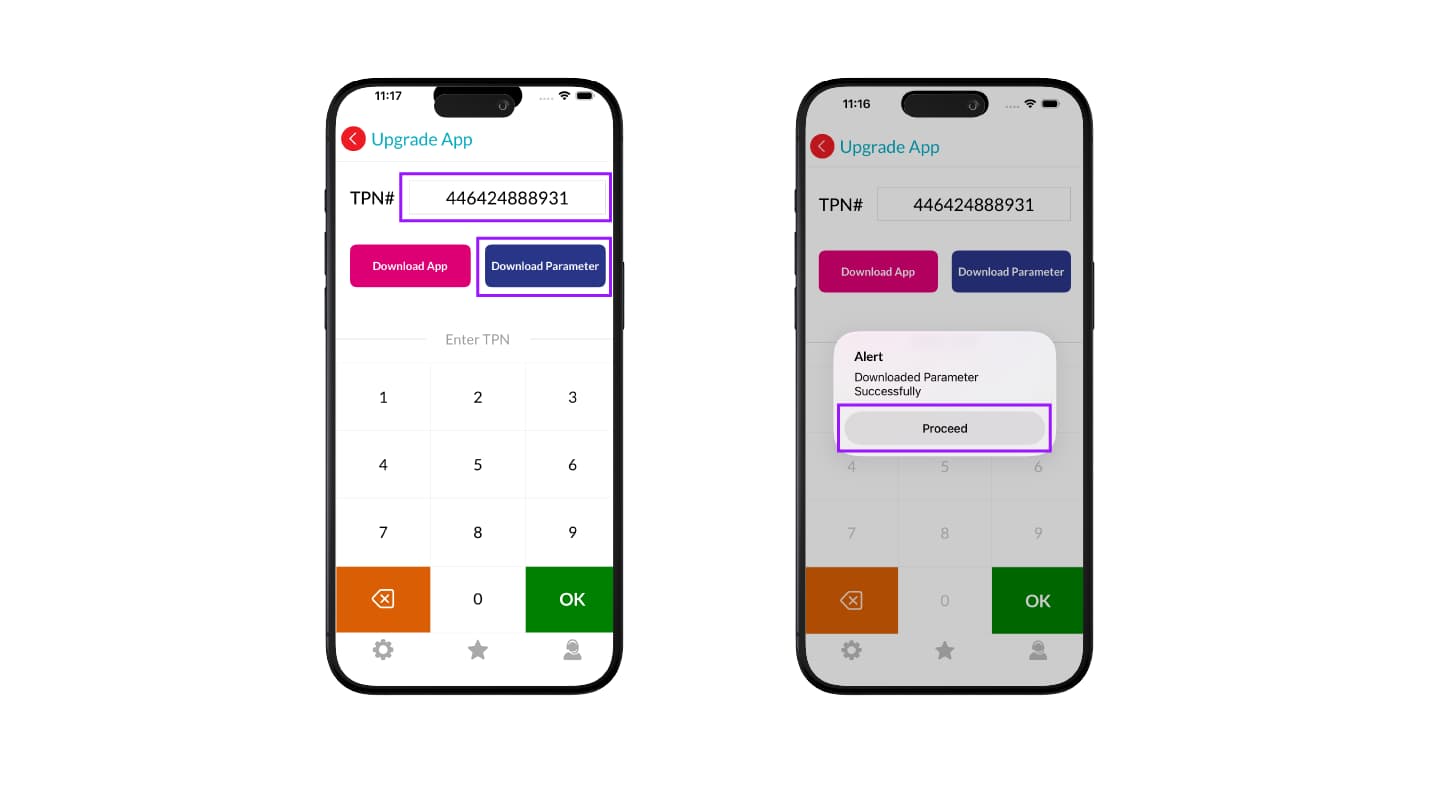
- Enter the transaction amount on the payment screen.
- Tap OK to proceed to the payment options.
- In the Tip section, select the tip percentage you want to add to the transaction. You may select:
- Custom Tip
- No Tip
- Percentage-based Tips
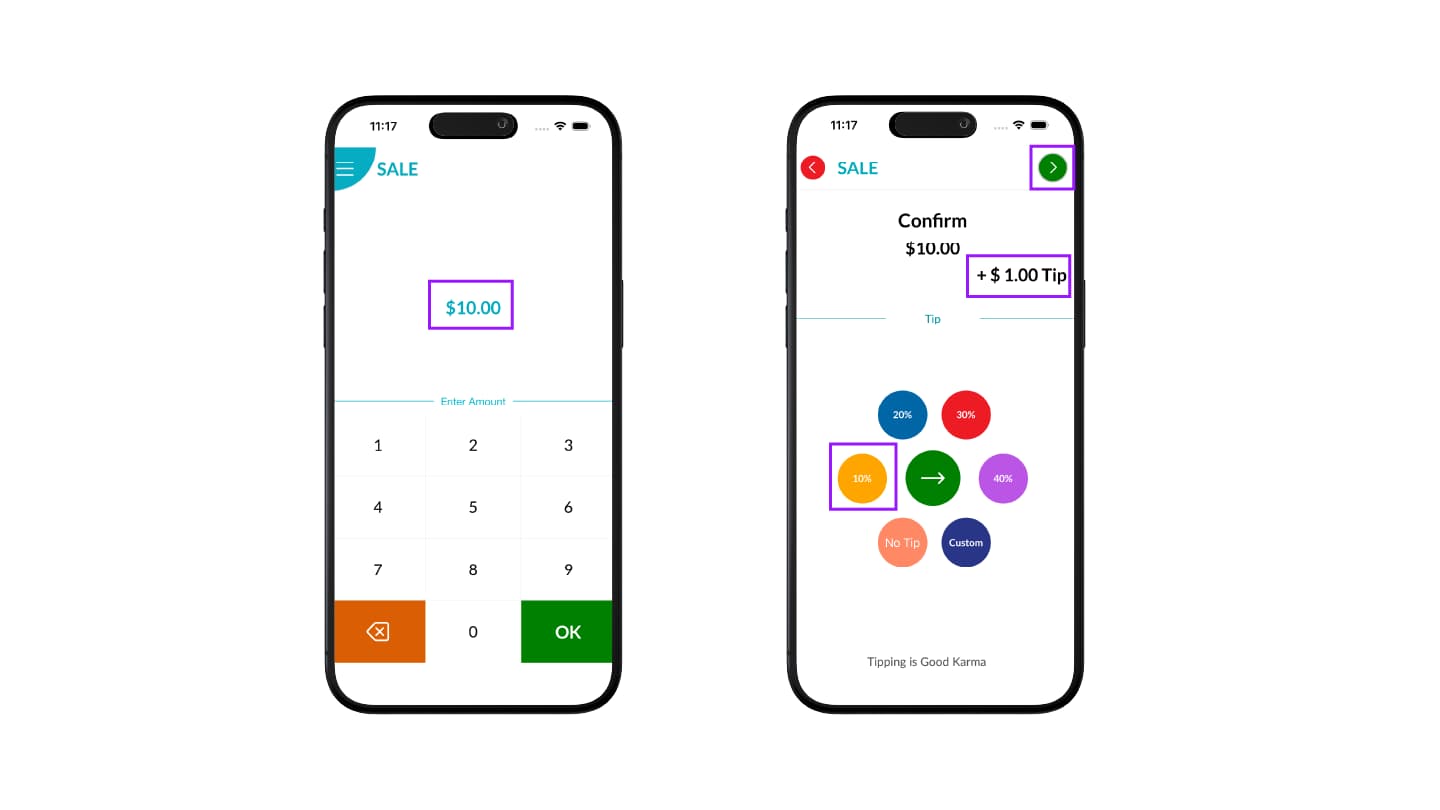
- Check the sale amount on the break-up screen. You will see the detailed breakdown of the sale amount, tips, and taxes (if enabled). Review the details and tap the PAY button.
- Ask the customer to complete the payment using one of the available methods:
- Tap to Pay
- QR Pay
- Send Link
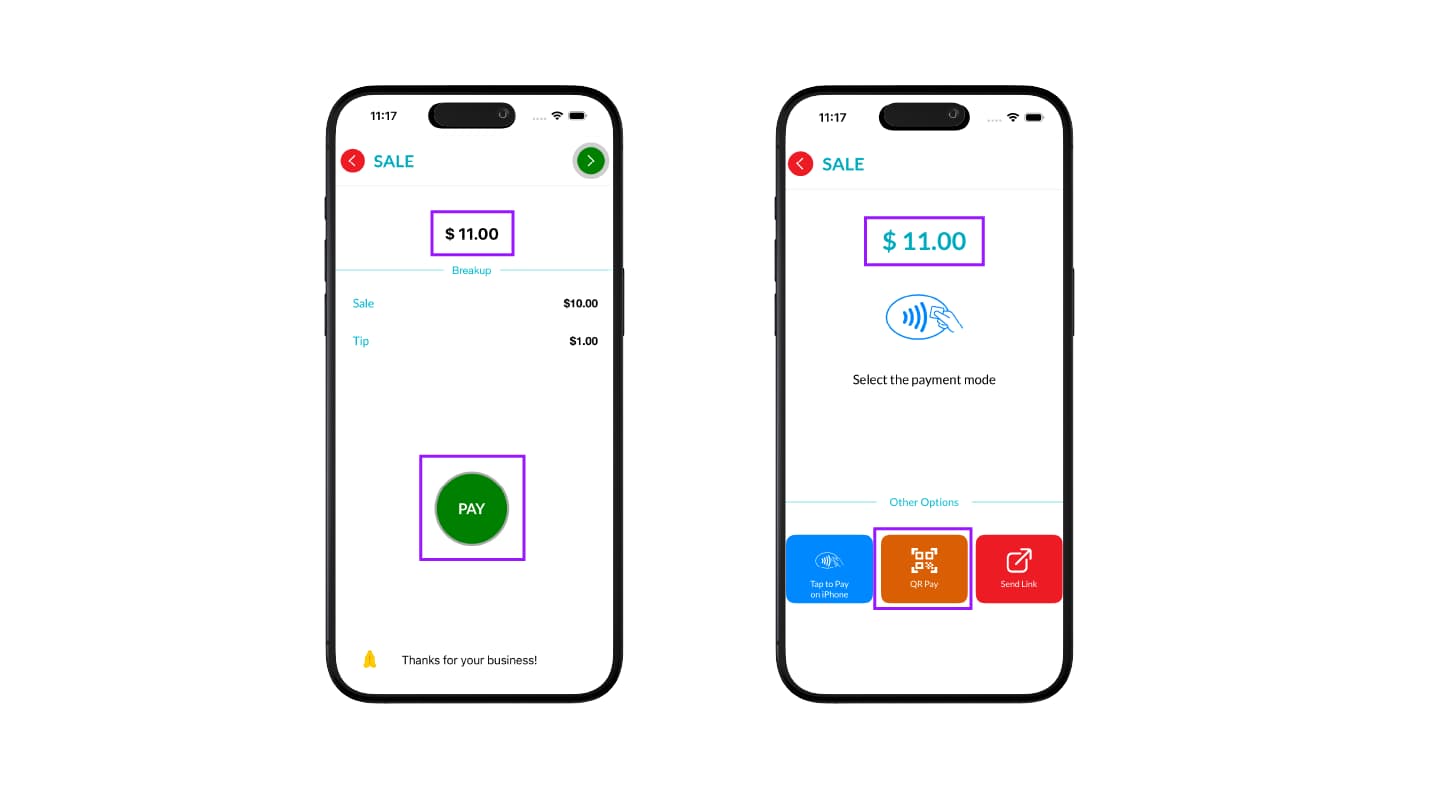
- Once the payment is processed, the transaction is completed, including the selected tip.
How Tips Are Reflected in CloudPOS (Send Payment Link)
If tips are enabled for the merchant, the tip option will be available to the customer on the payment page when completing the transaction.
Customers can select or enter a tip amount, and the total amount will be updated accordingly in the transaction breakdown.
Refer to the User Guide to Merchant CloudPOS Transactions for detailed information.
Managing Tips After Transactions
Once tips are enabled and transactions are processed, merchants may need to adjust tip amounts before batch settlement. Tip adjustments can be performed on supported channels based on the configured Tip Management settings.
Refer to the How to Adjust Tips on iPOSpays document for detailed instructions on adjusting tips and viewing tip reports.