How to Set Up Recurring Payments on iPOSpays
Recurring Payments in iPOSpays allows merchants to automatically charge customers at scheduled intervals using saved card or bank (ACH) payment methods. Merchants can configure flexible billing frequencies, start dates, and end conditions based on business requirements.
Supported Payment Methods
Recurring Payments supports the following payment methods in iPOSpays:
- Credit/Debit Cards
- Bank Account (ACH)
Set Up Recurring Payments for an Existing Customer
Step 1: Log In
Log in to the iPOSpays Portal using your merchant credentials.
Step 2: Open Customer Profile
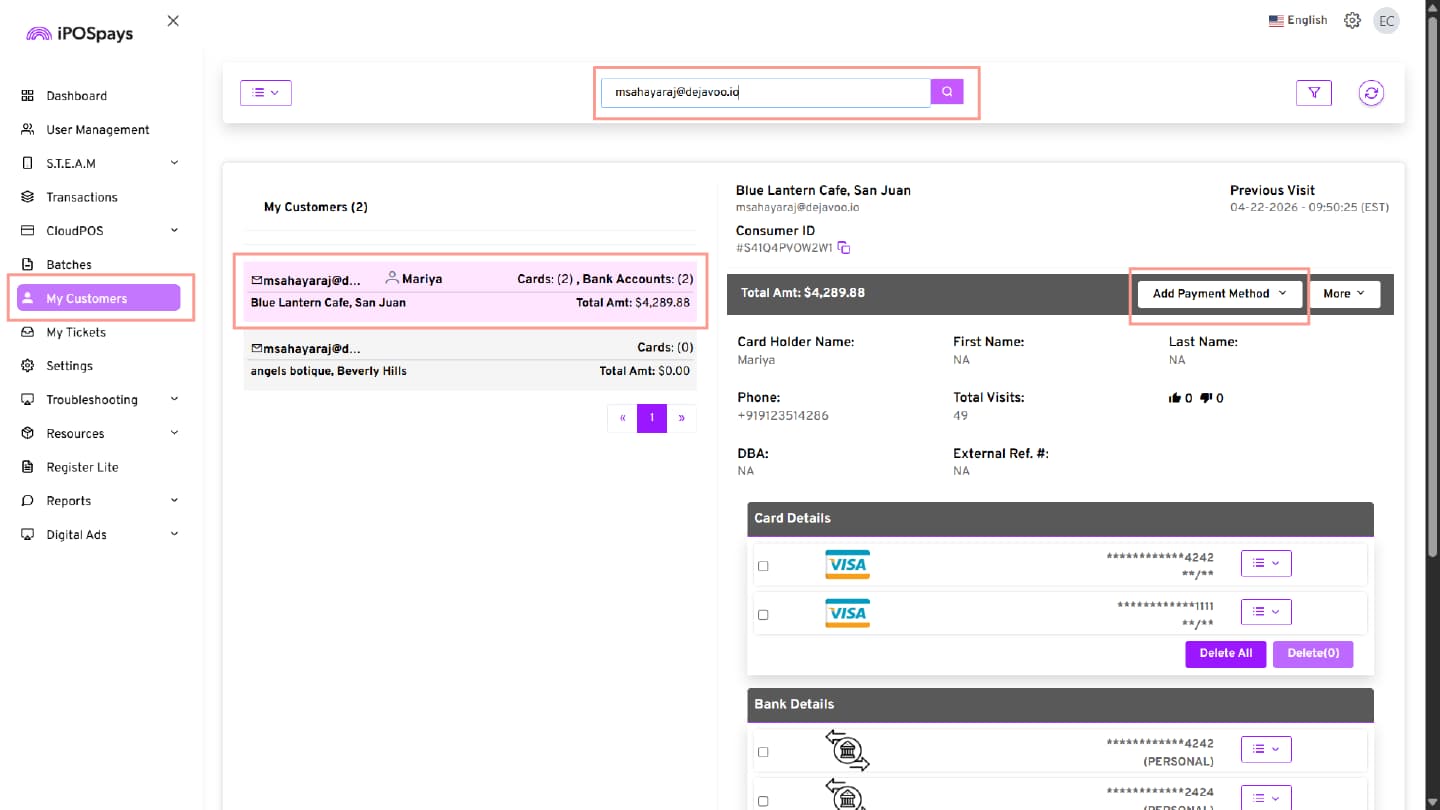
Navigate to My Customers from the left menu.
Search and select the required customer.
Step 3: Add Payment Method
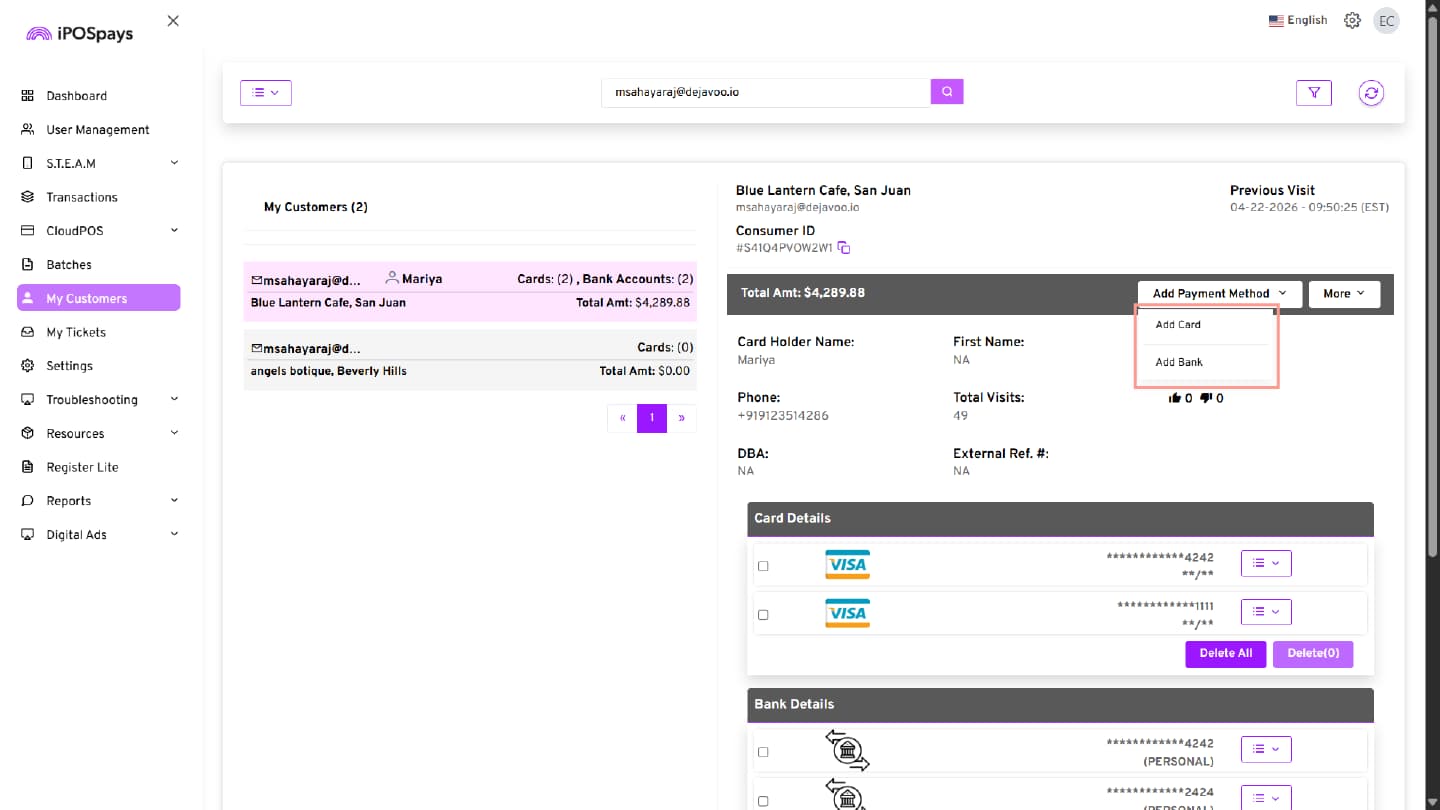
Click Add Payment Method.
Available options:
- Add Card
- Add Bank (ACH)
Add Card Details
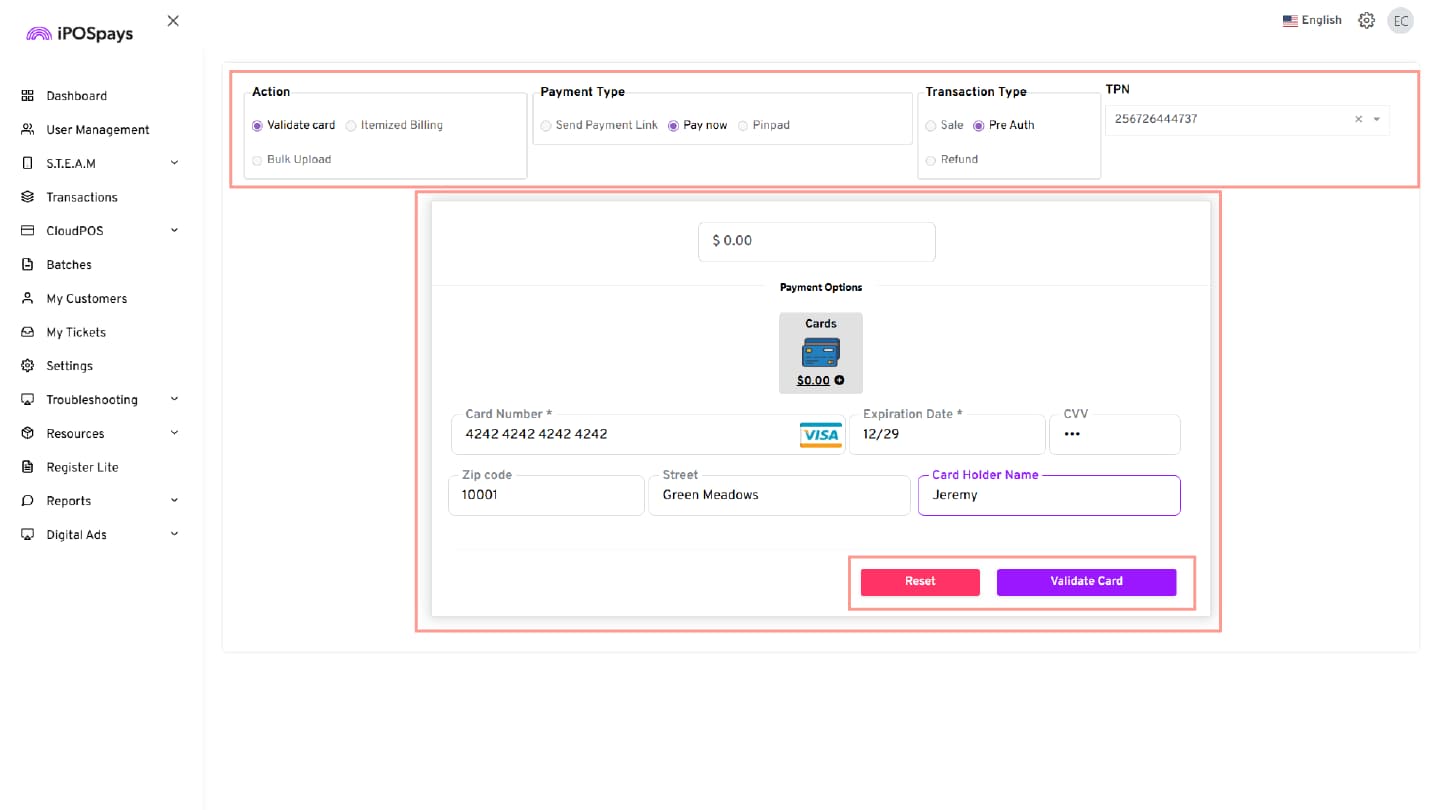
Step 1: Select the TPN
The following fields are pre-selected by default:
- Action
- Payment Type
- Transaction Type
Select the required TPN from the drop-down list.
Step 2: Enter Card Information
Enter the following details:
- Card Number
- Expiration Date
- CVV
- Billing ZIP Code
- Street Address
- Card Holder Name
Fields marked with an asterisk (*) are mandatory.
Step 3: Validate Card
- Click Validate Card to validate the entered card details.
- Click Reset to clear all entered card details and start over.
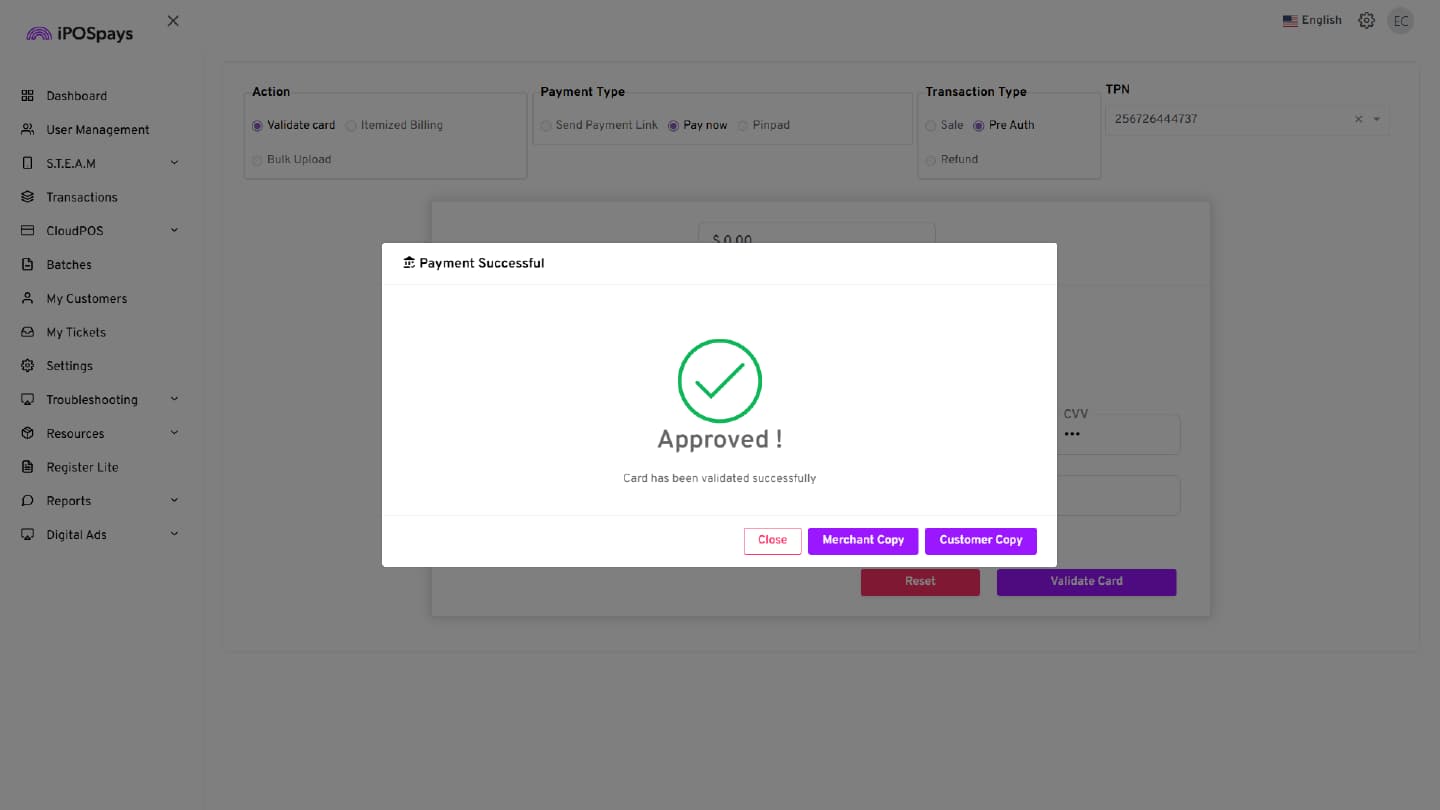
Step 4: Review Validation Status
After successful validation, a confirmation pop-up appears indicating that the card has been validated successfully.
Available options:
- Merchant Copy
- Customer Copy
- Close
Add Bank (ACH) Details
If the merchant selects Add Bank, follow these steps.
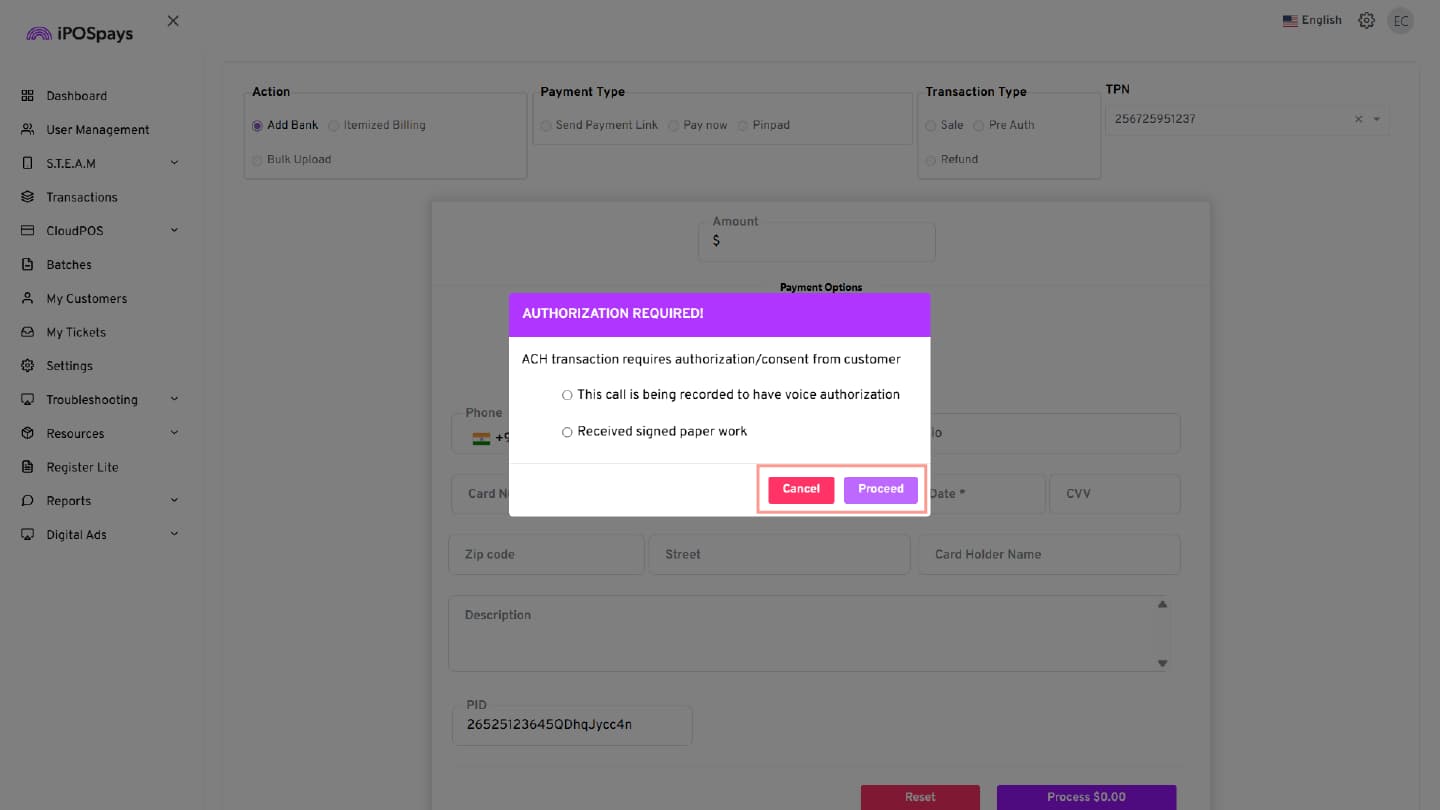
Step 1: Review Authorization Message
After clicking Add Bank, an authorization pop-up appears indicating that ACH transactions require customer consent.
Step 2: Select Authorization Method
Choose one of the following authorization methods:
- This call is being recorded to have voice authorization
- Received signed paperwork
Step 3: Proceed with Authorization
- Click Proceed to continue adding bank details.
- Click Cancel if you do not want to continue.
Step 4: Enter Customer Contact Details
The Bank payment option appears automatically and is selected by default.
Enter the following details:
- Phone Number
- Email ID
Step 5: Enter Bank Account Details
Complete the following fields:
- Account Category (Personal / Business)
- Account Type (Checking / Savings)
- SEC Code
- Routing Number
- Account Number
- First Name
- Last Name
- ZIP Code
- City
- Address Line 1
- Address Line 2 (optional)
- State
Fields marked with an asterisk (*) are mandatory.
Step 6: Complete Verification Details (If Enabled)
If verification is enabled, enter the following:
- DL Number
- DL State
Step 7: Add the Bank Account
- Click Add Bank to save the bank details.
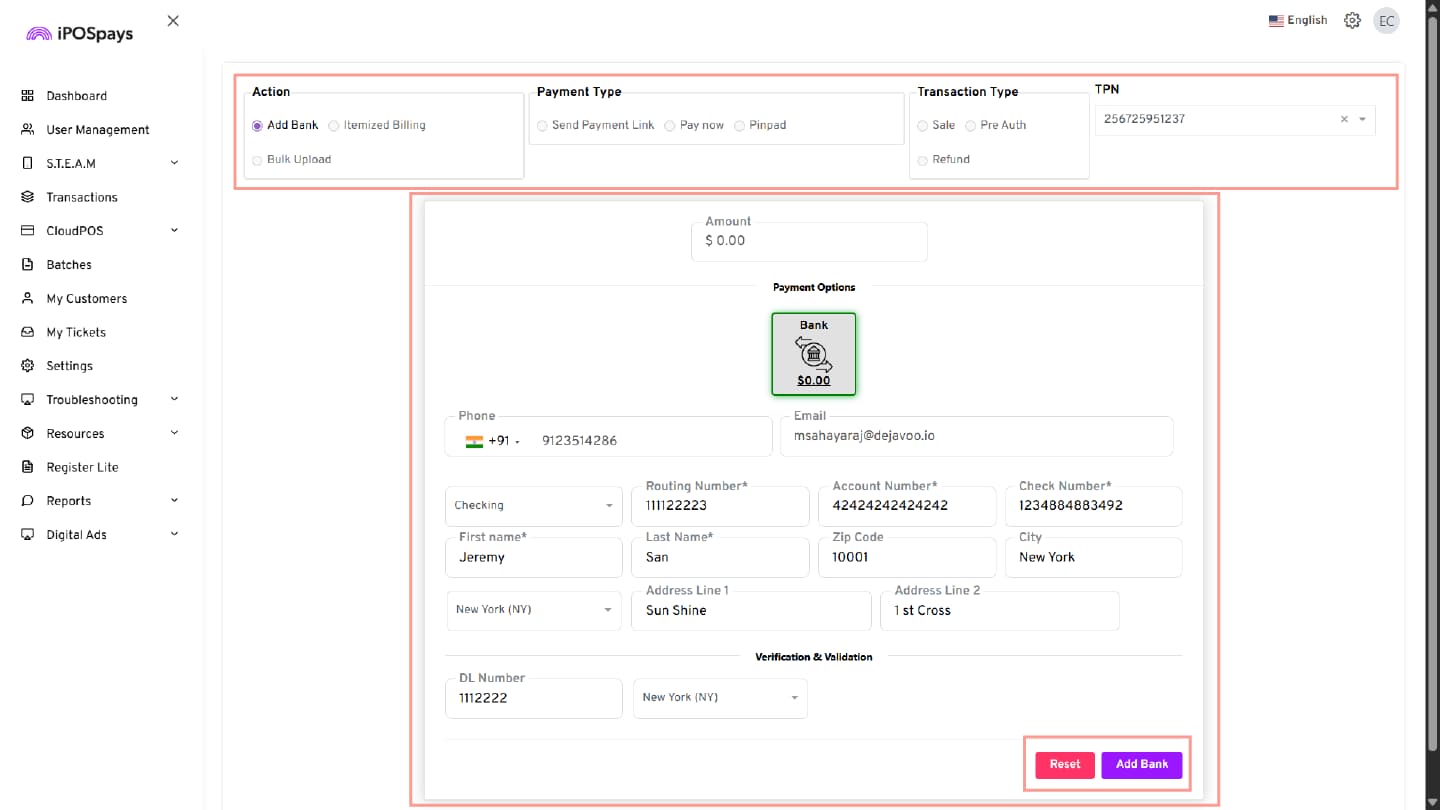
Note: You can click Reset to clear all entered bank account details and re-enter the required information.
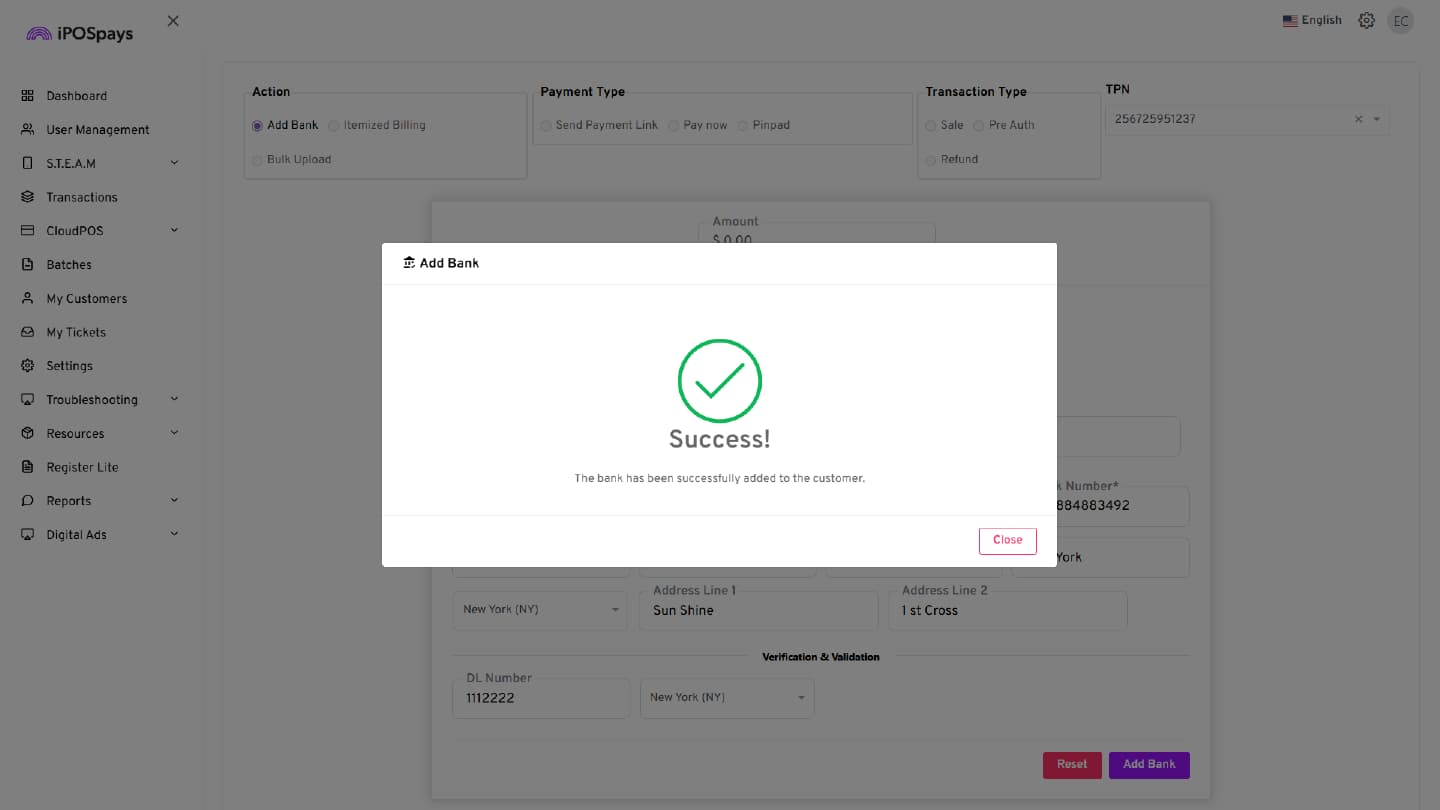
Step 8: Review Confirmation Message
A confirmation message appears indicating that the bank account has been successfully added to the customer.
The added bank details can be viewed from the customer profile.
Configure Recurring Payments
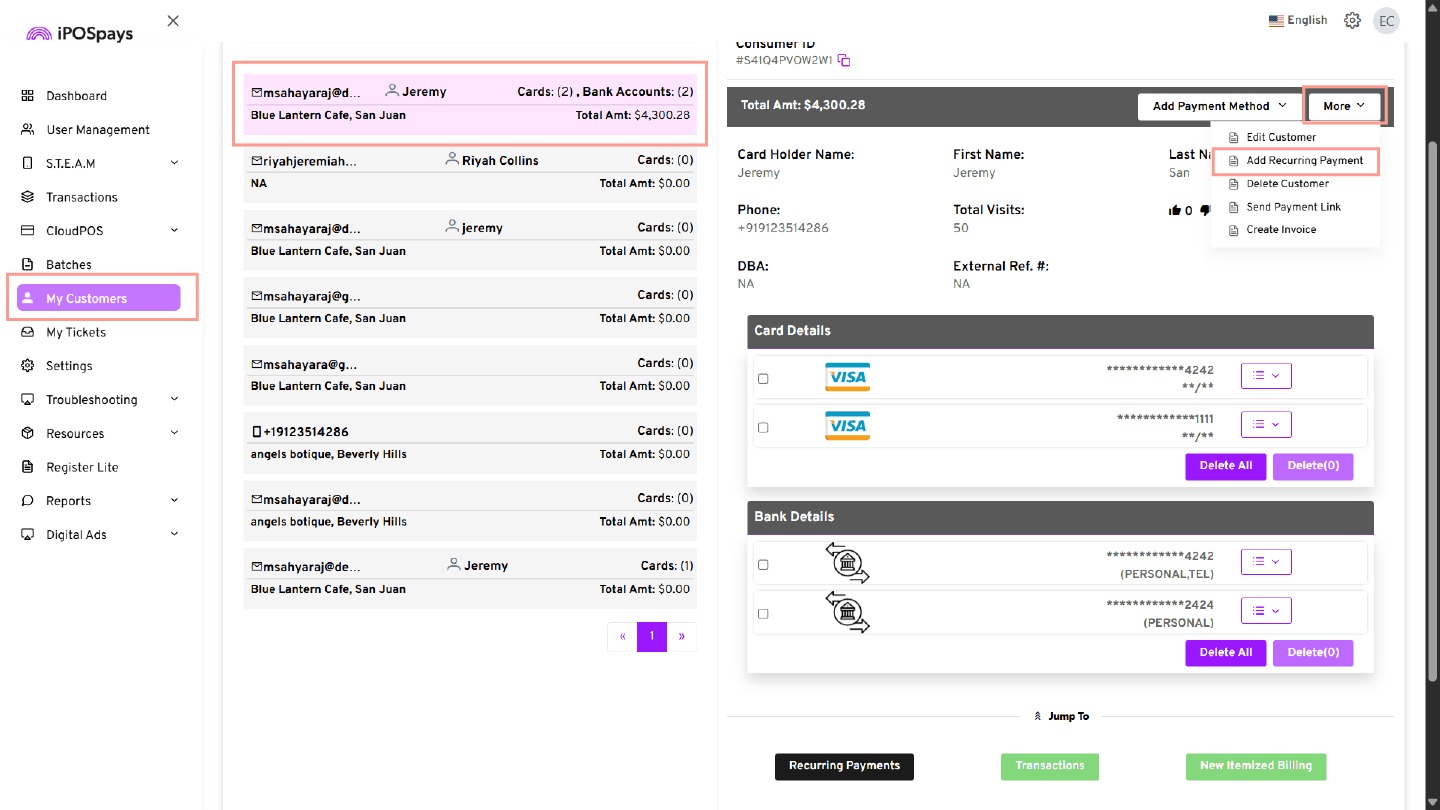
Step 1: Open Recurring Payments
- Navigate to My Customers and select the required customer.
- Click the More drop-down on the customer details panel.
- Select Add Recurring Payments.
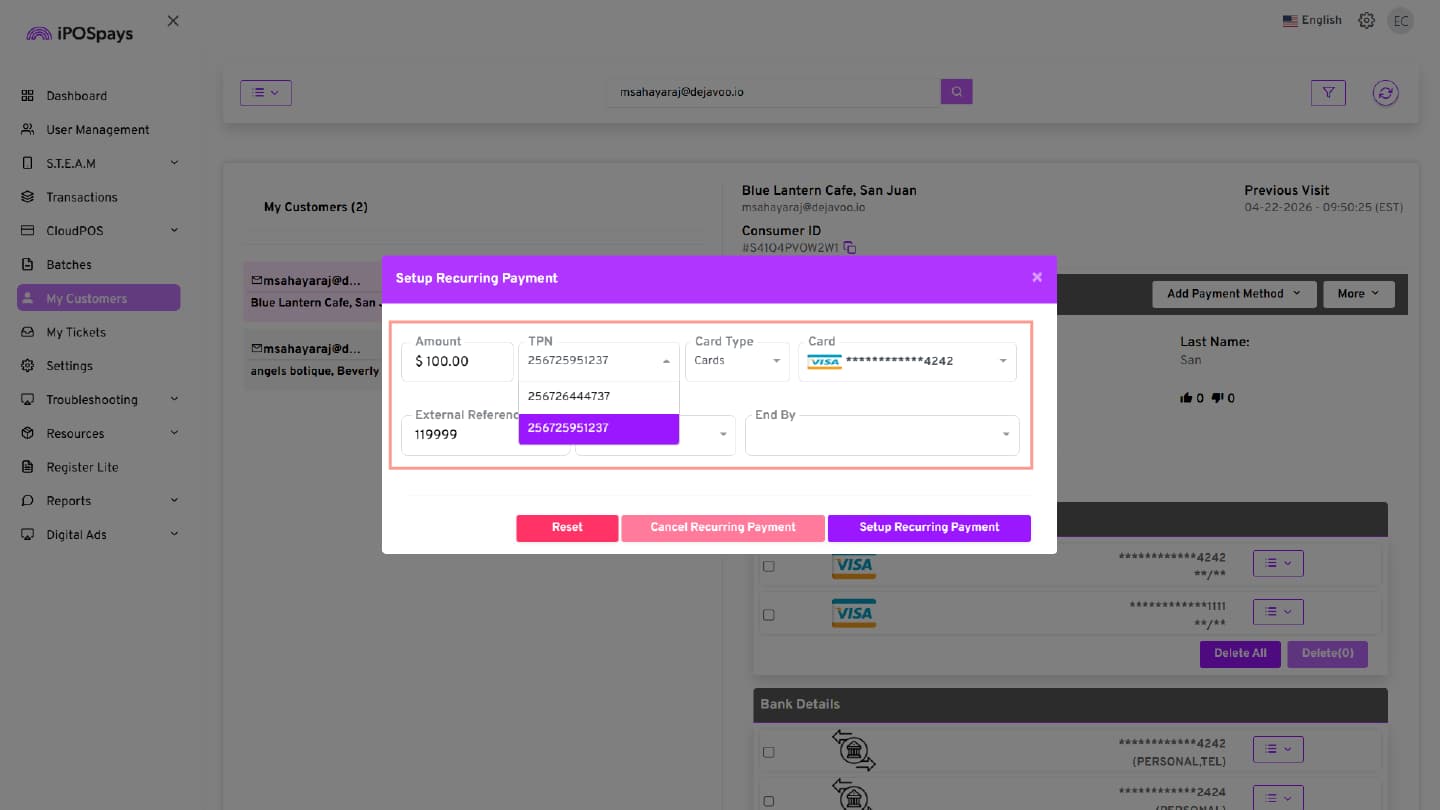
Step 2: Select Payment Method
Choose whether the recurring payment schedule should use:
- Cards (Saved Card)
- Bank Accounts (Saved Bank Account (ACH))
Select the required saved payment method from the drop-down list.
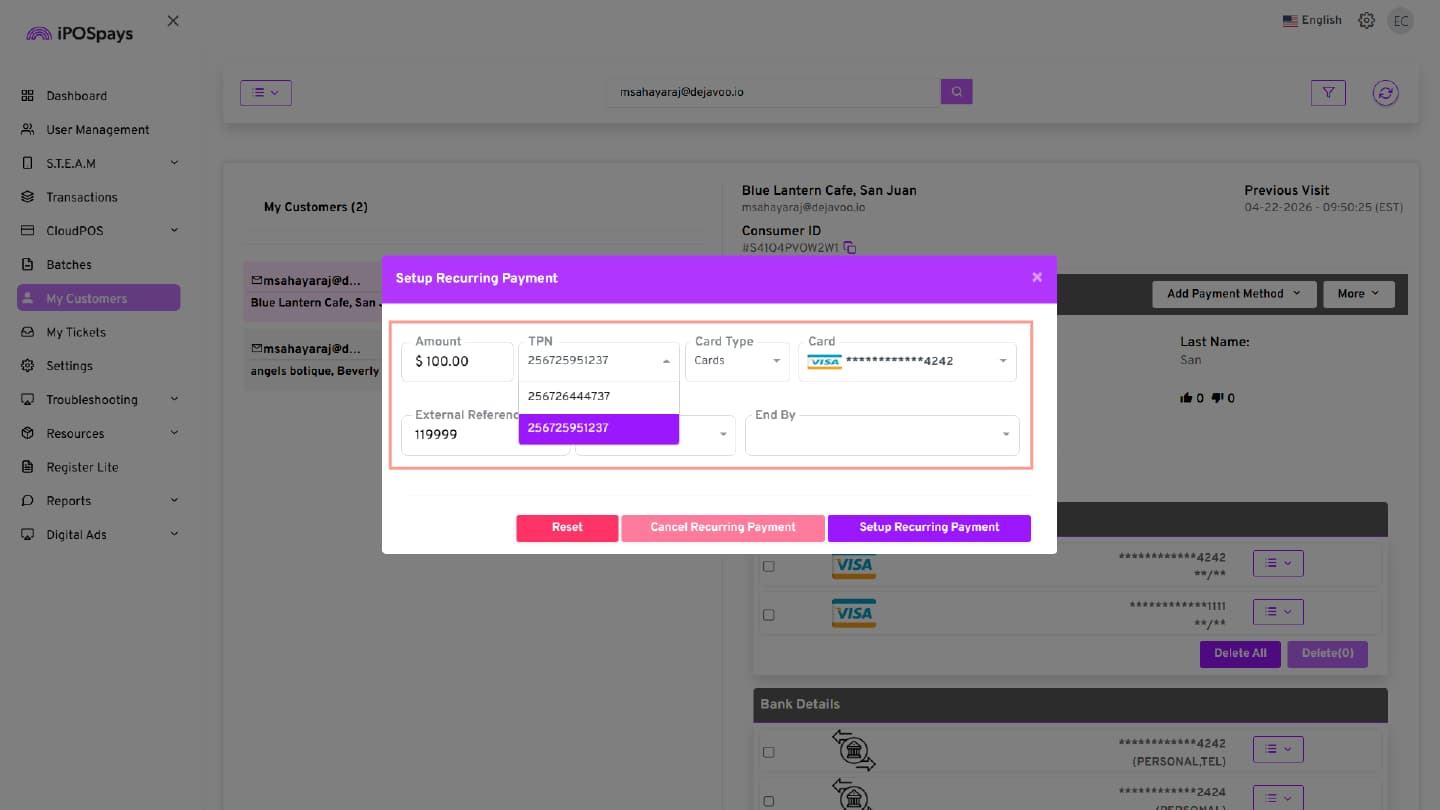
Step 3: Enter Recurring Payment Details
Complete the following fields:
Amount
Enter the amount to be charged for each billing cycle.
TPN
The TPN is displayed by default. Select a different TPN if required.
External Reference ID
(Optional) Enter an External reference number for tracking purposes.
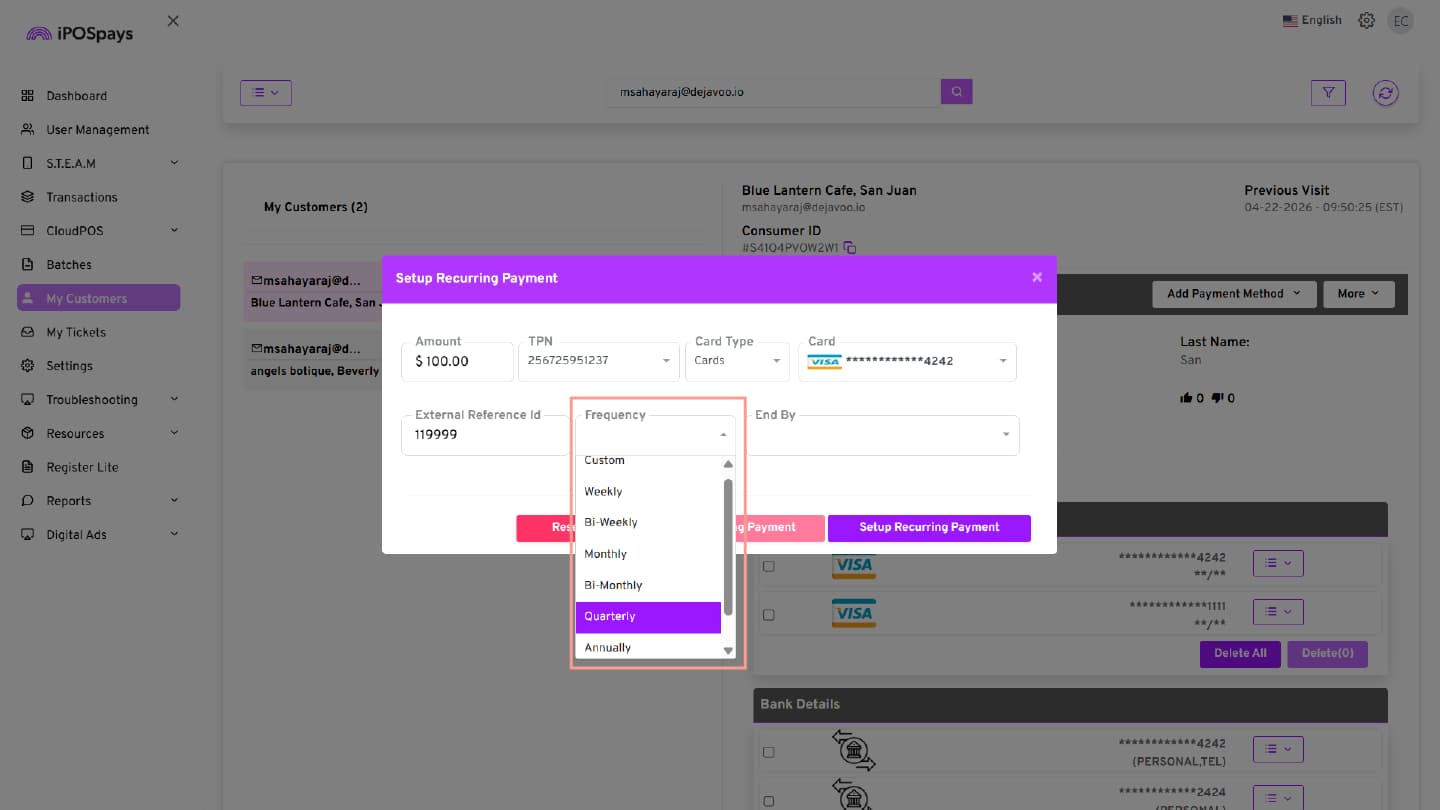
Frequency
Select the billing frequency:
- Weekly
- Bi-Weekly
- Monthly
- Bi-Monthly
- Quarterly
- Annually
- Bi-Annual
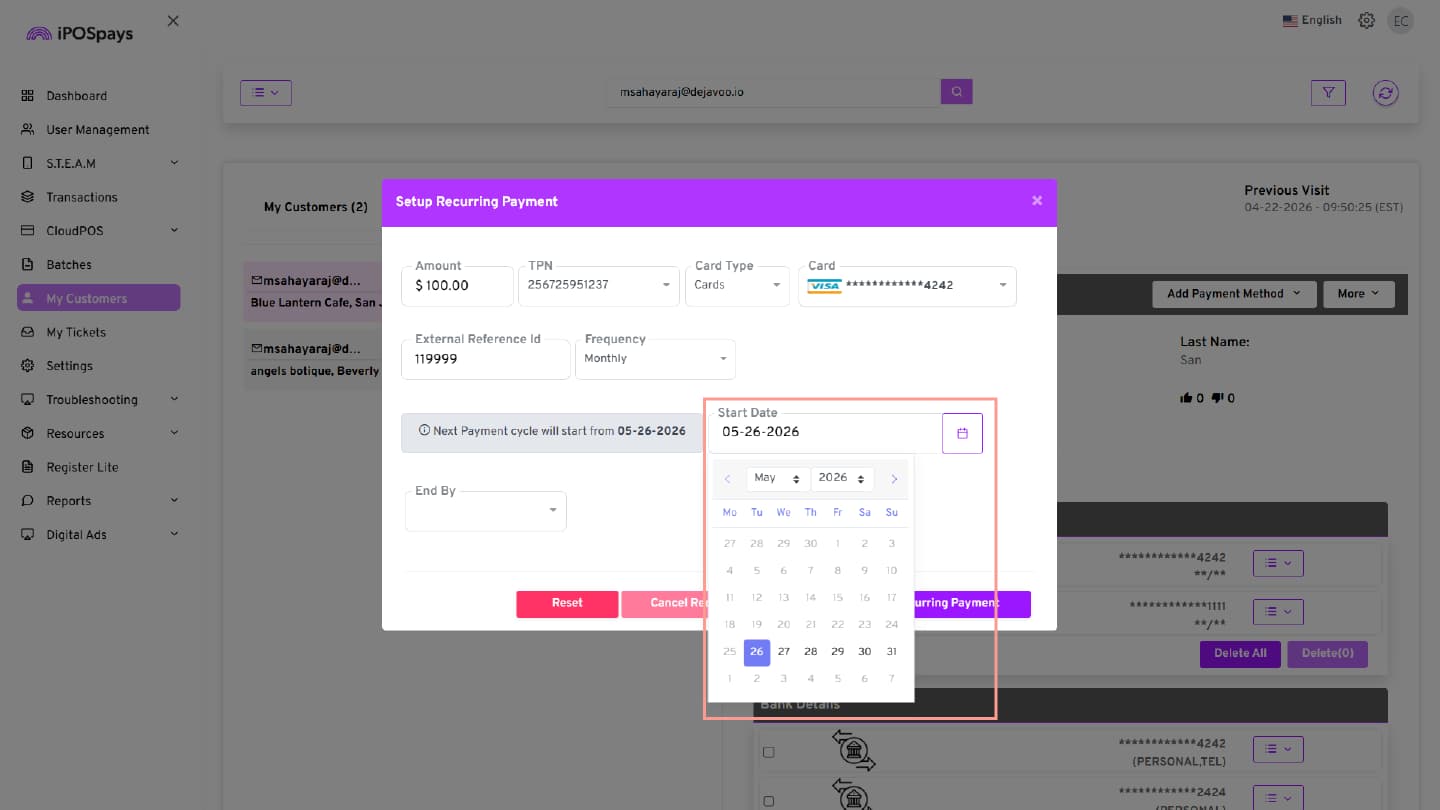
Step 4: Select Start Date
Choose the date when the recurring payment cycle should begin.
The system displays a message indicating the start date of the next payment cycle.
Step 5: Configure End Condition
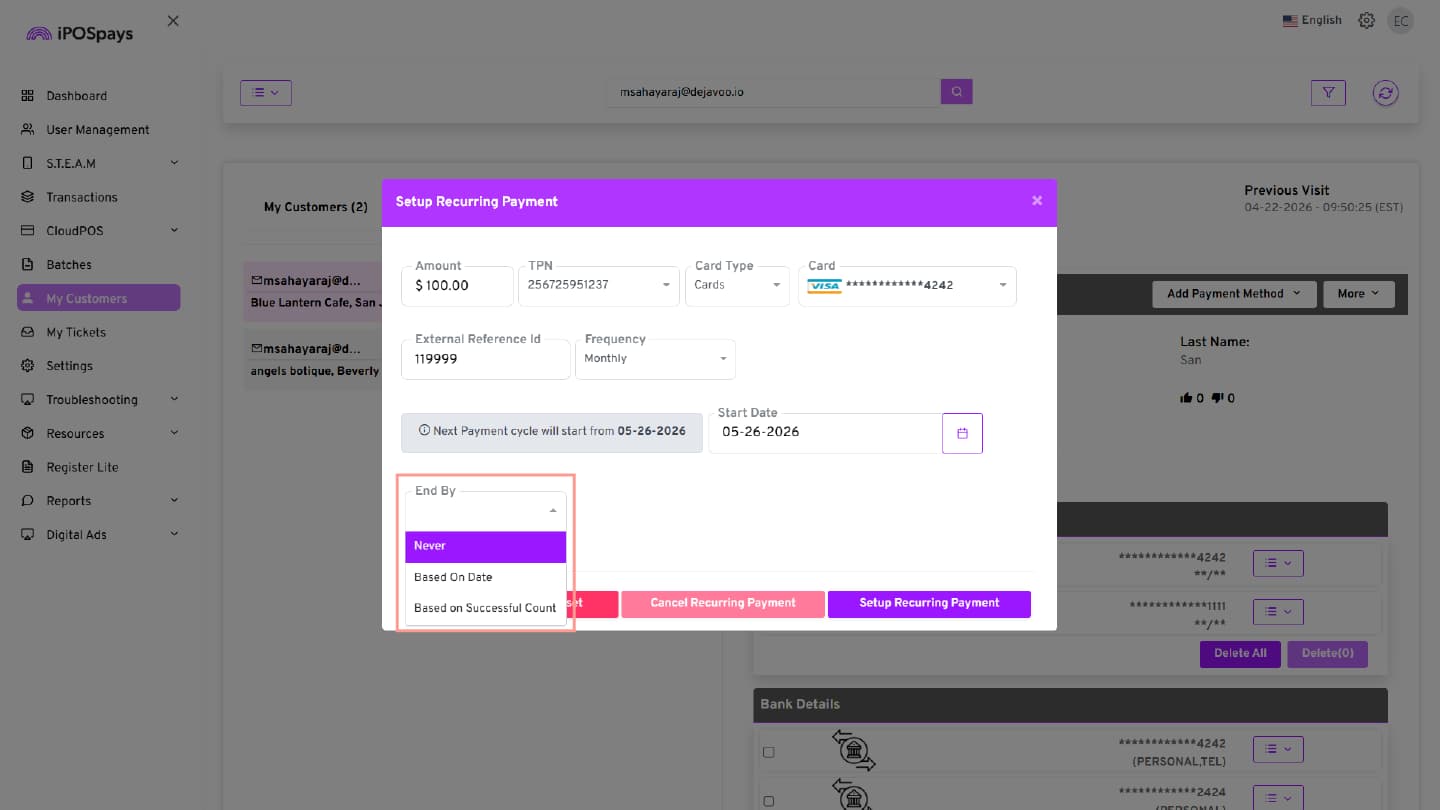
From the End By drop-down, select one of the following options:
- Never The recurring schedule continues indefinitely.
- Based on Date Select the required end date.
- Based on Successful Count Enter the total number of successful payments after which the recurring schedule should stop.
Step 6: Select Terminal Type (ACH Only)
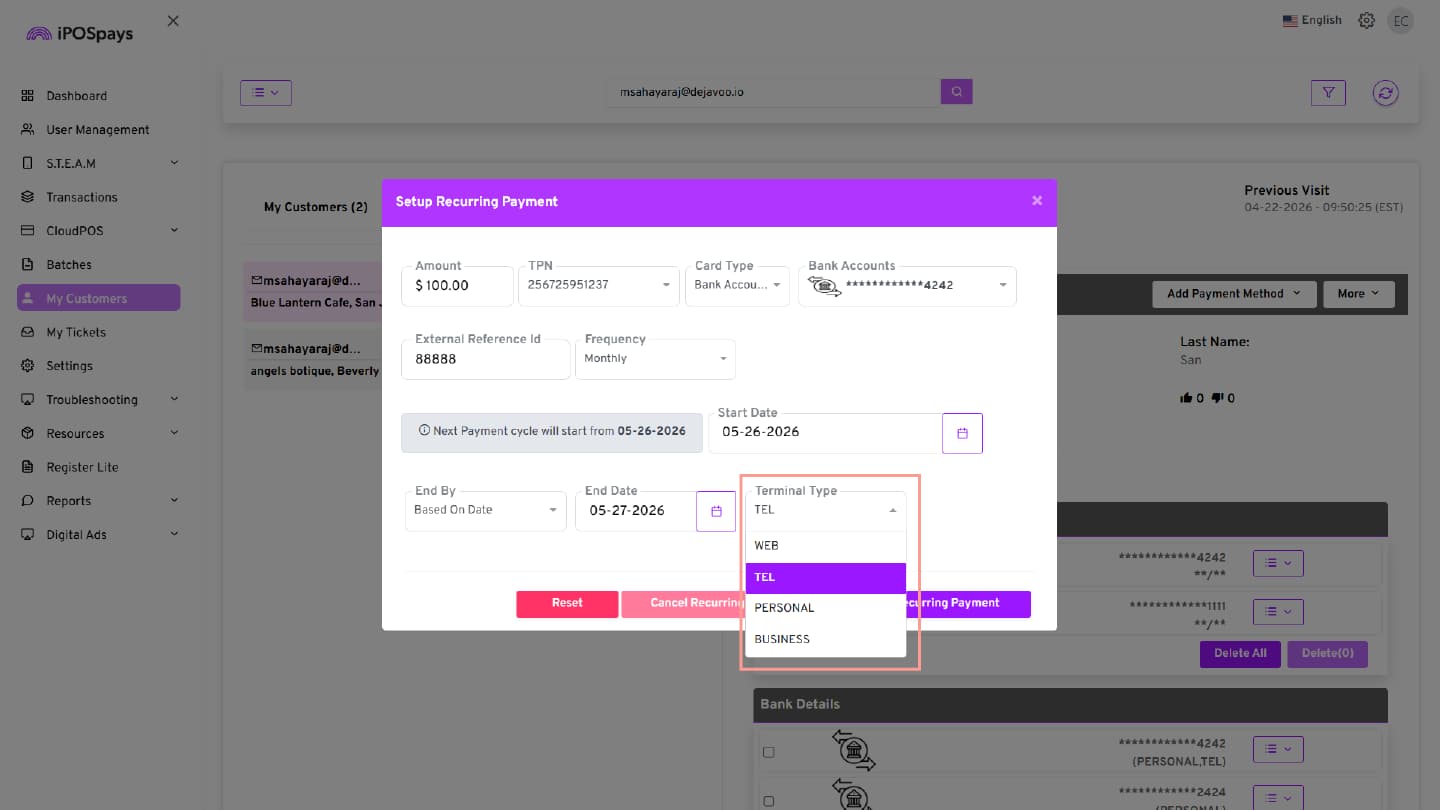
When using a Bank Account (ACH) for recurring payments, select the appropriate Terminal Type:
- WEB – Customer provides bank details online through a website or digital form
- TEL – Bank details are collected through verbal authorization over a phone call
- PERSONAL – Customer provides bank details in person with written authorization
- BUSINESS – Payment is made using a business or corporate bank account
Create Recurring Payments for a New Customer
Step 1: Open My Customers
Navigate to My Customers from the left menu.
Step 2: Add a New Customer
- Click Action.
- Select Add Customer.
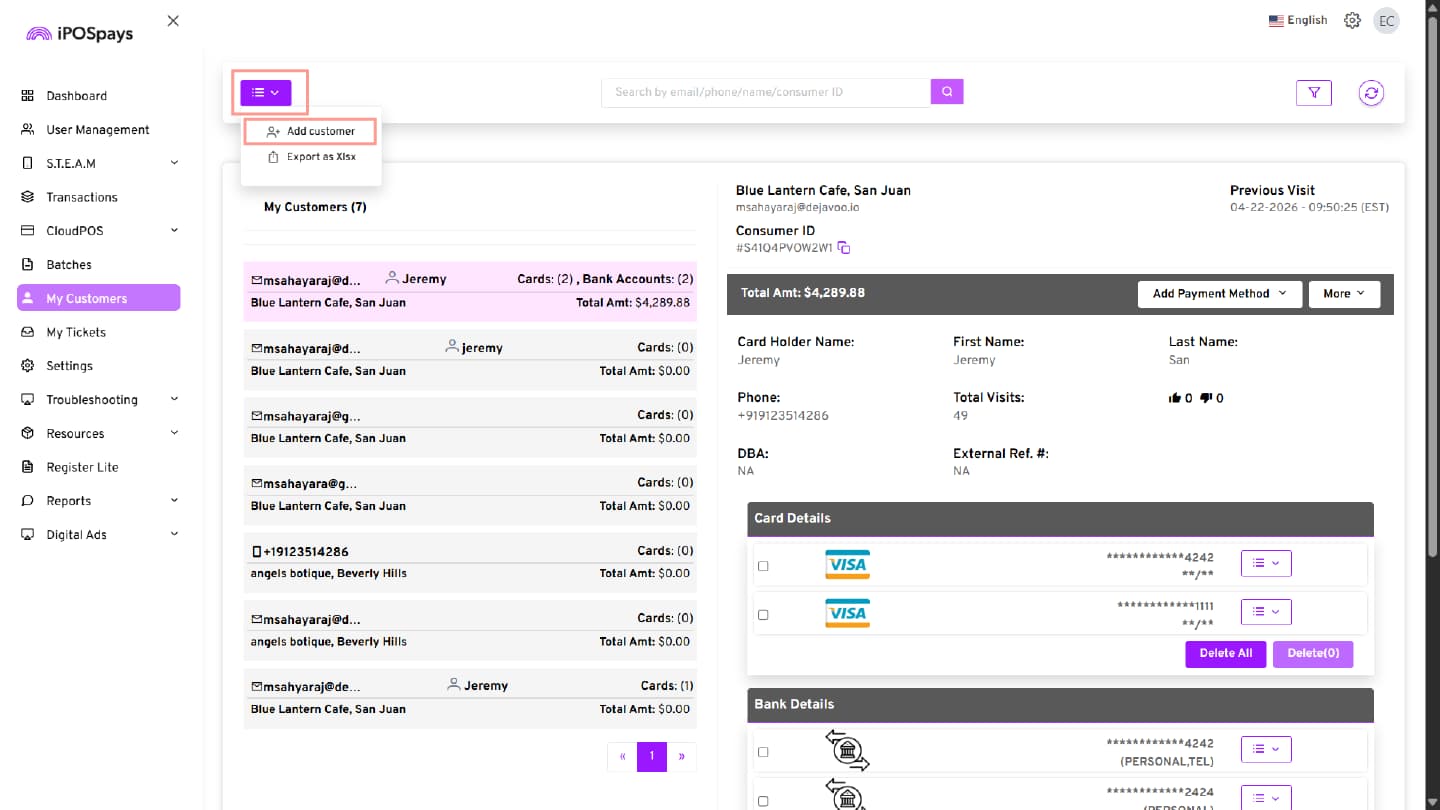
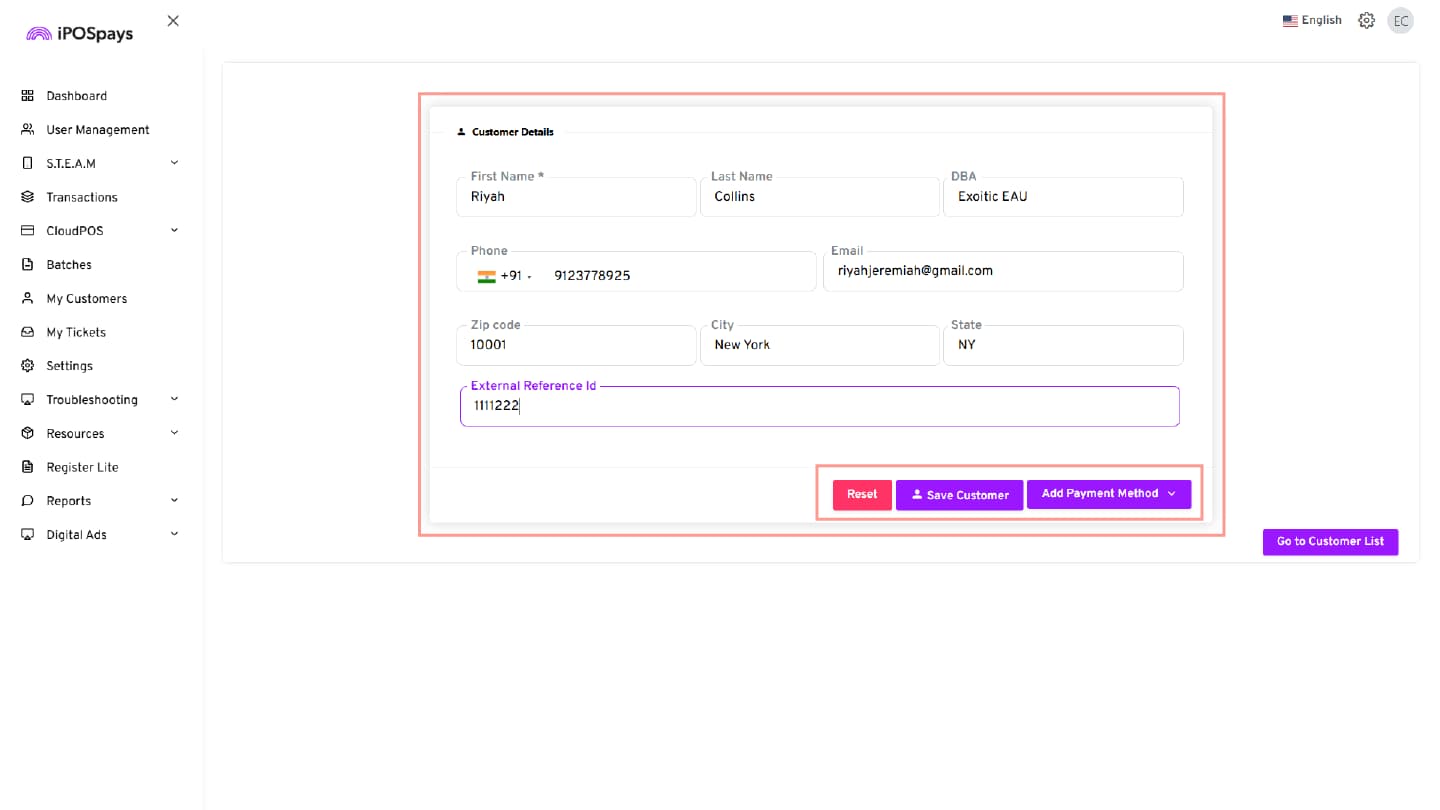
Enter the required customer details, such as:
- Name
- Phone Number
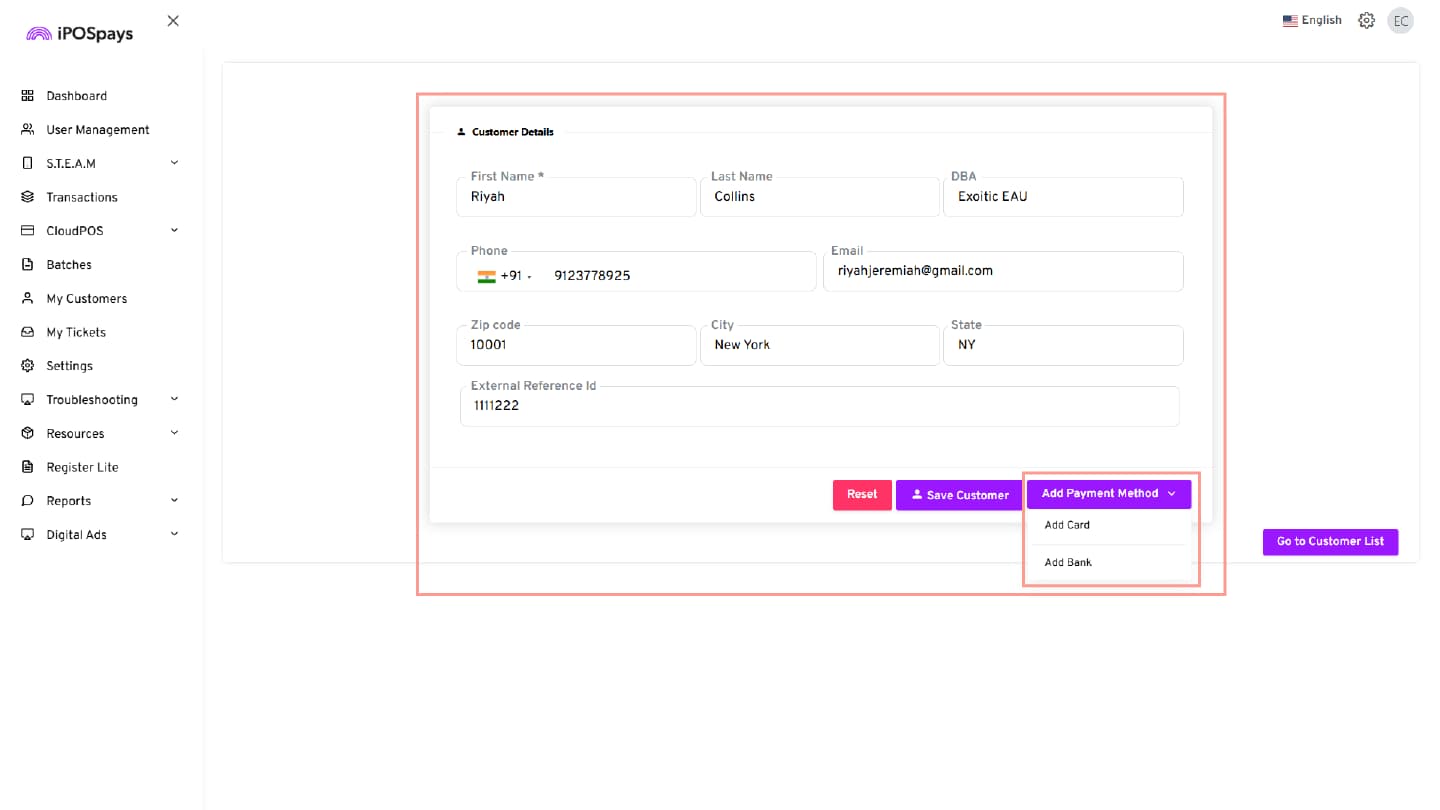
Step 3: Add Payment Method
Click Add Payment Method.
Available options:
- Add Card
- Add Bank
Step 4: Add Card or Bank Details
- Select either Add Card or Add Bank.
- Follow the same payment method setup steps described earlier in this document.
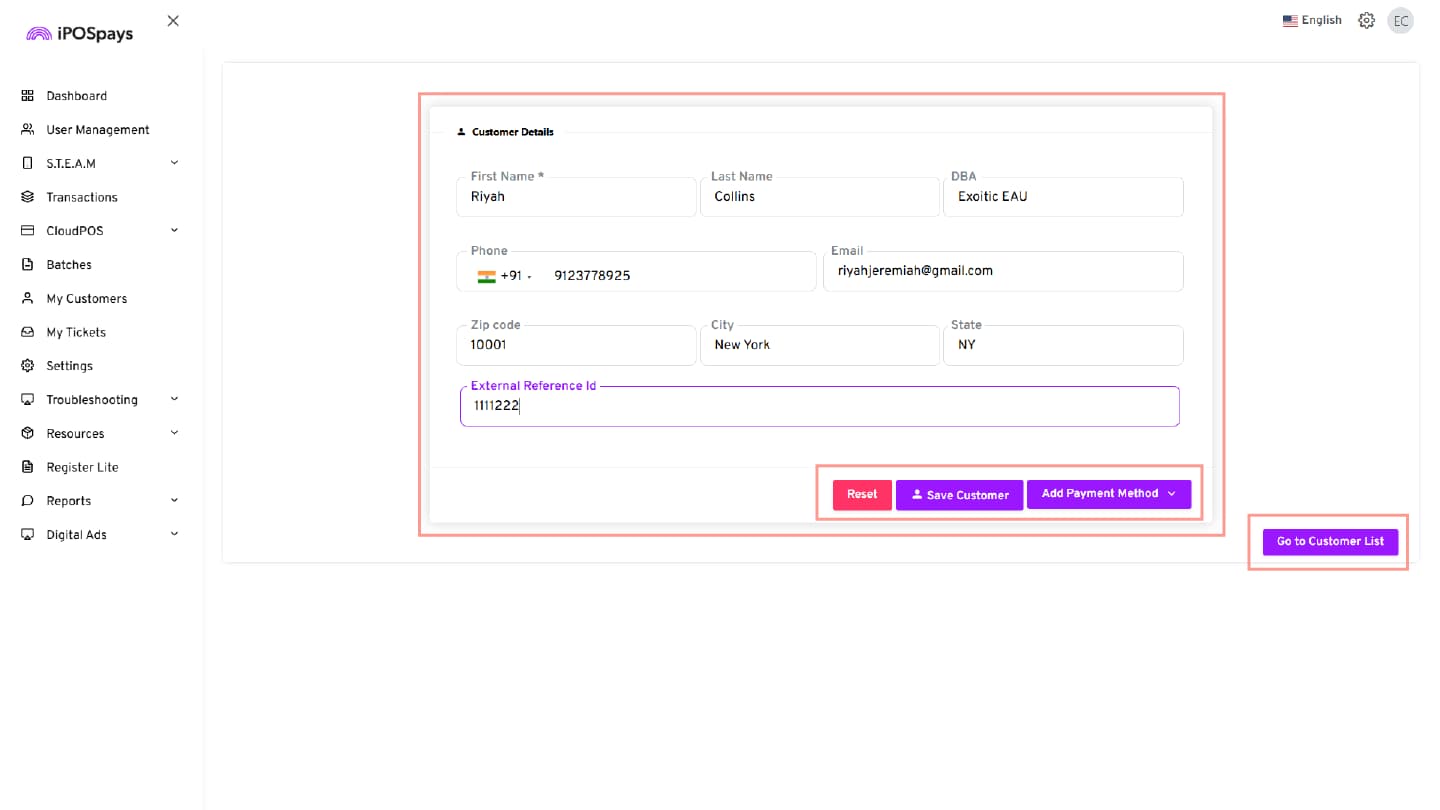
Step 5: Save Customer
- After entering the customer and payment details, click Save Customer.
- A confirmation message appears indicating that the customer has been updated successfully.
Step 6: Return to Customer List
Click Go to Customer List to return to the My Customers page.
Step 7: Configure Recurring Payments
Follow the steps outlined earlier in this document to set up the recurring payment schedule.
Manage Customers, Cards, Banks, and Recurring Payments
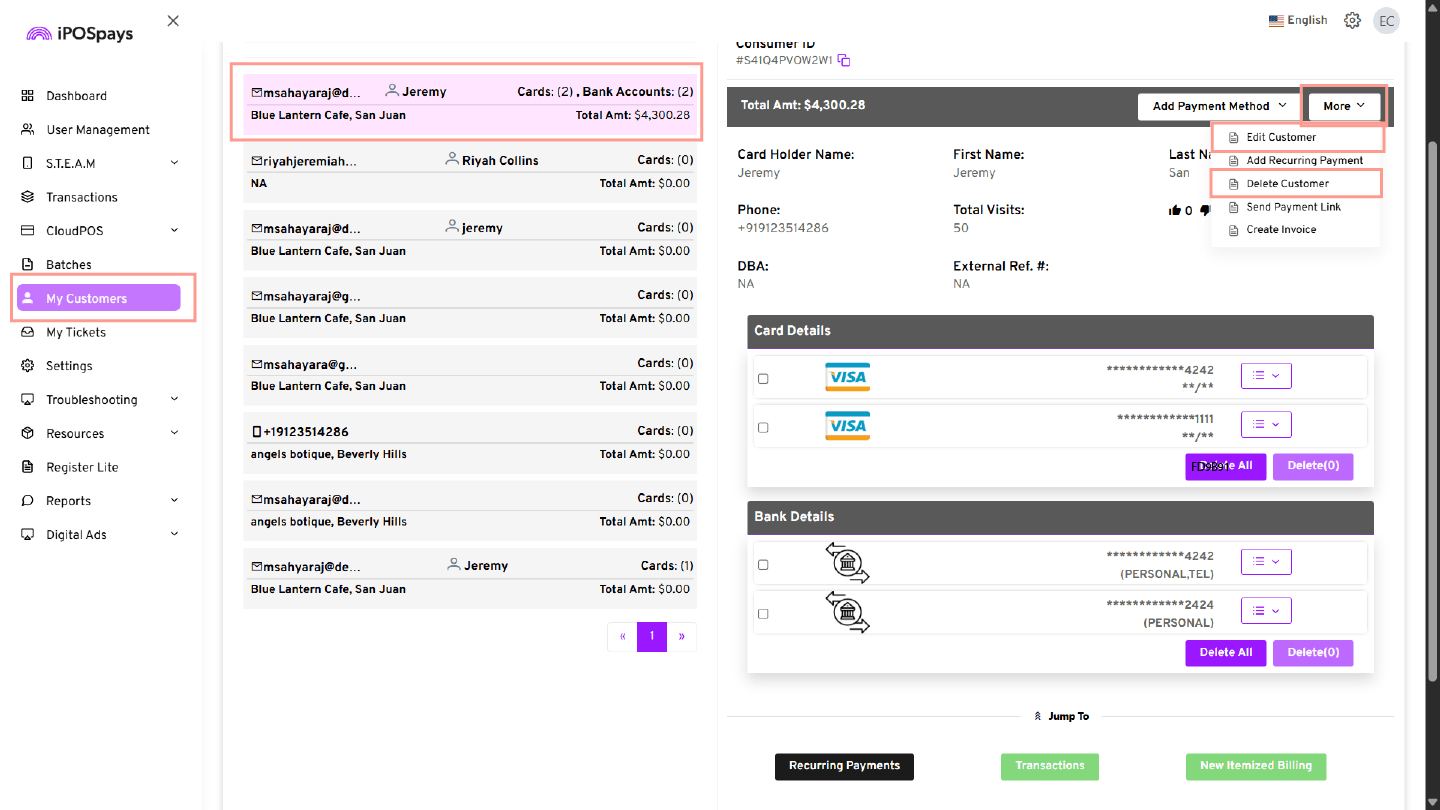
Edit or Delete Customer Details
- Navigate to My Customers from the left menu.
- Search and select the required customer.
- Click the More drop-down on the customer details panel.
Available options:
- Edit Customer – Update customer information
- Delete Customer – Remove the customer profile from the system
Manage Saved Card Details
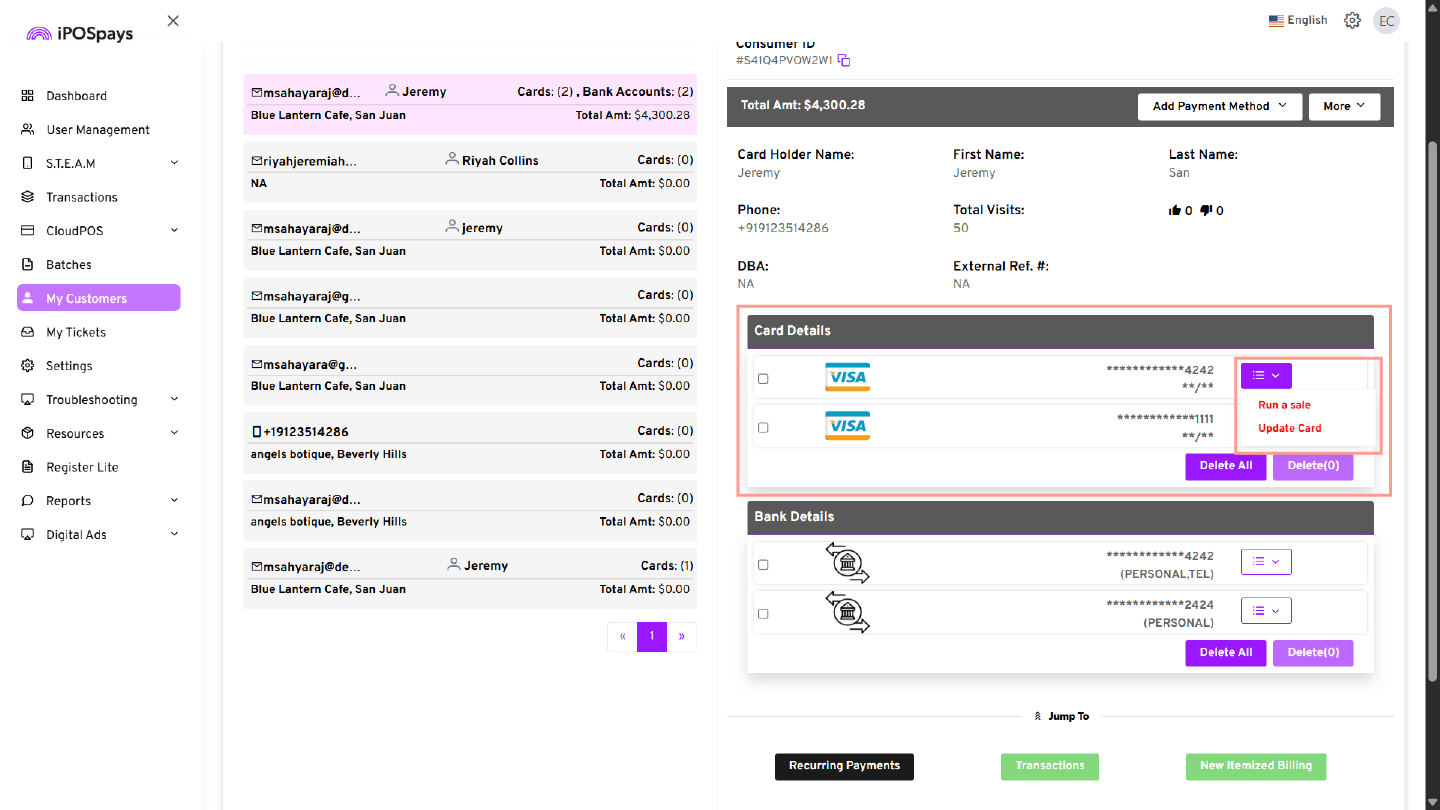
Update Card Details
- Under the saved card section, click the Action/Menu button on the required card.
- Select Update Card to modify the saved card details.
Run a Sale Using a Saved Card
- Under the saved card section, click the Action/Menu button on the required card.
- Select Run a Sale to process a sale transaction using the selected card.
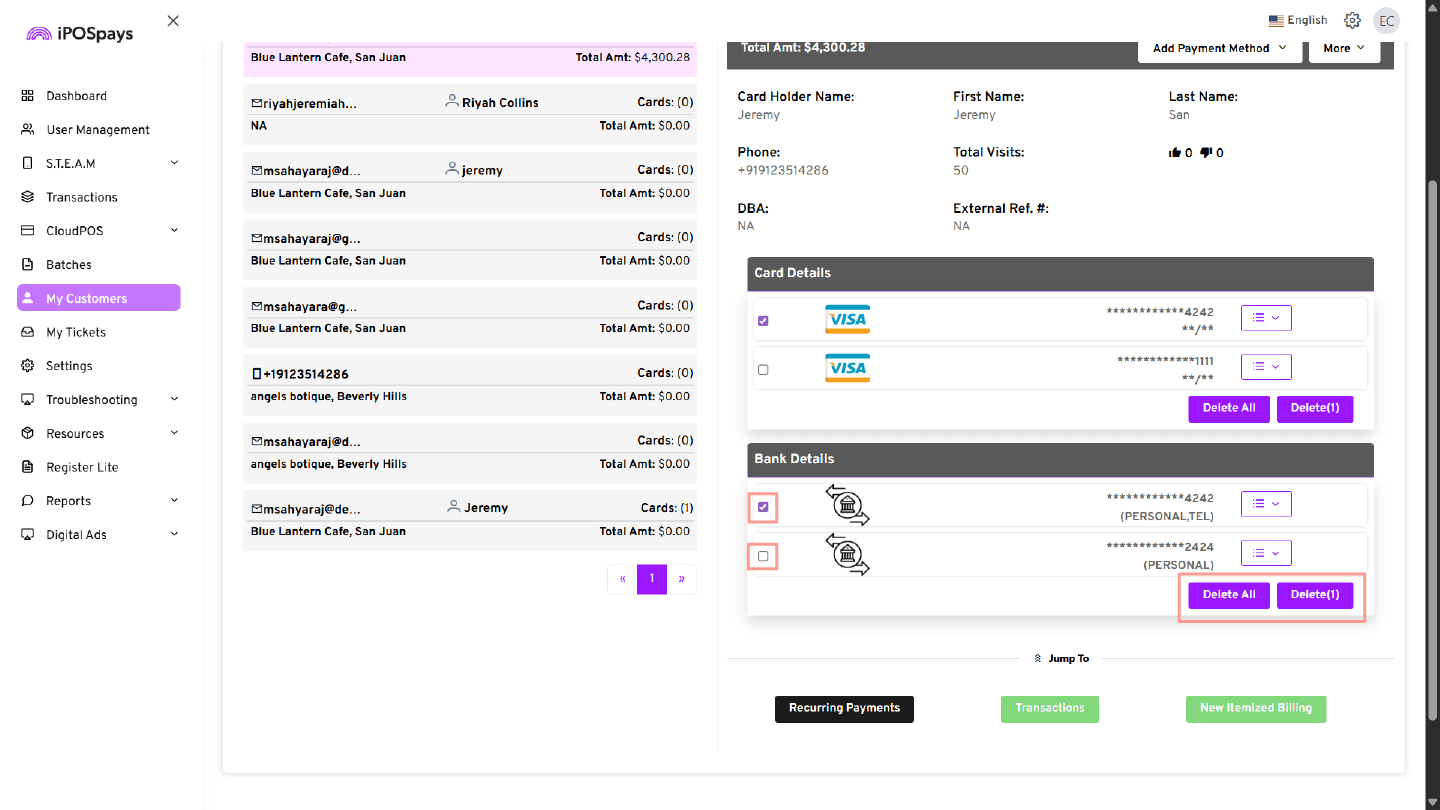
Delete Saved Card Details
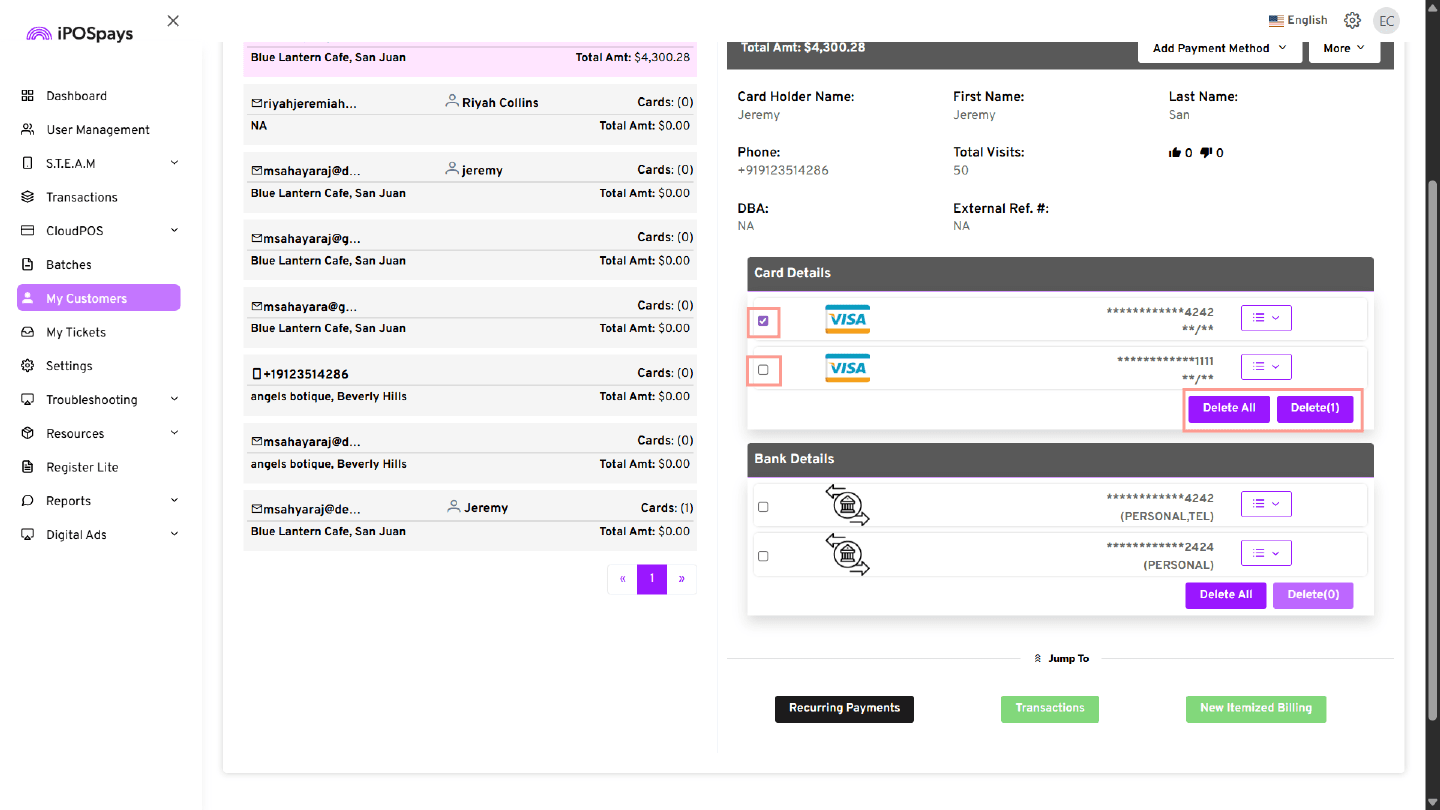
To delete a single saved card:
- Select the checkbox for the required card
- Click Delete
To delete all saved cards:
- Click Delete All
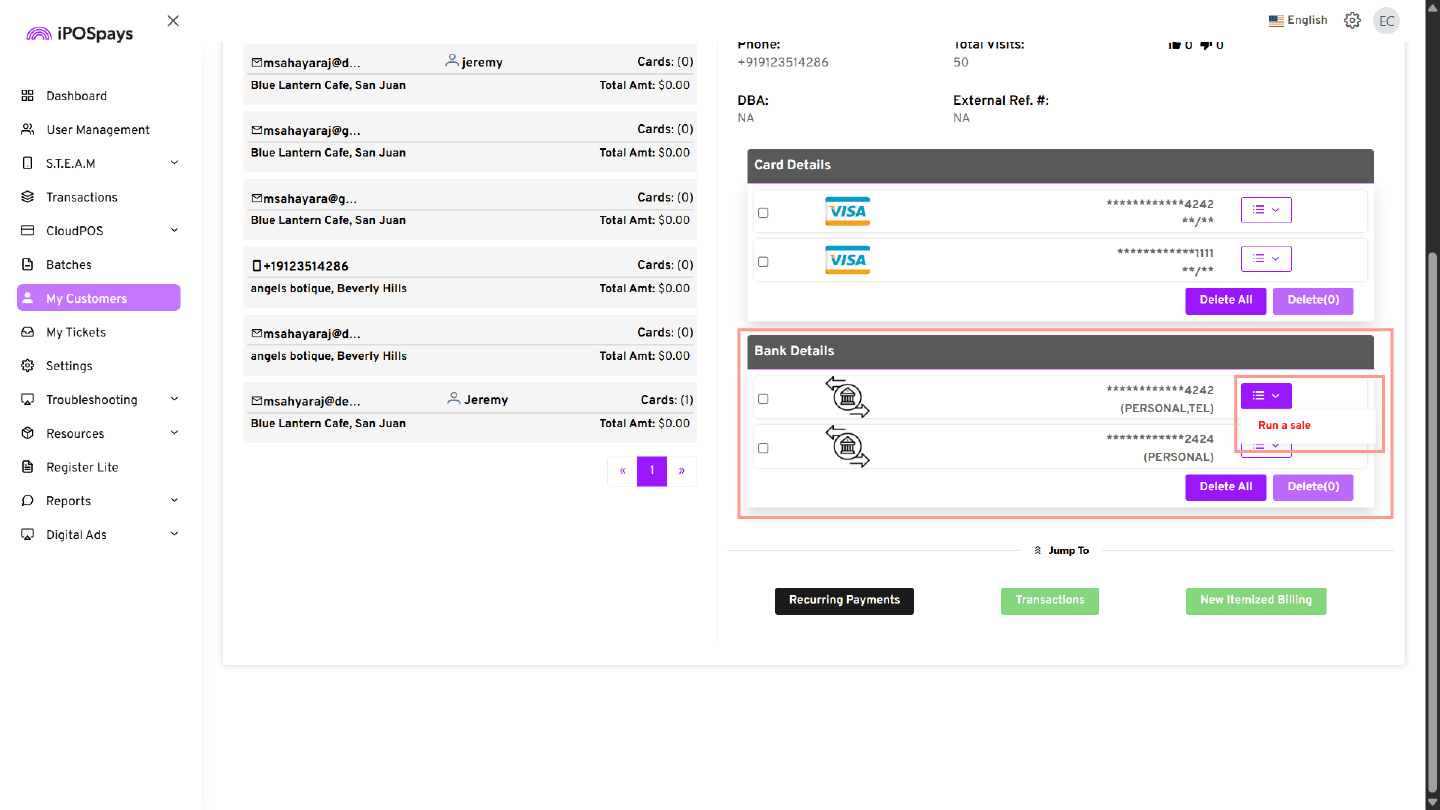
Manage Saved Bank (ACH) Details
Run a Sale Using a Saved Bank Account
- Click the Action/Menu button next to the saved bank account.
- Select Run a Sale to process a sale transaction using the saved bank account.
Delete Saved Bank Details
To delete a single saved bank account:
- Select the checkbox for the required bank account
- Click Delete
To delete all saved bank accounts:
- Click Delete All
View and Edit Recurring Payments Details
Access Recurring Payments
- Navigate to CloudPOS from the left sidebar menu.
- Select Recurring Payments.
- The Recurring Payments screen displays all configured recurring payment schedules for customers.
View Recurring Payment Details
Search and select the required recurring payment schedule.
The recurring payment details screen displays information such as:
- Past Transactions
- Transaction Date
- TPN
- Card/Bank Details
- Amount
- Transaction Status
Merchants can review the recurring payment history and transaction status directly from this screen.
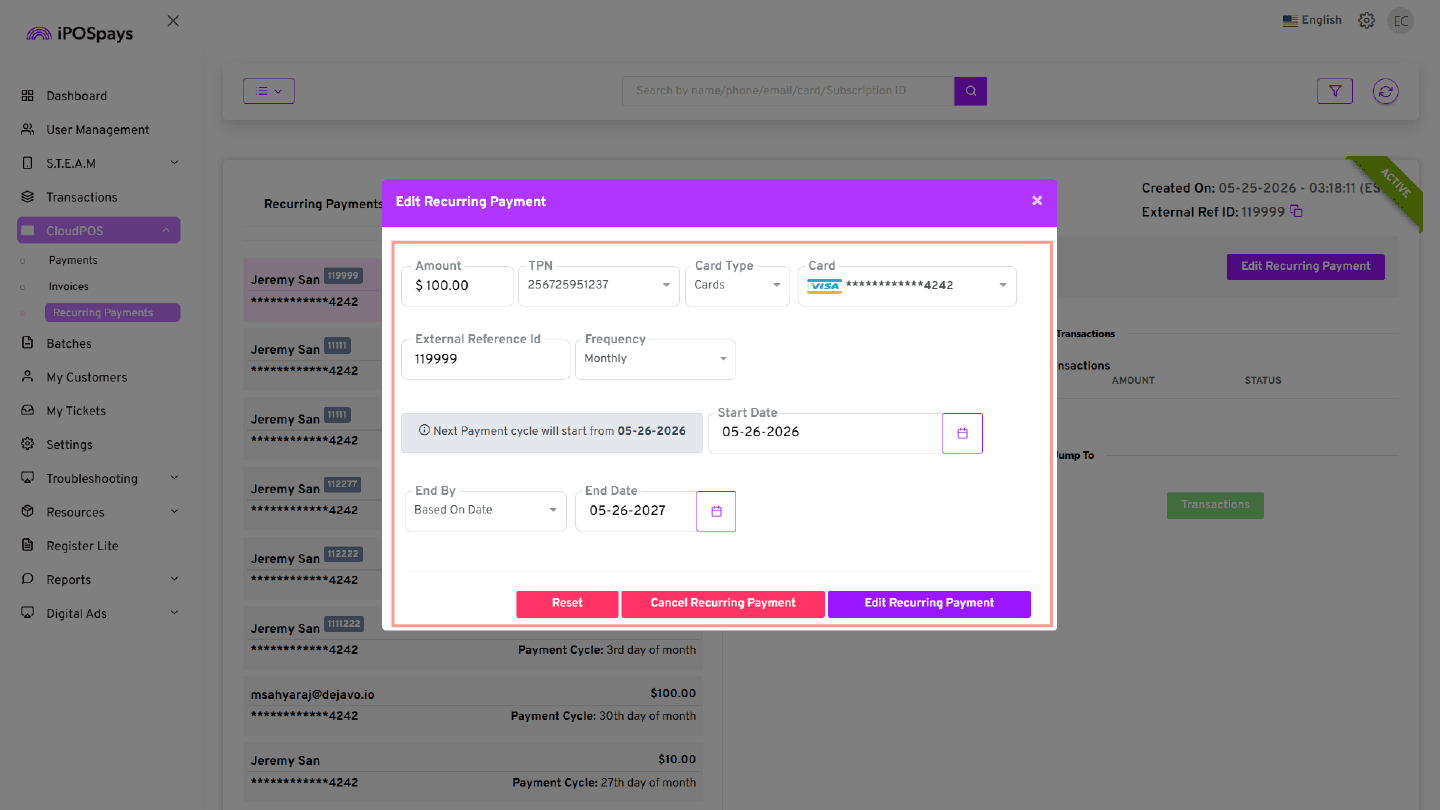
Edit Recurring Payment Details
- To modify an existing recurring payment schedule:
- Select the required recurring payment.
- Click Edit Recurring Payment.
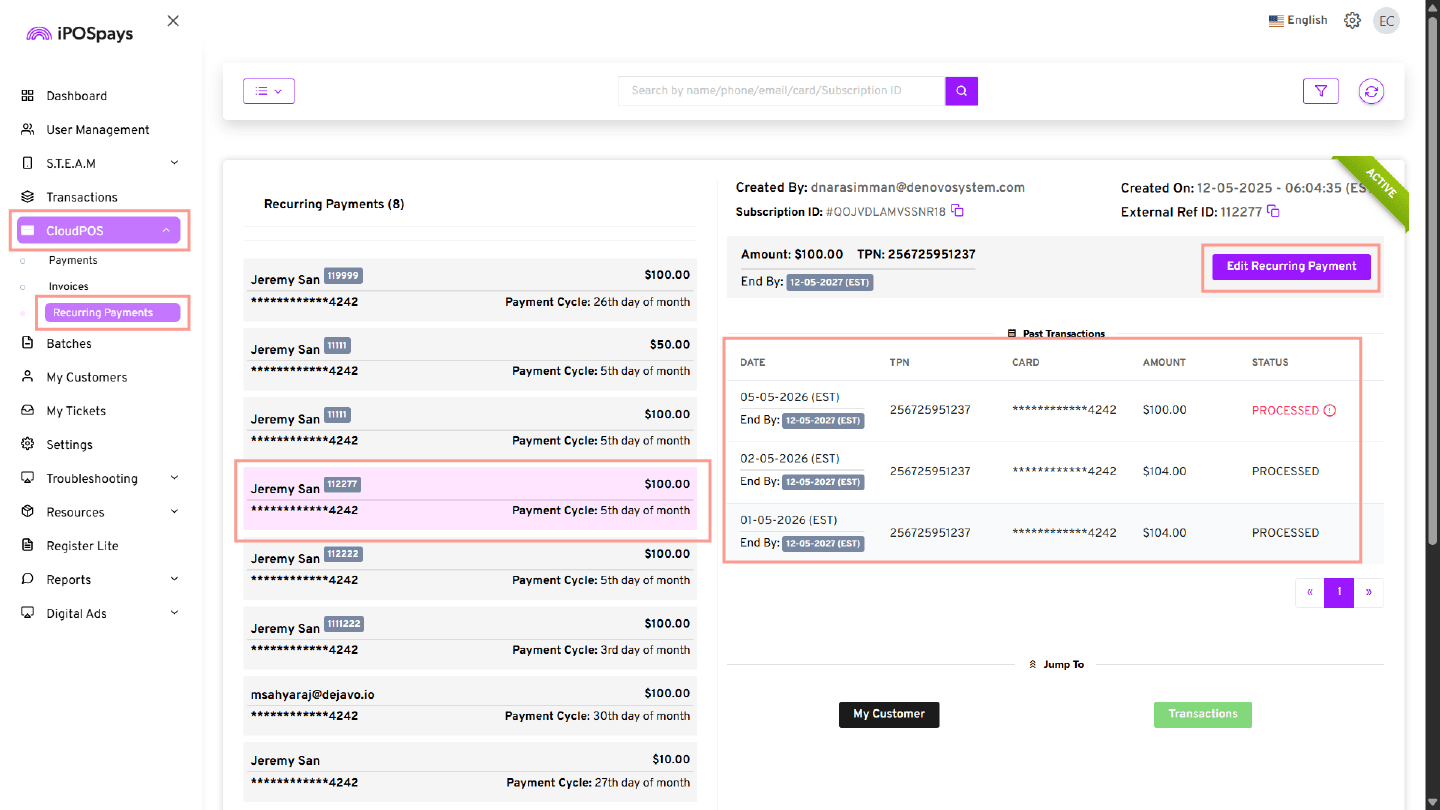
The recurring payment configuration screen opens.
Update the required recurring payment details, such as:
- Amount
- Frequency
- Start Date
- End Condition
- Payment Method
- Terminal Type (for ACH payments)
Save the changes to update the recurring payment schedule.