Send Payment Link on iPOSpays
The Send Payment Link feature in iPOSpays allows merchants to securely collect remote payments by sending a payment link to customers through POS devices, CloudPOS, or iPOSgo!. This document explains how to enable, configure, send, and track payment link transactions, as well as the customer payment flow.
Feature Compatibility
Minimum Required POS Build: Not Applicable
Supported Payment Methods:
- Card
- Bank (ACH)
- Google Pay
- Apple Pay
- Wallets (PayPal, Venmo, and Crypto through Pockyt Integration)
Supported Platforms:
- POS
- CloudPOS
- iPOSgo! (iOS & Android)
Supported Fee Types: All Fee Types
How to Enable Send Payment Link on iPOSpays
The Send Payment Link feature can be enabled in the iPOSpays Portal by both ISOs and Merchants. Please follow the steps below to configure this feature:
Step 1: Log In to iPOSpays Portal
Log in to the iPOSpays Portal using either ISO or Merchant credentials.
Step 2: Navigate to Terminal Settings
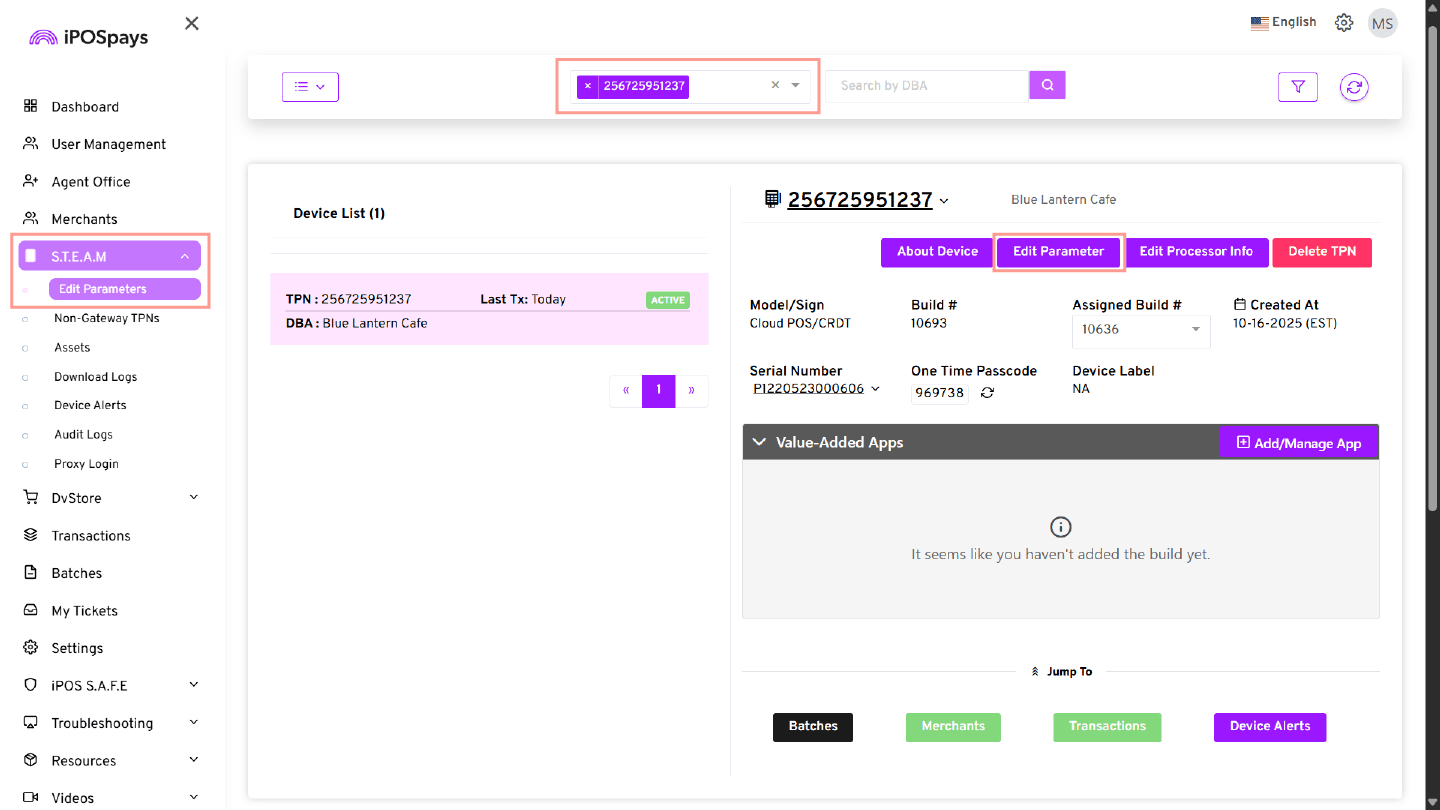
- Click S.T.E.A.M from the left menu.
- Select Edit Parameters.
Step 3: Search and Select the TPN
- Use the search box to find the required TPN.
- Select the TPN.
- Click Edit Parameter.
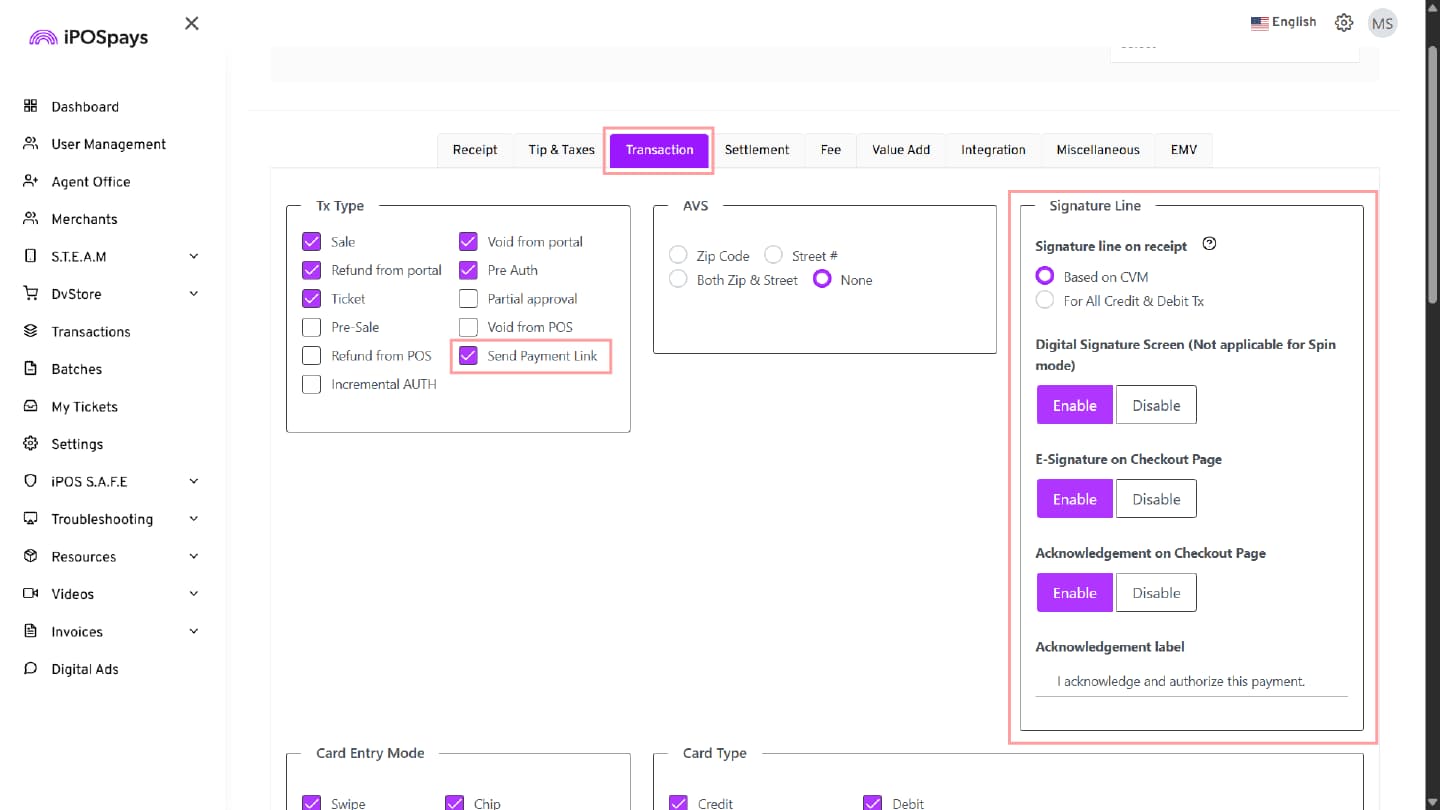
Step 4: Enable Send Payment Link Transaction Type
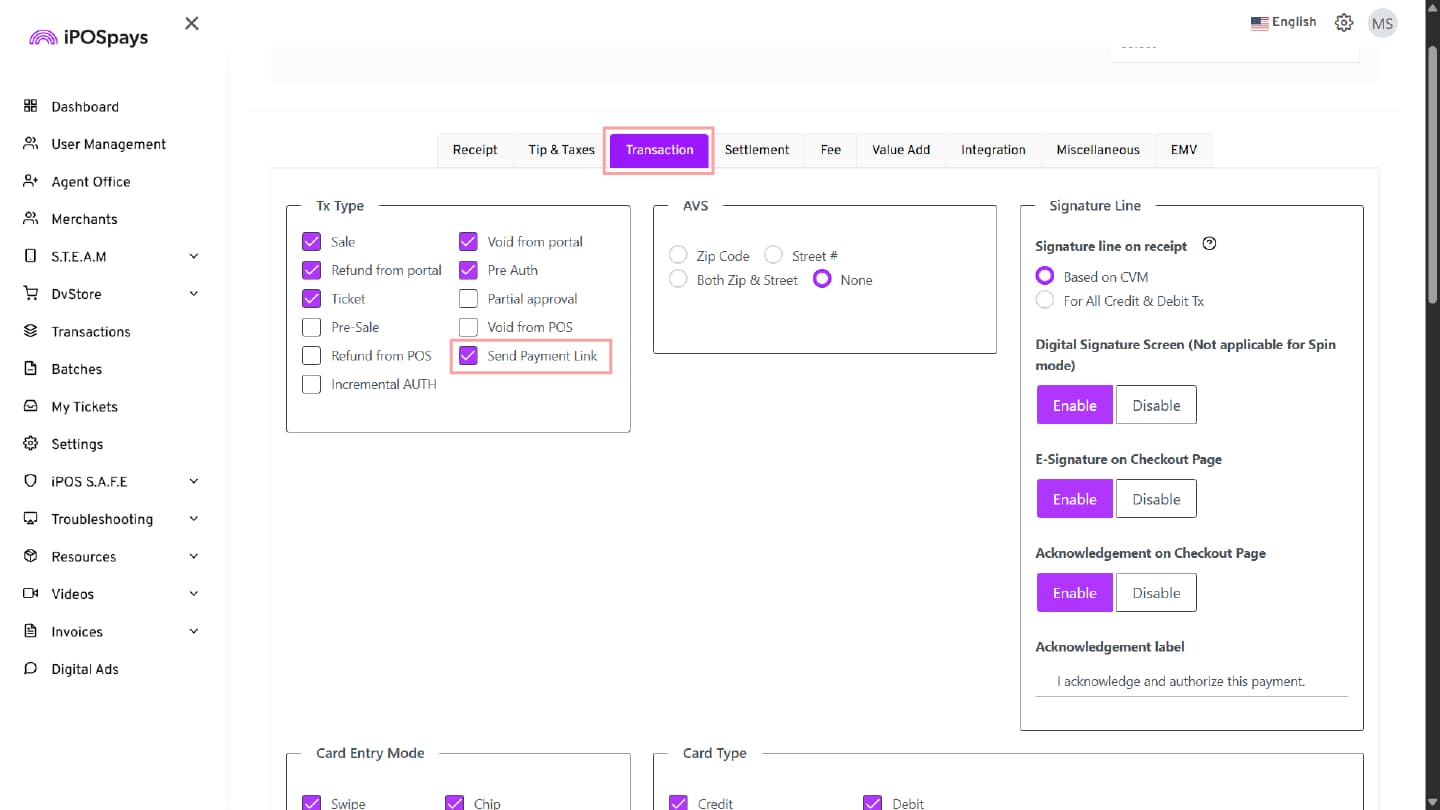
- Select the Transaction tab.
- Under Tx Type, enable the following transaction type:
- Send Payment Link
Step 5: Enable Wallet Options (Optional)
- Select the Integration tab.
- Under Wallet, click Enable.
- Select any of the required wallet options:
- PayPal
- Crypto
- Venmo
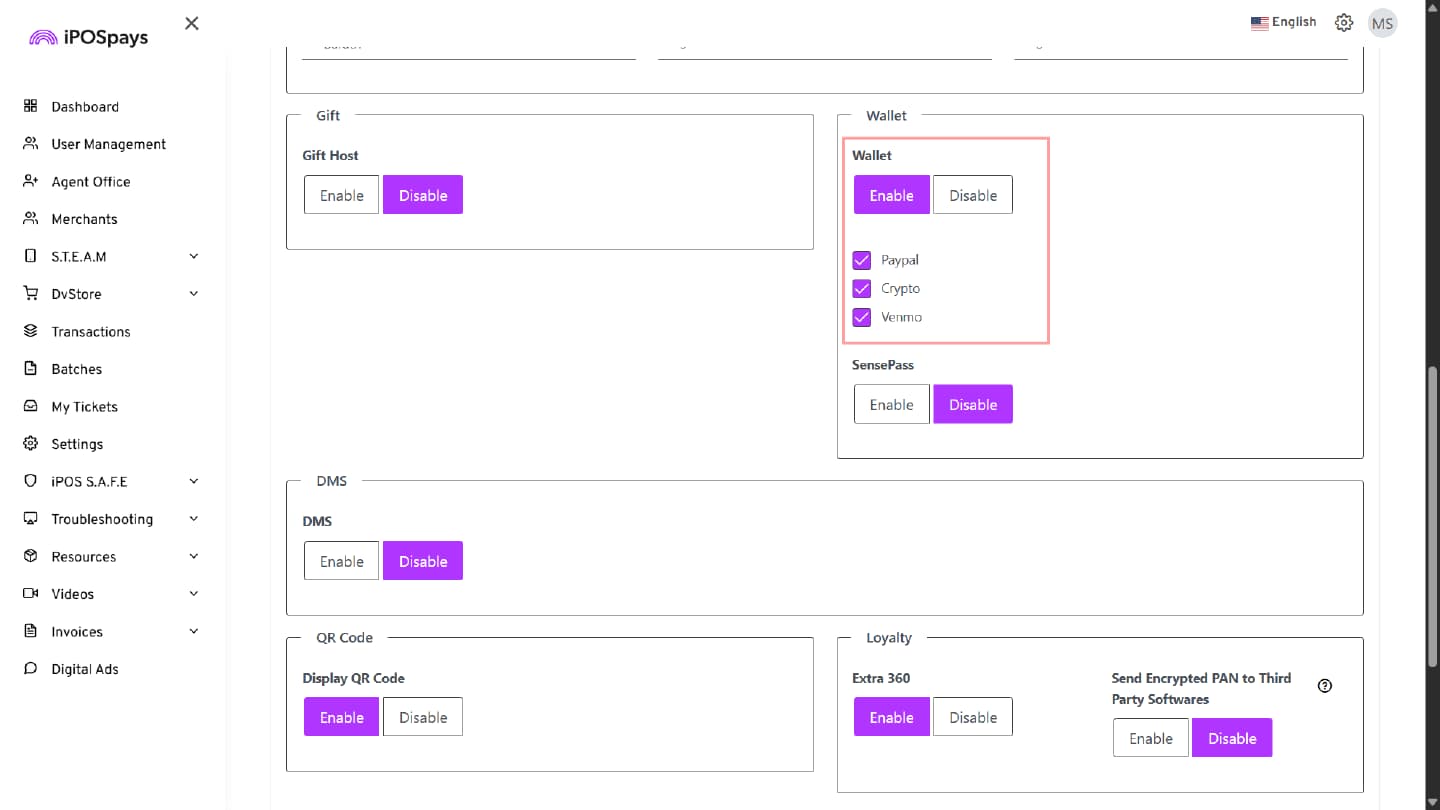
These wallet options will be available on the Hosted Payment Page during payment.
Step 6: Enable E-Signature Configuration (Optional)
- Select the Transaction tab.
- In the Signature Line section, enable:
- E-Signature on Checkout Page (Optional)
- Enable:
- Require Acknowledgement on Checkout Page (Optional)
- If acknowledgement confirmation is required before payment completion.
- Enter the acknowledgement message in the Acknowledgement Label field if required.
Example: “I acknowledge and authorize this payment.”
The E-Signature and acknowledgement options will be displayed on the Hosted Payment Page during payment checkout.
Step 7: Save and Update Terminal
- Click Save or Save As Template to apply the configuration changes to the selected TPN.
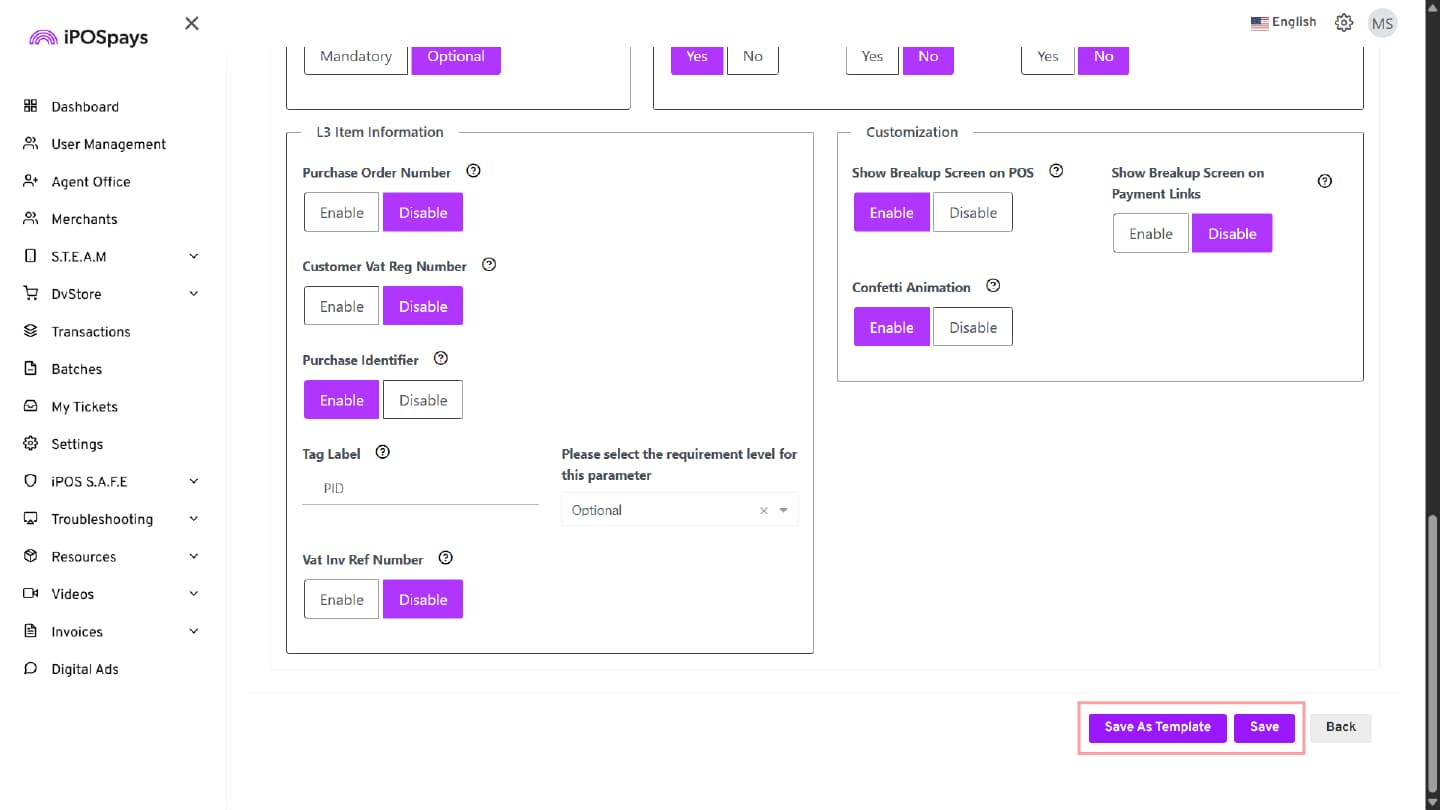
- Perform a parameter download on the payment terminal to apply the updated settings.
- Once the parameter update is completed successfully, the Send Payment Link option will be available on the supported platforms.
Send Payment Link Using a Payment Terminal
Step 1: Start the Transaction
- Open the DvPayLite app on the payment terminal.
- Enter the transaction amount.
- Tap OK to continue.
Step 2: Add a Tip (If Enabled)
- If tipping is enabled for the TPN, the tip screen appears with the following options:
- Custom Tip
- No Tip
- Percentage-Based Tips
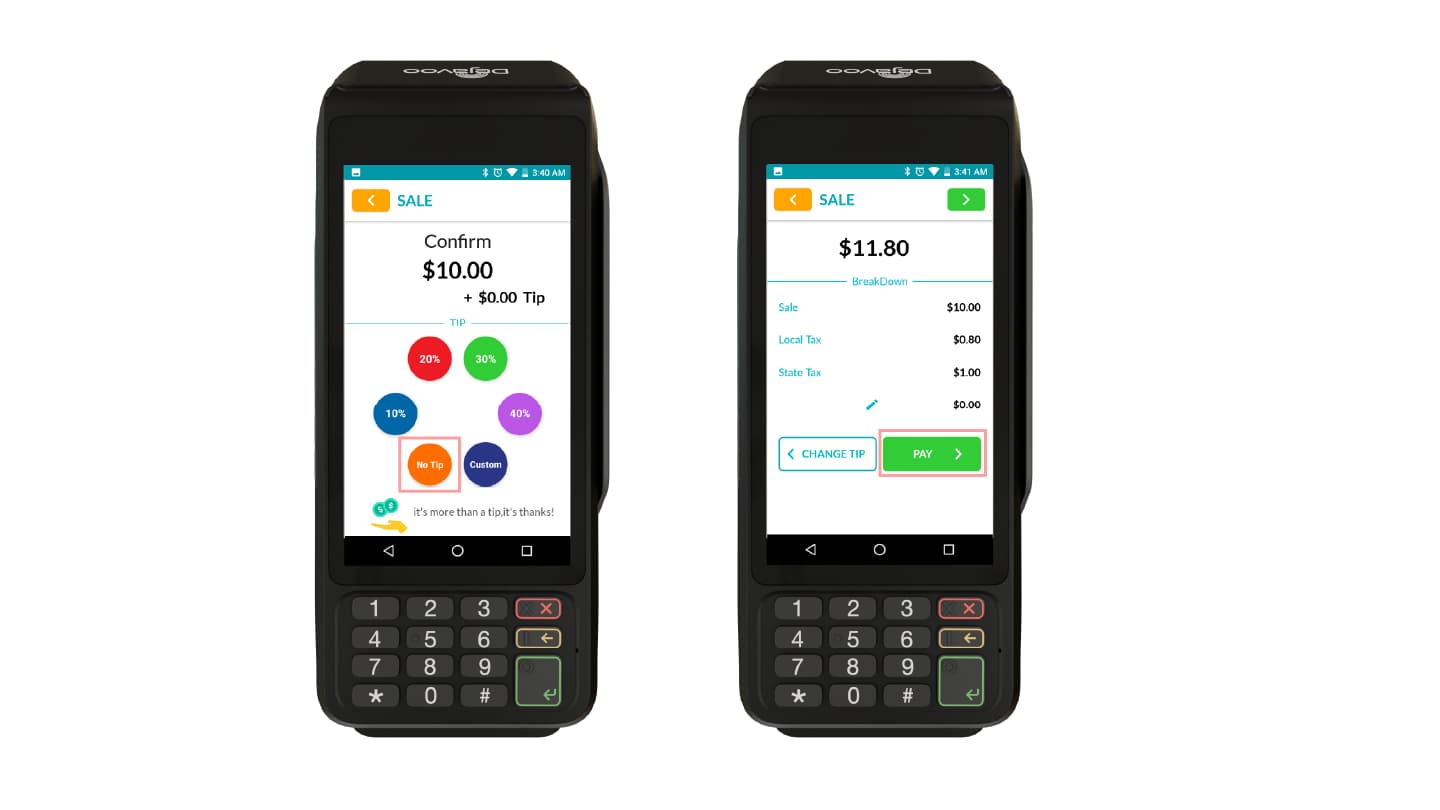
- To continue with sending the Payment Link without the tip, select No Tip. The customer can add the tip later on the Hosted Payment Page (HPP).
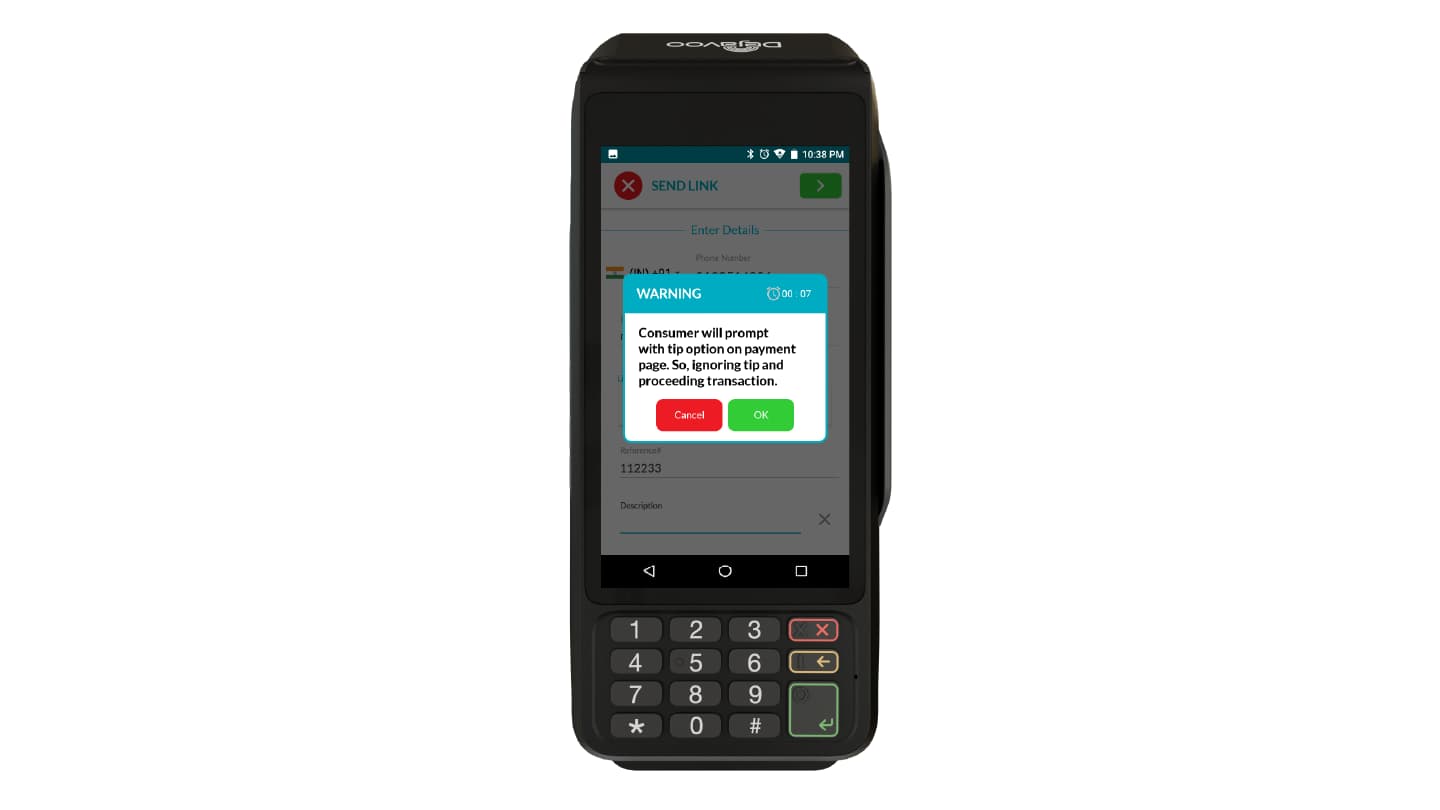
- If a tip is already added and Send Payment Link is selected, a warning pop-up appears stating that the customer will be prompted for a tip on the payment page, so the current tip will be ignored for the transaction.
- After adding a tip, the Break Up screen displays:
- Sale Amount
- Tip Amount (if added)
- Taxes (if enabled)
- The following options are also available:
- Change Tip
- Pay
- Click PAY to proceed with the transaction
Step 3: Select Send Link
Tap Send Link on the payment terminal.
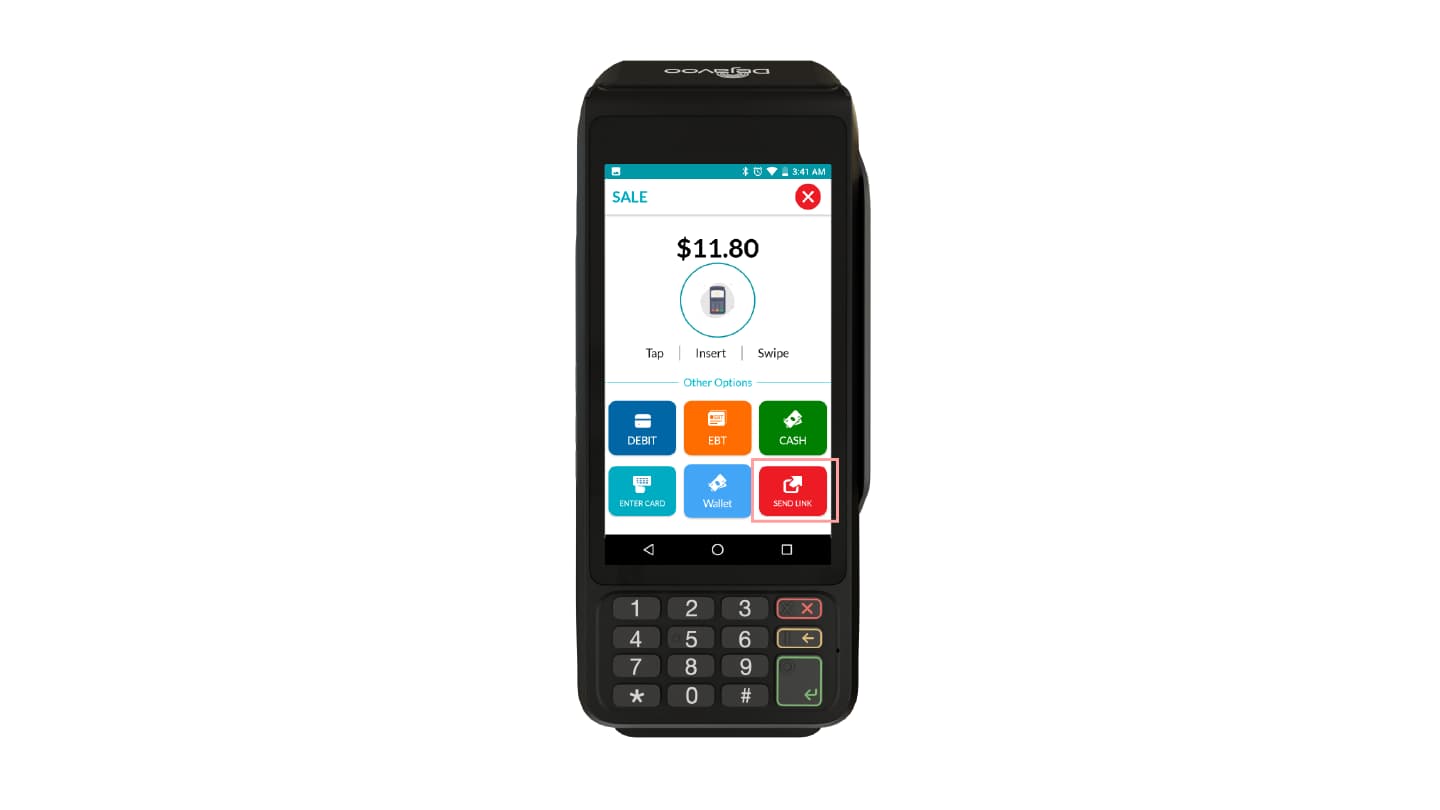
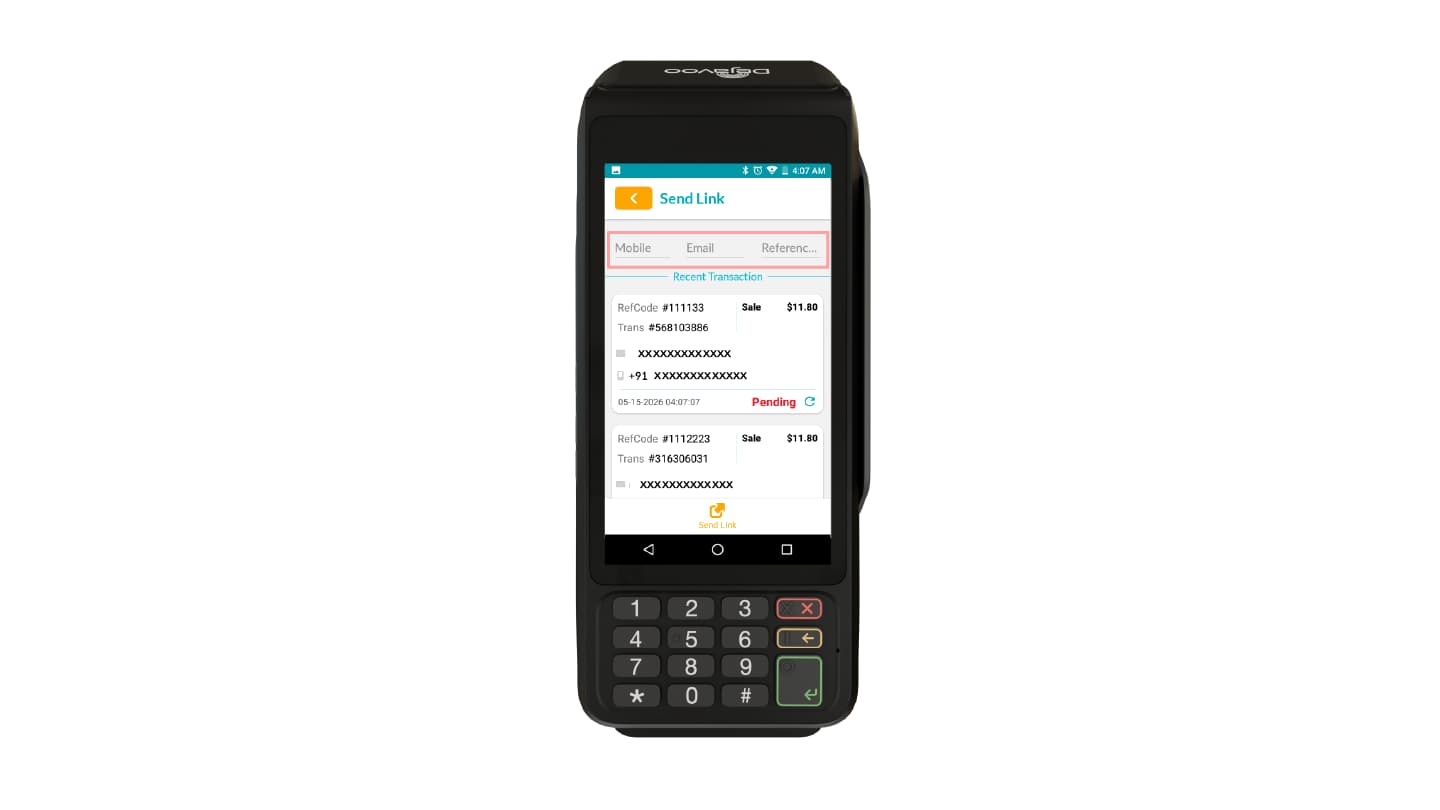
Step 4: Enter Customer Details
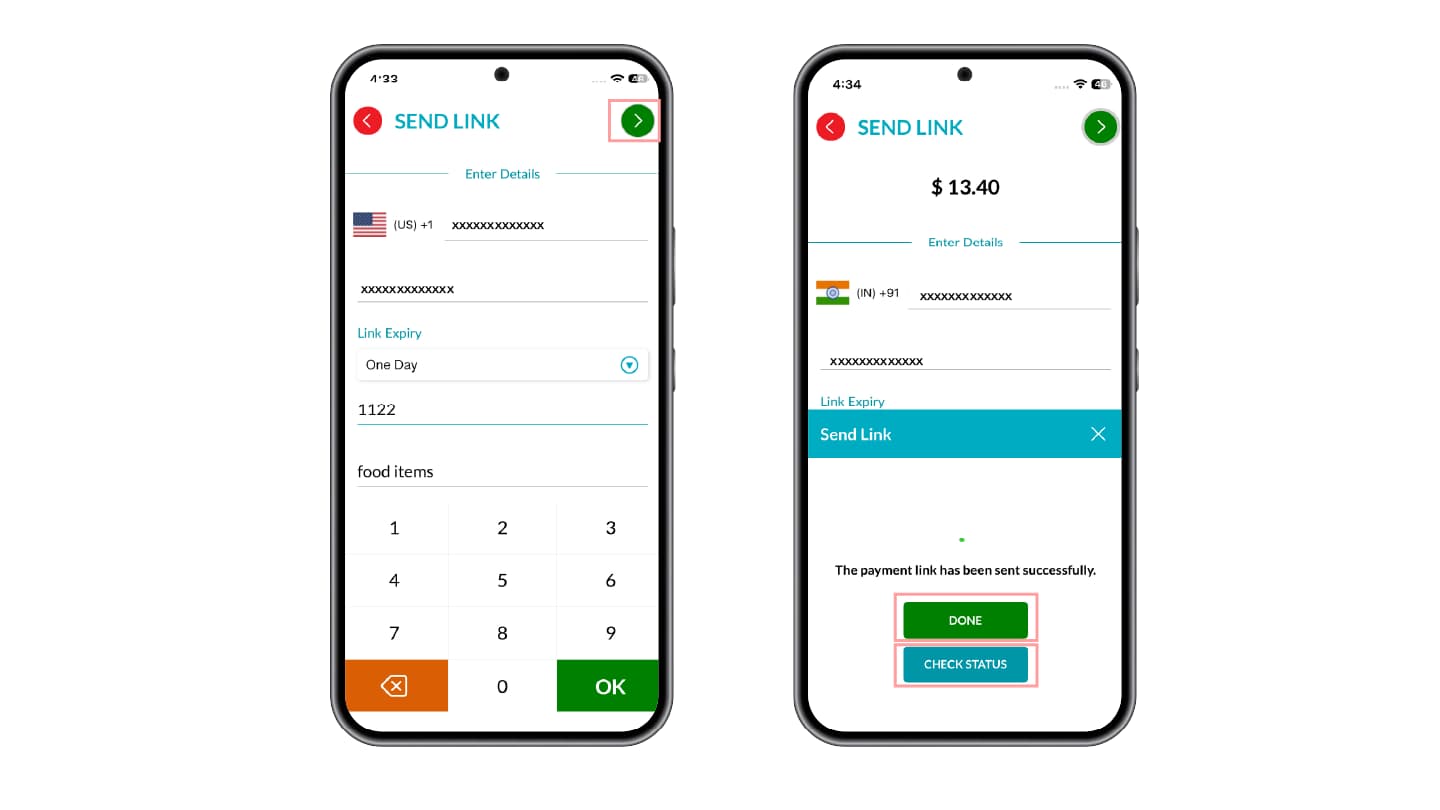
The Send Link screen opens, allowing the merchant to enter customer and payment link details.
Enter the customer details:
- Mobile Number
- Email Address
Select the Link Expiry duration:
- One Day
- One Week
- One Month
Step 5: Add Additional Transaction Details
Reference
- Enter an internal reference ID to associate the payment link with a specific order or invoice.
- This helps merchants track and reconcile transactions easily.
Description
- Enter a short description for the payment.
- This helps both the merchant and customer identify the purpose of the transaction.
Step 6: Send the Payment Link
- Tap the green arrow button in the top-right corner to send the payment link.
- A success or failure notification appears on the terminal.
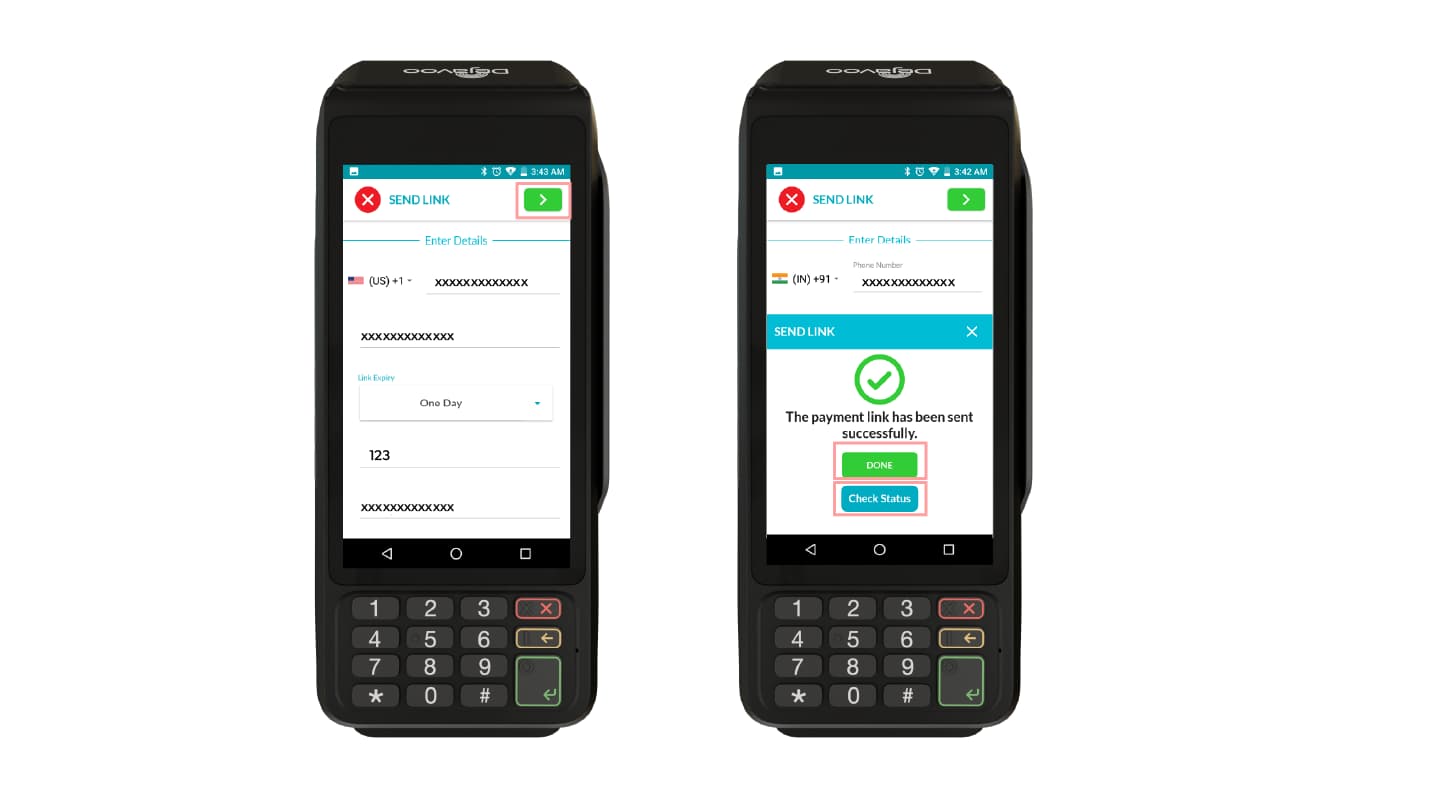
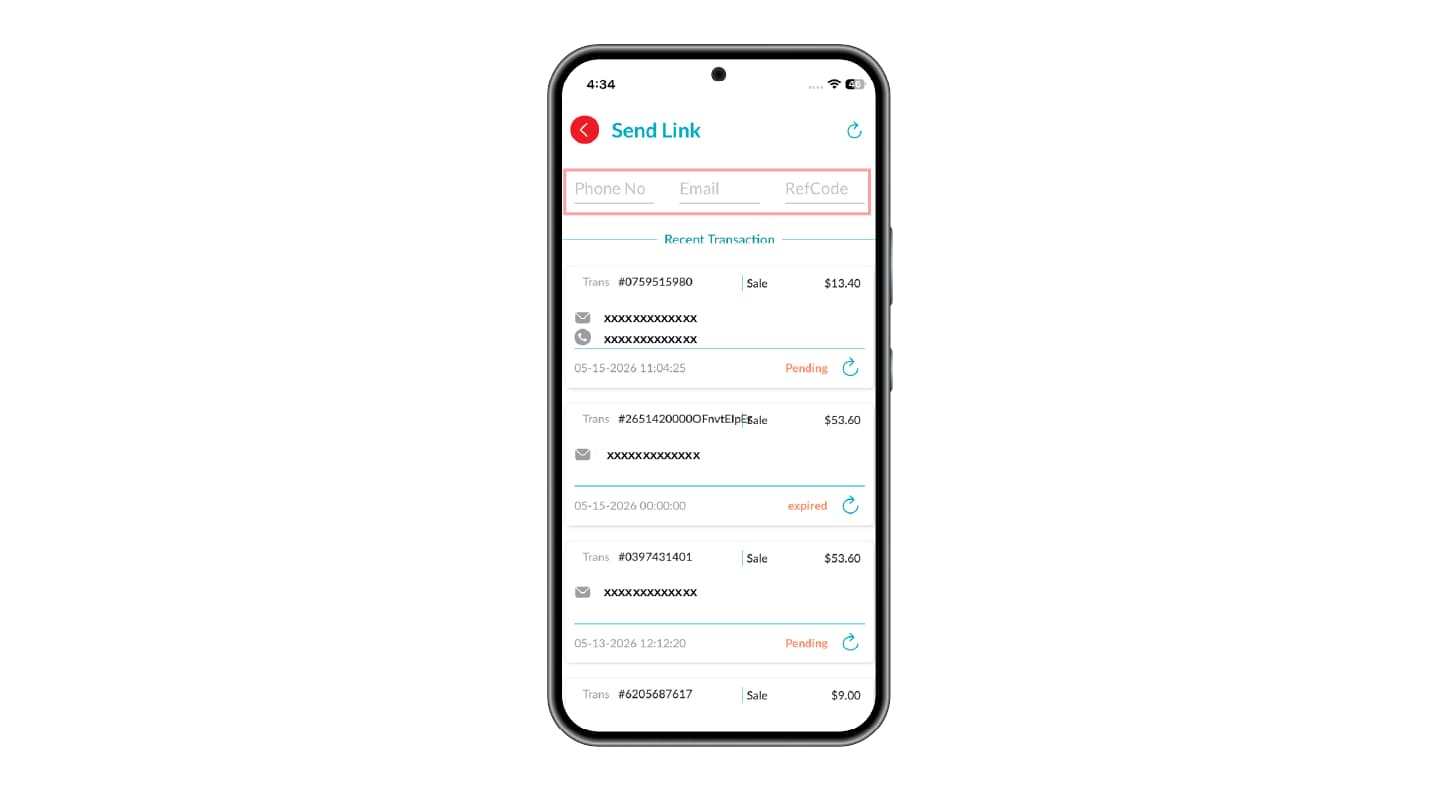
Step 7: Check Payment Status
Tap Check Status on the terminal.
Search using:
- Mobile Number
- Email Address
- Reference ID
The terminal displays the recent transaction status.
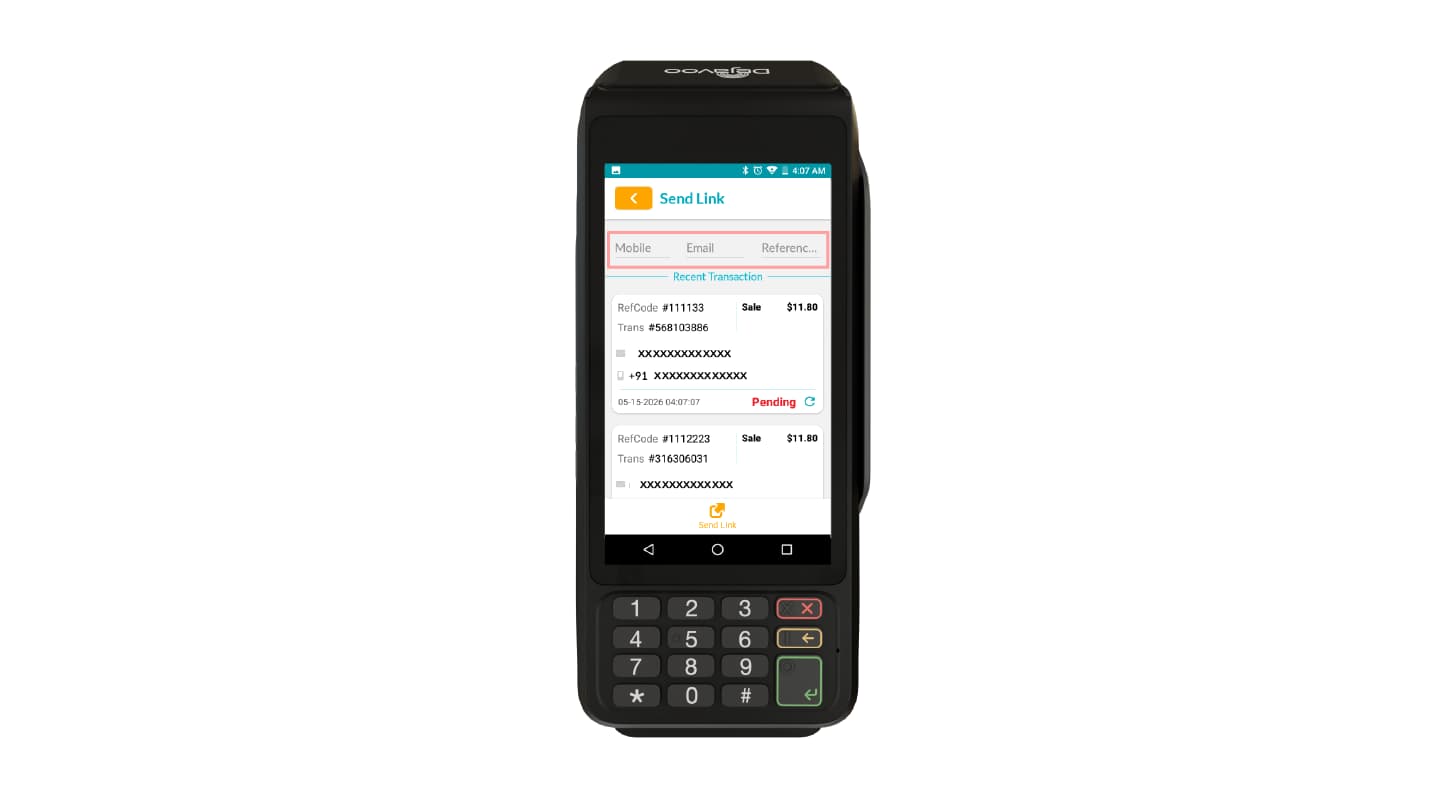
Step 8: Customer Completes the Payment
The customer opens the secure payment link and enters:
- Card Information or Bank Details
- Cardholder Name
- Email Address
- Phone Number
- Reference Number
- Customer Name
Tap Pay to complete the transaction.
Step 9: View Real-Time Payment Status
- Tap the Favorite icon on the terminal.
- Select Payment Link Status.
The payment link status is displayed on the terminal.
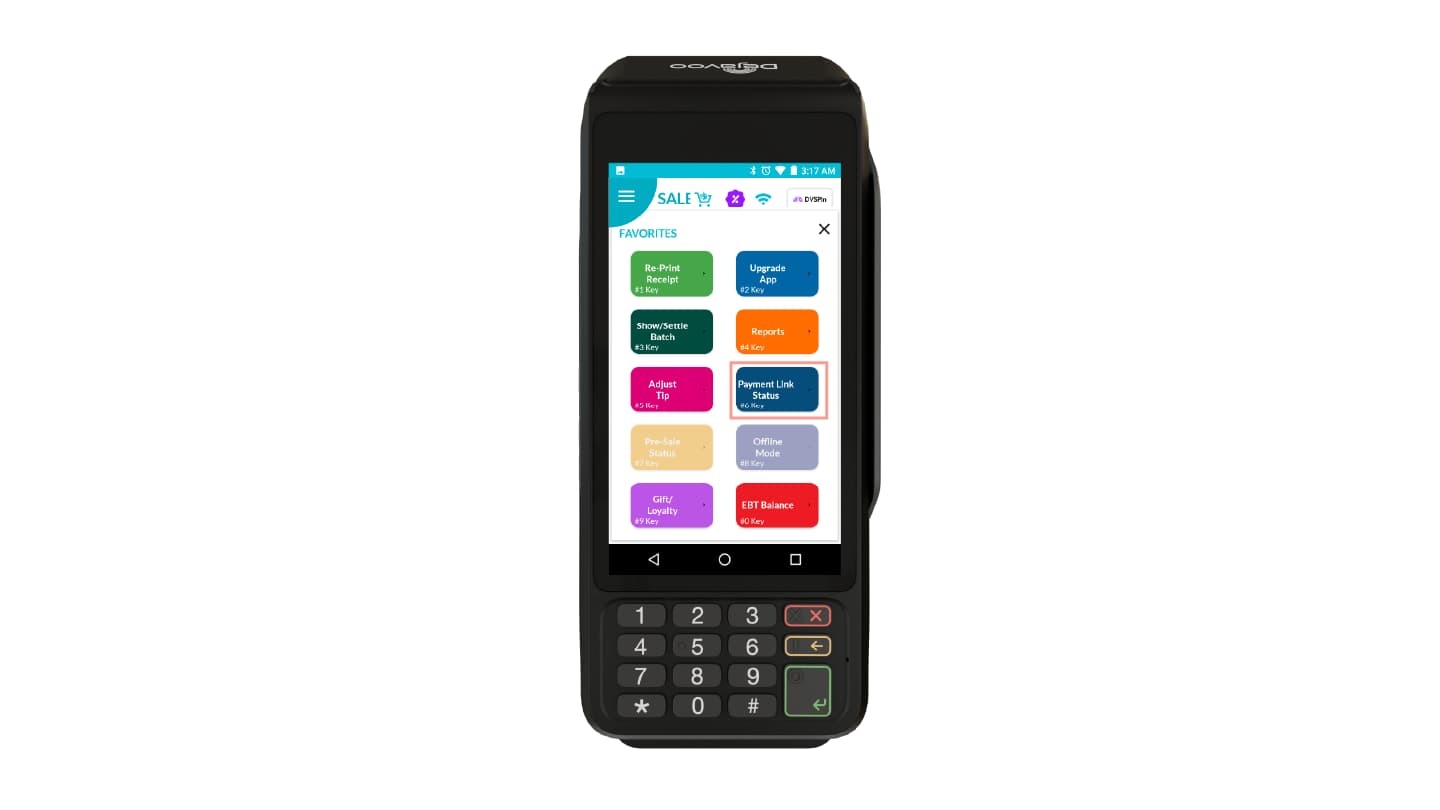
Possible statuses include:
- Pending
- Paid
- Expired
- Draft
- Failed
Merchants can also search for a specific transaction on the payment terminal using:
- Mobile Number
- Email Address
- Reference ID
These statuses and search options help merchants track and manage payment link transactions easily.
Send Payment Link Using CloudPOS
Step 1: Log In
Log in to the iPOSpays Portal using Merchant credentials.
Step 2: Navigate to CloudPOS
- Click CloudPOS from the left-side menu.
- Select Payments.
- The CloudPOS payment screen appears.
Step 3: Configure Payment Details
- Under Action, select Quick Pay.
- Under Payment Type, select Send Payment Link.
- Under Transaction Type, select Sale.
- Select the required TPN from the dropdown list.
For itemized invoice-based Send Payment Link transactions, refer to How to Create an Itemized Invoice on CloudPOS: Send Payment Link.
Step 4: Enter Invoice Amount
Enter the transaction amount in the Invoice section.
The Break Up screen displays:
- Sale Amount
- Fee (if enabled)
- Taxes (if enabled)
Click Okay to continue.
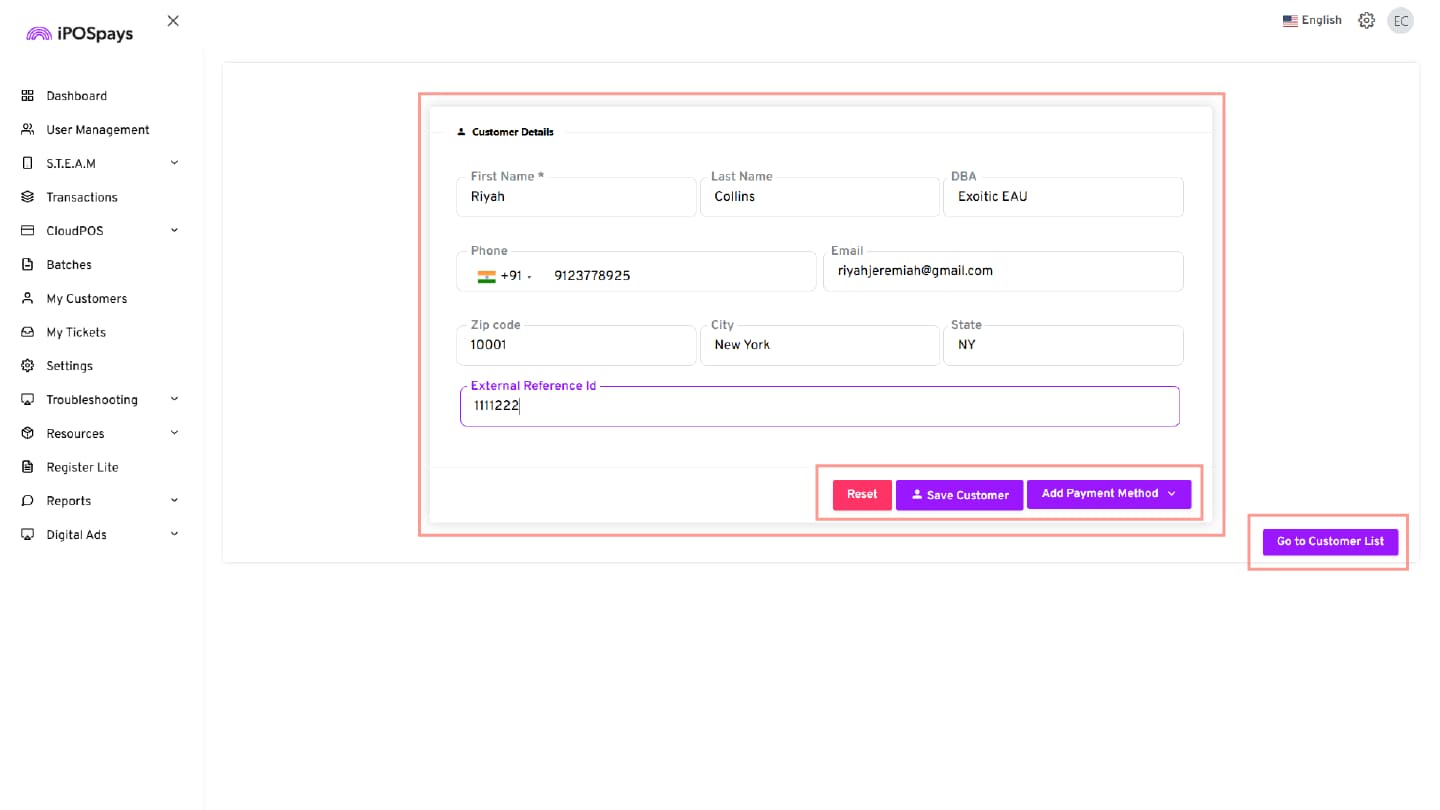
Step 5: Enter Customer and Transaction Details
Customer Contact Information
Enter:
- Customer Phone Number
- Customer Email ID
- CC Emails
You can add up to five CC Email IDs so multiple recipients can receive the payment link.
Link Expiry
Select the payment link expiry duration:
- One Day
- One Week
- One Month
Reference ID
- Enter a Reference ID if required.
- This helps identify and track the transaction later.
Description
Enter a short description explaining the purpose of the payment.
Disclaimer
Enter disclaimer details if required.
Upload Invoice Image
Upload an invoice image for customer reference if needed.
Step 6: Send Payment Link
- Click Send Payment Link.
- A success or failure notification appears immediately.
Step 7: Reset Fields (Optional)
Click Reset to clear all entered fields.
Step 8: Customer Completes Payment
The customer opens the Hosted Payment Page (HPP) and completes the transaction.
Step 9: Track Payment Status
Navigate to CloudPOS → Invoices to view the latest payment status updates.
Send Payment Link Using iPOSgo!
Step 1: Open the App
Open the iPOSgo! application on the mobile device.
Step 2: Enter Transaction Amount
- Enter the transaction amount.
- Tap OK.
Step 3: Add a Tip (If Enabled)
- If tipping is enabled for the TPN, the tip screen appears with options such as Custom Tip, No Tip, and Percentage-Based Tips.
- To continue with sending the Payment Link without the tip, select No Tip. The customer can add the tip later on the Hosted Payment Page (HPP).
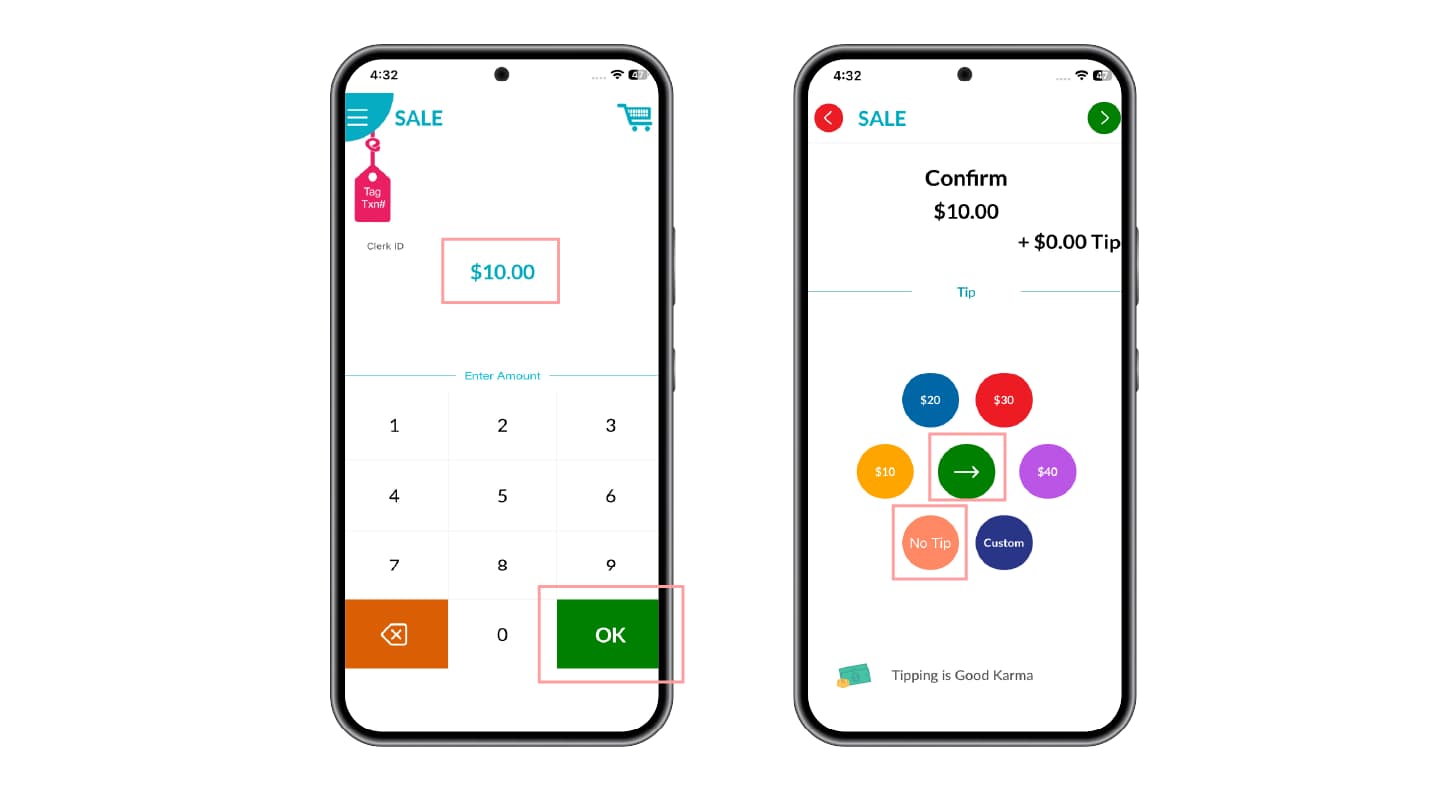
Step 4: Tap Pay
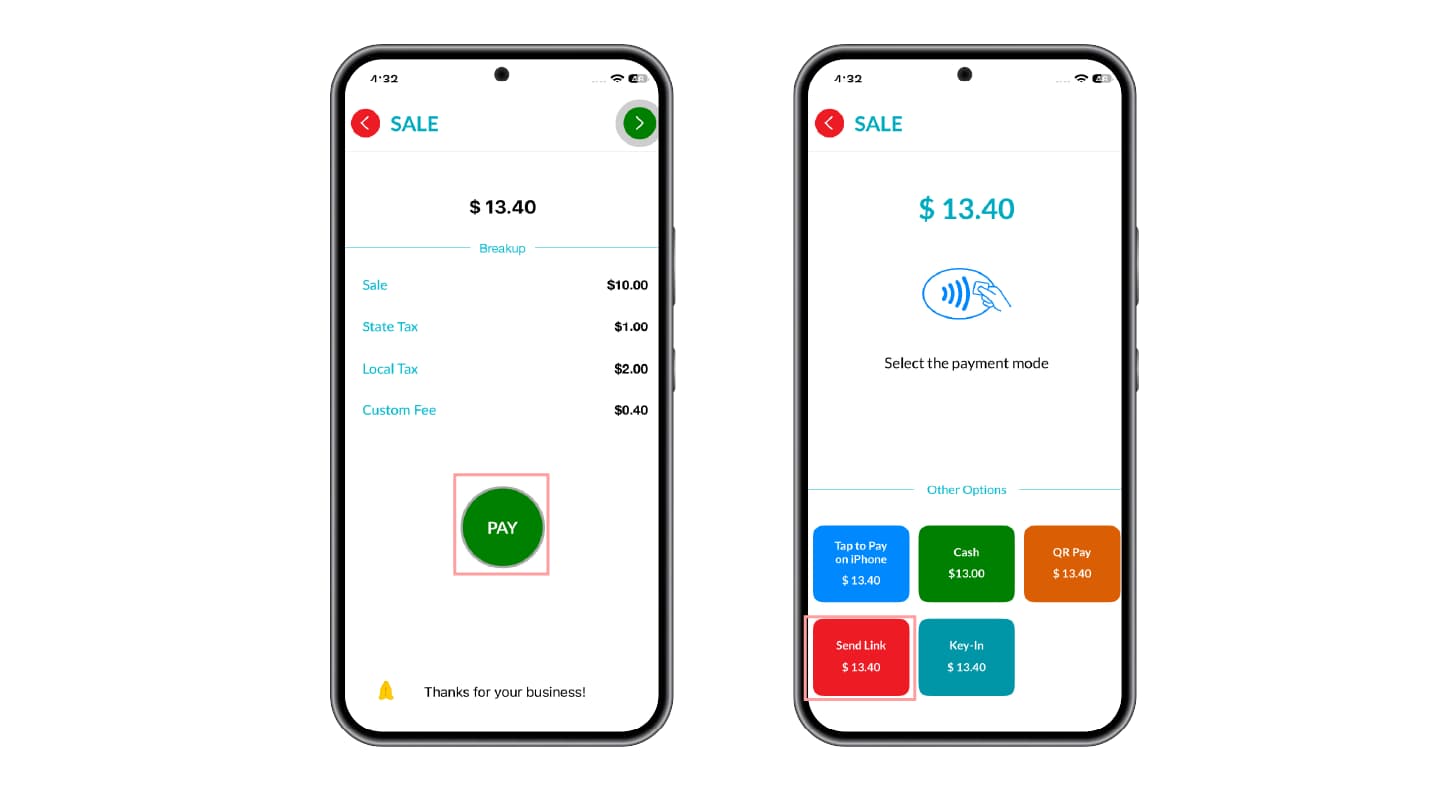
- The Break Up screen displays detailed transaction charges.
- Tap PAY to continue.
Step 5: Select Send Link Payment Option
Select Send Link as the payment option to send the payment link to the customer.
Step 6: Enter Customer and Payment Link Details
The Send Link screen opens, allowing the merchant to enter customer and payment link details.
Customer Information
Enter:
- Customer Mobile Number
- Customer Email Address
Link Expiration
Select the payment link expiry duration:
- One Day
- One Month
- One Year
Reference
- Enter a Reference ID if required.
- This helps merchants track and reconcile transactions.
Description
Enter a short description for the transaction.
Step 5: Send the Payment Link
- Tap the green arrow button in the top-right corner to send the payment link.
- A success or failure notification appears immediately.
Step 6: Customer Completes Payment
The customer opens the payment link and completes the payment through the Hosted Payment Page.
Step 7: Check Instant Status
Tap CHECK STATUS to view the current payment status.
Step 8: Check Payment Status Later
Navigate to: Favorites → Invoice
Merchants can also search for a specific transaction using :
- Mobile Number
- Email Address
- Reference ID
These statuses and search options help merchants track and manage payment link transactions easily.
Customer Flow – Hosted Payment Page (HPP)
Step 1: Open the Payment Link
The customer opens the payment link and is redirected to the Hosted Payment Page.
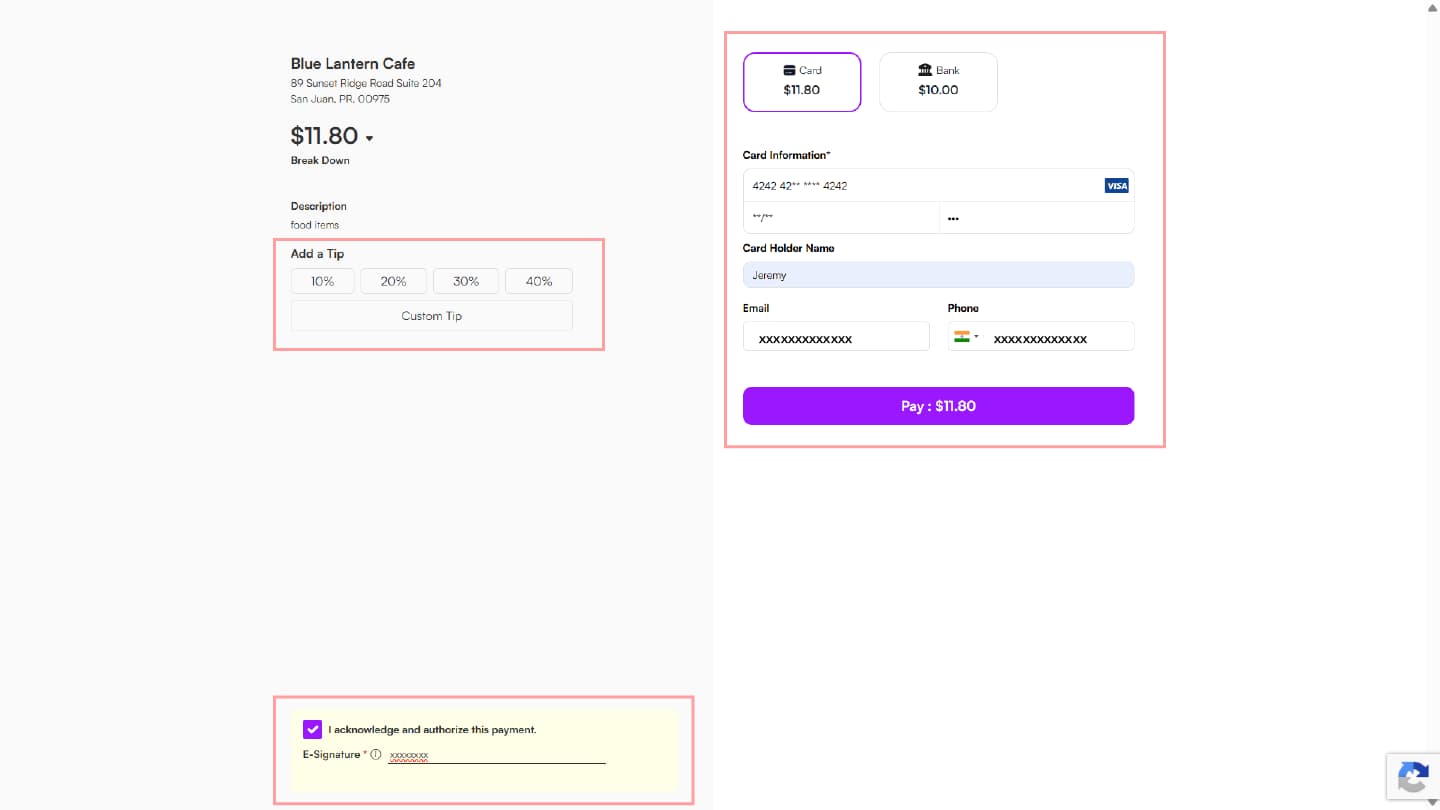
The page displays:
- Merchant Name
- Merchant Address
- Total Amount
Step 2: Review the Transaction Breakdown
Tap the down-arrow icon beside the total amount to expand the Break Up section.
The following details appear:
- Sale Amount
- Fee (If enabled)
- Local Tax (If enabled)
- State Tax (If enabled)
Step 3: Add a Tip
If the customer wants to add a tip, the customer can select from the suggested tip options.
Step 4: Select Payment Method
The customer can choose from the following payment methods if enabled in the iPOSpays Portal:
- Google Pay
- Apple Pay
- Card
- Bank
- Venmo
- PayPal
Step 5: Enter Payment Details
For Card Payments, enter:
- Card Number
- Expiry Date
- CVV
- Cardholder Name
- Email Address
- Phone Number
For Bank Payments, enter the required bank account details.
Step 6: E-Signature & Acknowledgement (If Enabled)
If E-Signature or acknowledgement is enabled for the payment link, additional verification fields appear on the Hosted Payment Page before payment completion.
E-Signature
When E-Signature is enabled:
- The Full Name (E-Signature) field is displayed.
- The customer must enter their full name to continue.
- Supporting text displayed:
“By entering your full name, you agree that this is your electronic signature authorizing the transaction.”
Acknowledgement
When acknowledgement is enabled:
- A disclaimer section appears on the payment page.
- The customer must acknowledge the disclaimer before proceeding.
Supported Behaviors
Depending on the configuration, the payment page may display:
- Only acknowledgement
- Only E-Signature
- Both acknowledgement and E-Signature
- Neither option
Step 7: Complete Payment
Tap Pay to complete the transaction.
An Approved or Declined confirmation message appears on the screen.
Receipt Behavior
When E-Signature is Enabled
The receipt displays:
- Customer Full Name (E-Signature)
- IP Address
This information appears on:
- Customer Copy
- Merchant Copy
When Only Acknowledgement is Enabled
A standard receipt is generated without E-Signature details.
When Both E-Signature and Acknowledgement are Enabled
The receipt displays:
- E-Signature
- IP Address
Acknowledgement is captured as part of transaction validation.
When Both Options are Disabled
A standard receipt is generated without acknowledgement or E-Signature details.