How to Create and Manage Add-On Users in the ISV Portal
The iPOSpays Portal allows ISVs to add and manage users and control their access to ISV-specific functionality. ISVs can create users, assign user roles, and configure the required modules and privileges based on their responsibilities.
This document explains how to add and manage users in the ISV Portal, including configuring user details, roles, modules, and privileges.
Prerequisites
- You must have valid ISV credentials to log in.
- You must have the required privileges to add and manage users.
Create an Add-On User
- Log in to the iPOSpays Portal using your ISV credentials.
- From the left navigation menu, select User Management.
- Click the Menu icon.
- Select Add User.
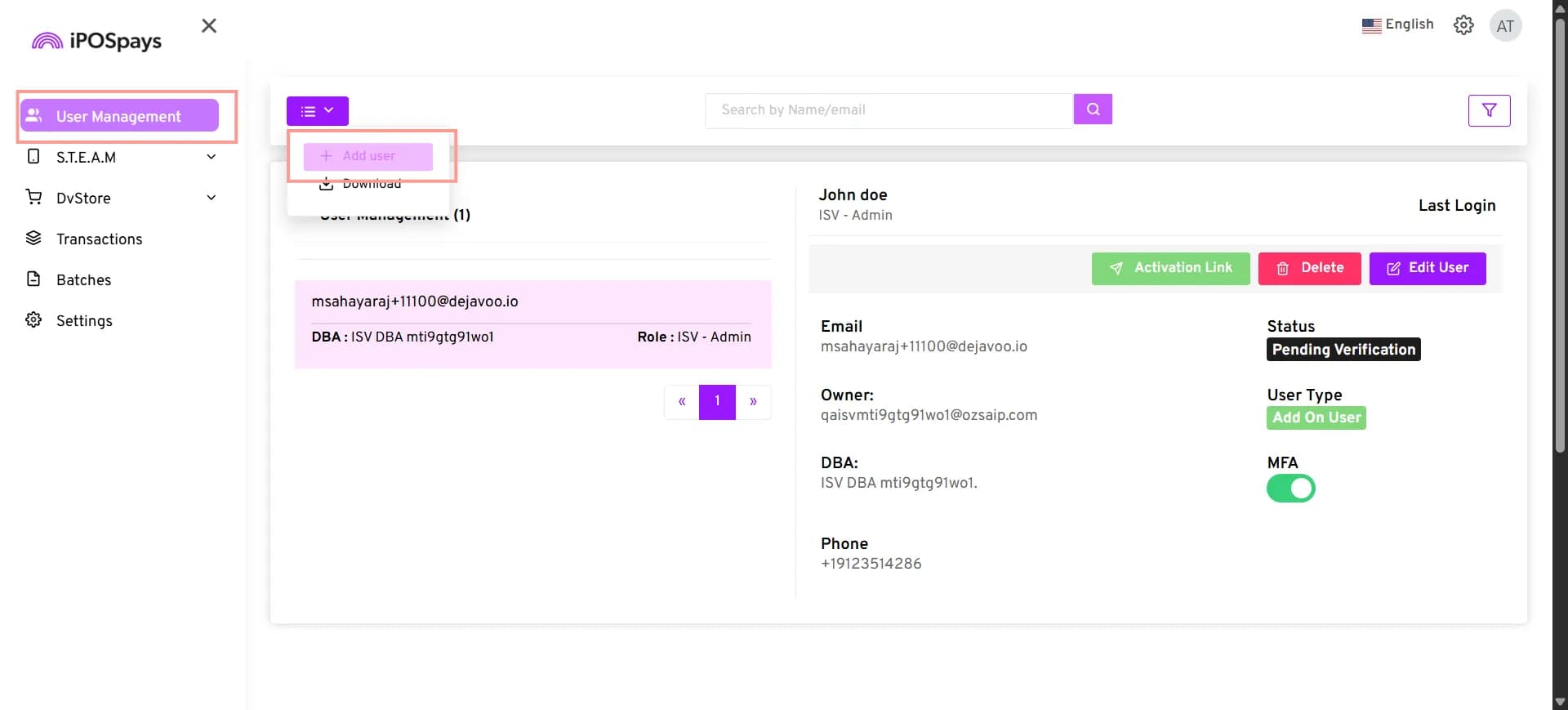
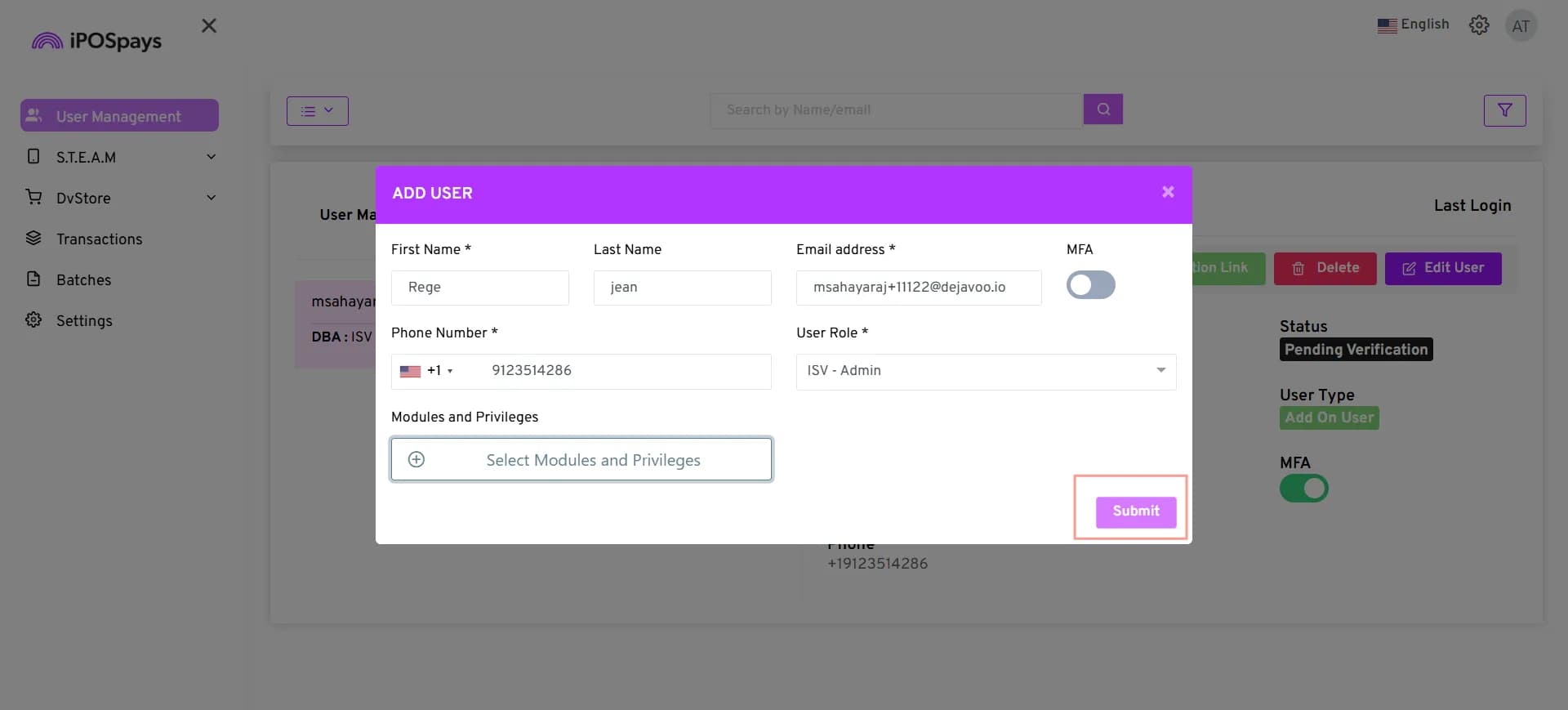
- The Add User window opens.
- Enter the First Name.
- Enter the Last Name. (Optional)
- Enter the Email Address.
- Enable MFA if required.
- Enter the Phone Number.
- Under User Role, select ISV Admin.
- Under Modules and Privileges, click Select Modules and Privileges.
- Select the required modules and privileges for the user.
Fields marked with an asterisk (*) are mandatory.
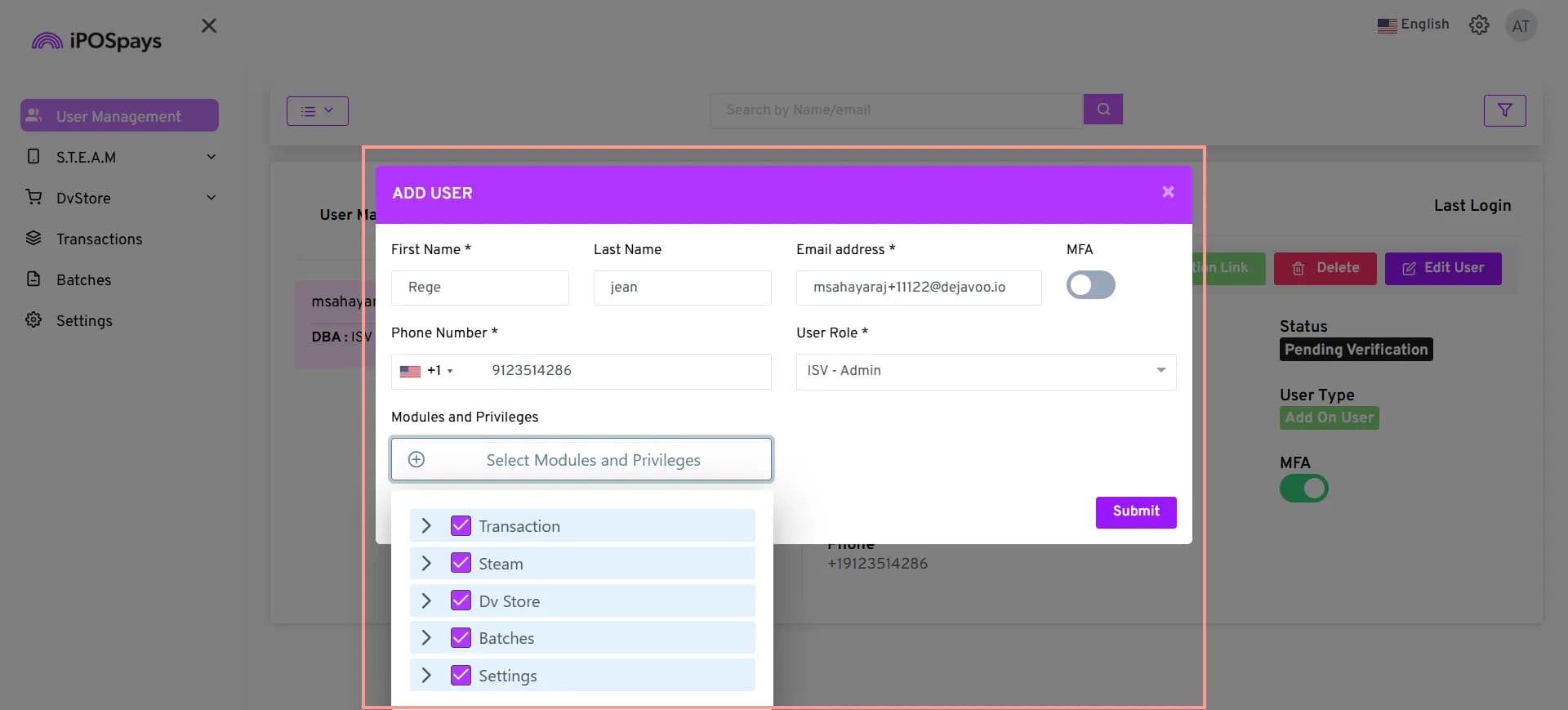
- Review the selected user details and privileges.
- Click Submit.
User Created Successfully
After clicking Submit, the user is added to the User Management list.
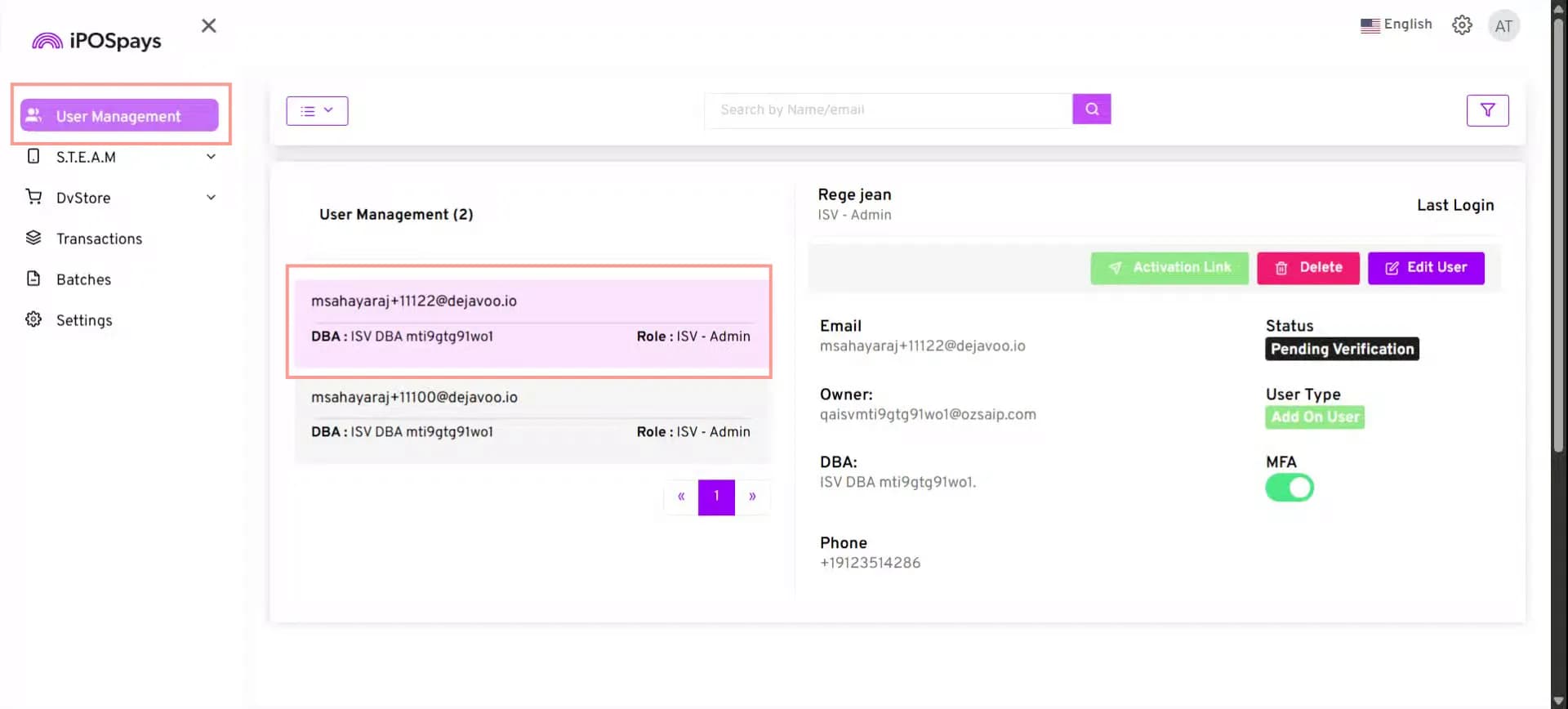
The available modules and privileges depend on the selected user role and the access configured for the ISV.
Manage an Existing User
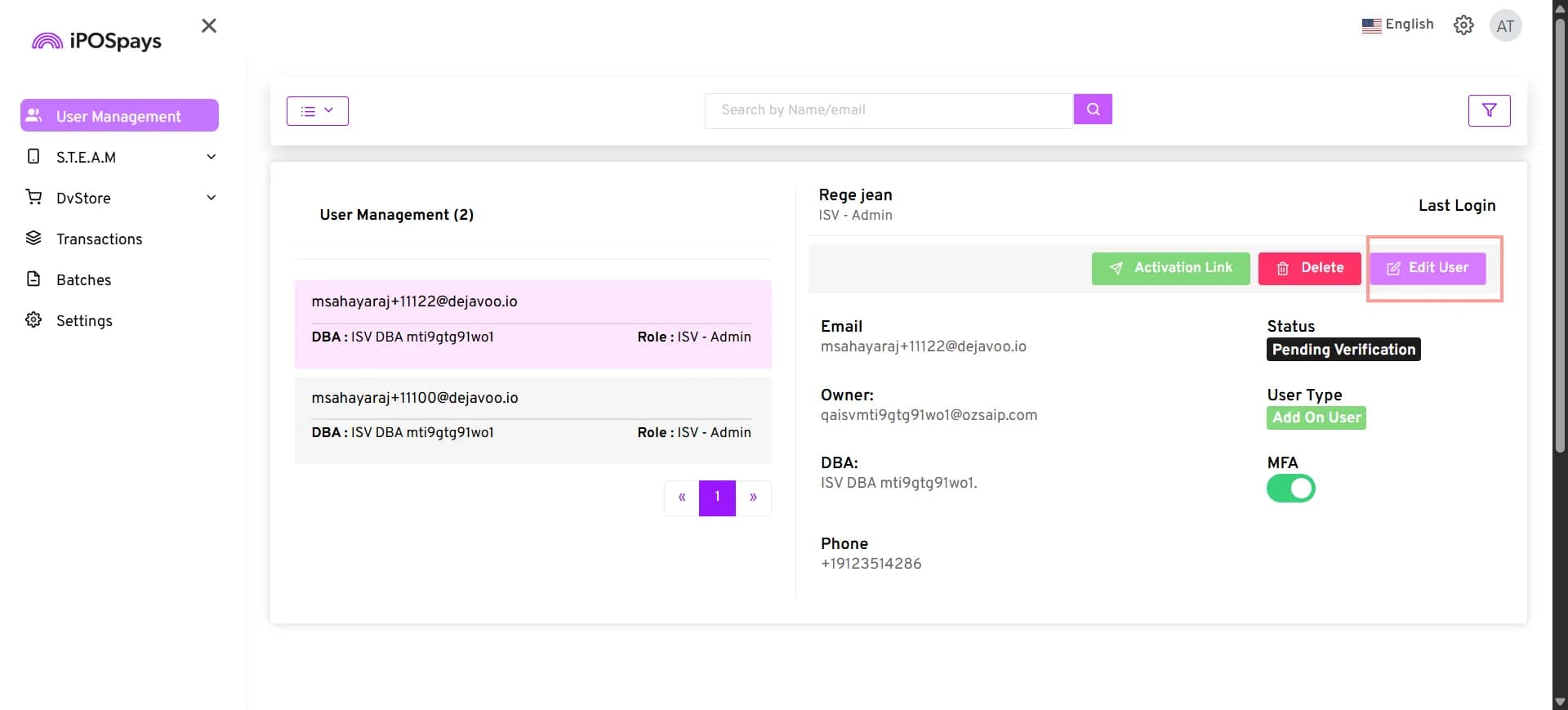
From the User Management page, you can select an existing user to view their details and manage their access.
The available options are:
- Activation Link – Click Send Activation Link to send the activation link to the user’s email address provided during user creation.
- Delete – Click Delete to remove the user.
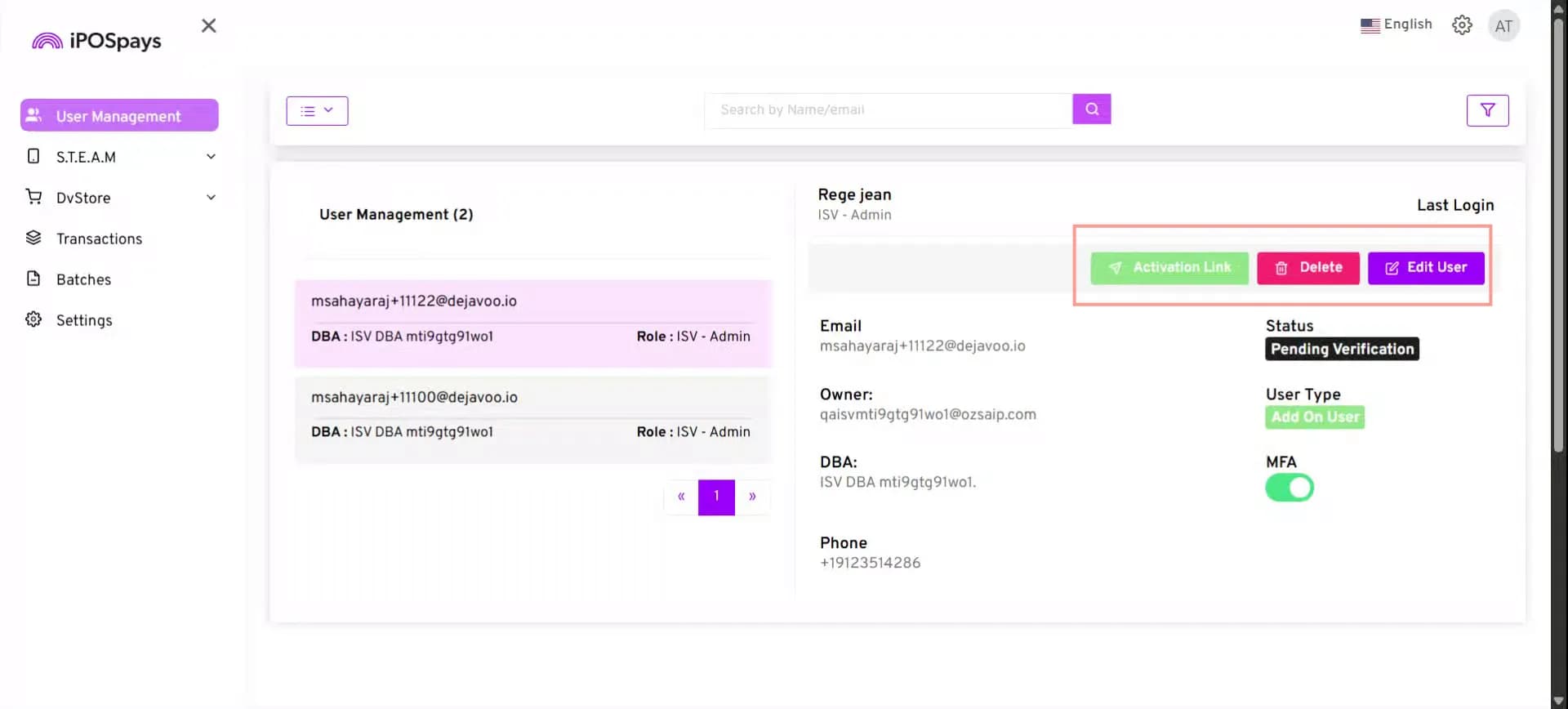
- Edit User – Modify the user’s details and access.
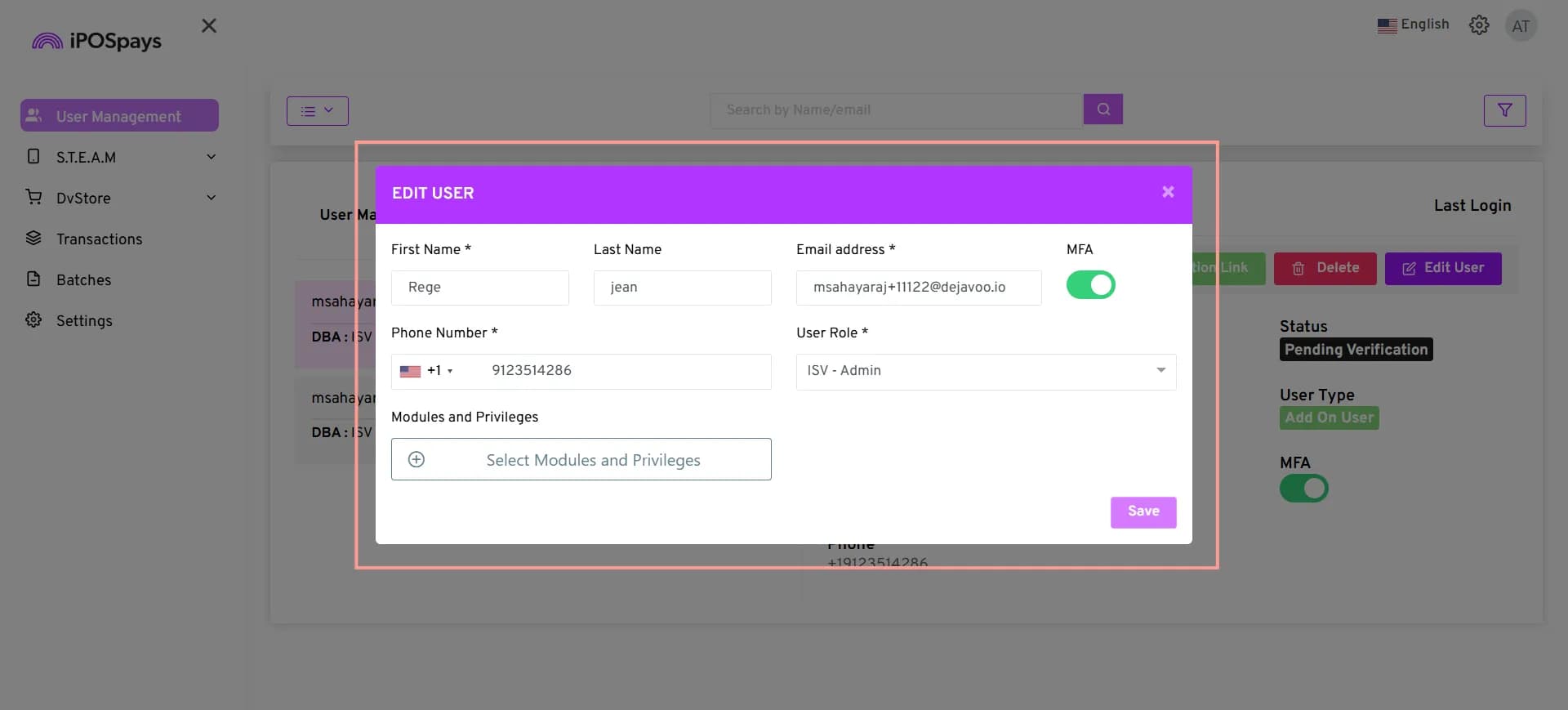
- Click Edit User.
- The Edit User window opens.
- Edit the required user details.
- Update the required modules and privileges.
- Save the changes.