How to Create an Itemized Invoice on CloudPOS
The Invoices module in CloudPOS allows merchants to create and send itemized invoices to customers. Follow the steps below to set up inventory and generate an invoice.
Part 1: Set Up Inventory
You must configure pricing, taxes, and items before creating an invoice.
Step 1: Access Inventory
-
Log in to the iPOSpays portal using a Merchant Admin account.
-
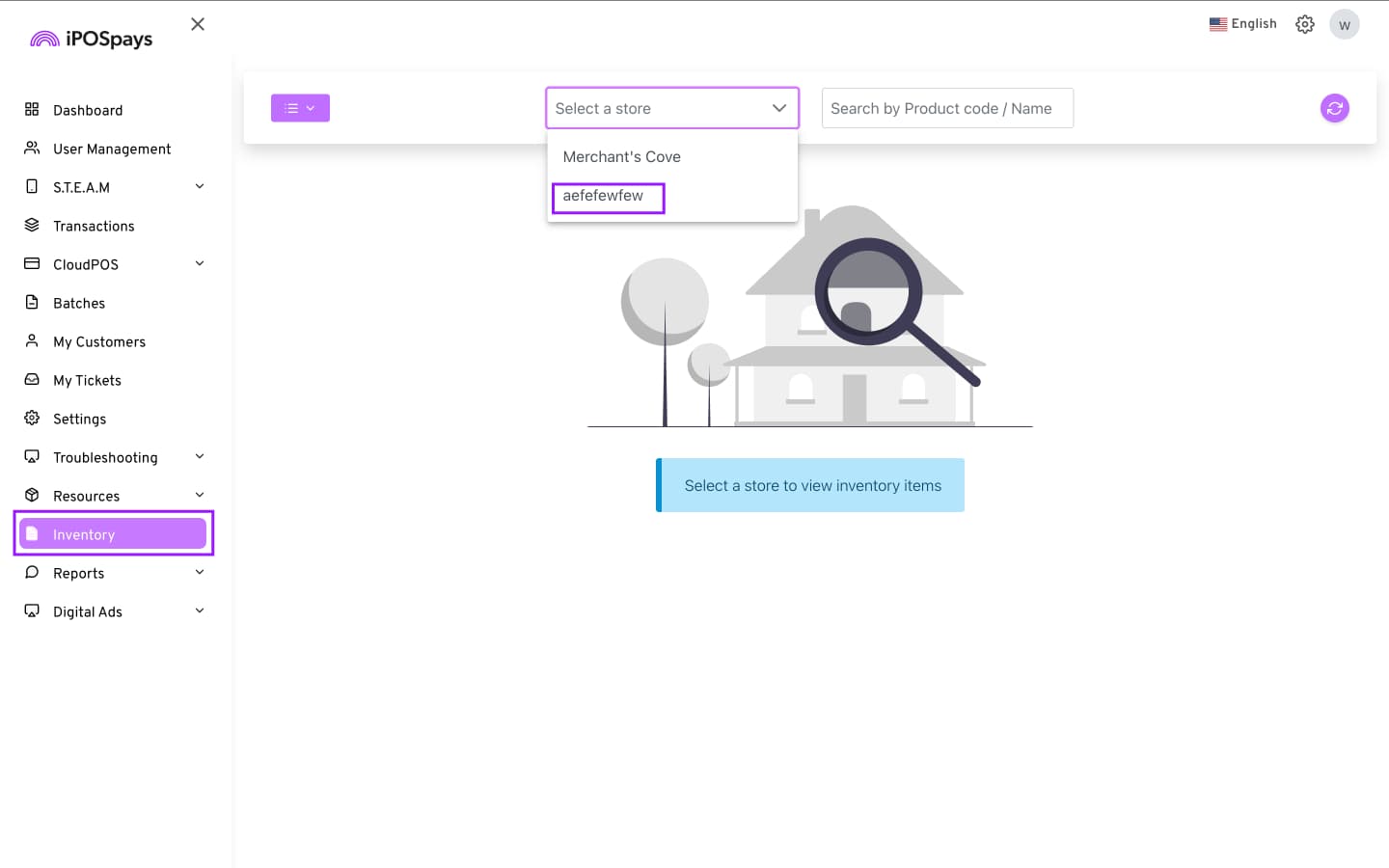
Click Inventory.
-
Select your store (if multiple stores are available).
Step 2: Configure Pricing
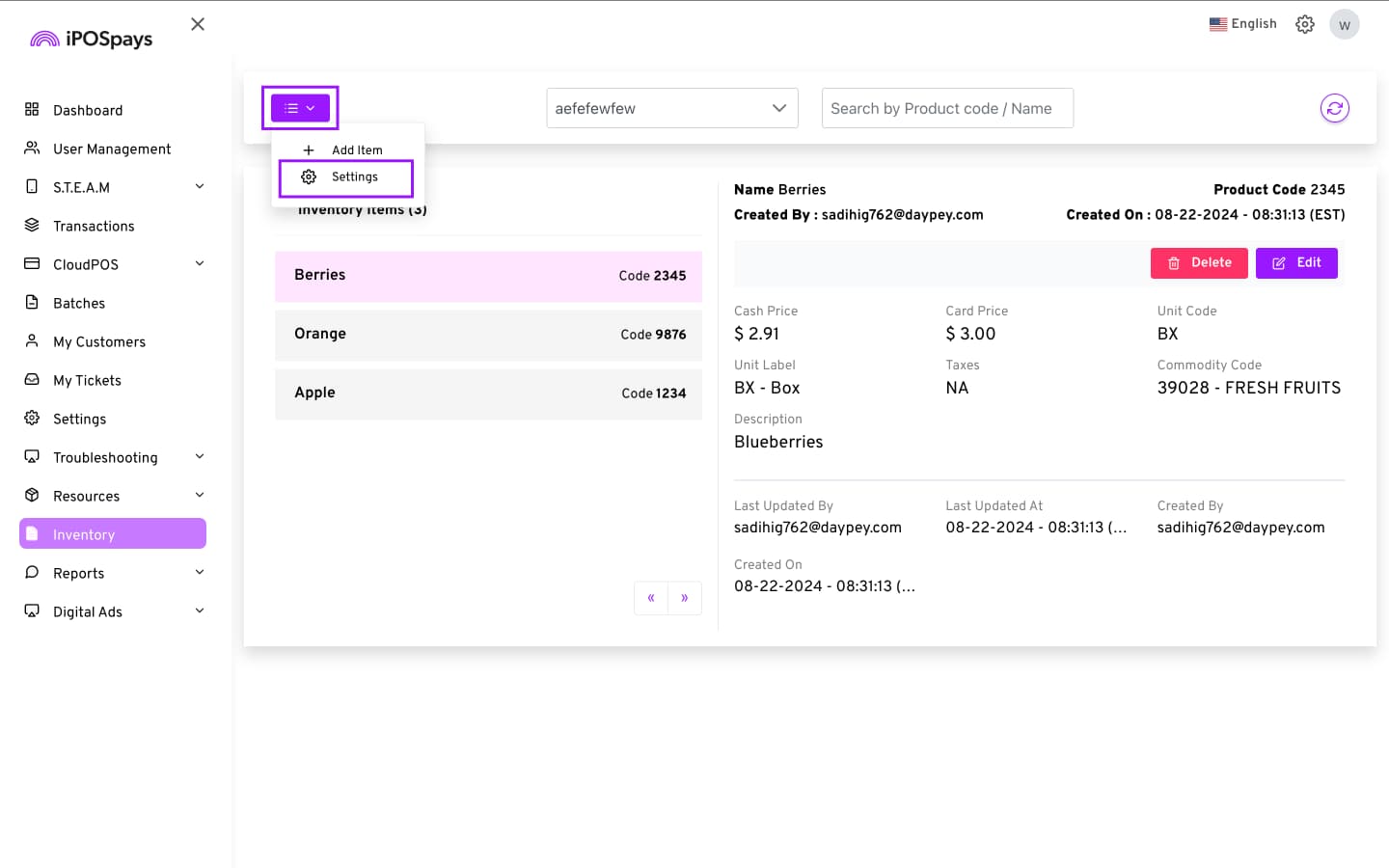
- Click the menu button on the top left corner of the screen → Settings
-
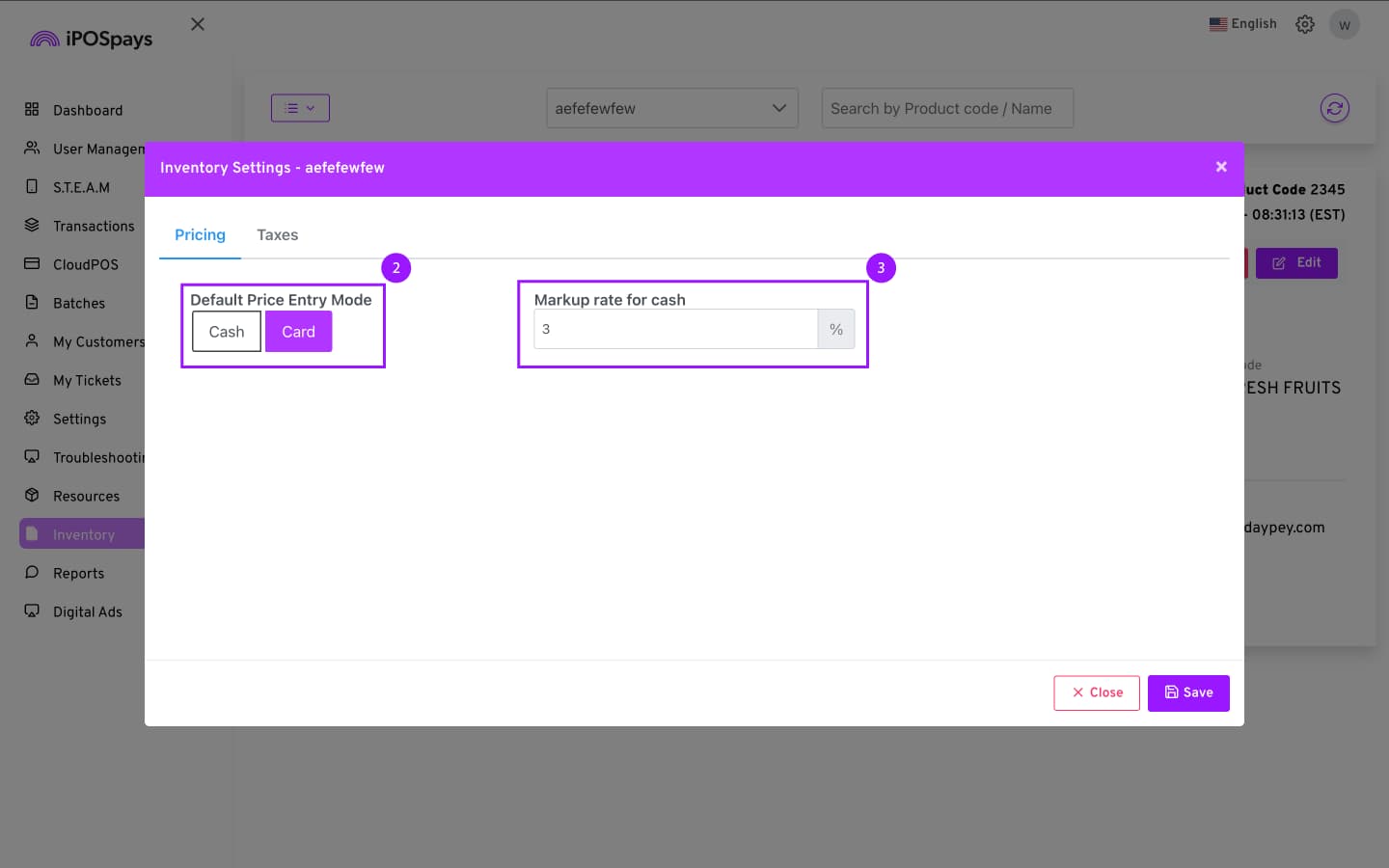
On the Pricing Tab, configure the Default Price Entry Mode
-
Custom Fee / Surcharge / TBP / Dual Pricing → Cash
-
True Cash Discount (TCD) → Card
-
-
Markup Rate (Card/Cash): Enter the percentage markup applied to card or cash transactions. This option may adjust to display the alternative based on the configured Default Price Entry Mode.
-
Click Save.
Step 3: Configure Taxes
-
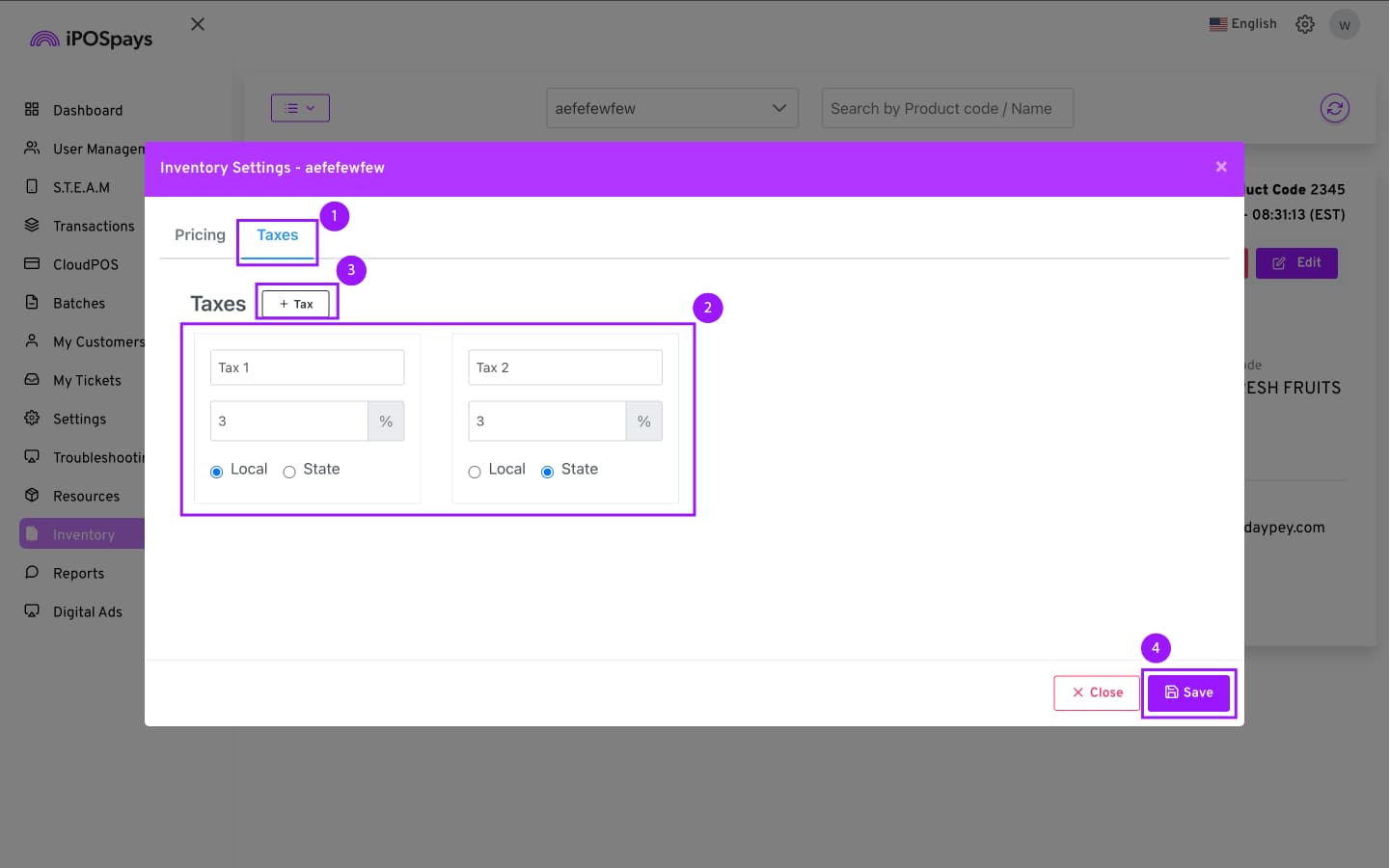
Select the Taxes tab to configure the applicable tax percentages for inventory items.
-
Enter:
-
Tax name
-
Percentage
-
State or Local designation
-
-
Click + to add more taxes (if needed).
-
Click Save.
Step 4: Add Items
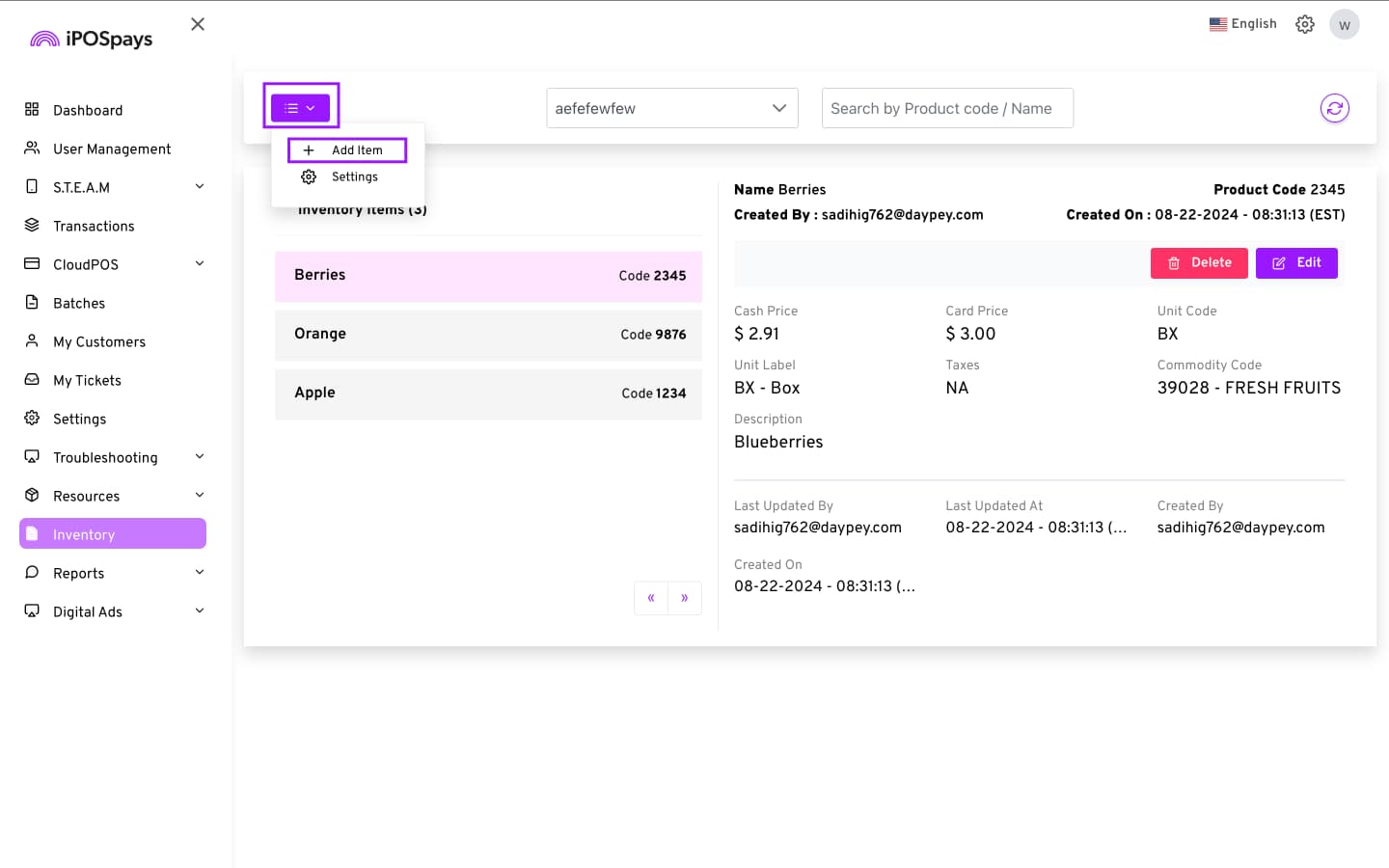
- Click the menu button → Add Item.
-
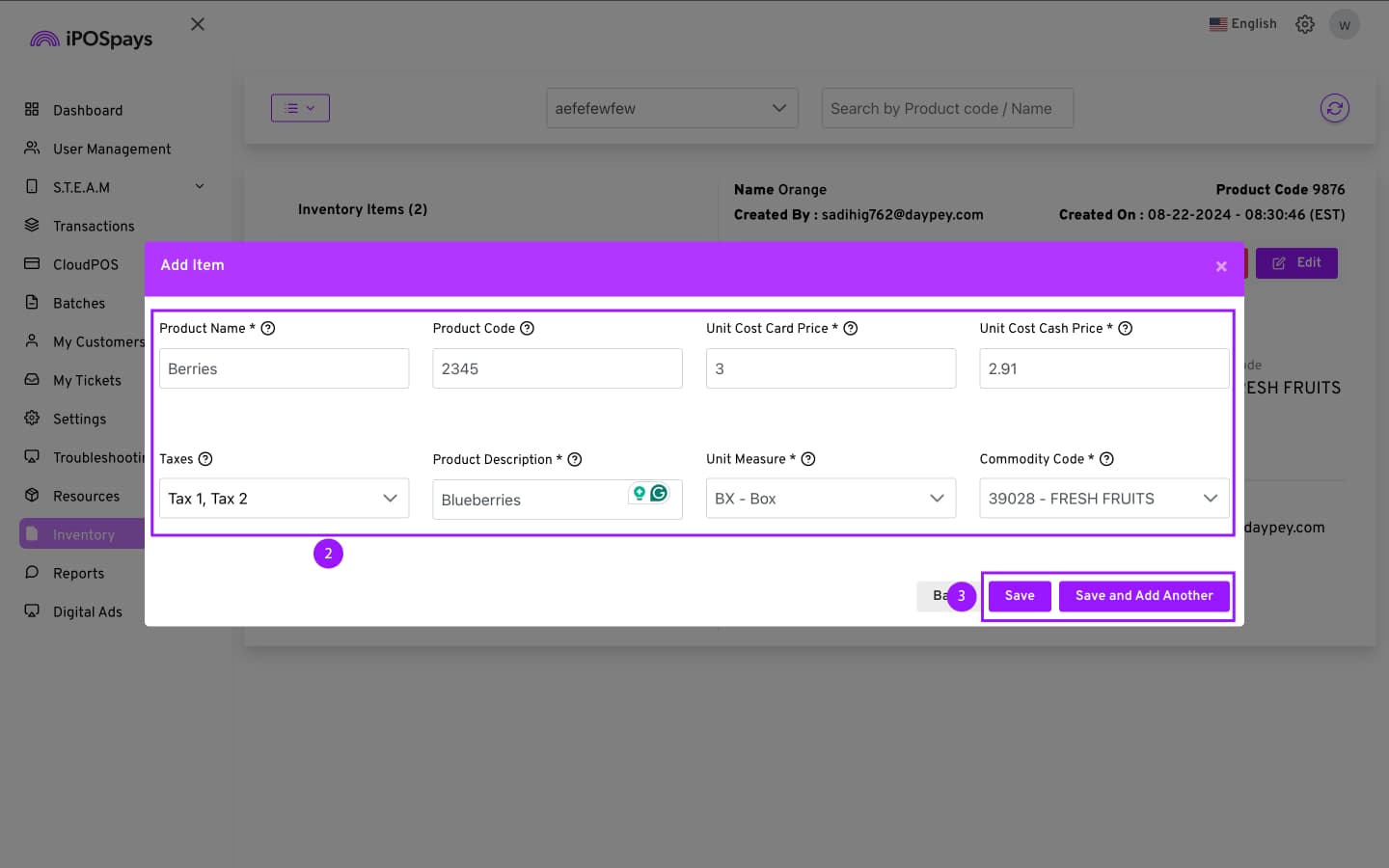
Enter:
-
Product Name*
-
Product Code
-
Unit Cost Cash Price (card price auto-calculated)*
-
Unit Cost Card Price*
-
Taxes
-
Product Description*
-
Unit Measure*
-
Commodity Code*
-
Fields marked with an asterisk (*) are mandatory.
- Click Save or Save and Add Another.
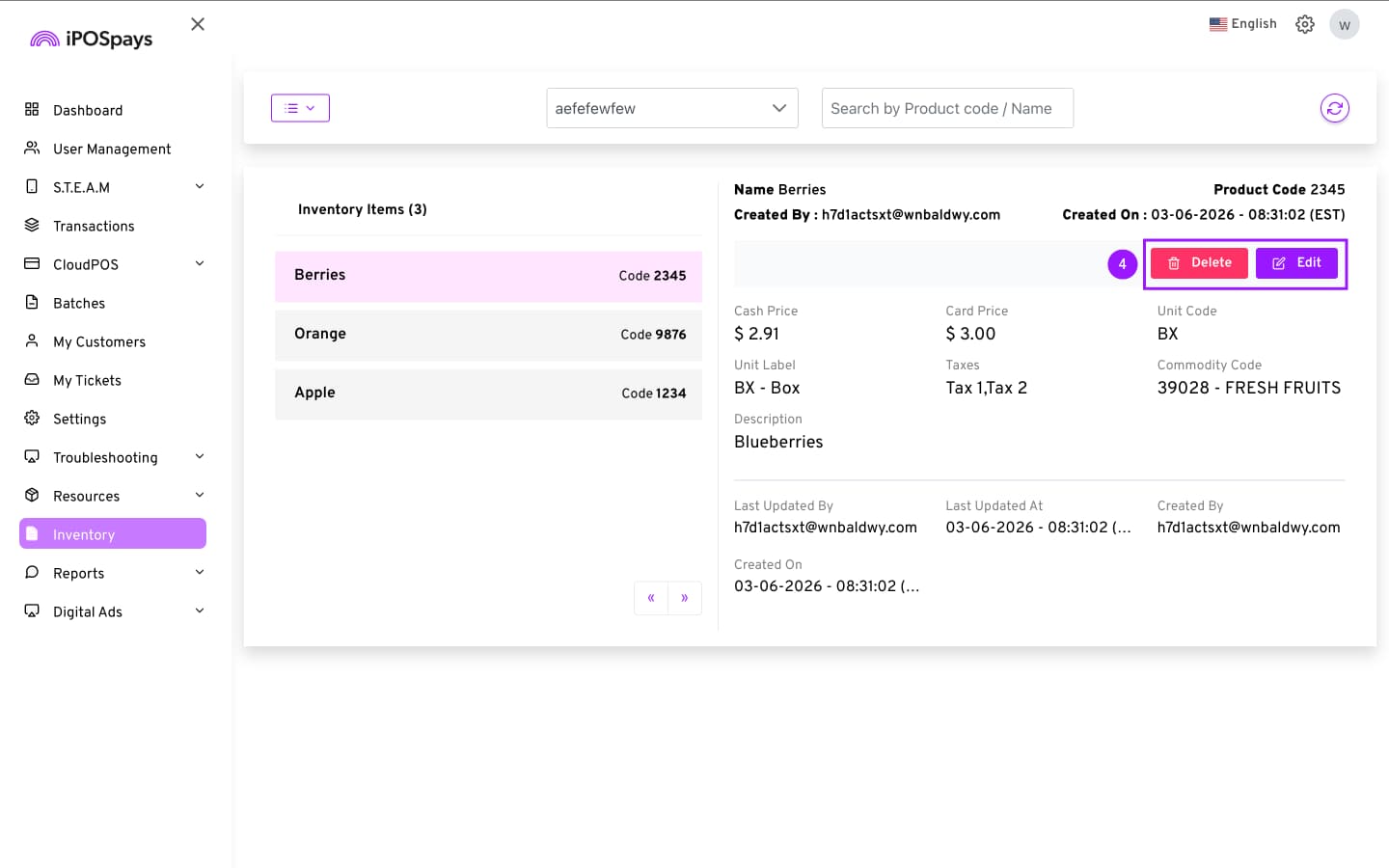
- You can edit or delete items later from the Inventory module.
Part 2: Create the Invoice
Step 5: Open Invoices
-
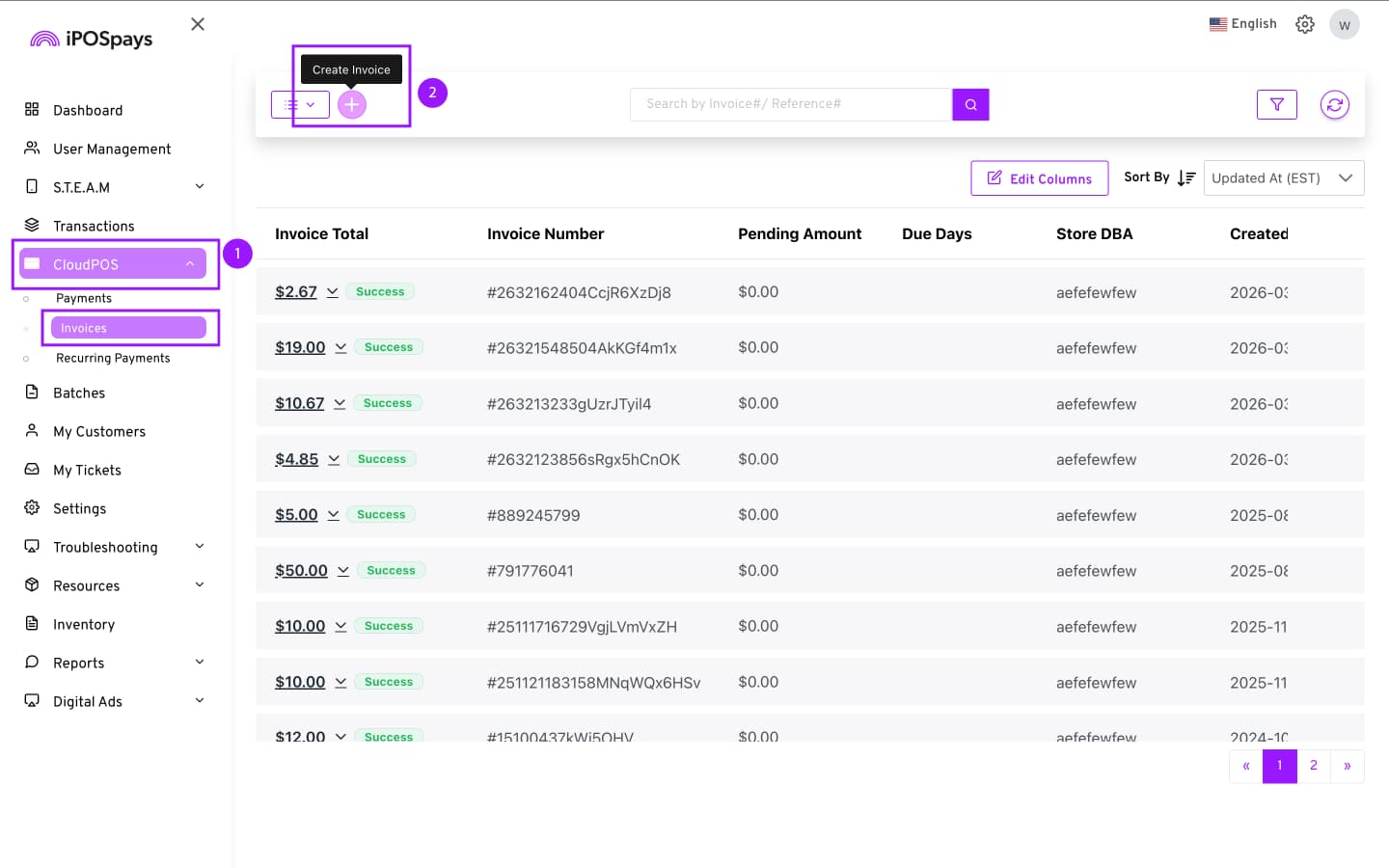
Click CloudPOS → Invoices.
-
Click the + icon.
Step 6: Enter Customer Details
-
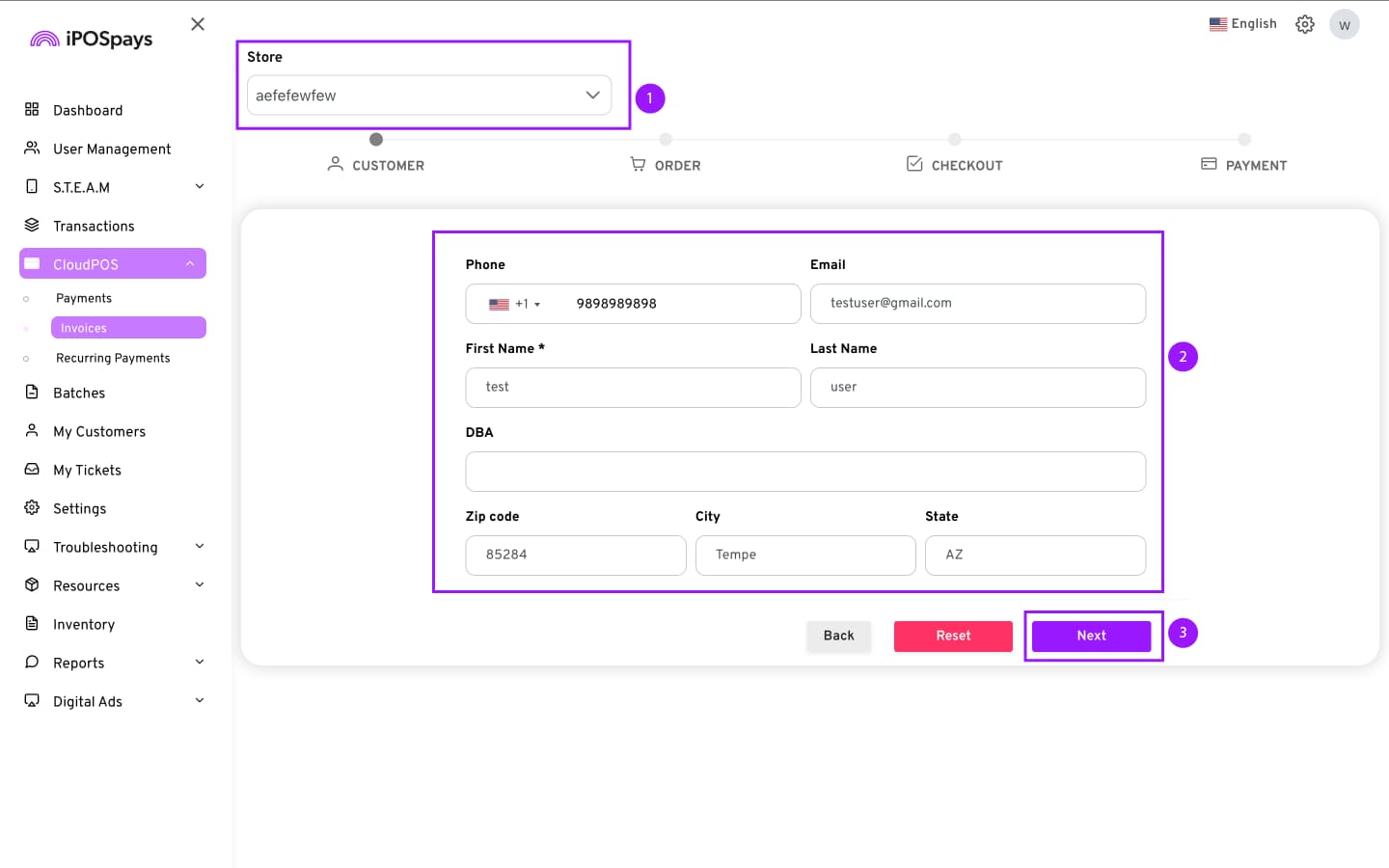
Select your store from the drop-down at the top left corner of the screen.
-
Enter the customer’s contact and address information.
Required
- First Name
Optional
-
Phone Number
-
Email Address
-
Last Name
-
DBA
-
Zip Code
-
City
-
State
-
Click Next to proceed.
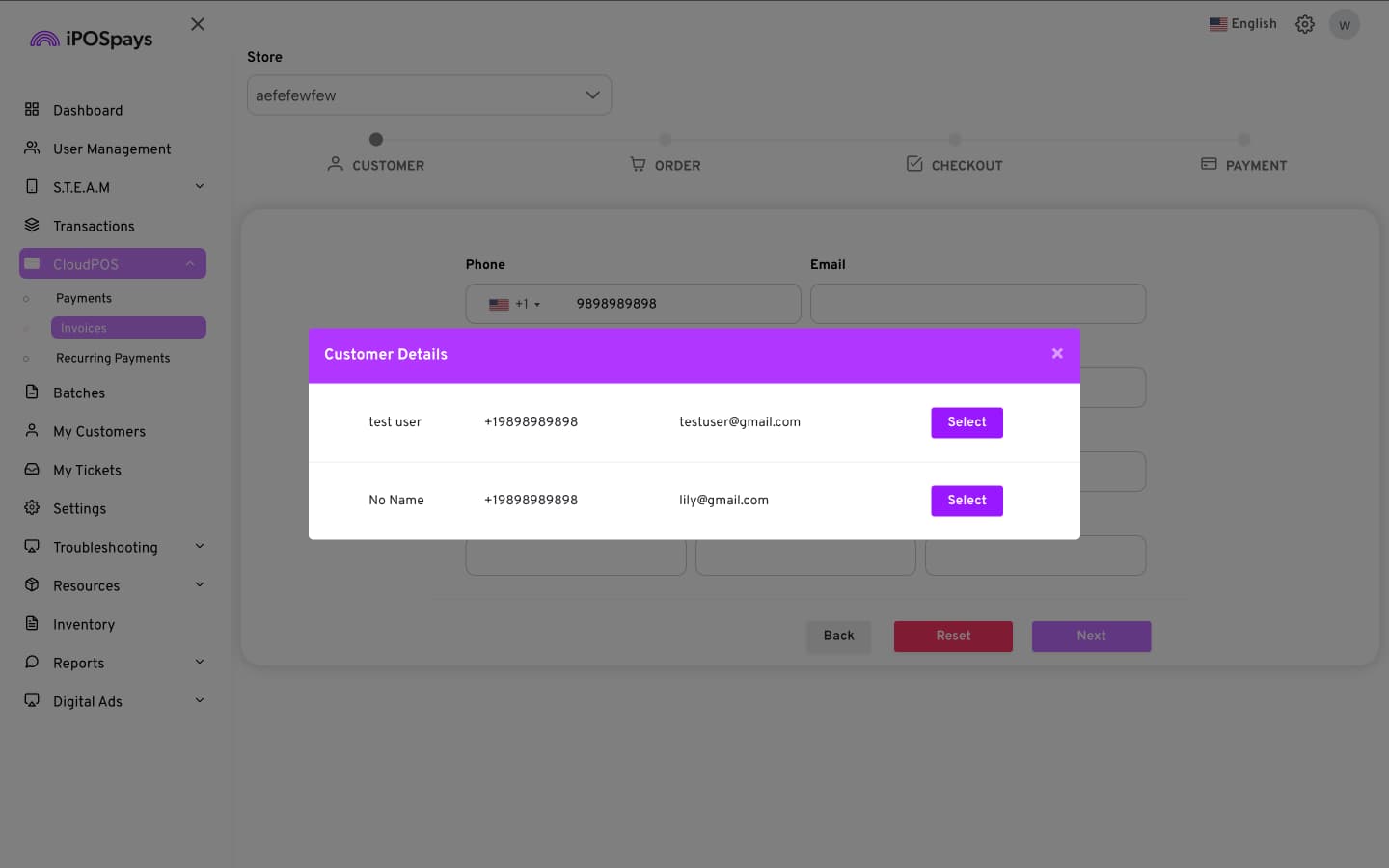
If the customer already exists in My Customers, a pop-up will appear allowing you to autofill their details.
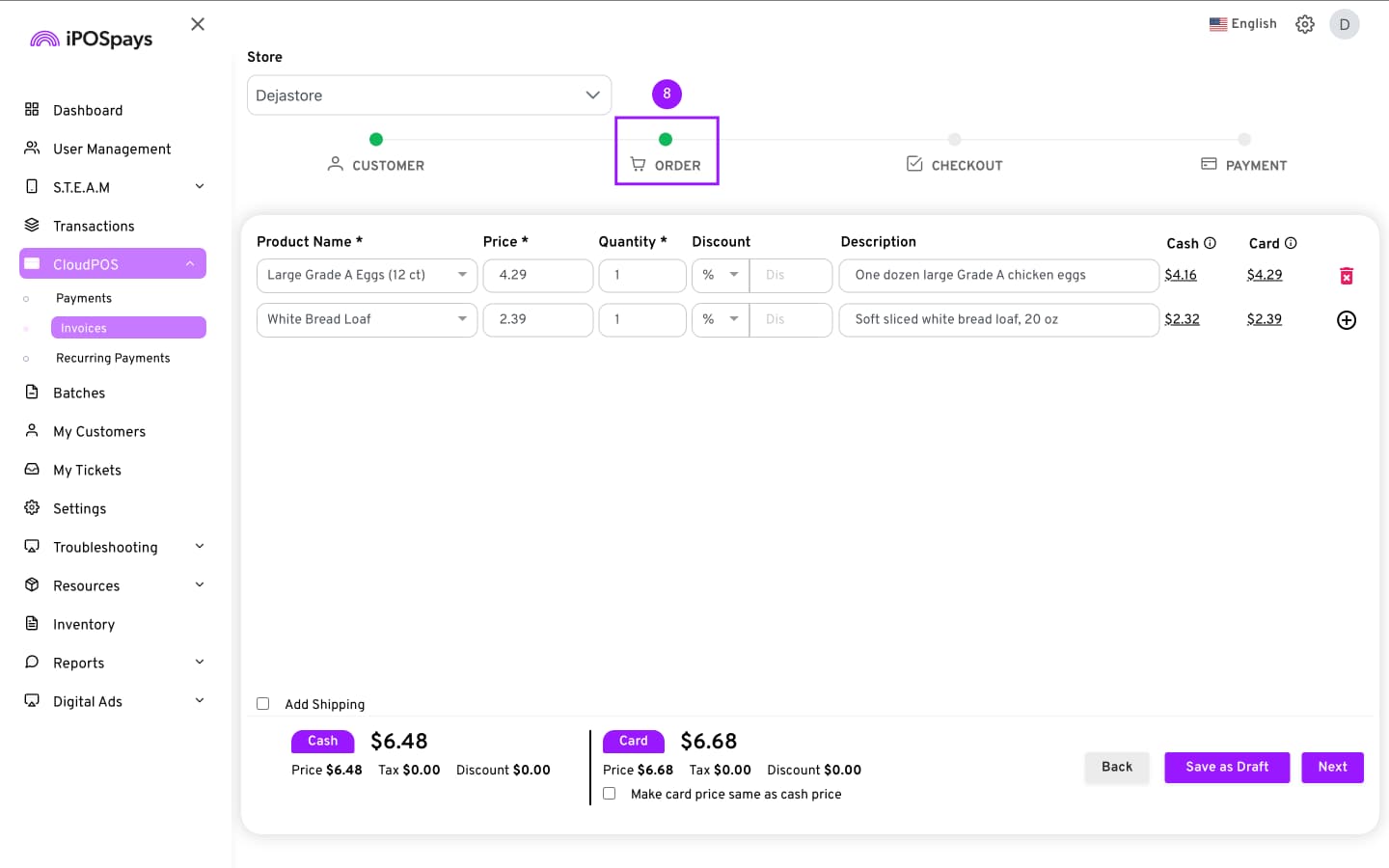
Step 7: Add Order Details
-
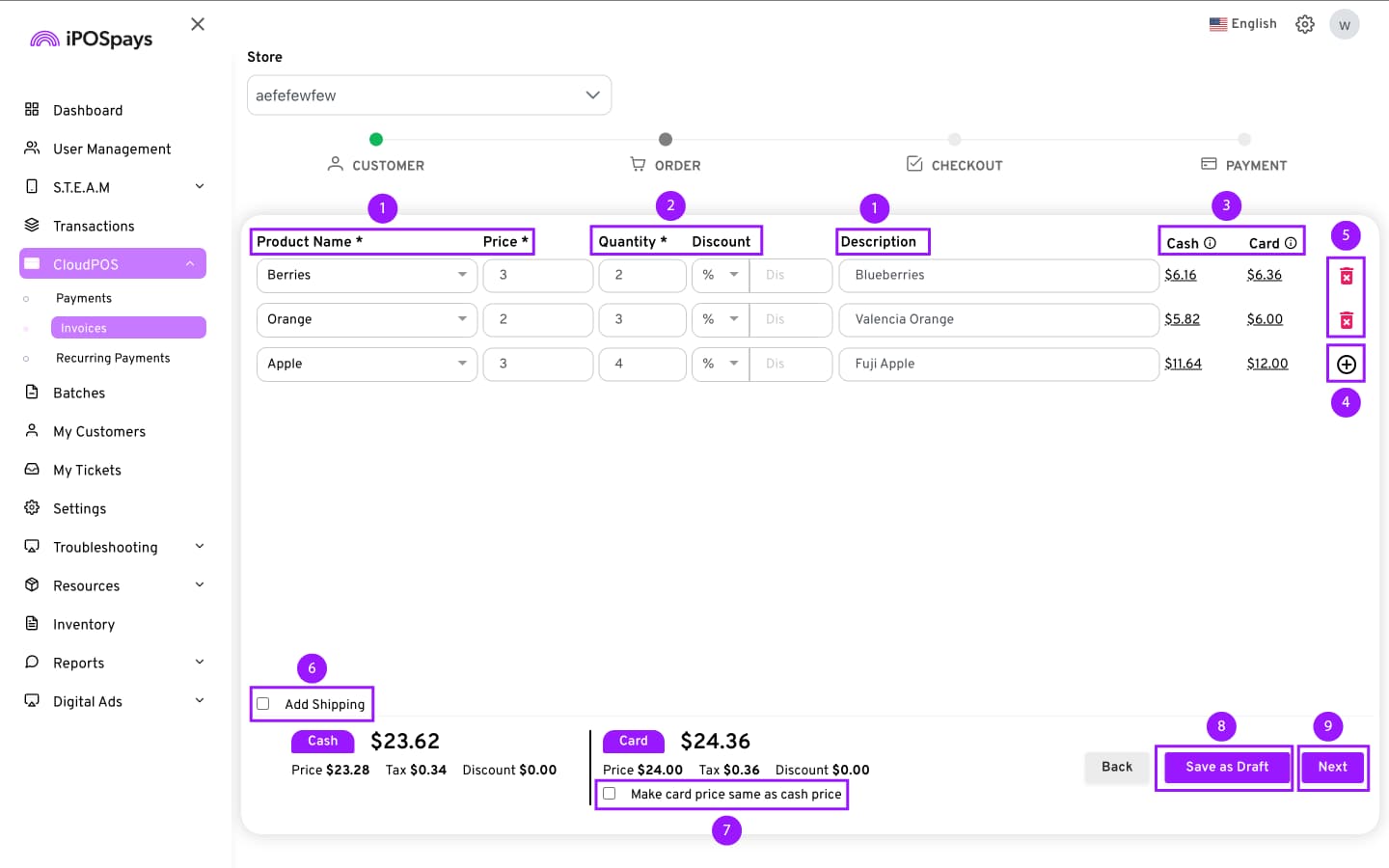
Select a product from the Product Name list.
a. Price and description auto-fill.
-
Enter:
a. Quantity
b. Discount (if applicable)
-
The system automatically calculates Card and Cash prices.
Optional:
-
Click + to add more products.
-
Use 🗑️ to delete items.
-
Enable Add Shipping and enter:
-
Shipping fee
-
Destination ZIP code
-
-
Enable Make Card Price Same as Cash Price if offering a final order discount.
Click:
-
Save as Draft, or
-
Next to proceed.
Step 8: Checkout
-
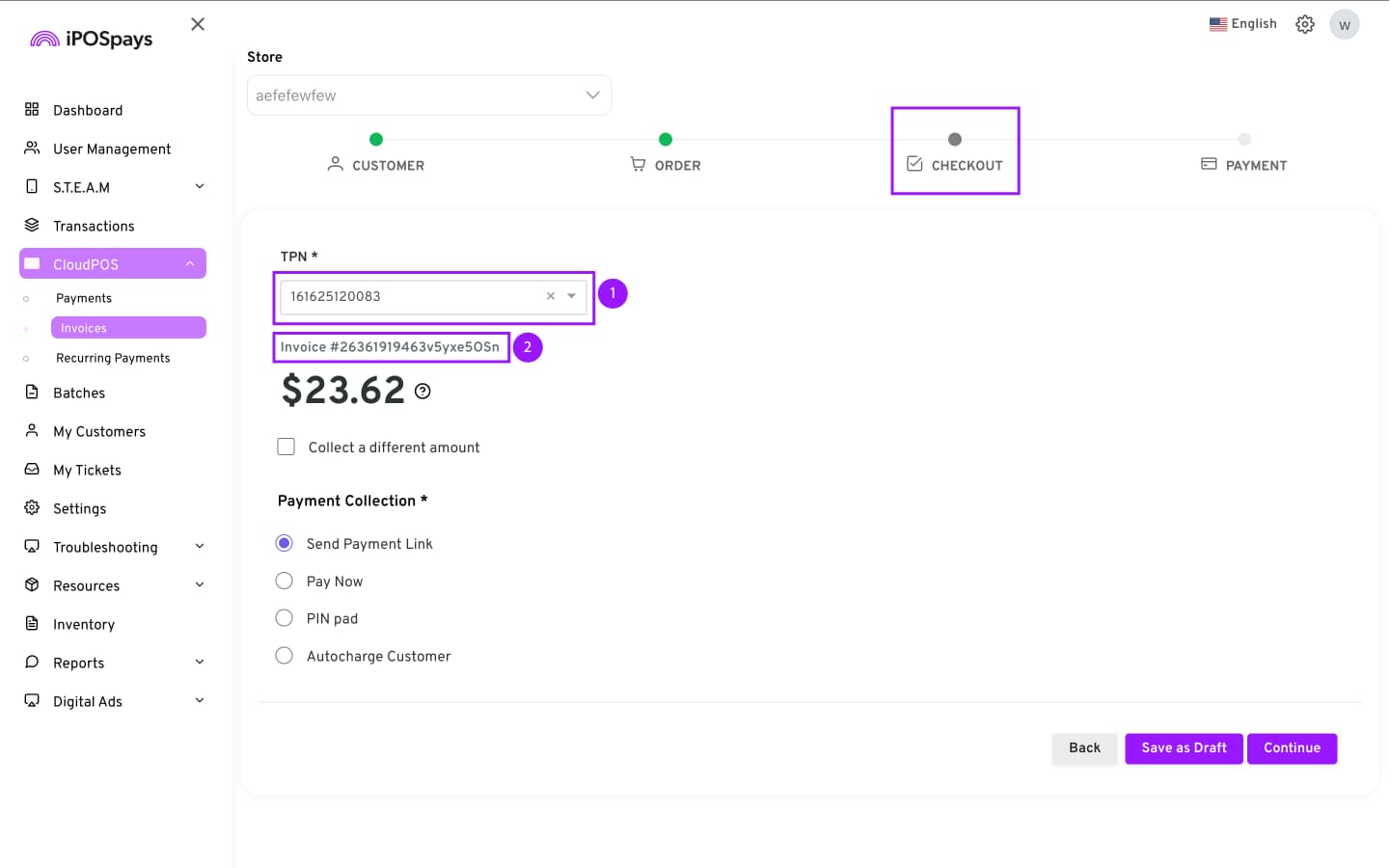
Select the TPN from the dropdown.
-
Copy the generated Invoice ID if needed for tracking.
-
Verify that the invoice amount is correct. If needed, go back and review the item list.
Partial Payment
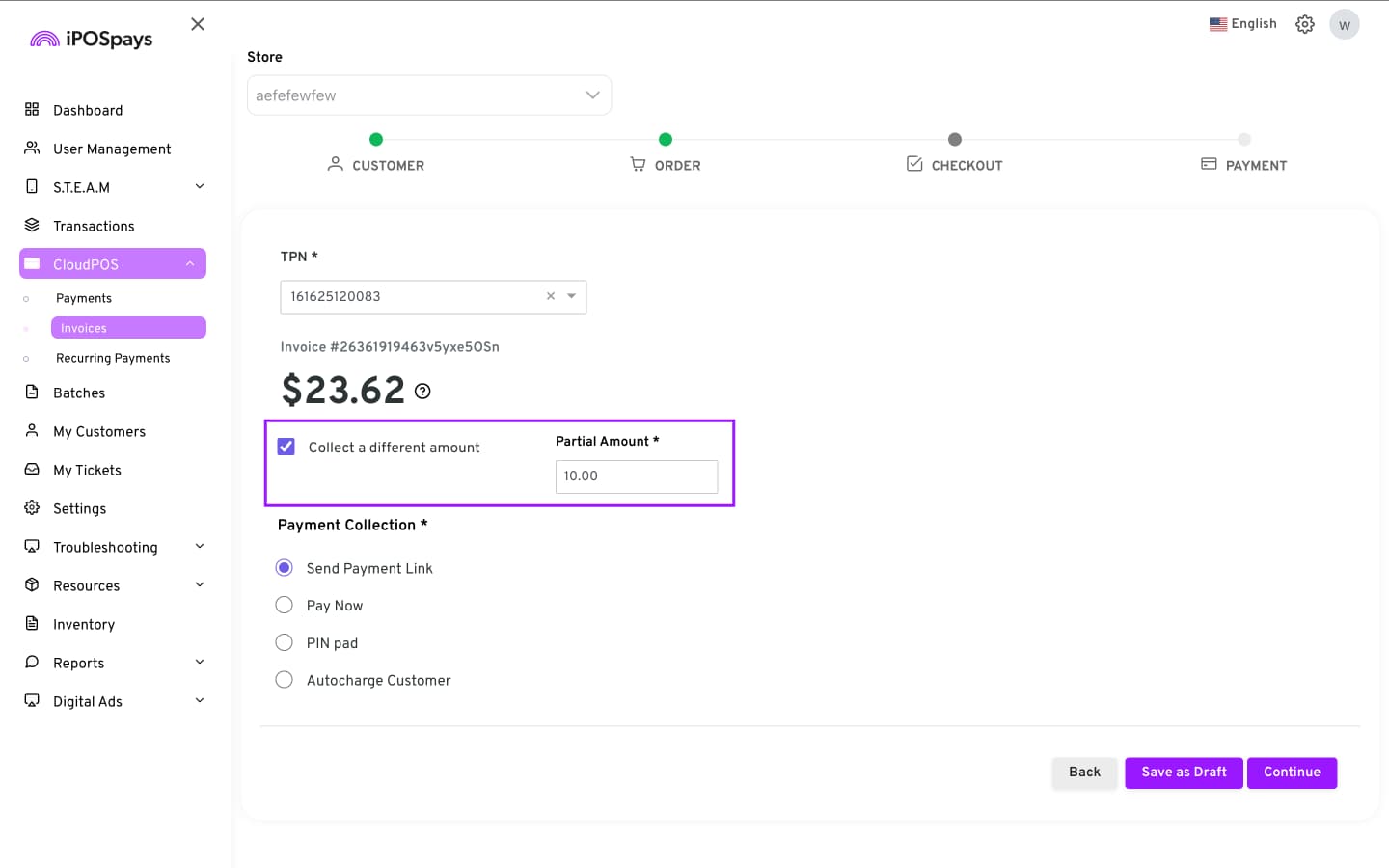
“Collect a different amount” allows merchants to collect a portion of the invoice amount and collect the remaining balance later.
-
Check Collect a different amount.
-
Enter the amount the customer will pay now.
Rules:
-
The amount must be between $0.00 and the total invoice amount.
-
Multiple partial payments are allowed.
-
The total payments cannot exceed the original invoice total.
The remaining balance can be collected later from the Invoices module. See How to Collect the Remaining Partial Payment for instructions on collecting the remaining balance.
-
Choose a payment method:
-
Send Payment Link
-
Pay Now
-
PIN pad
-
Autocharge Customer
-
Part 3: Process Payment
Option 1: Send Payment Link
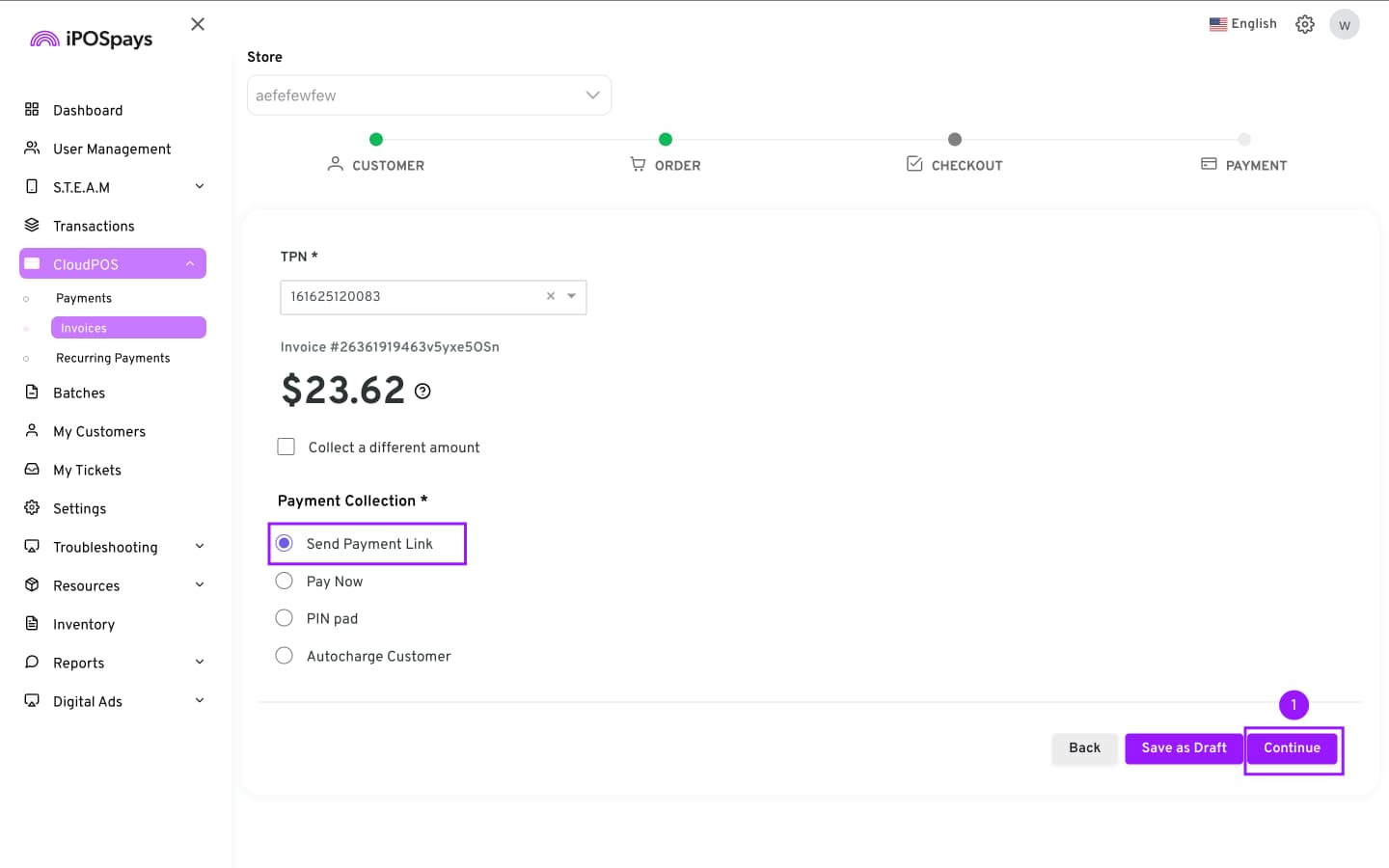
- Choose Send Payment Link and click Continue.
-
Review or complete the following fields:
-
Email / Phone (auto-filled)
-
CC Emails (up to 5, optional)
-
Link Expiry Time
-
Reference# (optional)
-
Description (optional)
-
Disclaimer (optional)
-
Transaction Tags (optional)
-
-
Click Process.
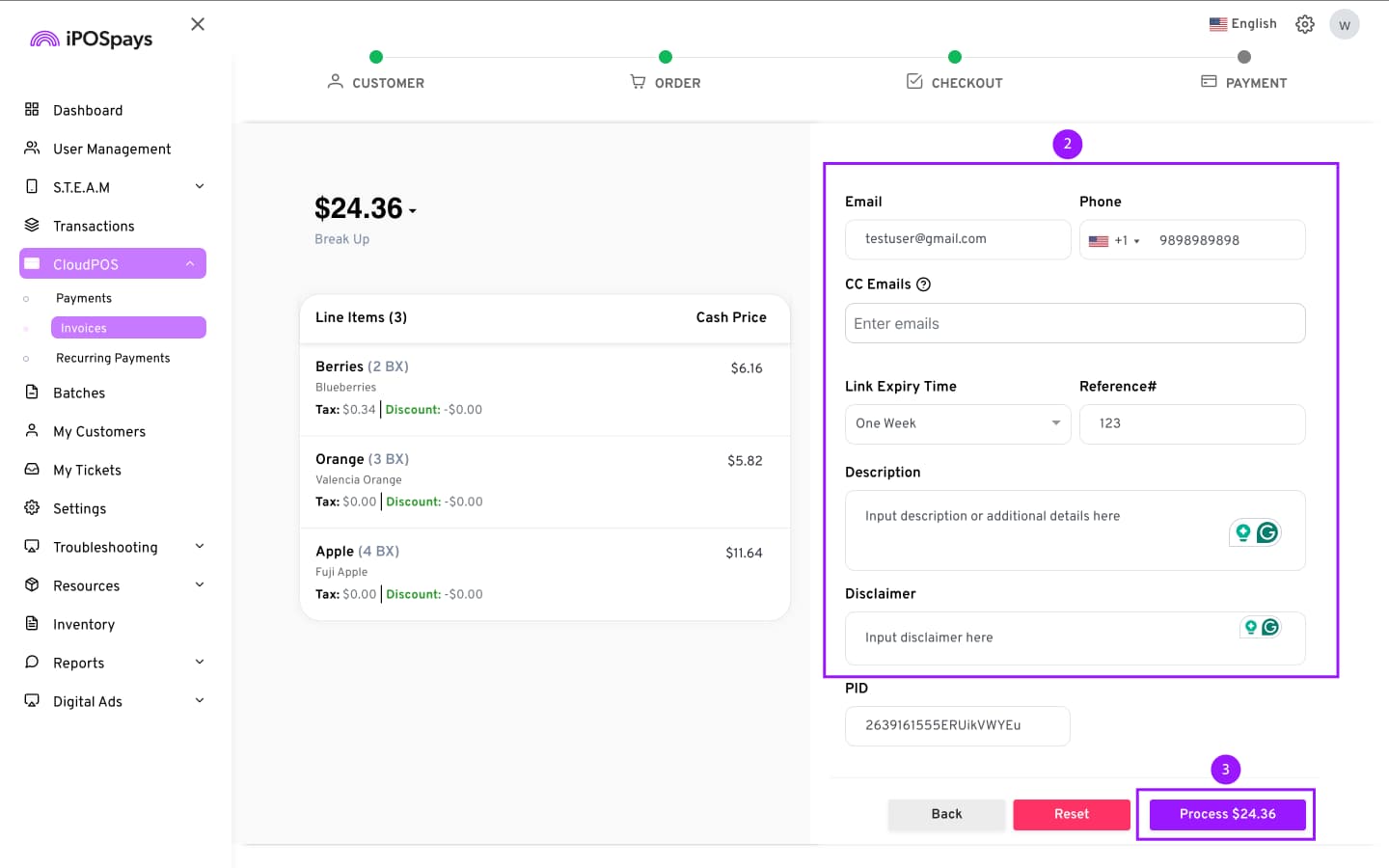
- The customer will receive an email or SMS with a link to the Hosted Payment Page (HPP), where they can pay using their preferred payment method.
Check Payment Link Status
After the link has been sent, you can check its status in the Invoices module.
-
Go to the Invoices module.
-
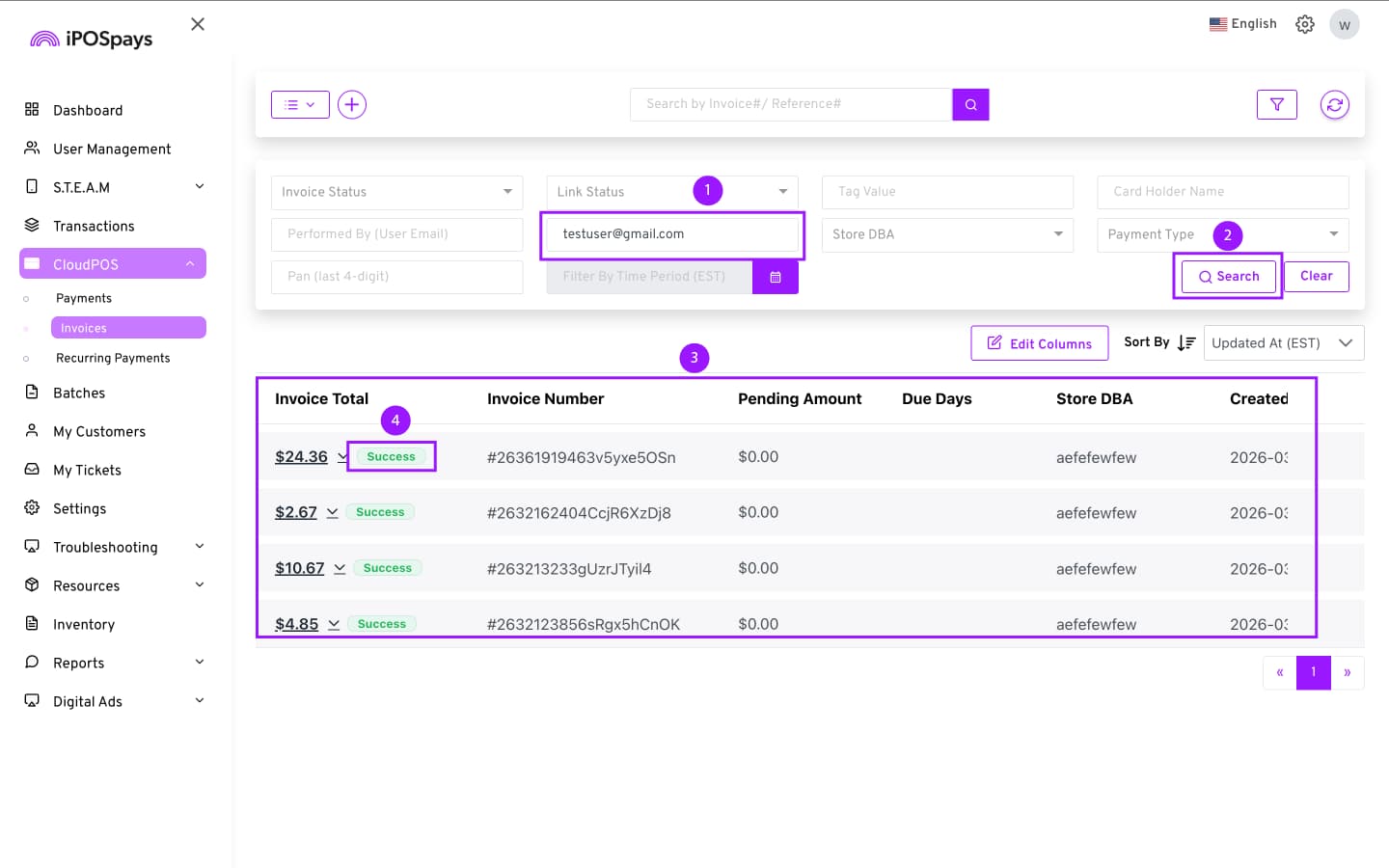
Use the search field or filters to narrow down results.
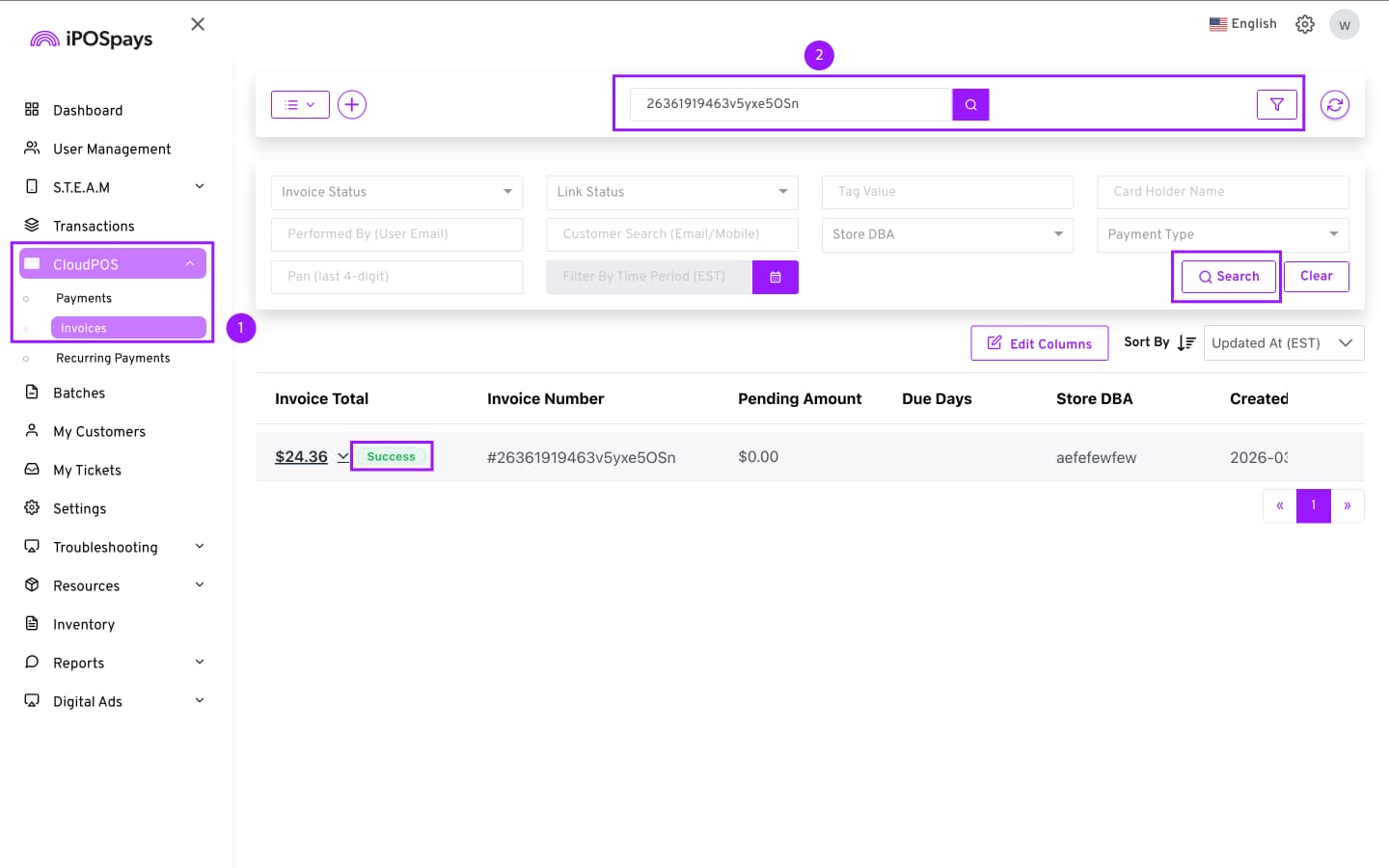
To search by customer:
-
Enter the customer’s phone number or email used to send the invoice link.
-
Click Search.
-
The list of invoices sent to that customer will be displayed.
-
The payment status will be displayed next to the Invoice Total amount.
Filter by Link Status
To check the status of a payment link:
-
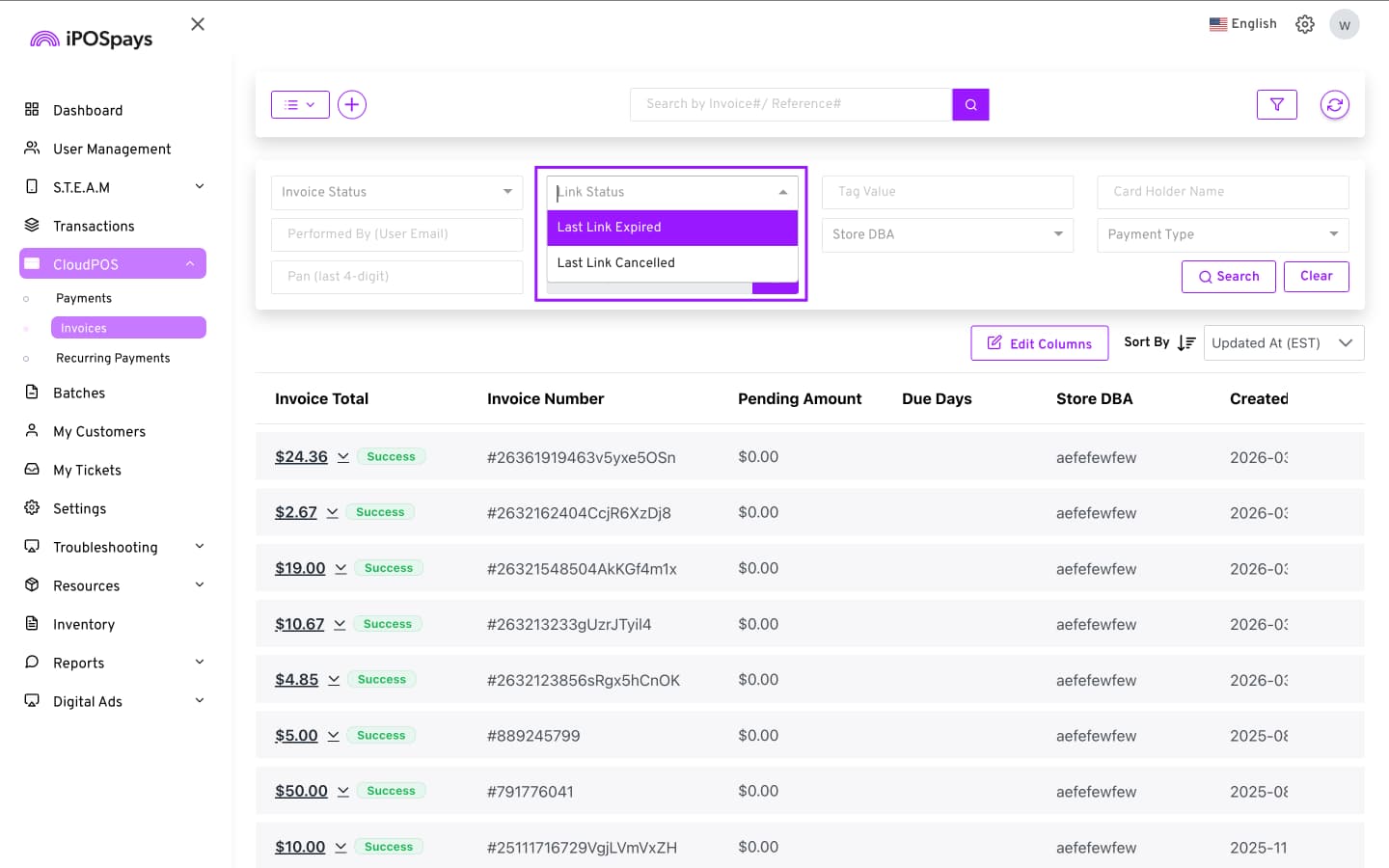
Click the Link Status drop-down menu.
-
Choose from:
-
Last Link Expired – Displays Send Payment Link transactions where the payment link has expired.
-
Last Link Cancelled – Displays Send Payment Link transactions that were cancelled.
-
- You can further refine results using Filter by Time Period.
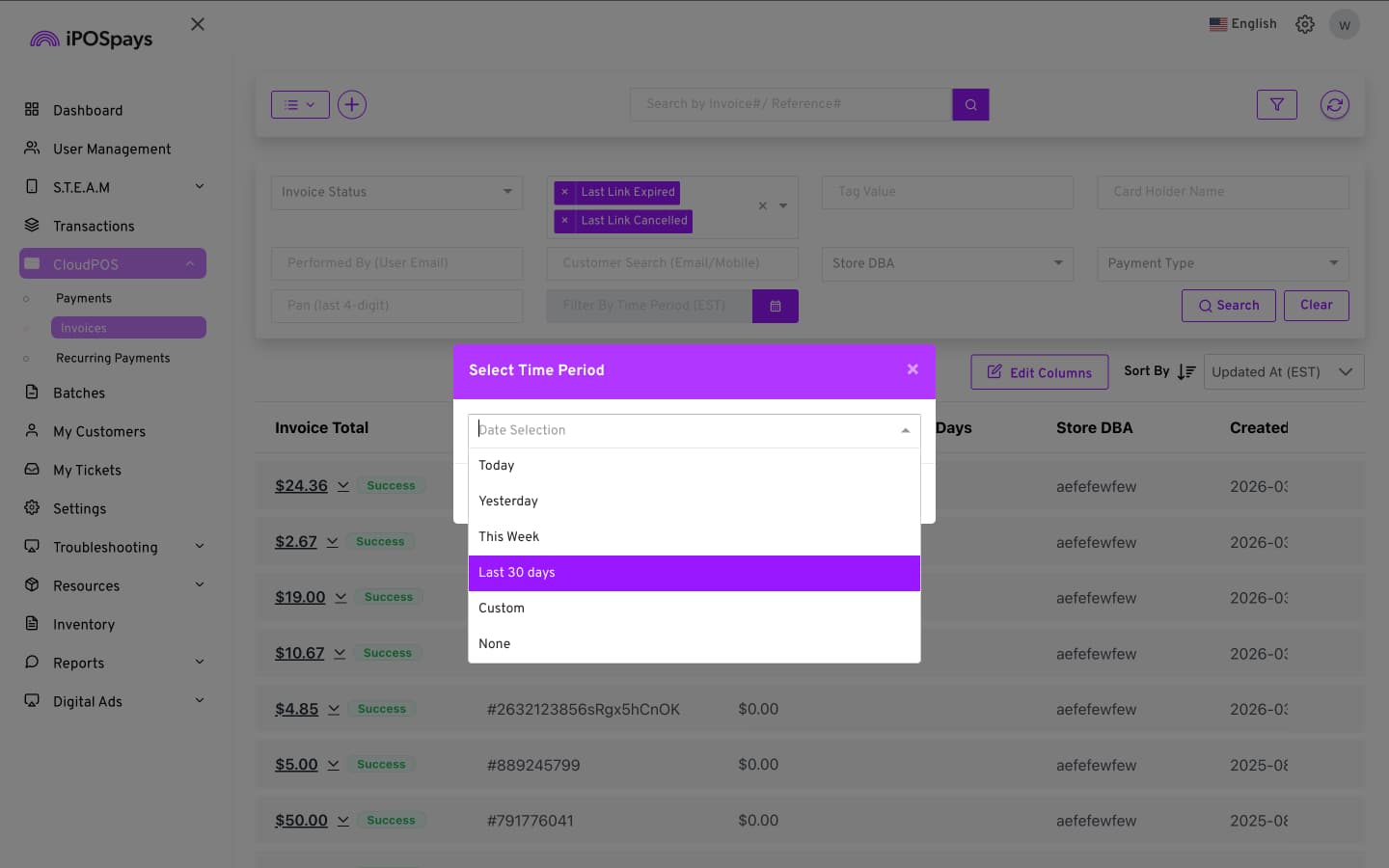
Example:
- Select Last 30 Days to view expired links within that timeframe.
Option 2: Pay Now
- Select Pay Now and click Continue.
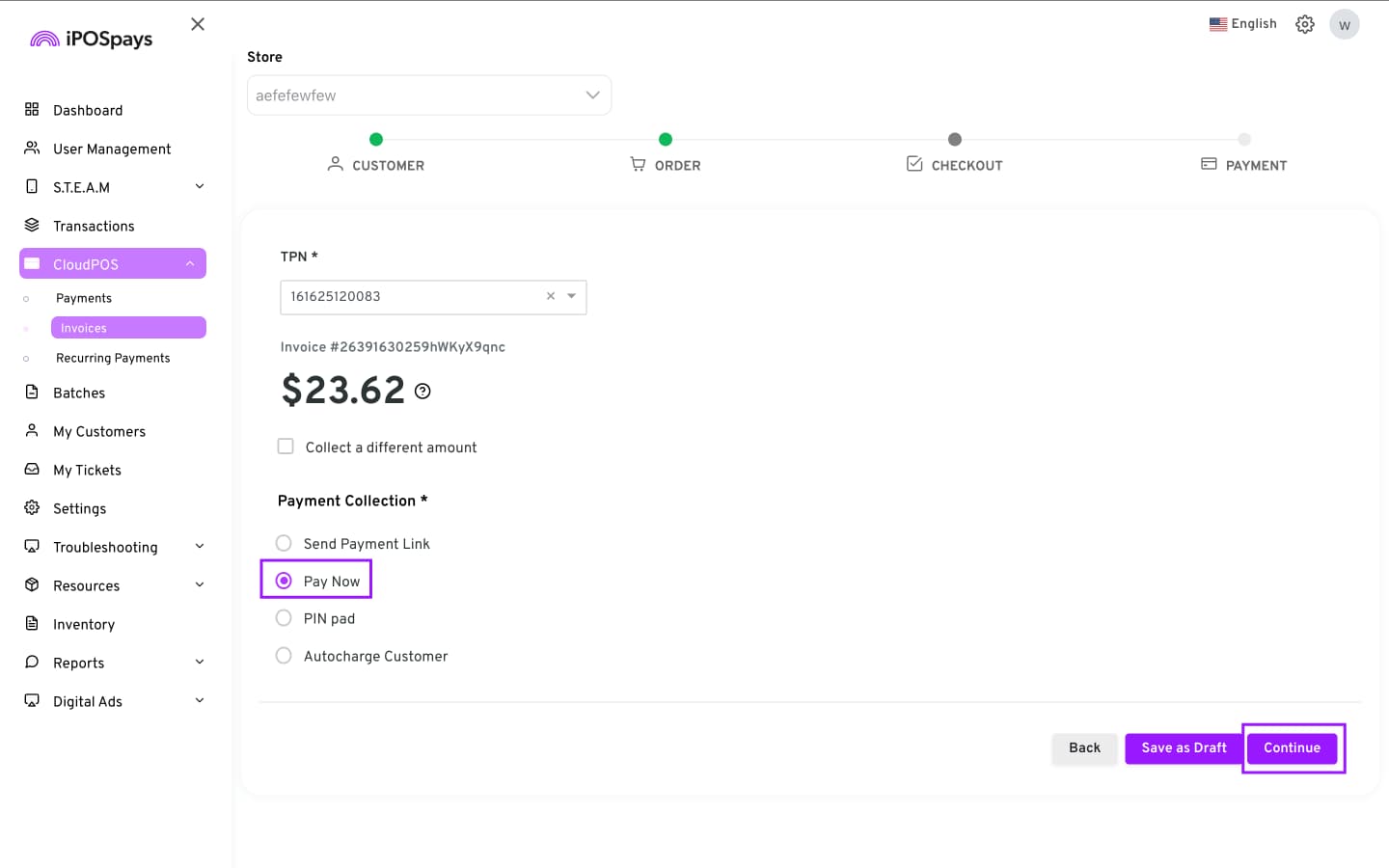
-
Choose the payment type:
-
Card
-
Bank
-
Cash
-
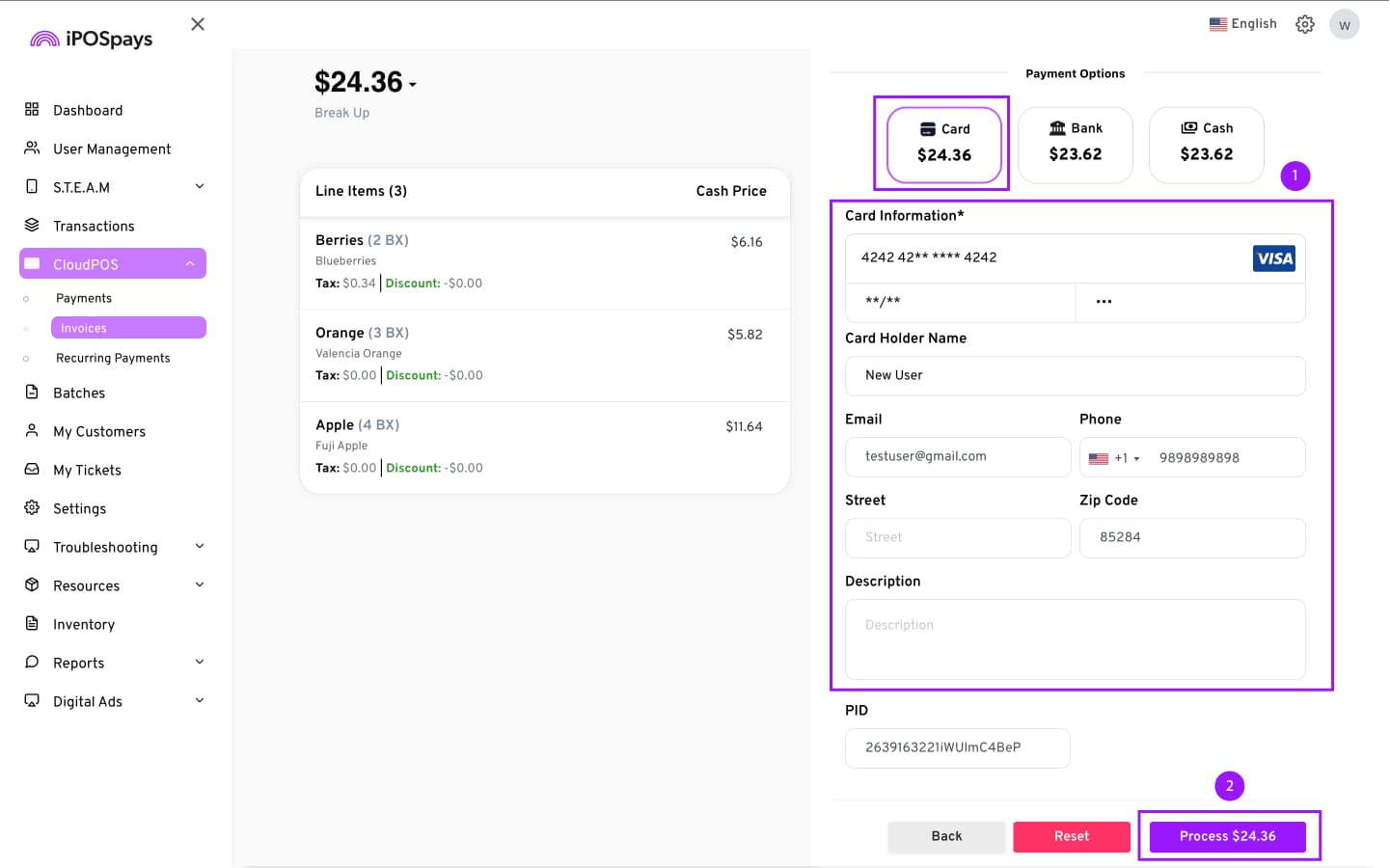
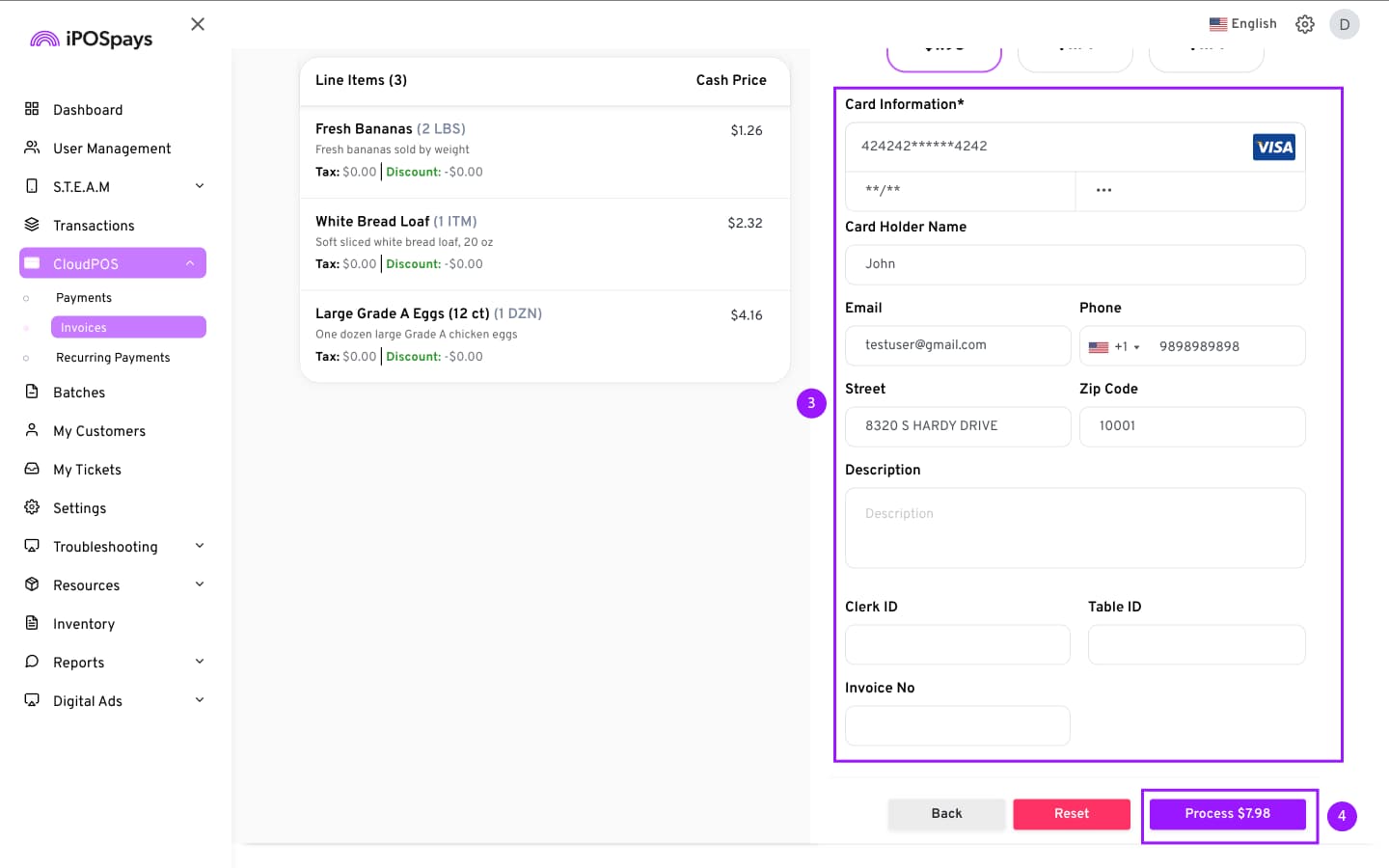
If Card
-
Enter the following details:
-
Card Holder Name
-
Card details
-
Email
-
Phone
-
Street
-
ZIP Code
-
Description (optional)
-
Transaction Tags (optional)
-
-
Click Process.
If Bank
-
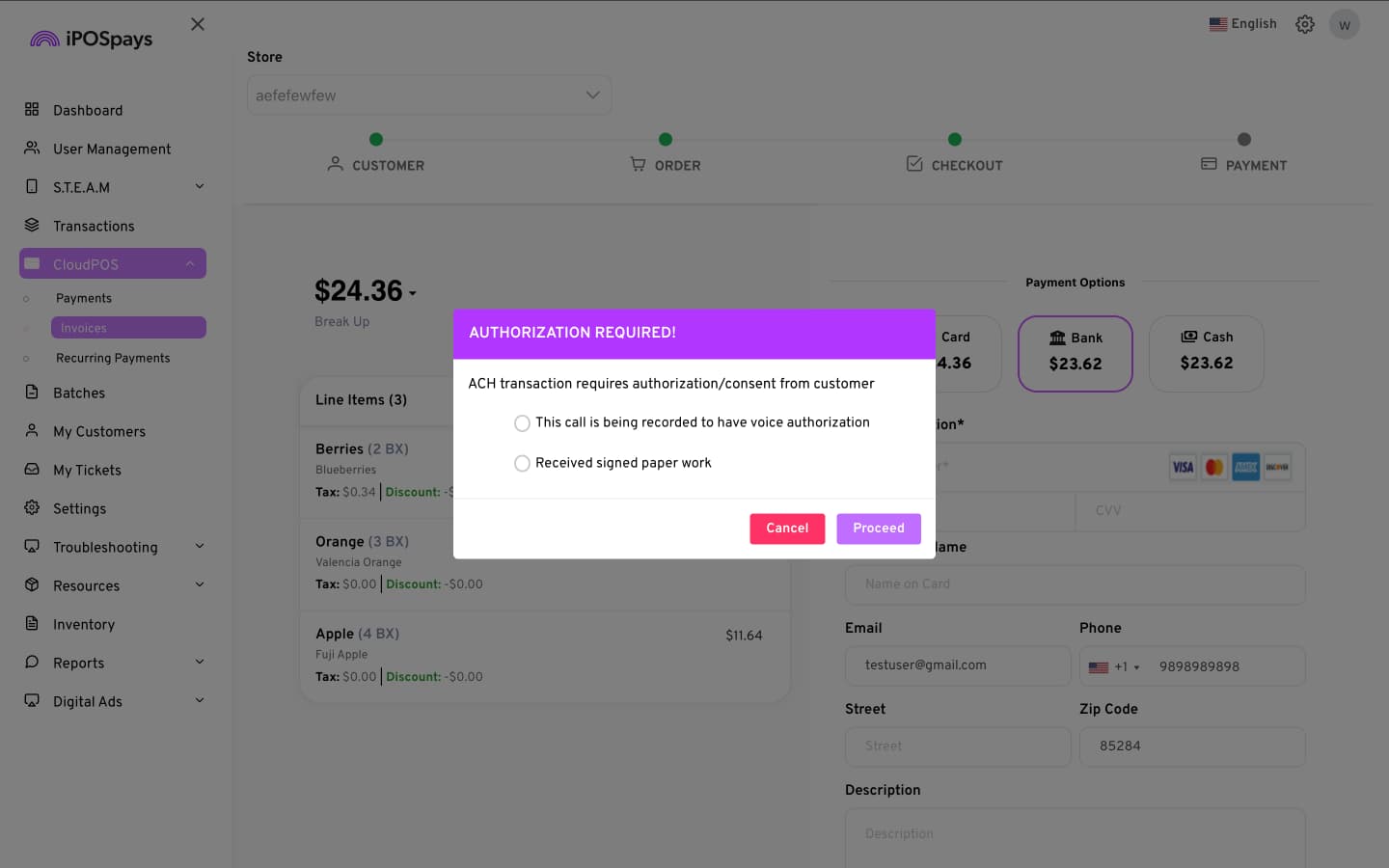
Select Bank as the payment option.
-
A pop-up will appear prompting you to choose the customer authorization method required for Paya ACH.
-
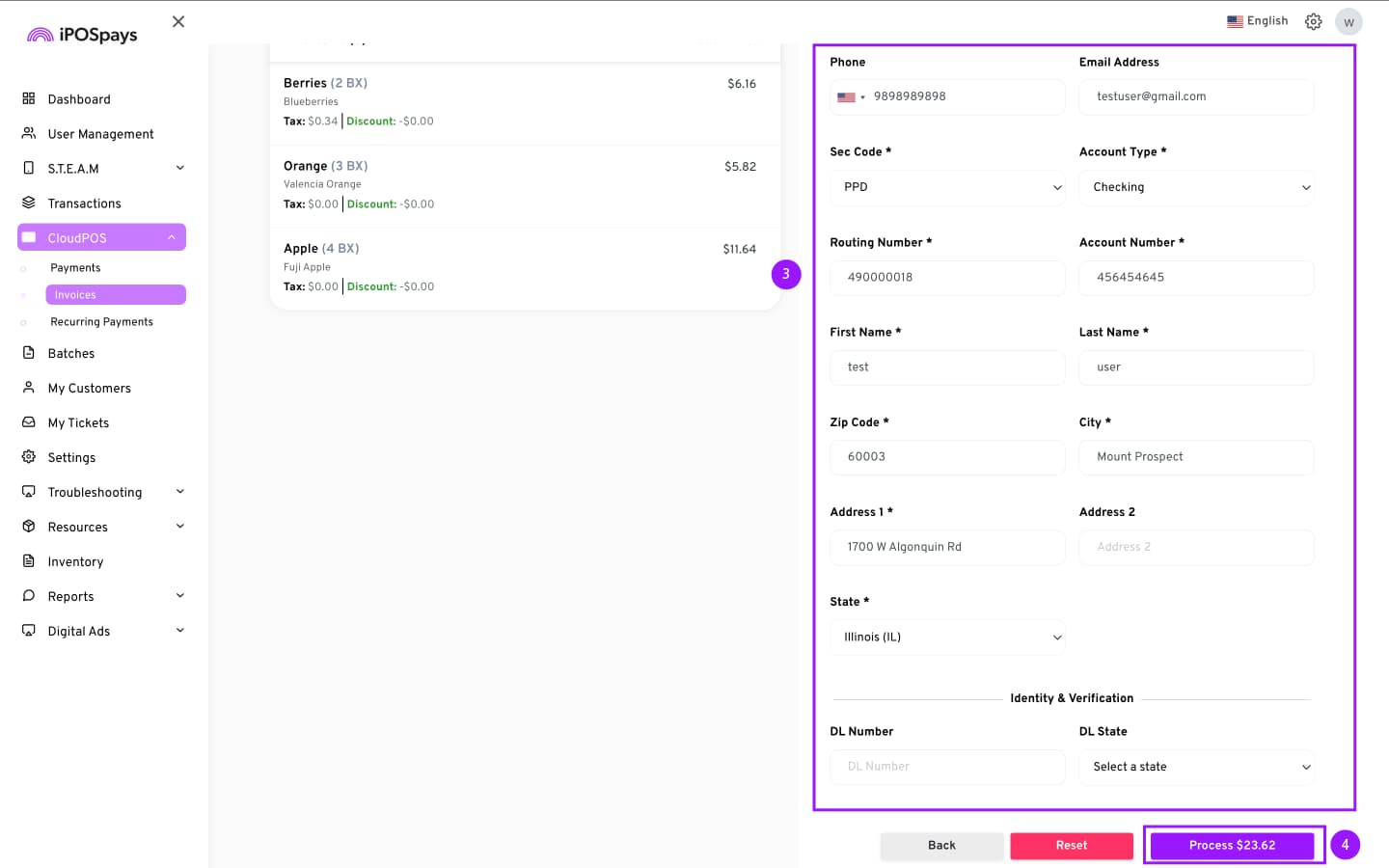
Enter:
-
Transaction amount
-
Required customer and authorization fields
-
Required fields may vary depending on the Paya ACH credentials configured for the merchant account.
- Click Process.
If Cash
-
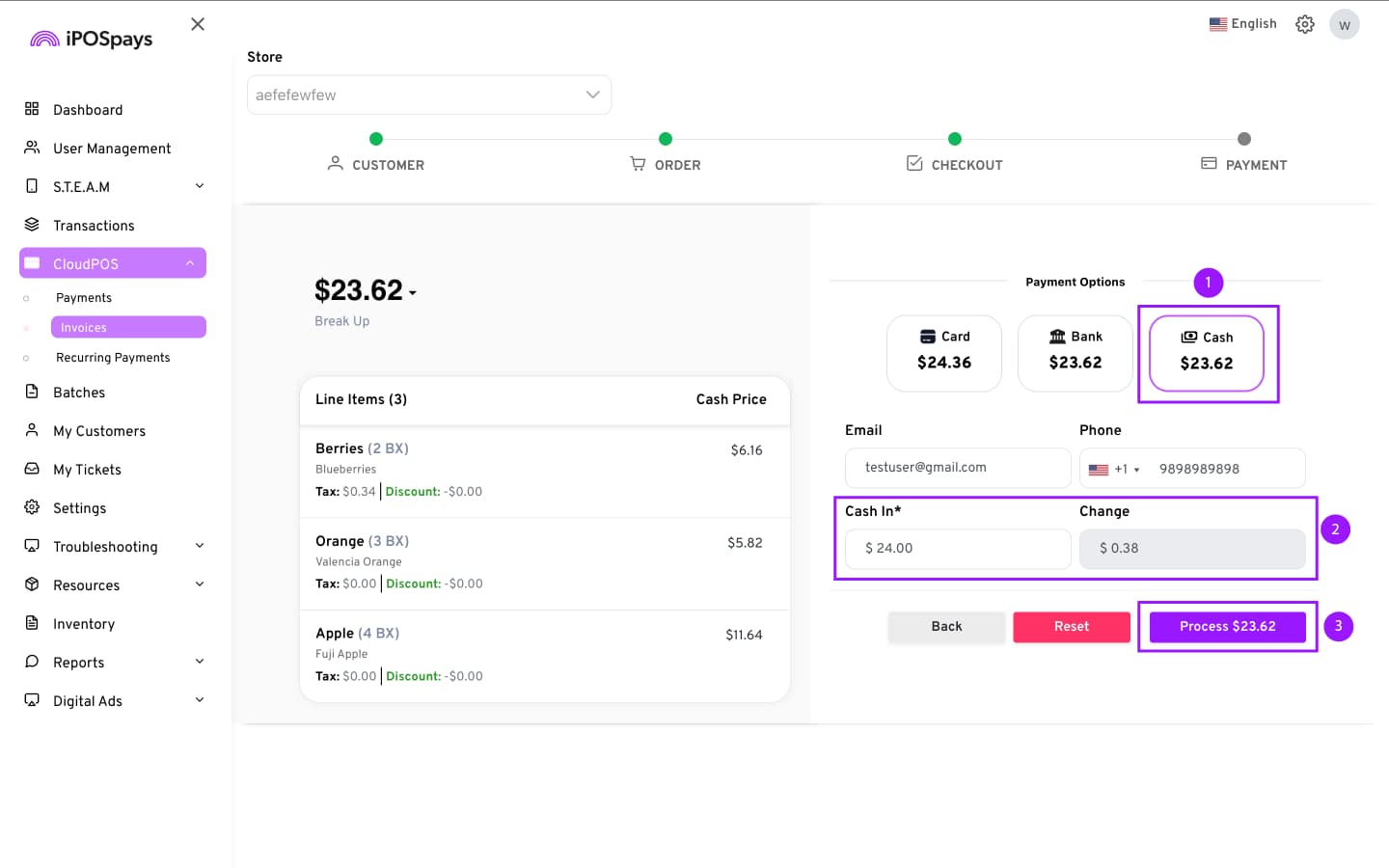
Select Cash as the payment option.
-
Enter the amount received from the customer in the Cash In field.
- The Change field is automatically calculated and displayed.
-
Click Process.
Option 3: PIN Pad
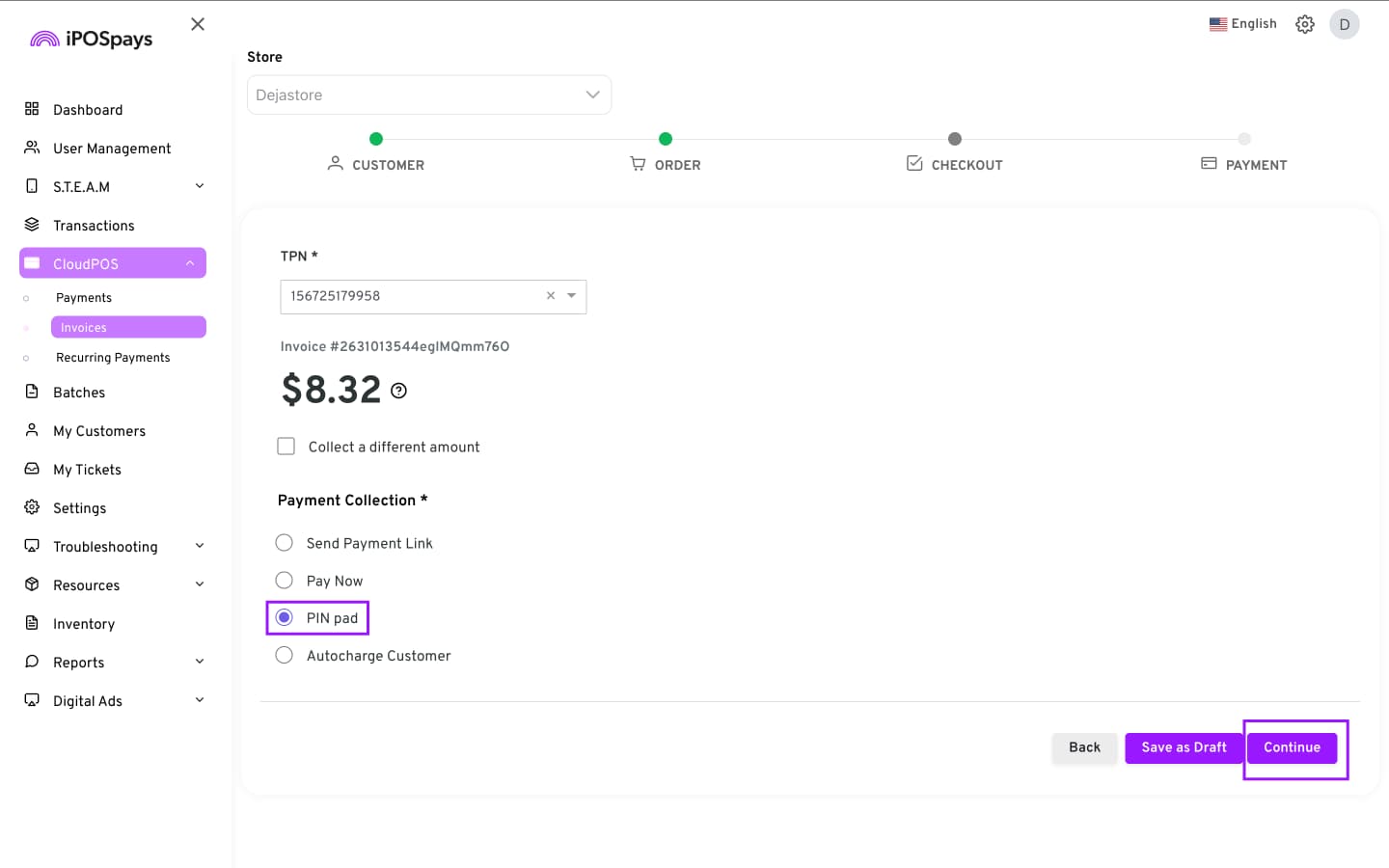
-
Choose:
-
Payment Type (Credit / Debit / Both)
-
Receipt option (Merchant / Customer / Both / None)
-
-
Click Process.
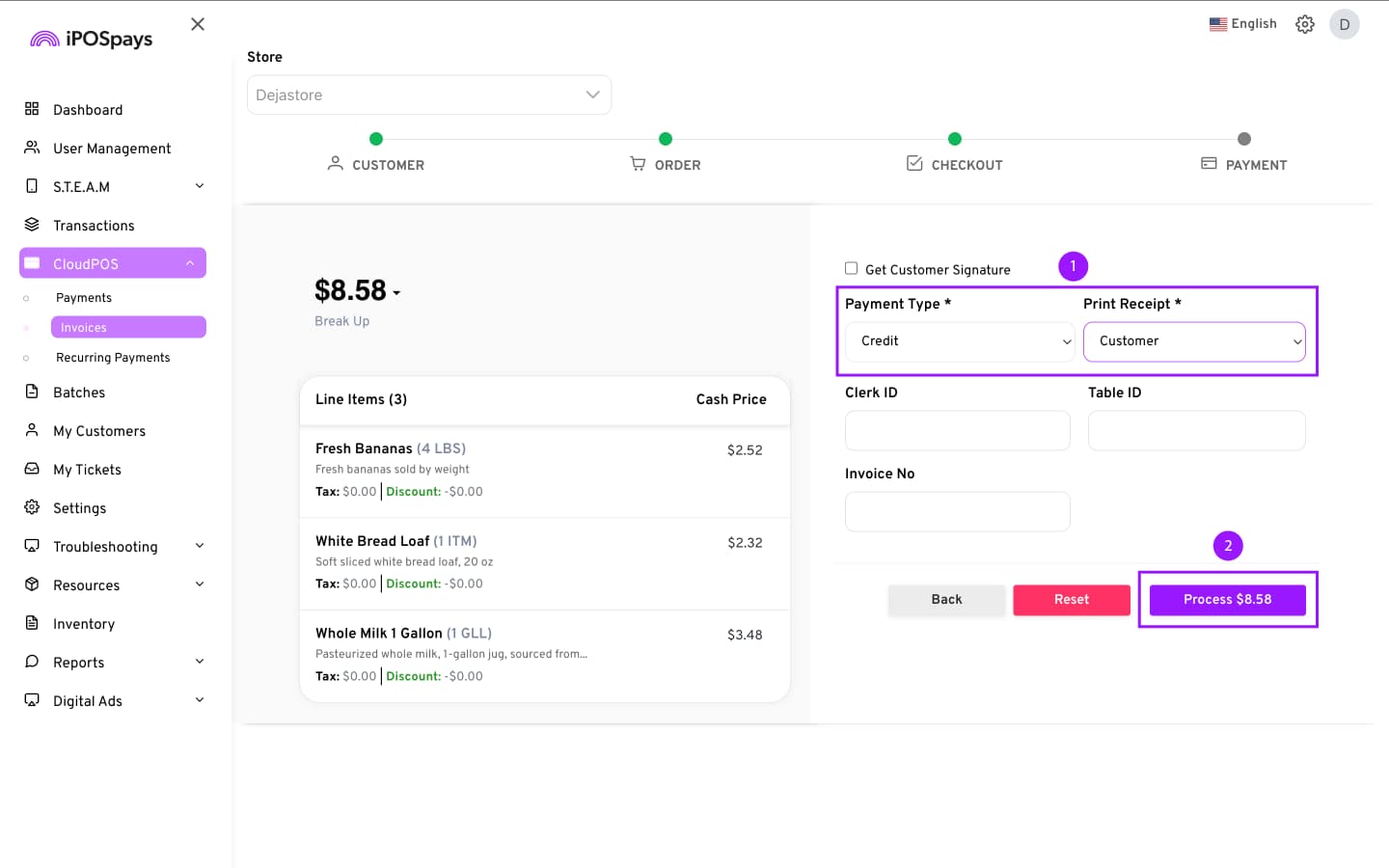
-
The customer completes payment on the PIN pad.
-
The transaction is complete.
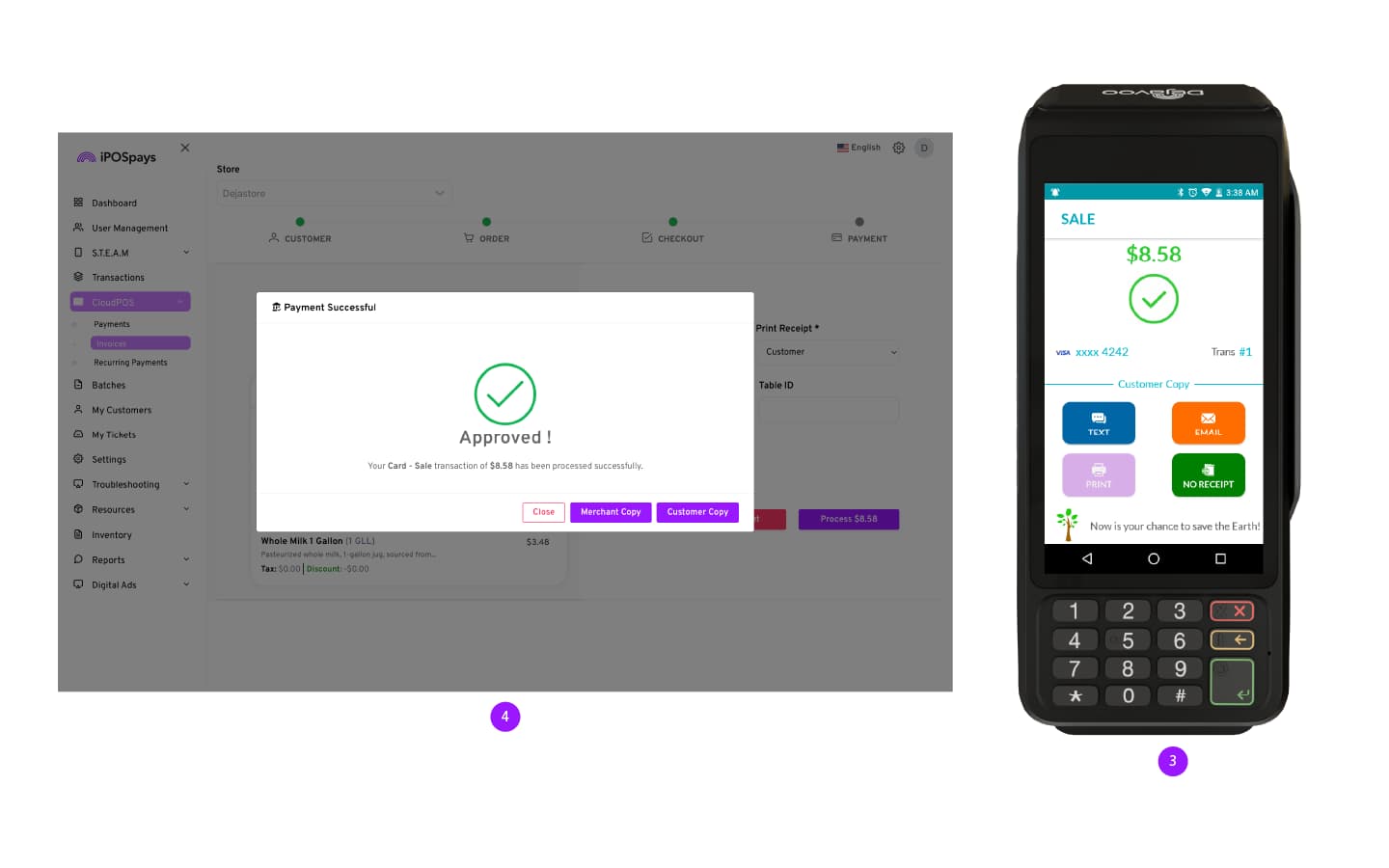
- The customer will receive an e-receipt via the phone number or email address entered for the transaction.
Option 4: Autocharge Customer
Use this if customer payment details are saved in My Customers.
-
Select saved card or bank account.
-
Click Continue.
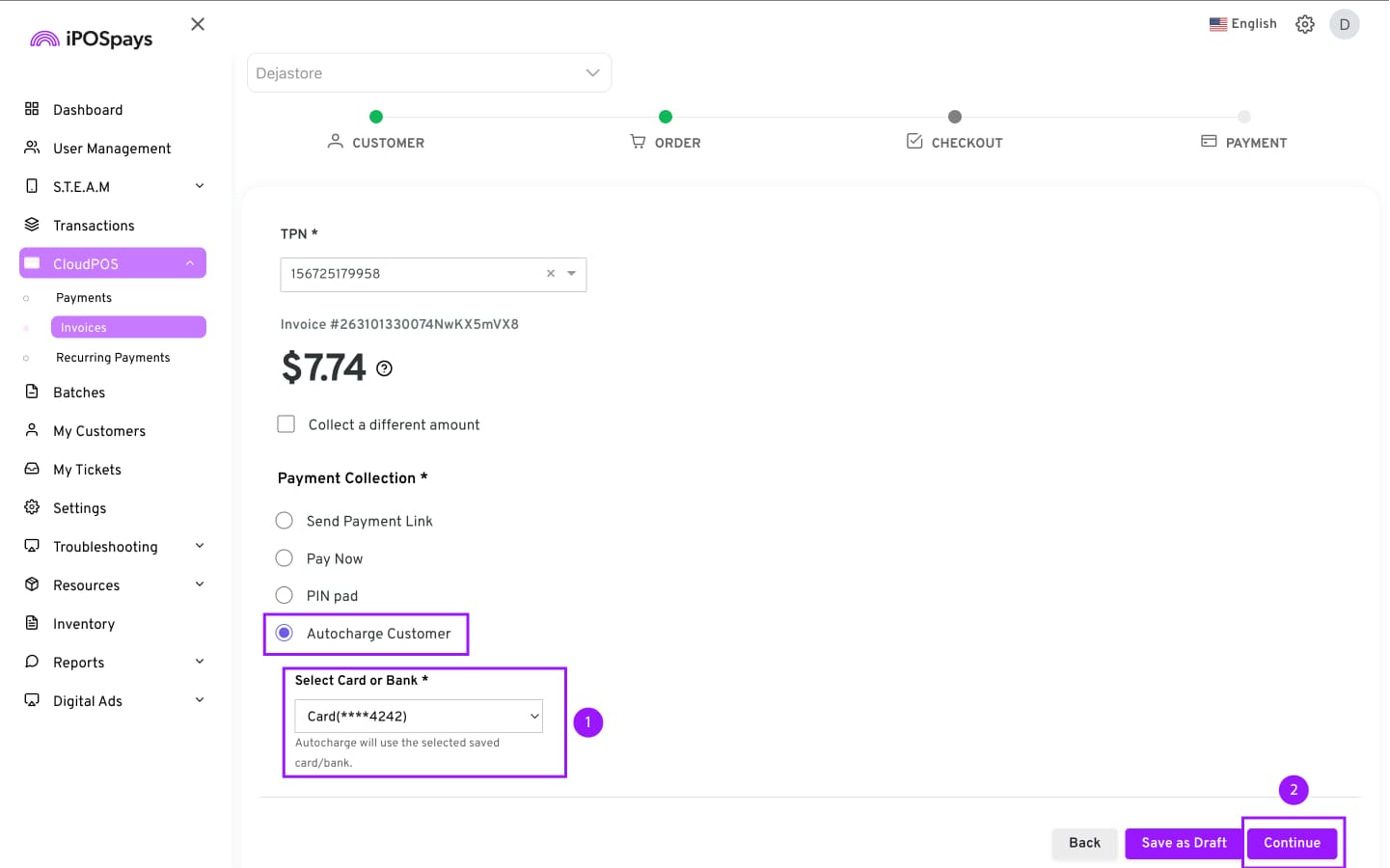
-
The system will automatically fill in the customer’s contact information and card details.
-
Click Process.
-
The system automatically charges the invoice amount.
-
A confirmation message will display the transaction result.
-
The customer will receive an e-receipt via the phone number or email address entered for the transaction.
Receipt and Transaction Result
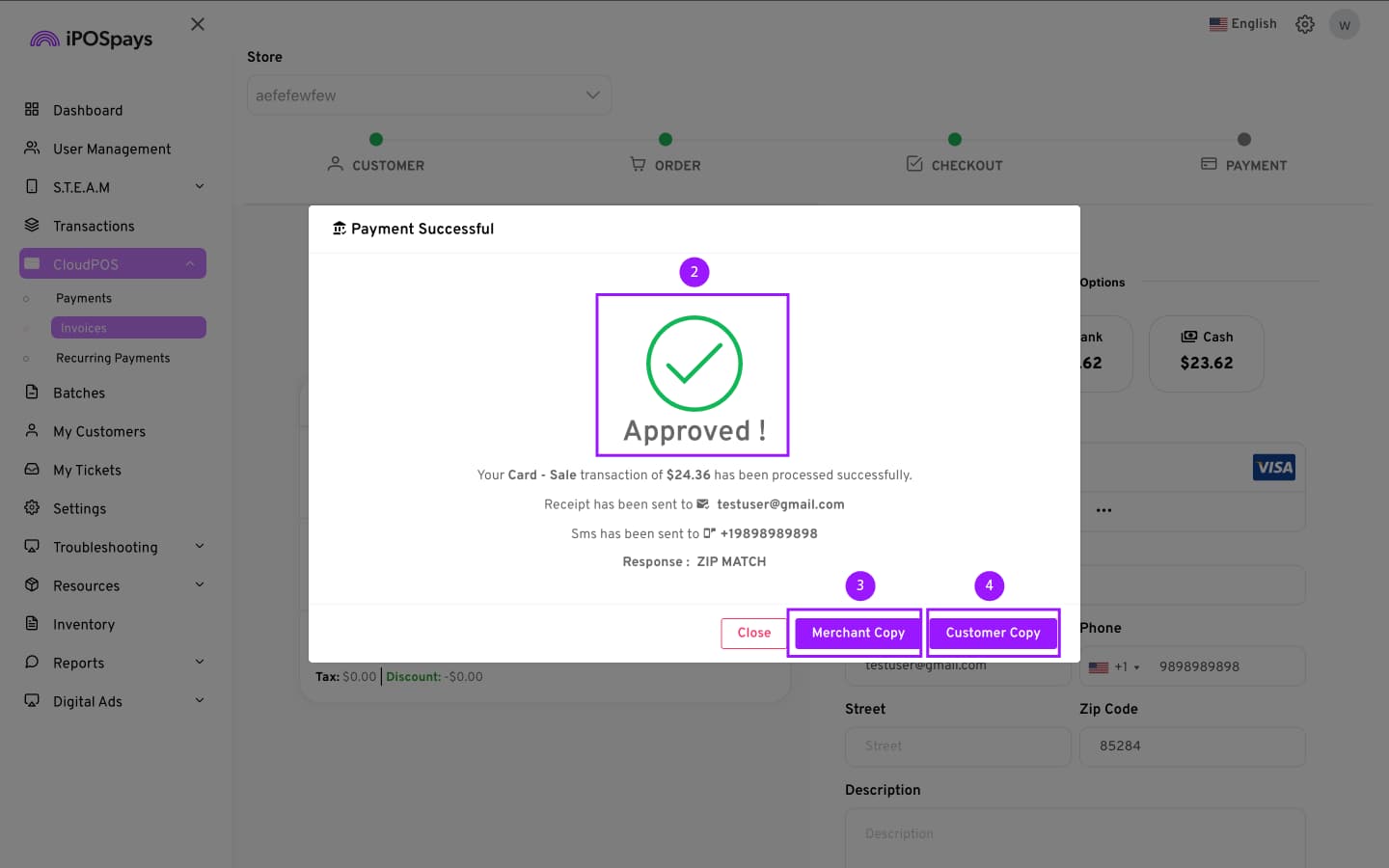
After any successful transaction:
-
The customer receives an e-receipt via the phone number or email used during the transaction.
-
A Success or Failure dialogue will appear.
You can then:
-
View Merchant Copy
-
View Customer Copy
-
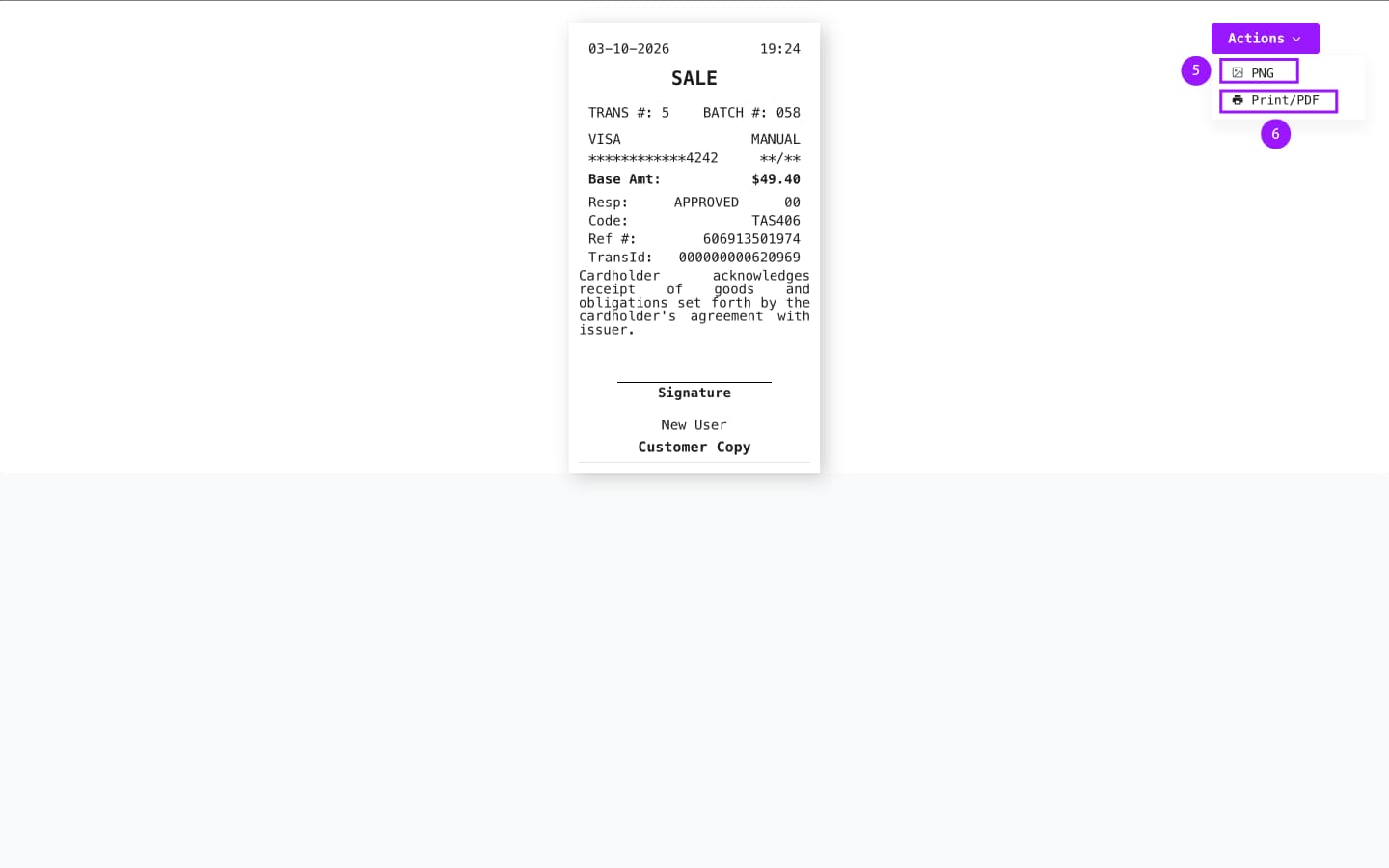
Download receipt as PNG
-
Print or Download as PDF
Part 4: Review Transaction Results
Once the transaction has been successfully processed, the portal will automatically take you to the Invoices module. You can review the status of the invoice, when it was created, and its payment status, and more in this module.
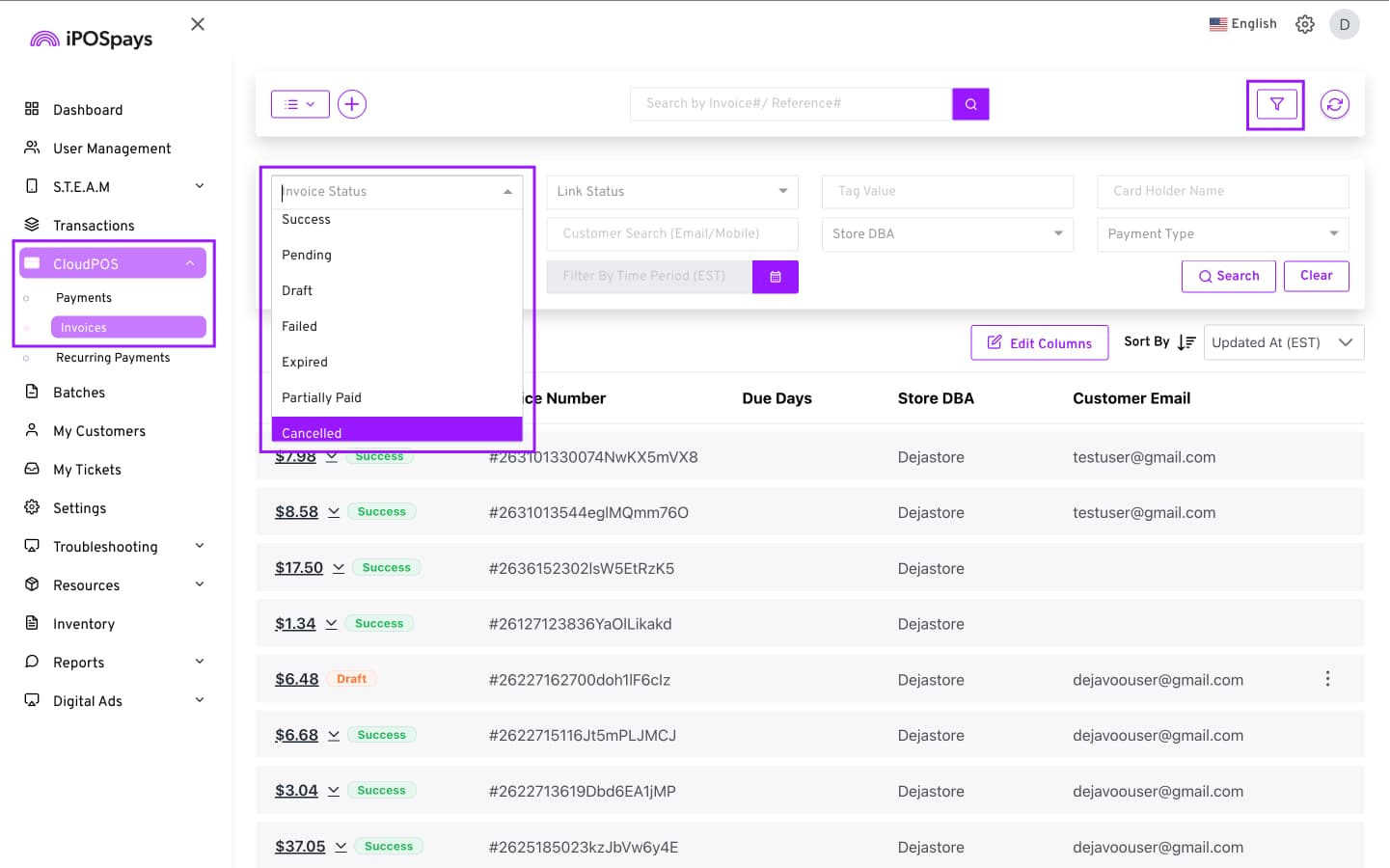
Invoice status lets you get a quick overview of the status of all invoices and helps you identify the status of an invoice
The invoice status will range from:
-
Success - The customer has paid for the invoice
-
Pending - The customer has not yet paid for the invoice, and the payment is pending
-
Draft - The invoice has not been created fully
-
Failed - The transaction attempt was unsuccessful.
-
Expired - The invoice has expired
-
Partially Paid - the invoice has been partially paid for by the customer
Invoices Module Features
The Invoices module has been redesigned from the ground up to offer more usability. Here are some of the new features you will find on the Invoices module.
-
Collect
-
Edit Invoices
-
Delete Invoices
-
Resend payment links
-
Regenerate payment links
-
Cancel payment links
-
Mark an invoice as paid
-
Edit the data columns shown in the Invoices module
-
View Invoices and Invoice History
1. How to Collect the Remaining Partial Payment
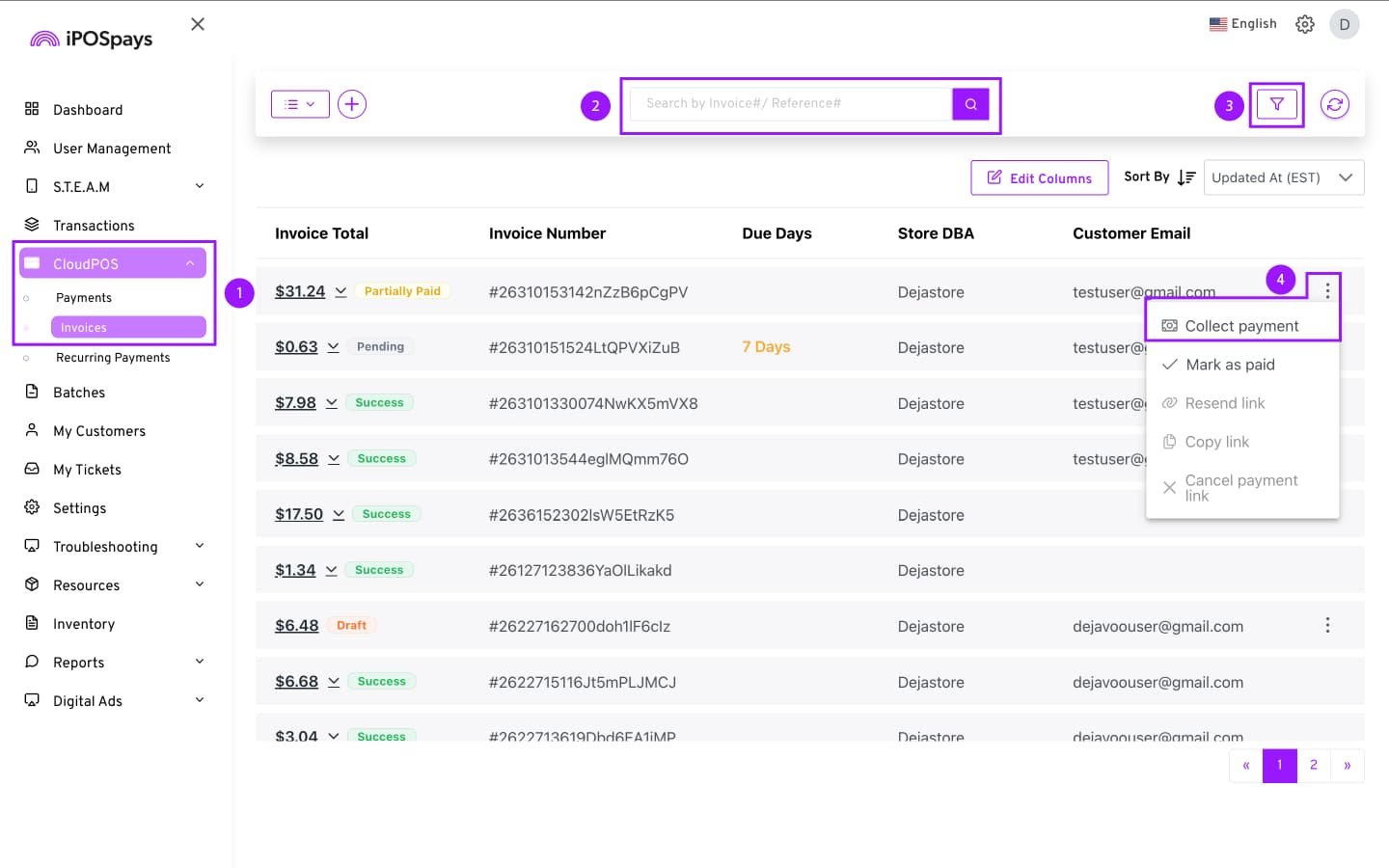
Partial payments can be done within the invoice creation process, and the remaining amount can be paid from the Invoices module. To do this,
-
Go to CloudPOS → Invoices.
-
Search and select the invoice using the search field (If you have the Invoice ID/Reference#).
-
Click on the filter icon at the top right corner of the screen → Invoice Status → Partially Paid
-
Click on the 3 dots at the right side of an invoice → Collect payment.
-
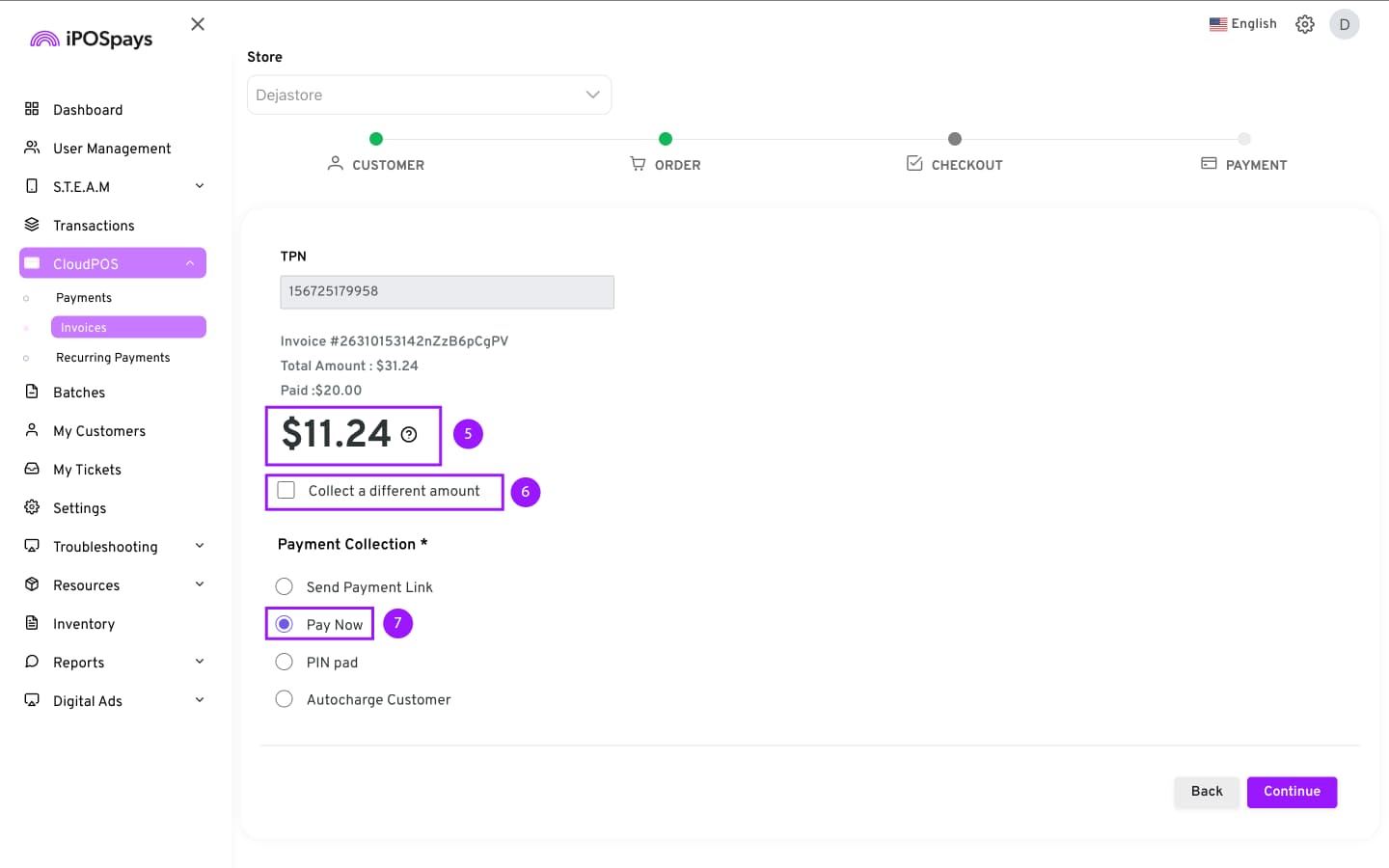
The remaining balance after the partial payment is made will be displayed on the screen.
-
If you wish, you can make a further partial payment for the invoice.
-
Choose any Payment Collection method, and the customer can pay for the transaction using their preferred payment method.
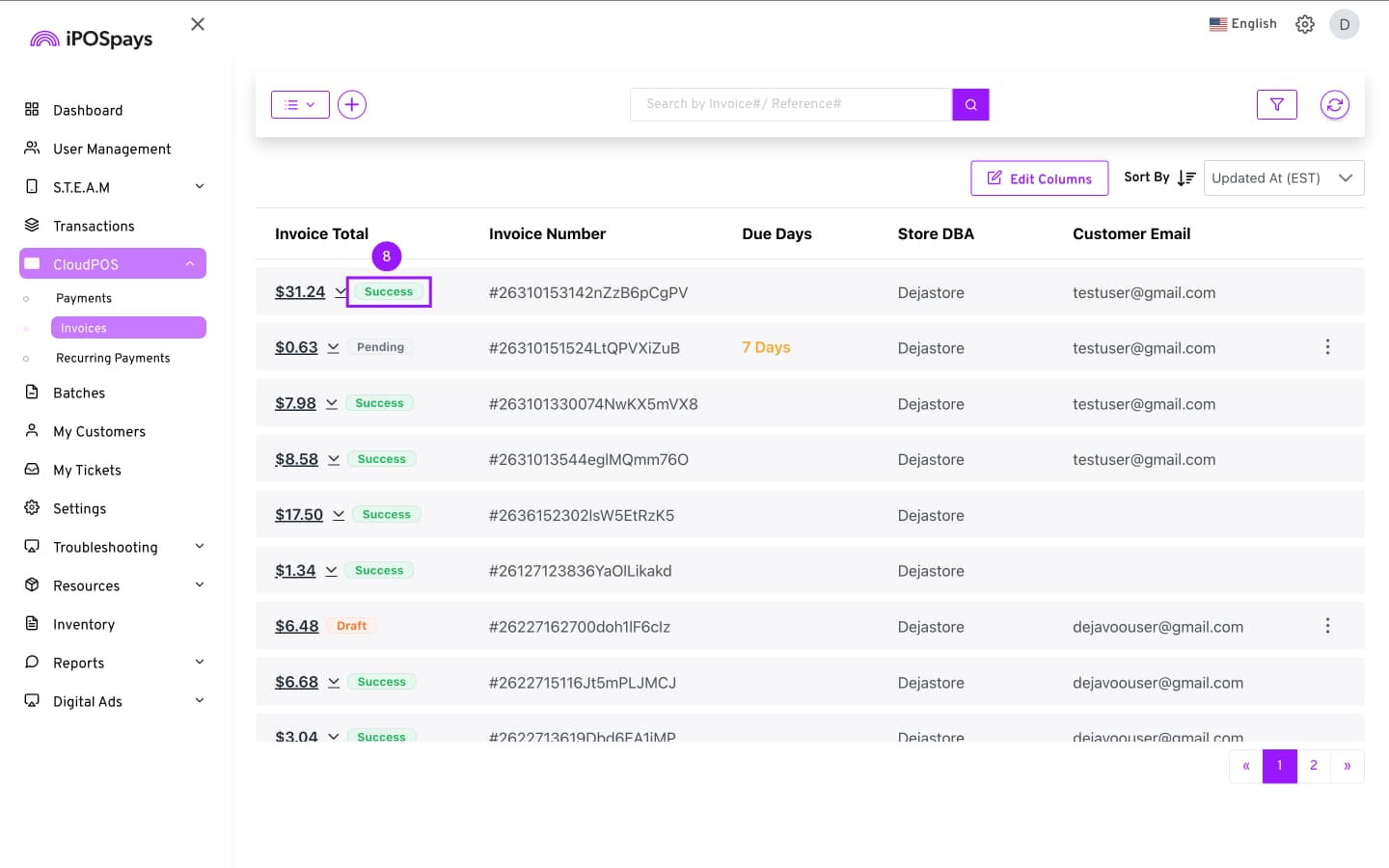
- The invoice status will change from Pending to Success in the Invoices module.
2. How to Edit an Invoice
If you wish to edit an invoice after saving it as a draft, you can edit it from the Invoices module. To do this,
-
Go to CloudPOS → Invoices.
-
Search and select the invoice using the search field (If you have the Invoice ID/Reference#).
-
Click on the filter icon at the top right corner of the screen → Invoice Status → Draft
-
Click on the 3 dots at the right side of an invoice → Edit invoice
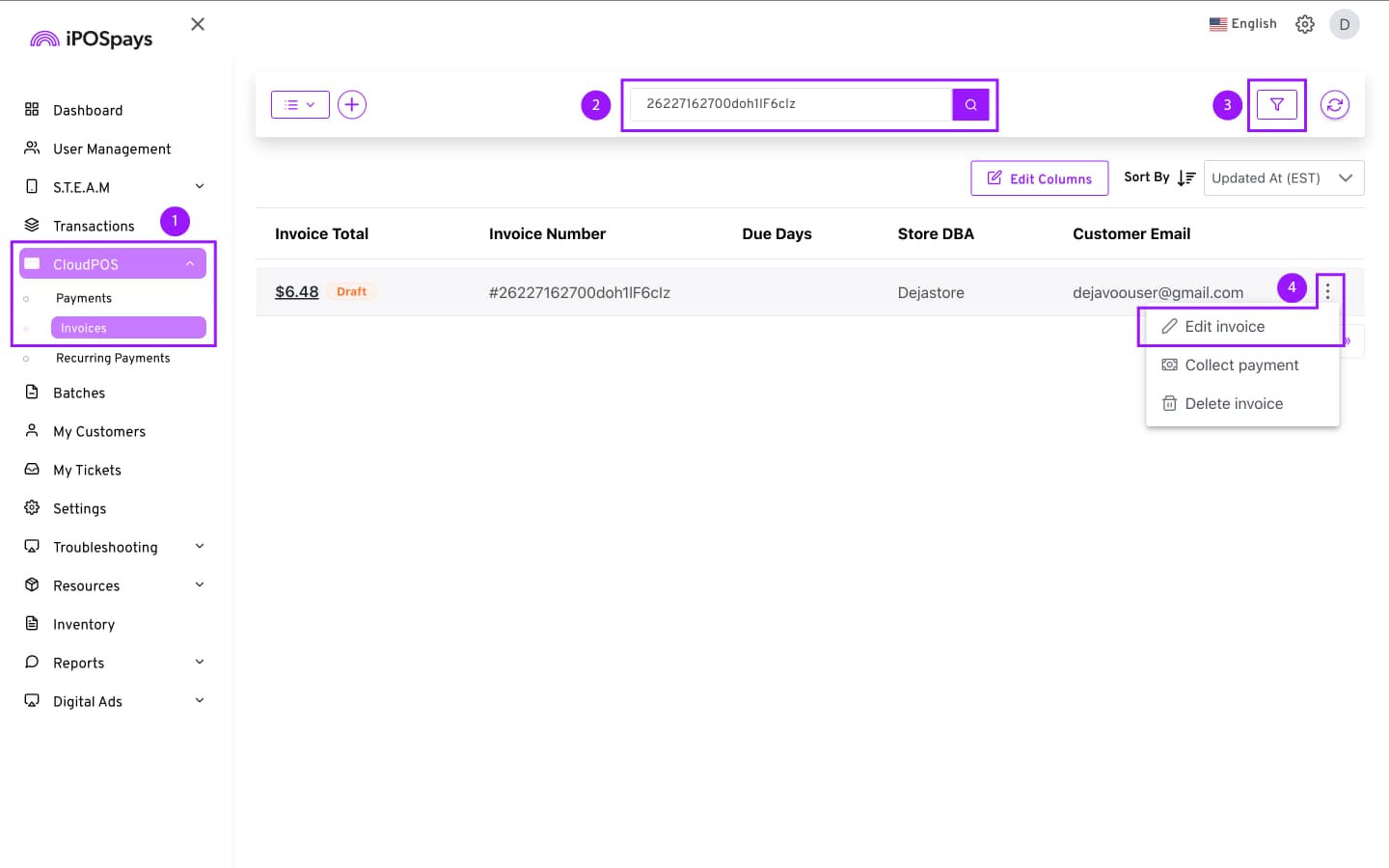
- The portal will take you to the section of the invoice last edited. You can then continue from where you last left off.
3. How to Delete an Invoice
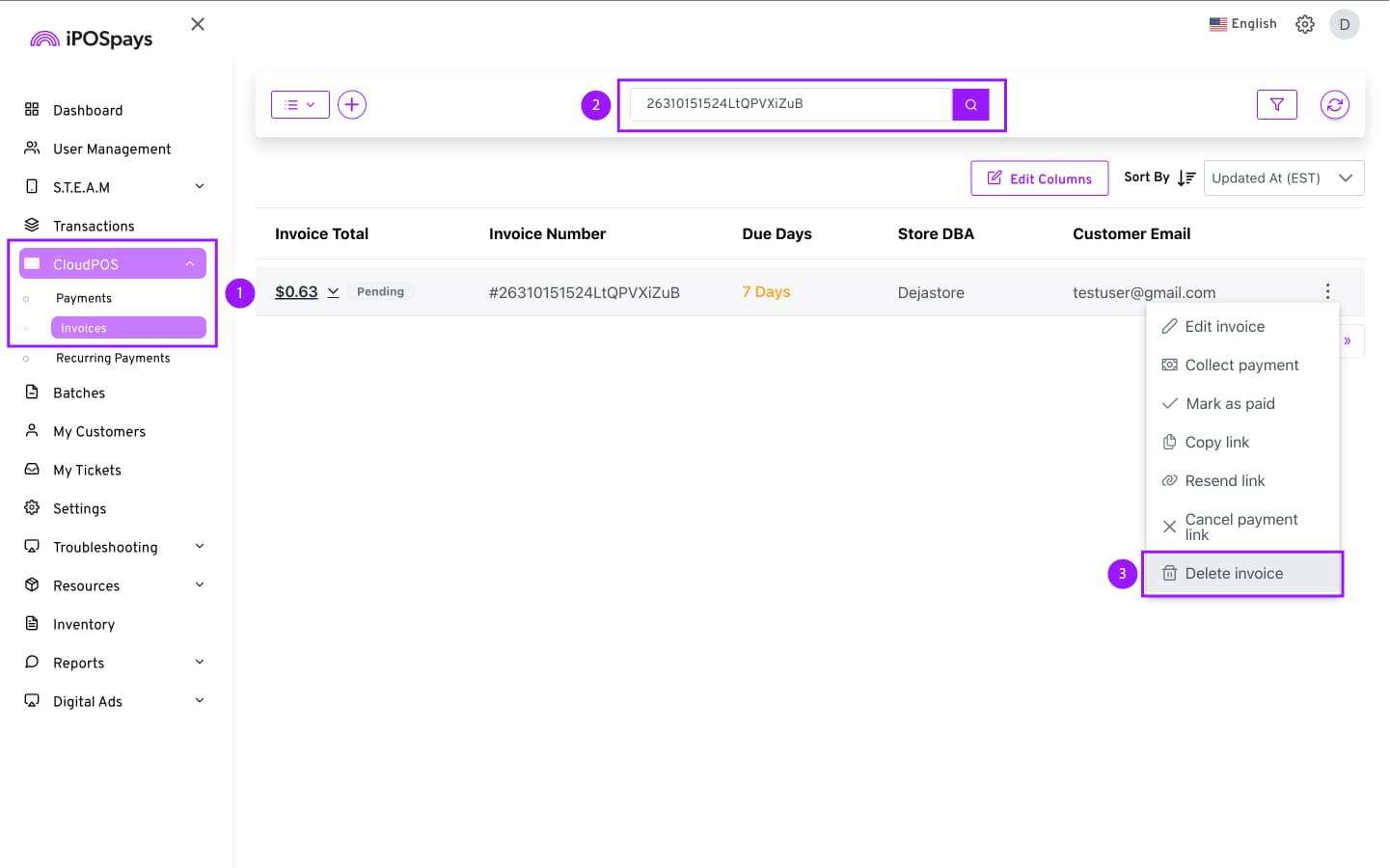
If you wish to delete an invoice, you can do so from the Invoices module before it has been paid for. To do this,
-
Go to CloudPOS → Invoices.
-
Search and select the invoice using the search field (If you have the Invoice ID/Reference#).
-
Click on the 3 dots at the right side of an invoice → Delete Invoice.
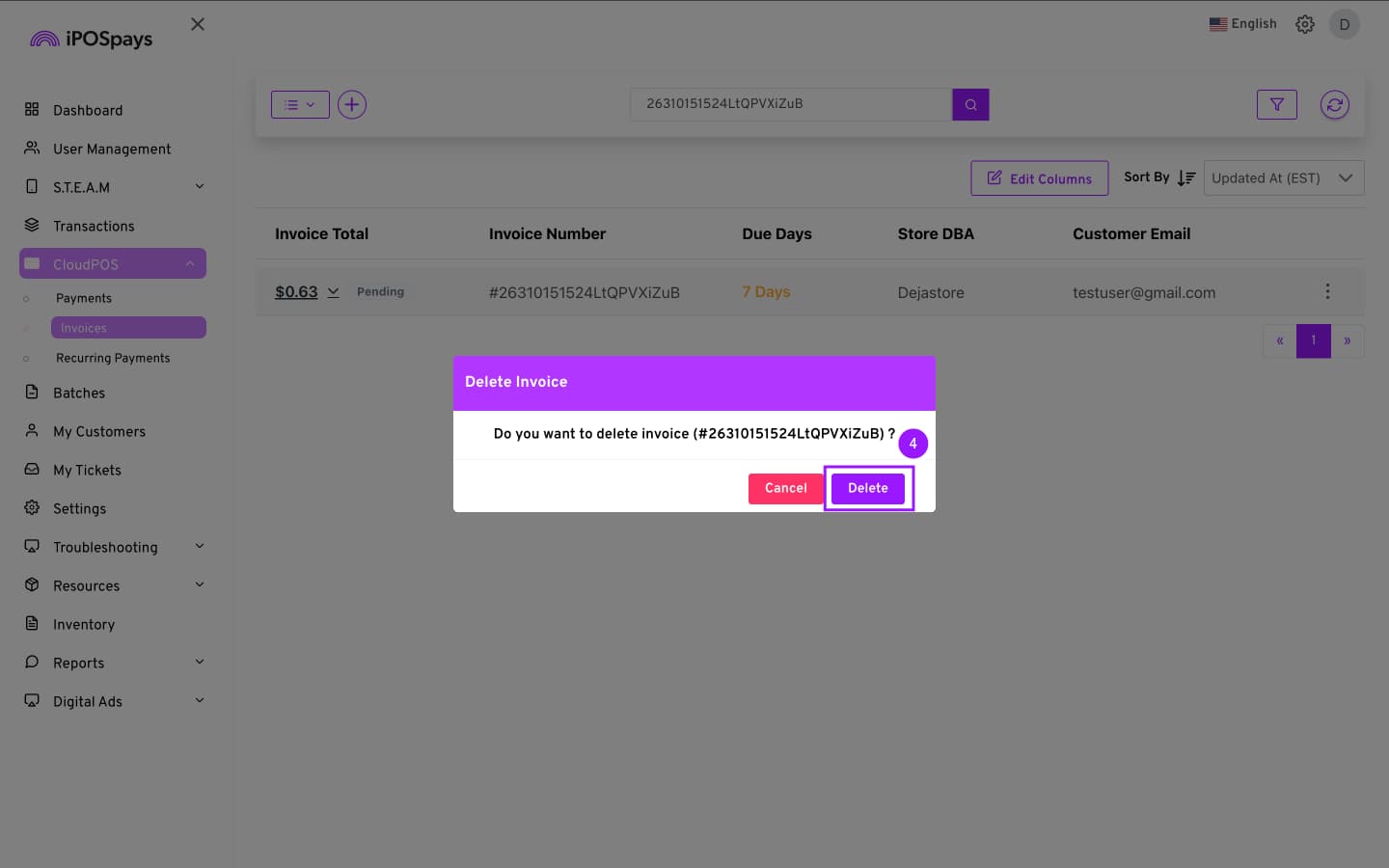
- Click Delete to confirm the action.
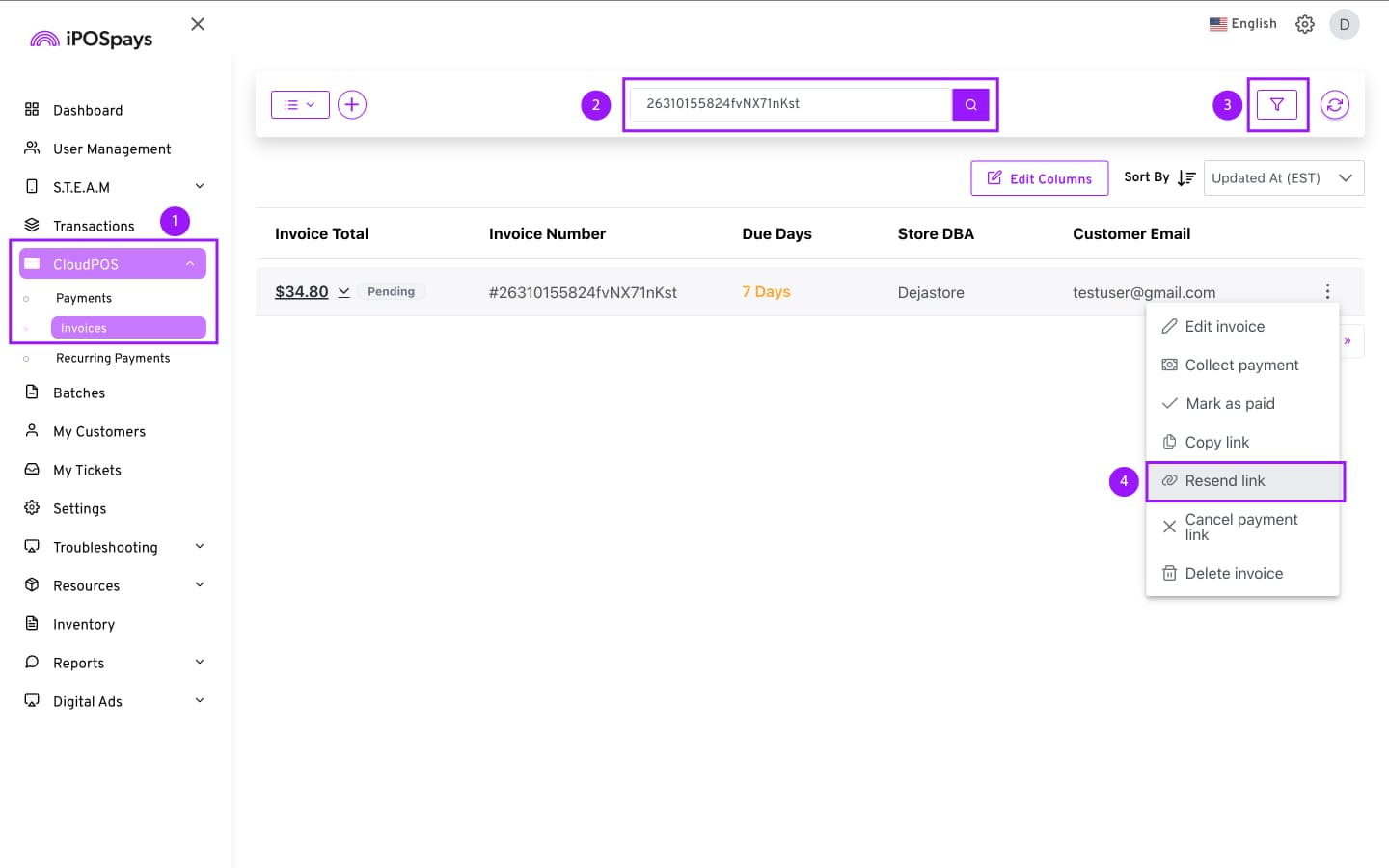
4. How to Resend a Payment Link
-
Go to CloudPOS → Invoices.
-
Search and select the invoice using the search field (If you have the Invoice ID/Reference#).
-
You can also click on the filter icon at the top right corner of the screen → Invoice Status → Pending.
-
After finding the right invoice, click on the 3 dots on the right side of the screen → Resend Link.
-
The phone number and email address of the customer will be autofilled, but if needed, you can edit them before resending the link.
-
Click Resend Link.
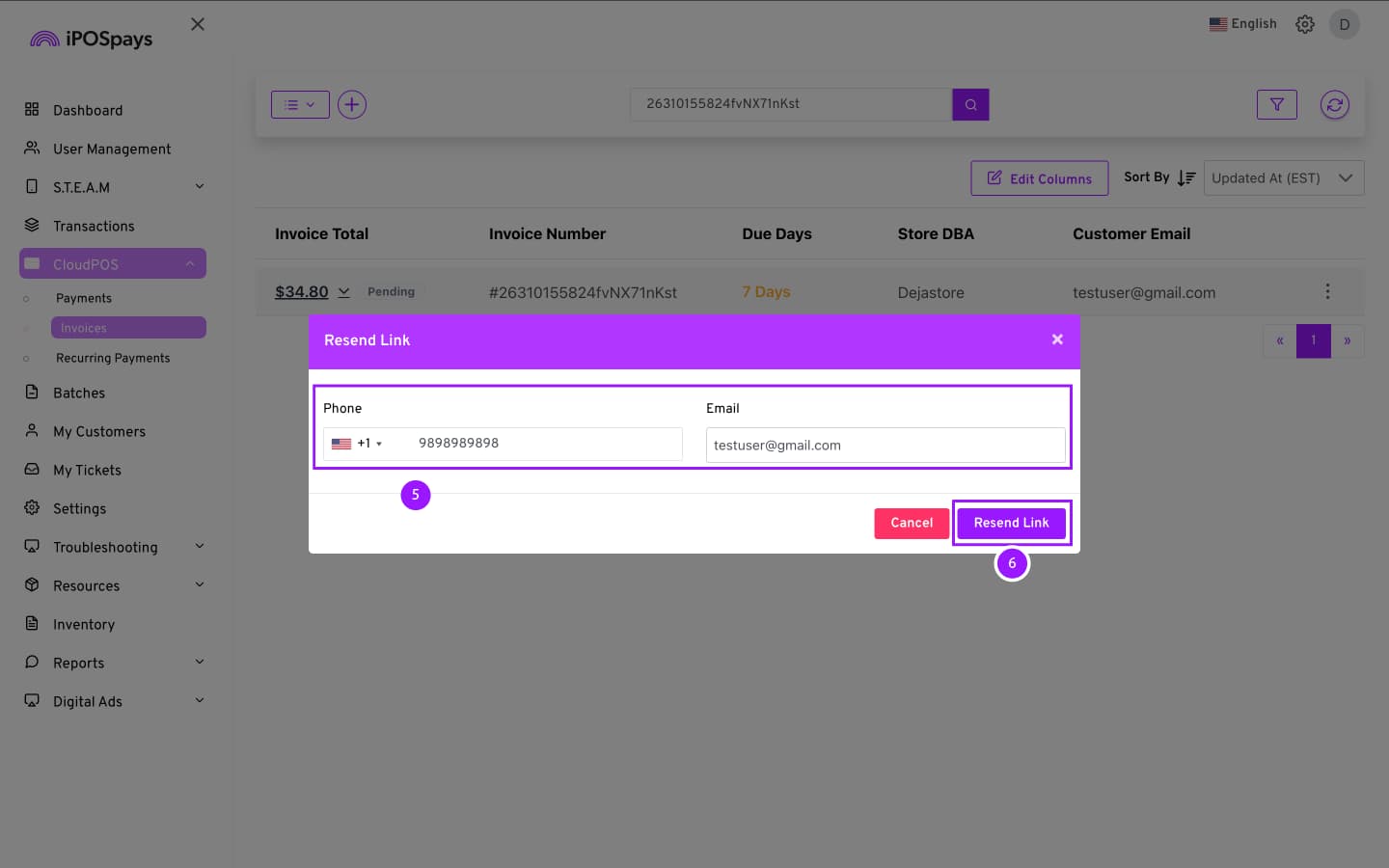
- The link has been sent successfully.
5. How to Regenerate a Payment Link
If an itemized invoice was sent to a customer, but the link has expired or been cancelled, you can regenerate the payment link for the same invoice. To do this,
-
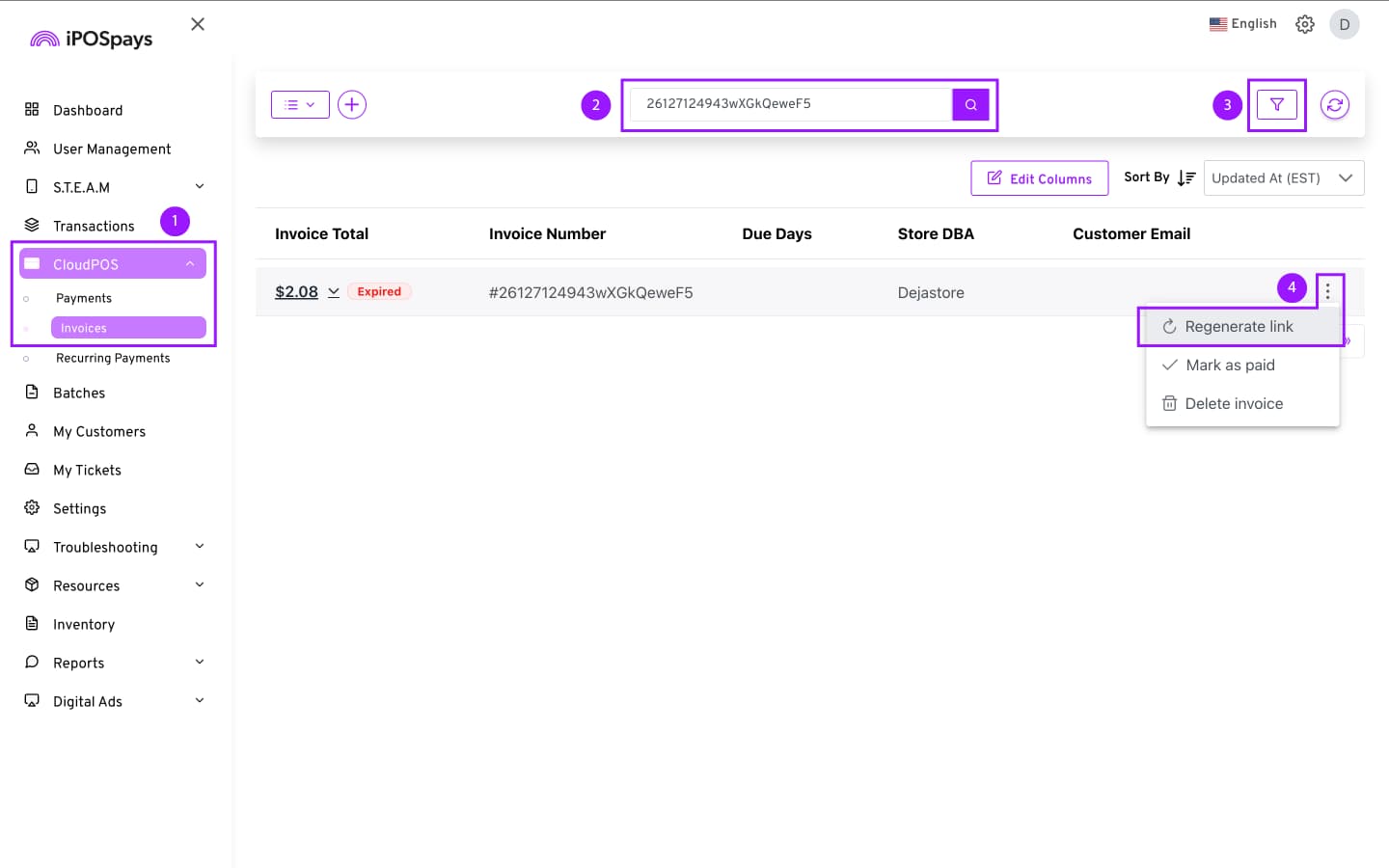
Go to CloudPOS → Invoices.
-
Search and select the invoice using the search field (If you have the Invoice ID/Reference#).
-
You can also click on the filter icon at the top right corner of the screen → Link Status → Last Link Expired.
-
After finding the right invoice, click on the 3 dots on the right side of the screen → Regenerate Link
-
The phone number and email address of the customer will be autofilled, but if needed, you can edit them before resending the link.
-
You can also choose the link expiry time from the drop-down menu
-
Click Regenerate Link.
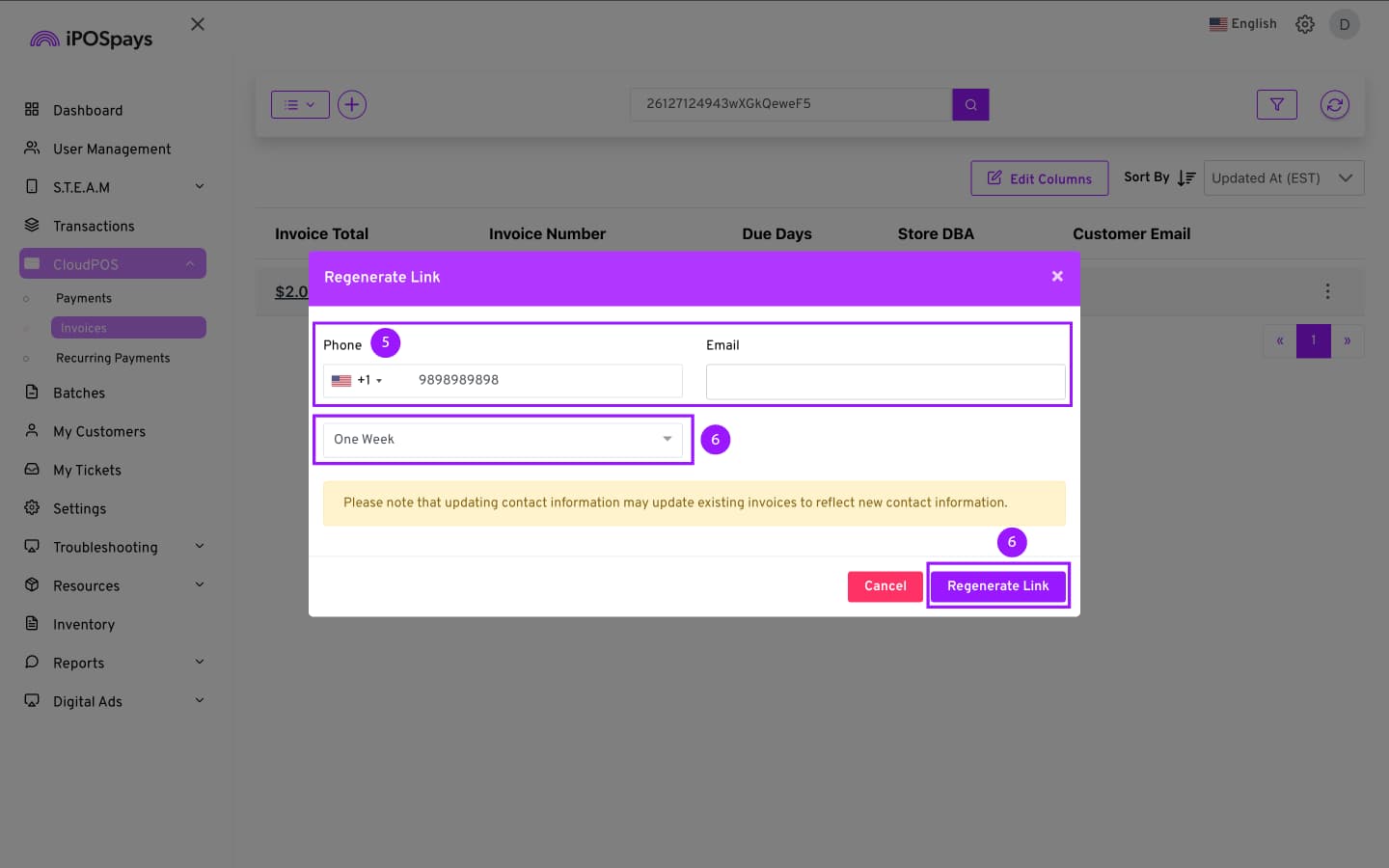
- The link has been sent successfully.
Please note that updating contact information may update existing invoices to reflect new contact information.
6. How to Cancel a Payment Link
-
Go to CloudPOS → Invoices.
-
Search and select the invoice using the search field (If you have the Invoice ID/Reference#).
-
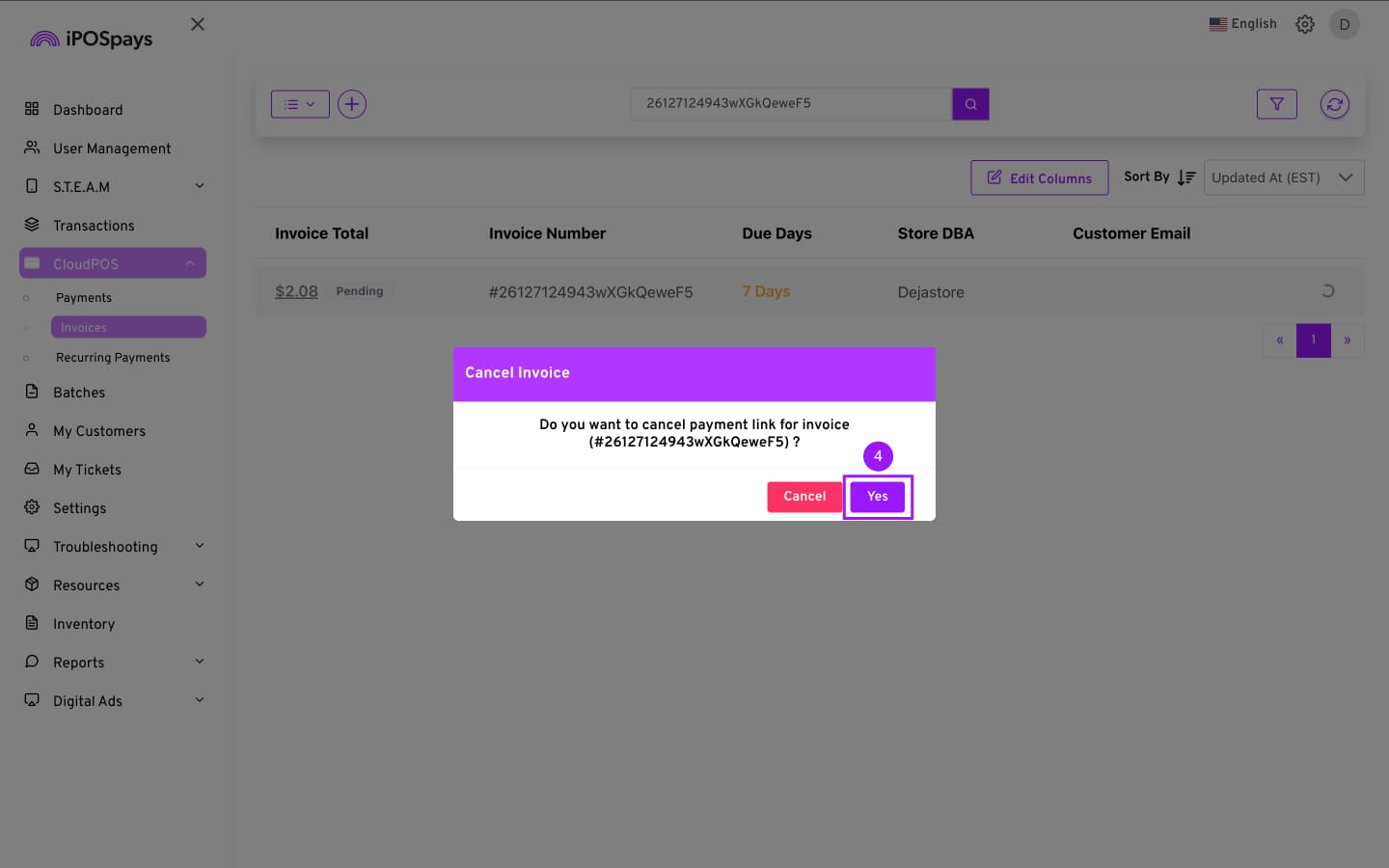
After finding the right invoice, click on the 3 dots on the right side of the screen → Cancel payment link
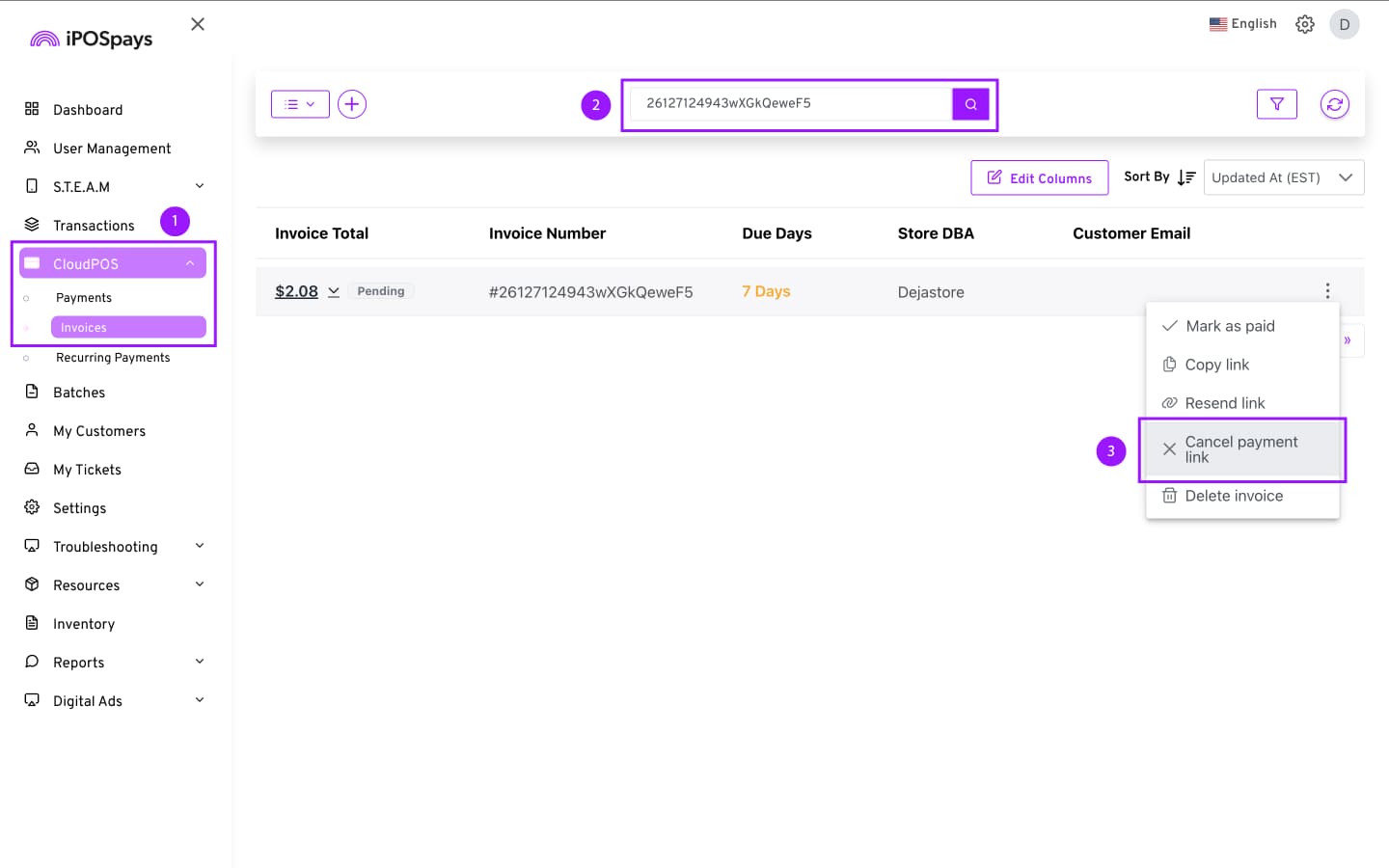
- Click Yes to confirm.
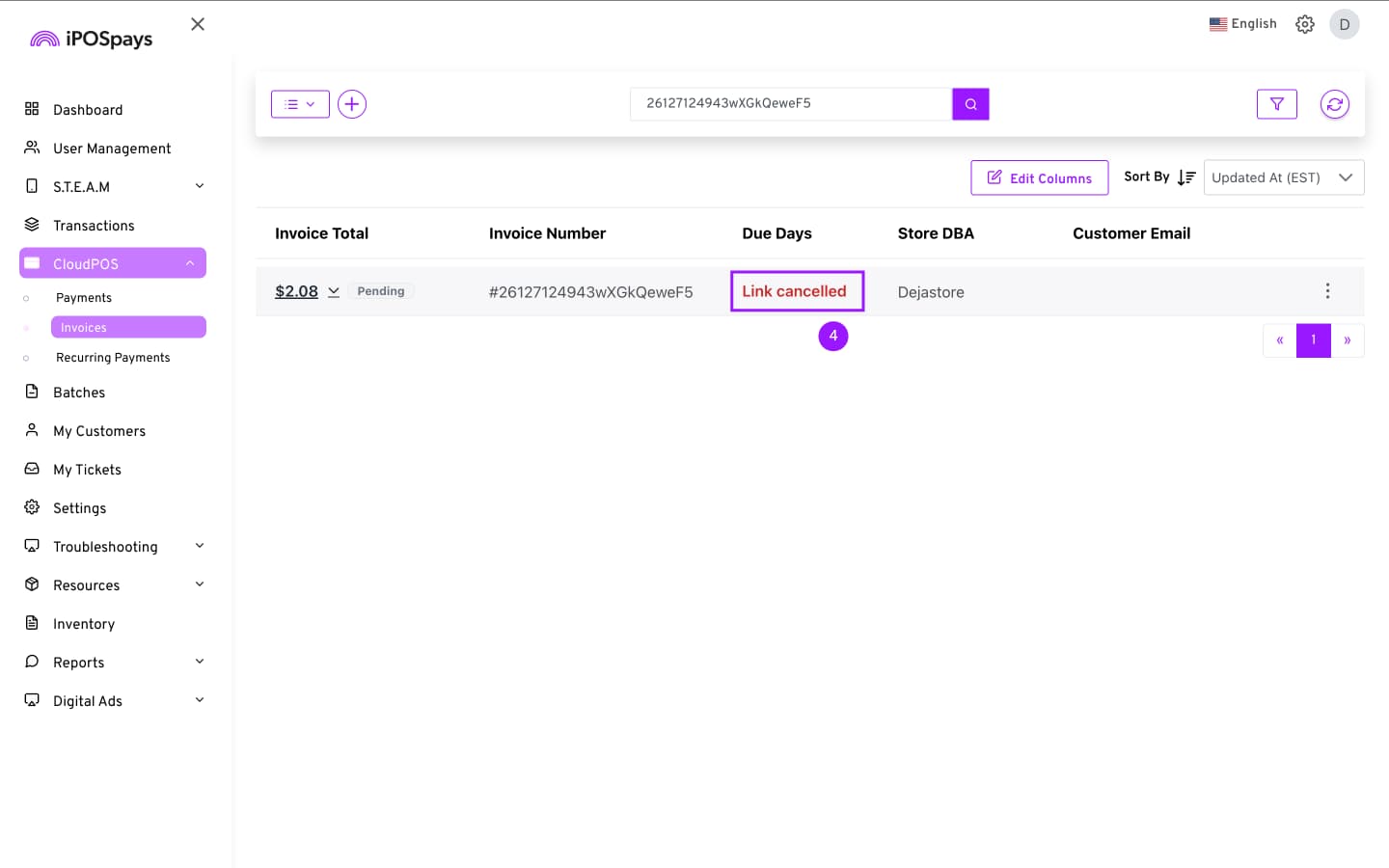
- The invoice will says Link Cancelled under Due Days in the Invoices module.
7. Mark an Invoice as Paid
You can use Mark as Paid if the customer has already paid for the transaction. To do this,
-
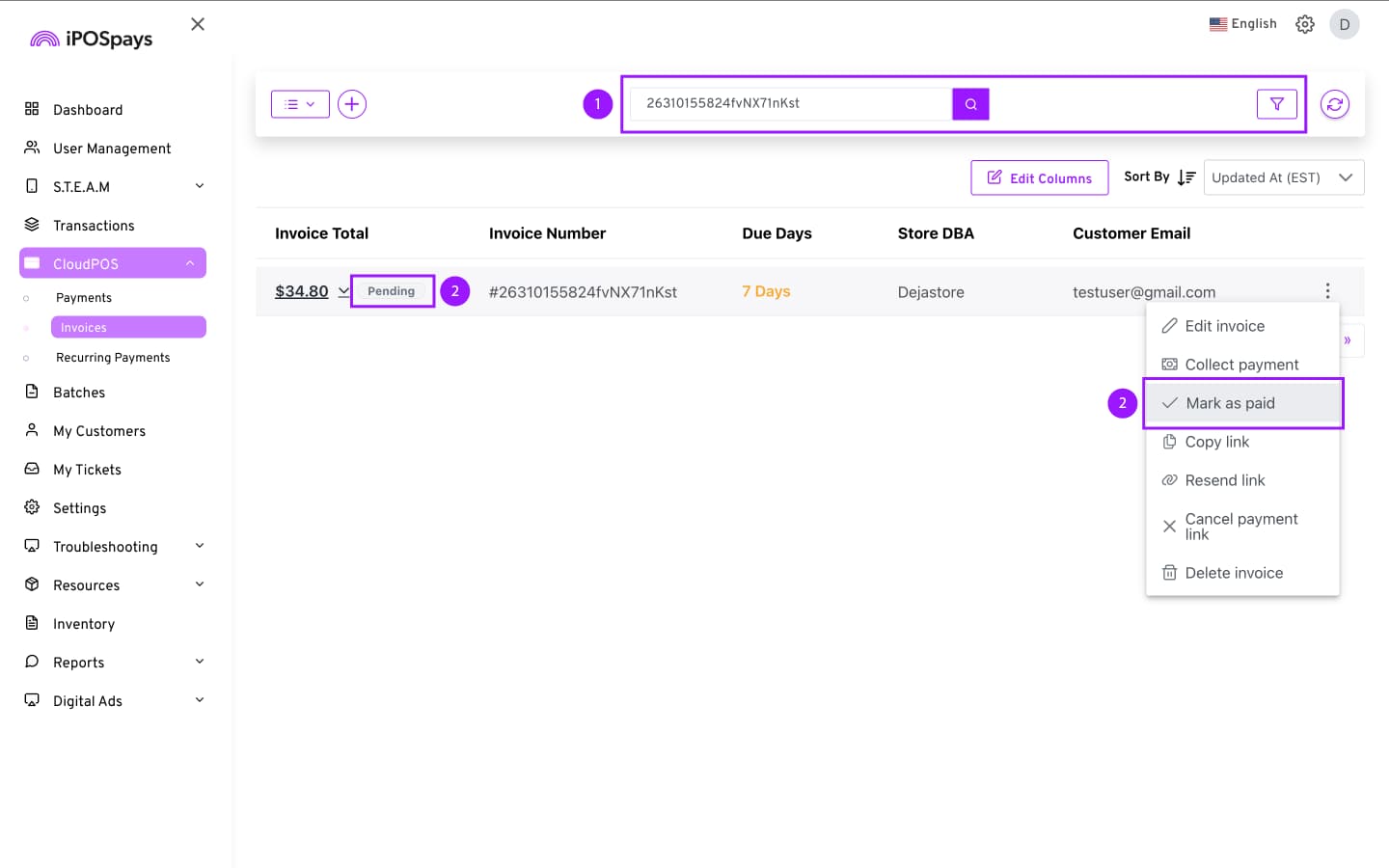
Use the search field and filters to find and select the specific invoice you are looking for, which is unpaid. Use the Invoice Status filter to find this quickly.
-
On the target invoice, which will have the status as Pending, click on the 3 dots on the right side of it, select Mark as Paid.
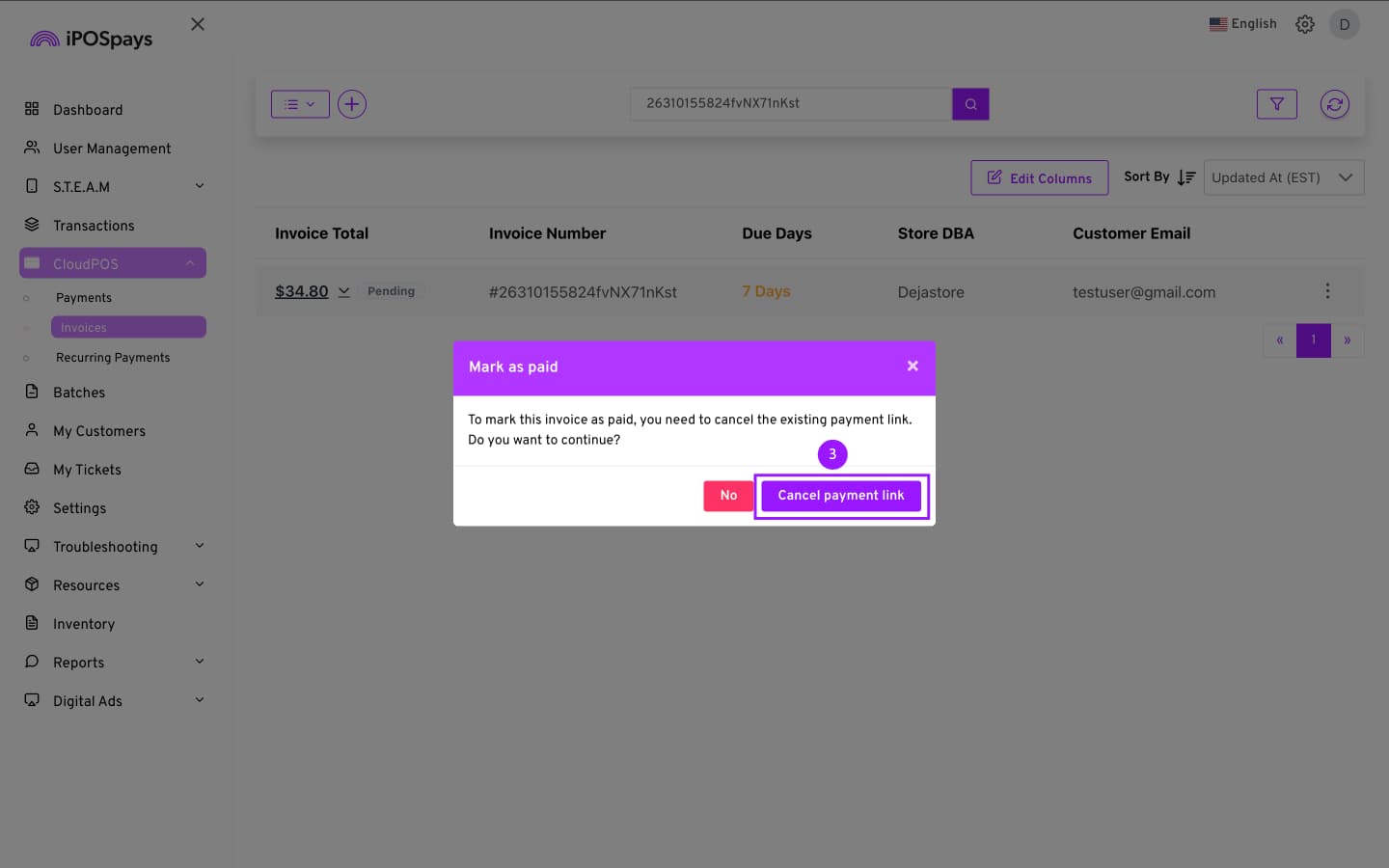
- A prompt will appear asking you to cancel the payment link sent to the customer, which will make the payment link expire. To mark the invoice as paid, the current invoice link must be canceled. Click Cancel Payment Link.
- Enter a reason as to why the invoice is being marked as paid and click Submit.
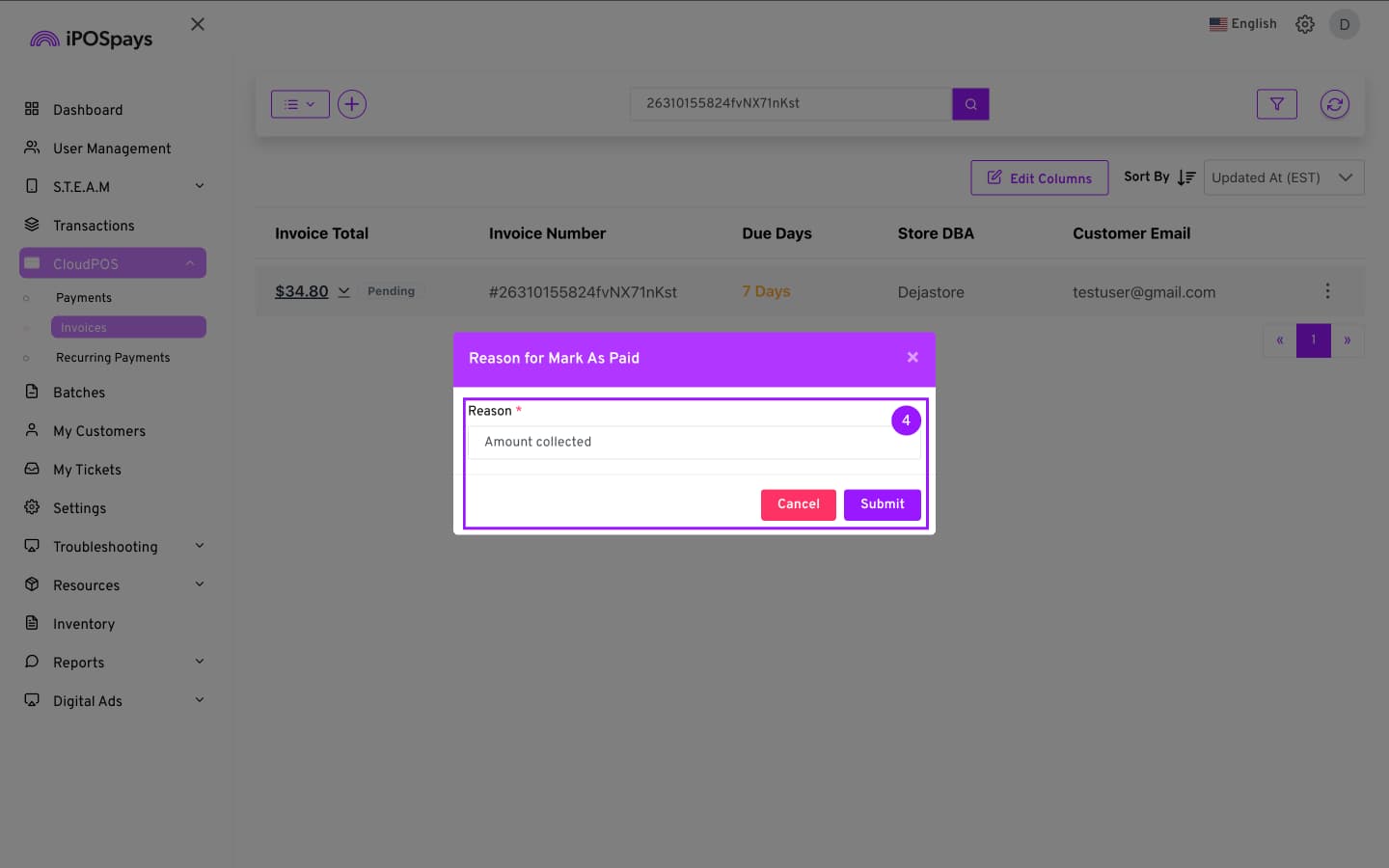
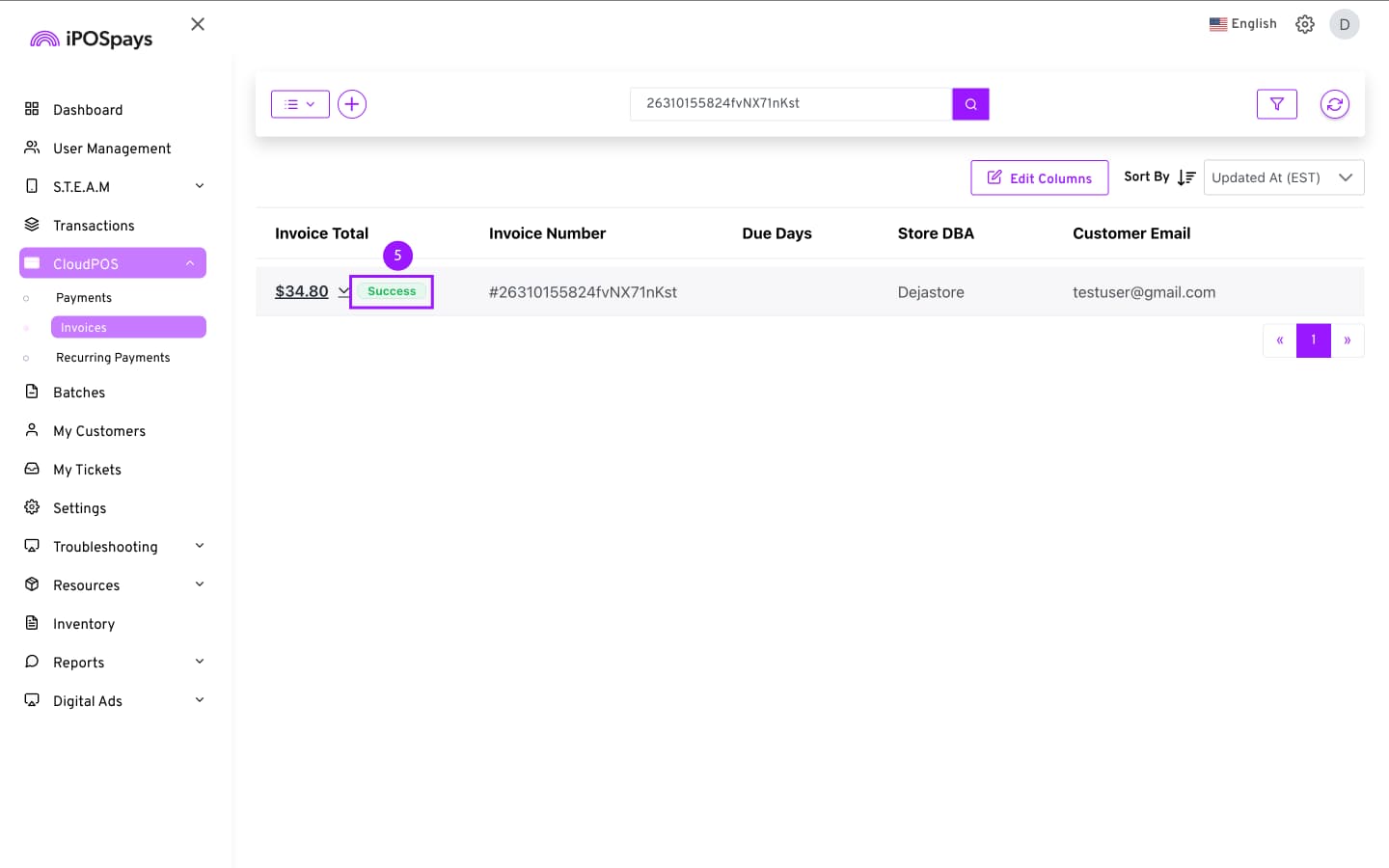
- The invoice has been processed as paid, and the transaction status will change from Pending to Success
8. How to Edit the Columns Shown in the Invoices Module
The Invoices module displays several columns by default. These columns provide an overview of transactions and related invoice data.
Default columns include:
-
Invoice Total – The total amount of the invoice including all items, taxes, and fees.
-
Invoice Number – The unique identifier assigned to the invoice for tracking and reference.
-
Pending Amount – The remaining balance that has not yet been paid on the invoice.
-
Due Days – The number of days remaining before the link expires. (Invoice sent using Send Payment Link)
-
Store DBA – The Doing Business As (DBA) name of the store associated with the invoice.
-
Created Date (EST) – The date and time the invoice was created, shown in Eastern Standard Time.
-
Customer Email – The email address of the customer associated with the invoice.
-
Reference Number – A custom identifier entered during invoice creation, used to associate the invoice with an external system, transaction, or internal tracking reference.
You can customize the table to display additional information.
Steps to Edit Columns
-
Go to CloudPOS → Invoices.
-
Click Edit Columns.
-
Select the additional columns you want to display.
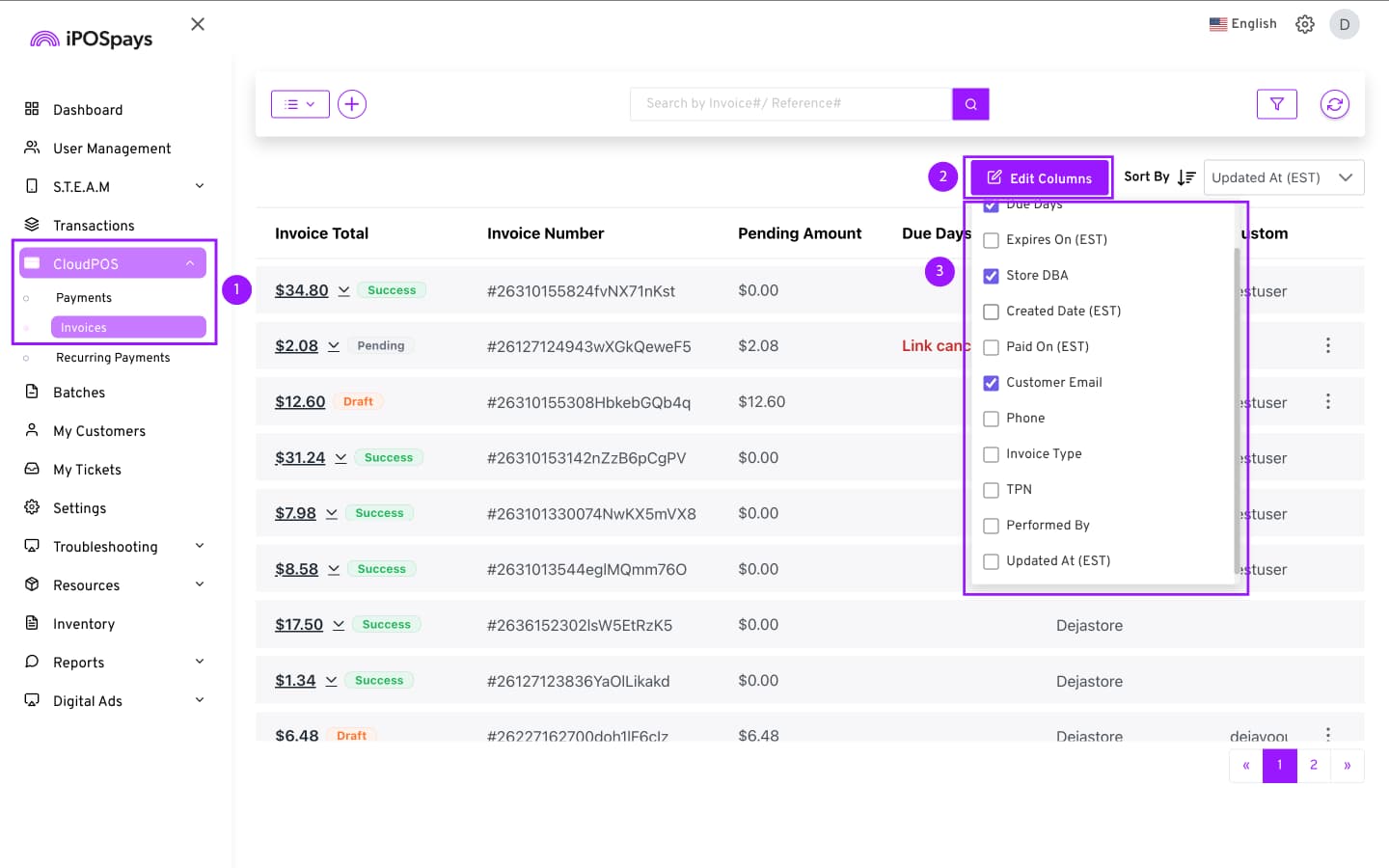
Available additional columns include:
-
Expires On (EST)
-
Paid On (EST)
-
Phone
-
Invoice Type
-
TPN
-
Performed By
-
Updated At (EST)
9. How to View an Invoice and Invoice History After Creating One
The Invoices module allows merchants to view the invoice details and payment history after an invoice has been created.
Step 1: Open Invoice Options
-
Go to CloudPOS → Invoices.
-
Locate the invoice in the list.
-
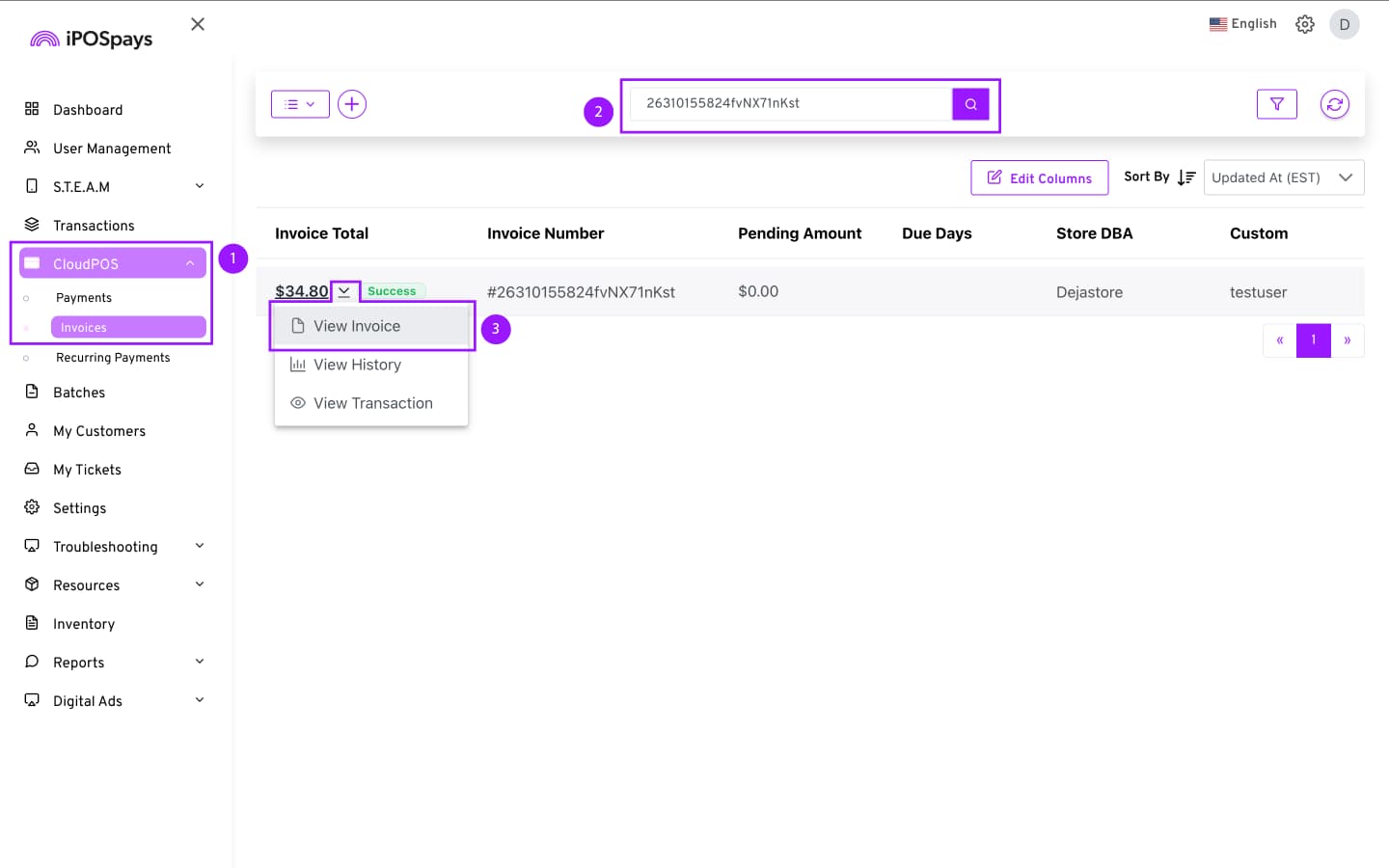
Click the ↓ drop-down next to Invoice Total.
Step 2: Choose an Option
You will see two options:
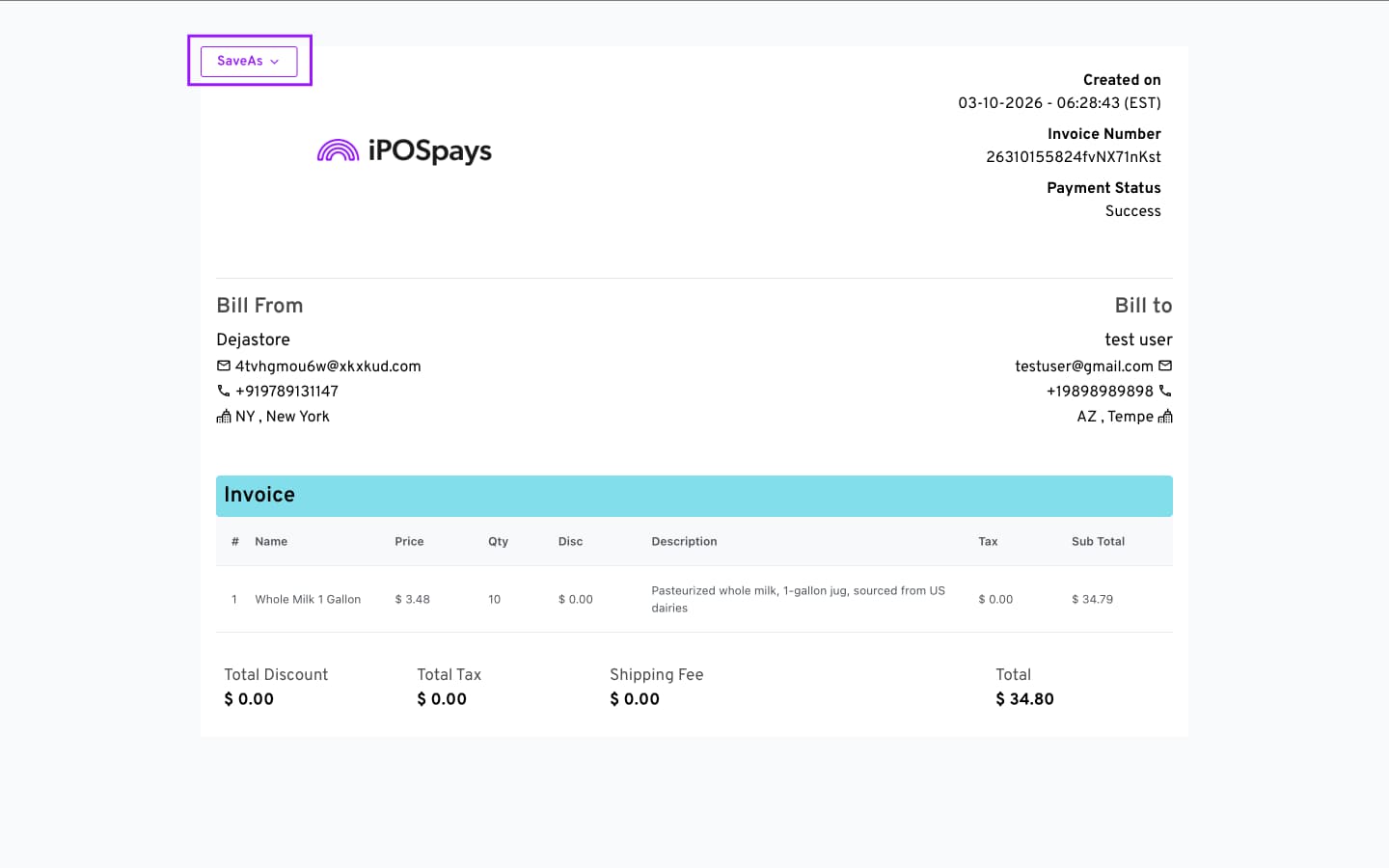
View Invoice
-
Opens the invoice in a new browser tab.
-
You can save the invoice as a PDF or PNG by clicking the SaveAs button in the top-left corner of the screen.
View History
- Opens a tab showing the payment history for that invoice.
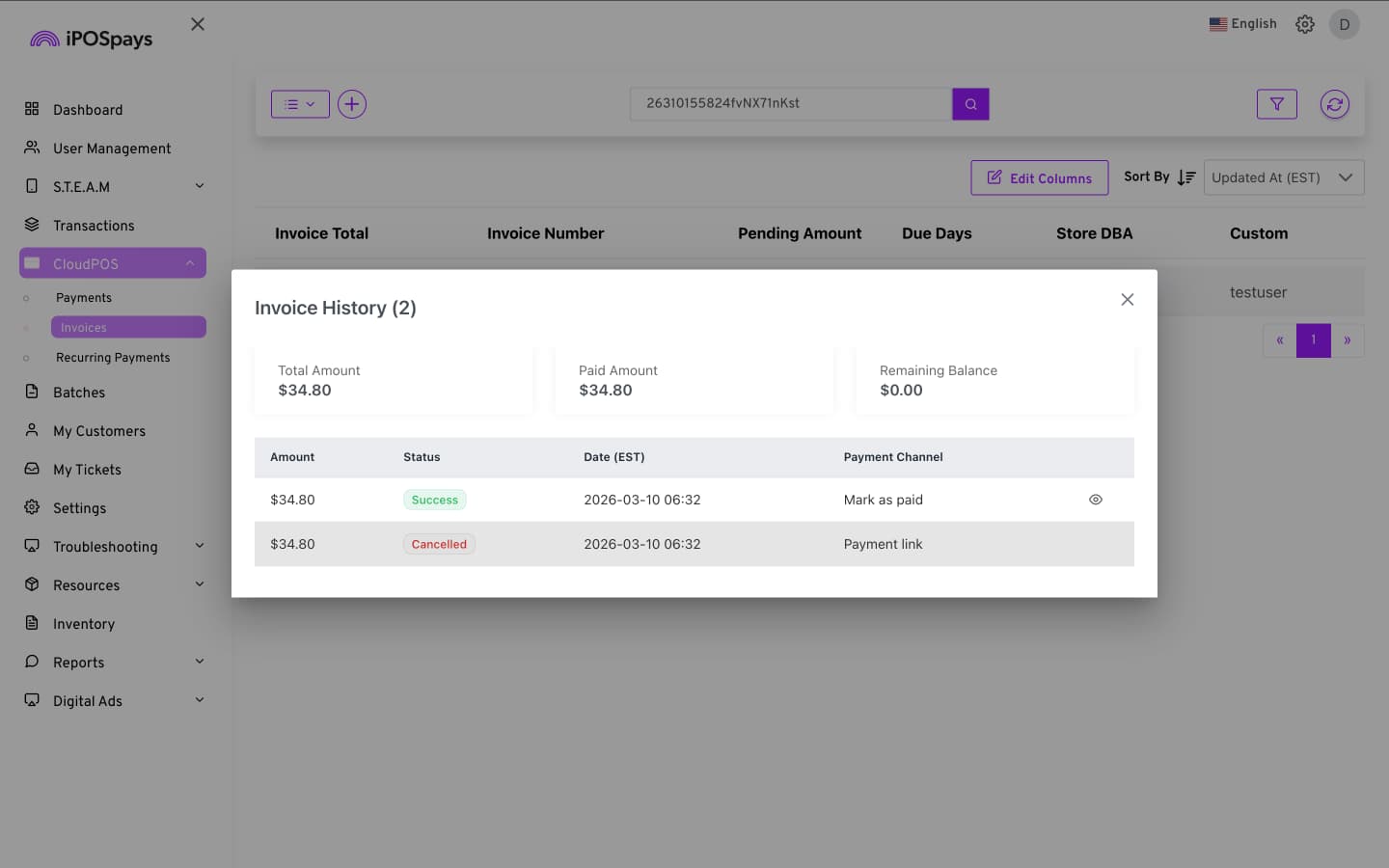
The history includes:
-
Total Amount
-
Paid Amount
-
Remaining Balance
It also displays details of partial payments made for that invoice, including:
-
Payment amount
-
Payment status
-
Date the payment was made
-
Payment channel used (for example, Pay Now or Send Payment Link).
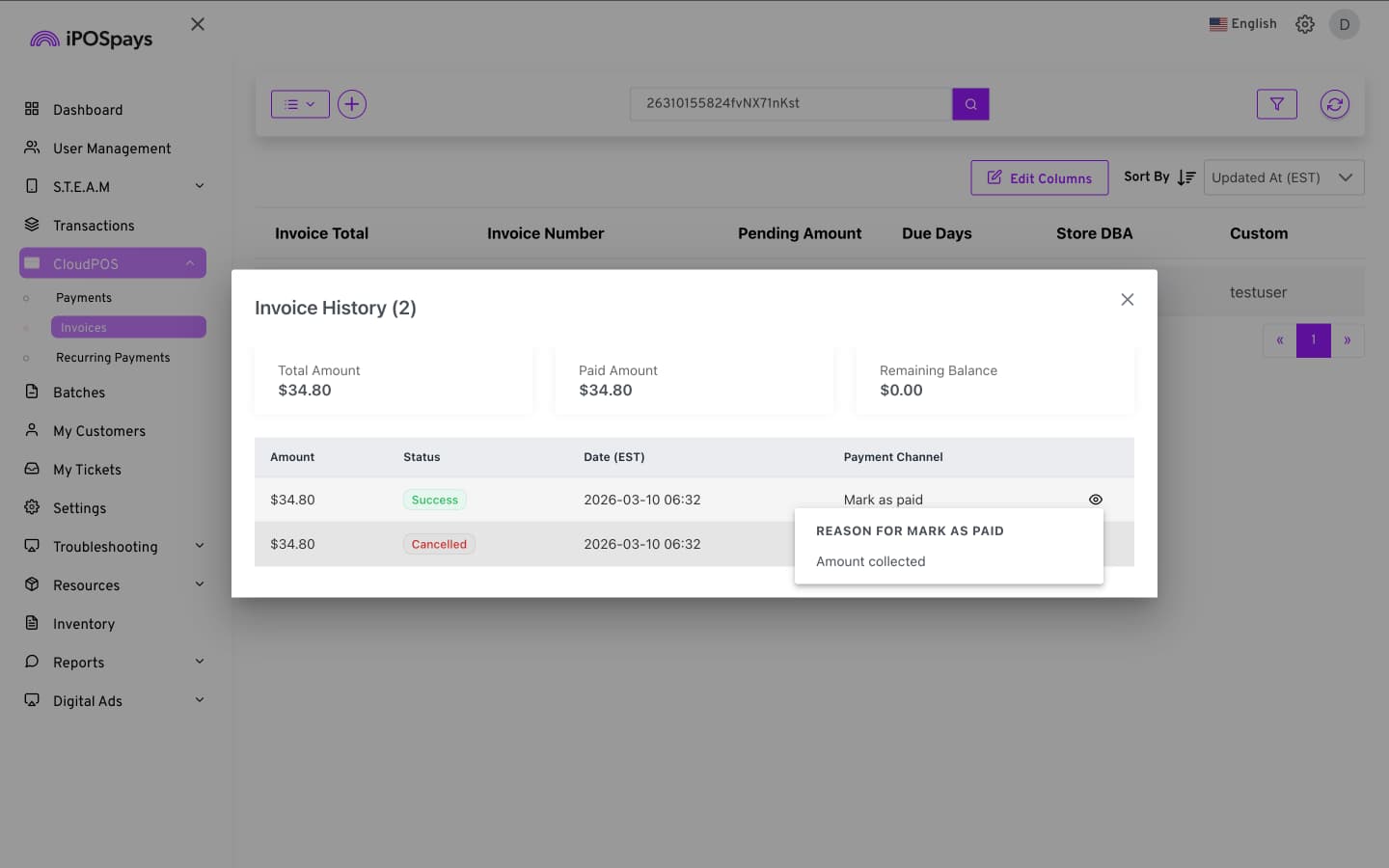
If an invoice was marked as paid, the reason for it will also be visible here.
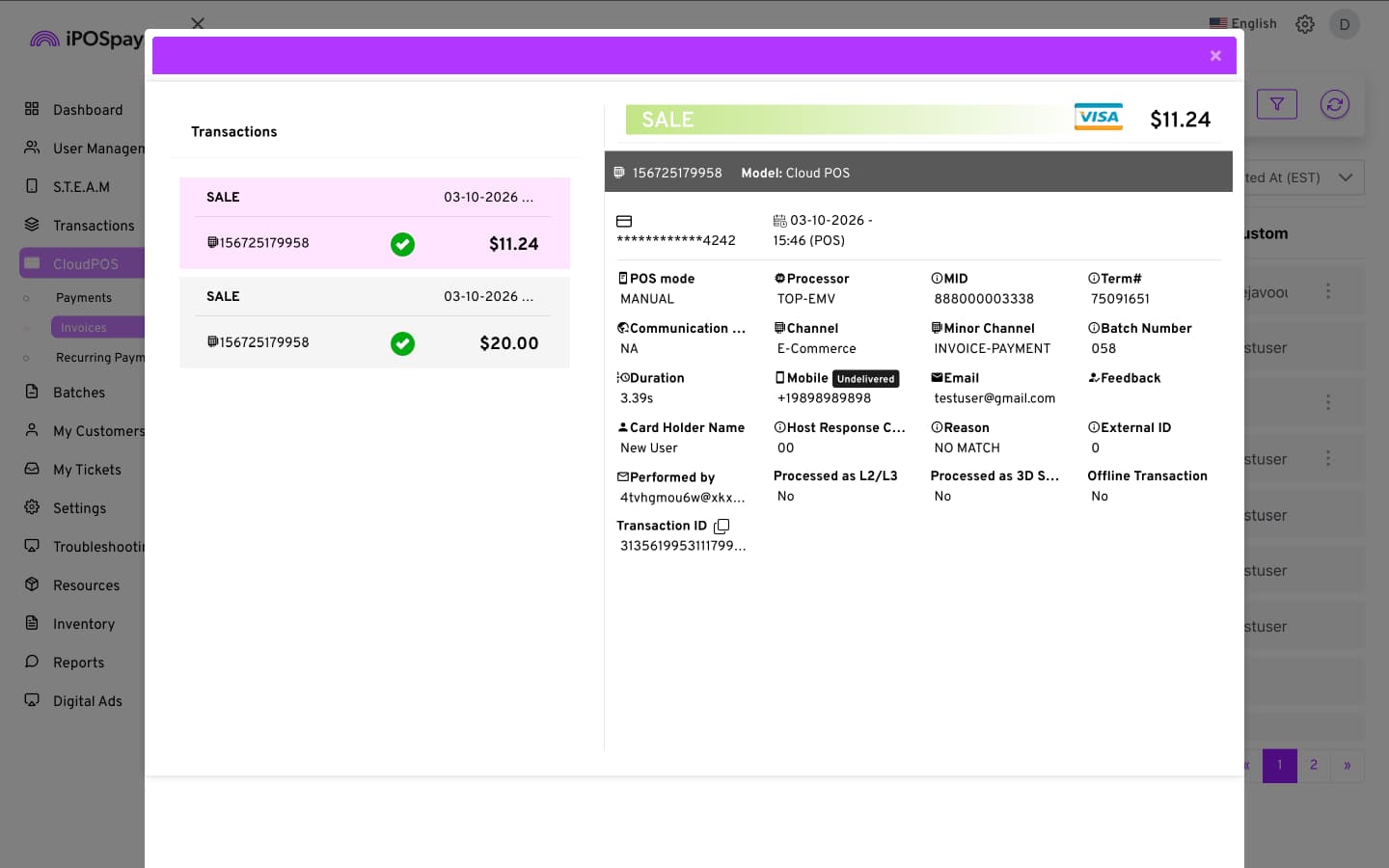
View Transaction
-
Opens a tab showing transaction details for that invoice.
-
All transactions related to the invoice will be shown as a list.
-
If partial payments were made for the invoice, those payment details will also be shown.
-
All transaction related information including Card Holder Name, transaction ID, etc will be displayed.
10. How to Download Invoice Module
The Invoices module allows merchants to download the invoice details and payment history.
Step 1: Open Invoice Options
-
Go to CloudPOS → Invoices.
-
Click on the Download (↓) dropdown icon.
-
Select the option to download the invoice file.
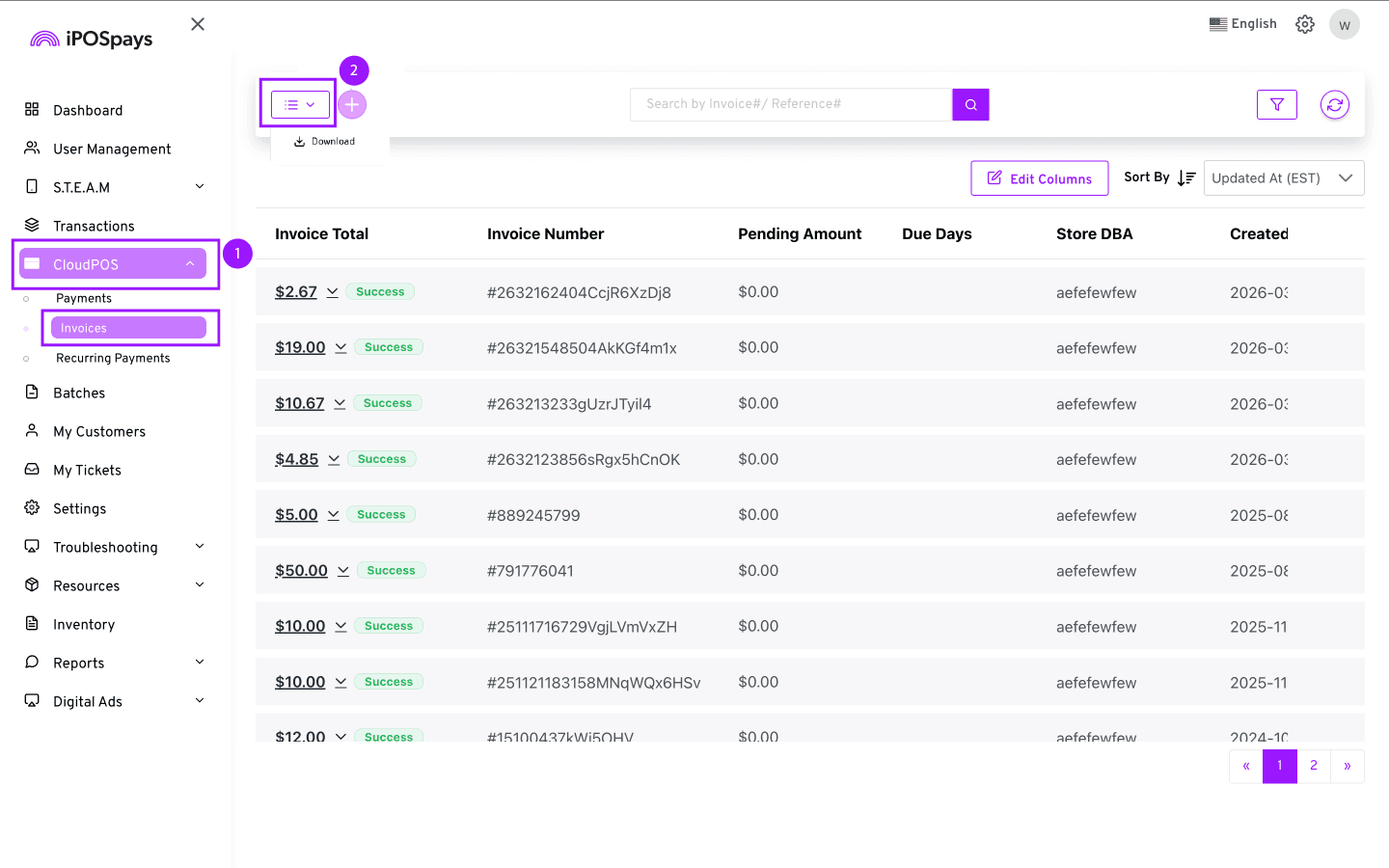
This will download an Excel sheet containing the invoice details along with the transaction payment history for the all invoices.
Once downloaded, the report will include the following Details:
-
Custom Tag Labels & Values – Custom field label and its corresponding value
-
Invoice Number – Unique ID assigned to each invoice
-
Payment Category – full or partial payment
-
TPN – Which TPN is used to process the transaction
-
Email – Customer’s email address
-
Phone – Customer’s mobile number
-
Store DBA – Store name
-
Status – Current status of the invoice (e.g., Success, Pending, Failed, Draft )
-
Amount – Total amount of the invoice
-
Remaining Balance – Amount yet to be paid
-
Invoice Type – Type of invoice (e.g., itemized billing or sendlink)
-
Payment Type – Method used for payment (e.g., card, pay now, mark as paid)
-
Cardholder Name – Name on the card used for payment
-
Masked PAN – Partially hidden card number for security
-
Transaction ID – Unique identifier for the payment transaction
-
Performed By – User who performed the action or transaction
-
Reference Number – Additional reference ID for tracking purposes
-
Mark As Paid Reason – Reason provided when invoice is marked as paid manually
-
Paid On – Date and time when the payment was completed
-
Created At – Date and time when the invoice was created
-
Updated At – Date and time of the most recent update to the invoice