How to Add a Device Under an Existing Merchant on the iPOSpays Portal
This document explains how to add a new device under an existing merchant and store in the iPOSpays Portal so the device is ready for configuration and transaction processing.
Steps to Create a TPN
Step 1: Log In to the iPOSpays Portal
Log in to the iPOSpays Portal using your ISO or Agent Office credentials.
Step 2: Access the Merchants Module
From the left-hand menu:
-
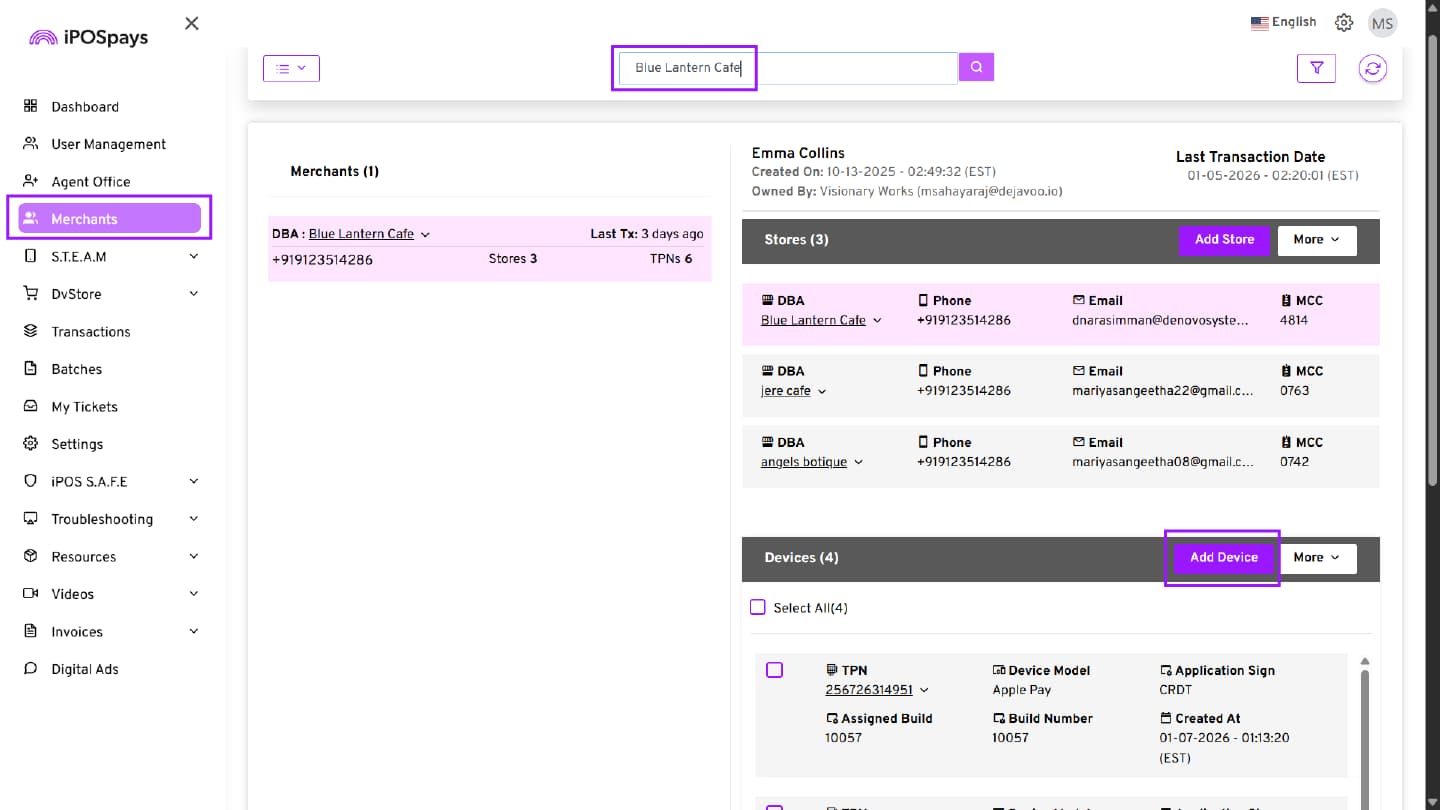
Click Merchants
-
Search for the merchant using DBA, name, or phone number
-
Select the merchant from the results
Step 3: Add a Device
- Click Add Device. The Add Device configuration page opens
Step 4: Configure Device Details
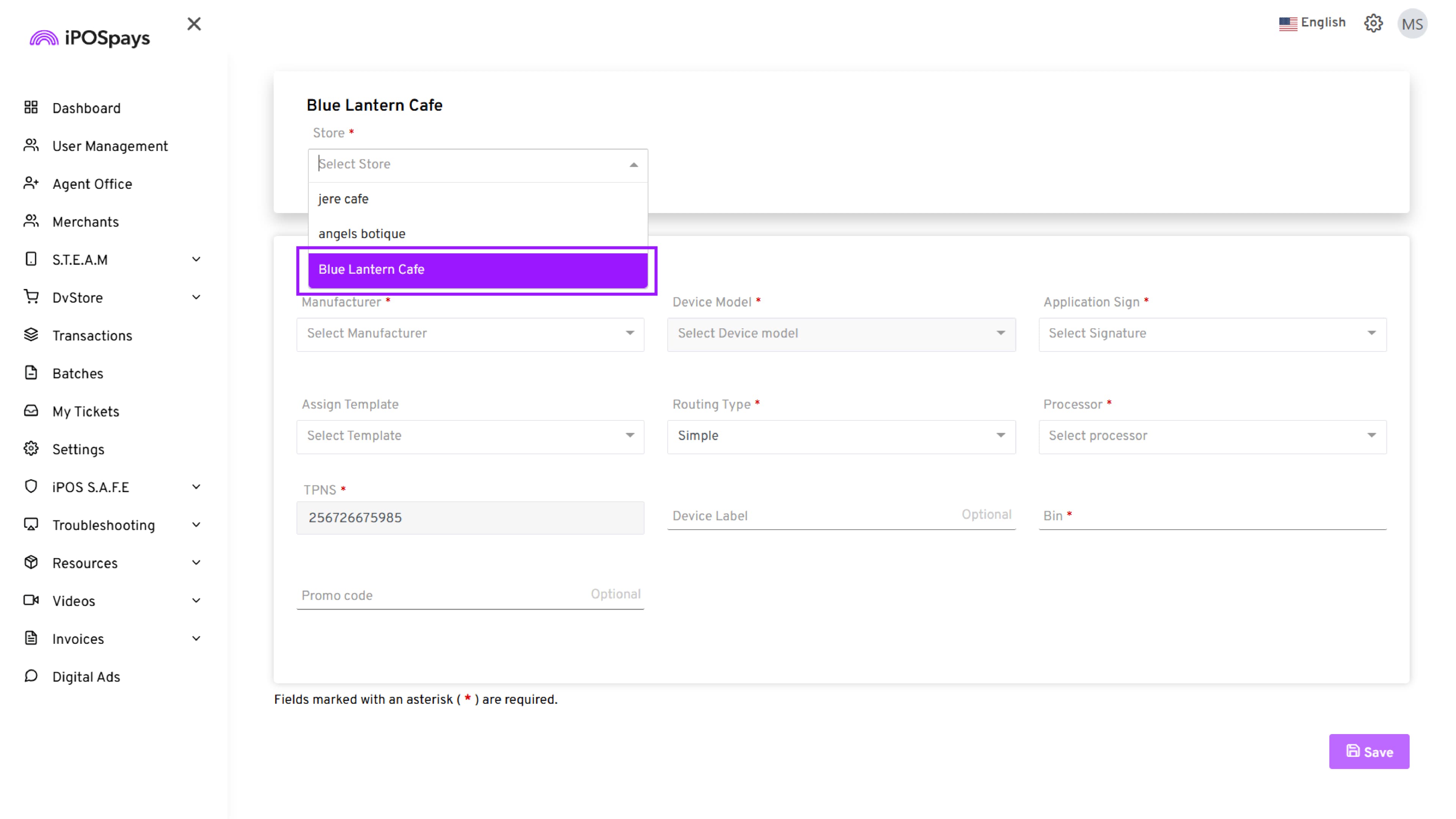
- If the merchant has multiple stores, select the store under which the device should be added
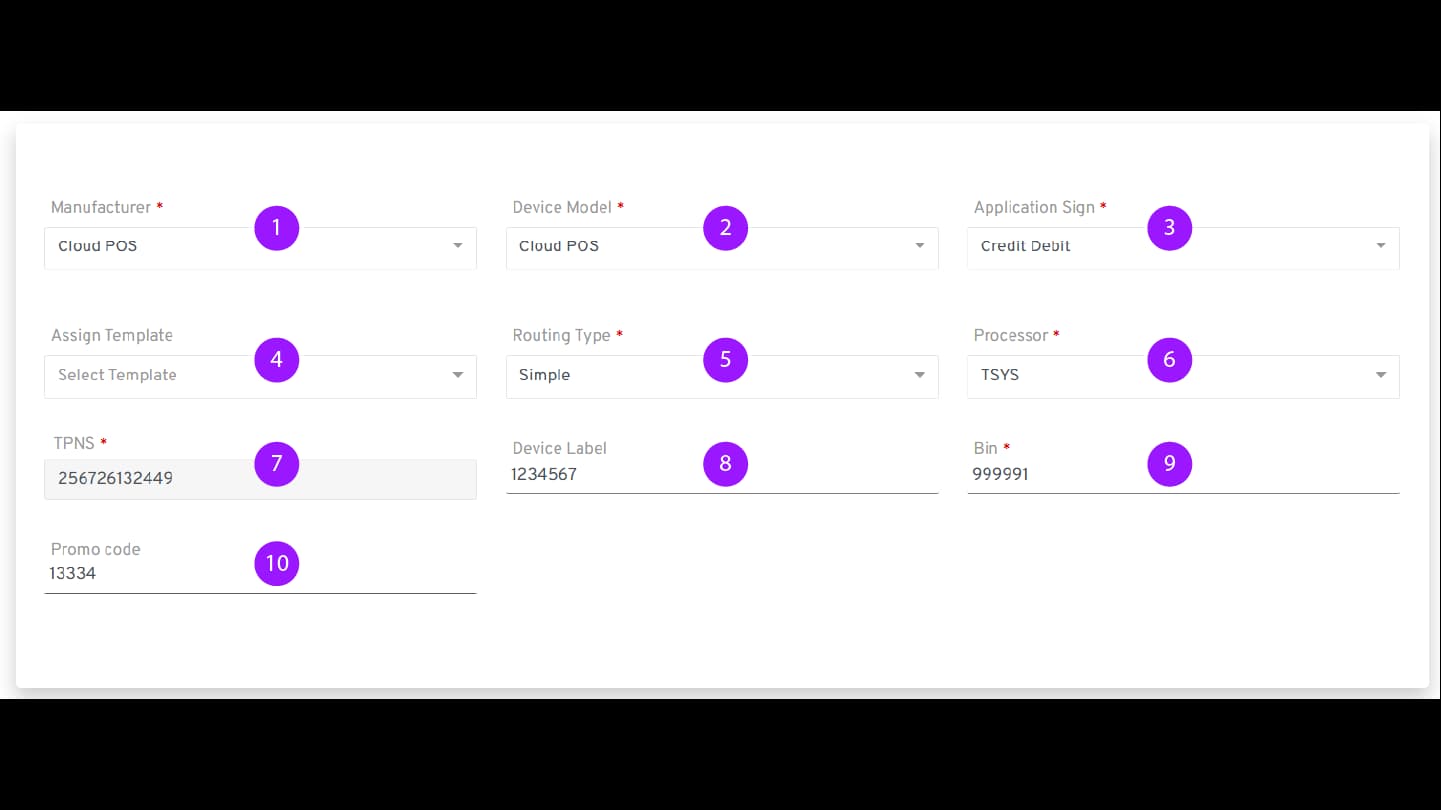
In the Add Device screen, provide the following information:
1. Manufacturer – Select the manufacturer based on the solution being offered.
Examples:
-
Q Series / P Series – For physical payment terminals
-
CloudPOS – For virtual terminals
-
Apple - For Tap on Phone on iPhone
-
Android Phone – For Tap on Phone on Android
2. Device Model – Select the specific device model provided to the merchant.
3. Application Sign – Select the appropriate application sign (for example, Credit Debit).
4. Assign Template (Optional) – This feature displays any previously saved templates under your account, allowing you to apply those configurations to the newly created TPN.
5. Routing Type – Select the routing type.
- By default, Simple is selected.
6. Processor – Select the required processor.
- This example demonstrates configuration using the TSYS processor. Separate configurations may apply for other processors.
7. TPNS – Note the value displayed in the TPNS field.
- This is the device’s unique identifier and must be recorded for terminal activation.
8. Device Label (Optional) – Enter a device label for easy identification.
- This helps the merchant recognize the device without remembering the TPN.
9. BIN – Enter the BIN using the VAR sheet information.
10. Promo Code (Optional) – Enter a promo code if applicable.
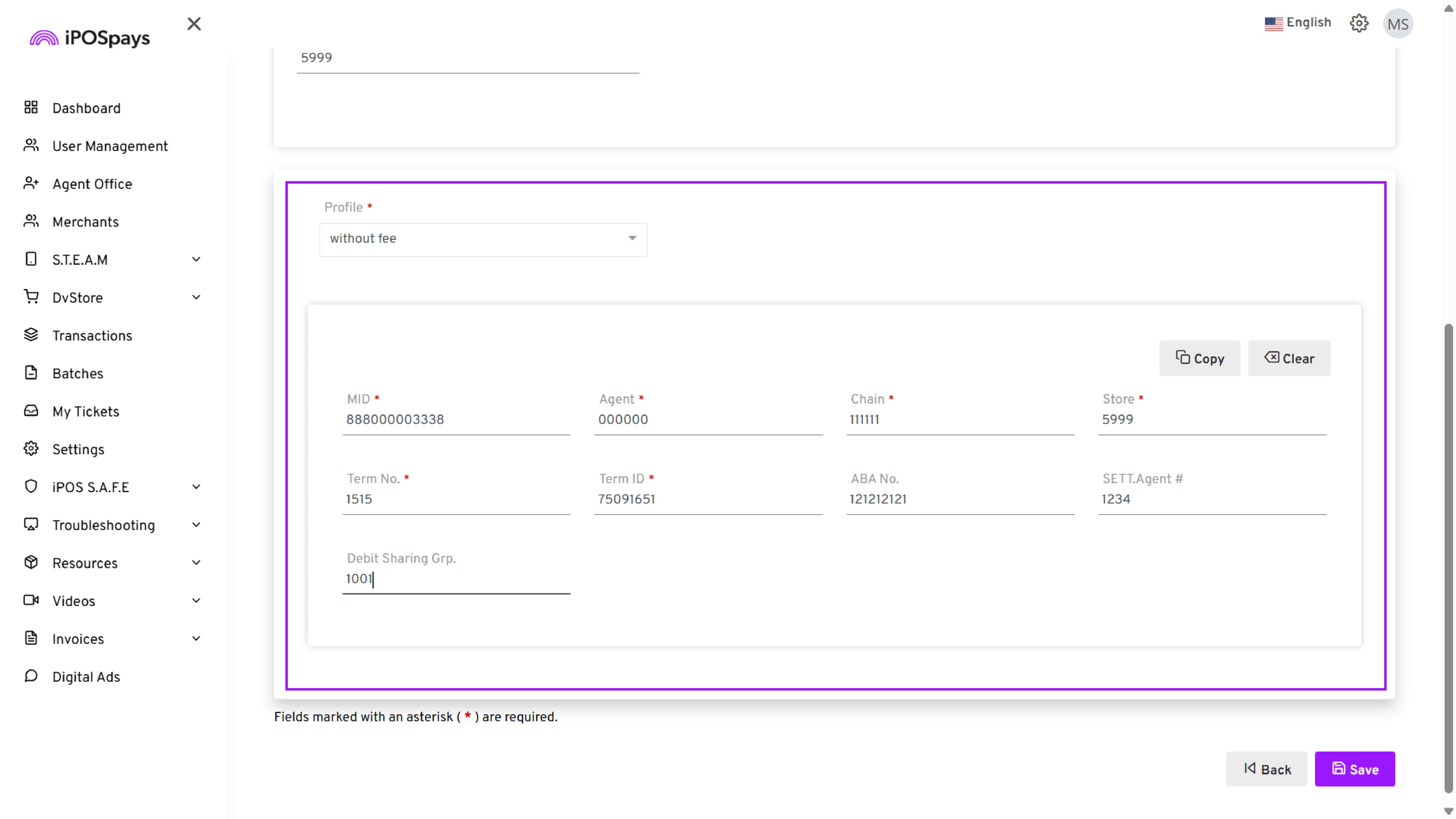
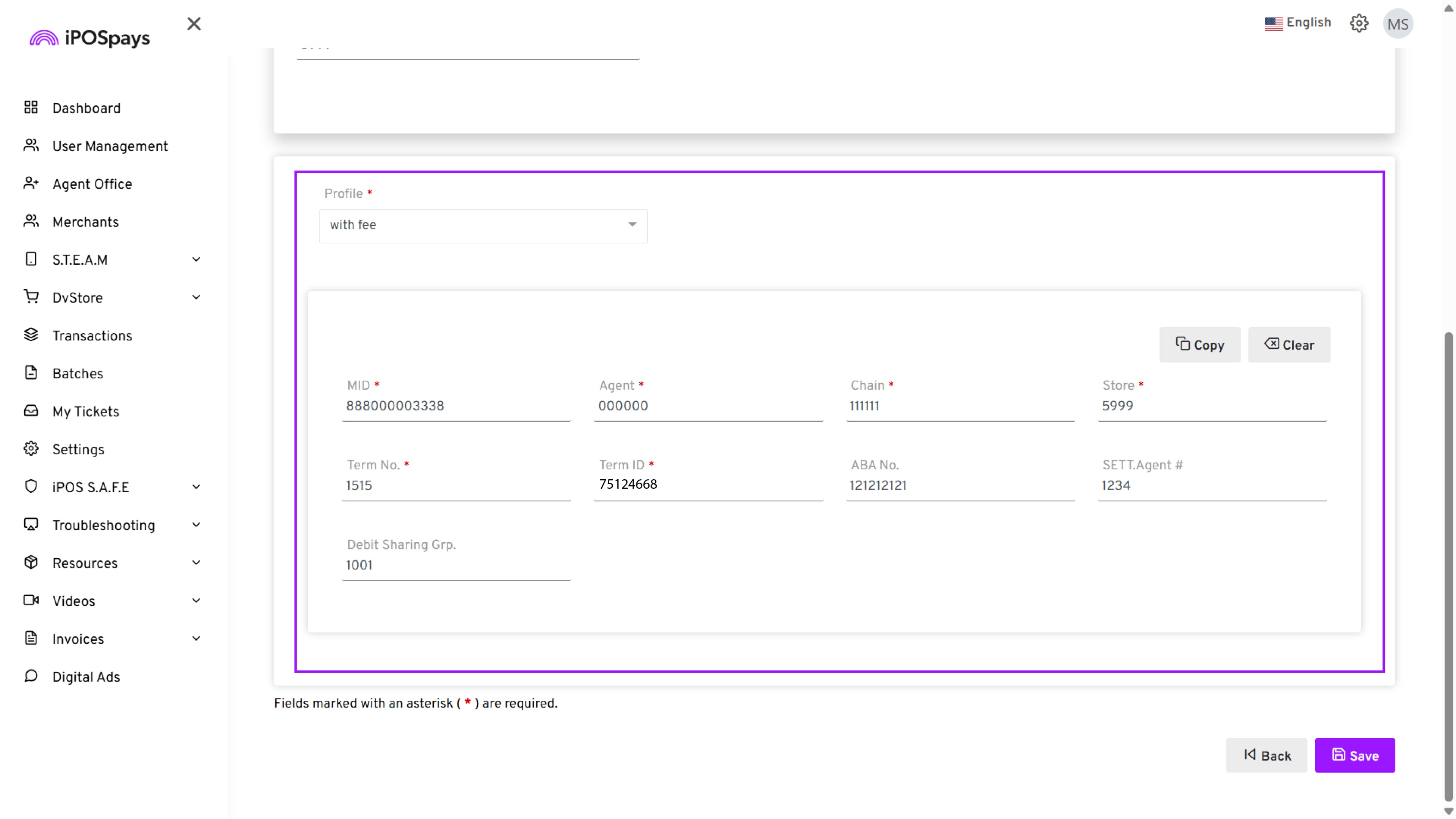
Step 5: Configure Fee Profiles (With Fee / Without Fee)
Two fee profiles are available:
-
With Fee
-
Without Fee
Fee Profile Rules
-
If only With Fee is configured, all transactions will process under the With Fee profile.
-
If only Without Fee is configured, all transactions will process under the Without Fee profile.
-
To enable Dual MID processing, configure both profiles.
Configure With Preferred Profile (With Fee or Without Fee)
-
Select With Fee or Without Fee from the Profile drop-down.
-
Enter the required details using the VAR sheet, including:
-
MID
-
Agent
-
Chain
-
Store
-
Term No.
-
Term ID
-
ABA Number
-
SETT. Agent #
-
Debit Sharing Group
- Ensure all required values are entered exactly as provided in the VAR sheet.
Step 6: Finish Device Creation
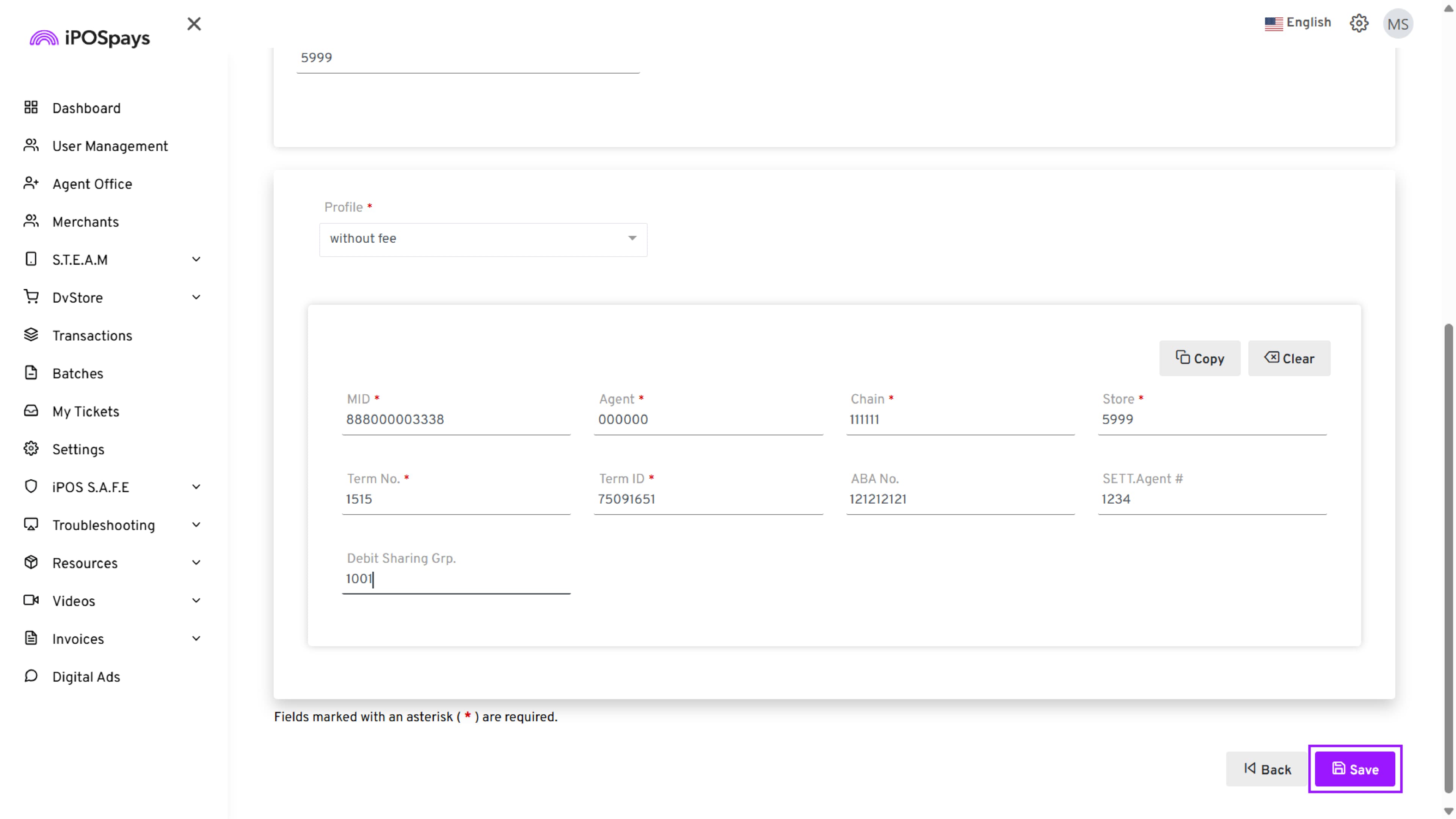
- Click Save after completing all required fields
-
A TPN is generated automatically
-
Note down the TPN—it is the device’s unique identifier
Step 7: Edit Device Parameters and Processor Information
After the TPN is created:
-
Go back to the Merchants Module
-
Search for the merchant again and select the correct merchant record.
-
In the Devices / TPN section, click the TPN (hyperlinked) to open the options menu.
-
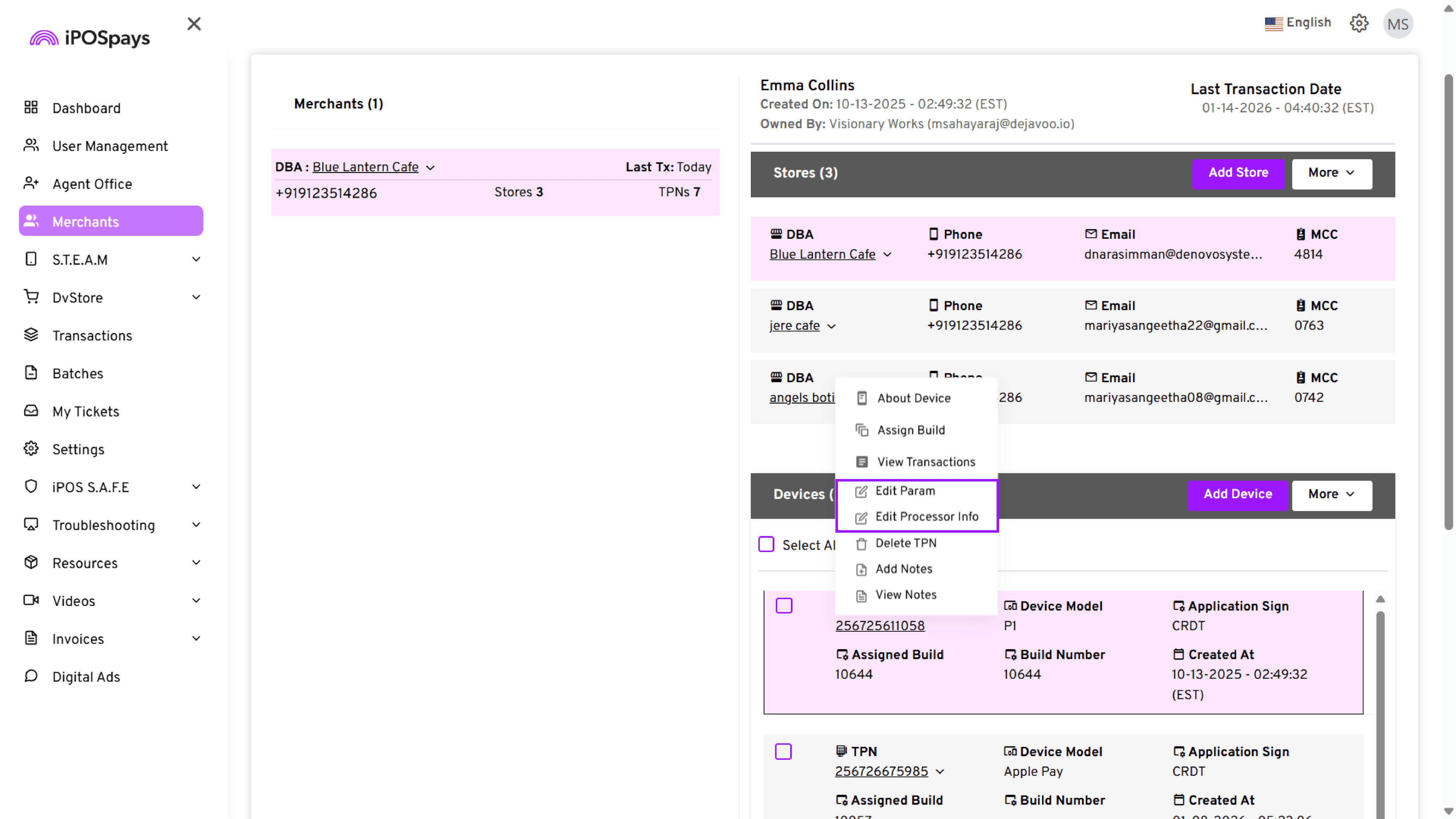
Select Edit Param to update device parameters.
-
Update the required settings as required.
-
Click Save to apply the changes.
- From the same TPN menu, select Edit Processor Info (if processor details need to be updated).
-
Update the processor configuration as required.
-
Click Save to confirm.