How to Create Multiple Stores Under One Merchant on iPOSpays
This document explains how to create multiple stores under a single Merchant in the iPOSpays Portal, and how to optionally add devices (TPNs) to each store during or after creation.
Steps to Create Additional Stores Under an Existing Merchant
Step 1: Log In to iPOSpays Portal
Log in to the iPOSpays Portal using your ISO or Agent Office credentials.
Step 2: Navigate to Merchants
-
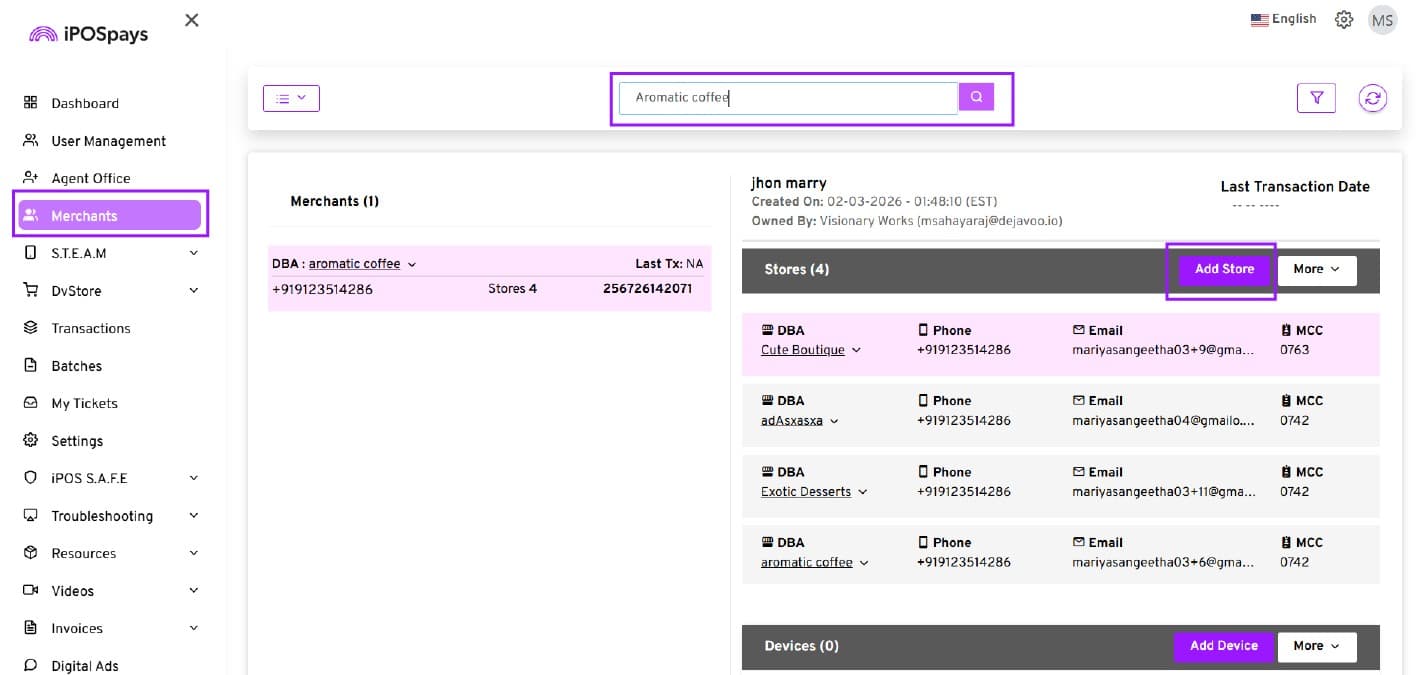
Click the Merchants tab from the left menu.
-
Use the search box to find the merchant by:
-
DBA name
-
Phone number
-
Email address
- Select the required Merchant from the search results. → Add Store
Step 3: Add Store Information
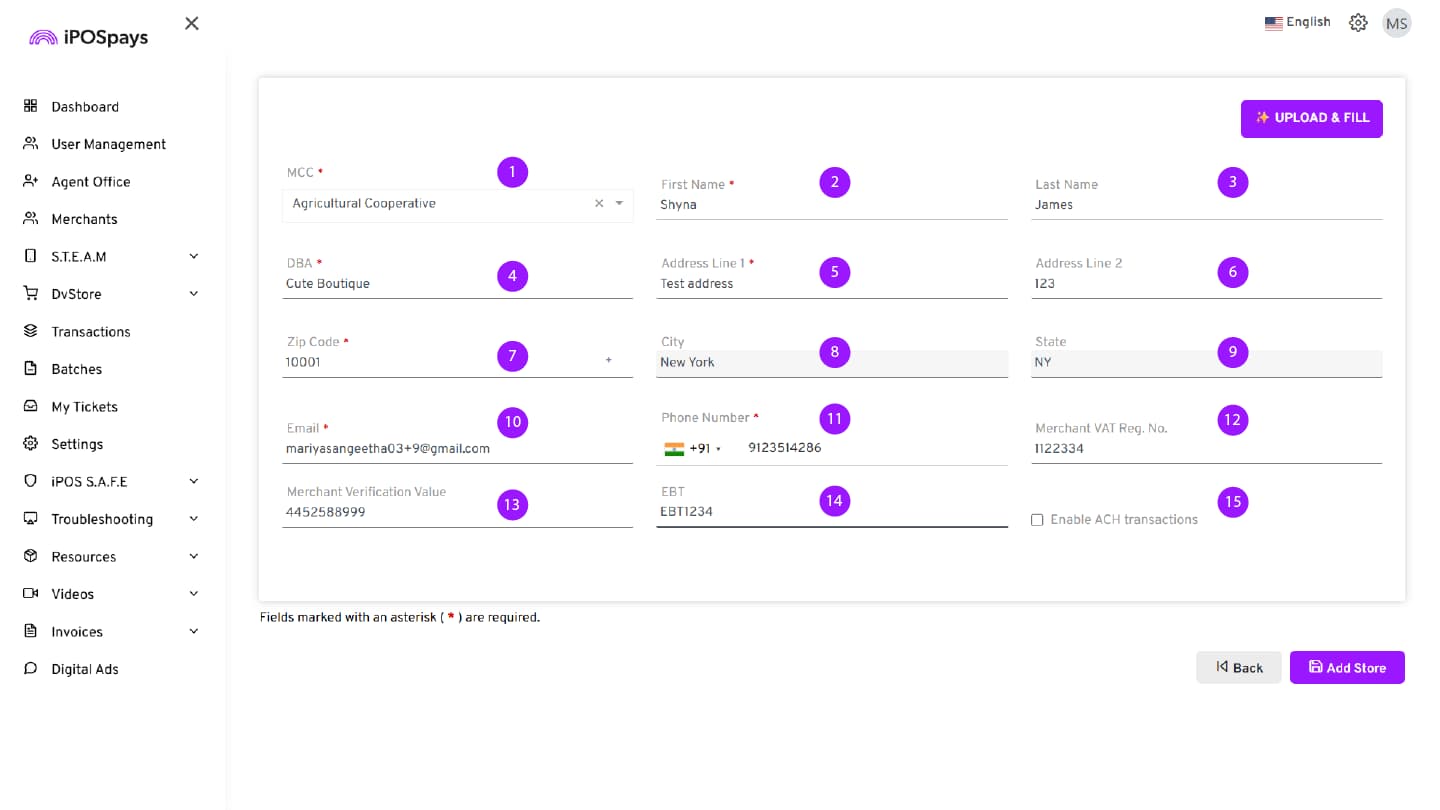
Upon clicking Add Store, the system navigates to the Add Store page, where the user must enter the required store details.
- Merchant Category Code (MCC) – Select the appropriate MCC based on the VAR sheet.
Incorrect MCC values may result in transaction issues.
-
First Name – Enter the merchant’s first name.
-
Last Name – Enter the merchant’s last name.
-
DBA – Enter the merchant’s business name.
-
Address Line 1 – Enter the primary business address (street address).
-
Address Line 2 – Enter additional address details such as suite, unit, or floor number if applicable.
-
ZIP Code – Enter the ZIP code and select the appropriate city from the dropdown. If the city isn’t listed, click the + icon to add it.
-
City – This field populates automatically based on the ZIP code.
-
State – This field populates automatically based on the ZIP code.
-
Email – Enter a unique email address. This email will be used as the login ID and for all merchant communications.
-
Phone Number – Enter a valid phone number. All merchant notifications and updates will be sent to this number.
-
Merchant VAT Reg. No. – Enter the merchant’s VAT registration number if applicable.
-
Merchant Verification Value – Enter the verification value if applicable.
-
EBT – Enter EBT details if the merchant accepts EBT transactions.
-
Enable ACH Transactions – Enable this option if ACH payment processing is required.
Fields marked with an asterisk (*) are mandatory.
Step 4: Create the Store
-
Review all entered details.
-
Click Add Store.
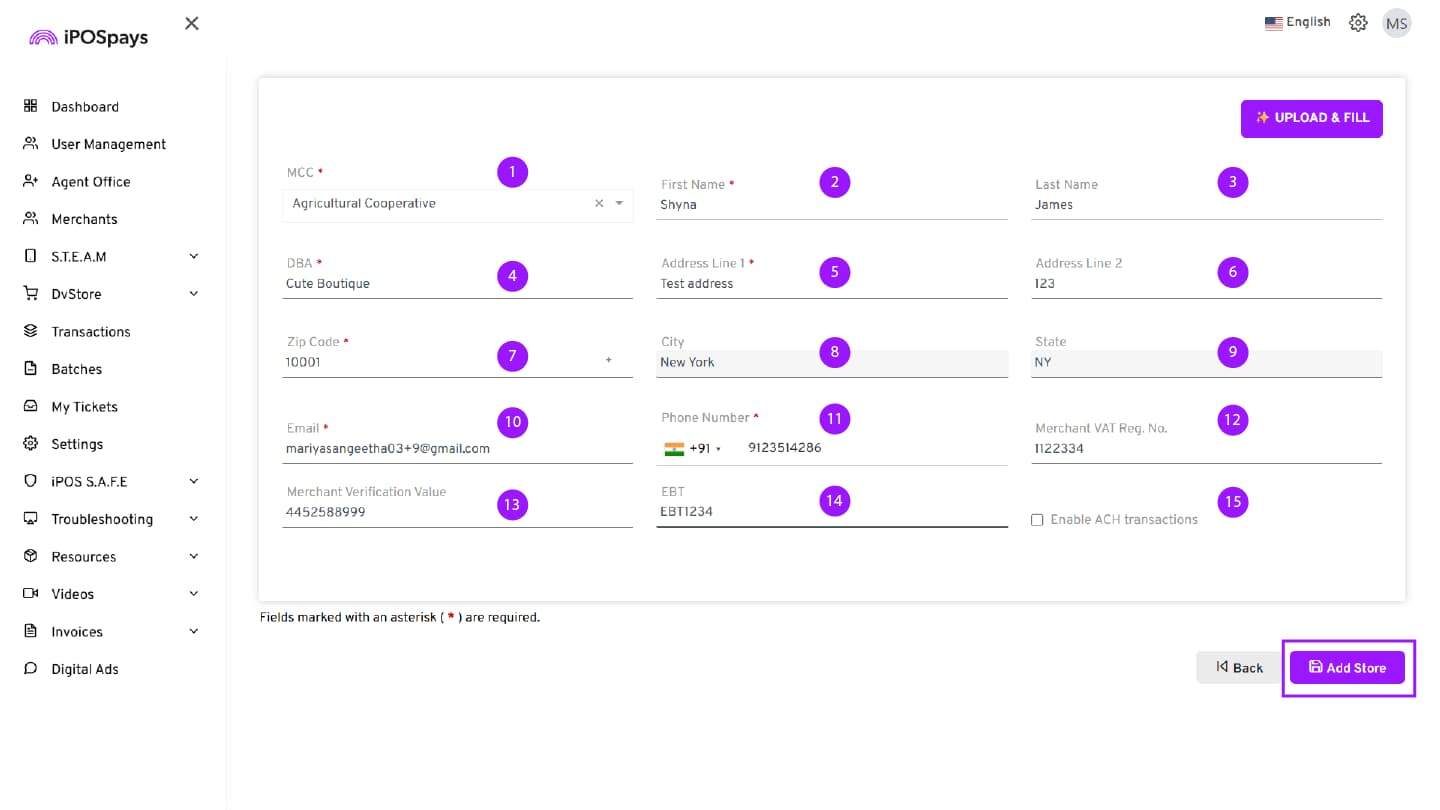
✅ The store is now successfully created.
- If a Store Manager’s email was entered, an email will be sent with a link to activate store-level login access.
Add a Device (TPN) to the Store (Optional)
After creating the store, the system prompts to add a device.
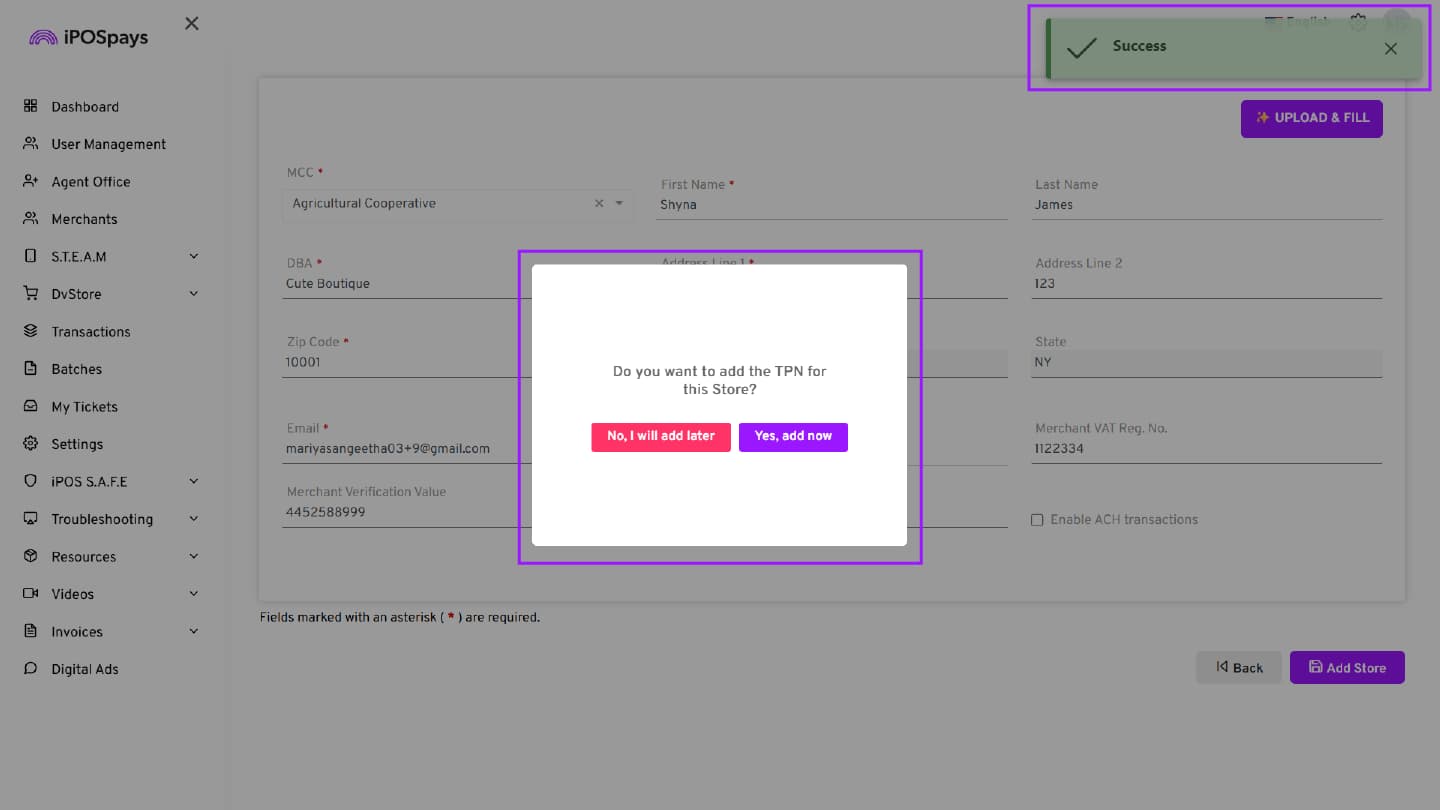
Option 1: Add Device Immediately
-
Click Yes, add now when prompted to add a device.
-
Enter all required device details.
-
Click Add Device.
Option 2: Add Device Later
- Click No, I will add later to skip device setup for now.
Card
Manage Store Options After Creation
After a store is successfully created, additional actions can be performed using the store-level options.
Step 5: Access Store Options
-
Navigate to Merchants from the left menu.
-
Search and select the required Merchant.
-
Under the Stores section, locate the required store.
-
Click the down arrow (˅) next to the Store DBA name.
The following options are available:
-
Edit Store
-
Delete Store
-
Add On Features
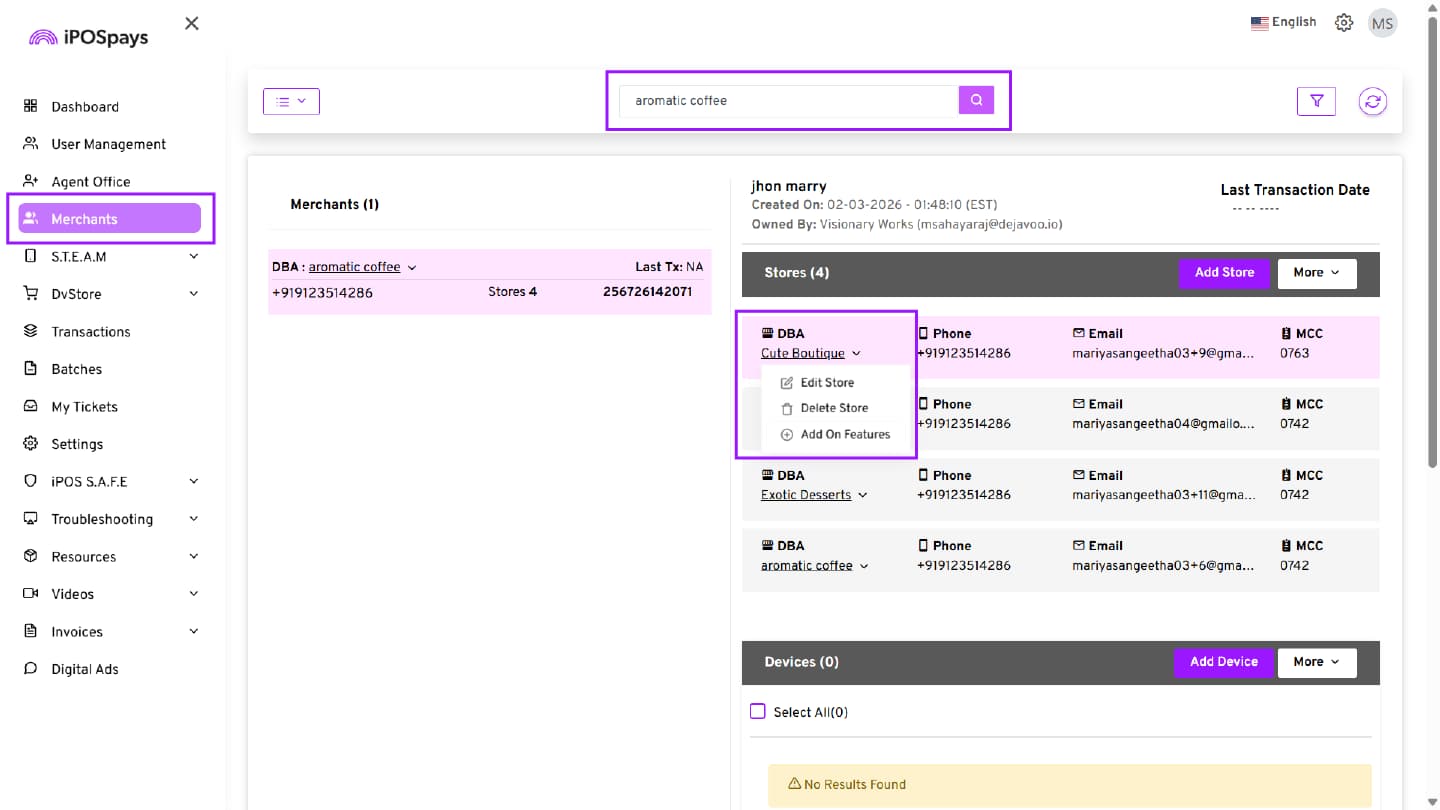
Edit Store
Use this option to modify existing store information.
-
Allows updating store details, including DBA, address, contact information, MCC, and optional fields.
-
Make the required changes and click Save.
-
Changes take effect immediately after saving.
Delete Store
Use this option to permanently delete the store.
-
Permanently removes the selected store.
-
This action cannot be undone.
-
Ensure no active devices (TPNs) are assigned before deleting.
Add On Features
Use this option to enable or disable additional features for the selected store.
When you click Add On Features, the Add On Features screen opens, displaying the following options:
Toggle the switch next to the required feature to enable or disable it for the store.
Changes are saved automatically and take effect immediately after enabling the feature.