How to Onboard a Merchant on iPOSpays
This guide explains how to onboard a merchant on the iPOSpays portal. It covers adding merchant and store details, adding a device, generating a Terminal Profile Number (TPN), and configuring fees and device parameters to ensure the merchant is ready to process transactions successfully.
Steps to Onboard a Merchant
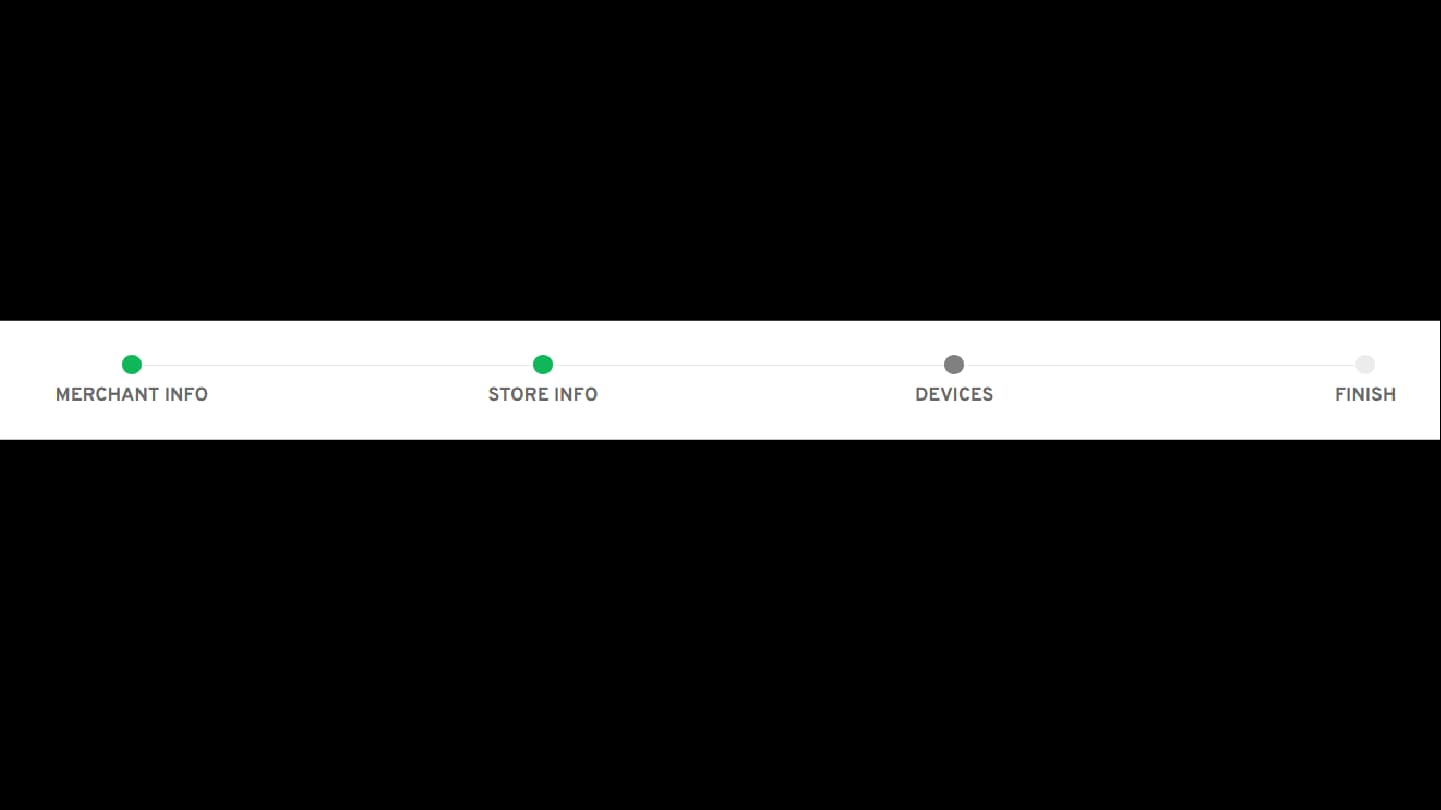
To onboard a merchant and generate a TPN, complete the following four steps:
-
Add Merchant Information
-
Add Store Information
-
Add Device
-
Edit Parameters
Step 1: Log In to the iPOSpays Portal
Log in to the iPOSpays Portal using your ISO or Agent Office credentials.
Step 2: Add Merchant Information
-
From the left-hand menu, click the Merchants tab.
-
Click the Actions menu and select Add Merchant.
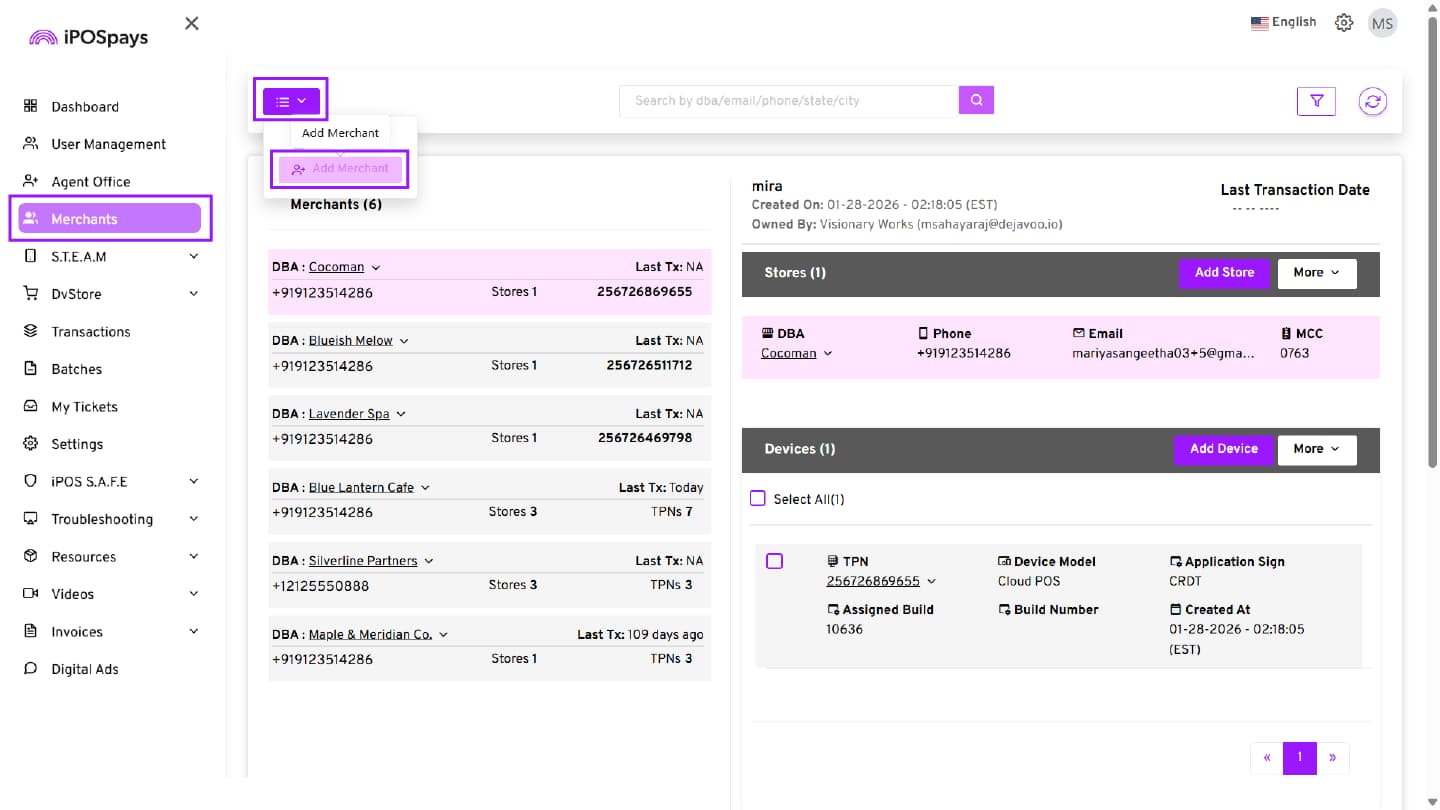
- You will be directed to the Merchant Info tab.
Enter Merchant Details
-
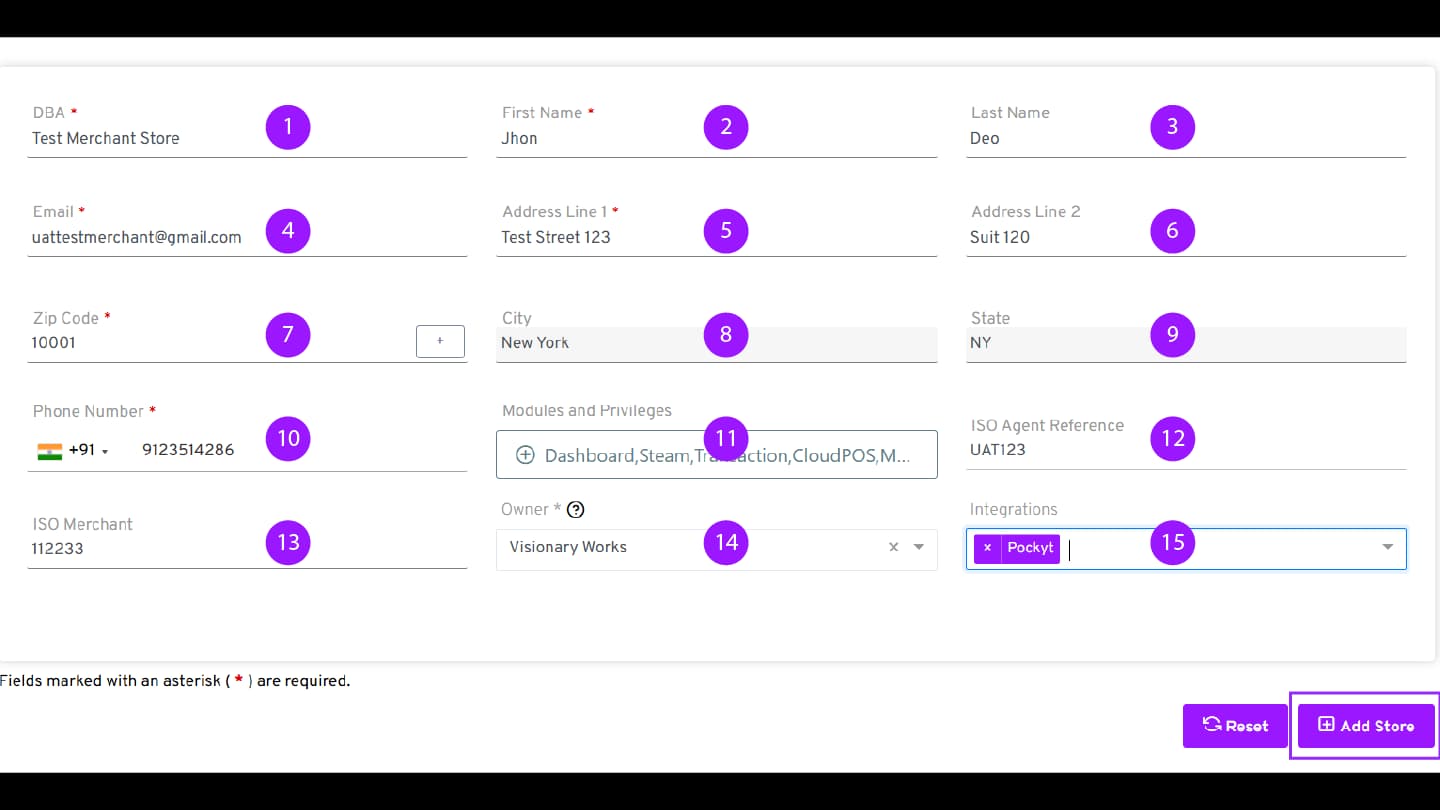
DBA – Enter the merchant’s business name.
-
First Name – Enter the merchant’s first name. (Required field)
-
Last Name (Optional) – Enter the merchant’s last name.
-
Email – Enter a unique email address. This email will be used as the login ID and for all merchant communications.
-
Address Line 1 – Enter the primary business address (street address).
-
Address Line 2 (Optional) – Enter additional address details such as suite, unit, or floor number if applicable
-
ZIP Code – Enter the ZIP code and select the appropriate city from the dropdown. If the city isn’t listed, click the + icon to add it
-
City – This field populates automatically based on the ZIP code.
-
State – This field populates automatically based on the ZIP code.
-
Phone Number – Enter a valid phone number. All merchant notifications and updates will be sent to this number.
-
Modules and Privileges – Select the required modules based on the merchant’s business needs.
For Example:
-
Enable CloudPOS for merchants who use a virtual terminal
-
Enable Transactions, Dashboard, or S.T.E.A.M as required
-
Owner – Select the appropriate owner from the drop-down list. You can assign an Agent Office or Sub Agent Office as the owner for this merchant by searching for their name in the drop-down list. If you have not configured Agent Offices or Sub Agent Office, this field will autofill with your ISO Office name. Required field.
-
ISO Merchant (Optional) – Select the ISO merchant if applicable.
-
ISO Agent Reference (Optional) – Enter the agent reference ID if used for internal or CRM tracking.
-
Integrations (Optional) – Select the required integrations from the drop-down list, if applicable. For example, if the merchant wishes to offer PayPal and Venmo as payment methods to their customers, select Pockyt from the drop-down menu.
Once all the details are filled in, click Add Store. The merchant information is saved automatically, and the system navigates to the Store Info section.
Step 3: Add Store Information
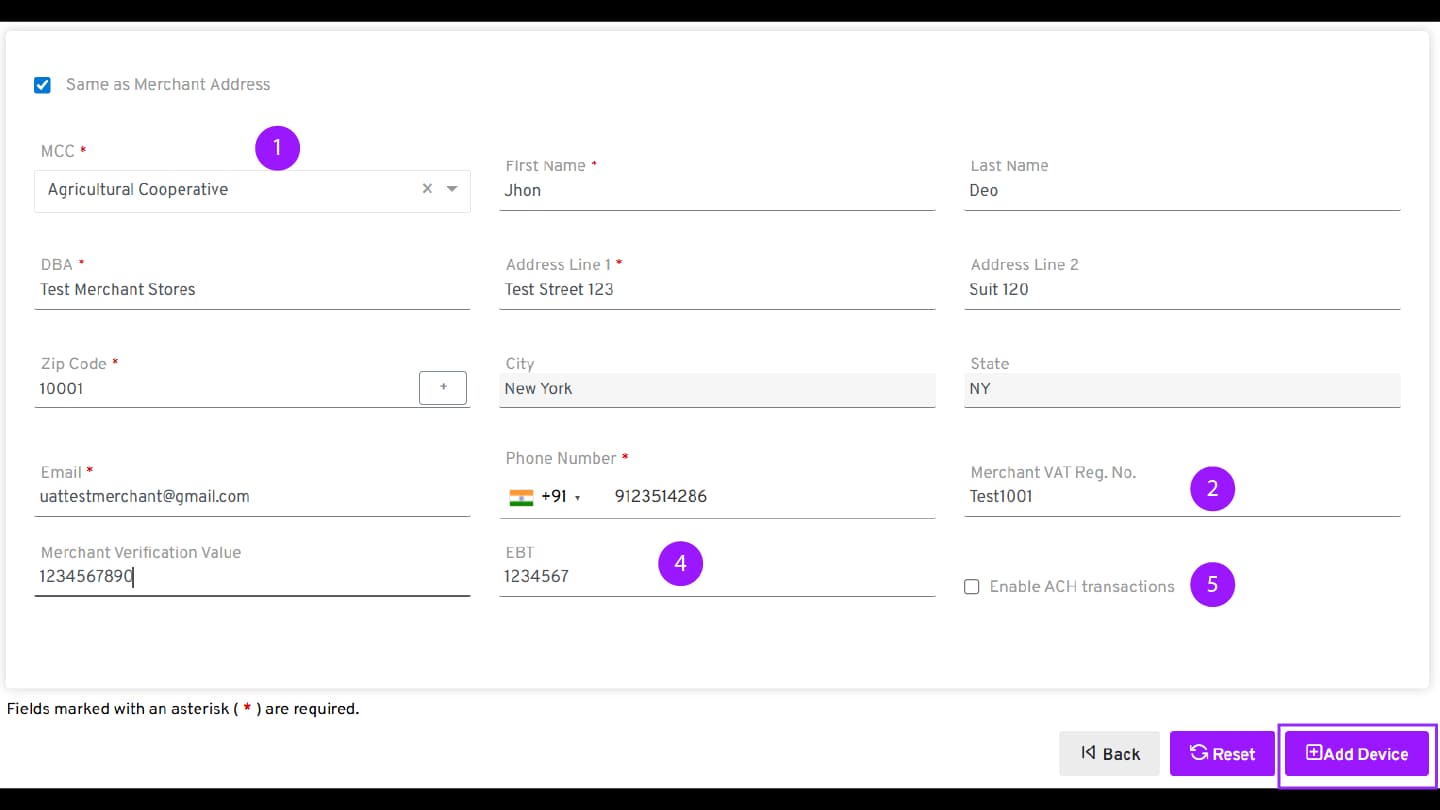
The Add Store section is used to configure store-level details for merchants operating in one or multiple locations.
Default Address Behavior
By default, Same as Merchant Address is selected.
When selected, the store details are automatically copied from the merchant details.
- Merchant Category Code (MCC) - – Select the appropriate MCC based on the VAR sheet.
This is a required field. Incorrect MCC values may result in transaction issues.
Store Details
Review and update the store contact and address details if required.
Email → The merchant’s admin email address will automatically carry over from the Merchant Details entry. If needed, it can be replaced with the Store Manager’s email address.
Address Change (If Applicable)
If the address differs from the one entered in Merchant Details, uncheck the “Same as Merchant Address” box and complete the required fields with the appropriate information.
-
Merchant VAT Reg. No. (Optional) – Enter the merchant’s VAT registration number if applicable.
-
Merchant Verification Value (Optional) – Enter the verification value if applicable.
-
EBT (Optional) – Enter EBT details if the merchant accepts EBT transactions.
-
Enable ACH Transactions – Enable this option if ACH payment processing is required.
Next Step
- Click Add Device to proceed to device creation.
Step 4: Add Device and Generate a TPN
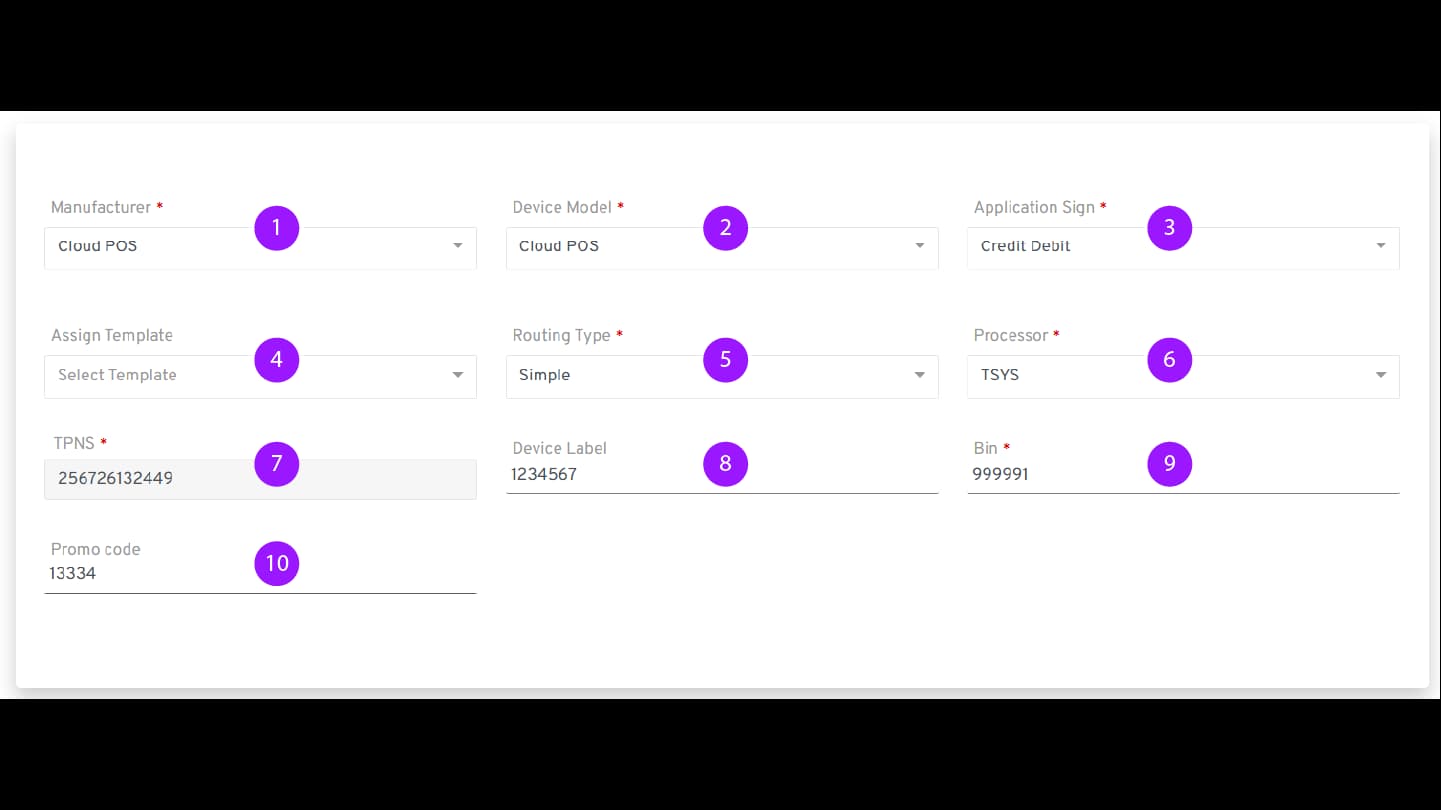
In the Add Device section, configure the terminal or virtual device. This step automatically generates the TPN.
1. Manufacturer – Select the manufacturer based on the solution being offered.
Examples:
-
Q Series / P Series – For physical payment terminals
-
CloudPOS – For virtual terminals
-
Apple - For Tap on Phone on iPhone
-
Android Phone – For Tap on Phone on Android
-
Device Model – Select the specific device model provided to the merchant.
-
Application Sign – Select the appropriate application sign (for example, Credit Debit).
-
Assign Template (Optional) – This feature displays any previously saved templates under your account, allowing you to apply those configurations to the newly created TPN.
-
Routing Type – Select the routing type.
By default, Simple is selected.
- Processor – Select the required processor.
This example demonstrates configuration using the TSYS processor. Separate configurations may apply for other processors.
- TPNS – Note the value displayed in the TPNS field.
This is the device’s unique identifier and must be recorded for terminal activation. Each TPN is generated based on the device type and falls into one of the following categories:
POS TPN – For physical payment terminals (P-series, QD-series, etc.)
CloudPOS TPN* – For virtual terminals
iPOSgo! TPN – For smartphone mobile applications (iOS & Android)
- Device Label (Optional) – Enter a device label for easy identification.
This helps the merchant recognize the device without remembering the TPN.
-
BIN – Enter the BIN using the VAR sheet information.
-
Promo Code (Optional) – Enter a promo code if applicable.
Step 5: Configure Fee Profiles (With Fee / Without Fee)
Two fee profiles are available:
-
With Fee
-
Without Fee
Fee Profile Rules
-
If only With Fee is configured, all transactions will process under the With Fee profile.
-
If only Without Fee is configured, all transactions will process under the Without Fee profile.
-
To enable Dual MID processing, configure both profiles.
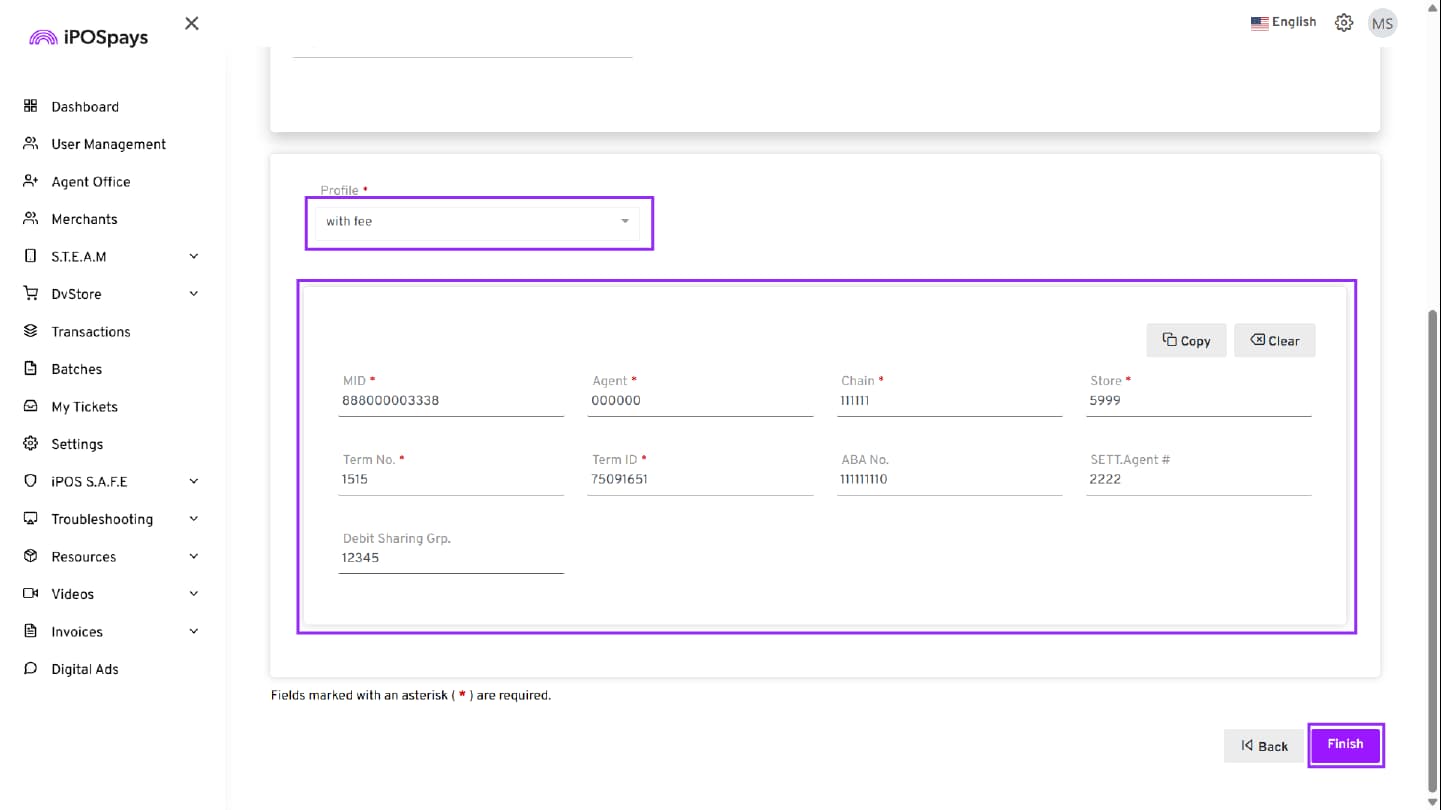
Configure With Fee Profile
-
Select With Fee from the Profile drop-down.
-
Enter the required details using the VAR sheet, including:
-
MID
-
Agent
-
Chain
-
Store
-
Term No.
-
Term ID
-
ABA Number
-
SETT. Agent #
-
Debit Sharing Group
- Ensure all required values are entered exactly as provided in the VAR sheet.
Configure Without Fee Profile
-
Switch the Profile to Without Fee.
-
Enter the required details as per the VAR sheet.
The system automatically saves the entered data while switching between profiles.
Add-on Features (Optional)
After device configuration, an Add-on Features pop-up appears.
-
Select additional features if required:
-
3D Secure
-
WooCommerce
-
Loyalty
-
-
Click Proceed to enable selected features or Skip to continue without add-ons.
Step 6: Finish Merchant and Device Creation
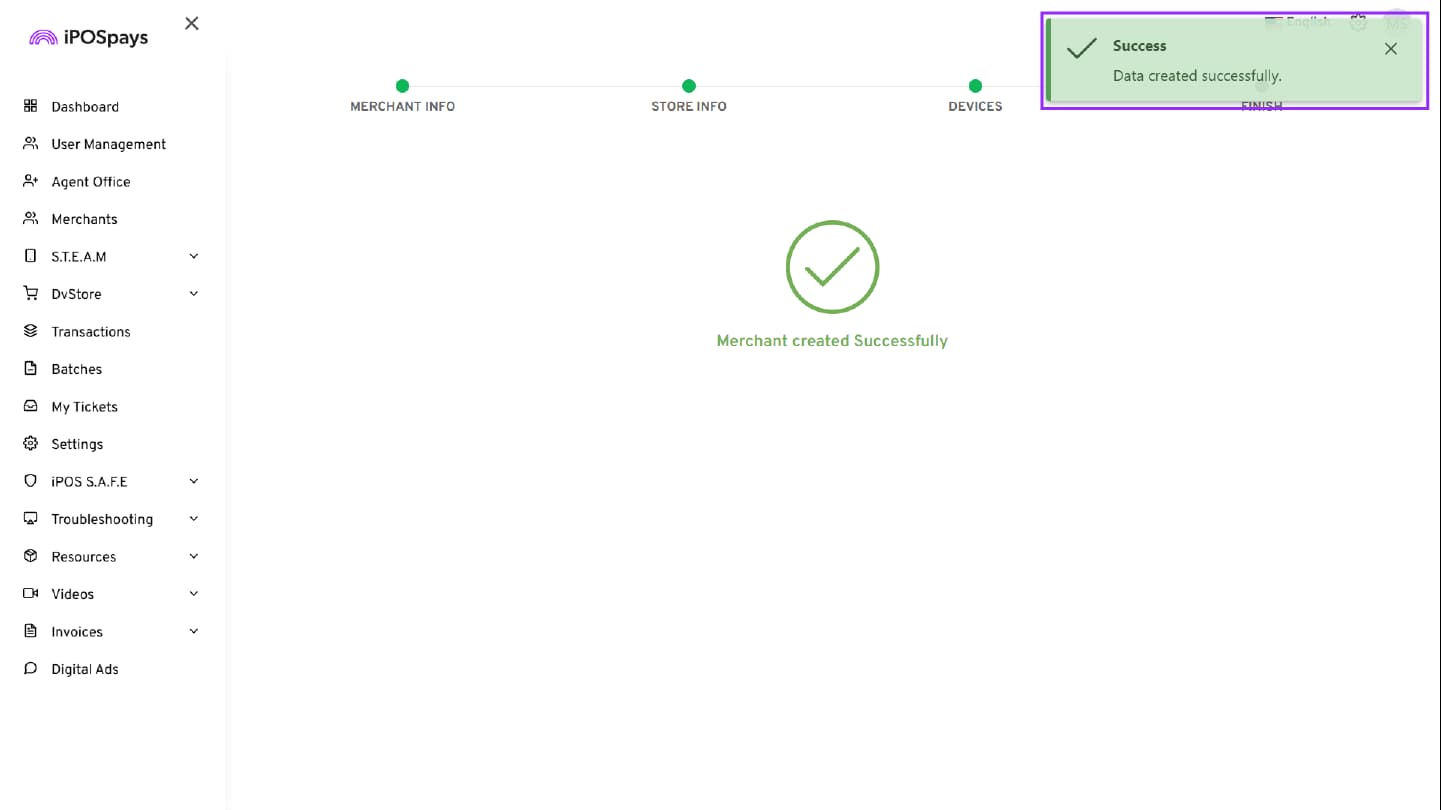
Click Finish after completing all required fields.
The merchant and device are successfully created, and the TPN is generated.
Next Steps: Edit Device Parameters
After creating the merchant and TPN:
-
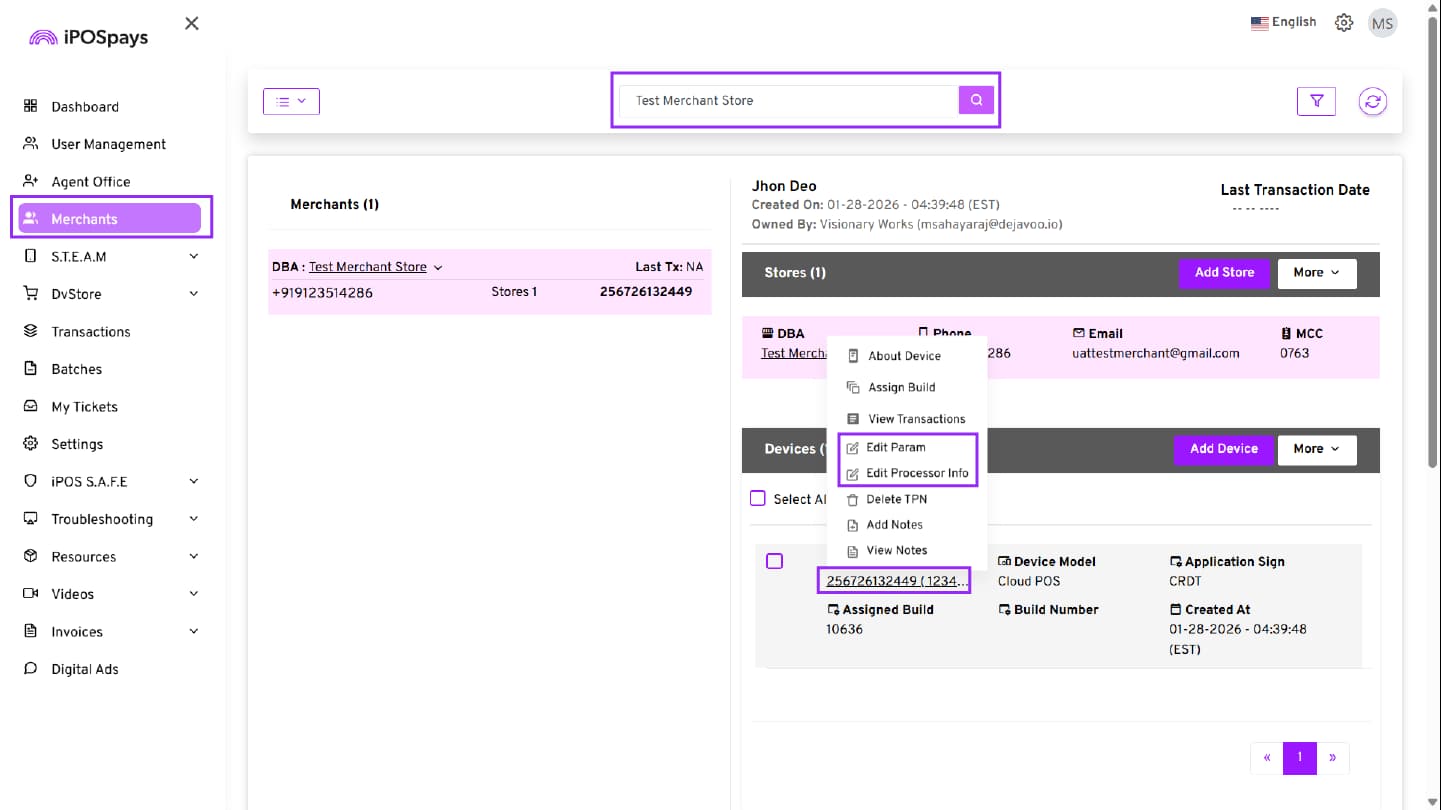
Go back to the Merchants tab.
-
Search for the merchant using DBA name, merchant name, or phone number.
-
Click the generated TPN and select Edit Parameters.
-
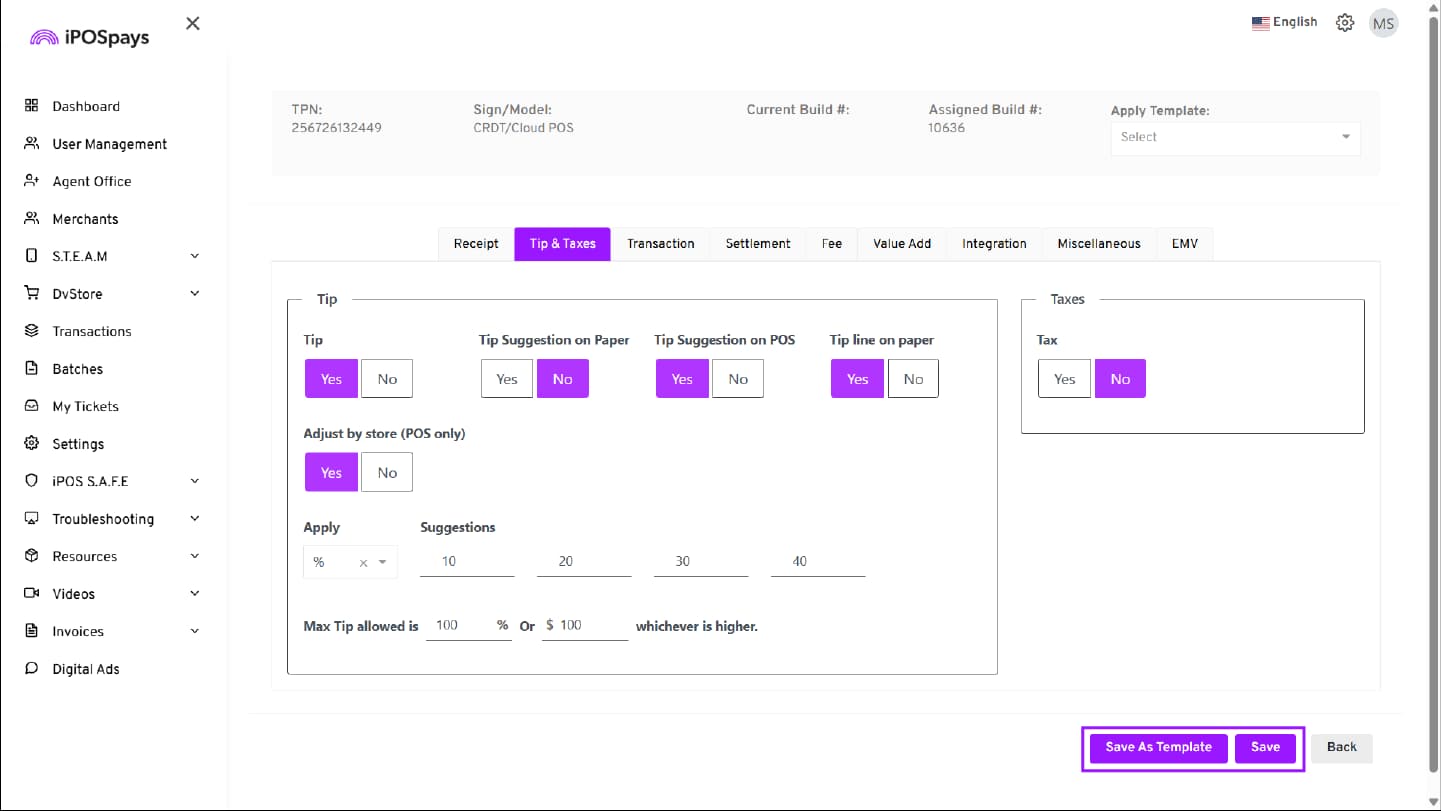
Update the required terminal parameters, such as Tip, Fee, Tax, etc., and save the changes.
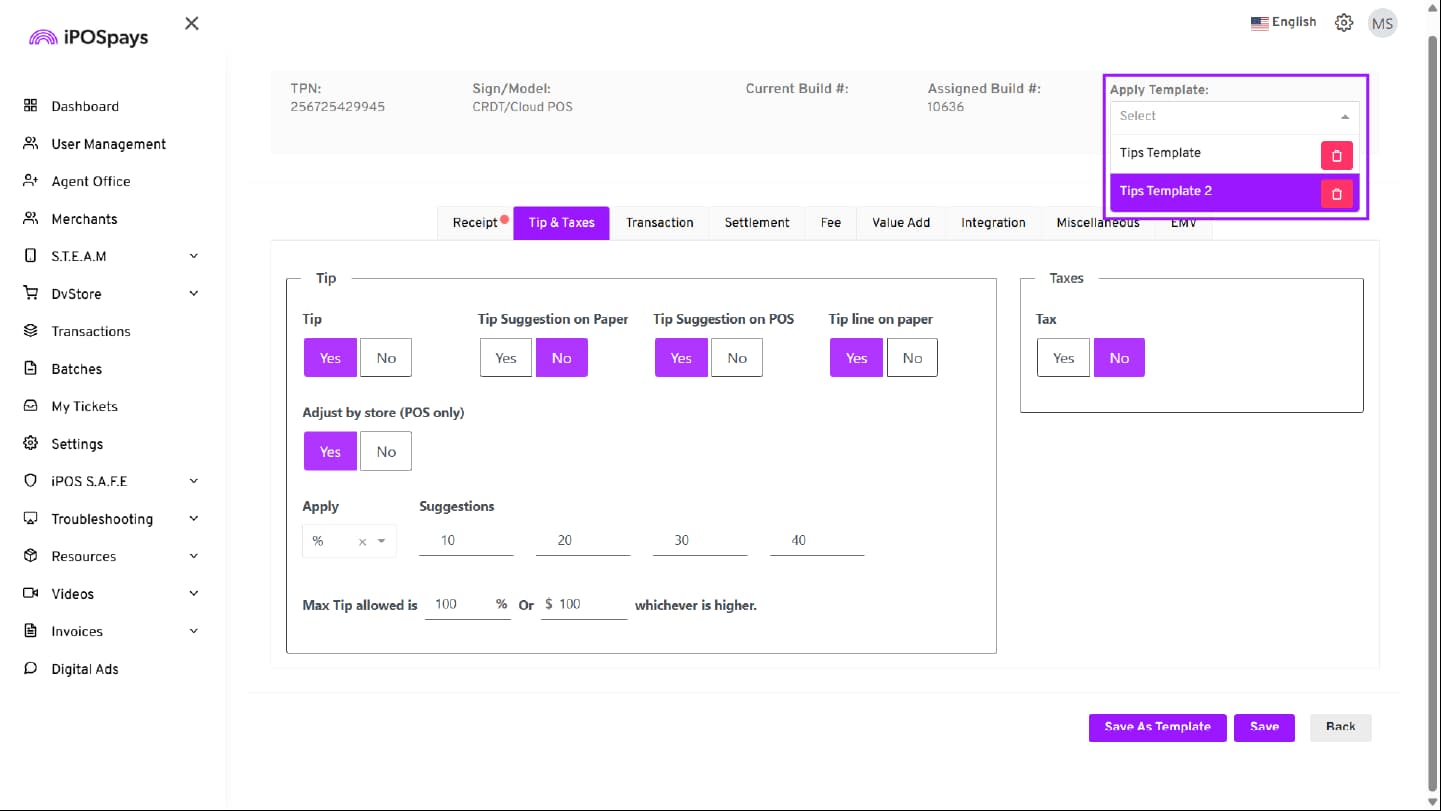
Save Parameters as a Template
Once you have configured the parameters, you have two options:
-
Save → Apply the current parameter configurations directly to the selected TPN.
-
Save as Template → Save current parameter configurations as a reusable template, which can then be assigned to other TPNs in the Add Device section for similar merchant verticals.
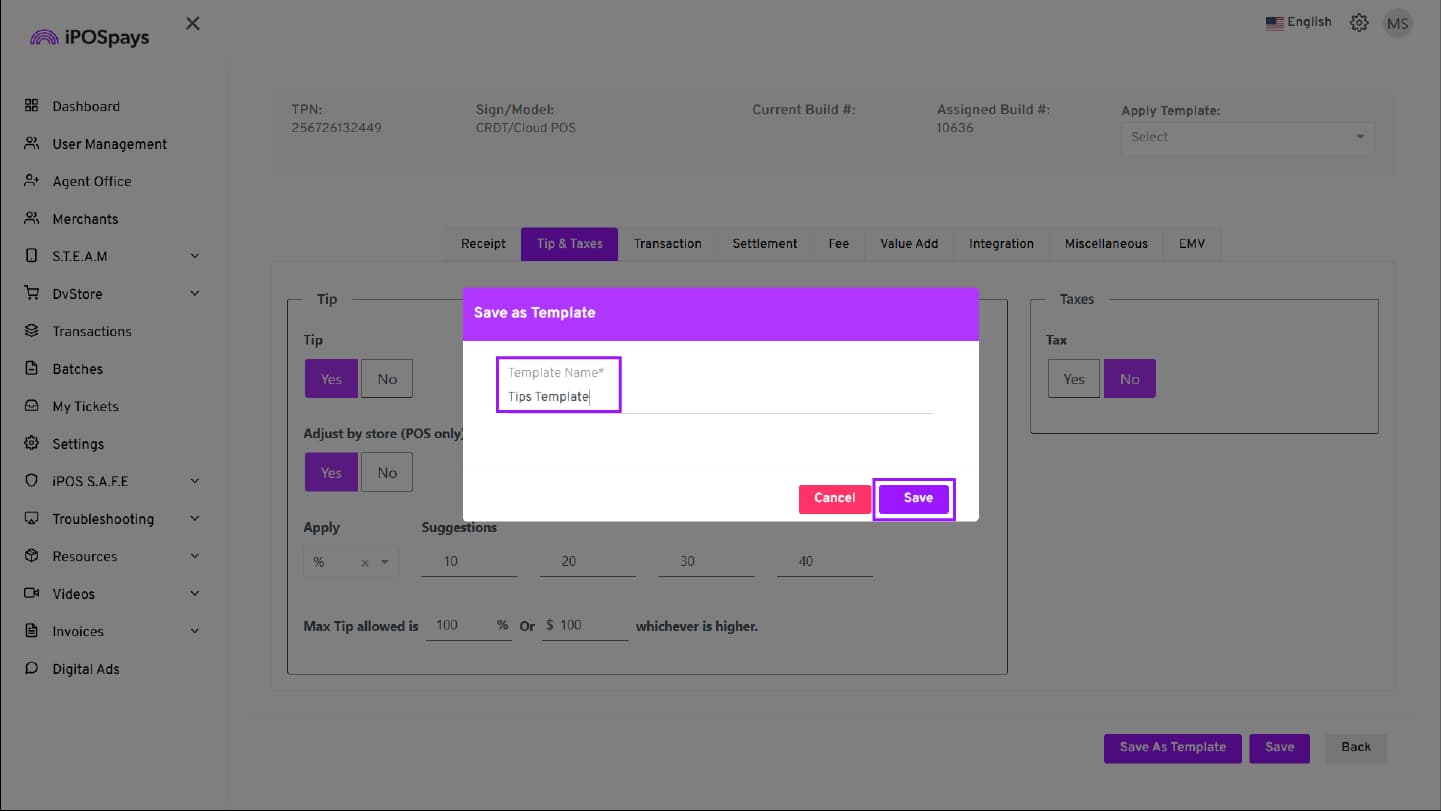
- Name the template and click Save to create the template.
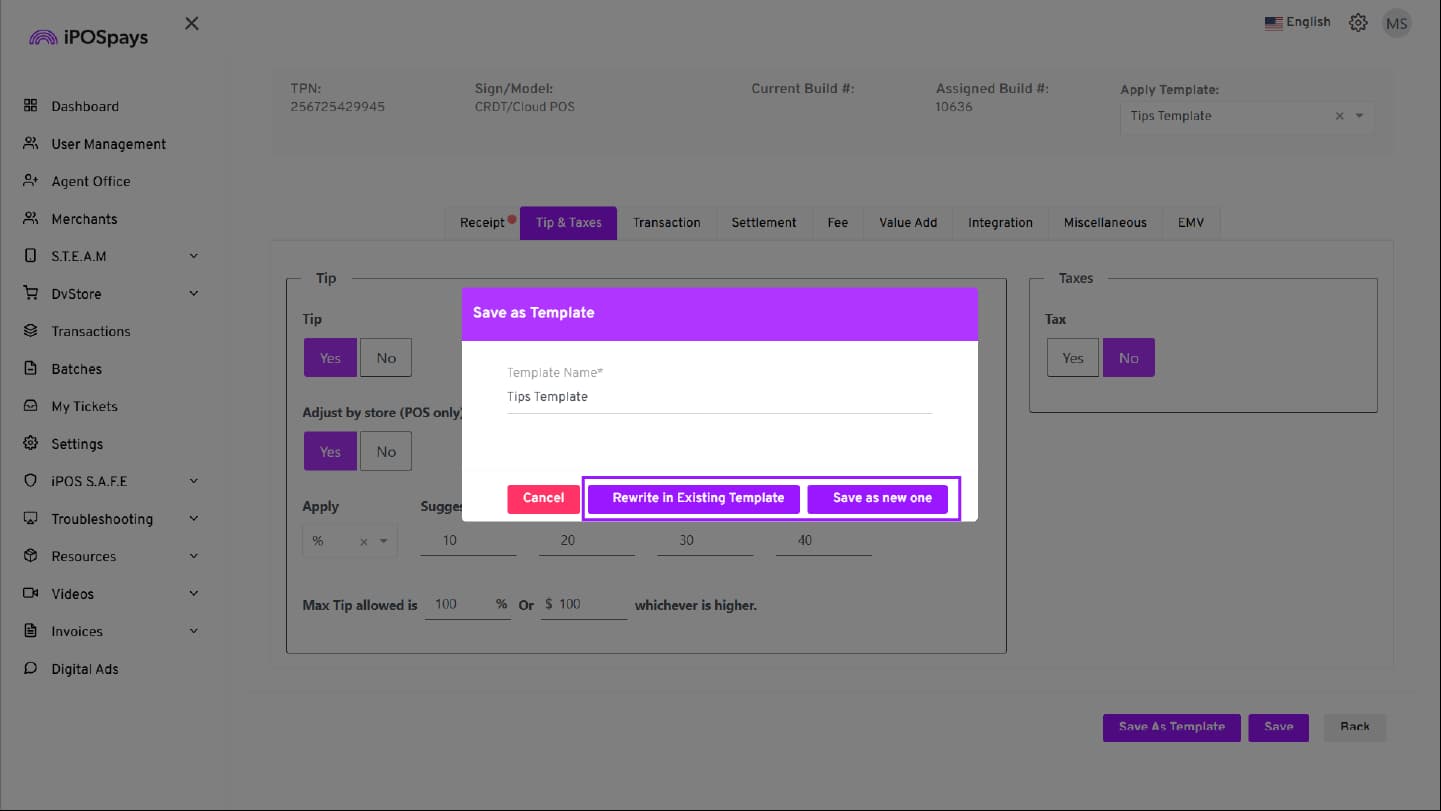
- If you wish to edit the template, simply click Save as Template again, and you will have two options:
-
Rewrite in Existing Template: To apply any changes you have made to the existing template.
-
Save as new one: Save the updated parameter configurations separately as a new template altogether.
-
The templates can be accessed from the Apply Template drop-down menu at the top right corner of the screen.