How to Set a Static IP Address on a Payment Terminal
If your Dejavoo payment terminal uses an Ethernet connection, you can configure it to use either DHCP or a static IP address. This guide explains how to find your network details and configure a static IP address on your terminal.
Before You Begin
You’ll need:
- A computer connected to the same network as your payment terminal.
- The network details from that computer.
- Your Dejavoo payment terminal connected to Ethernet.
Supported Payment Terminals
Terminals with Ethernet support:
- P1
- P17
- P18
- QD3
- QD4
- QD4 Premium
- QD5
- Q3mini
- Q3v
Terminals without Ethernet support (Wi-Fi, cellular, or Bluetooth only):
- P3
- P5
- P8
- P8 Dual
- P8 Dual Go
- P12
- QD2
- QD3 (Mobile POS variant)
Step 1: Find Your Network Details
Use a computer connected to the same Wi-Fi network or router as your payment terminal.
Windows
- Open the Start menu.
- Type cmd and press Enter to open Command Prompt.
- Type
ipconfigand press Enter. - Find your active network connection, such as Wireless LAN adapter Wi-Fi or Ethernet adapter.
- Note the following values:
- IPv4 Address
- Subnet Mask
- Default Gateway
Mac
- Open the Apple menu and select System Settings.
- Select Network.
- Select your active Wi-Fi or Ethernet connection.
- Select Details.
- Select TCP/IP.
- Note the following values:
- IP Address
- Subnet Mask
- Router
Step 2: Choose a Static IP Address
Choose an IP address for your payment terminal that is on the same network as your computer but is not already being used by another device.
For example, if your computer’s IP address is 192.168.1.15, you could use 192.168.1.220.
Keep the first three sets of numbers the same and choose an available value for the last set.
Make sure the IP address you choose is not already assigned to another device on your network. If your network uses DHCP reservations or a specific IP address range, check with your network administrator before choosing a static IP.
Step 3: Open the Ethernet Settings on the Terminal
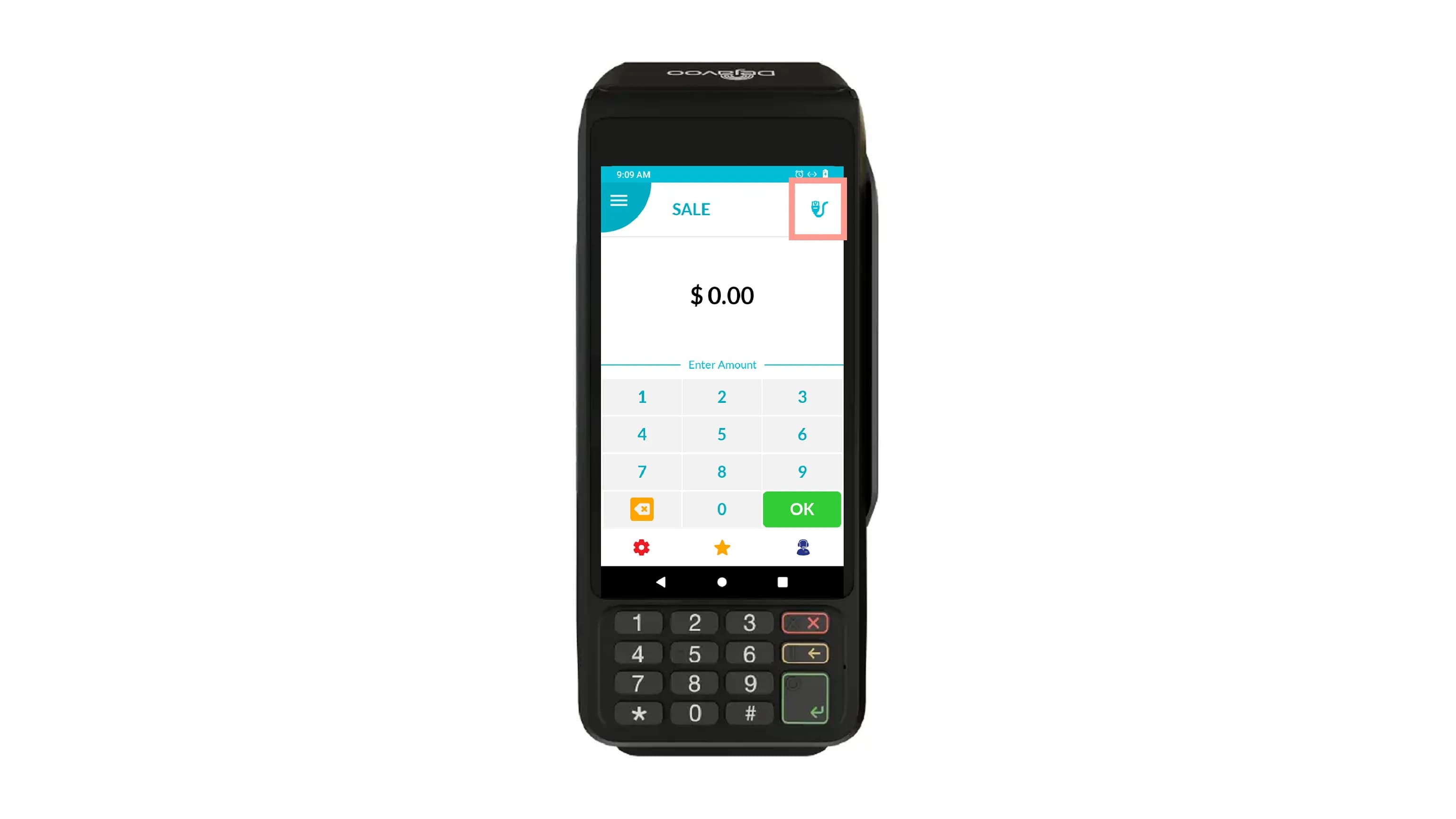
- Open the DvPayLite application on your Dejavoo payment terminal.
- Tap the Ethernet icon at the top-right corner of the screen.
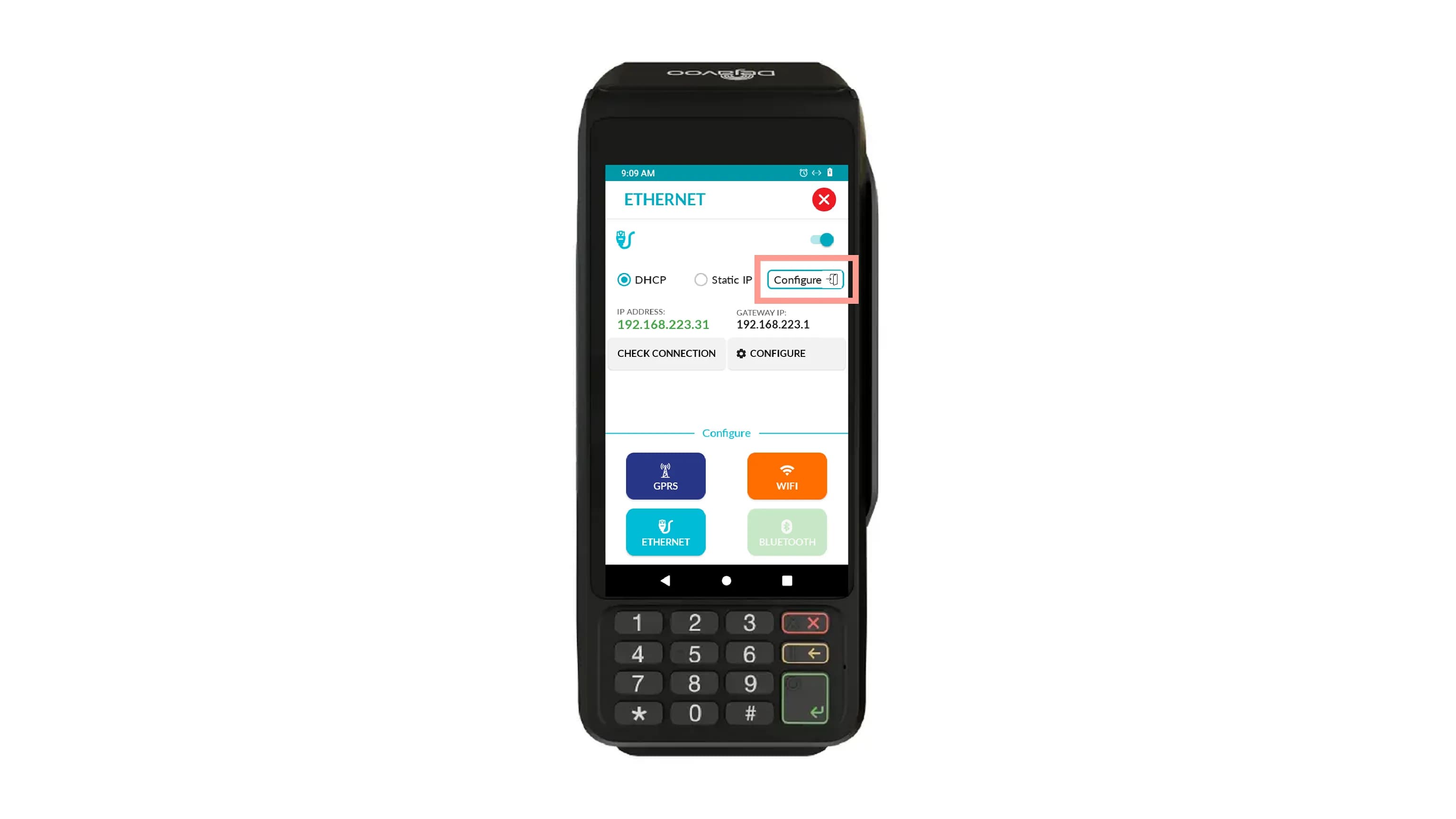
- On the Ethernet screen, tap Configure.
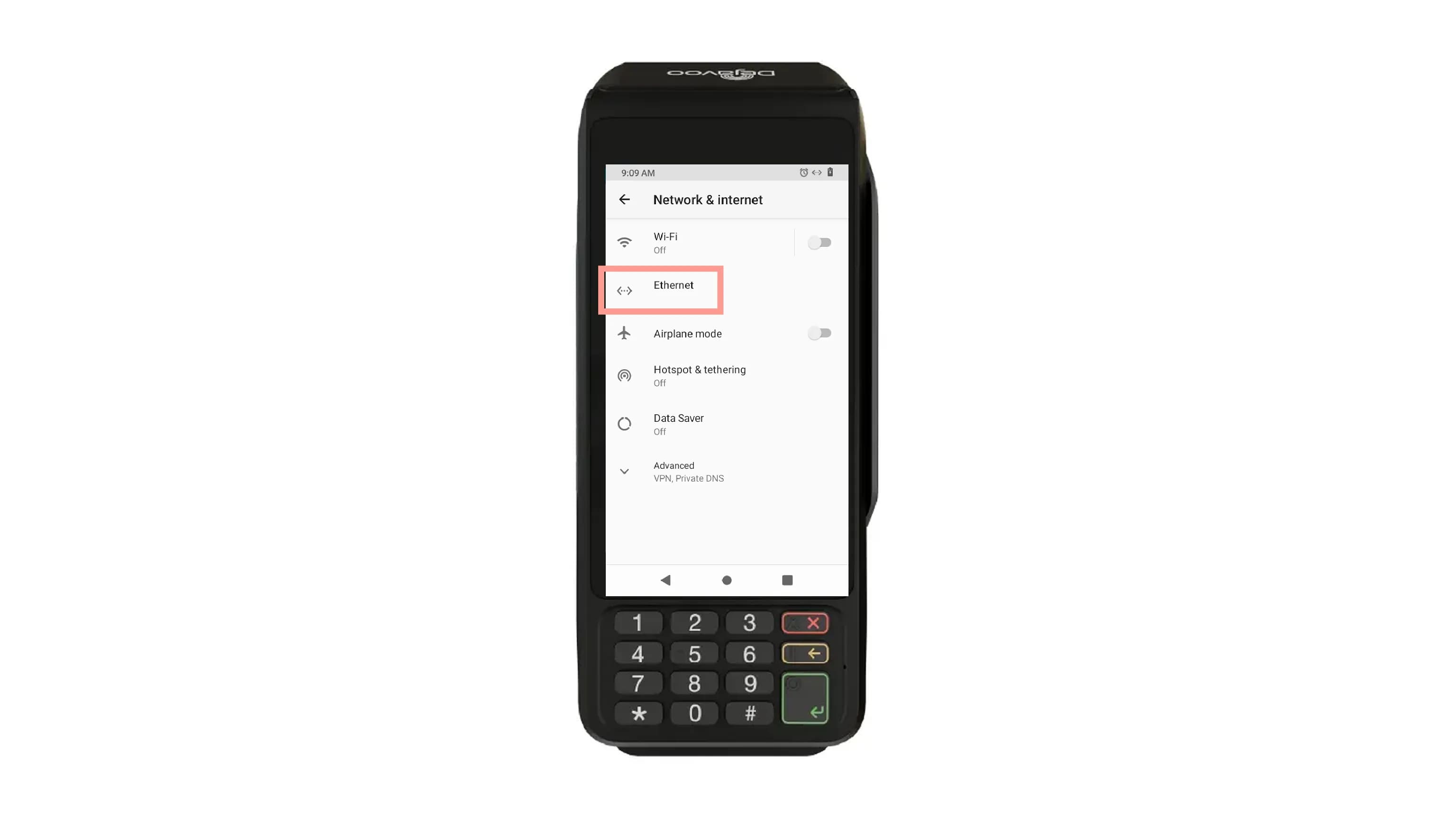
- On the Network & internet settings page, tap Ethernet.
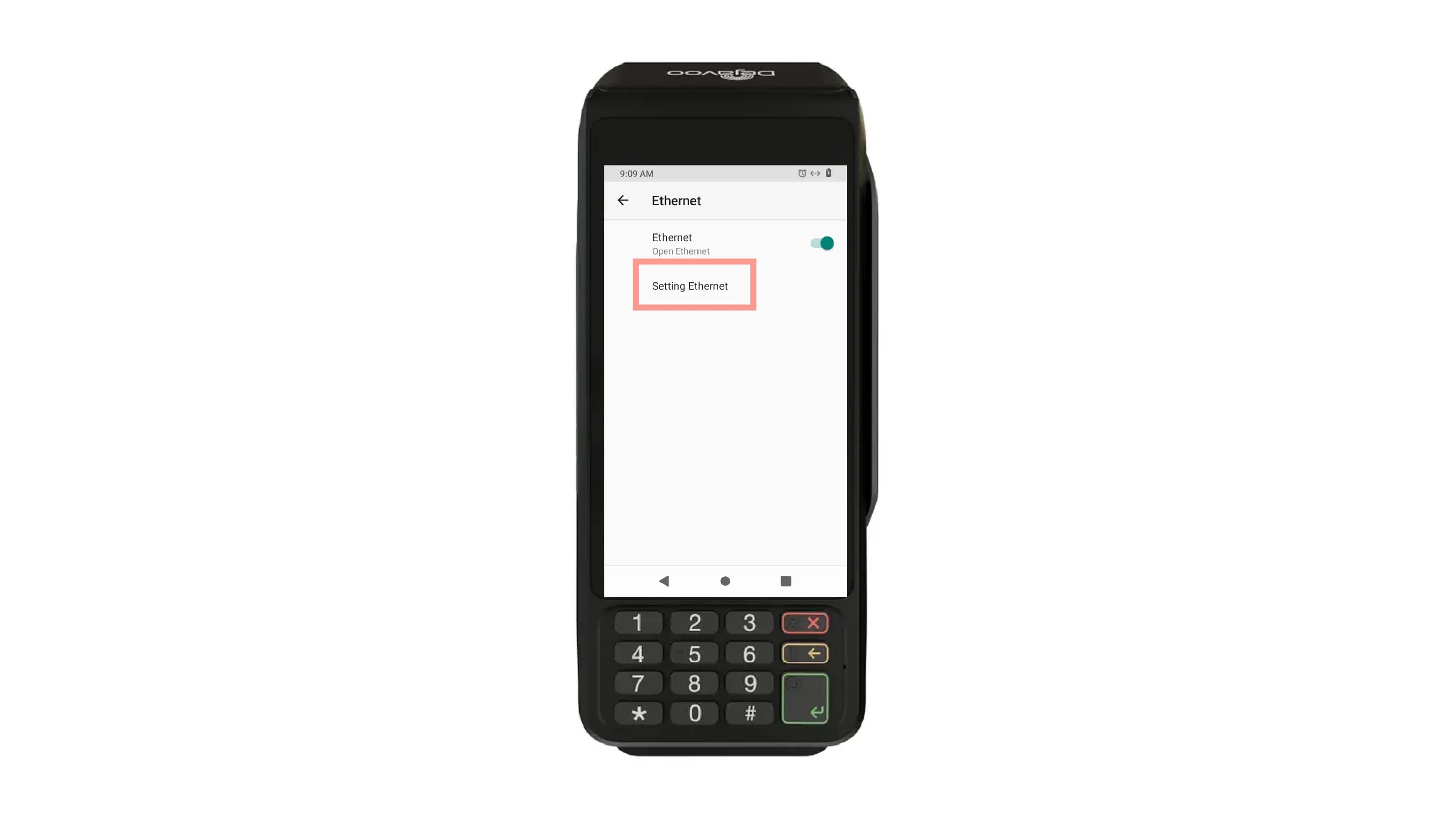
Step 4: Configure the Static IP Address
- On the Ethernet page, tap Setting Ethernet.
- Turn on Use static settings.
- Enter the following network details:
| Setting | Value |
|---|---|
| IP address | The static IP address you selected for the terminal |
| Gateway | The Default Gateway or Router IP from your computer |
| Subnet mask | The Subnet Mask from your computer |
| DNS1 | Your network’s DNS server or the Gateway IP |
| DNS2 | An alternate DNS server, if required |
For example:
| Setting | Example |
|---|---|
| IP address | 192.168.1.220 |
| Gateway | 192.168.1.1 |
| Subnet mask | 255.255.255.0 |
| DNS1 | 192.168.1.1 |
| DNS2 | 8.8.8.8 |
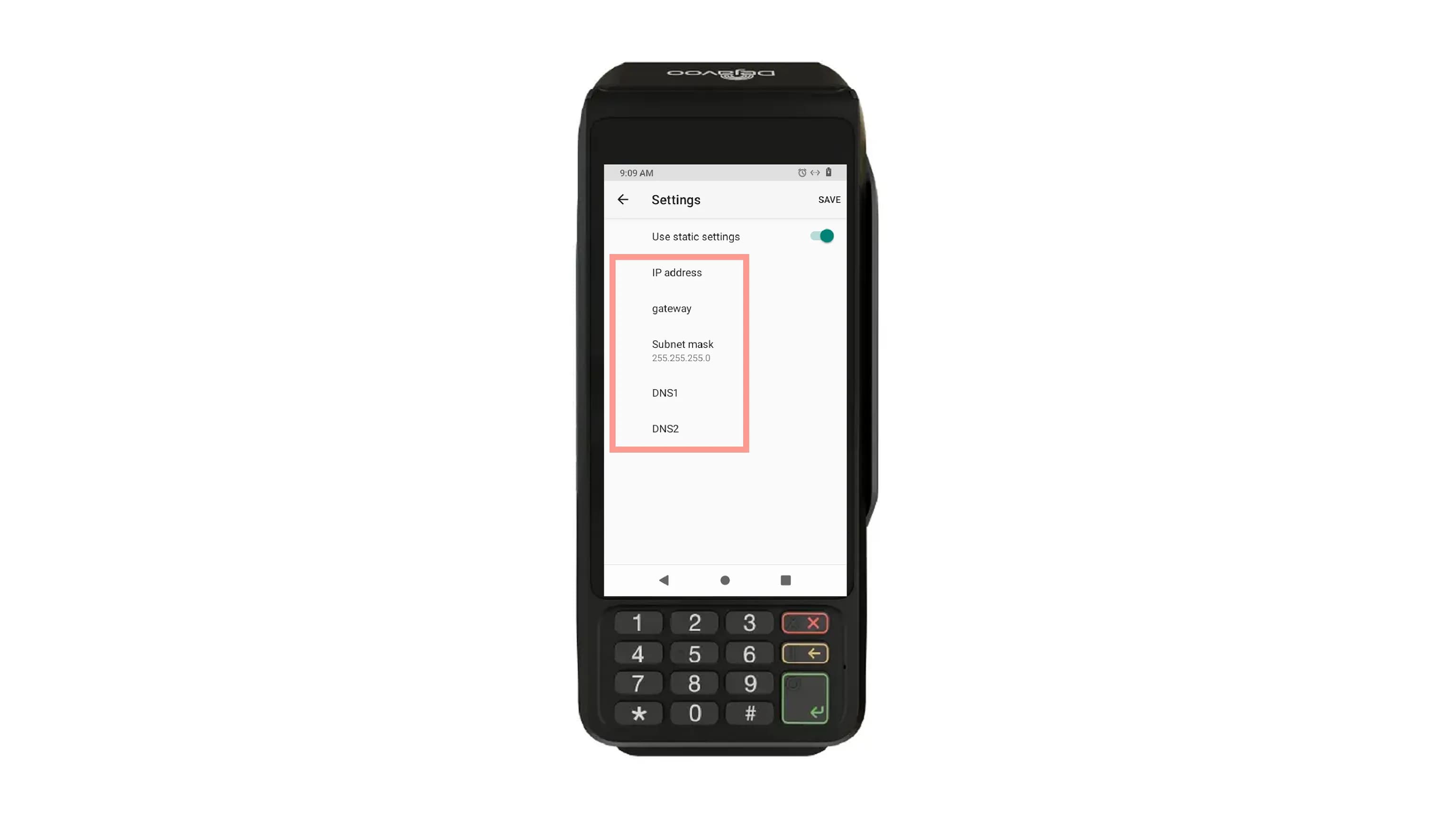
- Verify that all values are correct.
- Save the network settings.
- Confirm that the terminal reconnects to the network.
Troubleshooting
If the terminal does not reconnect after configuring the static IP:
- Verify that the IP address is on the same network as the Gateway.
- Make sure the static IP address is not already being used by another device.
- Confirm that the Subnet Mask and Gateway match your network configuration.
- Check that the Ethernet cable is securely connected.
- If your network uses DHCP reservations or a restricted IP range, contact your network administrator for the appropriate static IP settings.
Note: Settings and steps may vary depending on the terminal model and Android version. On some QD terminals, administrator credentials may be required to access the Ethernet settings. If you need further assistance, please contact support@dejavoo.io.