Loyalty Programs with Dejavoo Extra on iPOSpays
Dejavoo Extra is a powerful integration between Dejavoo gateway-powered payment terminals and the Extra 360 platform. This feature enables merchants to run loyalty programs, create promotions, configure rewards and discounts, and process transactions directly from their Dejavoo payment terminals. This document explains how to enable and configure Dejavoo Extra at the Merchant and TPN levels, along with how merchants can access and use the feature on their devices.
Feature Compatibility
-
Minimum Required POS Build:10117 and above.
-
Supported Terminals: Compatible with Dejavoo P Series and QD Series devices (DVPayLite supported devices).
-
Required Application: DVStore (must be installed on the terminal)
-
Supported Integration: Extra 360
Prerequisites
-
The DVStore app must be installed on the payment terminal
-
Internet connectivity on the payment terminal
-
Extra 360 must be enabled for the ISO and the Merchant
-
If Extra 360 is not yet enabled for your ISO, you must contact - sales@dejavoo.io
-
Extra 360 is supported only on POS devices. It is not supported on CloudPOS
Enable Dejavoo Extra at the Merchant Level
During Merchant Onboarding, the ISO must enable Extra 360 in the Merchant Info section if the merchant requires loyalty and rewards functionality. This should be completed before Store Info.
If Extra 360 was not enabled during onboarding, complete the steps below to enable the feature at the Merchant level.
Steps to Enable at Merchant Level
-
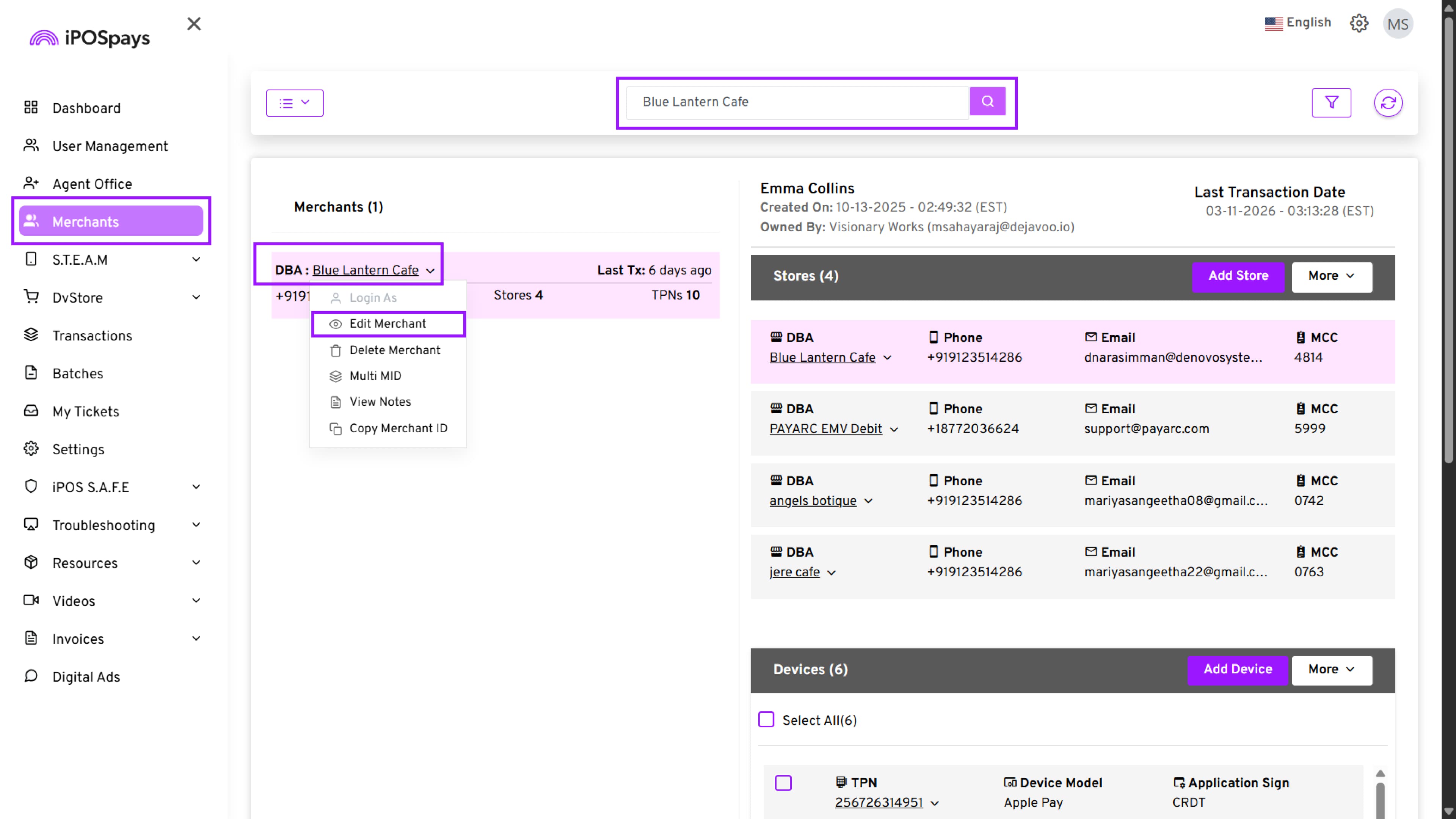
Log in to the iPOSpays Portal using ISO credentials.
-
Navigate to Merchants.
-
Search for and select the required Merchant.
-
Click the drop-down arrow next to the DBA and select Edit Merchant. This will direct you to the Merchant Info tab.
-
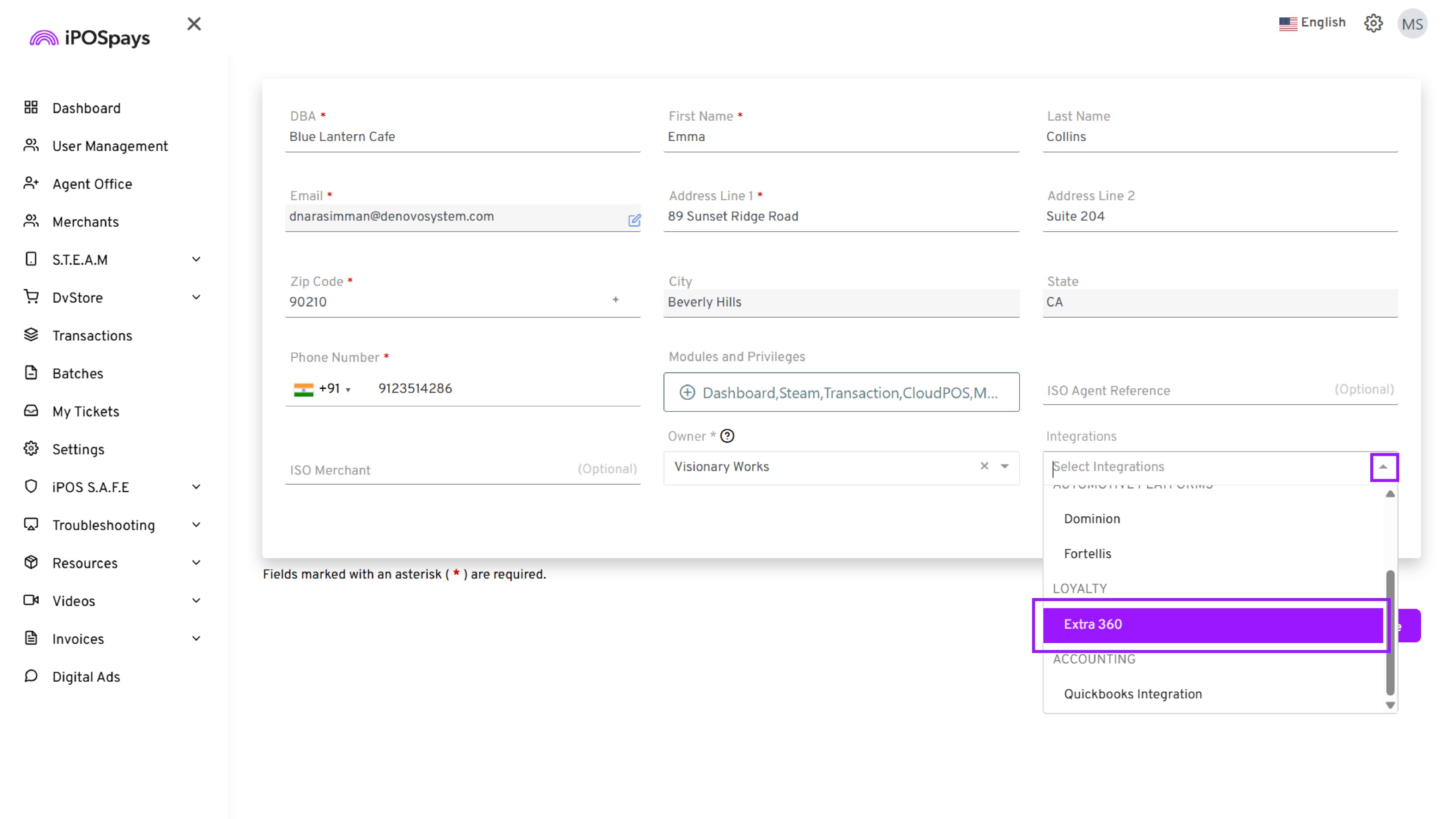
Locate the Integrations drop-down menu.
-
Scroll down to the Loyalty section.
-
Select Extra 360.
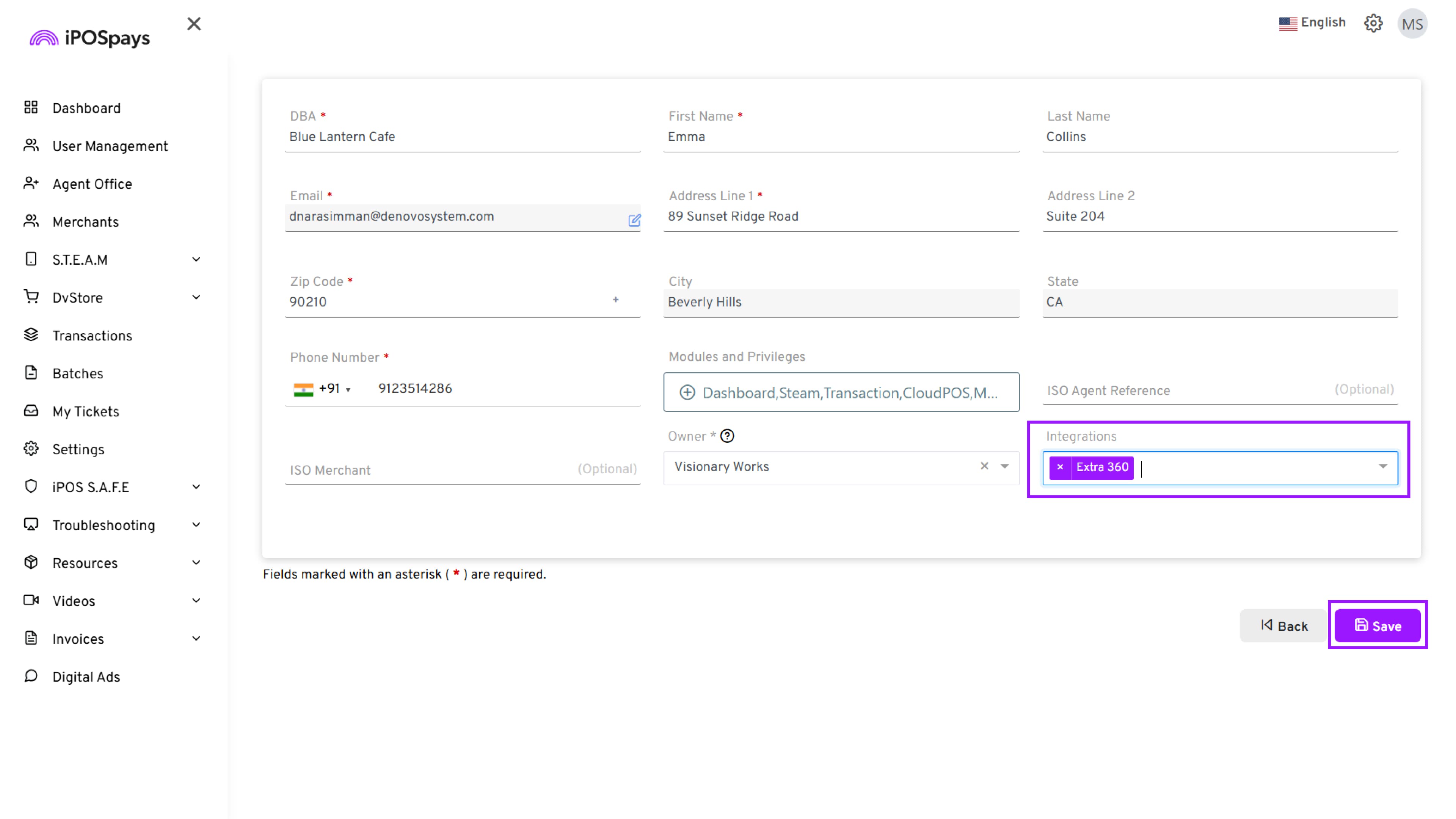
- Click Save. This enables Extra 360 at the Merchant level.
Enable Dejavoo Extra at the TPN Level
Extra 360 must also be enabled at the TPN level to activate the feature on the payment terminal.
Step 1: Enable via the Integrations Tab
-
Log in to the iPOSpays Portal using ISO credentials.
-
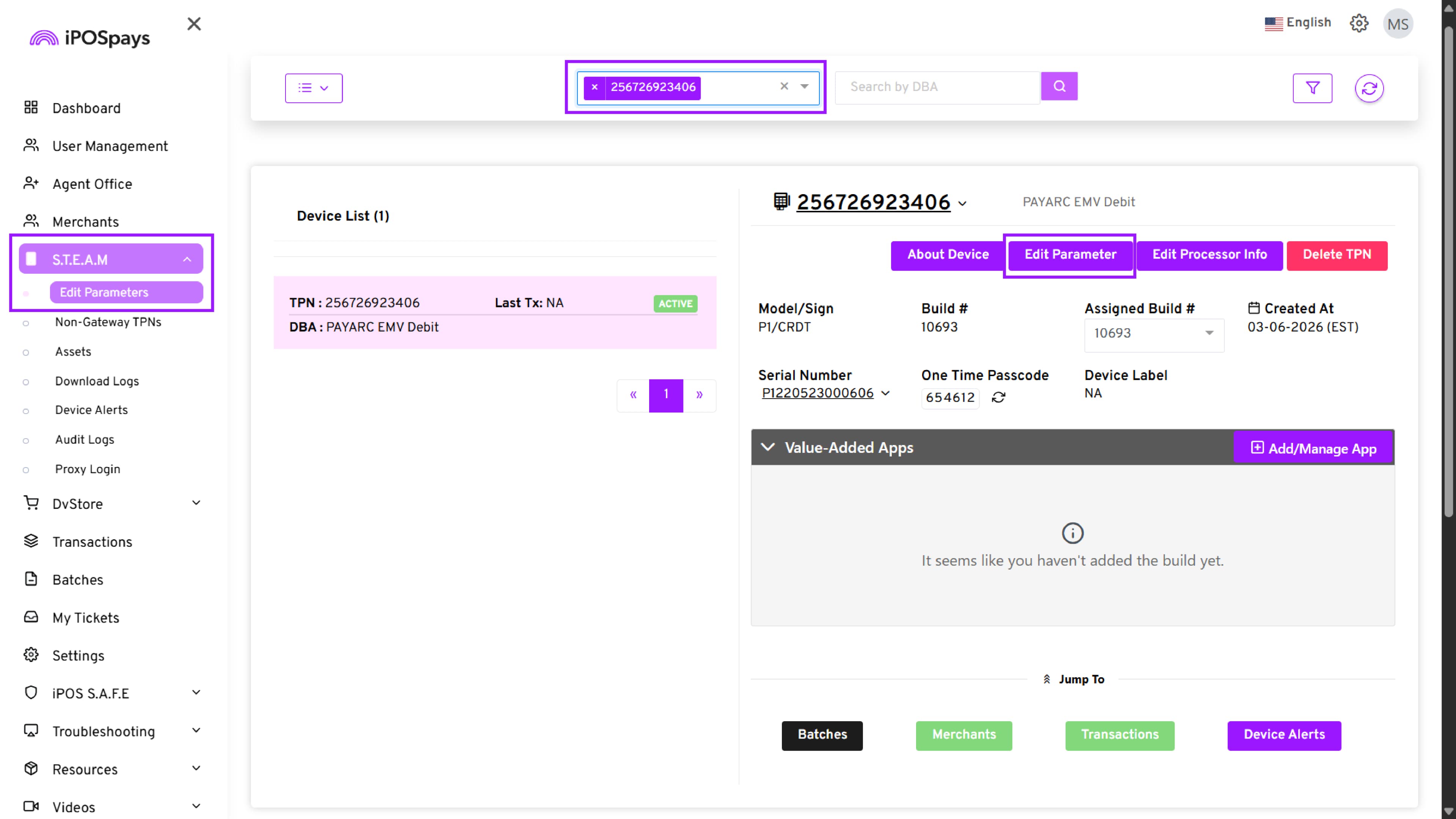
Navigate to: S.T.E.A.M → Edit Parameters
-
Search and select the required TPN.
-
Click Edit Parameter.
- Go to Integrations.
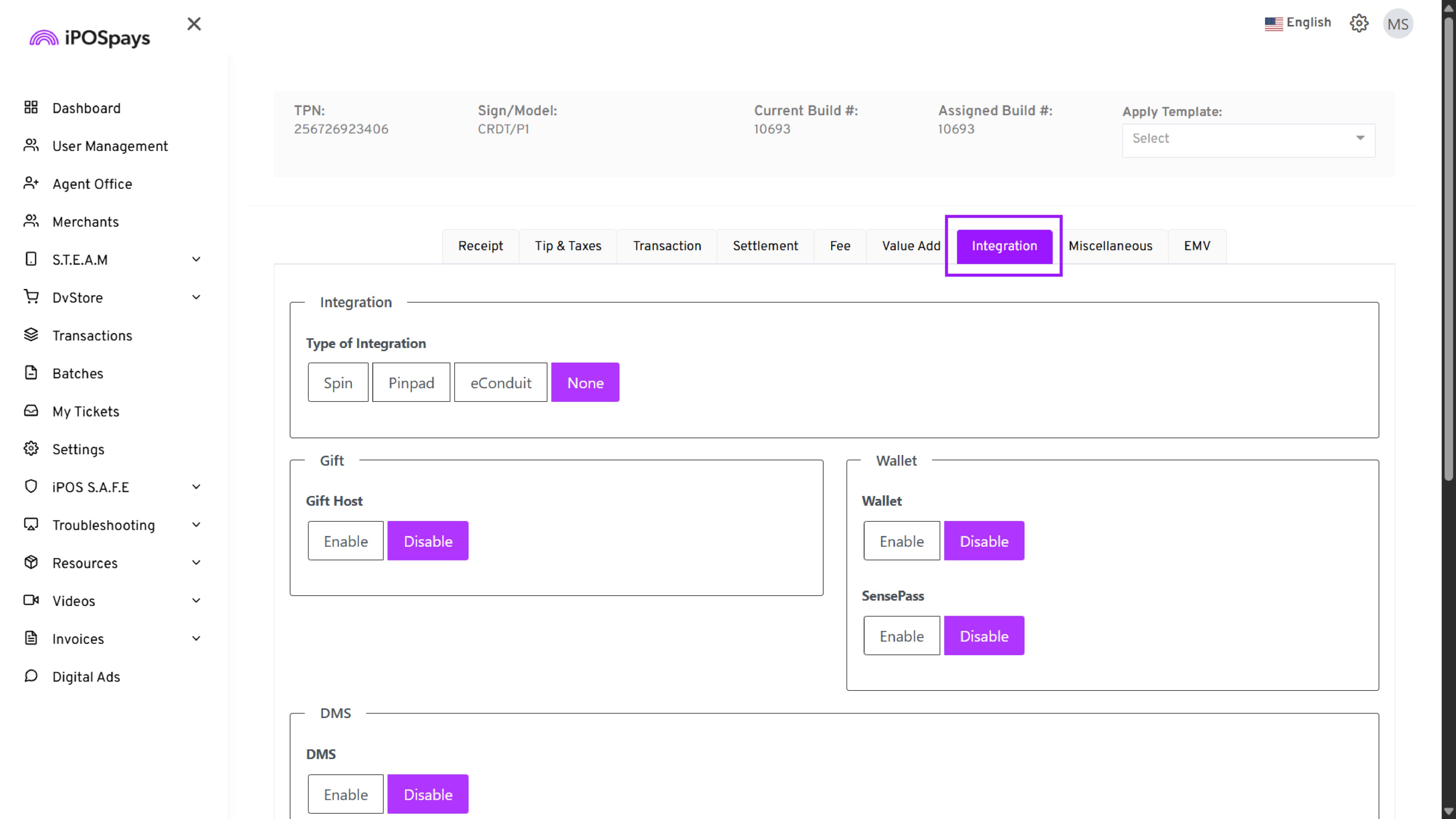
- Under Loyalty, enable Extra 360.
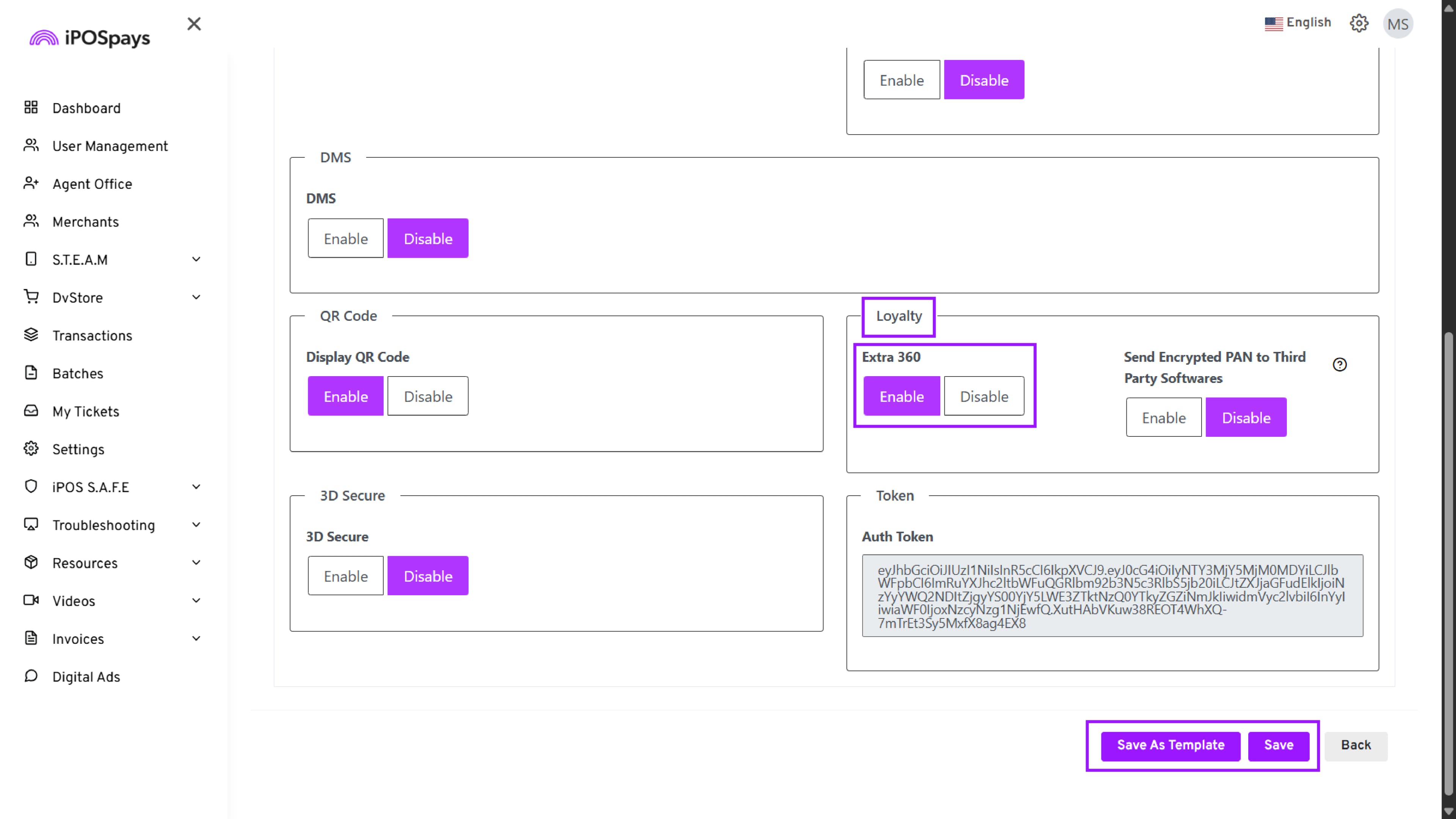
- Scroll down and click Save to apply the current parameter configurations directly to the selected TPN, or select Save as Template to store the configuration as a reusable template.
Step 2: Enable via Value Added Apps
-
Log in to the iPOSpays Portal using ISO credentials.
-
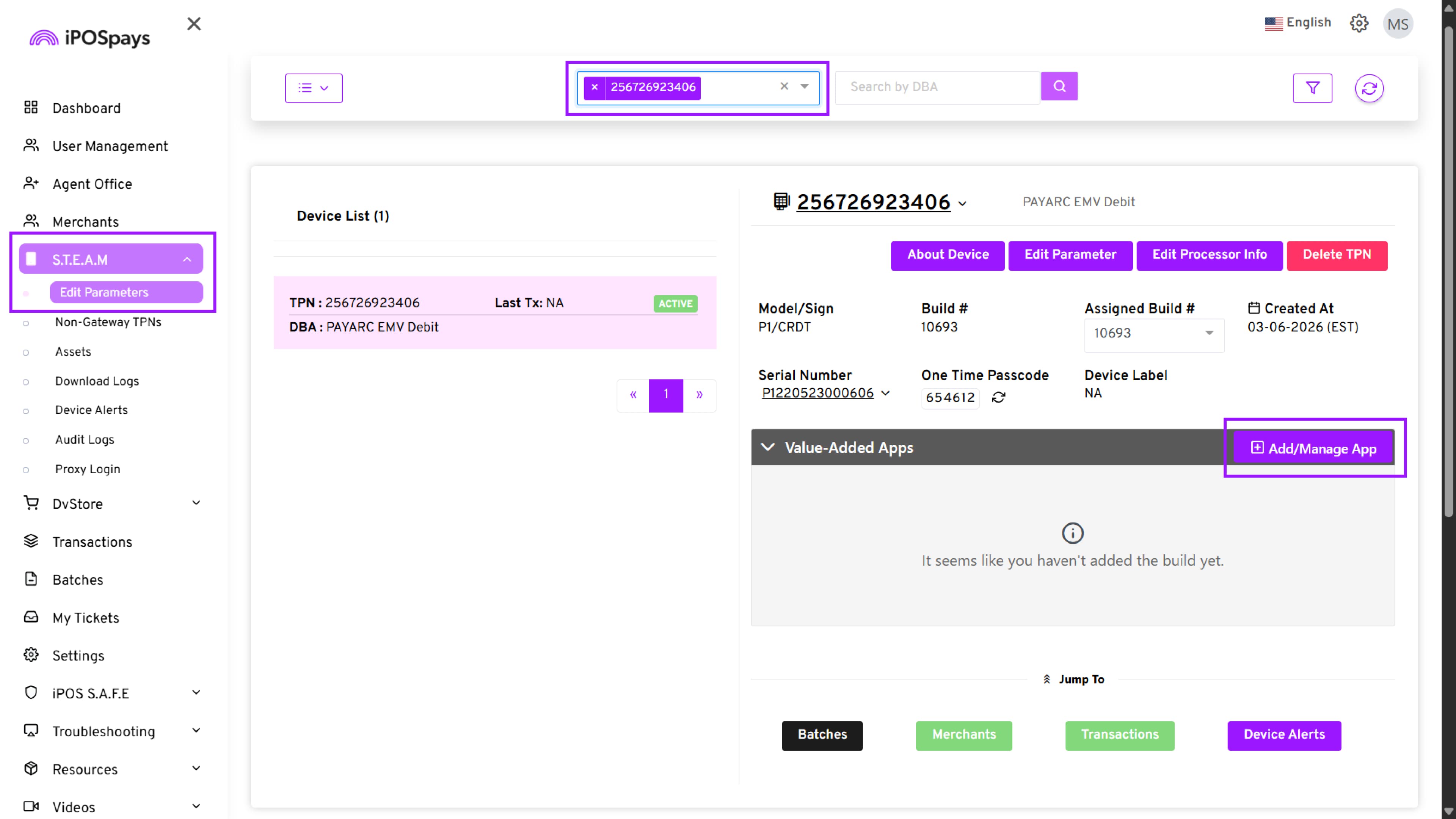
Navigate to: S.T.E.A.M → Edit Parameters
-
Search and select the required TPN.
-
Click Value-Added Apps.
-
Select Add/Manage App.
- From the list, enable DejavooExtra Loyalty & Rewards (Extra 360).
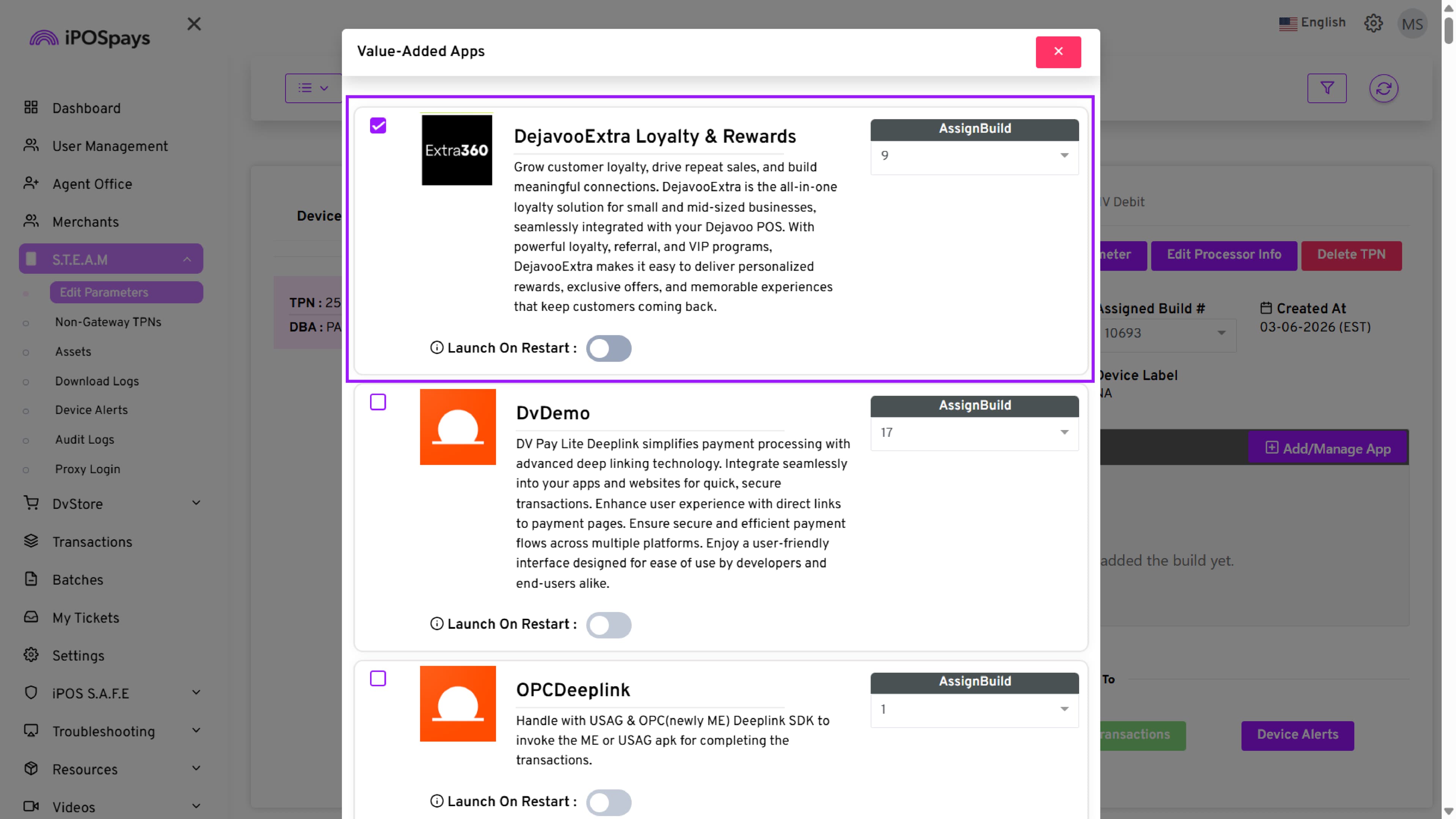
- Click Update to save the configuration
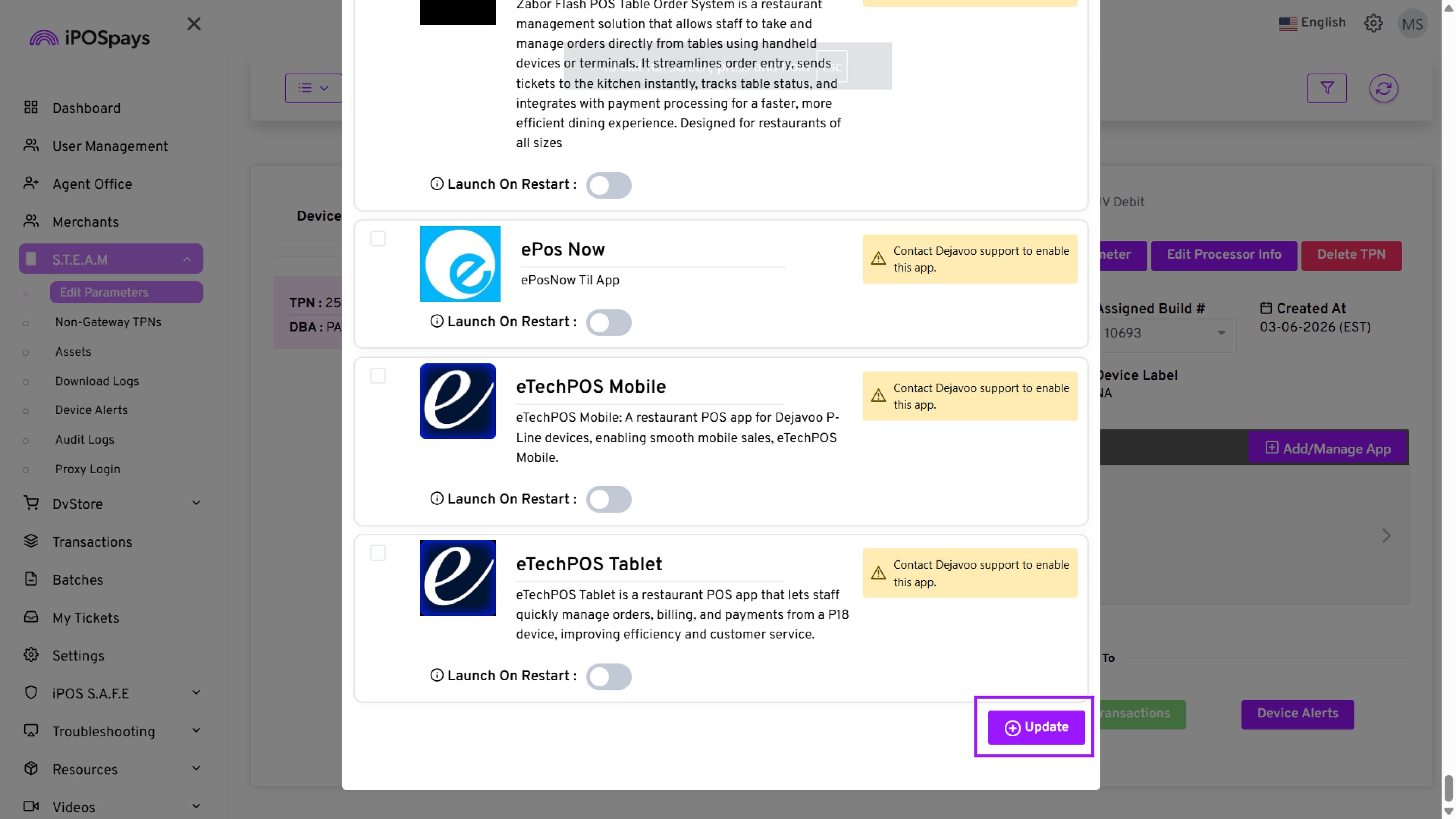
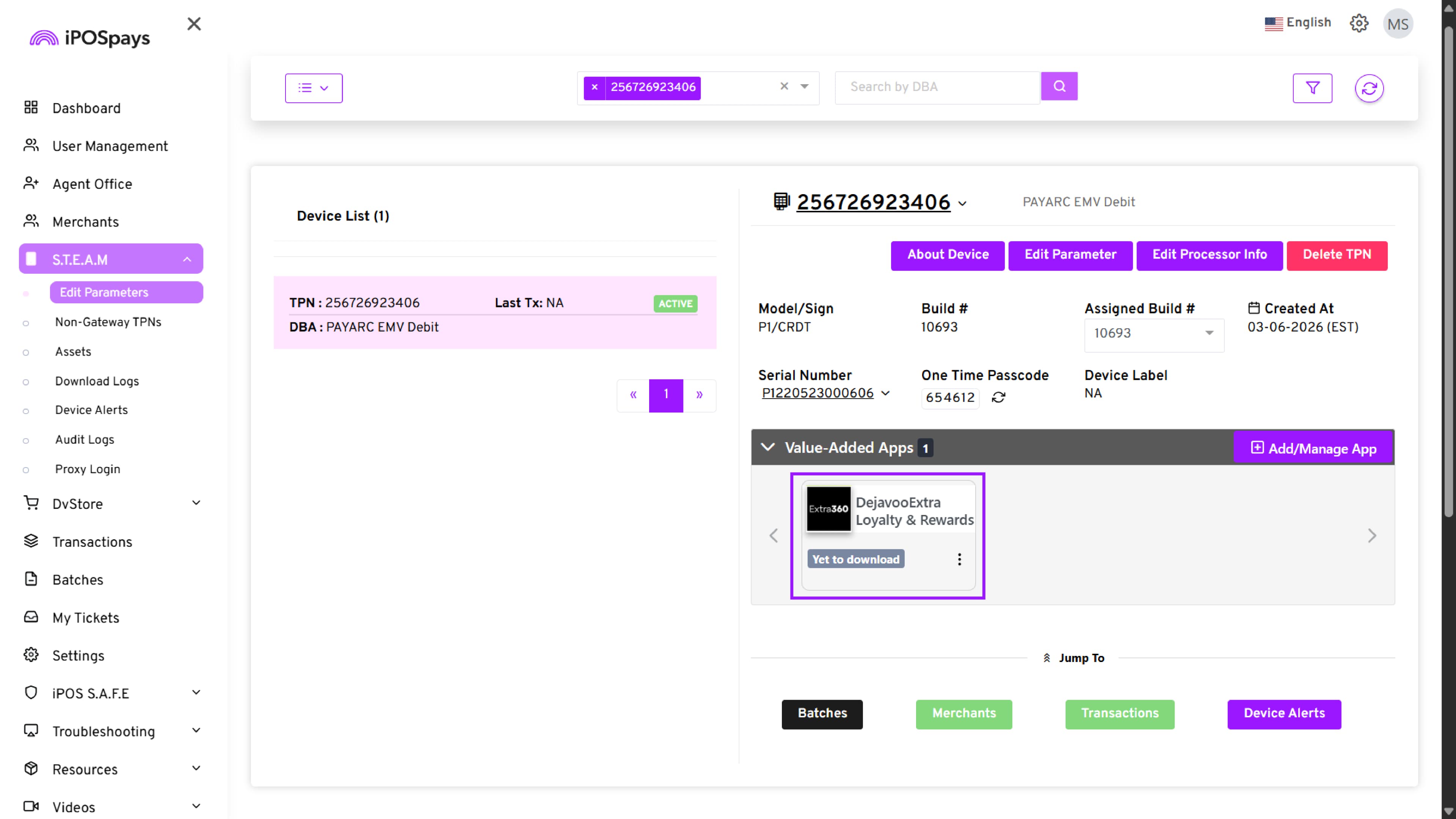
Both configurations are mandatory for the feature to function correctly.
Merchant Onboarding for Extra 360
-
Once the ISO enables Extra 360, the Merchant will receive an onboarding email.
-
The email contains a link to set up their Extra 360 account.
-
The merchant must complete the account setup using this link.
Access Dejavoo Extra on the Payment Terminal
After successful configuration and onboarding:
Steps to Access
-
Open the DvPayLite app on the payment terminal.
-
Enter the TPN on the terminal.
-
Perform a parameter update on the device.
-
Changes take effect after the update is completed.
-
Locate and tap the Extra 360 icon at the top of the screen.
-
The Extra 360 interface will open.
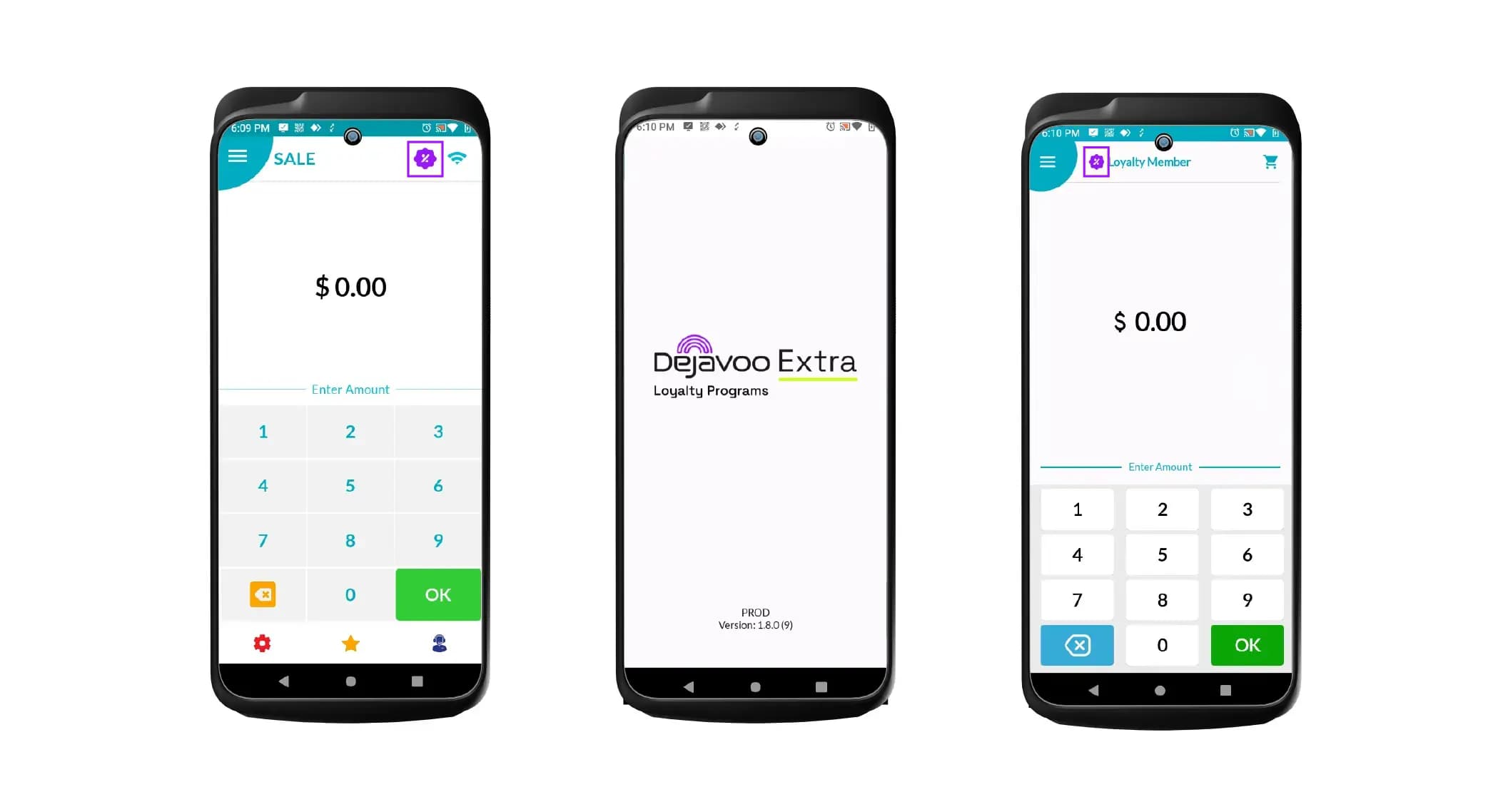
Transaction Behavior
-
Merchants can process transactions directly from the terminal using Extra 360.
-
All transactions will be reflected in the Extra 360 portal.
-
Only card transactions will be reflected in the iPOSpays portal (Transactions module).
To learn how to use Dejavoo Extra features such as customer enrollment, loyalty campaigns, rewards, and transaction processing, refer to the user guide videos: Dejavoo Extra – User Guide Playlist