Pockyt Integration on iPOSpays
The Pockyt integration extends iPOSpays payment capabilities for merchants using CloudPOS and Dejavoo payment terminals. Through this integration, merchants can accept payments via supported third-party digital wallets directly within their existing checkout flow.
By adding Pockyt, merchants gain additional, flexible payment options beyond traditional card transactions—helping improve checkout convenience and accommodate customer preferences without changing their current iPOSpays setup.
Feature Compatibility
-
Minimum Required POS Build: 10145
-
Supported Processors: Not applicable
-
Supported Fee Types: Not Applicable
-
Supported Payment Methods: PayPal & Venmo
-
Supported Transaction Types: Sale, Refund & Void
-
Supported Terminals: Dejavoo P series and CloudPOS (Virtual Terminal)
Where is it Available?
-
CloudPOS and POS terminals
-
Send Payment Link and Generic Hosted Payment Page (Works on the classic and redesigned payment pages)
Prerequisites & Requirements
-
The merchant must be registered with Pockyt to obtain credentials. Contact your Dejavoo sales executive for assistance.
-
The merchant must have a valid CloudPOS or Standalone P Series TPN and be onboarded as a merchant admin on iPOSpays.
How to Enable This Feature on iPOSpays
Step 1 – Enable Pockyt for Merchant
-
Log in to the iPOSpays portal with an ISO account.
-
Go to the Merchants module and search for the target merchant.
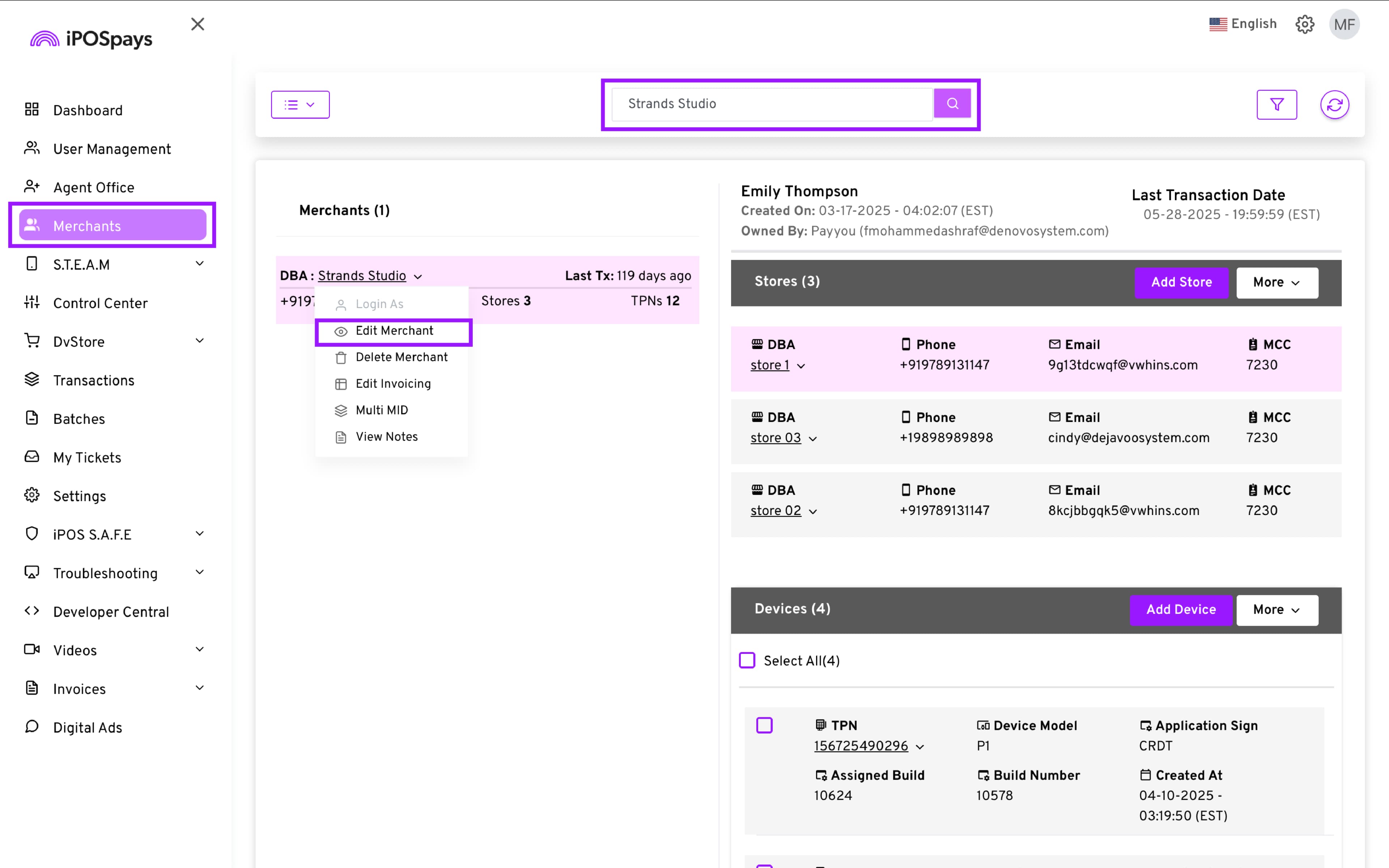
- Click on the DBA → Edit Merchant → Integrations → Pockyt → Save.
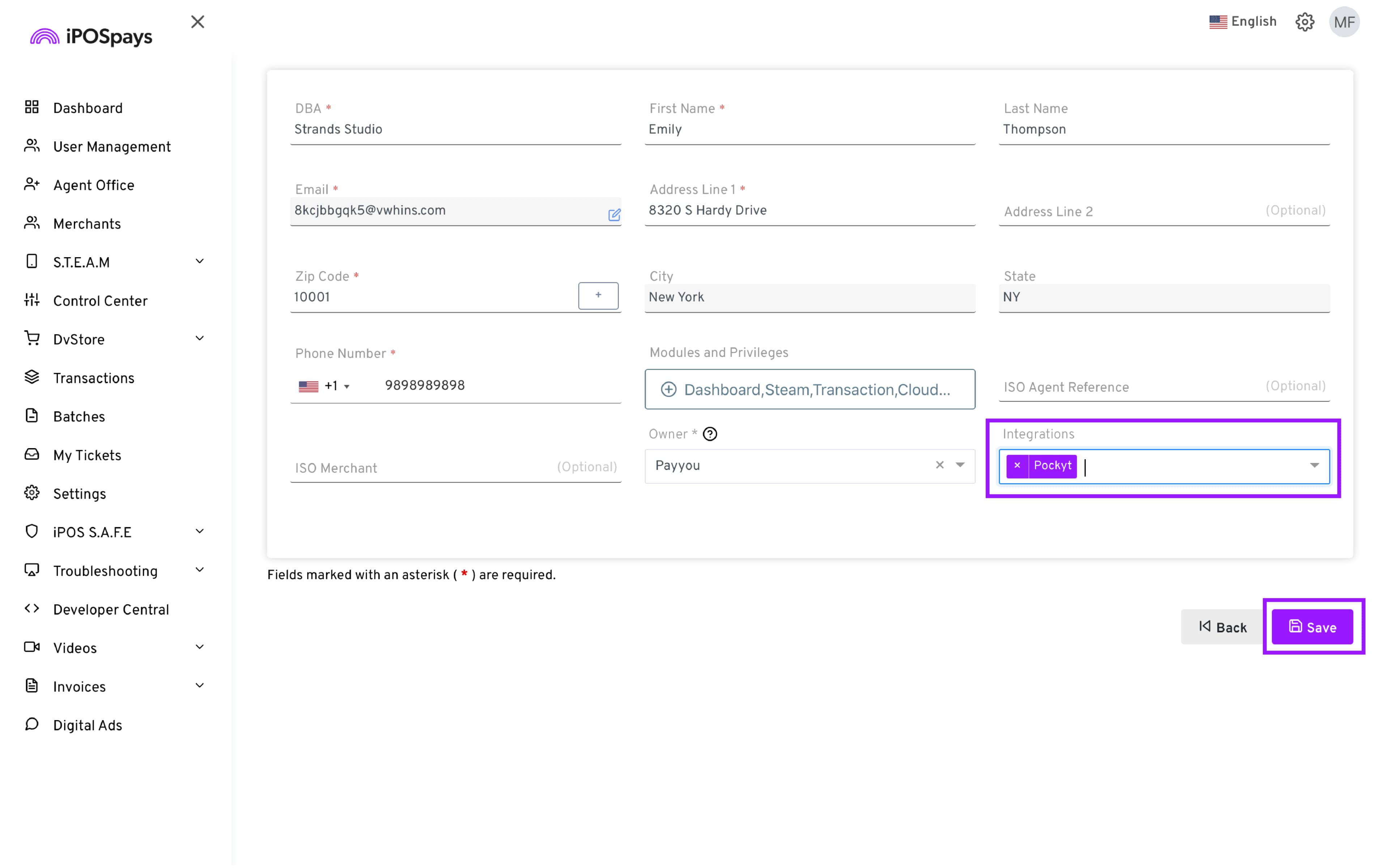
- Provide the merchant with their Pockyt credentials (Merchant ID, Store ID, Store Token).
Step 2 – Merchant Configuration
-
Log in to the merchant portal.
-
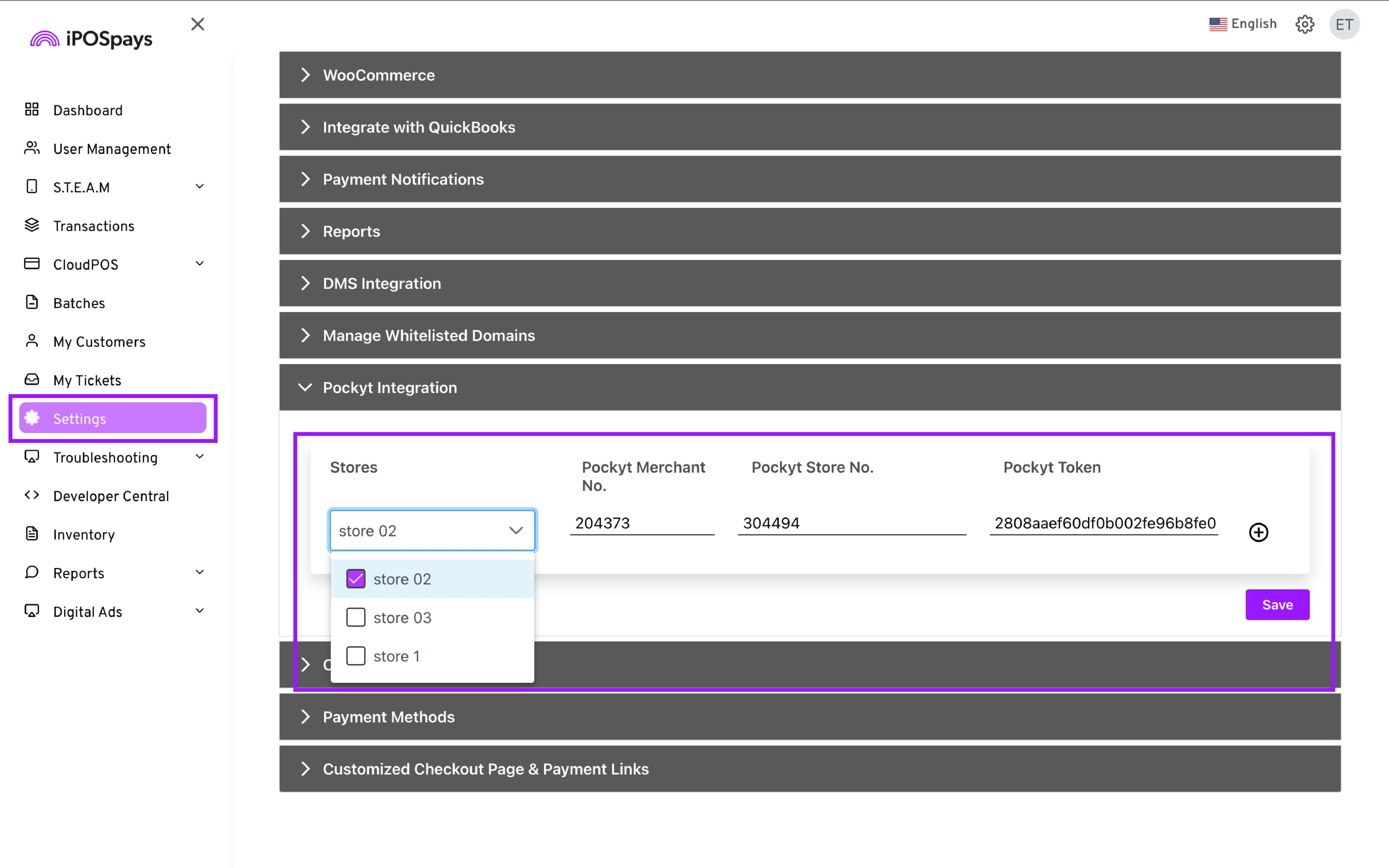
Go to Settings → Pockyt Integration.
-
Enter the required credentials.
-
Optionally, click ⊕ to add multiple stores and assign unique credentials.
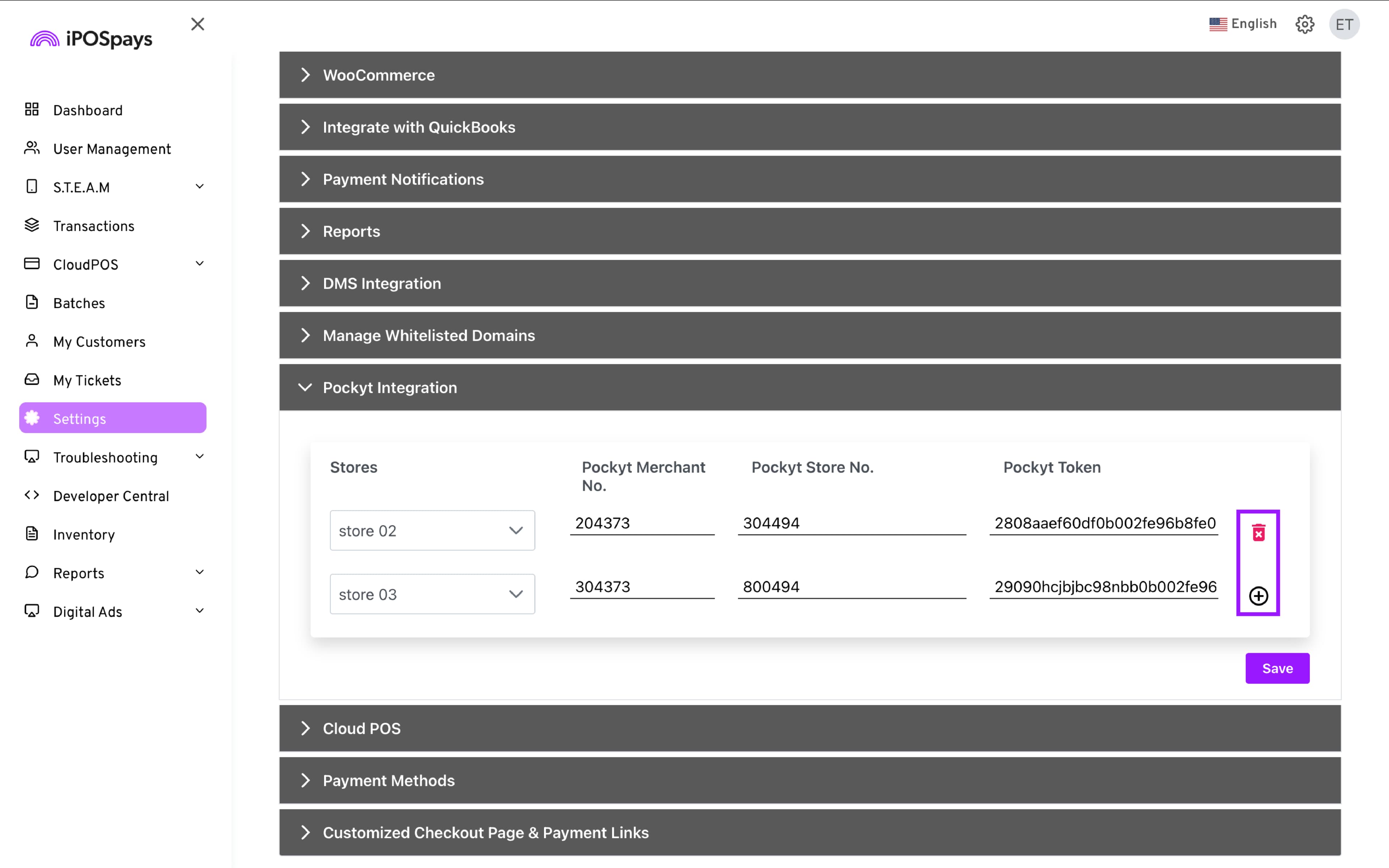
- Click Save for the changes to take effect.
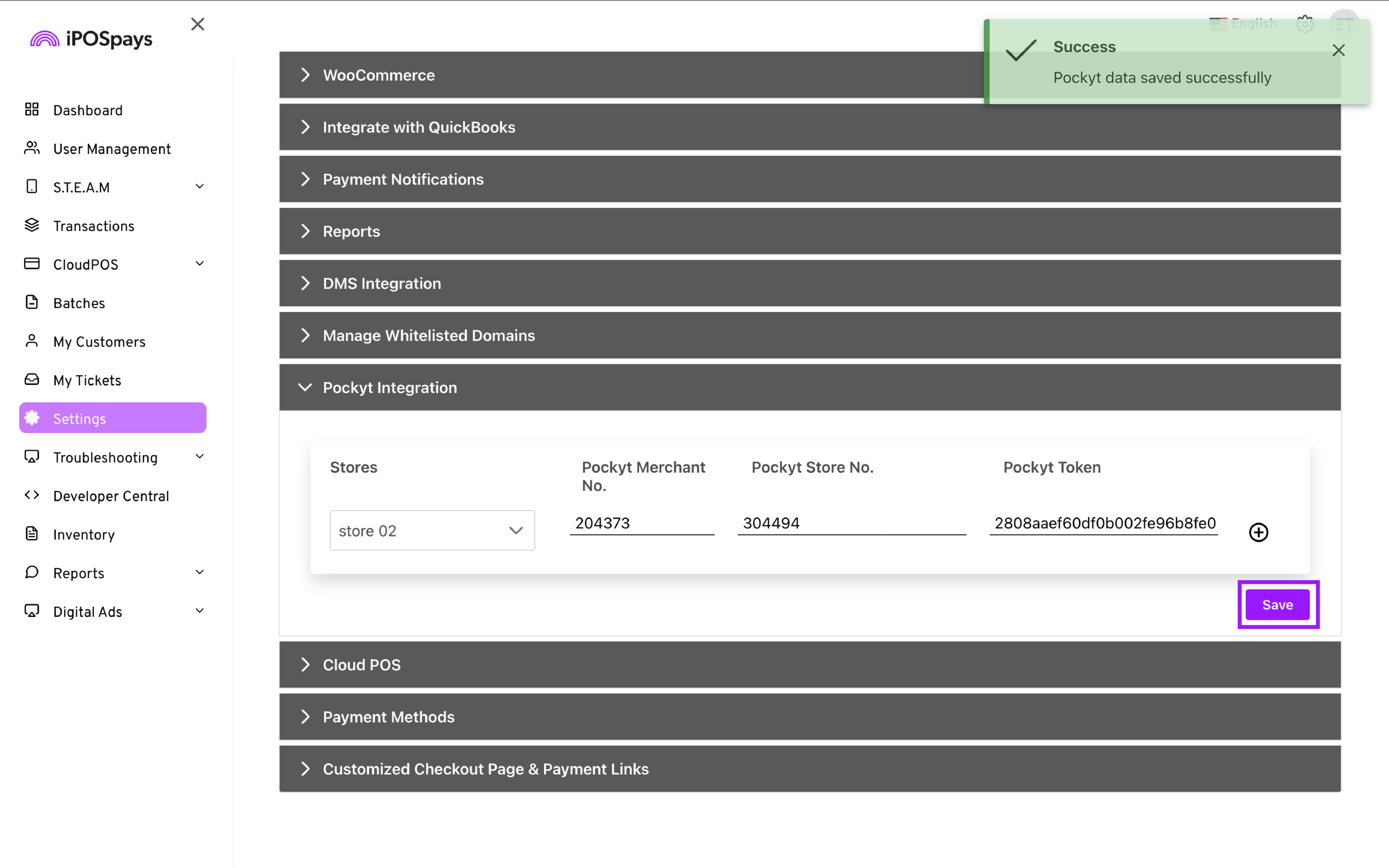
Step 3 – Enable in Terminal Parameters
-
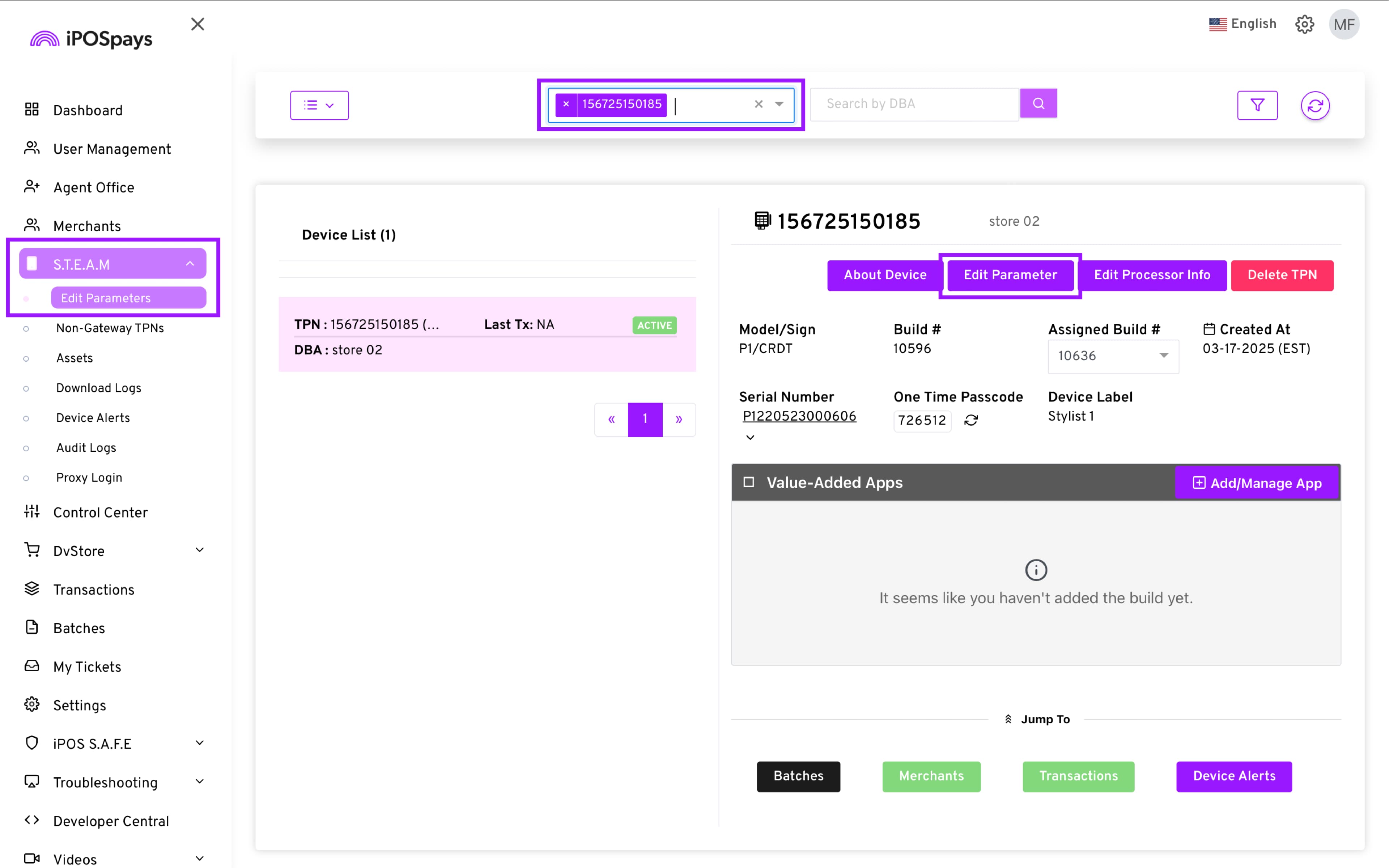
Log in to the iPOSpays portal using ISO credentials.
-
Go to S.T.E.A.M → Edit Parameter.
-
Search and select the target TPN → Edit Parameters.
- Under Integrations, enable Pockyt and select payment methods (PayPal or Venmo).
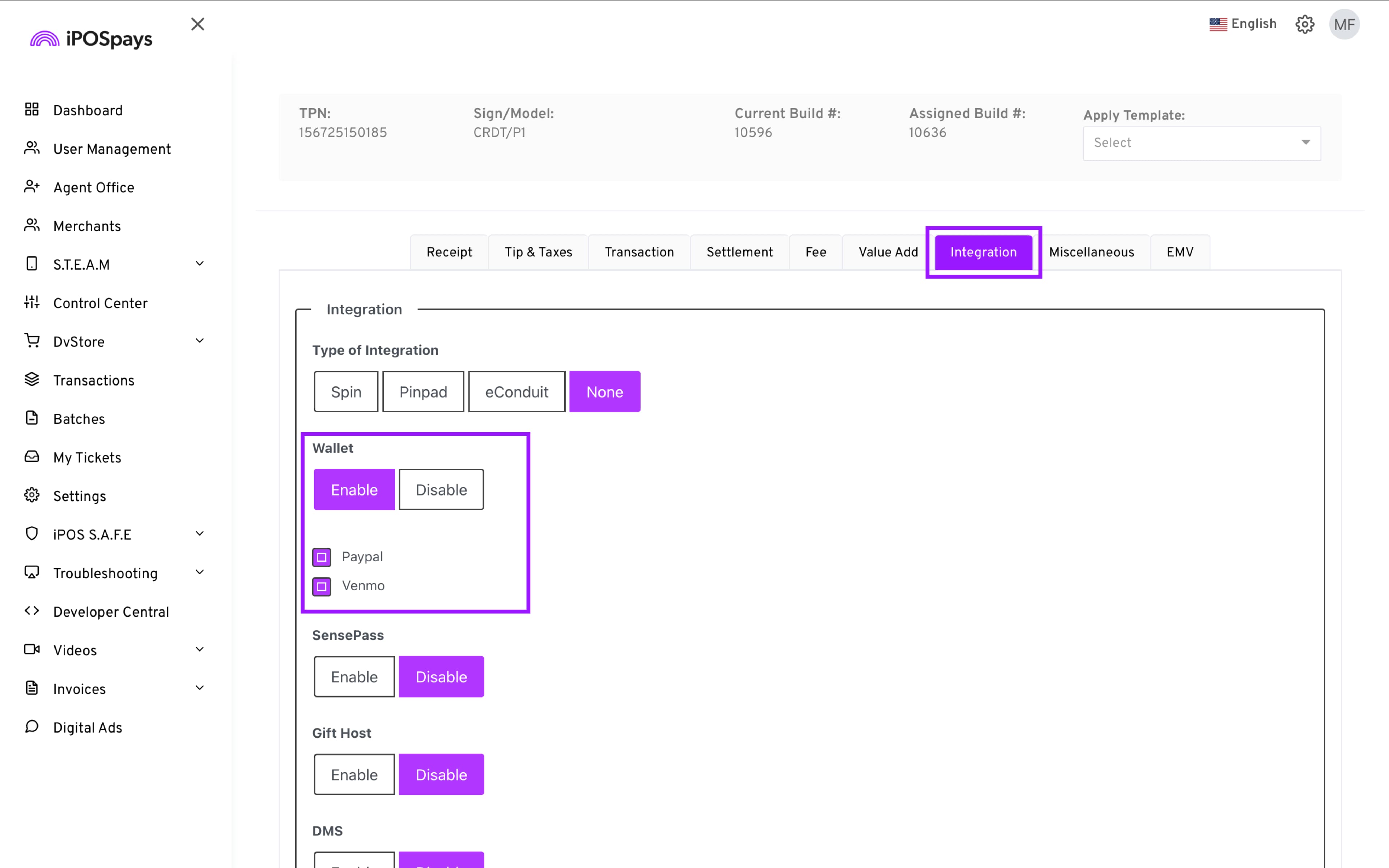
- Click Save and perform a parameter update on the terminal.
How to Use
On Payment Terminals
-
Enter the transaction amount on the idle screen and tap OK.
-
If tipping is enabled, the customer will be prompted to add a tip.
-
Transaction breakdown appears; note that PayPal and Venmo do not incur fees.
-
On the Sale screen, select Wallet → choose PayPal or Venmo.
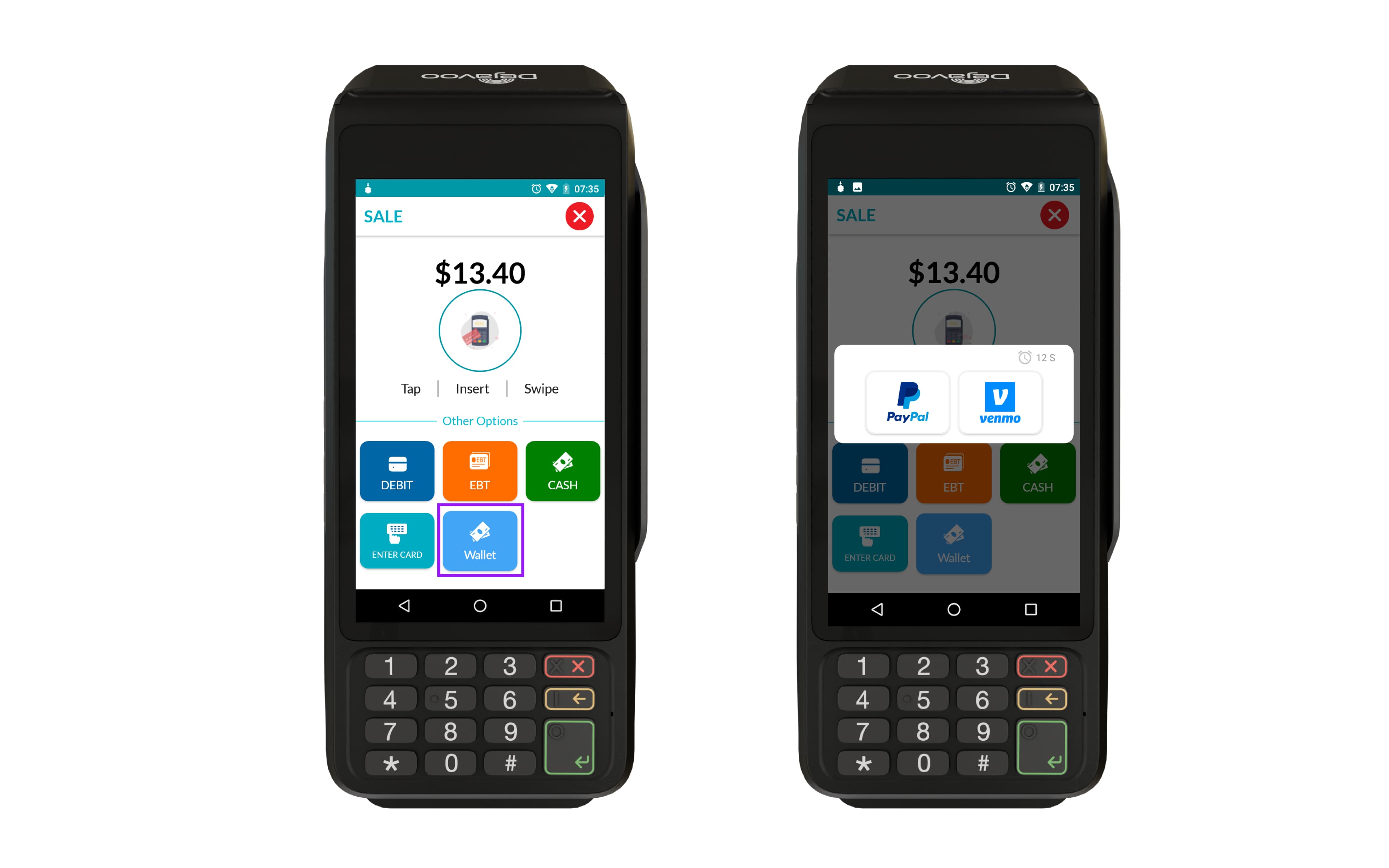
- Terminal displays a QR code or webview.

- Customer completes payment:
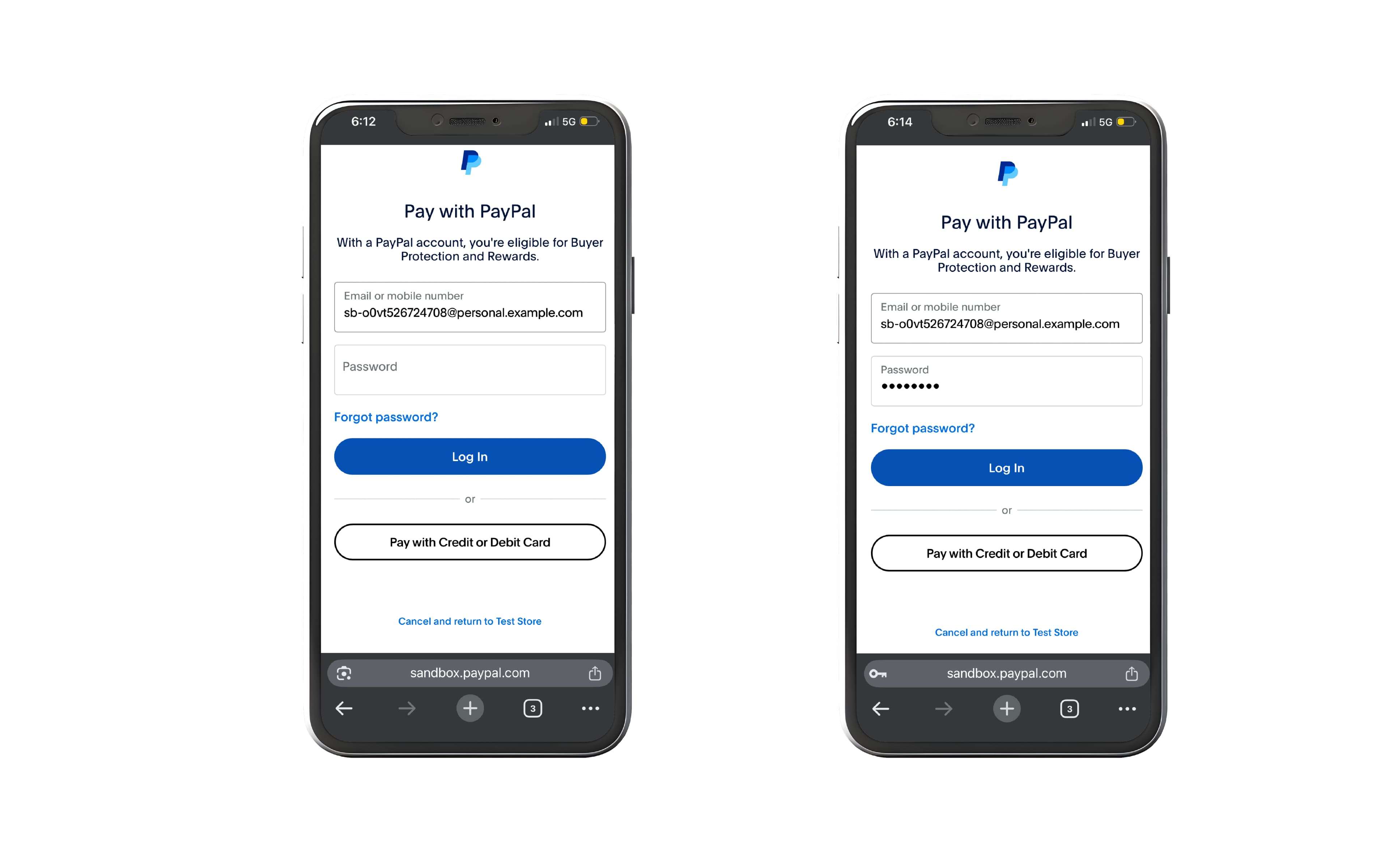
- Scan QR code → open browser → choose wallet → complete payment
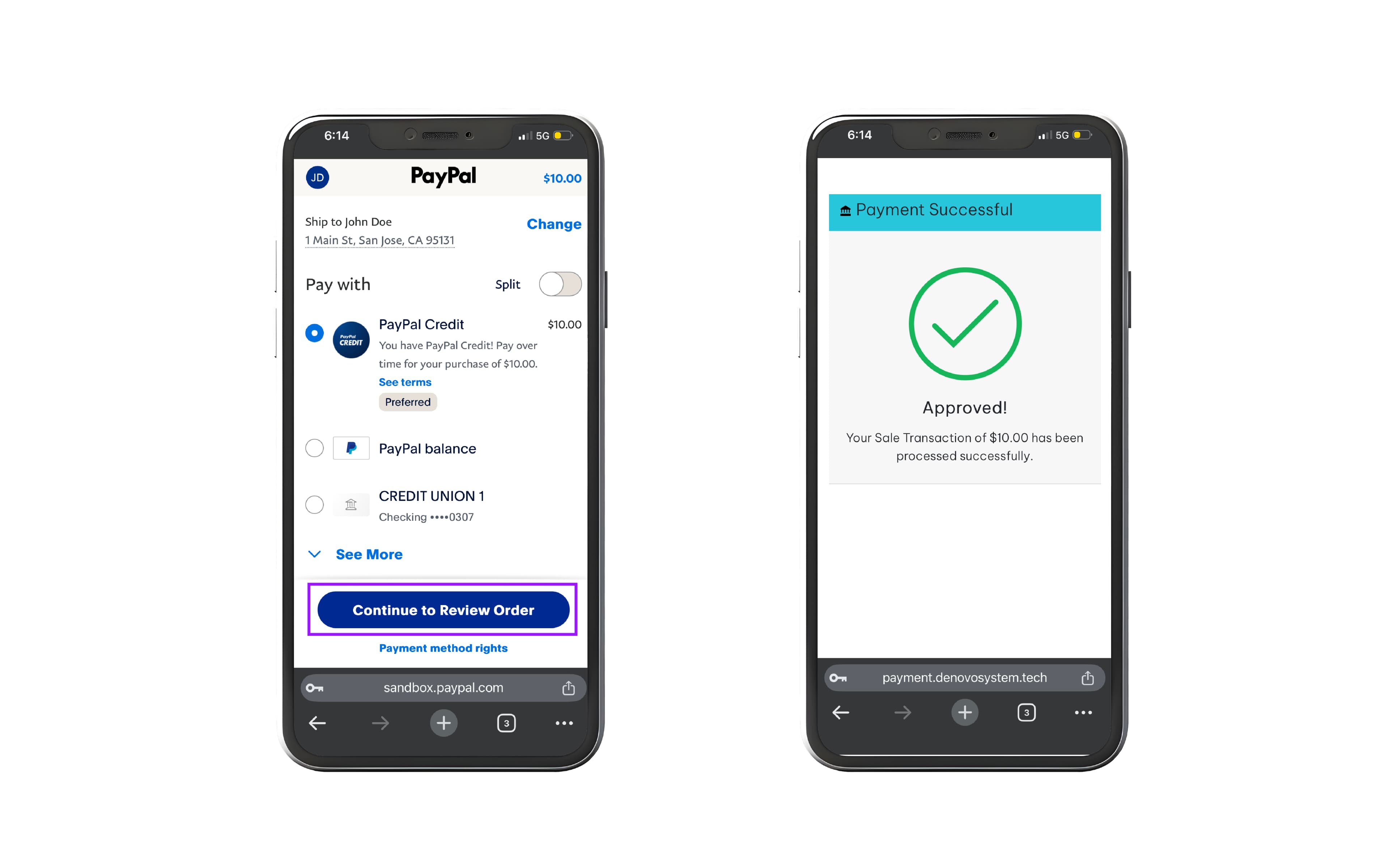
- Or pay directly in the webview
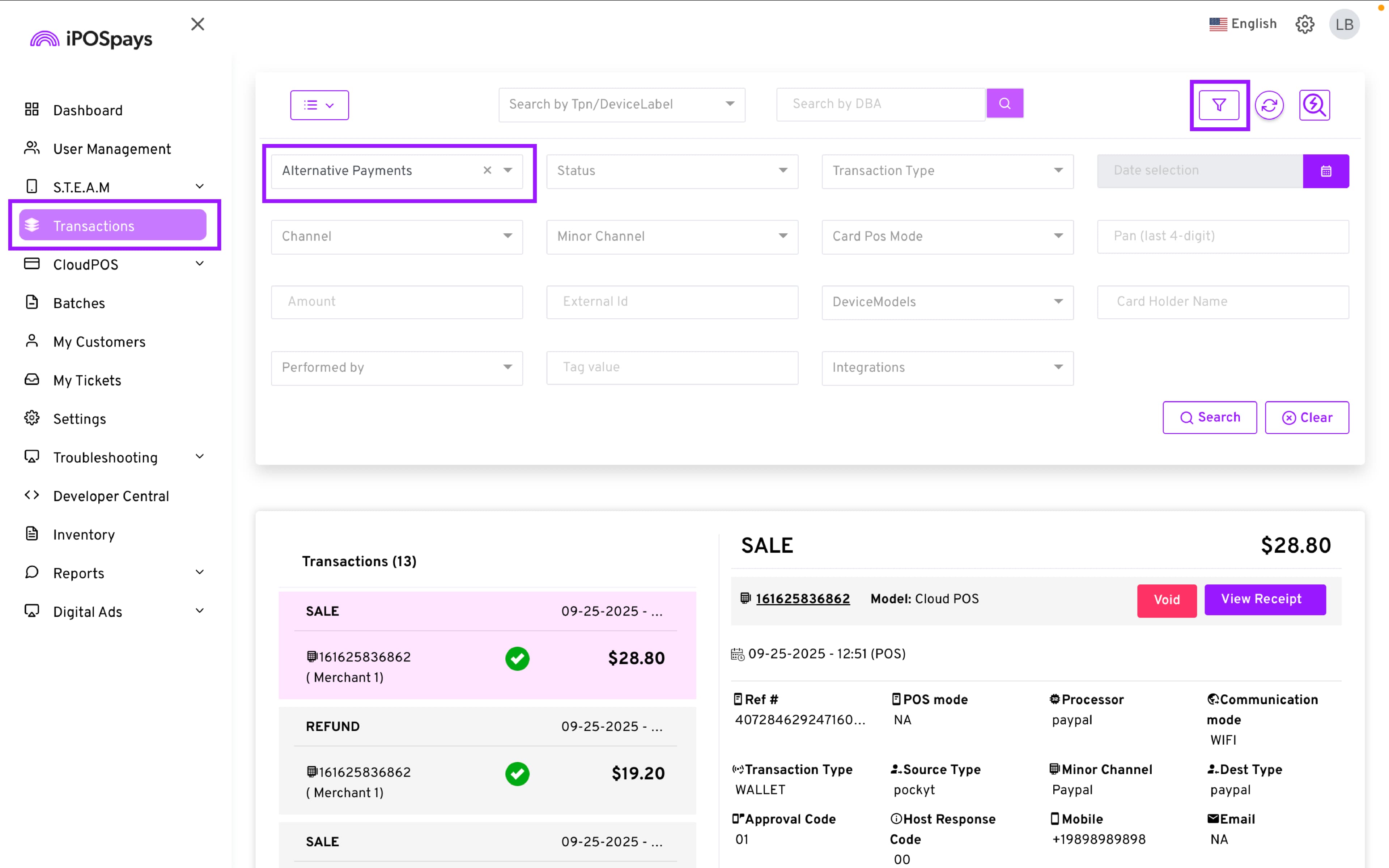
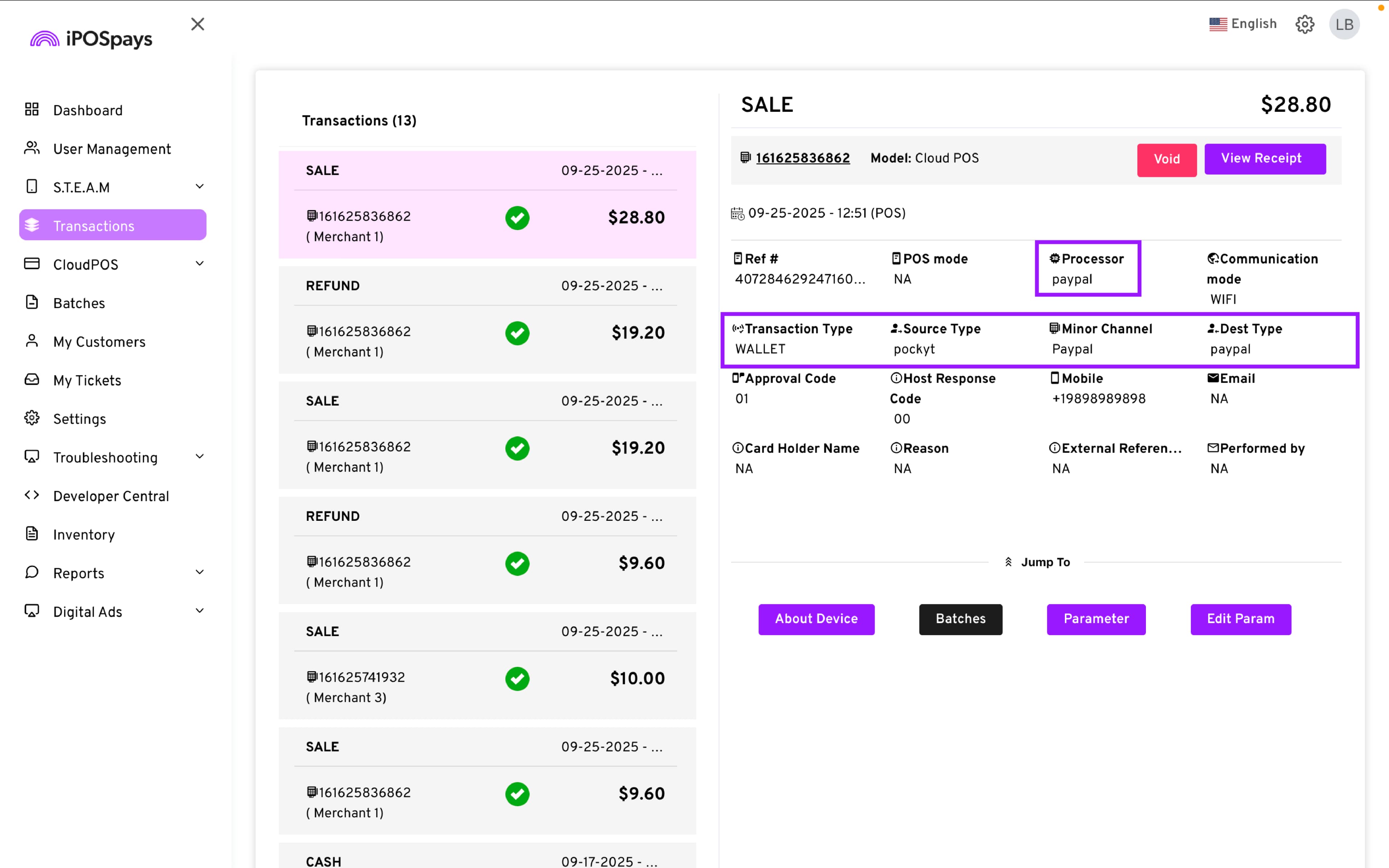
- Merchants can view transaction details in Transactions → Filter → Payments → Alternative Payments and perform void or refund if needed.
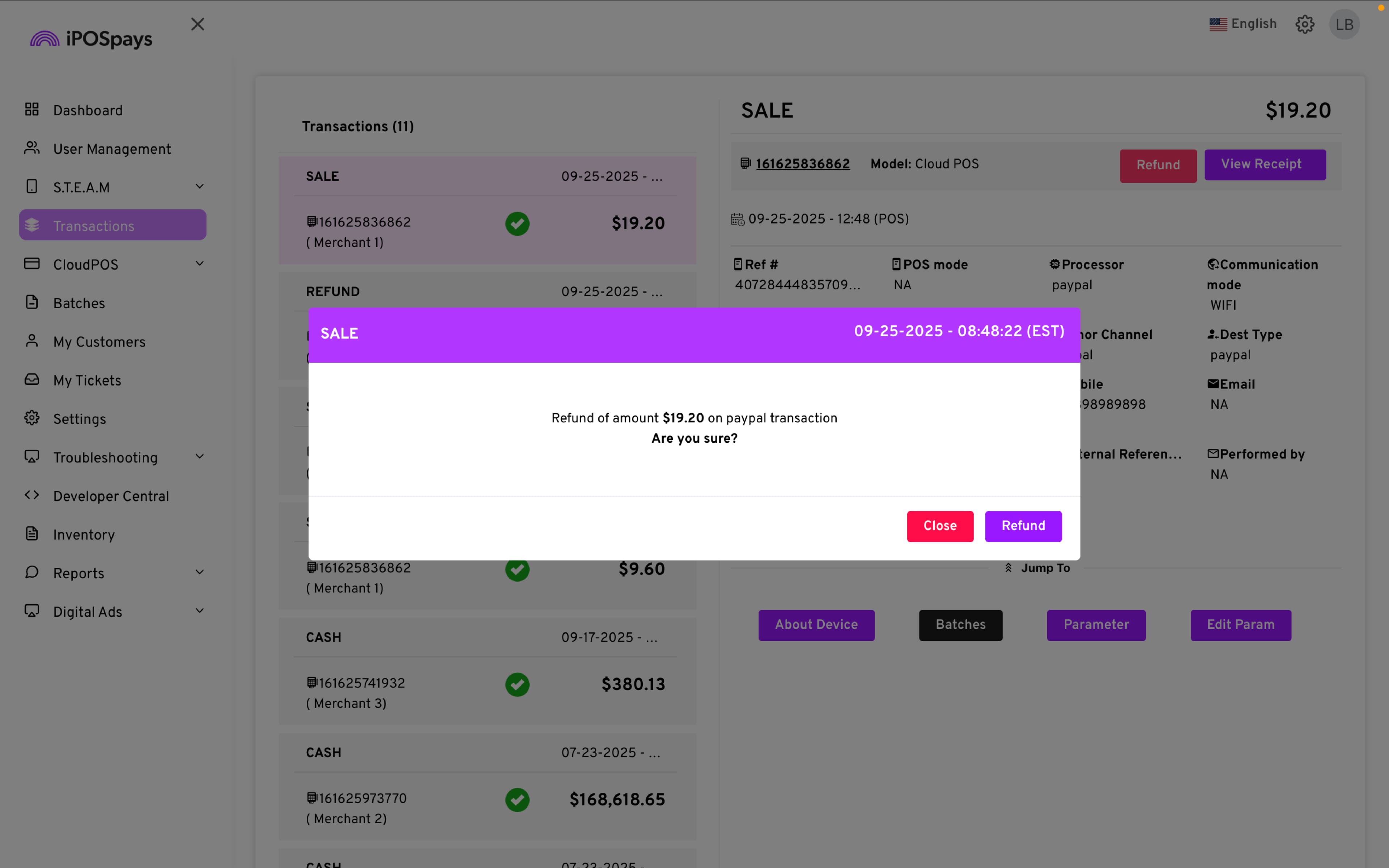
On CloudPOS (Virtual Terminal)
-
Log in to ipospays.com with a merchant account.
-
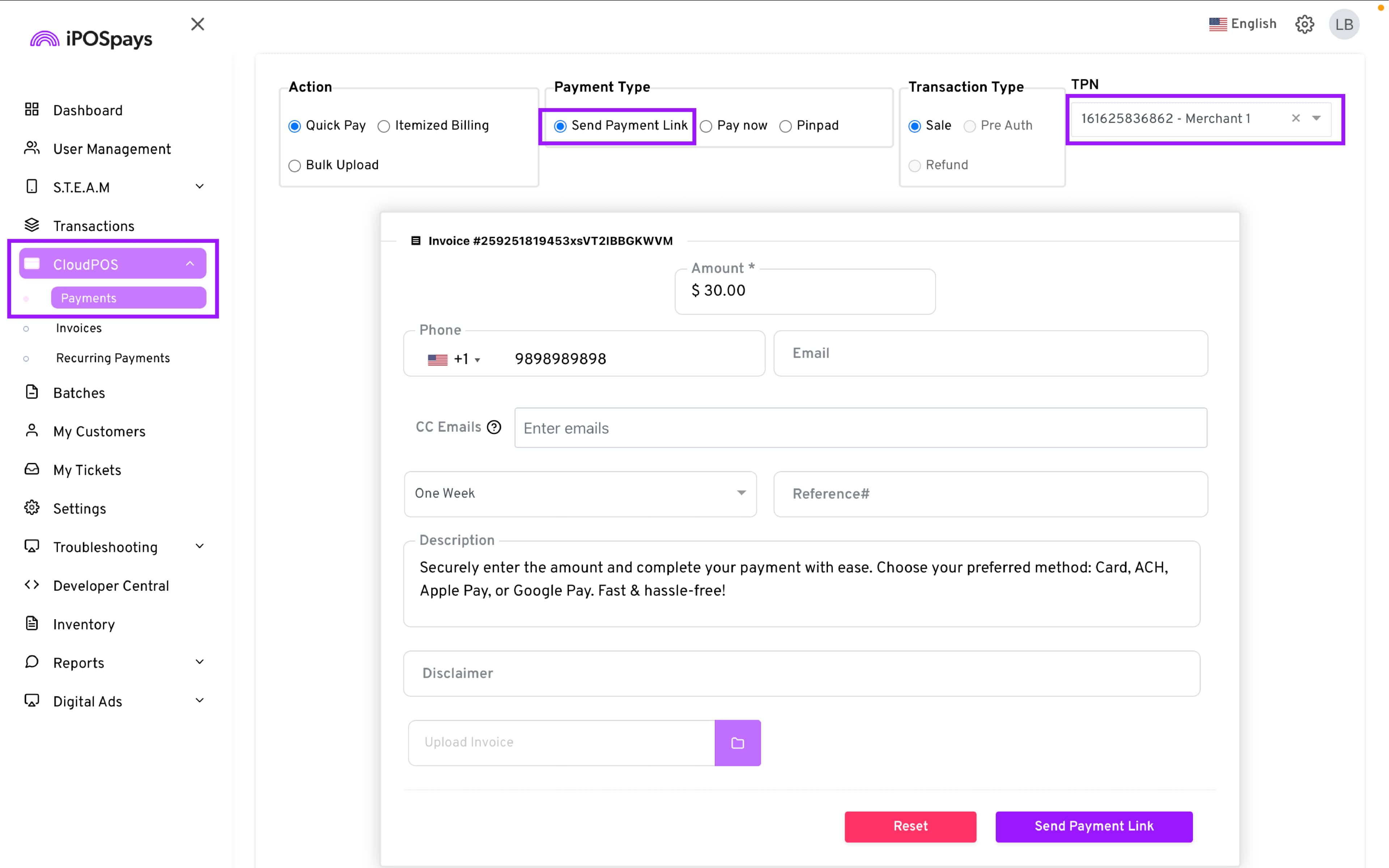
Navigate to CloudPOS → Payments.
-
Select the target TPN from the dropdown.
-
Configure the transaction:
-
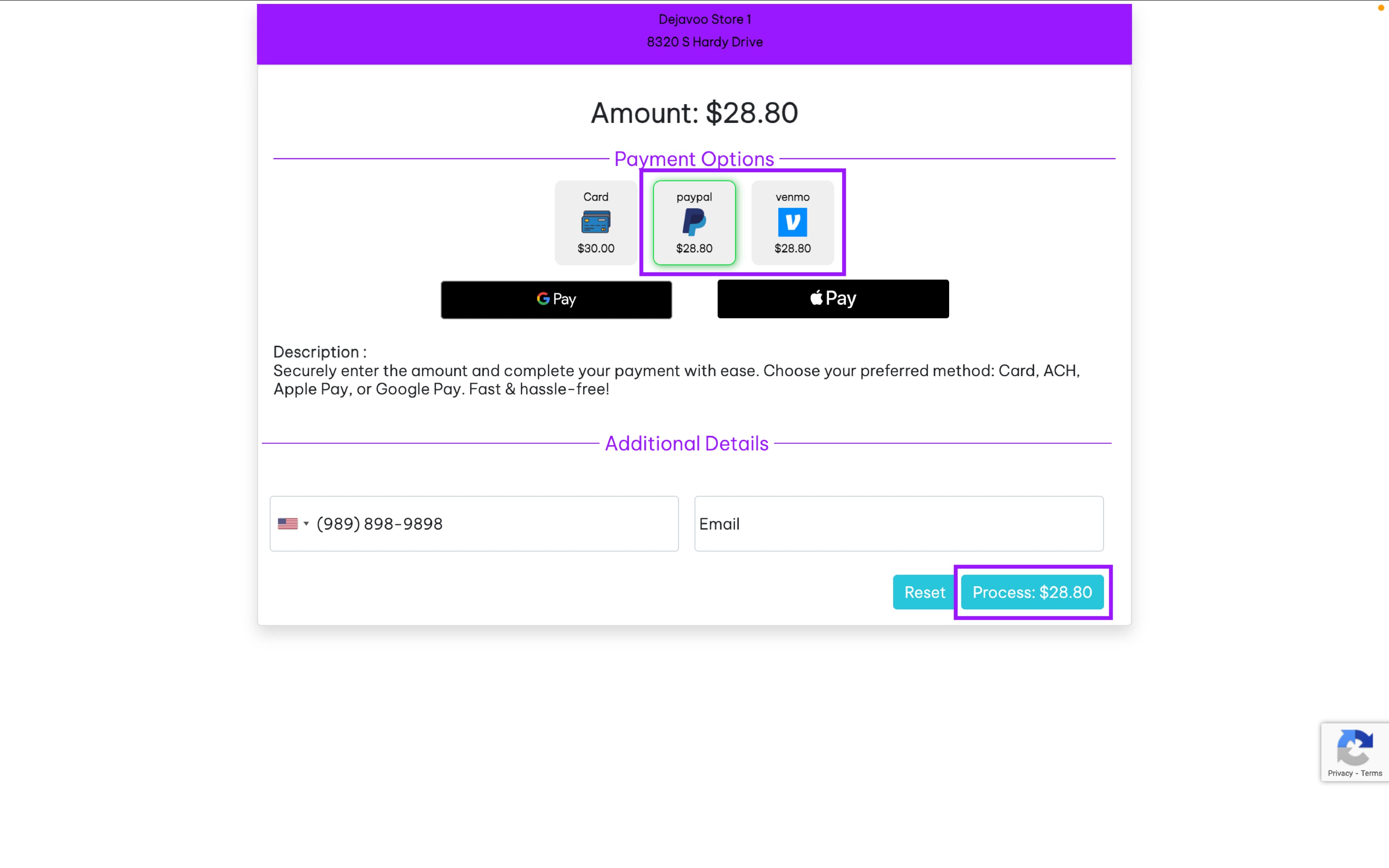
Payment Type: Send Payment Link
-
Transaction Type: Sale
-
Amount: Enter transaction amount
-
Customer Info: Enter phone number and email
-
Description: Optional
- Click Send Payment Link.
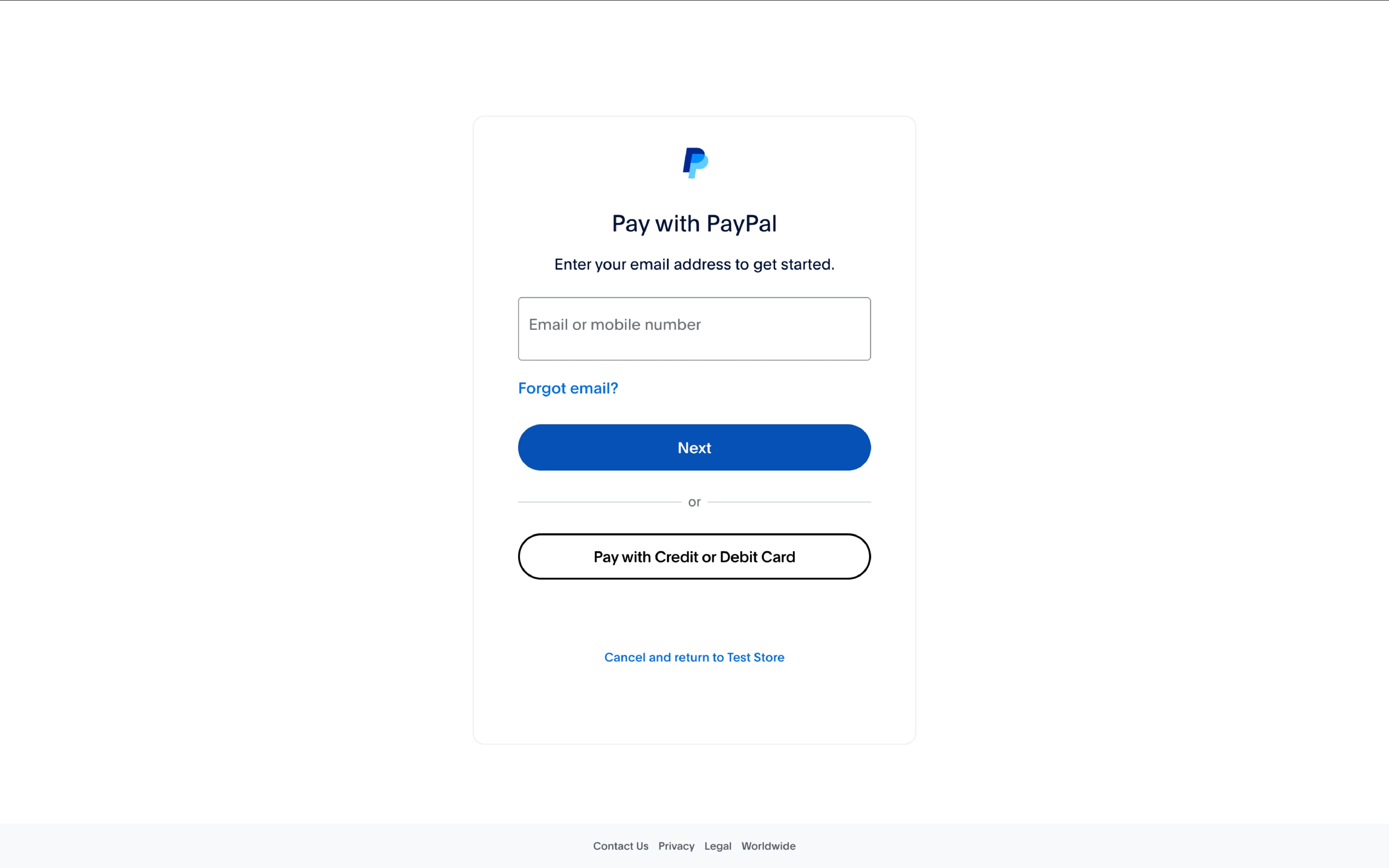
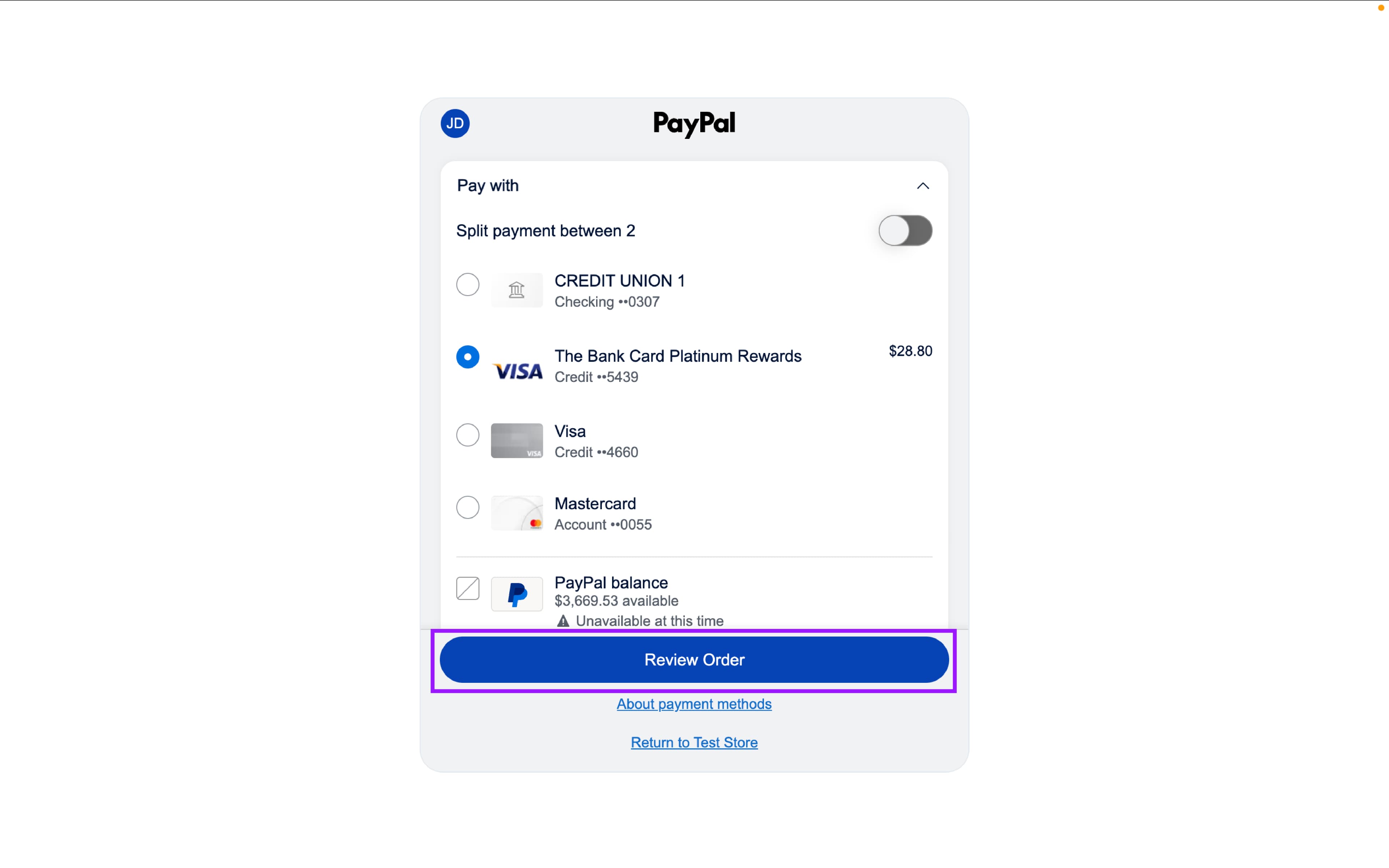
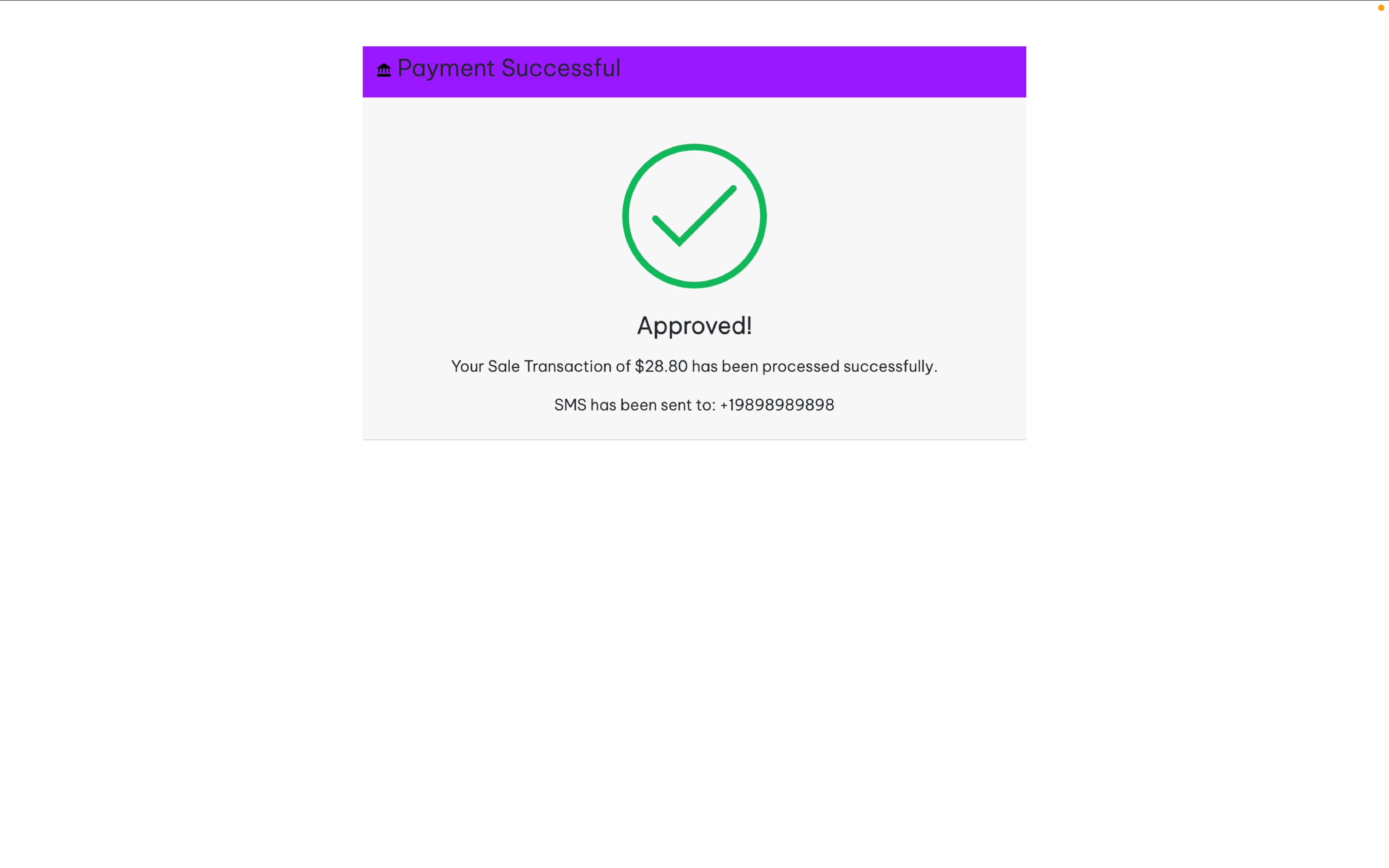
- Customer opens the link and completes payment using PayPal or Venmo, following the steps outlined above.