QuickBooks Integration on iPOSpays
The QuickBooks Integration feature in the iPOSpays Merchant Portal allows merchants to sync their payment transactions with their QuickBooks account seamlessly. Once enabled, all eligible transactions processed via Payment Terminals or CloudPOS will automatically be pushed to QuickBooks under the selected Service and Ledger. This integration eliminates manual bookkeeping, reduces errors, and ensures accurate financial reconciliation.
Feature Compatibility
-
Minimum Required POS Build: Not Applicable
-
Supported Platforms: iPOSpays Portal (Merchant Account)
-
Supported Payment Methods:
-
Card Transactions
-
Bank(ACH)
-
-
Syncs With Transactions Processed Via:
-
CloudPOS (Virtual Terminal)
-
Dejavoo Gateway Powered Payment Terminal
-
API
-
iPOSgo! (iOS & Android)
-
-
Supported QuickBooks Version: QuickBooks Online
Key Features
-
Automatically syncs payment terminal transactions to QuickBooks.
-
Allows merchants to map a Service and Ledger for all transactions.
-
CloudPOS transactions allow additional customization per transaction.
-
Option to include either Base Amount only or Total Amount (including tips & taxes).
-
Seamless integration with QuickBooks via OAuth login.
-
One-time setup that applies across all TPNs under the merchant account.
Prerequisites
1. Feature Enablement
QuickBooks Integration must be enabled for the merchant account and applies to all associated TPNs, including Payment Terminal (POS) TPNs and CloudPOS TPNs. If this feature is not enabled, contact your ISO to activate QuickBooks Integration for the merchant account.
2. Active QuickBooks Online Account
You must have:
-
A valid QuickBooks Online account
-
Active login credentials for authentication
-
Access permissions to connect third-party application
Enabling QuickBooks Integration for a Merchant (ISO)
Step 1: Log In to the iPOSpays Portal
Log in to the iPOSpays ISO Portal using your ISO credentials.
Step 2: Search and Select the Merchant
In the left menu, click Merchants. Use the search bar to find the desired merchant by entering the DBA, email address, phone number, State, or City.
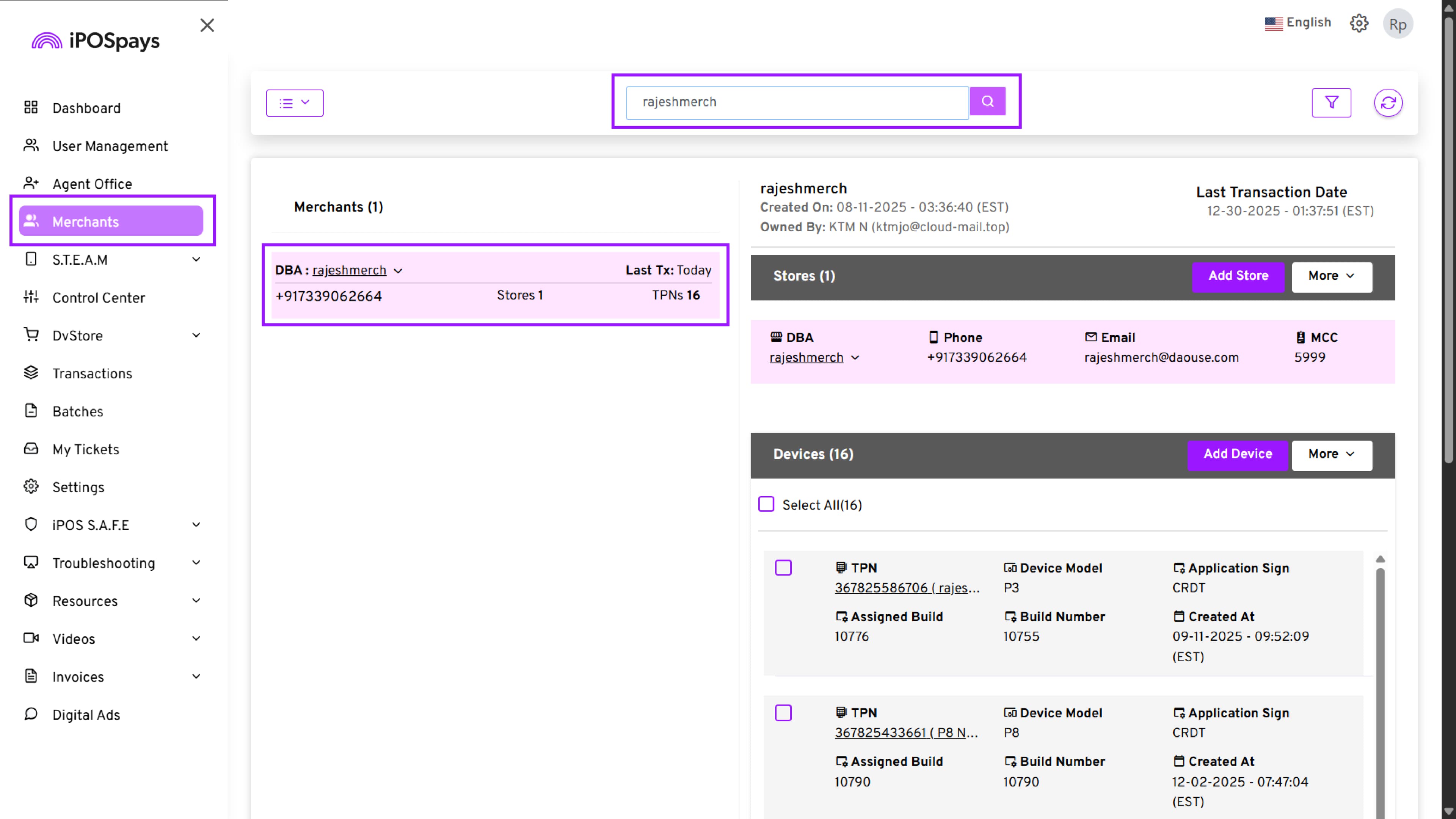
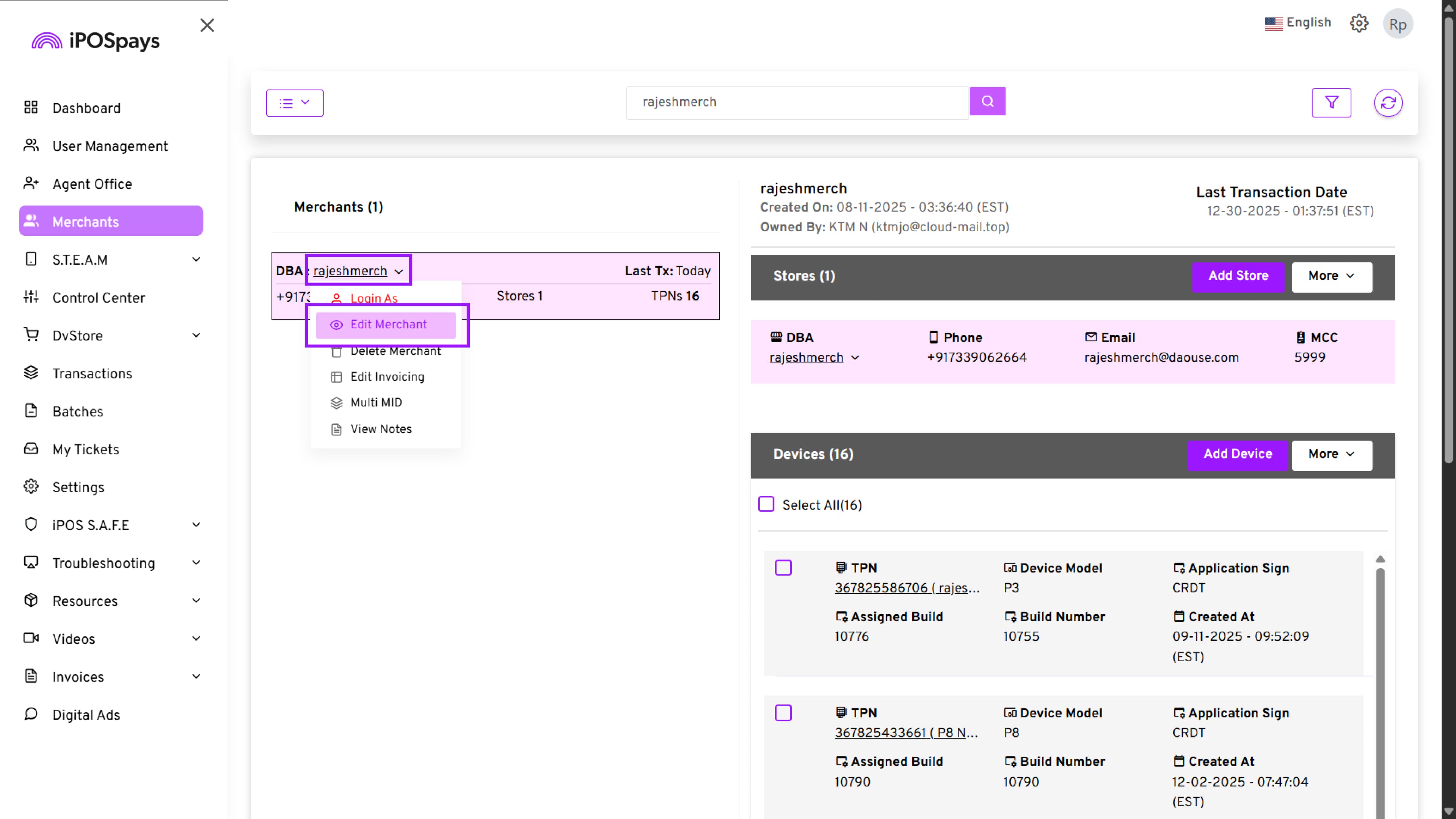
Step 3: Open Merchant Options
Click the dropdown arrow next to the merchant’s DBA name.
Step 4: Select Edit Merchant
From the dropdown list, click Edit Merchant to open the merchant information page.
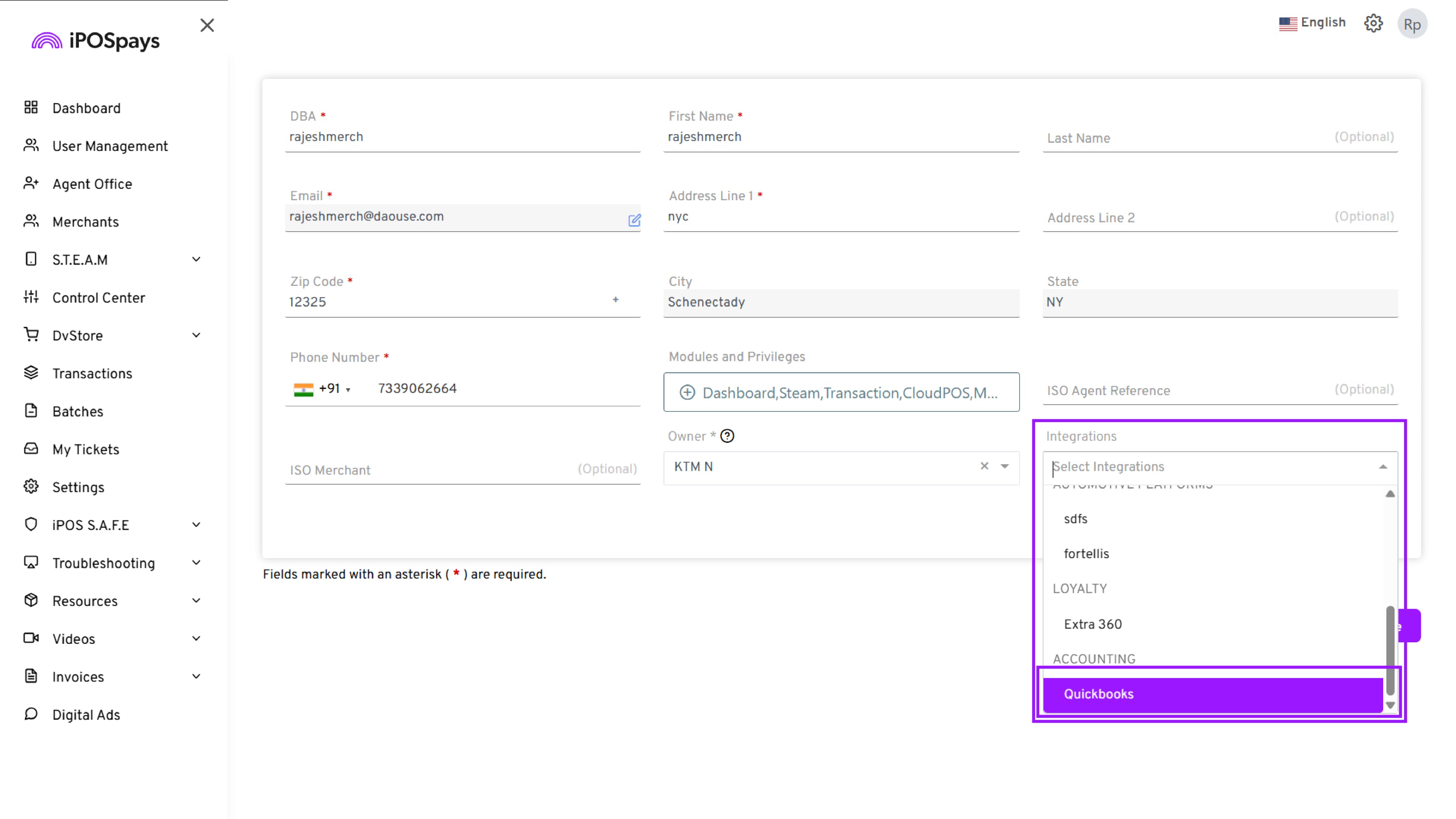
Step 5: Enable QuickBooks Integration
Under Integrations, click the dropdown menu and, under Accounting, select Quickbooks.
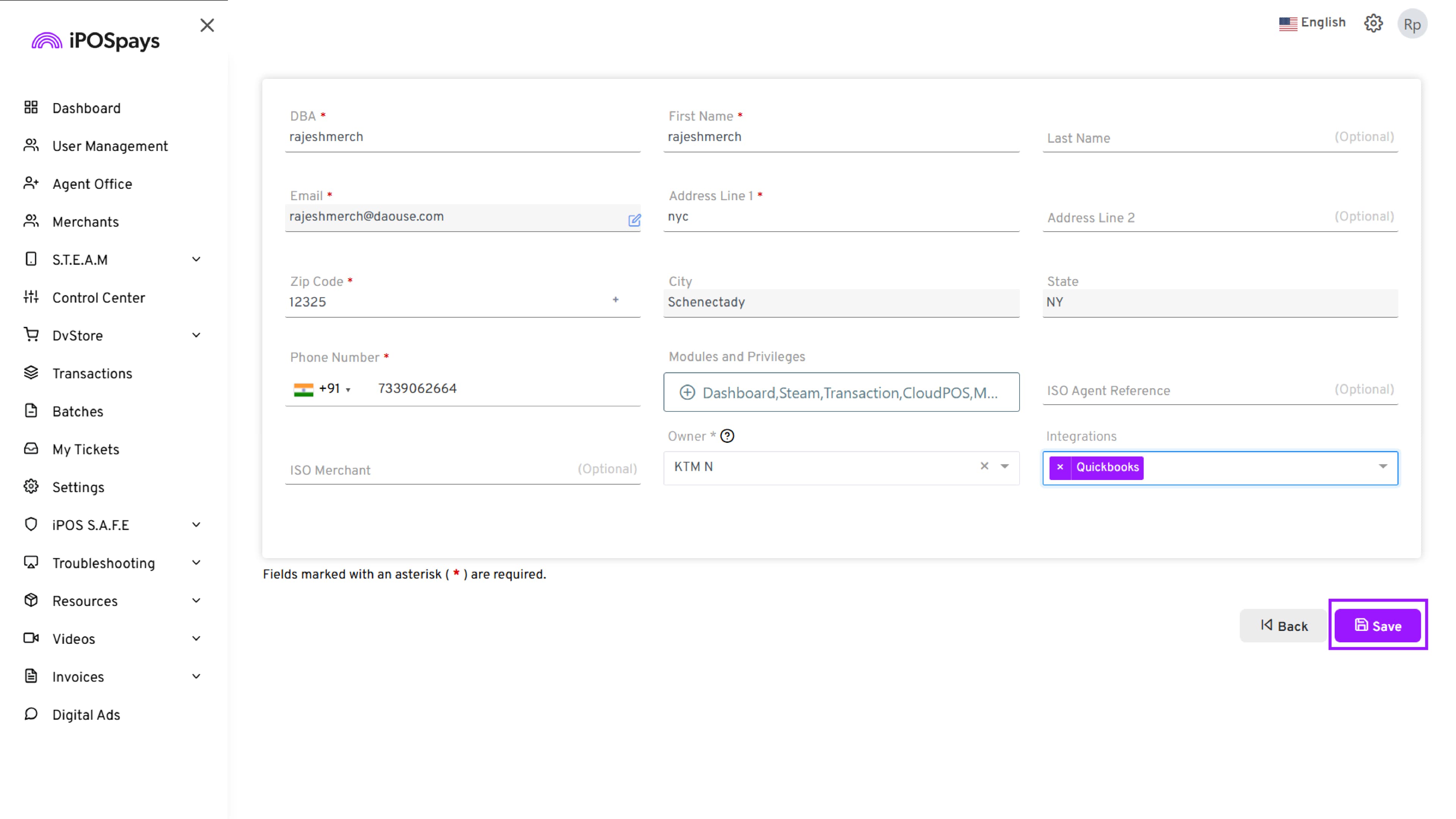
Step 6: Save Changes
Click Save to apply the integration permission to the merchant account.
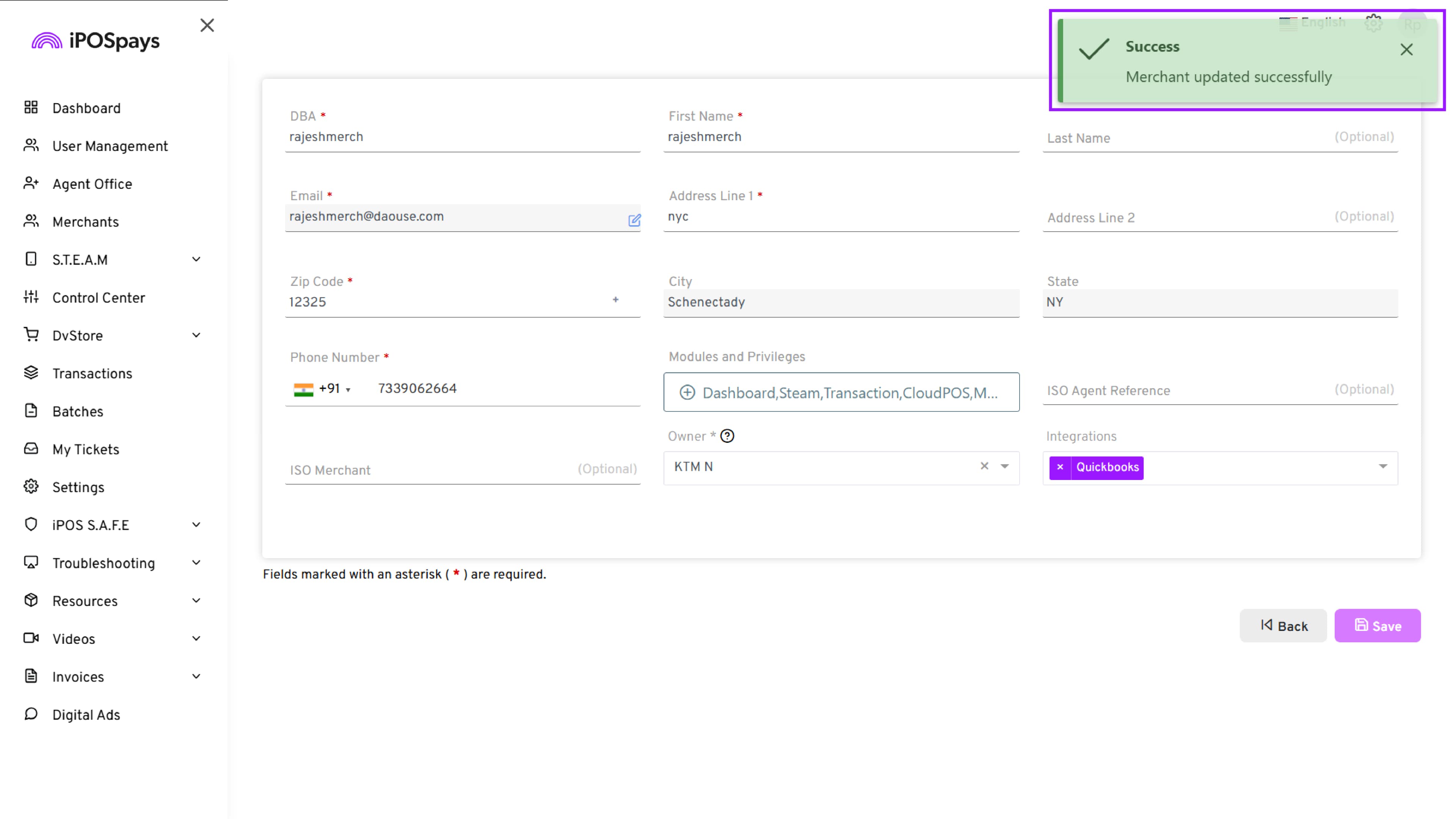
How to Integrate QuickBooks with iPOSpays
Step 1: Log In to Your Merchant Account
Log in to the iPOSpays Merchant Portal using your merchant credentials.
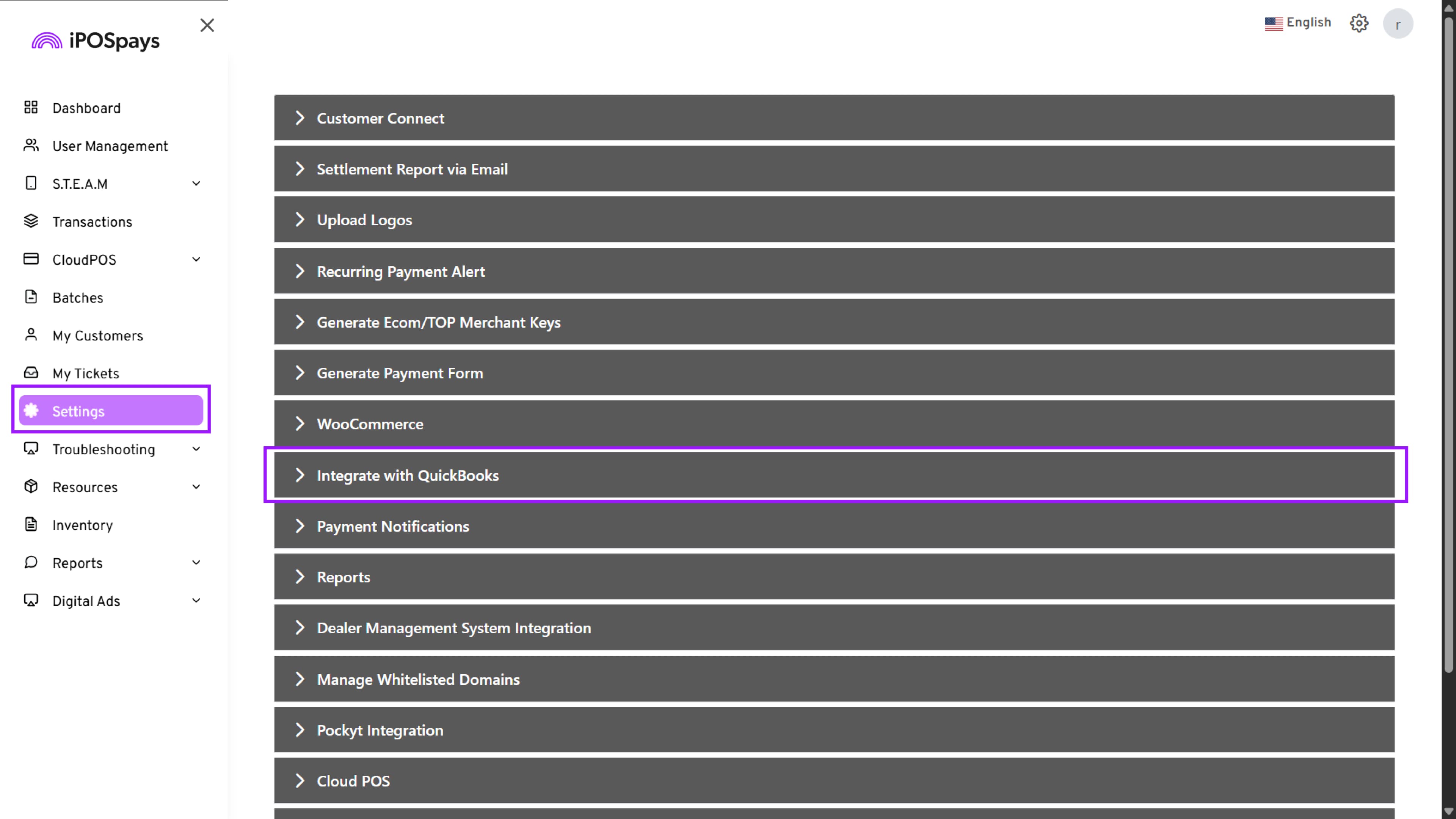
Step 2: Navigate to Settings
Go to: Settings → Integrate with QuickBooks
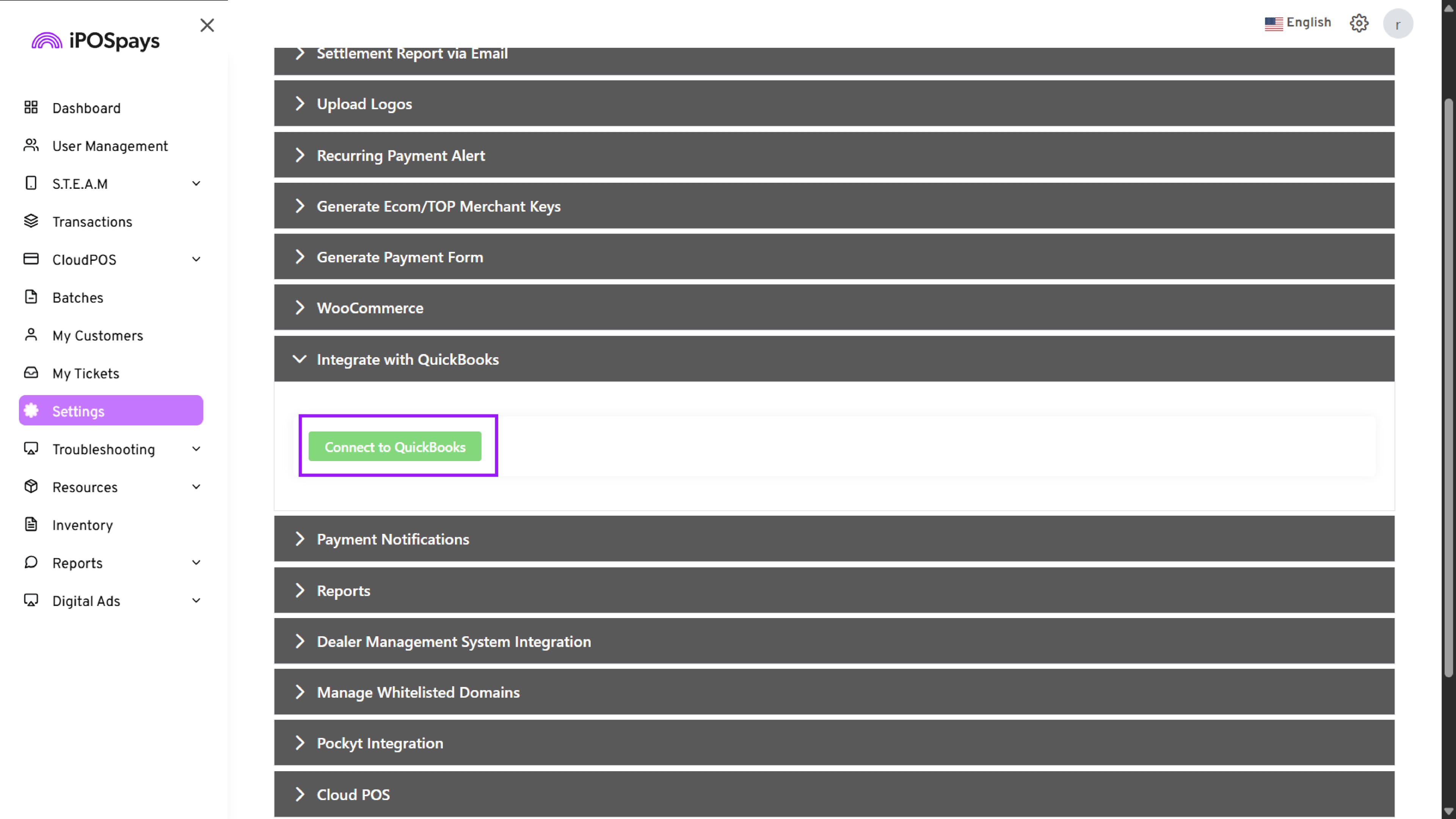
Step 3: Enable Integration
Click Connect to QuickBooks
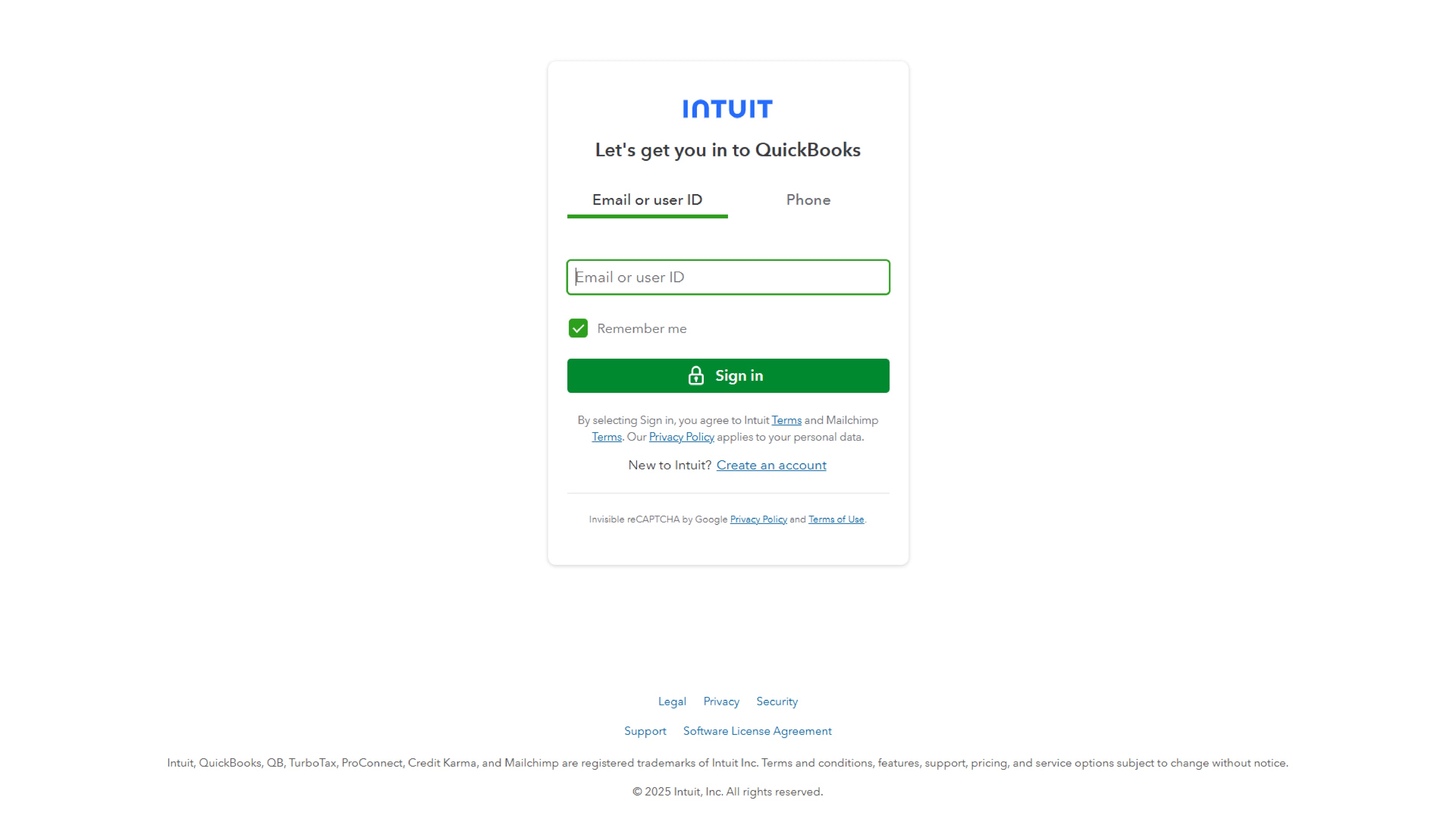
Step 4: Authenticate with QuickBooks
-
If you are not logged in to QuickBooks, you will be asked to enter your credentials.
-
If you are already logged in on your browser, the system connects automatically.
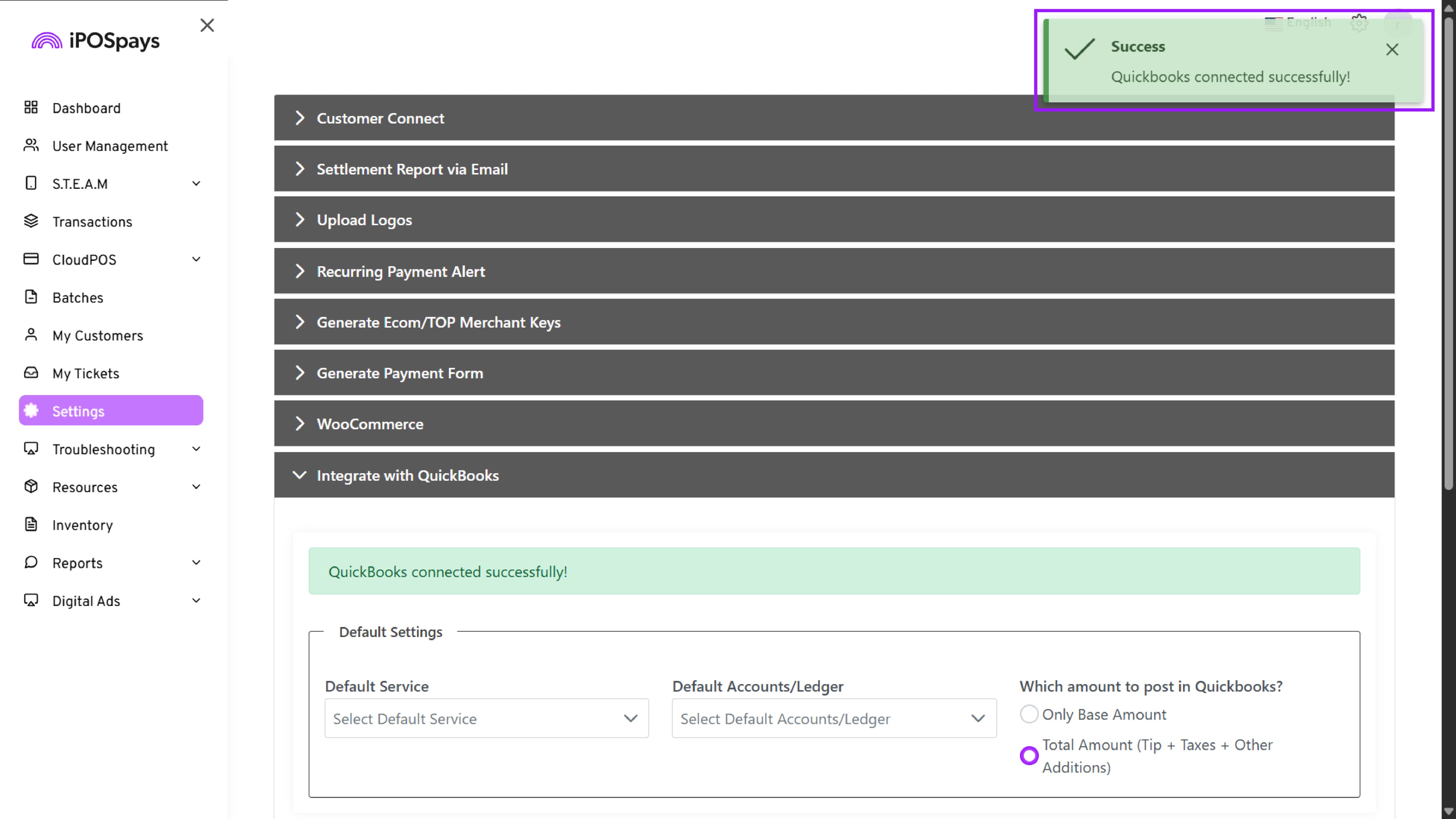
Once authentication is completed, a pop-up appears: “QuickBooks connected successfully.”
Your iPOSpays account is now integrated with QuickBooks.
Mapping Service & Ledger
Step 5: Open Mapping Section
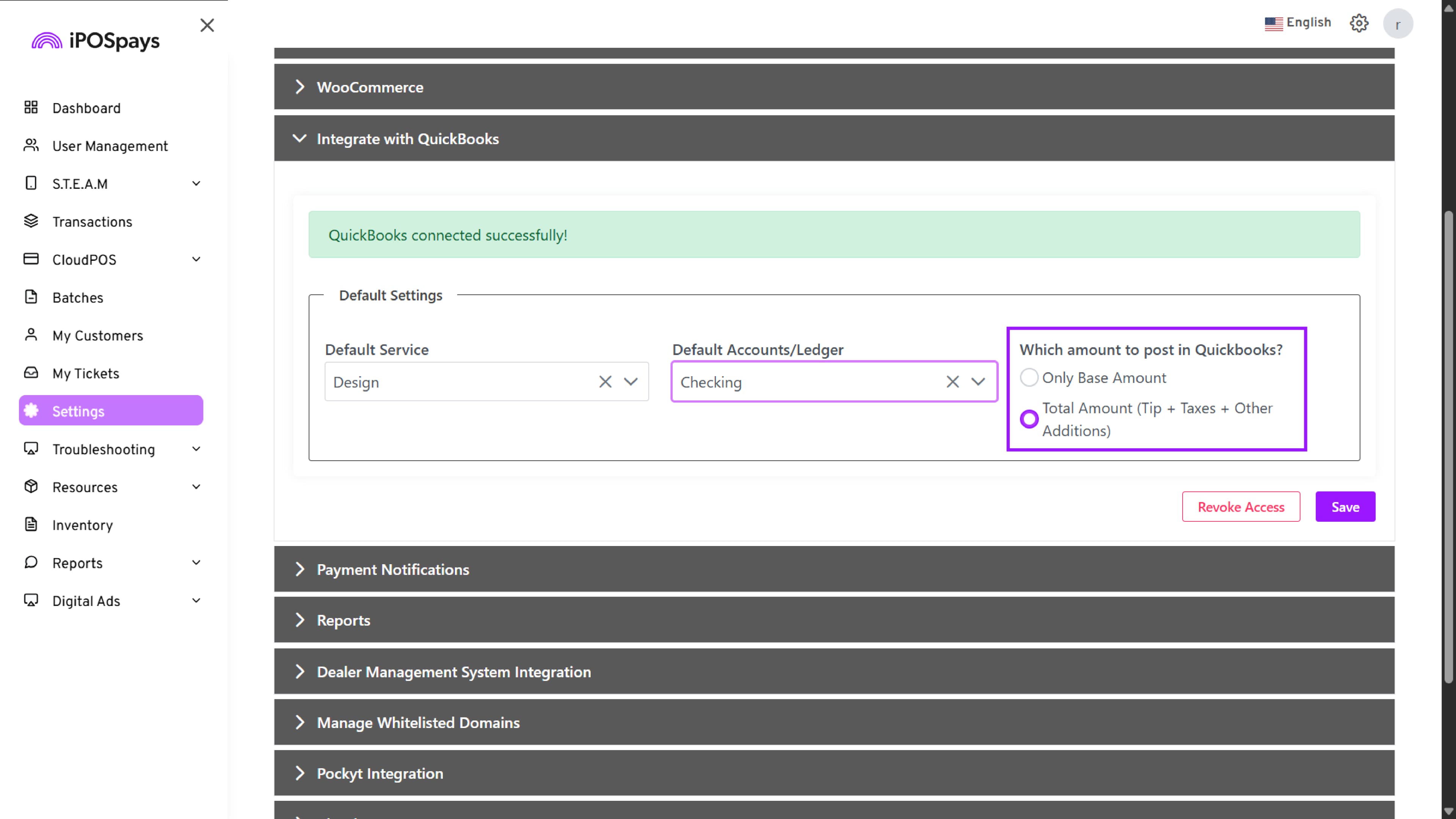
After a successful connection, the Default Settings section becomes active and displays dropdown menus fetched from QuickBooks.
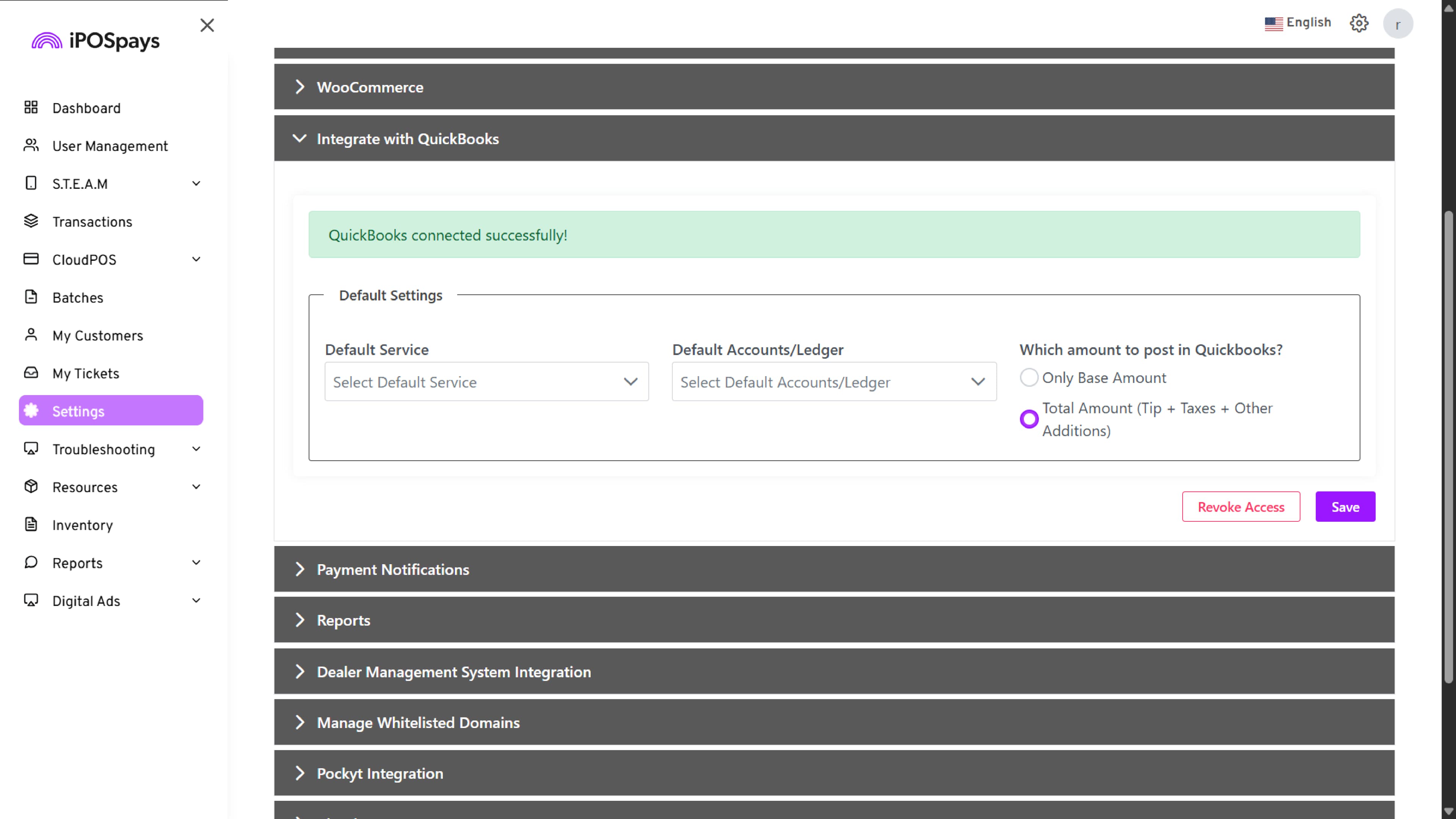
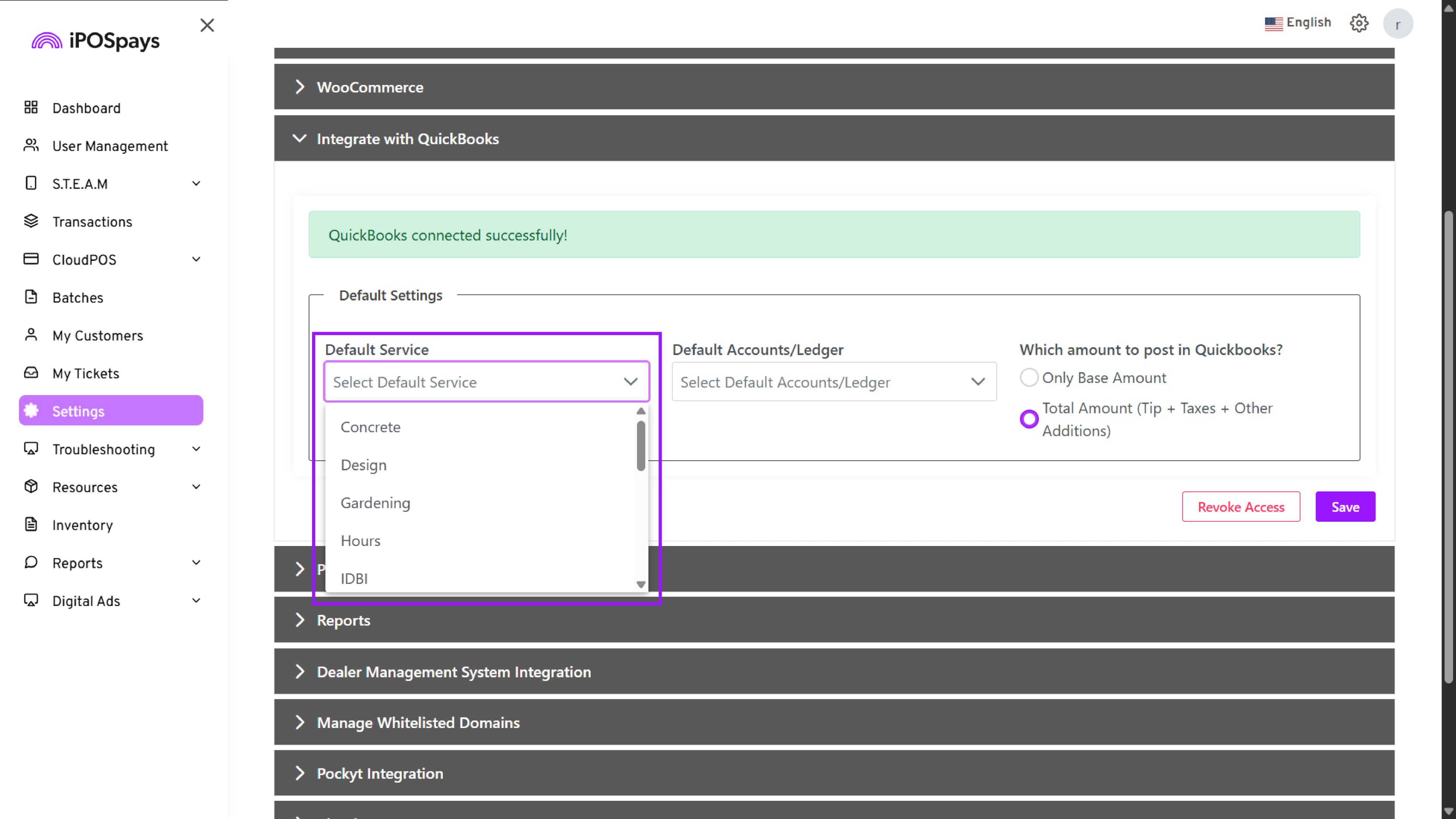
Step 6: Select Default Service
From the Default Service dropdown, choose the QuickBooks Service Item under which all transactions should be categorized.
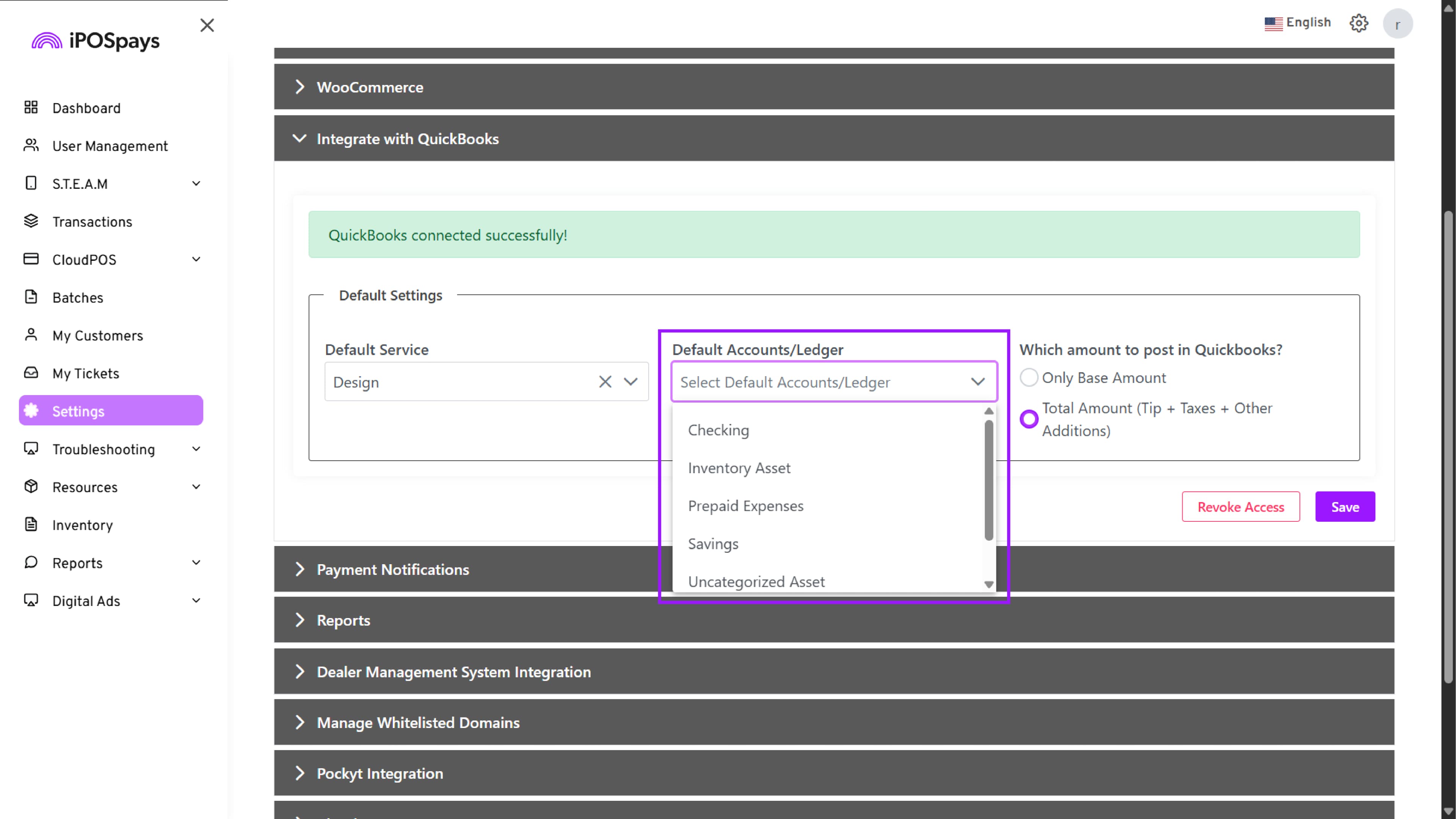
Step 7: Select Default Ledger/Account
From the Default Account/Ledger dropdown, choose the Ledger (Chart of Accounts) in QuickBooks where all transactions should be recorded.
The selected Service and Ledger act as the default values for all TPNs, and these settings cannot be changed for individual payment terminal transactions. The chosen Default Settings will automatically apply to all payment device transactions under the merchant account.
Step 8: Choose Amount Type to Post
Select how the transaction amount should be posted to QuickBooks:
- Only Base Amount
Or
- Total Amount (Tip + Taxes + Other Additions)
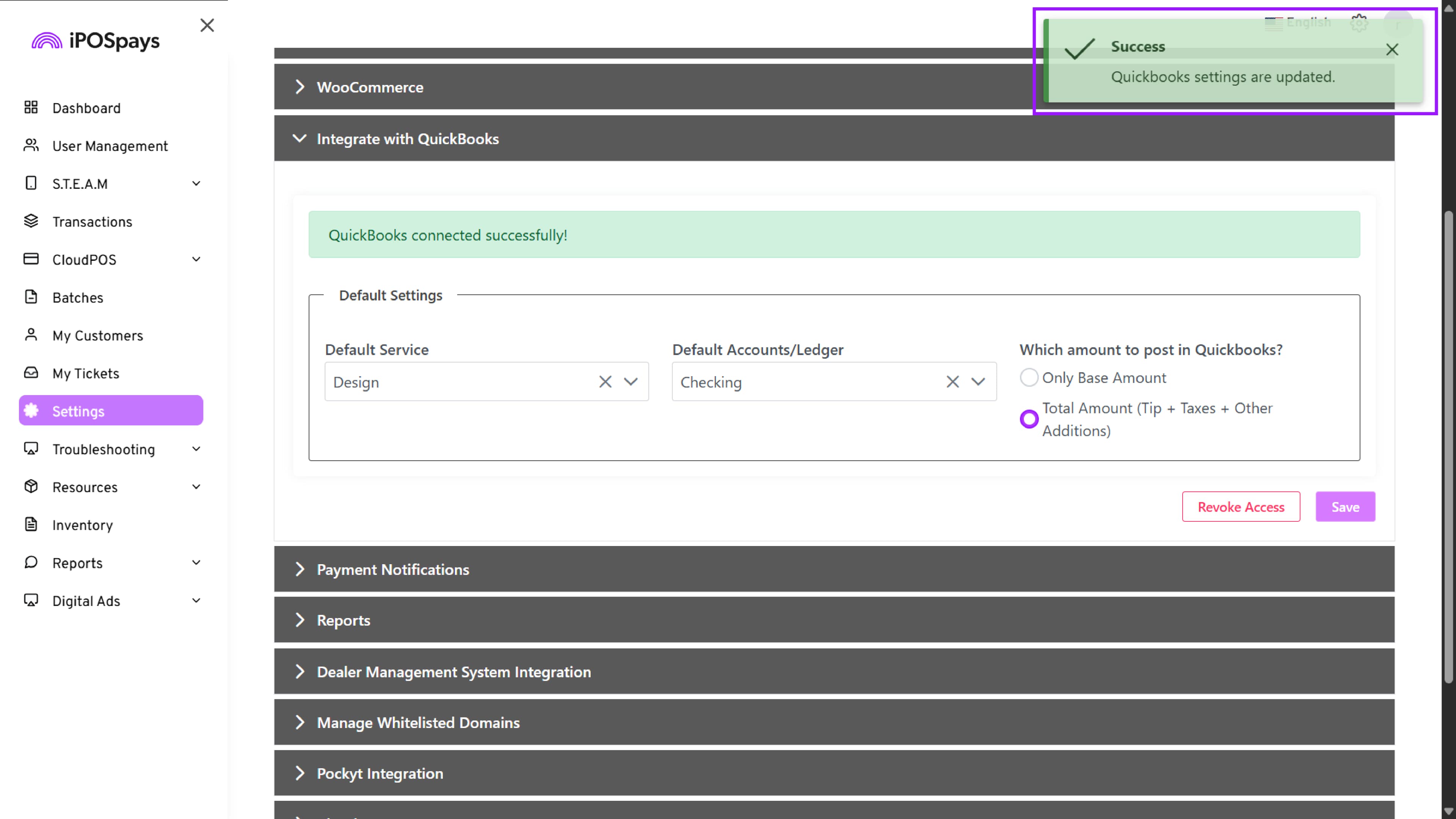
After making your selection, click Save.
A confirmation notification appears indicating that QuickBooks settings are updated.
Step 9: Revoke QuickBooks Access
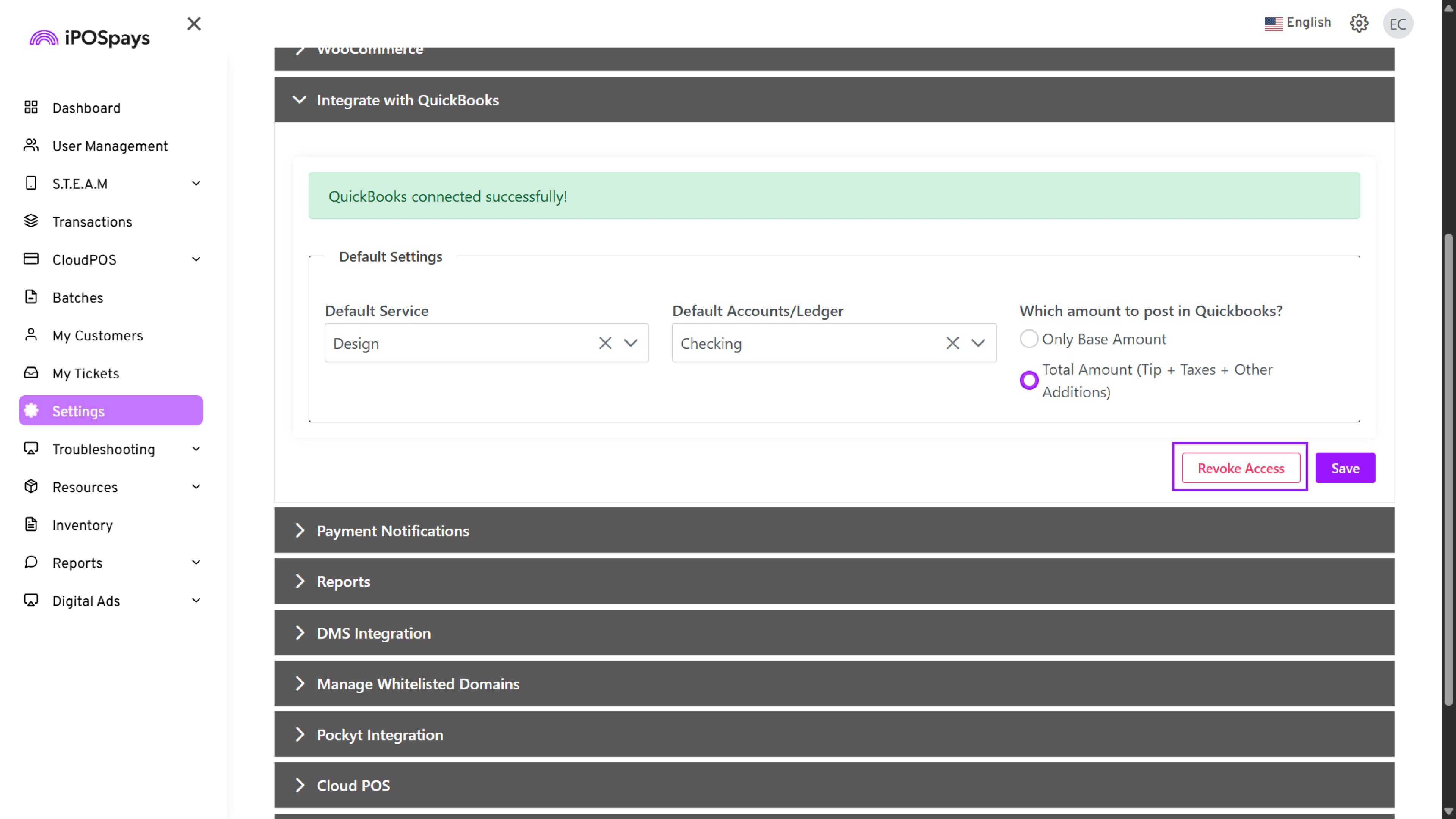
Select Revoke Access to disconnect the linked Quickbooks account from iPOSpays.
After confirming the action, the QuickBooks integration will be disabled, and no further transactions will be synced.
Watch the video for a visual walkthrough of the steps above
Transaction Sync Workflow
Below are the two transaction types supported by the integration:
1. Transactions via Payment Terminal
When a transaction is completed on the payment terminal:
Process
-
Complete a sale on the payment terminal.
-
iPOSpays instantly sends the transaction details to QuickBooks.
-
In QuickBooks, the transaction appears under the Service and Ledger selected during setup.
No additional action is required. Sync happens automatically.
2. Transactions via CloudPOS (Virtual Terminal)
CloudPOS provides more flexibility for customization.
Steps:
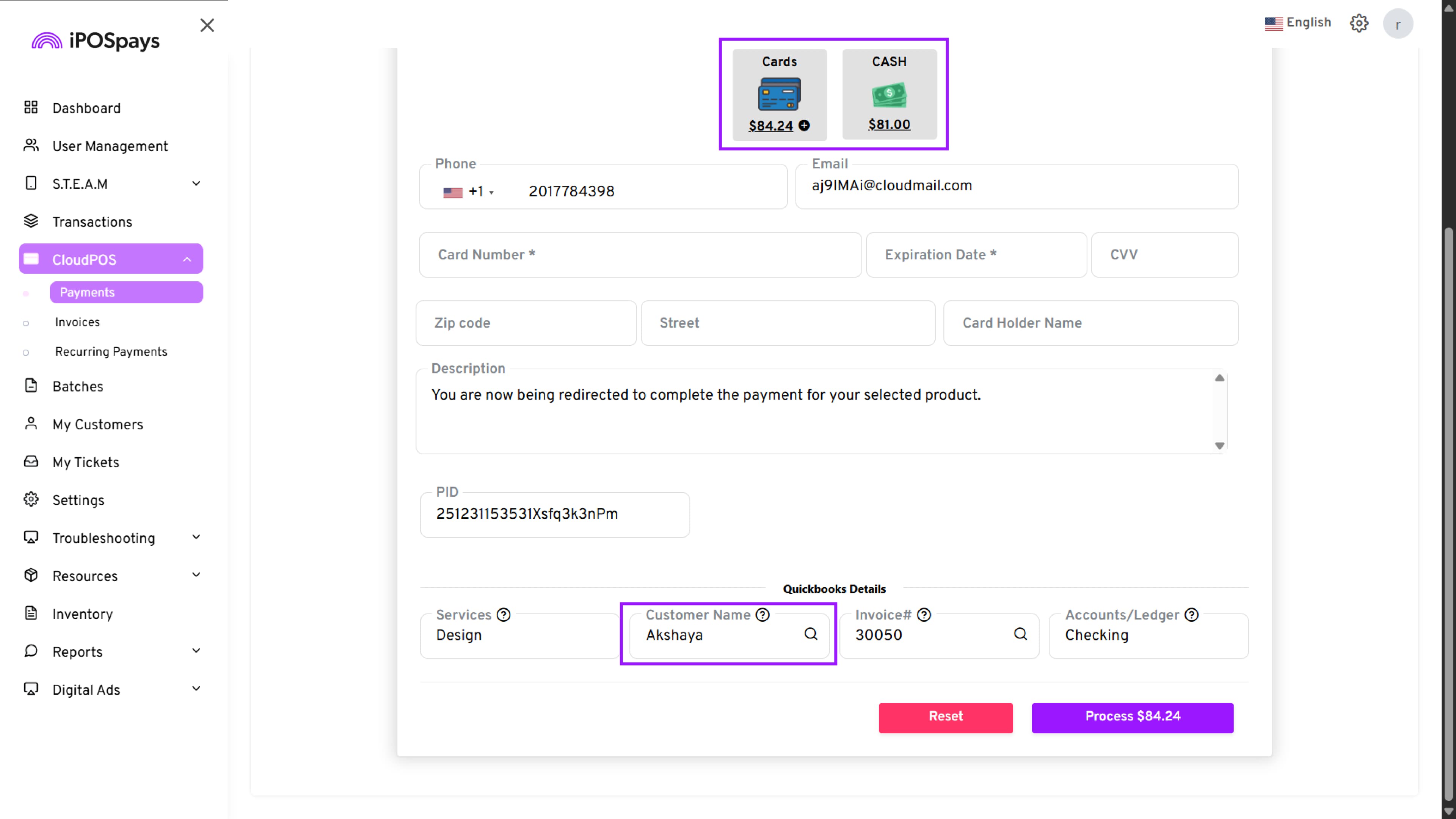
- Go to CloudPOS → Payments
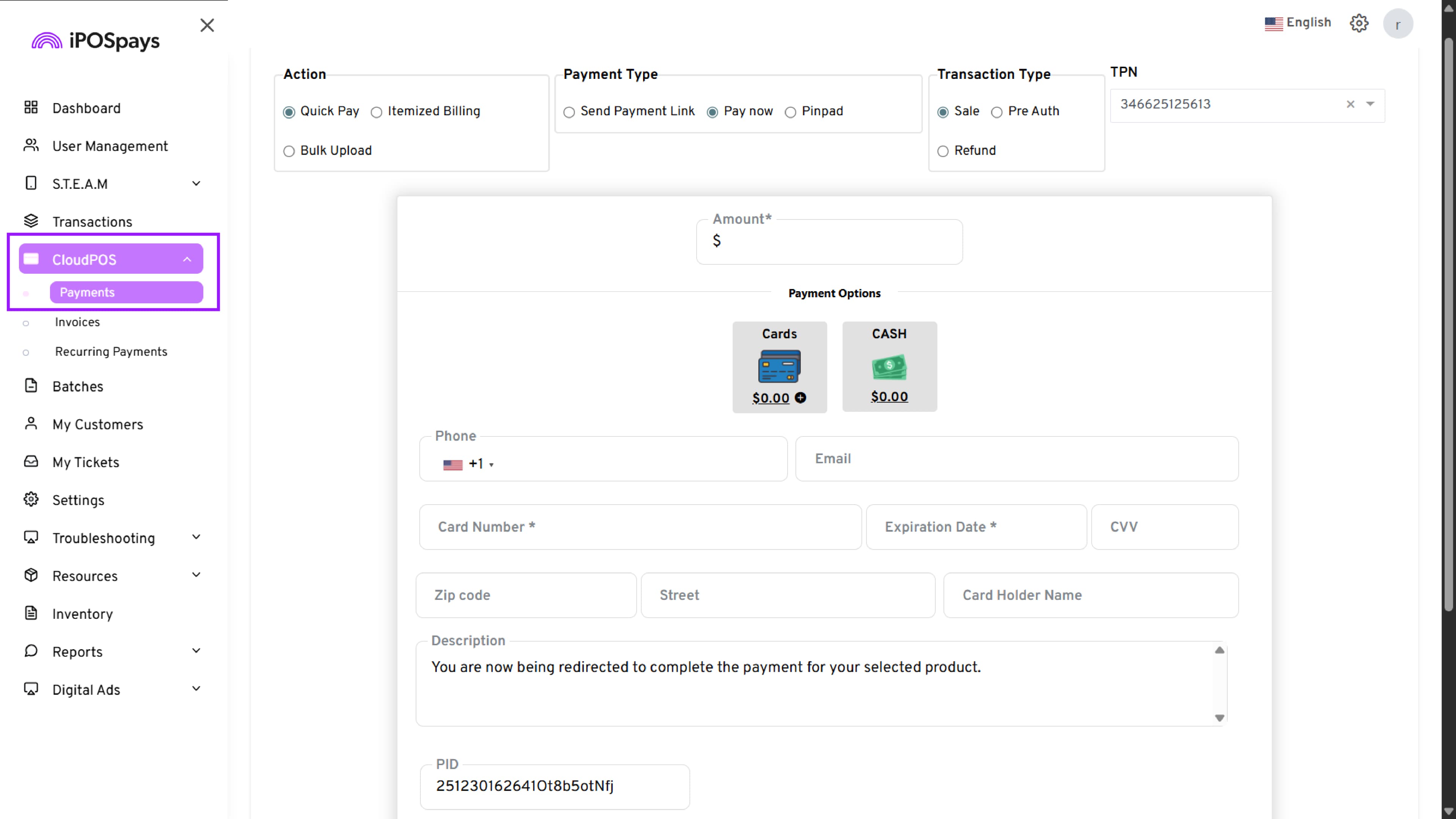
- Select your CloudPOS TPN from the dropdown
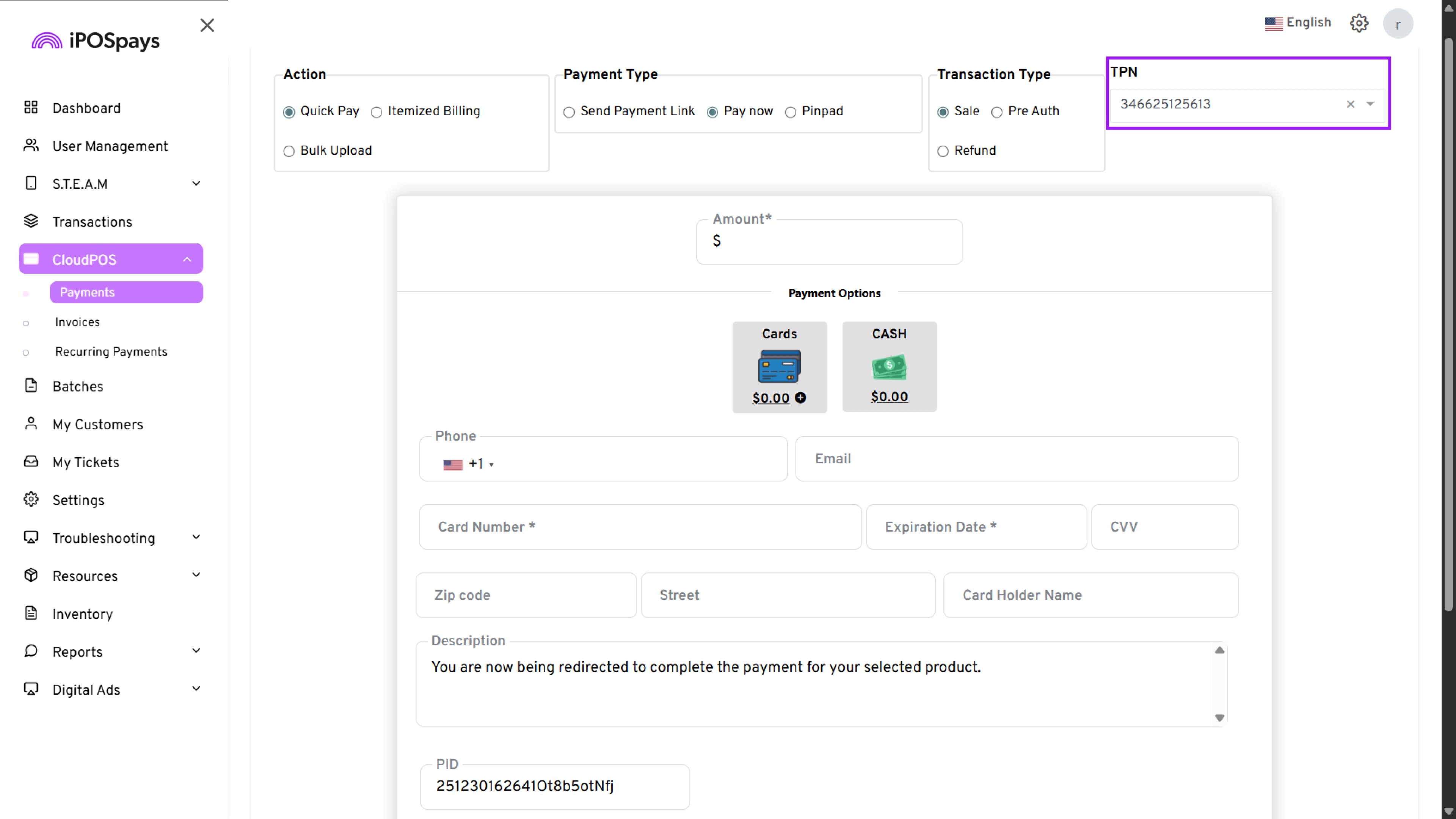
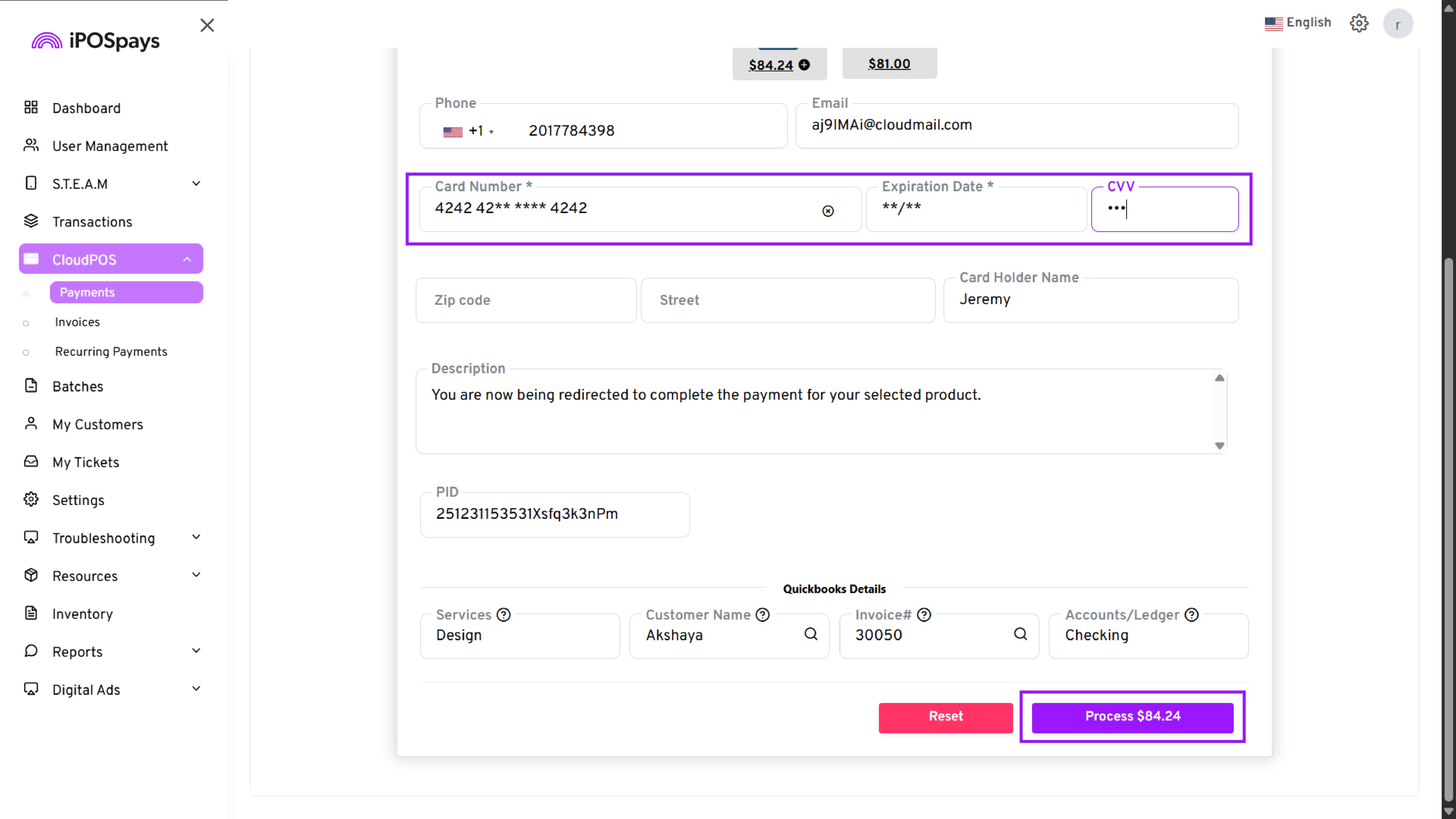
- Enter the transaction amount and card details
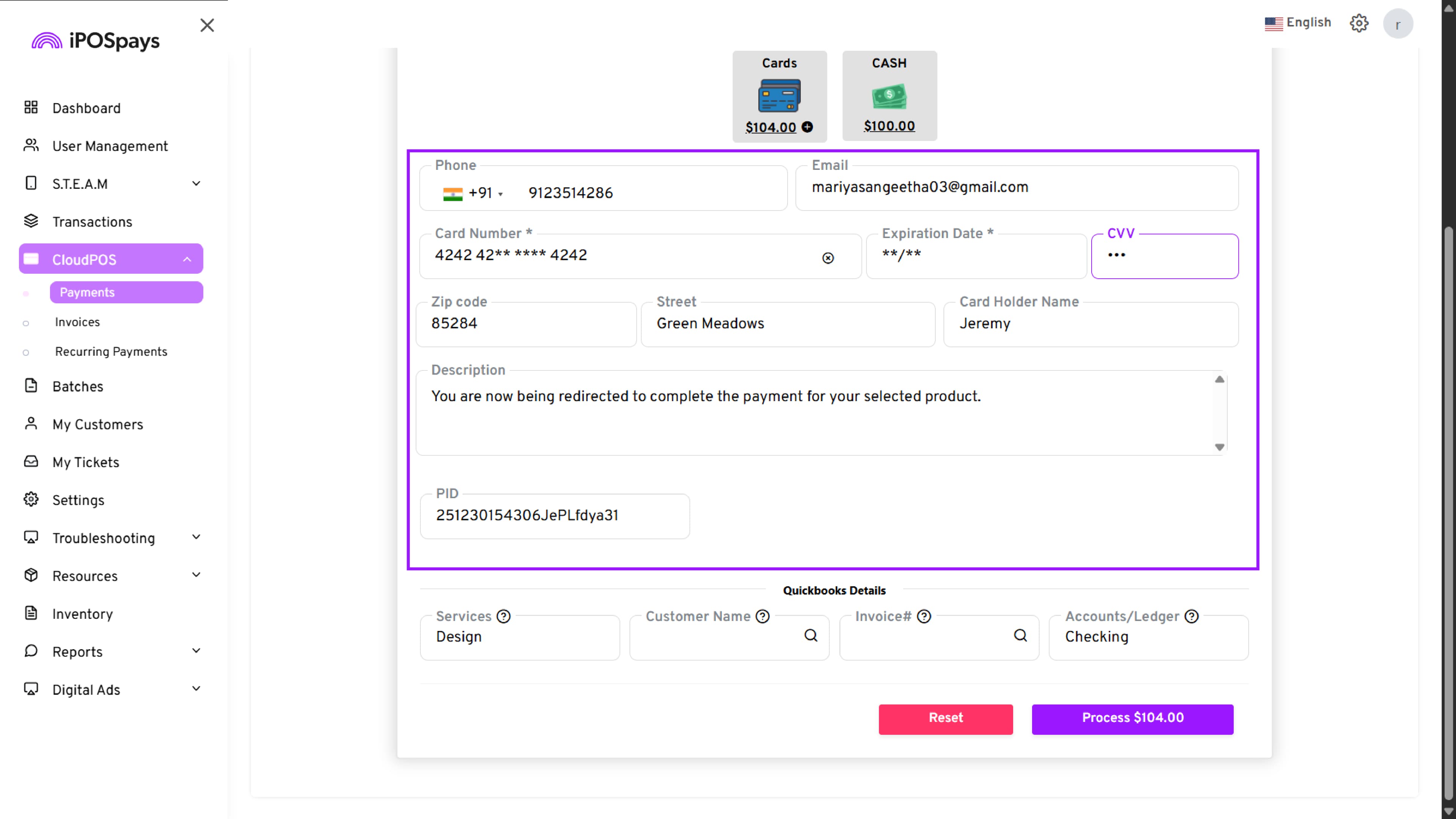
QuickBooks Details & Invoice Lookup (Optional)
In the QuickBooks Details section:
-
Service & Ledger are automatically pre-filled
-
You can manually change these values only for the current transaction
-
Enter the Invoice Number of an existing QuickBooks invoice and click the search (🔍) icon to fetch the invoice from QuickBooks Online
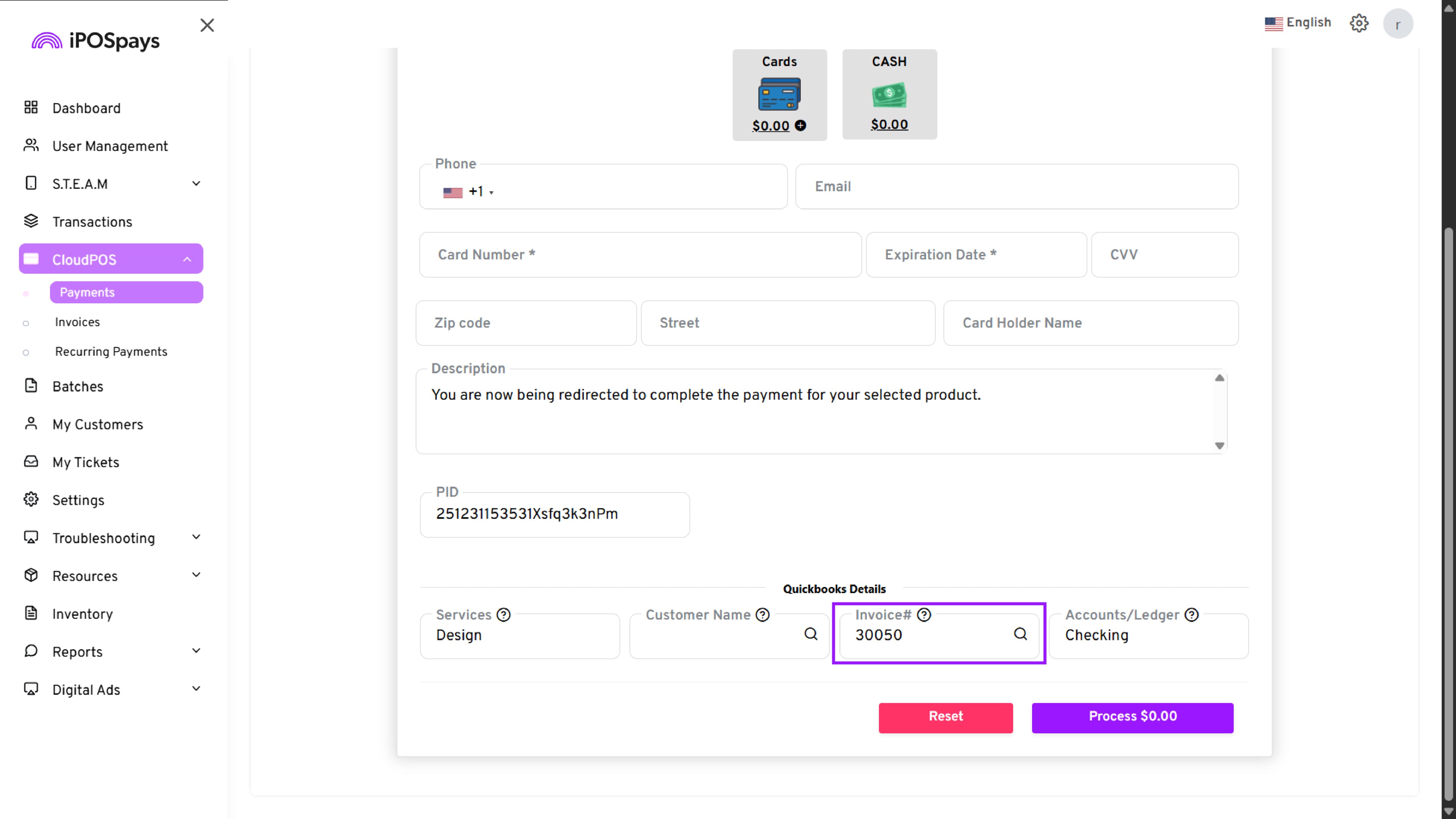
-
Once the invoice is retrieved, the following details are auto-populated:
-
Customer Name
-
Invoice Balance Due
-
Due Date
-
-
Review the fetched invoice details to ensure accuracy
-
Click Apply to confirm and link the invoice to the current transaction
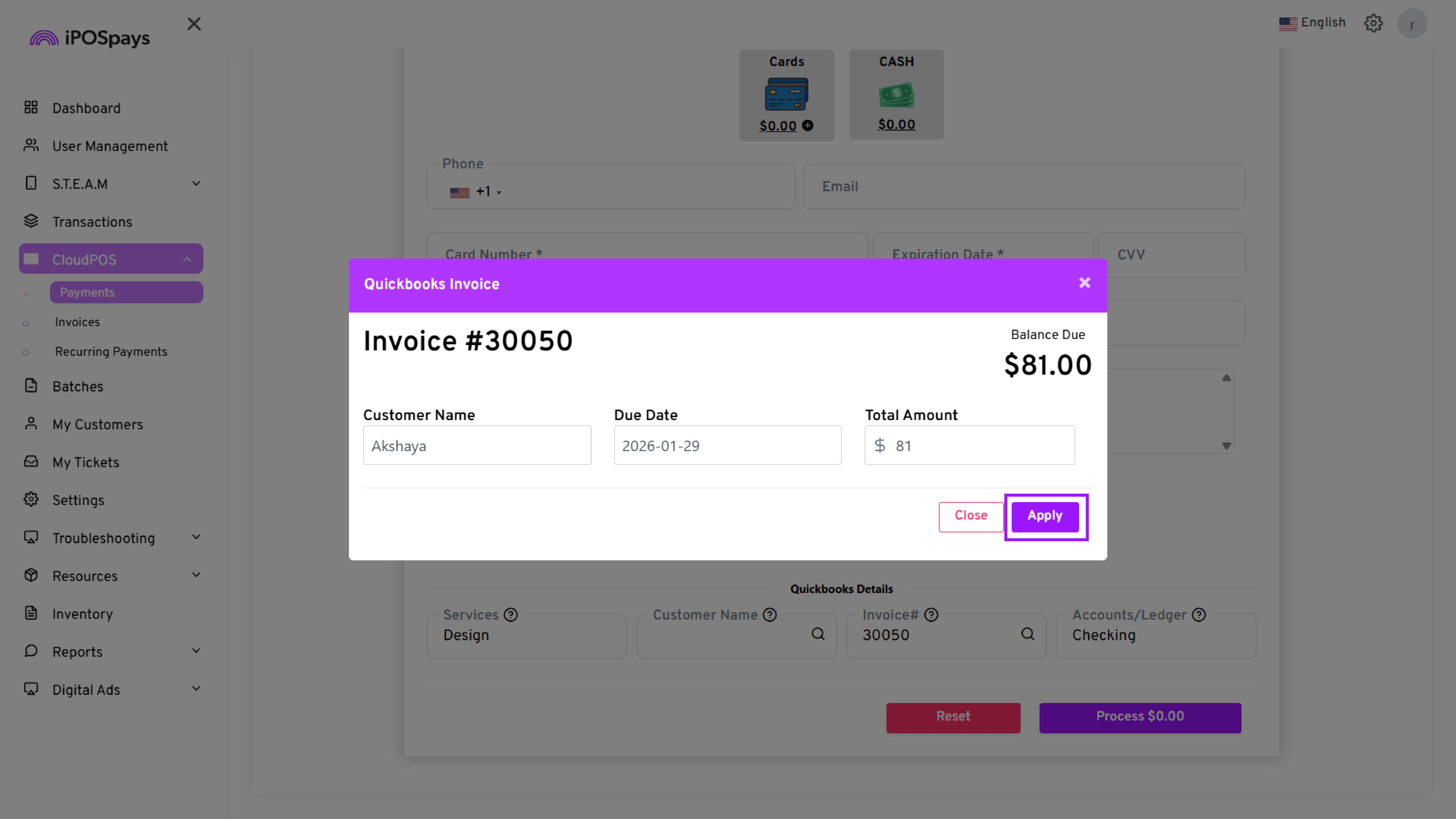
- The Transaction amount and Customer Name are automatically populated based on the invoice details in QuickBooks.
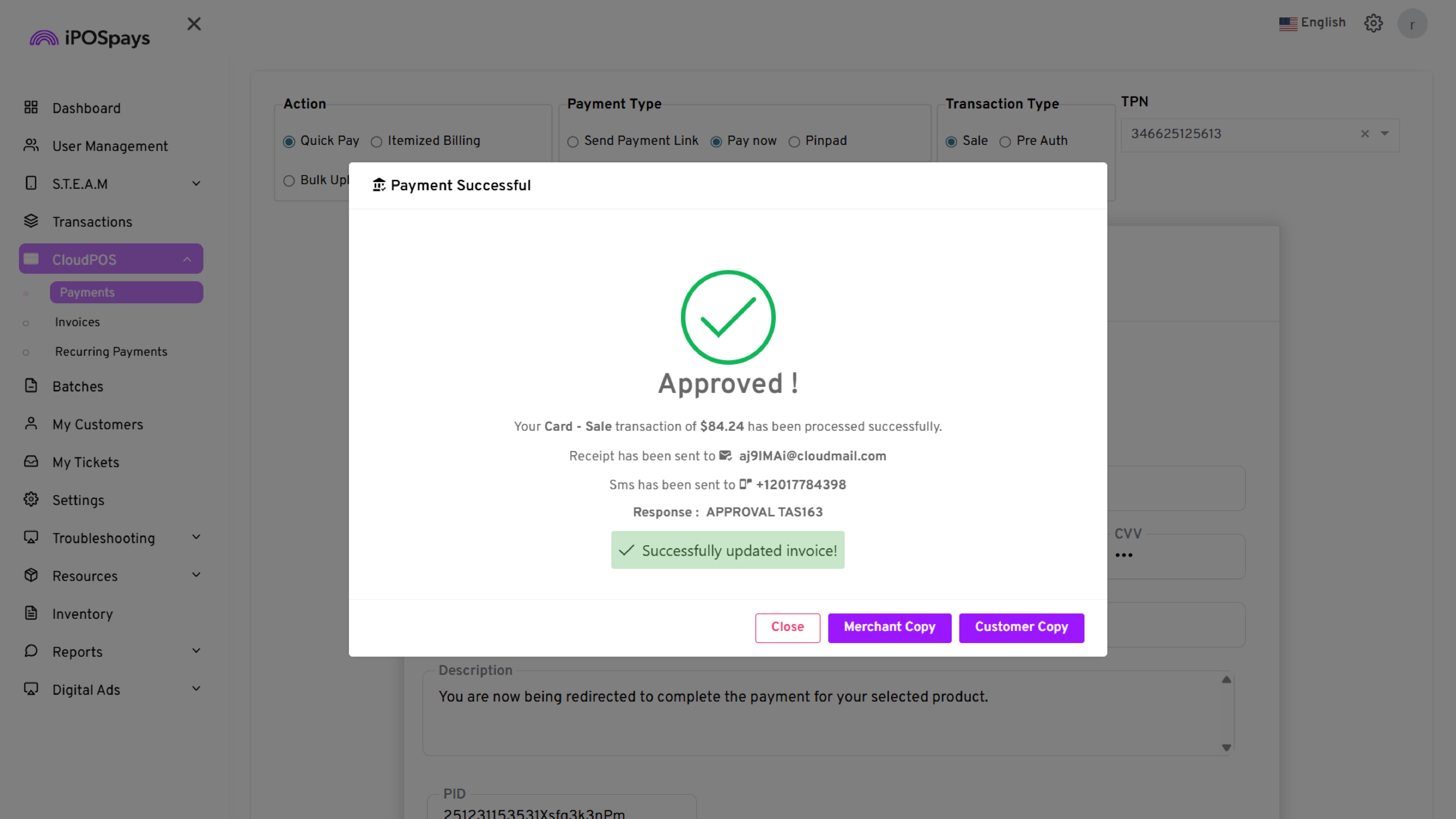
- Enter the card details and click Process to complete the transaction.
How QuickBooks Updates
-
If only Customer Name is entered → The transaction maps to that customer
-
If only the Invoice Number is entered → It updates the specified invoice
-
If both are entered → It updates both fields accordingly
- Complete the Transaction
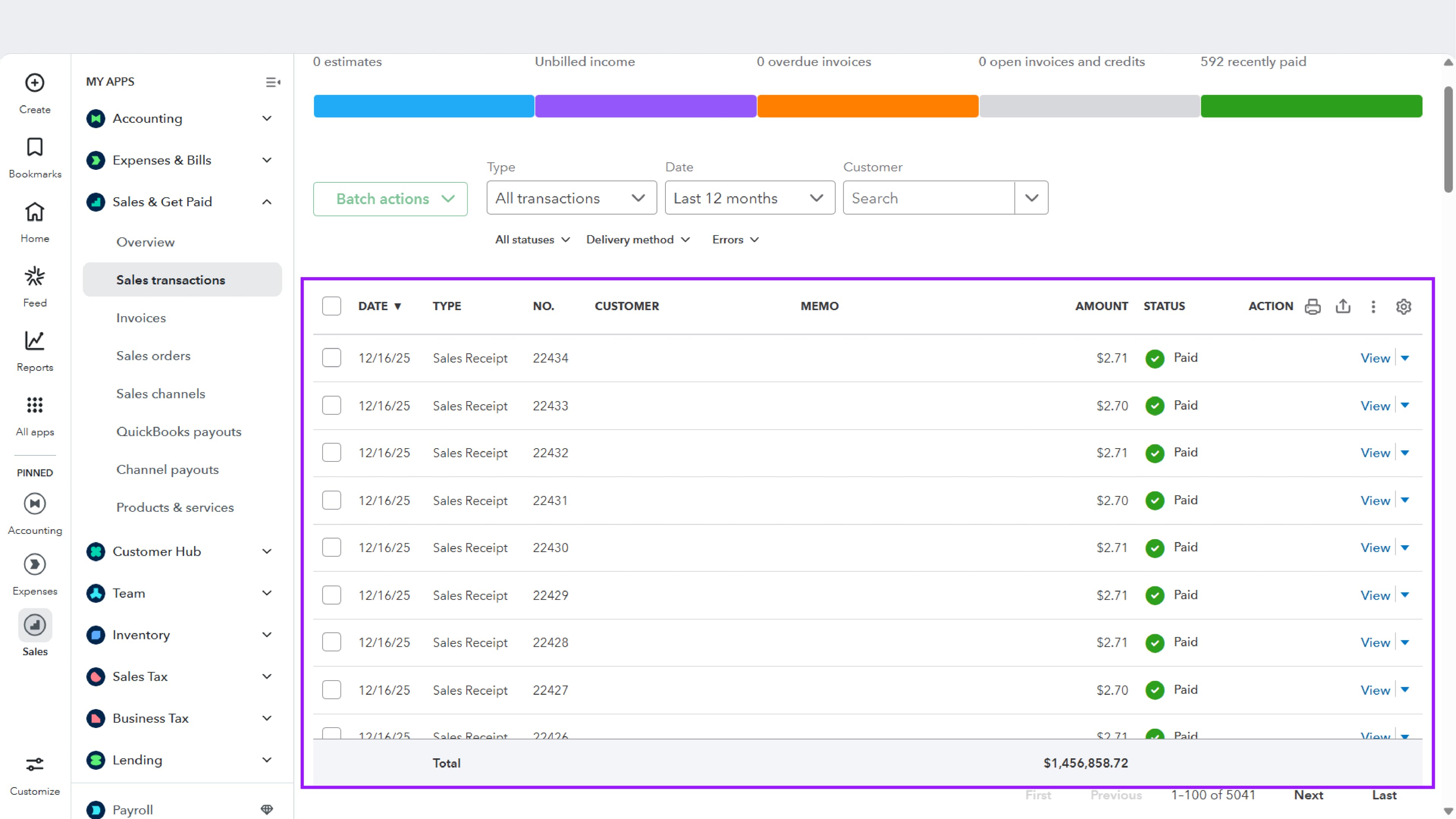
Once completed, refresh your QuickBooks dashboard — the transaction appears under the selected Service and Ledger.
Watch the video for a visual walkthrough of the steps above
Viewing QuickBooks-Connected Transactions in the iPOSpays Portal
Merchants can view whether a transaction is synced with QuickBooks directly from the Transactions module in the iPOSpays Merchant Portal.
Step 1: Log In to the Merchant Portal
Log in to the iPOSpays Merchant Portal using your merchant credentials.
Step 2: Navigate to Transactions
Click Transactions in the left-side menu.
The Transactions page displays a list of all processed transactions.
Step 3: Select a Transaction
From the transactions list on the left side:
-
Click on the desired Sale transaction
-
The selected transaction will be highlighted
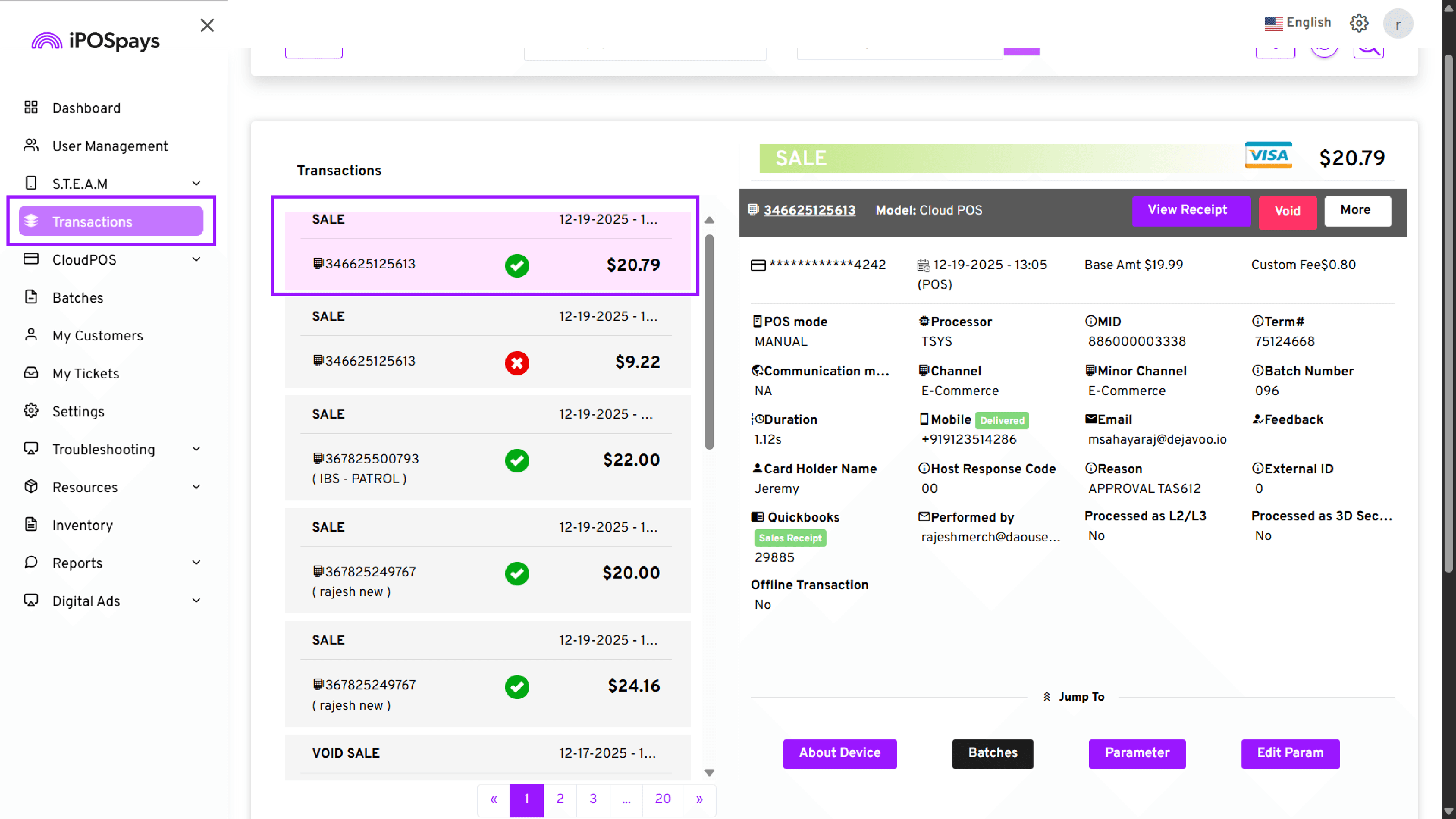
Step 4: View Transaction Details
Once selected, the transaction details panel opens on the right-hand side, showing:
-
Transaction type
-
Amount
-
Card type
-
Date and time
-
Processor, MID, and terminal details
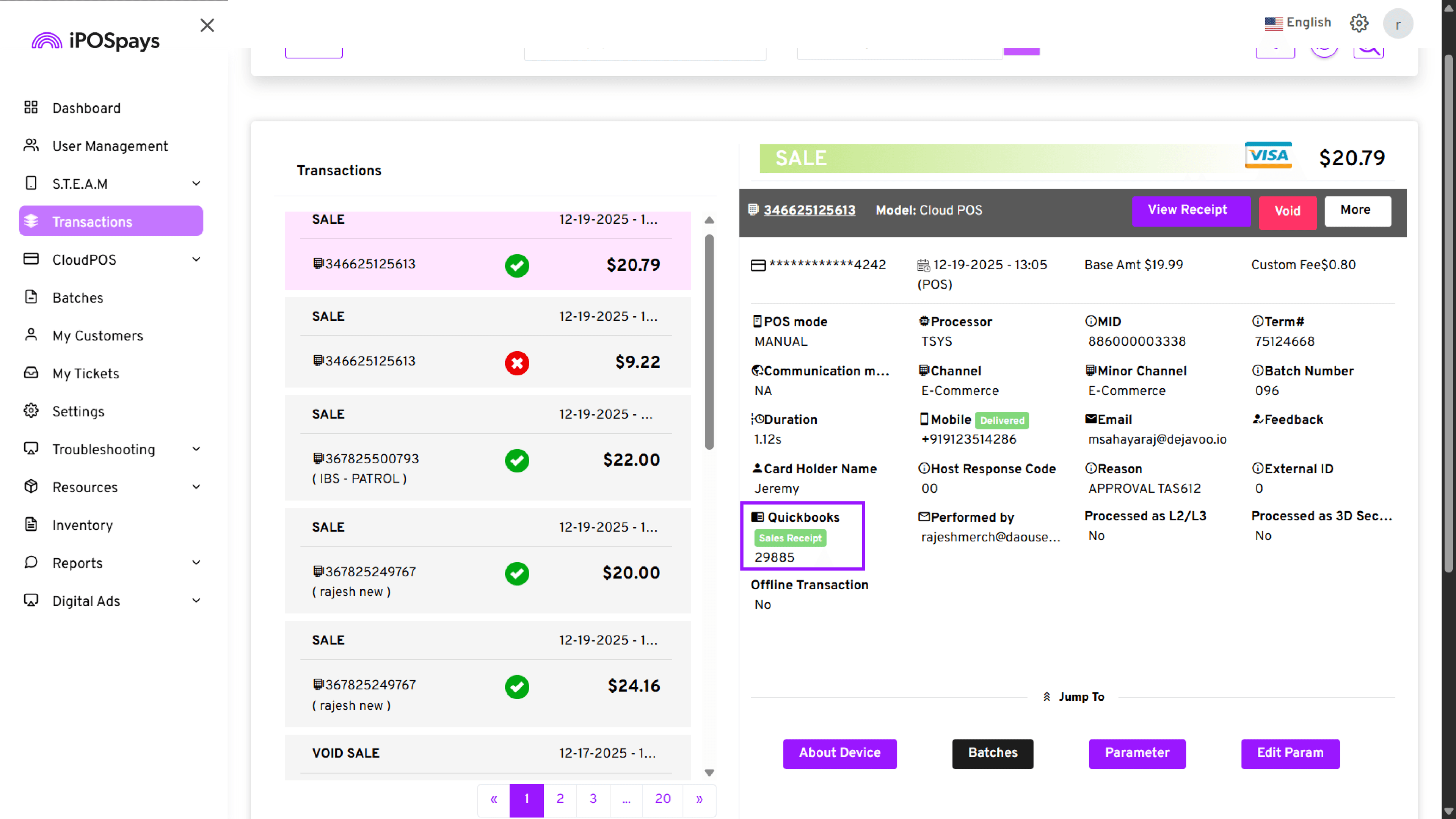
Step 5: Identify QuickBooks Sync Information
Scroll down within the transaction details panel.
Under the QuickBooks section:
-
A Sales Receipt label is displayed
-
The QuickBooks reference number (e.g., 29885) is shown
This confirms that the transaction has been successfully synced to QuickBooks.
Step 6: Verify Sync Status
If the QuickBooks section is visible:
-
The transaction is connected and posted to QuickBooks
-
The reference number can be used to locate the same transaction in QuickBooks Online → Sales Transactions
Viewing Synced Transactions in QuickBooks
Once transactions are successfully synced from iPOSpays, merchants can view and manage them directly within QuickBooks Online under the Sales Transactions module.
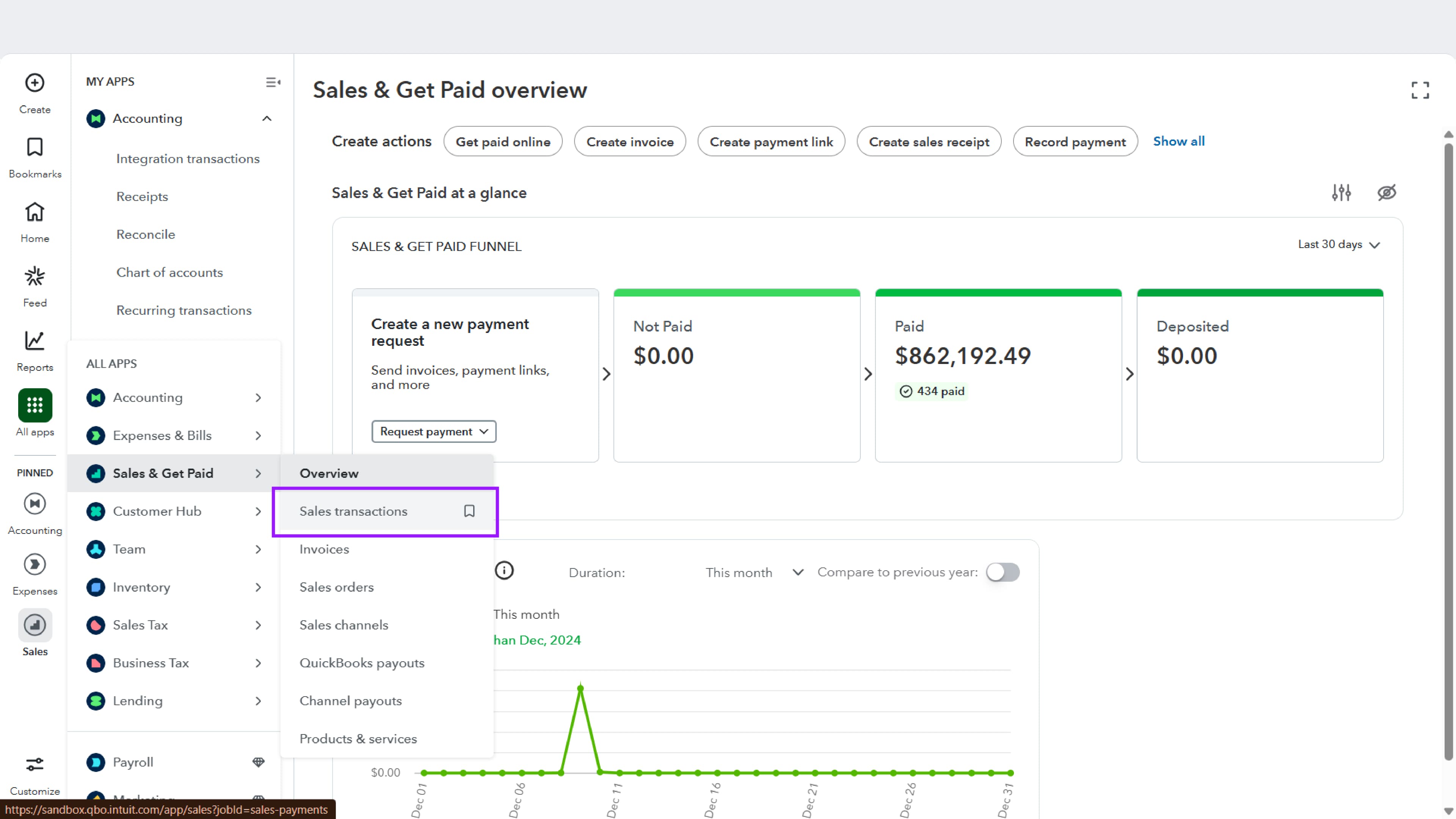
Navigating to Sales Transactions in QuickBooks
-
Log in to your QuickBooks Online account.
-
From the left-hand menu, click All apps, then navigate to Sales & Get Paid → Sales transactions.
- The Sales Transactions screen displays all synced transactions in a consolidated list view.
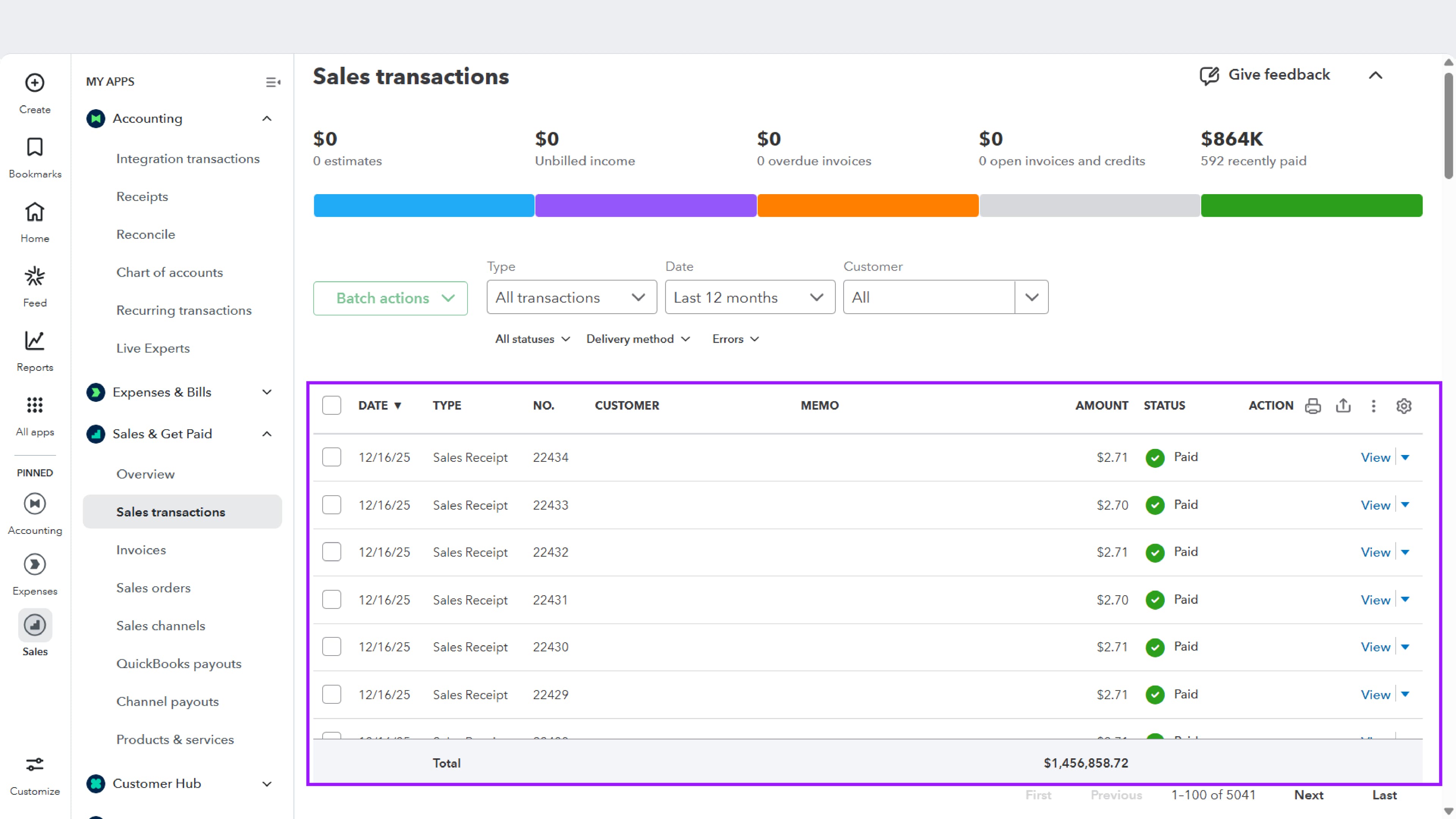
How Transaction Details Appear in QuickBooks
Each synced transaction is displayed with the following columns:
-
Date – The transaction or receipt date
-
Type – Transaction type, such as:
-
Sales Receipt
-
Refund
-
-
No. – Auto-generated QuickBooks transaction number
-
Customer – Customer name (if provided during CloudPOS transaction)
-
Memo – Displays notes such as Voided, if applicable
-
Amount – Transaction amount posted from iPOSpays
-
Status – Transaction status:
-
Paid
-
Voided
-
-
Action – Options to View or Print the transaction
Successful transactions are visually indicated by a ‘Paid’ status and a green check icon, making them easy to identify.
1. Viewing Individual Transaction Details
Click View on a Sales Receipt to see the following details:
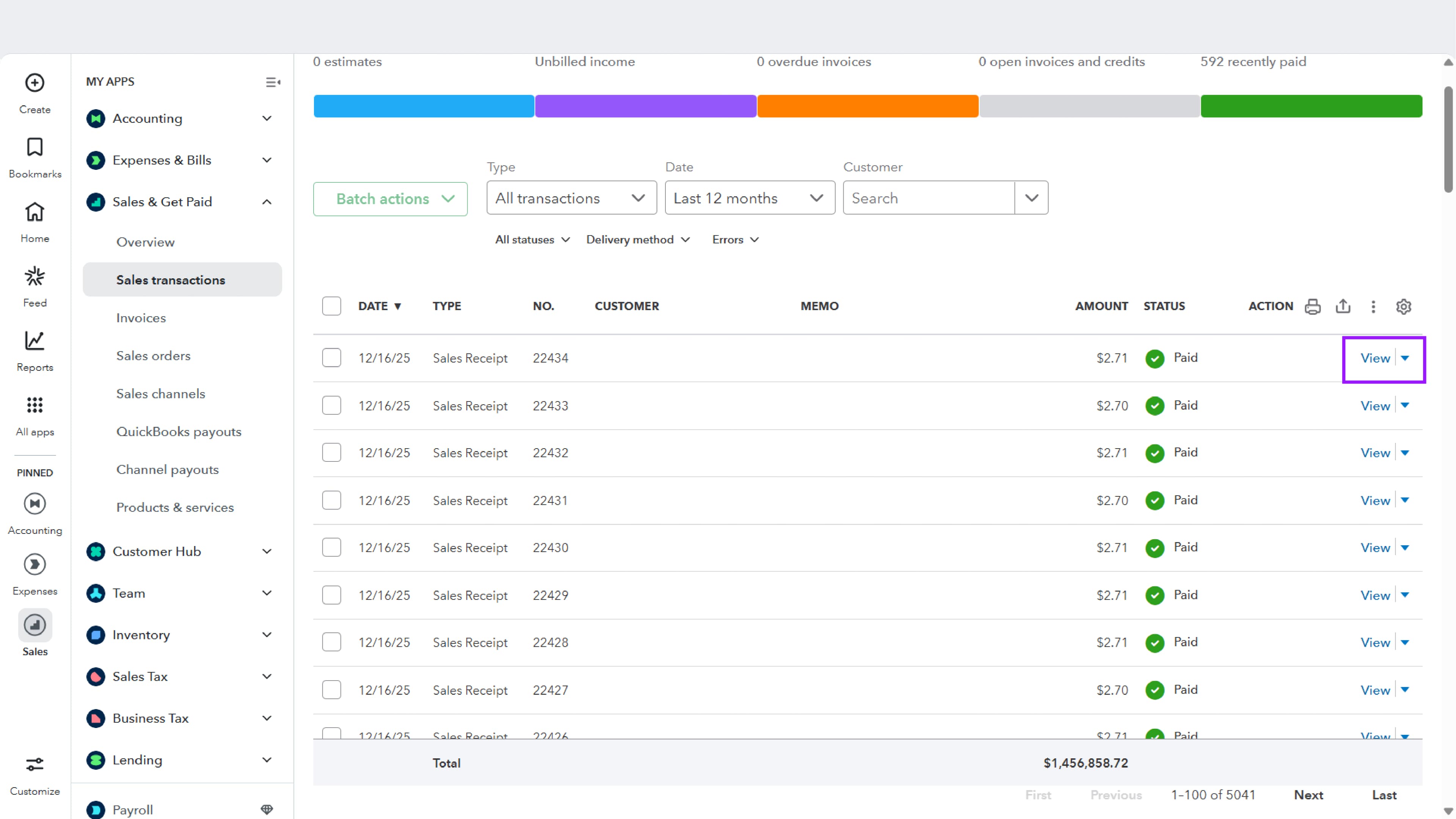
-
A transaction details panel opens on the right-hand side
-
Displays:
-
Sales receipt number
-
Payment status
-
Transaction amount
-
Receipt date
-
-
The Sales Receipt Activity section shows the transaction lifecycle
-
The Products and Services section lists the mapped Service item
-
Refunds & Allowances, if applicable, are displayed clearly
This detailed view helps merchants verify that transactions are recorded correctly in QuickBooks.
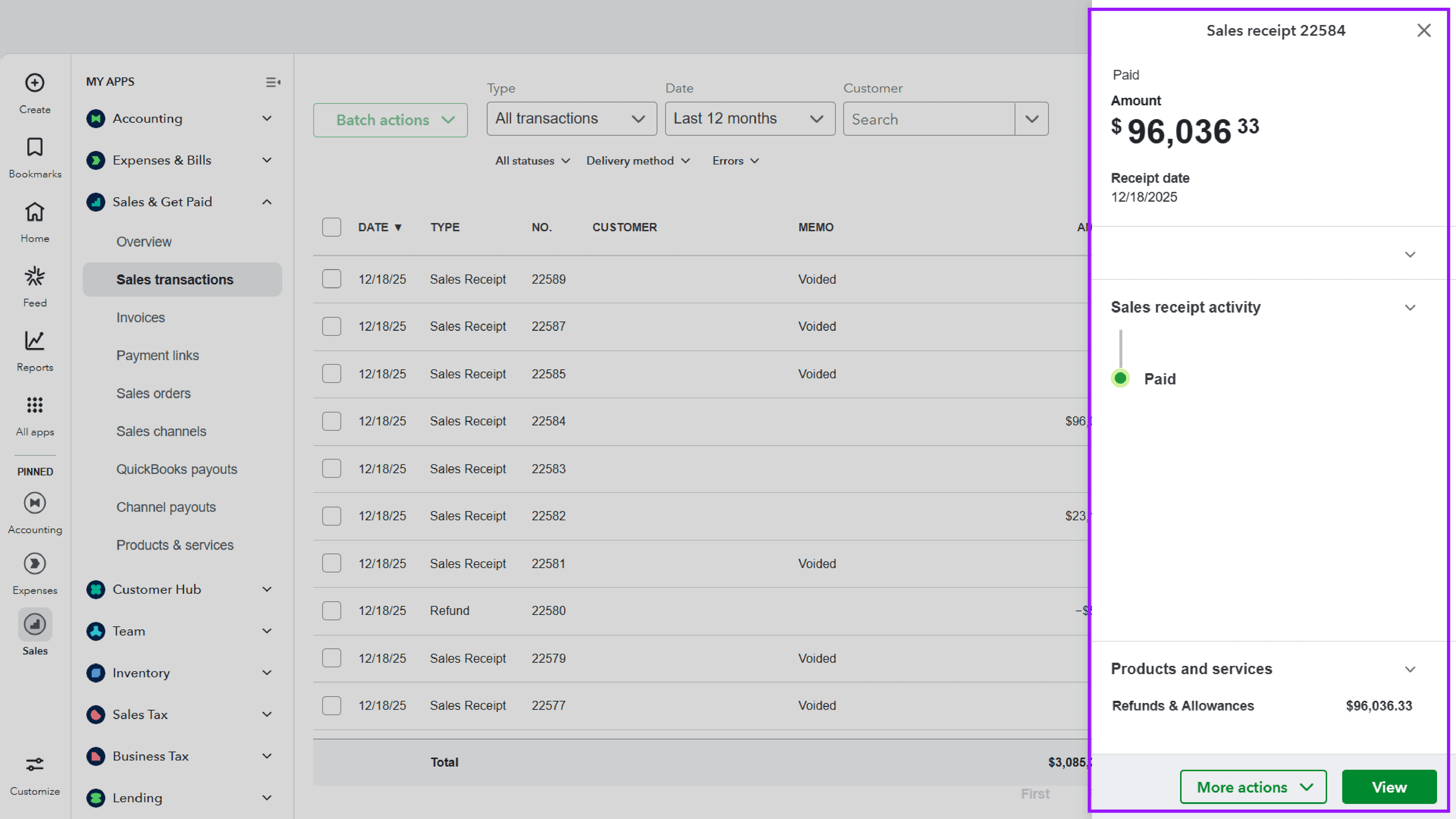
2. Handling Voided and Refund Transactions
-
Voided Transactions
-
Displayed with a Voided status
-
Amount shown as $0.00
-
No accounting impact in QuickBooks
-
-
Refund Transactions
-
Displayed as Refund type
-
Amount shown as a negative value
-
Automatically reflected against the original transaction
-
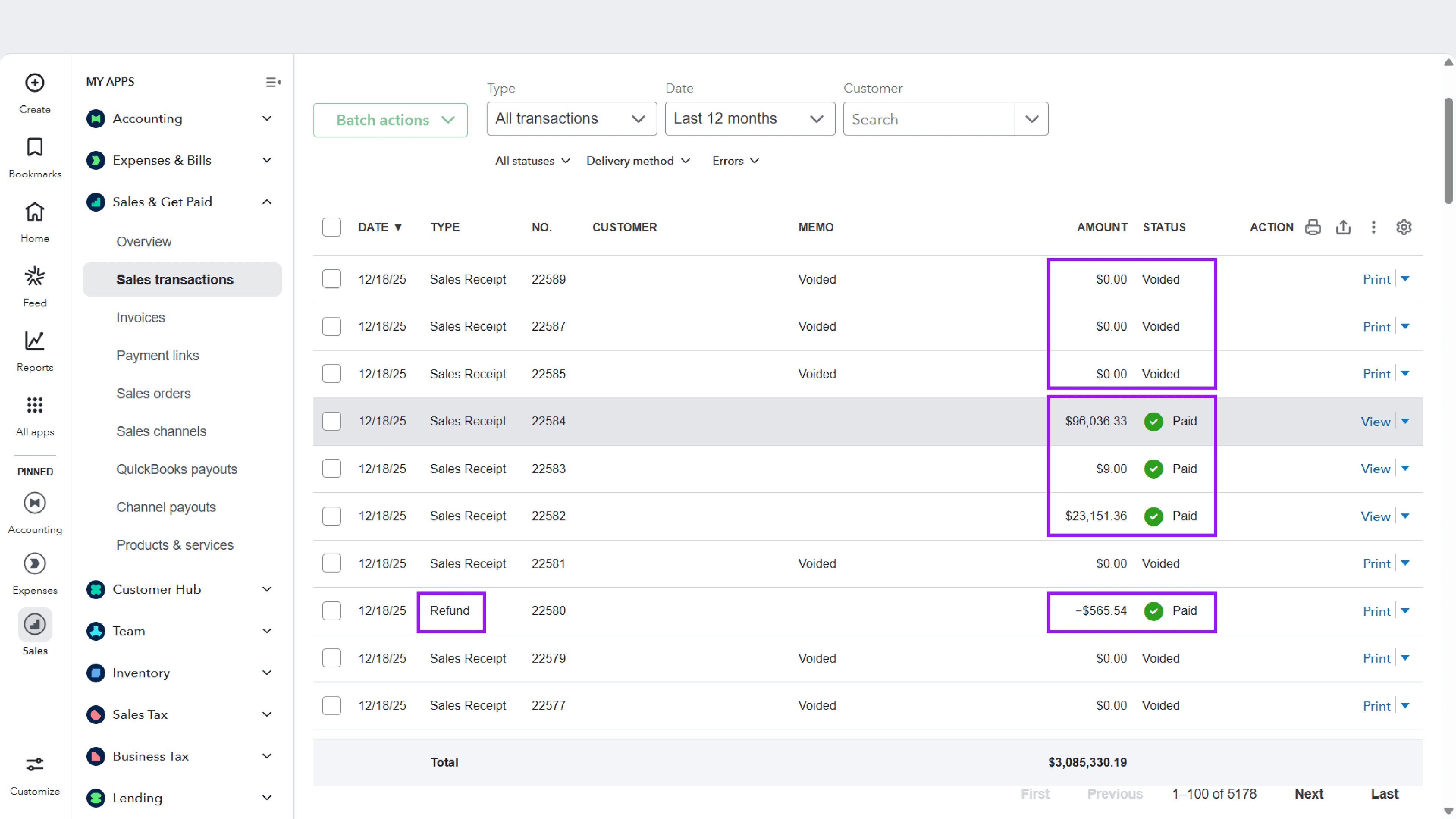
3. How to Create an Invoice in QuickBooks Online
Step 1: Log in to QuickBooks Online
Log in to your QuickBooks Online account using your credentials.
Step 2: Navigate to Sales Transactions
From the left-hand menu, click All apps, then go to: Sales & Get Paid → Sales transactions
The Sales Transactions screen displays all invoices, sales receipts, and related sales records in a consolidated list view.
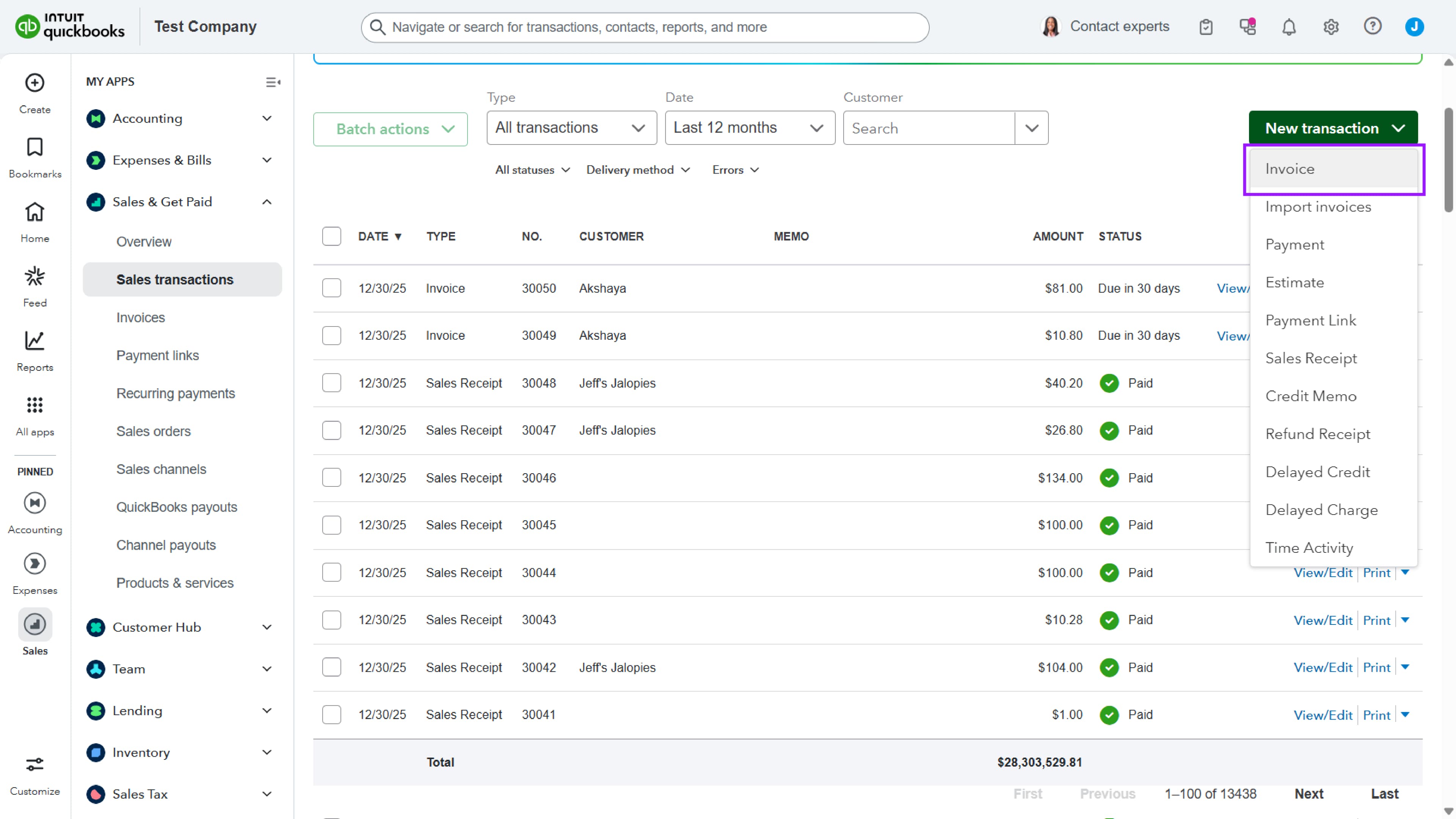
Step 3: Create a New Invoice
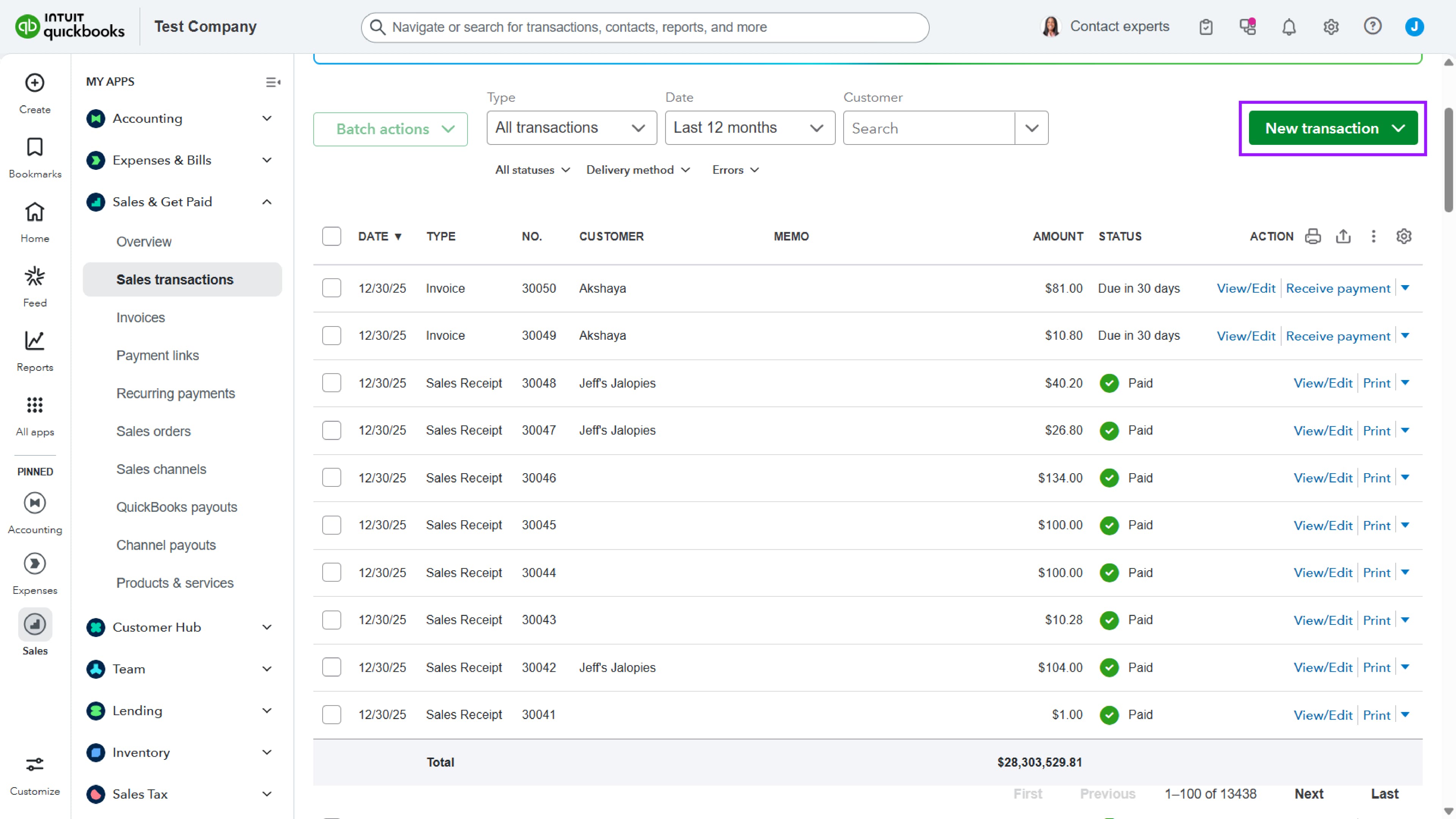
On the Sales Transactions page, click the New transaction button in the top-right corner.
From the dropdown menu, select Invoice.
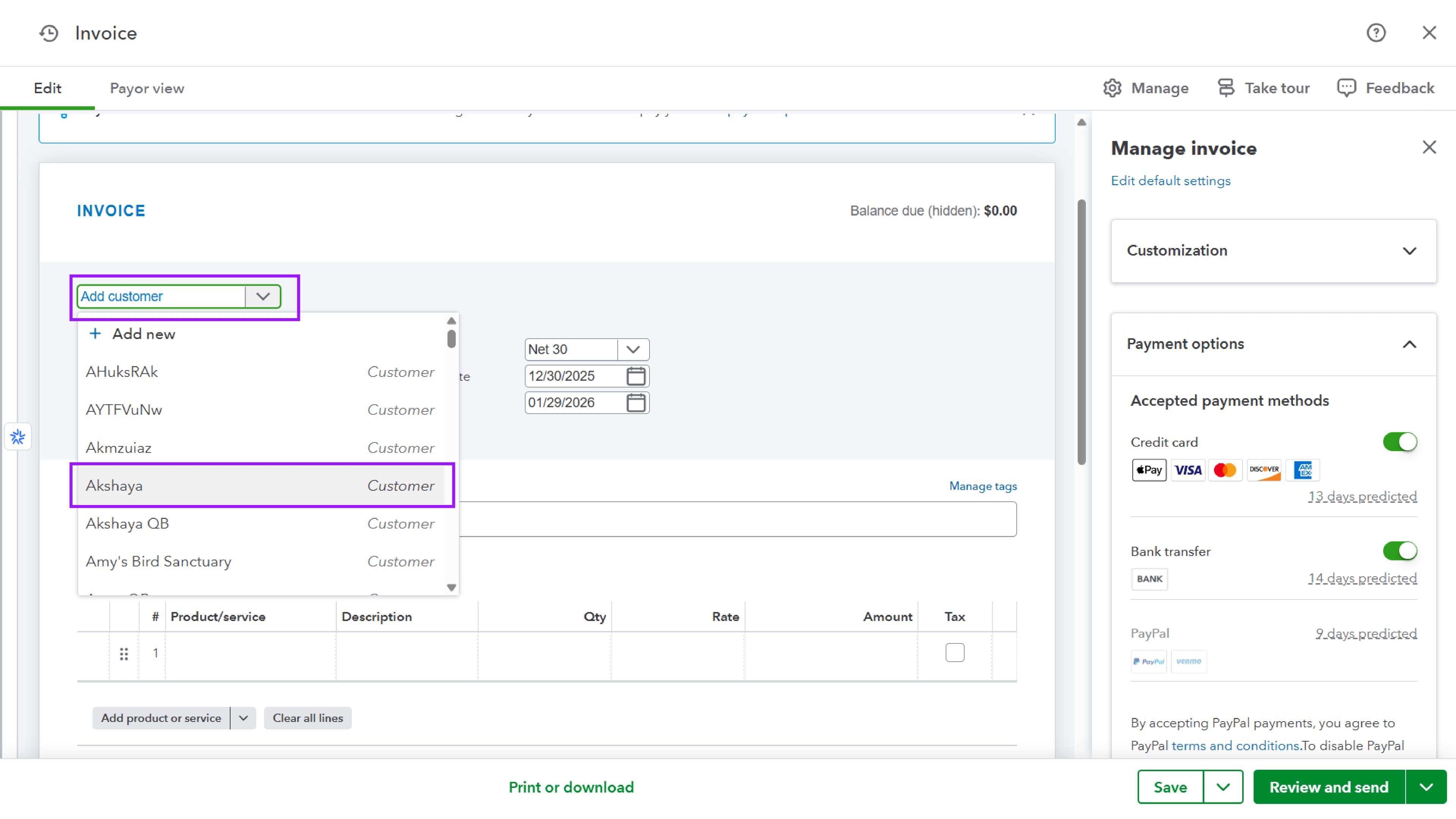
Step 4: Select or Add a Customer
In the Customer field:
-
Select an existing customer from the dropdown list, or
-
Click Add new to create a new customer.
Once selected, the customer’s billing address and email (if available) are auto-filled.
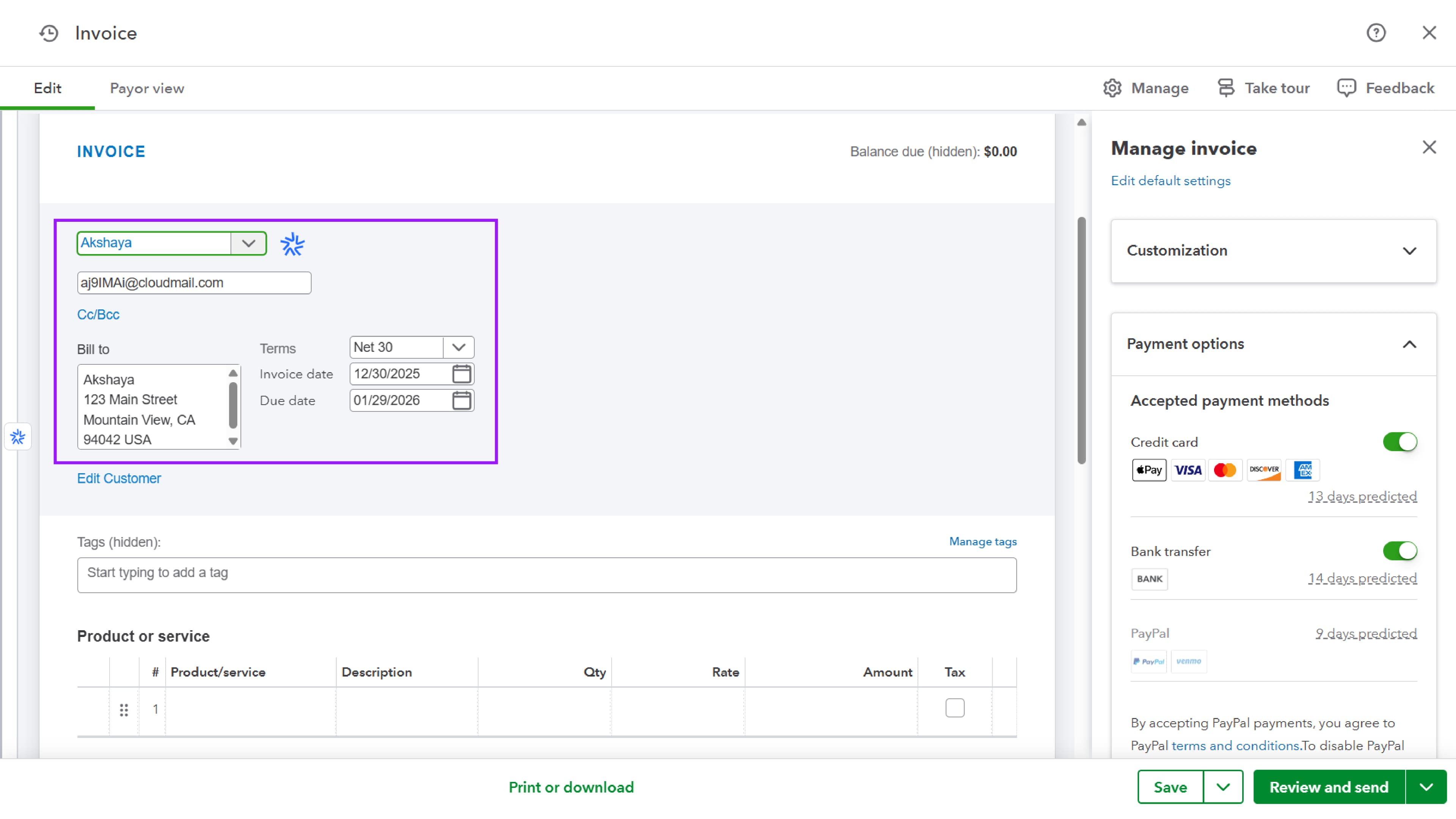
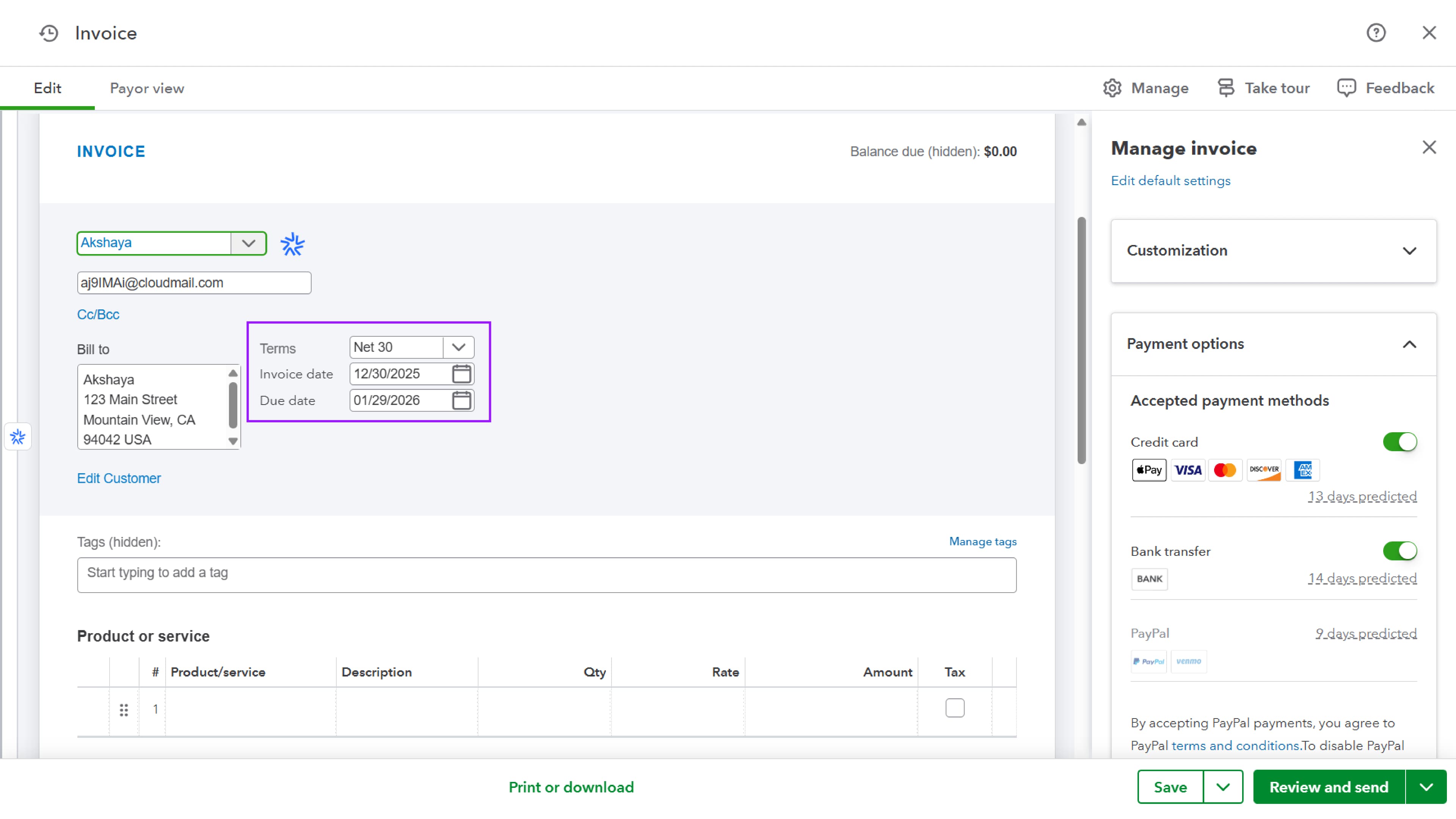
Step 5: Set Invoice Details
Verify or update the following fields:
-
Terms (e.g., Net 30)
-
Invoice date
-
Due date
These determine when the payment is due.
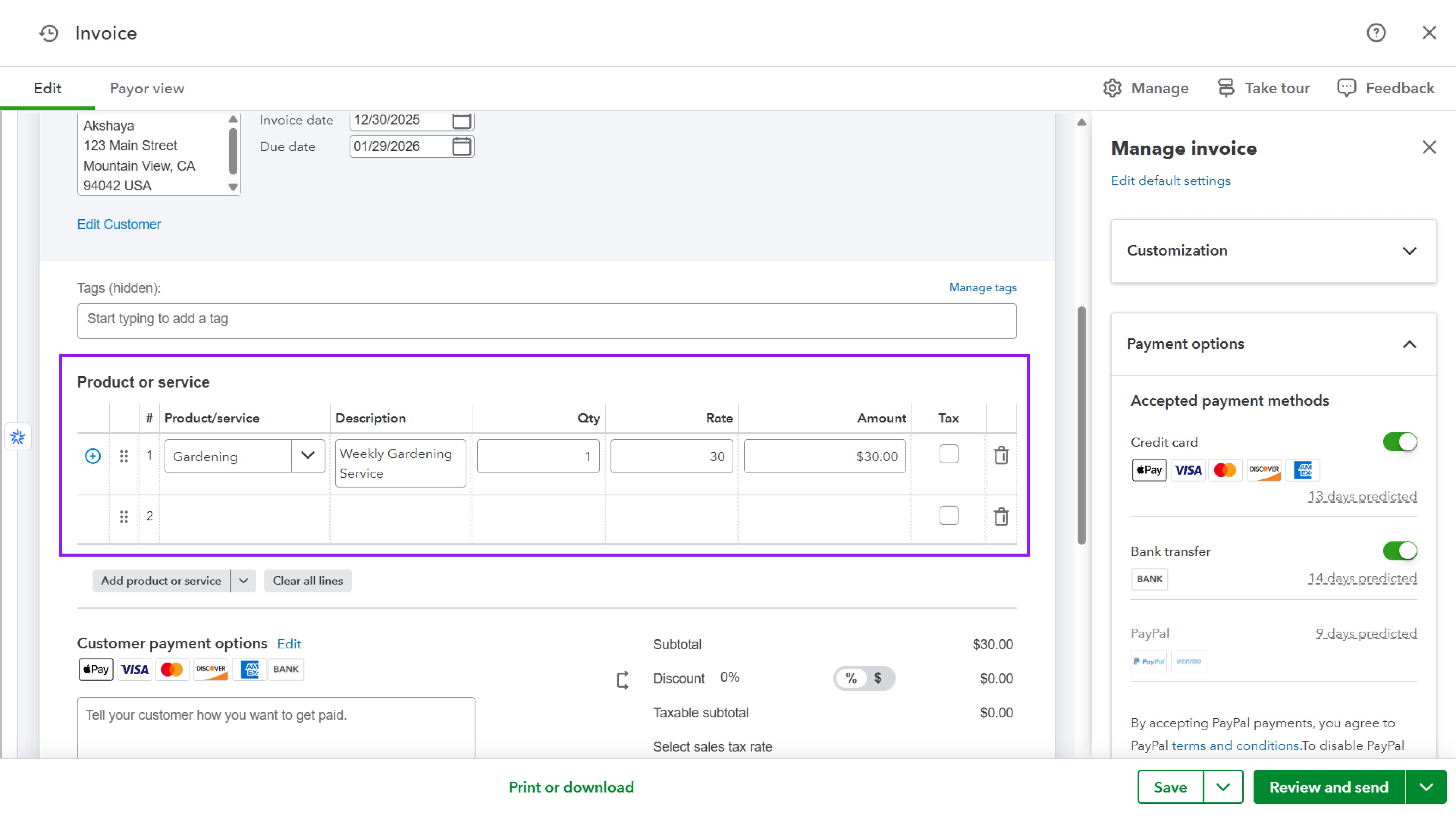
Step 6: Add Products or Services
Under Product or service:
-
Select an existing product/service, or
-
Click Add product or service to create a new one.
Enter or confirm:
-
Description
-
Quantity
-
Rate
-
Amount
-
Tax (if applicable)
Step 8: Save the Invoice
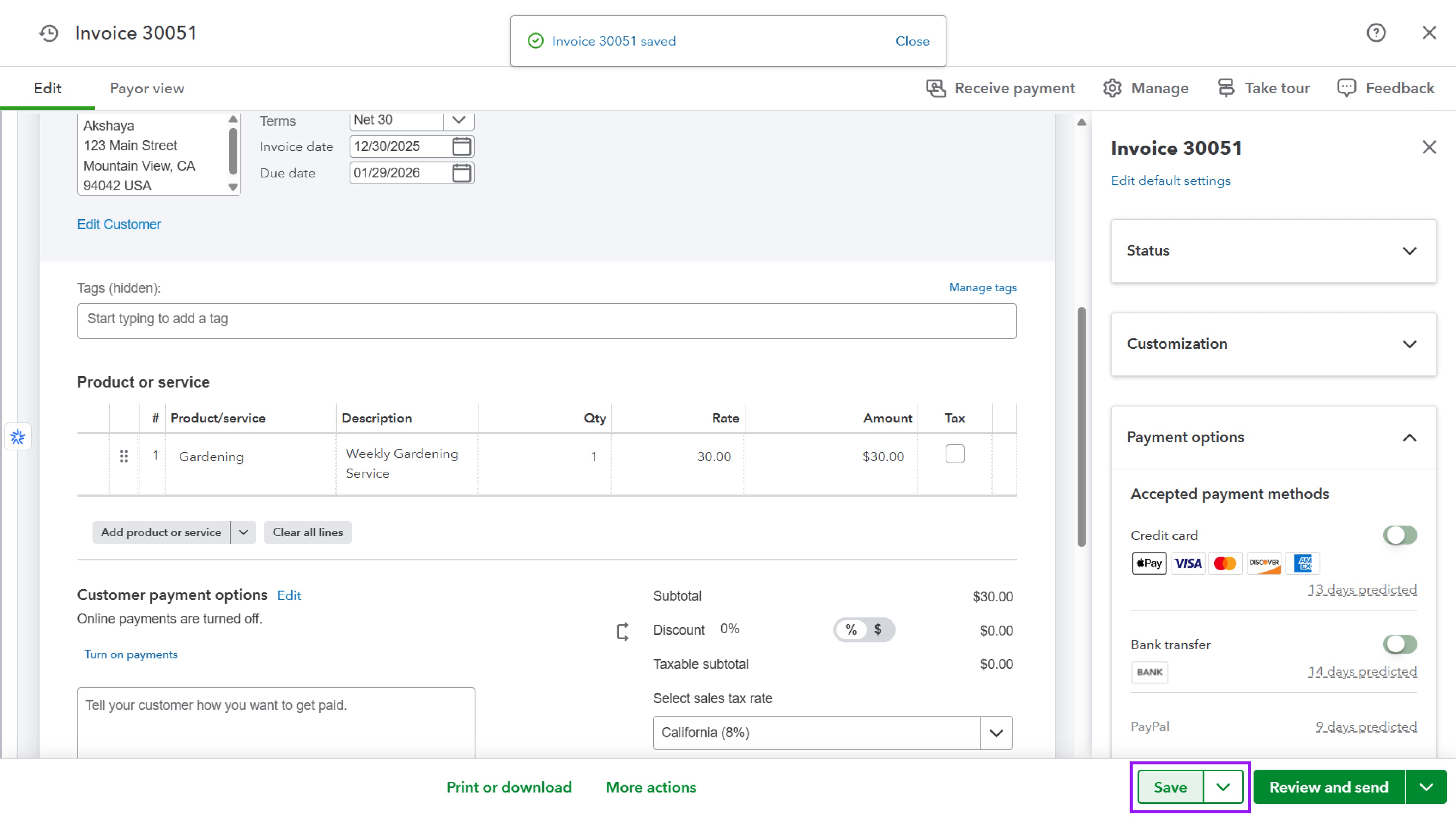
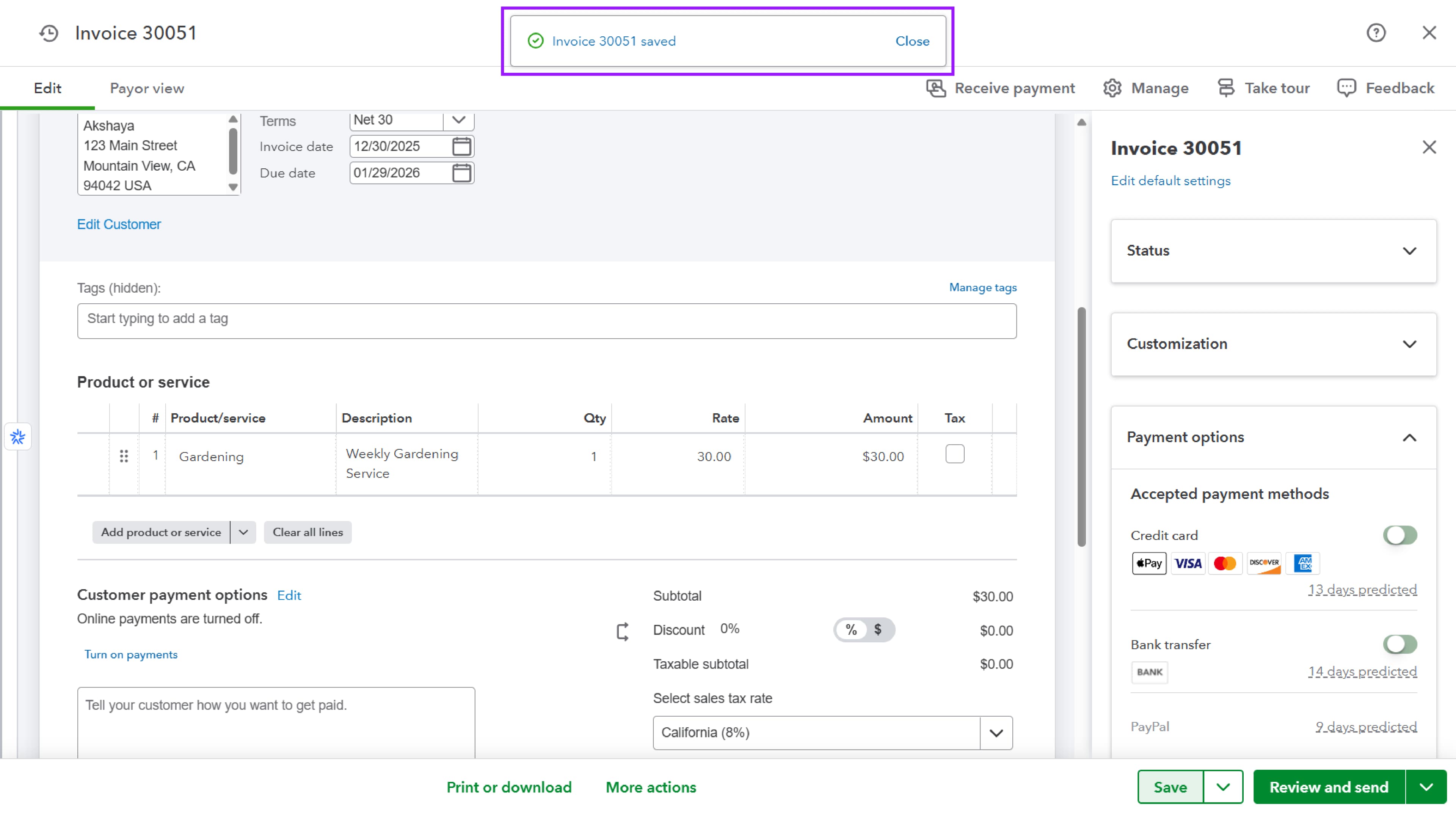
Click Save at the bottom of the page.
A confirmation message appears indicating the invoice has been saved successfully, and an invoice number is generated.
Step 9: Review or Send the Invoice
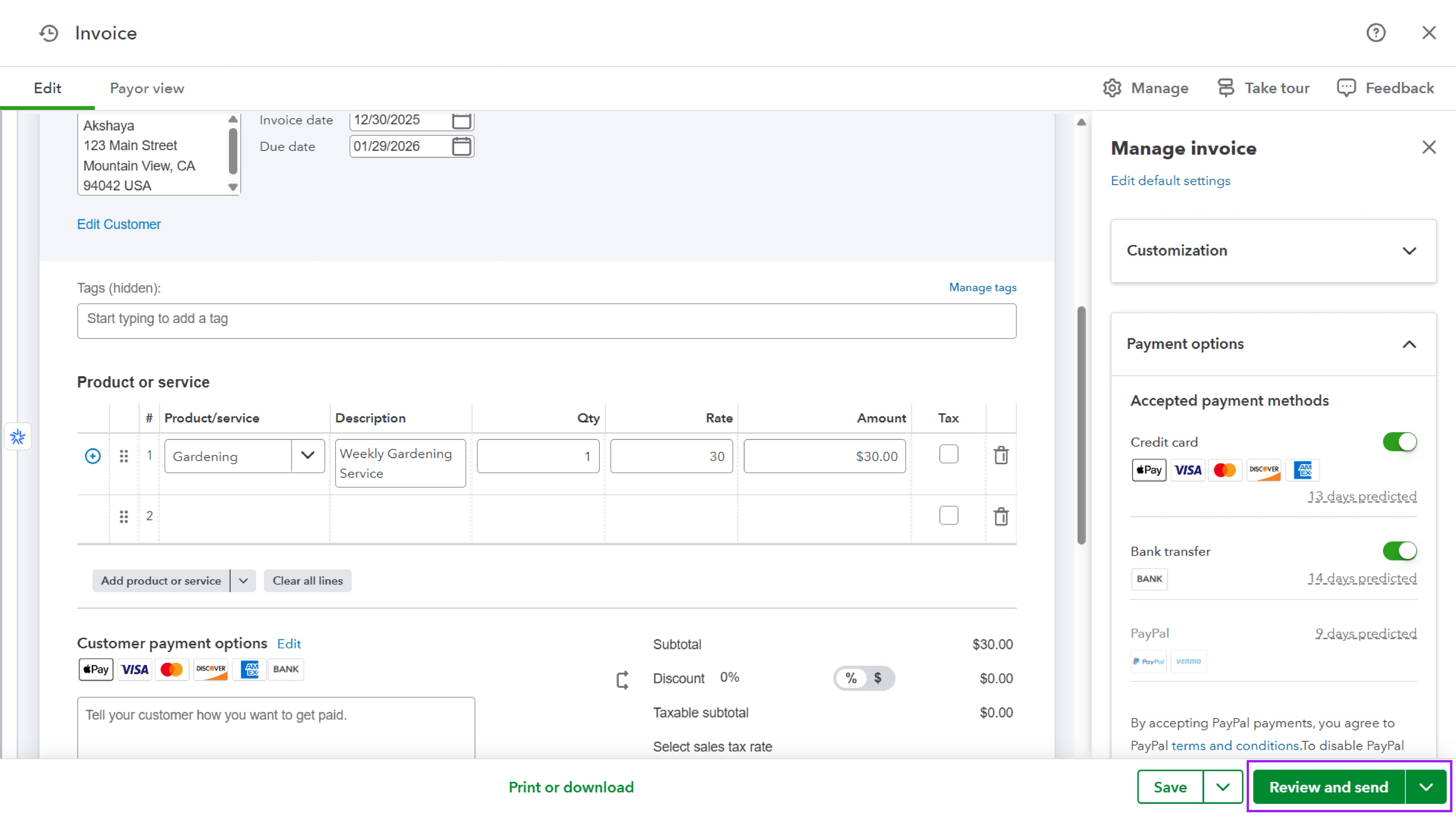
After saving, you can:
- Click Review and send, to email the invoice to the customer.
Step 10: Configure Automatic Transaction Numbering in QuickBooks Online
QuickBooks Online automatically generates a transaction number for each synced transaction when automatic numbering is enabled.
To configure automatic numbering:
-
Log in to QuickBooks Online.
-
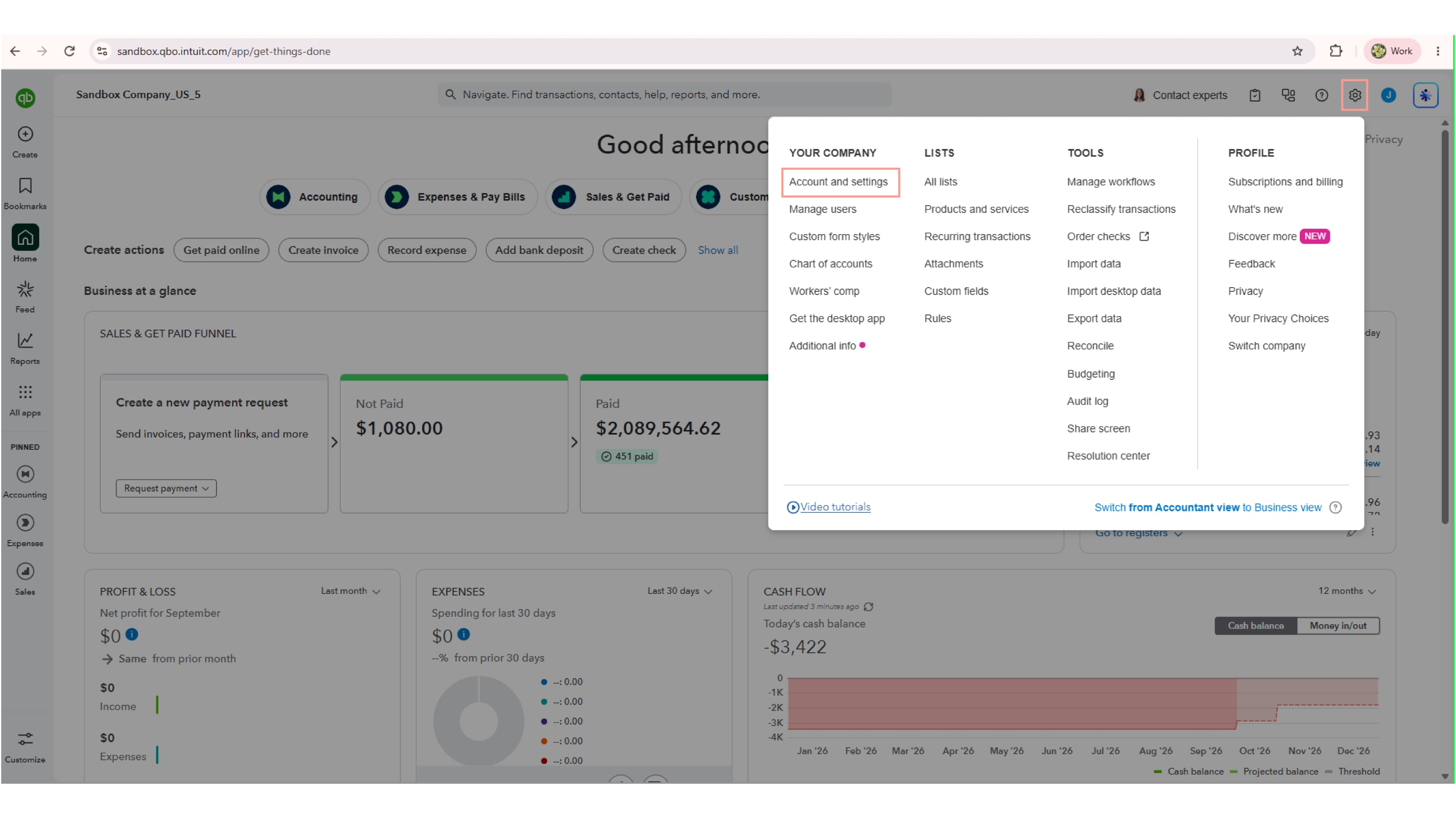
Go to Settings (gear icon) → Account and settings → Sales.
-
Under Sales form content, locate Custom transaction numbers.
-
Turn OFF the Custom transaction numbers setting.
-
When this setting is OFF, QuickBooks Online automatically assigns transaction numbers to new transactions.
-
When this setting is ON, you can enter your own transaction number in the Invoice No. field when creating a transaction.
-
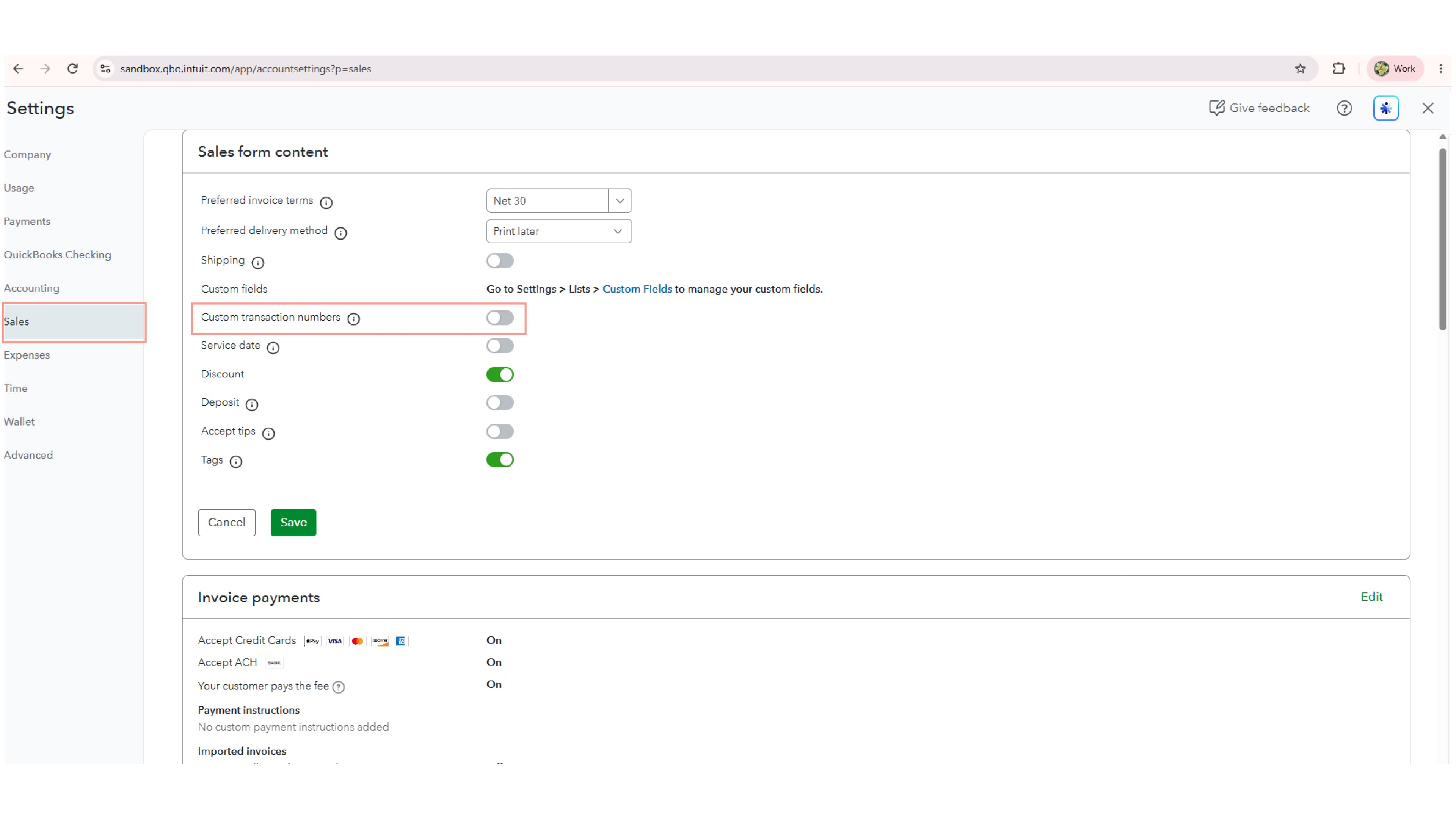
- Click Save.
Example: If QuickBooks Online automatically assigns transaction number 1945, the following transactions will continue with the next numbers in the sequence, such as 1946 and 1947.