How to Set Up DejaUP! on a Payment Terminal
DejaUP! is an unattended payment terminal application that enables merchants to accept payments through compatible Dejavoo payment terminals used in vending machines and kiosks.
This document explains how to prepare a payment terminal for DejaUP! by installing the required applications, configuring the terminal, and downloading the DejaUP! application from DVStore.
Feature Compatibility
- Supported Terminals:
- Dejavoo Q3mini
- Dejavoo Q3V
- Required Applications:
- DVStore
- DvPayLite (Anchor App)
- DejaUP! (Value-Added App)
- Supported Transaction Flows:
- Tap-to-Start
- Select First
- Multivend
Prerequisites
Before setting up DejaUP! on the payment terminal, ensure that DejaUP! has been enabled for the merchant and that the required applications have been assigned through iPOSpays.
For detailed instructions on merchant setup, supported devices, and application assignment, refer to:
Install the Anchor App
Step 1: Open DVStore
Make sure the device is connected to a network [Wifi, Ethernet, cellular data]
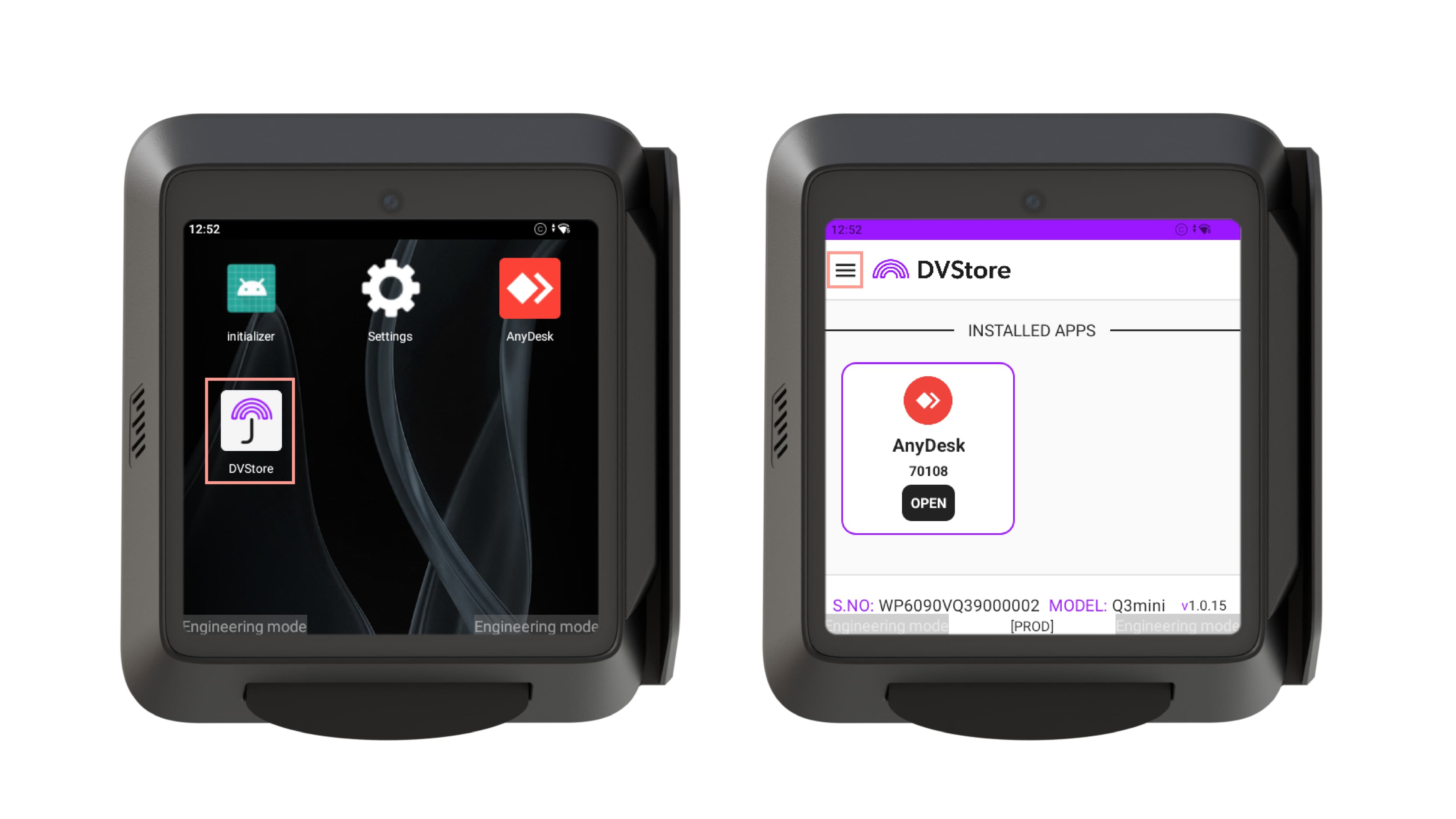
- From the Apps screen, tap DVStore.
- The DVStore application opens.
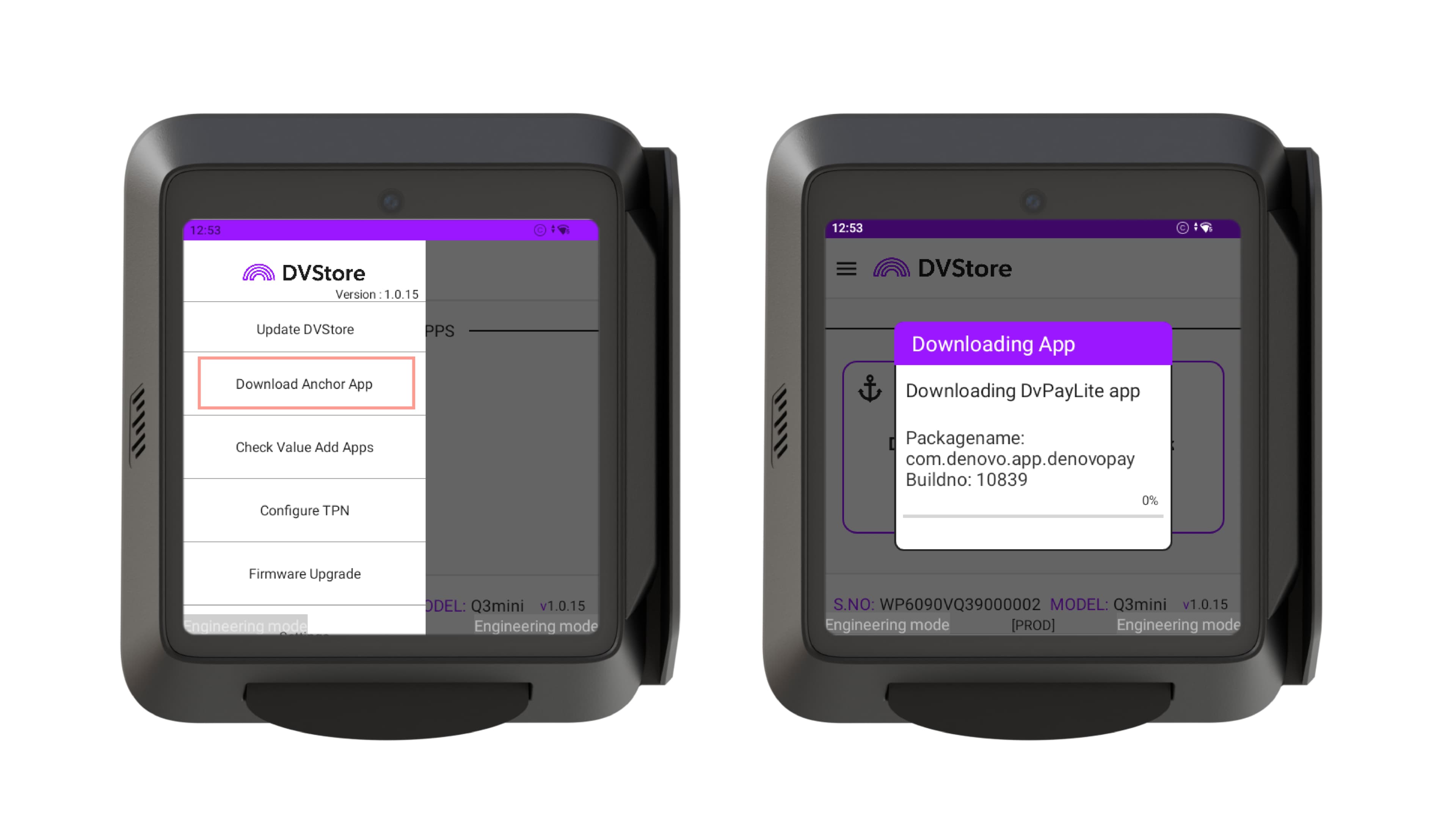
- Tap the Menu button and select Download Anchor App.
- A pop-up notification appears displaying the application download status.
- Wait for the download and installation to complete.
Step 2: Verify Installation
Once the installation is complete, verify that DvPayLite appears in the terminal’s application list.
Download and Configure the TPN on the Terminal
Before downloading the DejaUP! Application, the payment terminal must be configured with the assigned TPN (Terminal Profile Number).
Step 1: Launch DvPayLite
- Return to the terminal’s Apps screen.
- Tap DvPayLite.
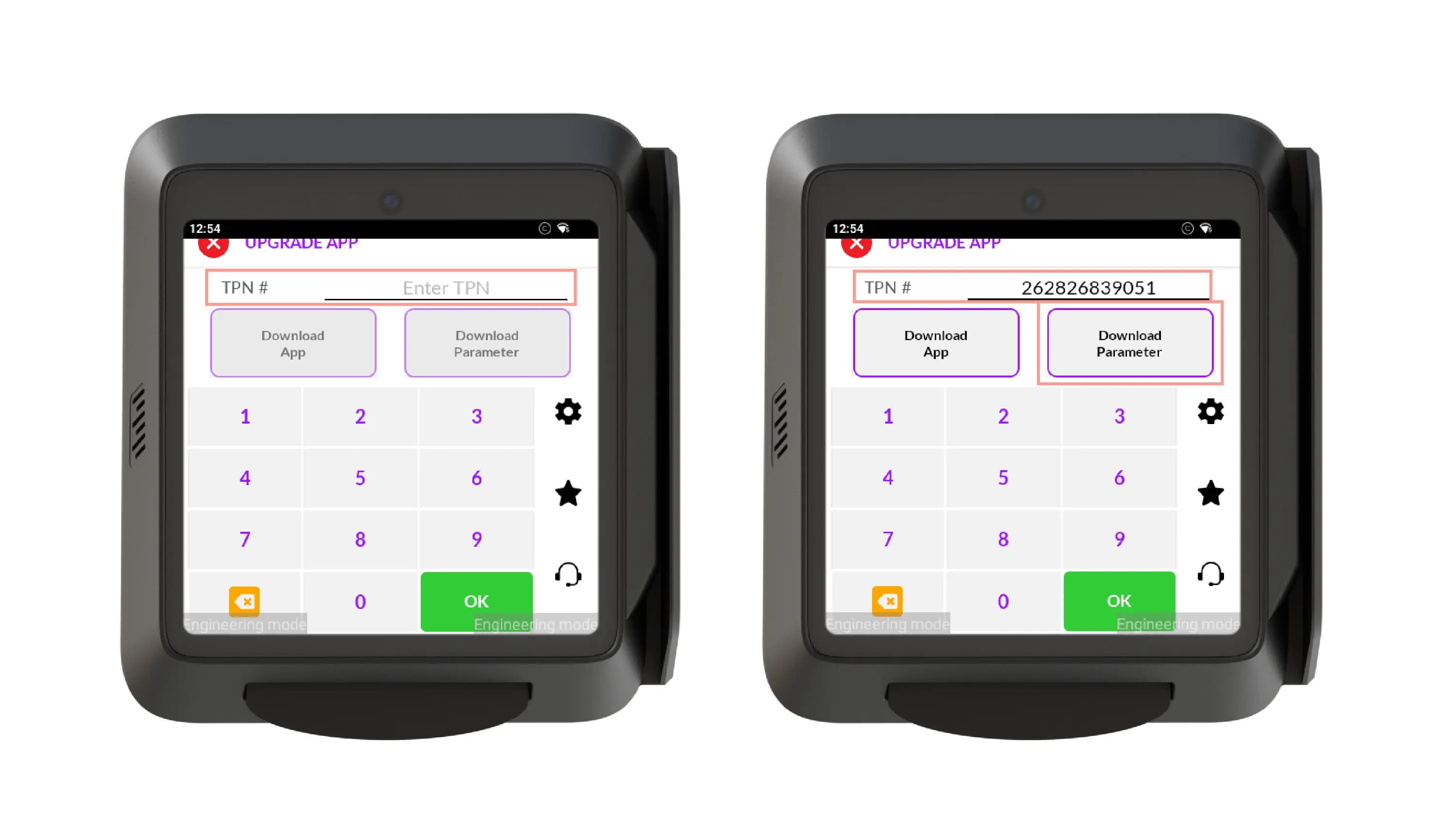
The UPGRADE APP screen appears.
Step 2: Enter the TPN
- Tap the TPN # field.
- Enter the DejaUP!-assigned TPN using the on-screen keypad.
- Tap Download Parameters.
Step 3: Enter the One-Time Passcode
- When prompted, “Do you want to continue like a pinpad device?”, tap No.
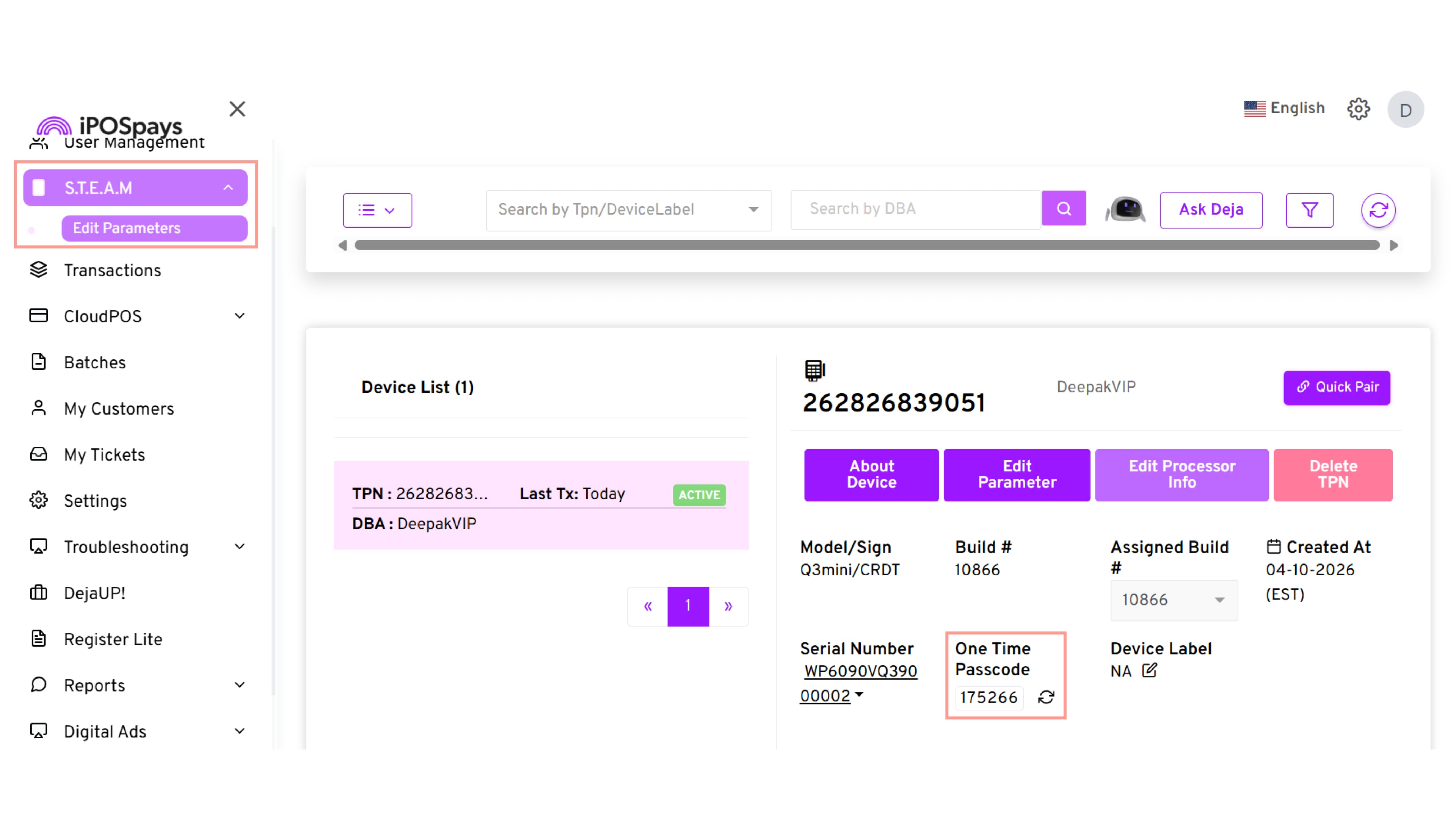
- If prompted, enter the One-Time Passcode (OTP) available in the iPOSpays Portal → S.T.E.A.M → Edit Parameter.
- Tap OK.
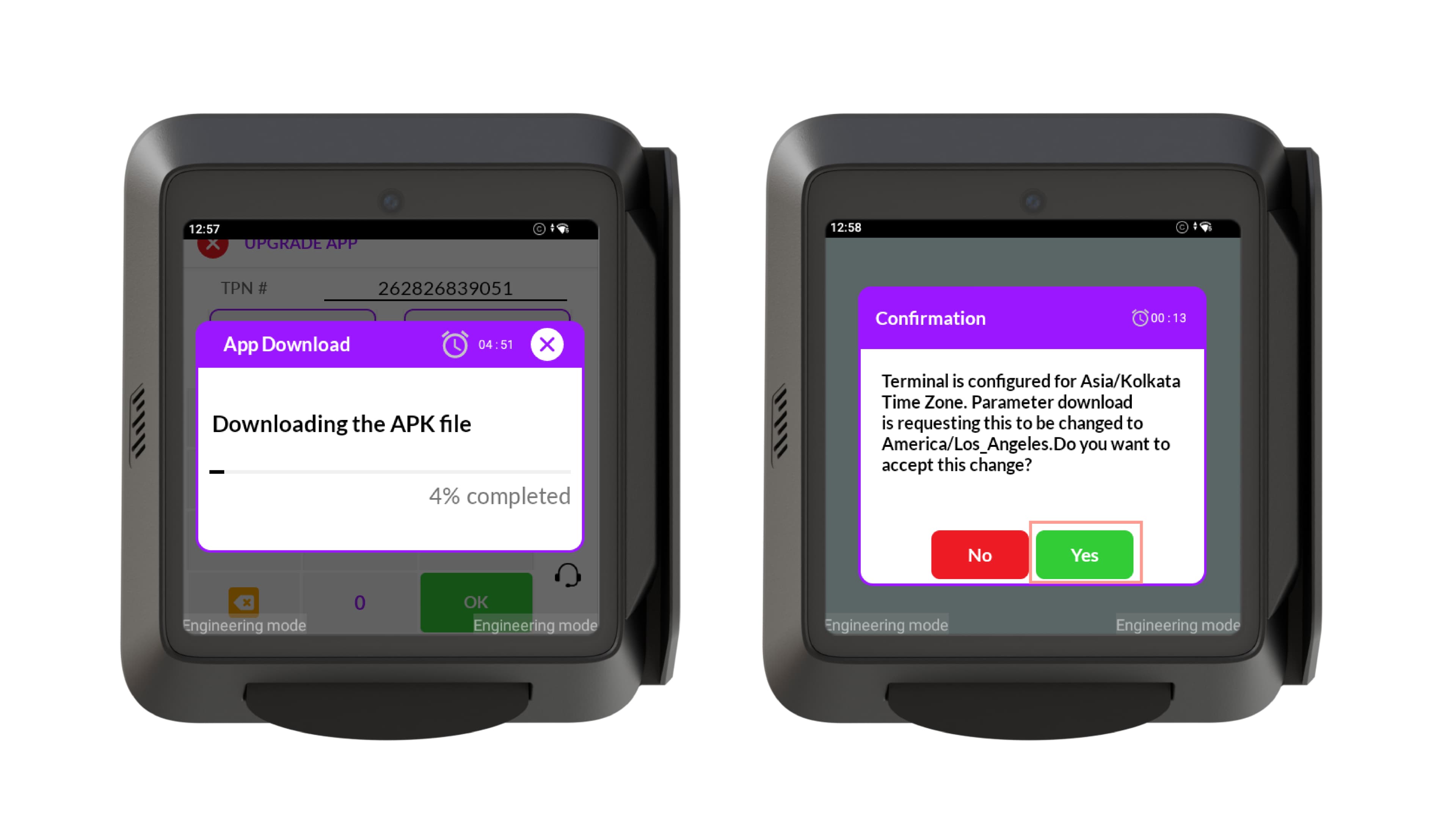
The terminal begins downloading the application package and configuration files. A progress pop-up appears showing the download status.
Step 4: Complete the Installation
- Wait for the download and installation process to finish.
- During installation, a message similar to the following may appear:
“Installing, please wait…”
- Do not power off the terminal or close the application while the installation is in progress.
Step 5: Accept Configuration Changes (If Prompted)
- A confirmation pop-up may appear requesting terminal configuration updates, such as a time zone change.
- Review the message.
- Tap Yes to apply the configuration changes.
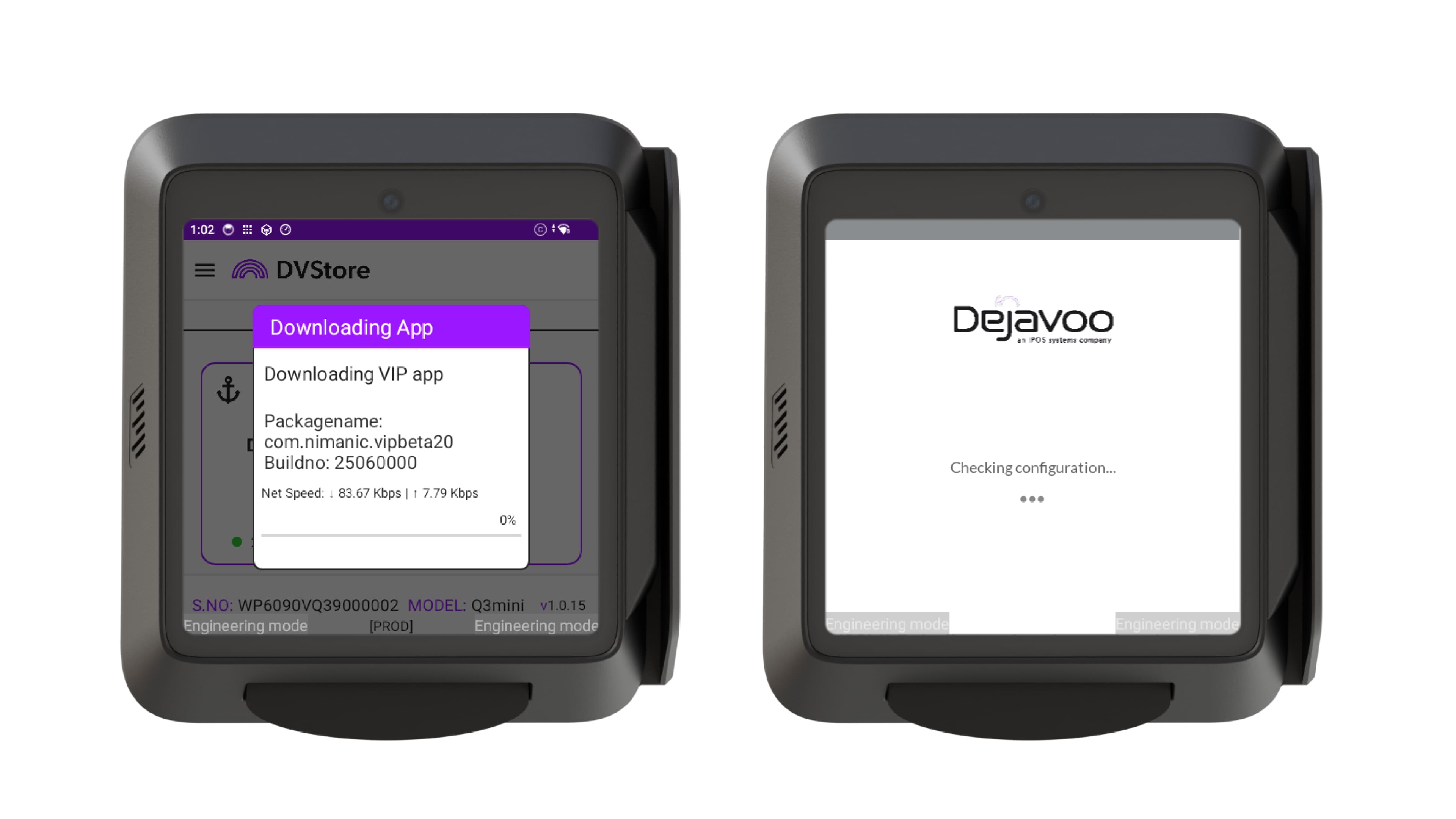
Step 6: Verify the TPN Download
- Once the installation is complete, the terminal automatically loads the transaction screen.
The terminal is now configured and ready to install the DejaUP! application through DVStore.
Download and Install the DejaUP! Application
Step 1: Open DVStore
- Return to the terminal’s Apps screen.
- Tap DVStore.
Step 2: Download the DejaUP! Application
-
Tap the Menu button.
-
Select Check Value Add Apps.
-
The terminal begins downloading the DejaUP! Application.
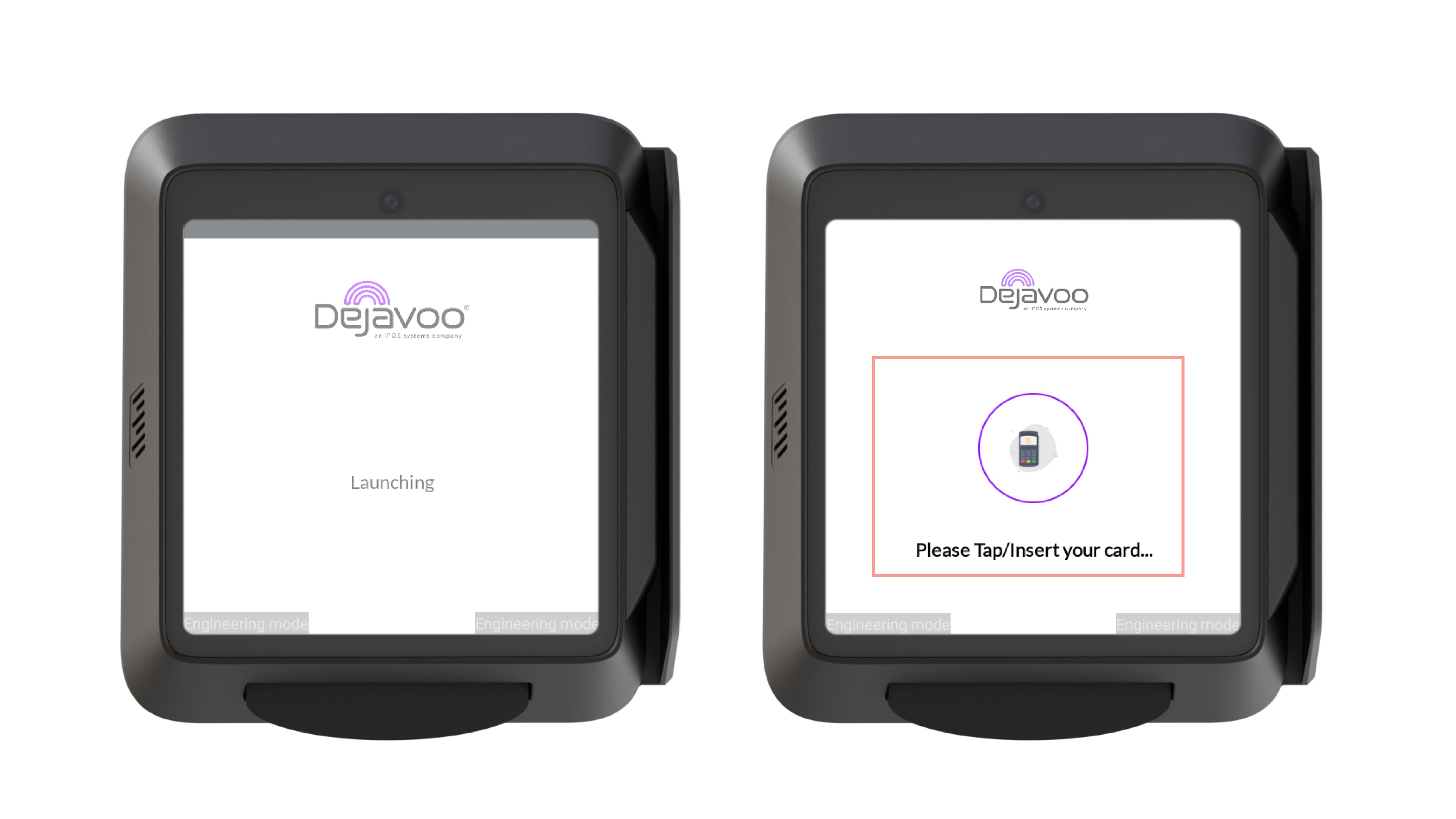
Step 3: Complete the Installation
- Wait for the download and installation process to complete.
- A progress window displays the installation status.
- Do not close DVStore or power off the terminal while the installation is in progress.
Step 4: Launch DejaUP!
- Once the installation is complete
- Wait for the DejaUP! Application to initialize.
- The application may take a few moments to complete the first-time setup. During the 1st time setup the terminal must be connected to the vending machine to successfully perform a handshake and successfully communicate with the VMC.
The payment terminal is now configured for DejaUP! and ready to process supported vending transactions.
Access Maintenance Mode
You may need to access Maintenance Mode to perform administrative tasks, such as requesting application updates, downloading configuration changes, viewing device health, or exiting the DejaUP! application.
Step 1: Open Maintenance Mode
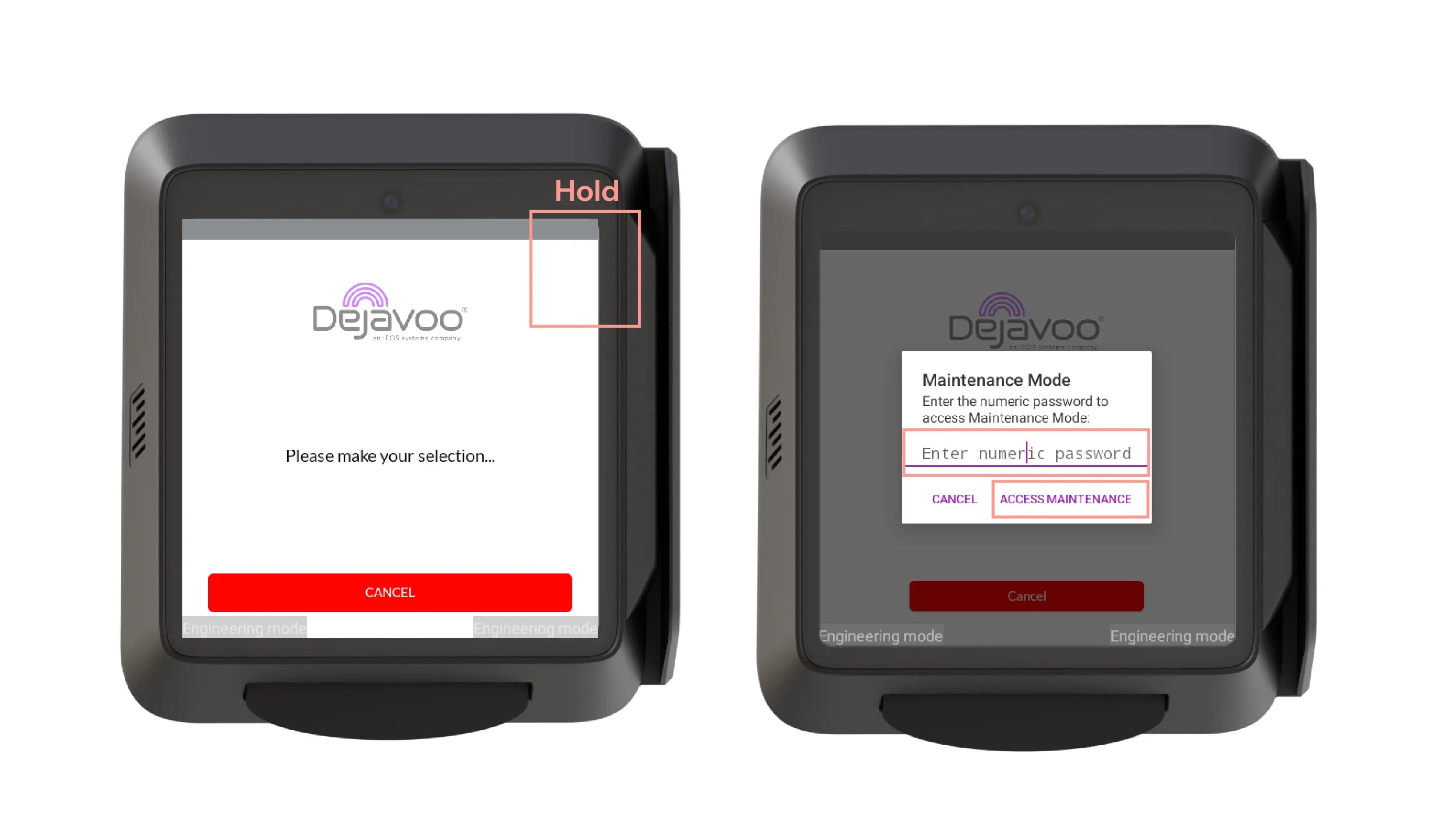
When the DejaUP! payment screen is displayed, press and hold the upper-right corner of the screen for approximately 5–6 seconds.
Step 2: Access Maintenance Mode
Enter the numeric maintenance password using the on-screen keypad.
Tap Access Maintenance.
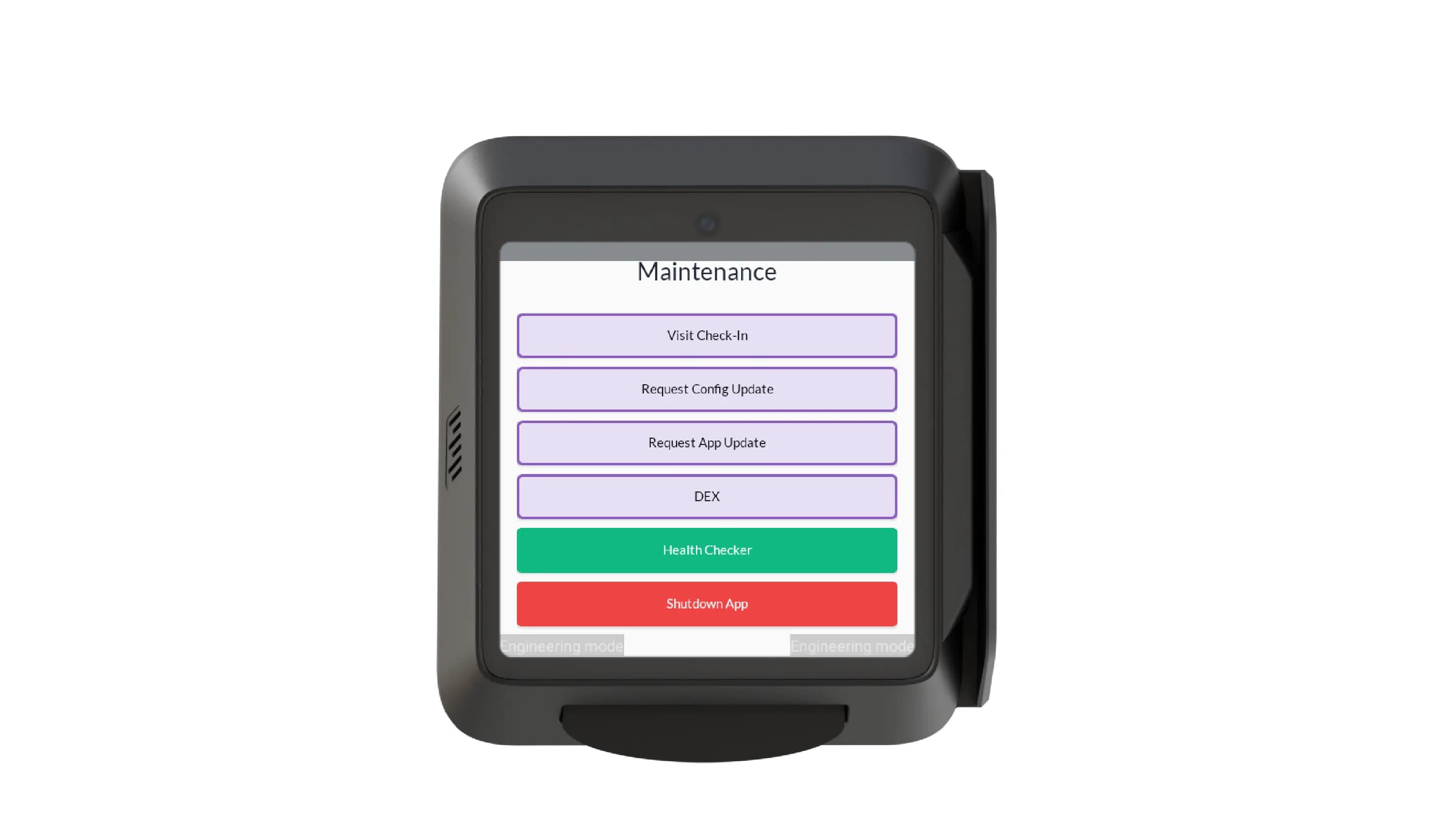
The Maintenance screen opens.
Step 2: Perform the Required Maintenance Task
The Maintenance screen provides the following options:
- Visit Check-In – Opens the Check-In screen.
- Request Config Update – Downloads the latest terminal configuration.
- Request App Update – Checks for and installs available application updates.
- DEX – Opens the DEX (Data Exchange) configuration and diagnostic options.
- Health Checker – Displays the terminal’s health and communication status.
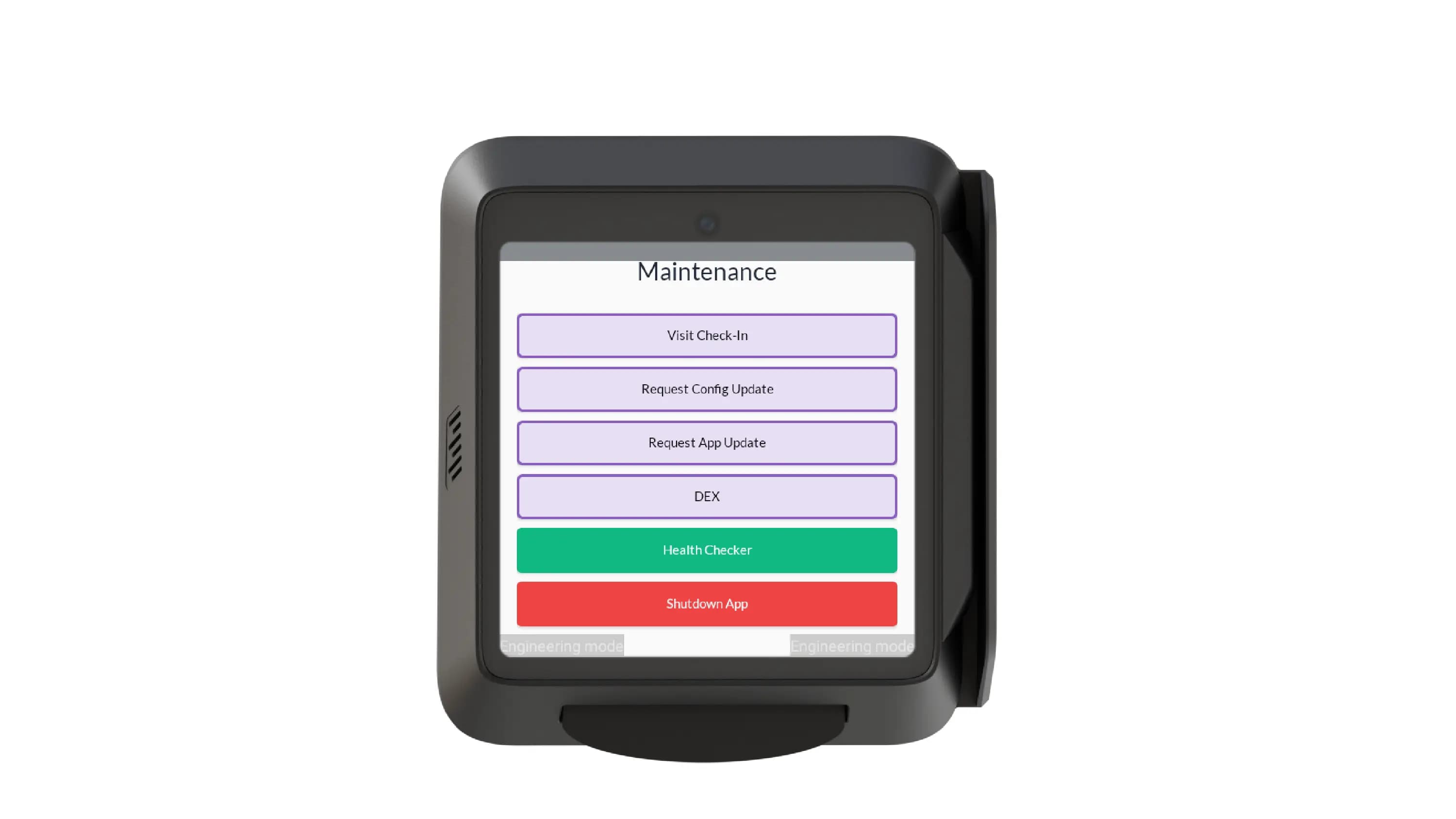
- Shutdown App – Closes the DejaUP! application and returns to the terminal’s Apps screen.
Step 3: Exit DejaUP!
To exit the DejaUP! application, tap Shutdown App.
The DejaUP! application closes, and the terminal returns to the Apps screen, where you can access other terminal applications or perform additional configuration tasks.