Smart Onboarding on iPOSpays
Smart Onboarding on iPOSpays allows ISOs and Agent Offices to streamline the Merchant Onboarding process by automatically extracting merchant and device details from an uploaded VAR sheet. This reduces the need to manually enter merchant, store, and device information during onboarding. This document explains how to use the Smart Onboarding feature on the iPOSpays Portal.
Steps to Onboard a Merchant Using Smart Onboarding
Step 1: Log In to the iPOSpays Portal
Log in to the iPOSpays Portal using your ISO or Agent Office credentials.
Step 2: Navigate to Add Merchant
-
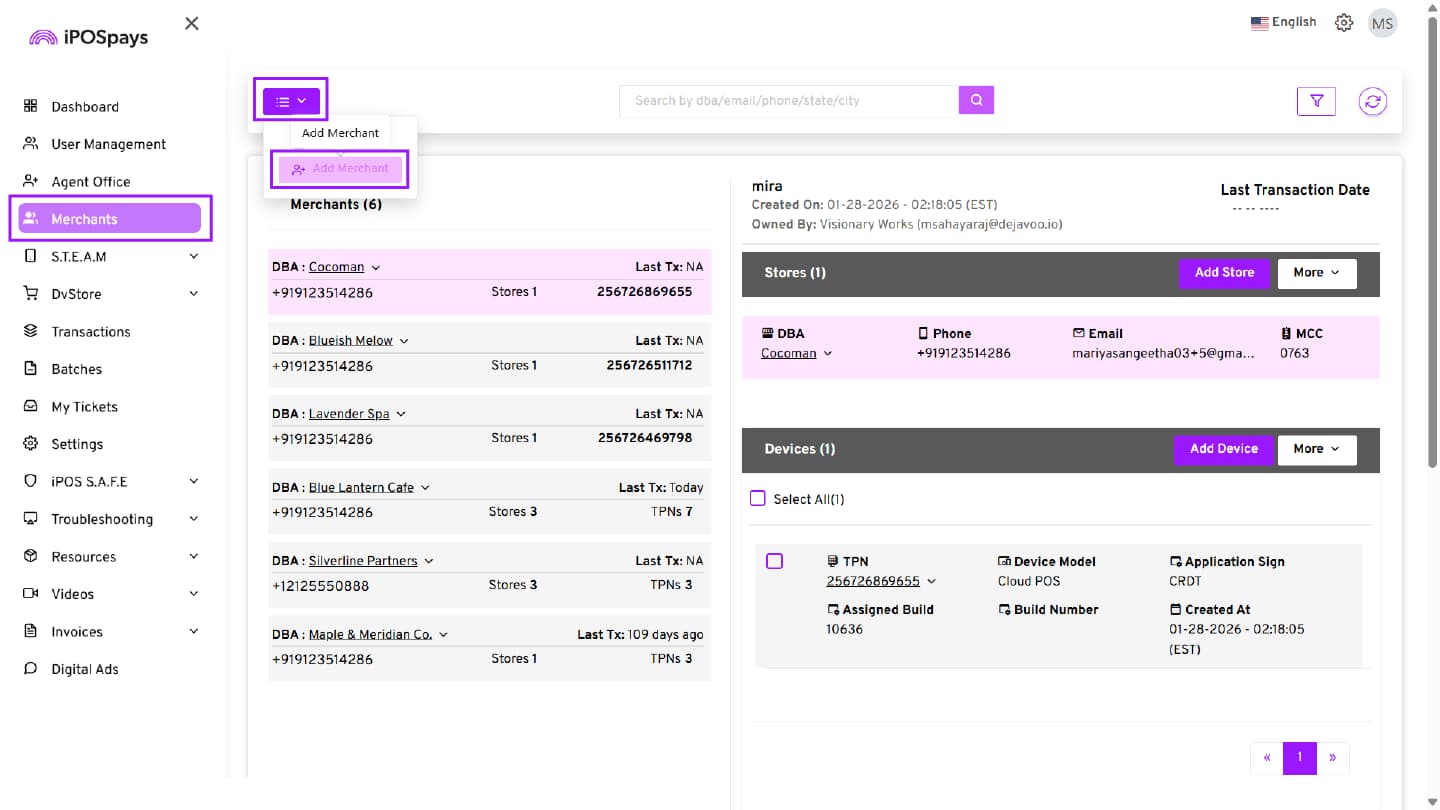
From the left-hand menu, click the Merchants tab.
-
Click the Actions menu, then select Add Merchant. This will direct you to the Merchant Info tab.
Step 3: Upload VAR Sheet Using Smart Onboarding
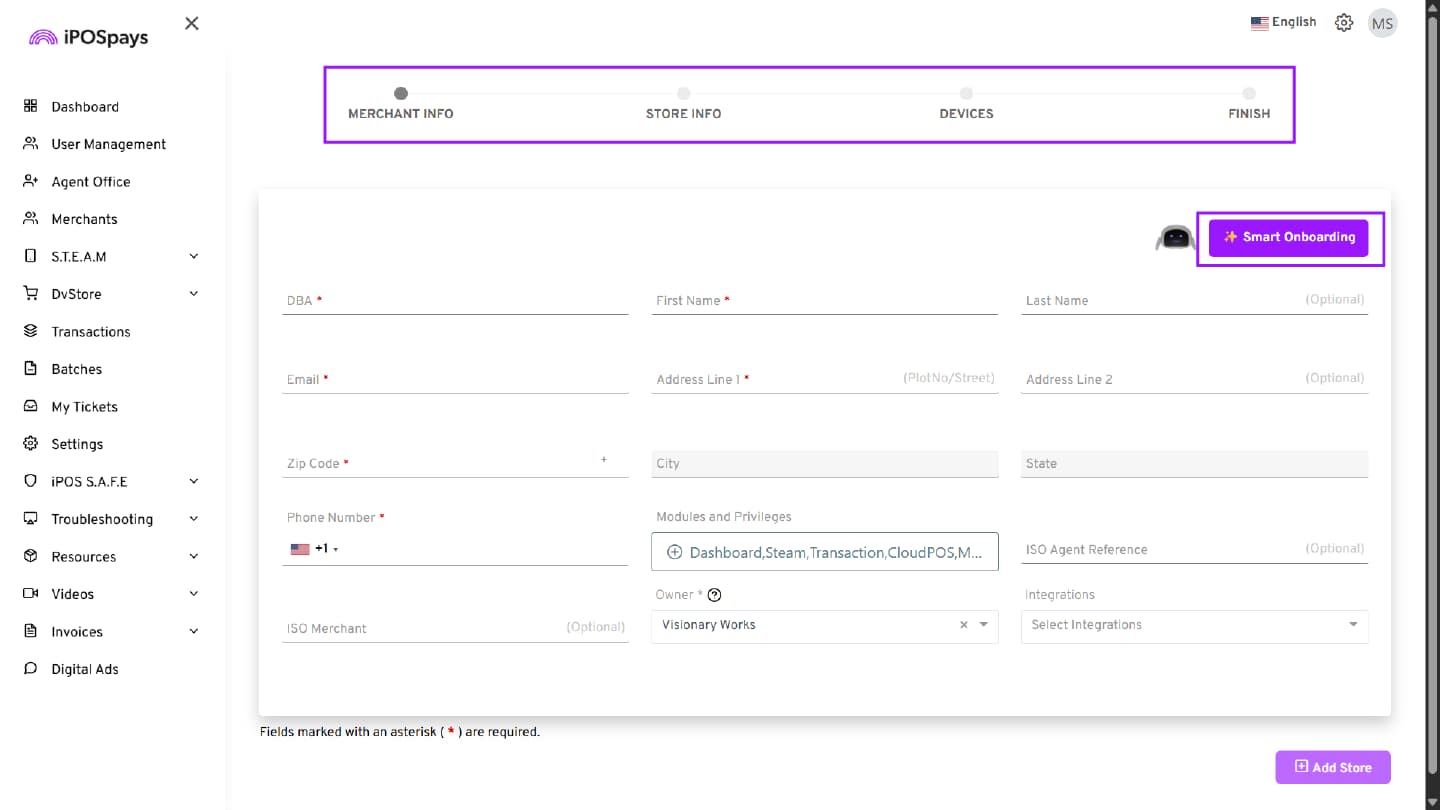
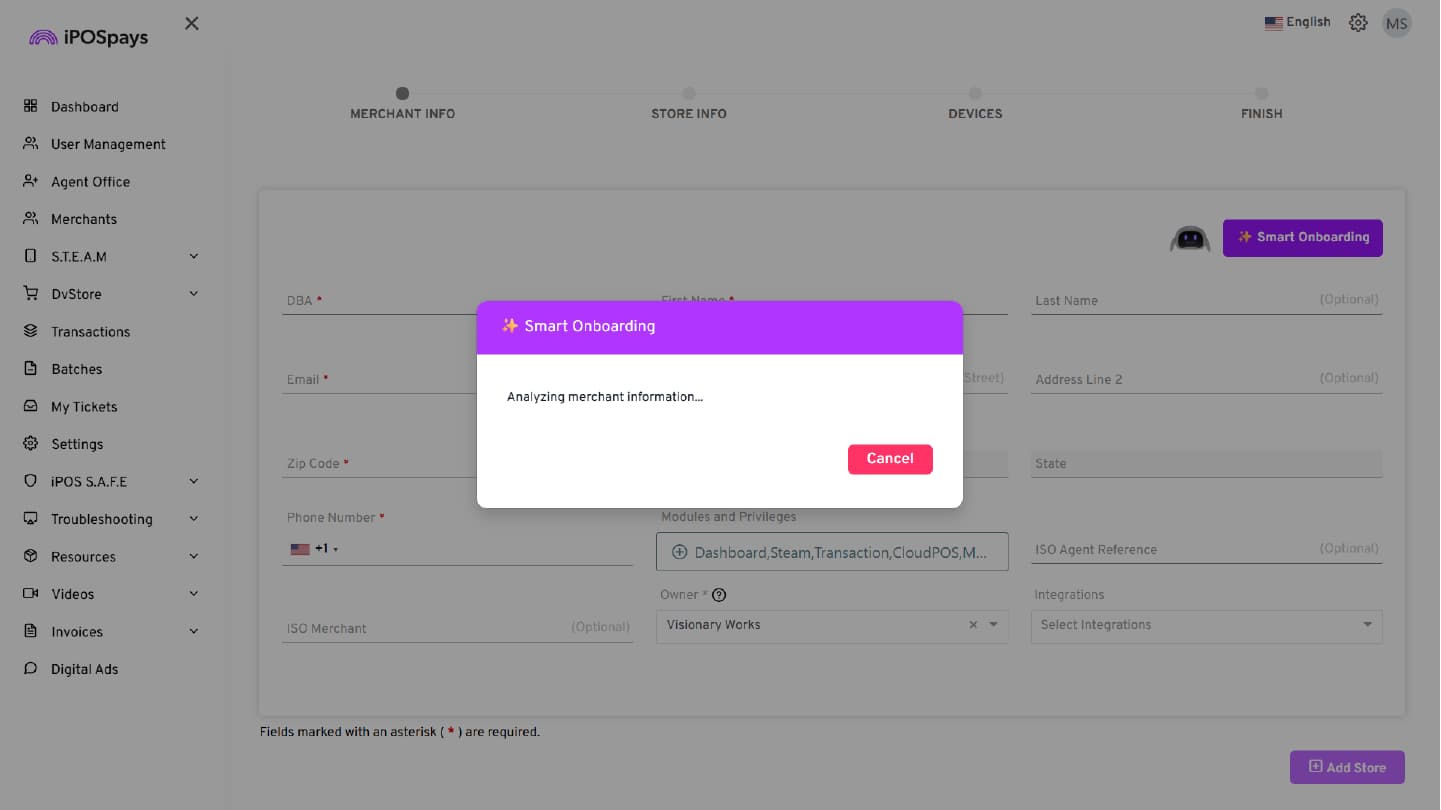
- In the MERCHANT INFO section, click the Smart Onboarding button.
-
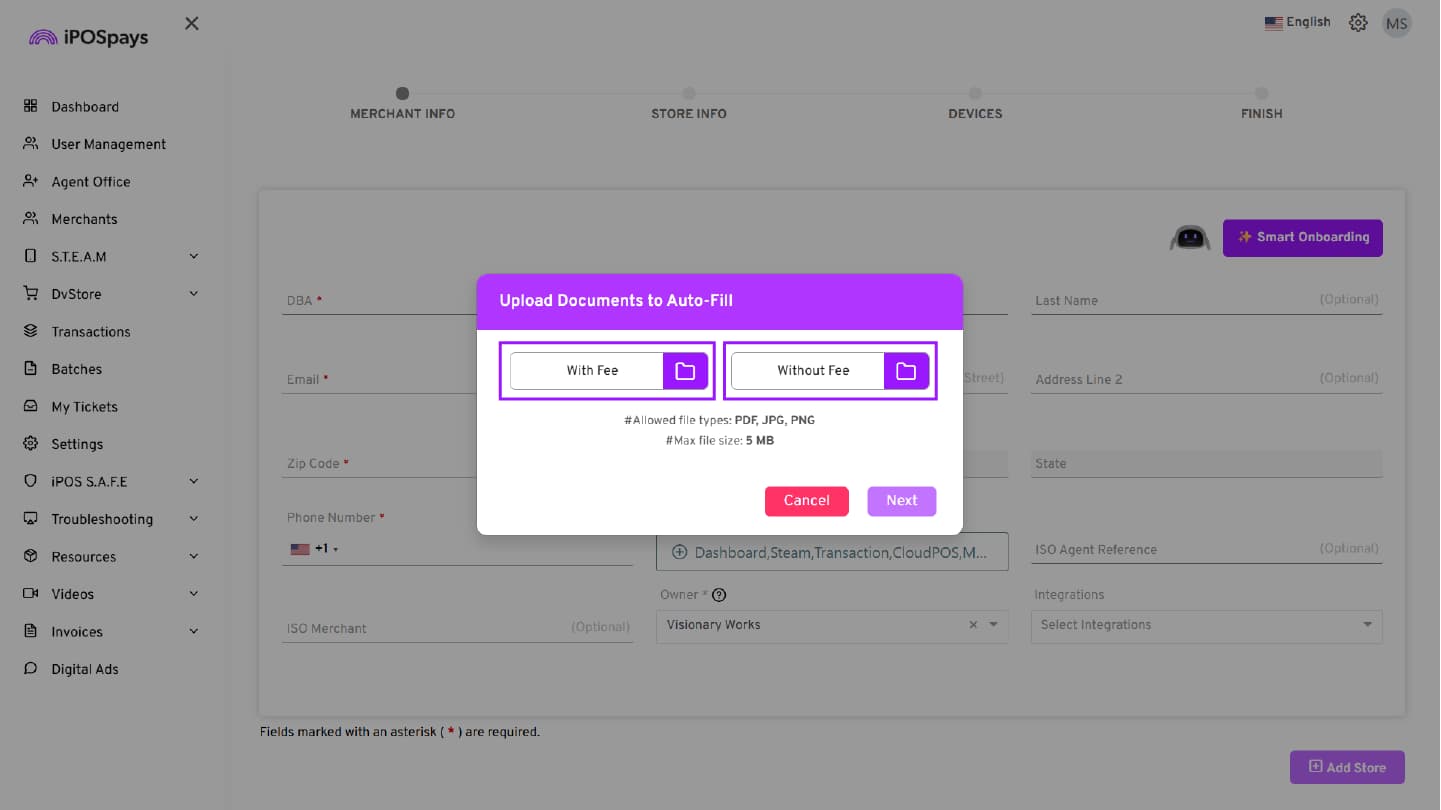
The Upload Documents to Auto-Fill pop-up appears.
-
Click the file upload icon next to one of the following Fee profiles:
-
With Fee
-
Without Fee
-
If the merchant requires a Dual MID configuration, you can use both the With Fee and Without Fee profiles. This can be performed by uploading the corresponding VAR sheets onto each Fee profile.
- The following file types are supported:
-
PDF
-
JPG
-
PNG
Maximum file size: 5 MB
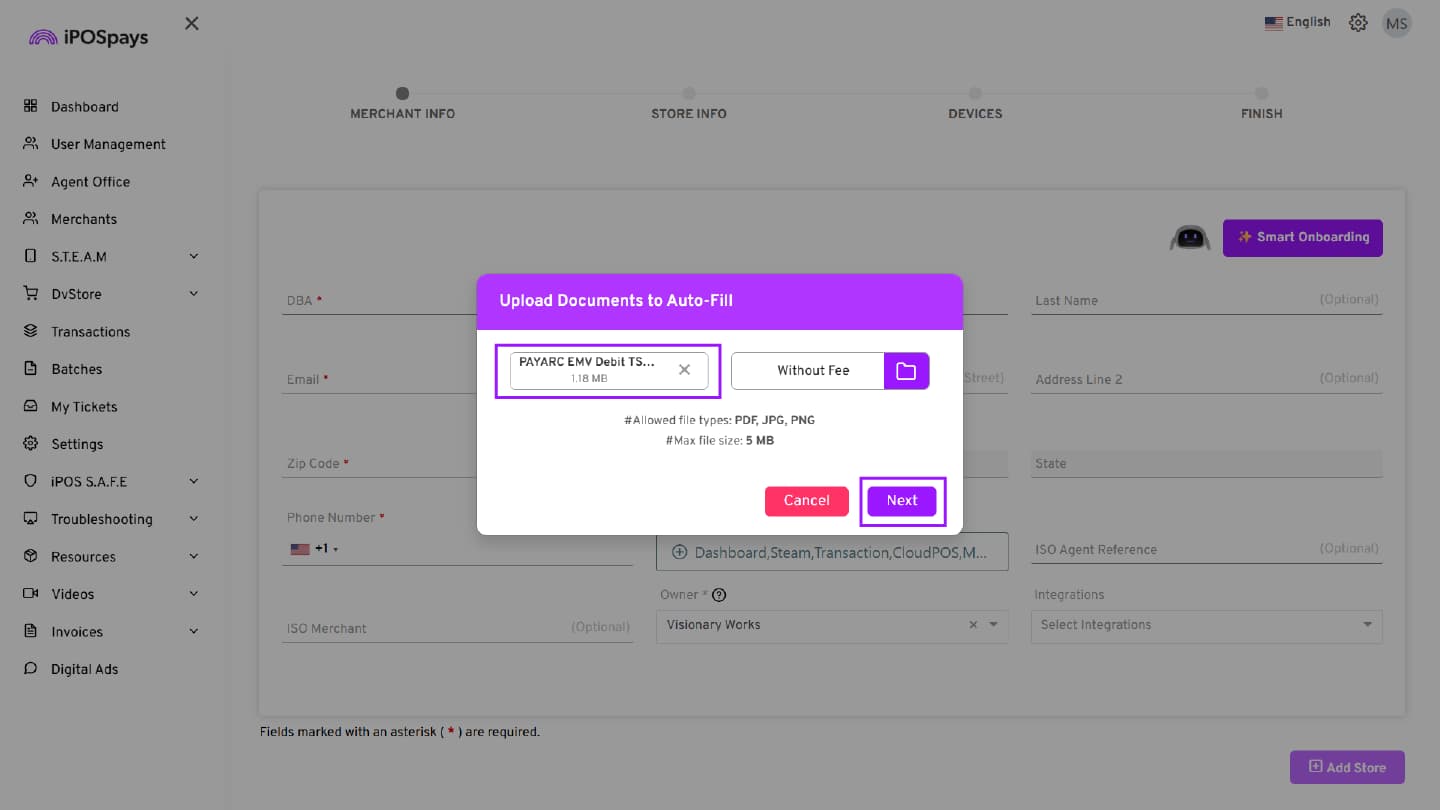
- After uploading the required document(s), click Next.
Step 4: Extraction Confirmation
- Once the extraction process is completed, a confirmation message appears: “All information extracted successfully.”
- Click Continue to proceed with the onboarding process.
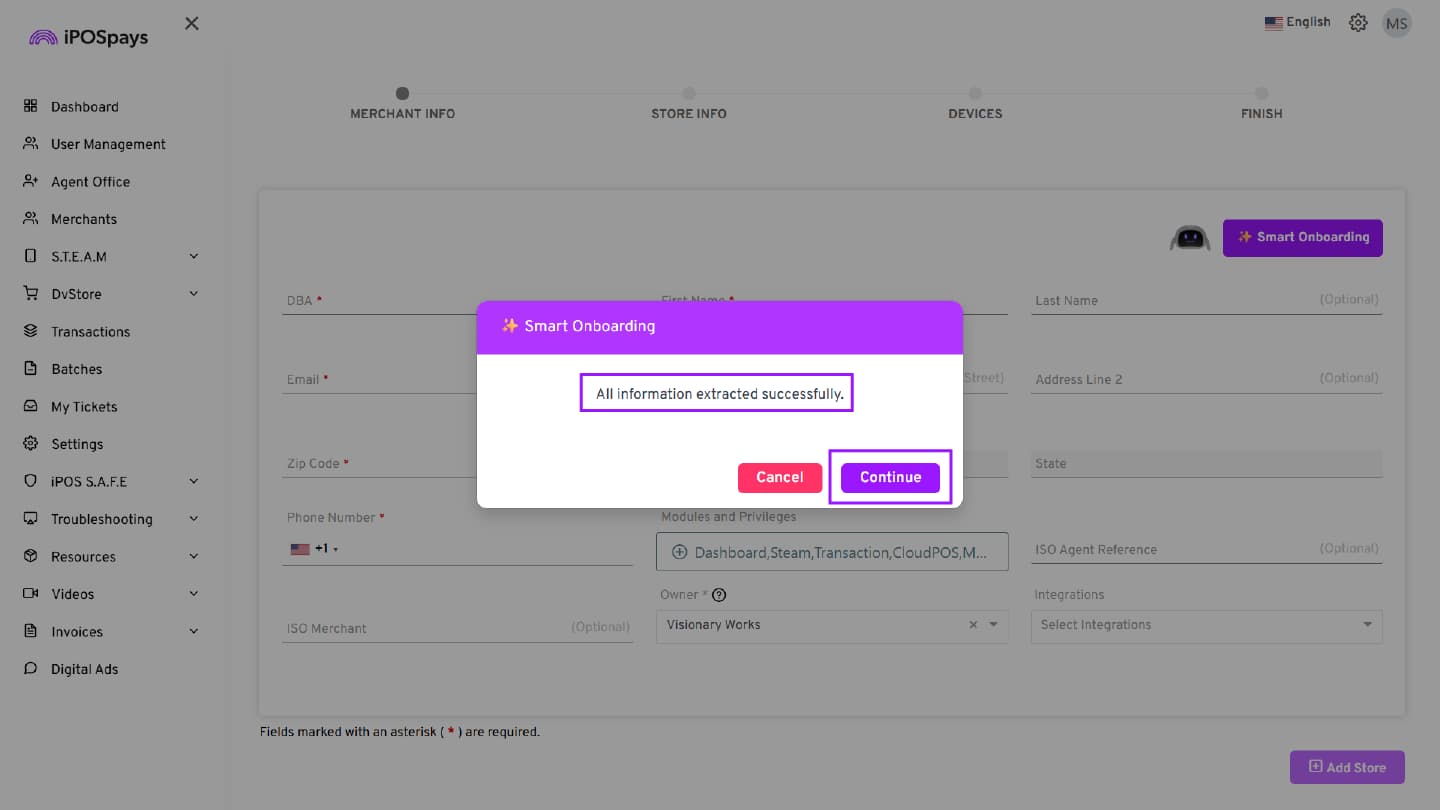
- The extracted details will automatically populate the relevant fields in the Merchant Info, Store Info, and Device configuration sections.
Review the extracted information and enter any missing details manually if required before proceeding to the next step.
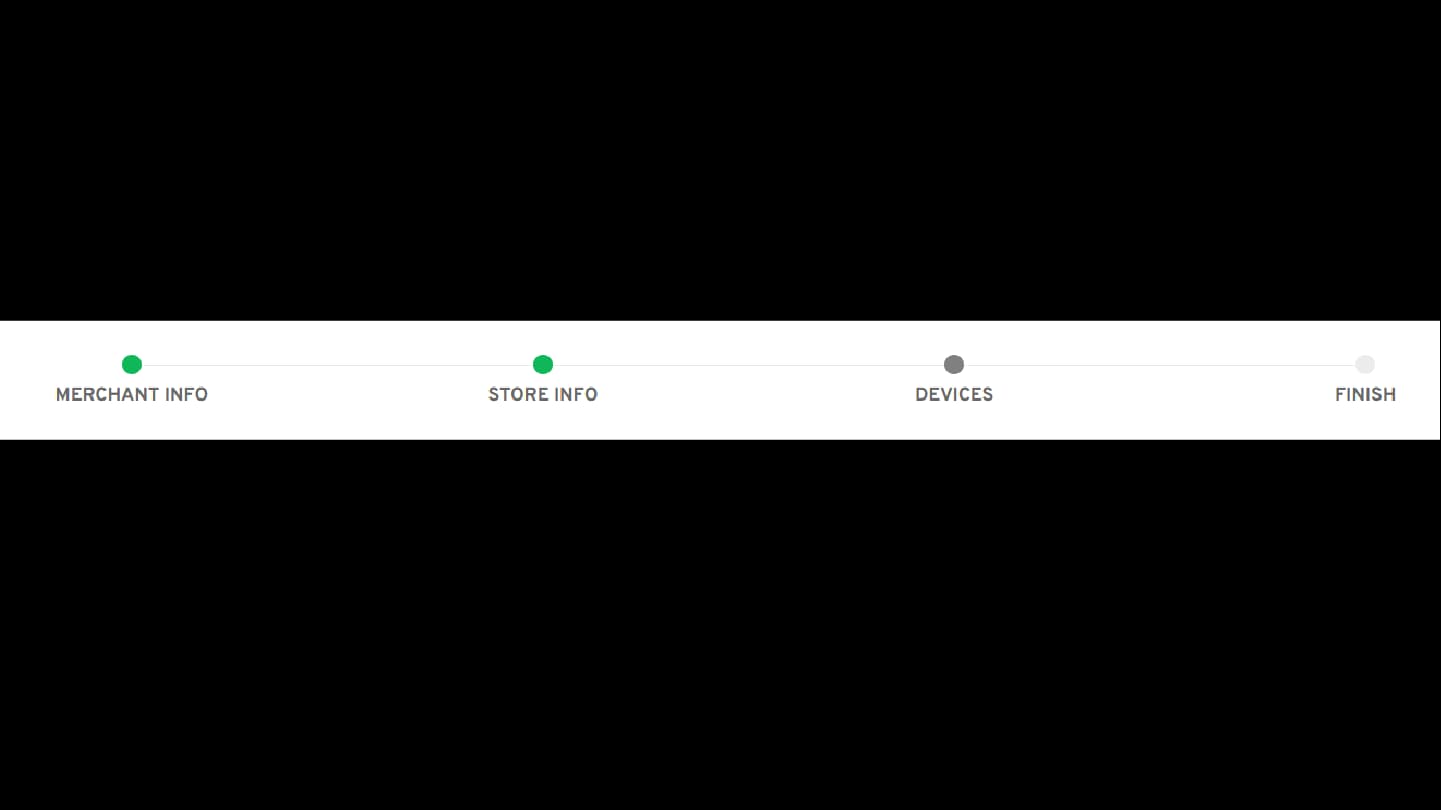
After the VAR sheet is processed, the onboarding workflow follows these sections. Review and complete the required details in each section to onboard the merchant and generate the Terminal Profile Number (TPN):
-
MERCHANT INFO
-
STORE INFO
-
DEVICES
-
FINISH
MERCHANT INFO
The extracted details from the VAR sheet automatically populate the relevant fields in the Merchant Info section. Fill in or verify the following details:
-
DBA
-
First Name
-
Last Name
-
Email
-
Address Line 1
-
Address Line 2
-
ZIP Code
-
City
-
State
-
Phone Number
-
Modules and Privileges
-
Owner
-
ISO Merchant
-
ISO Agent Reference
-
Integrations
-
The ISO/Agent office must select the required Modules and Privileges.
-
Integrations – Select the required integrations by clicking the drop-down arrow, if applicable.
-
If any information is missing, the ISO/Agent office must manually enter the required details.
-
Once all the details are entered, click Add Store.
-
The merchant information is saved automatically, and the system navigates to the Store Info section.
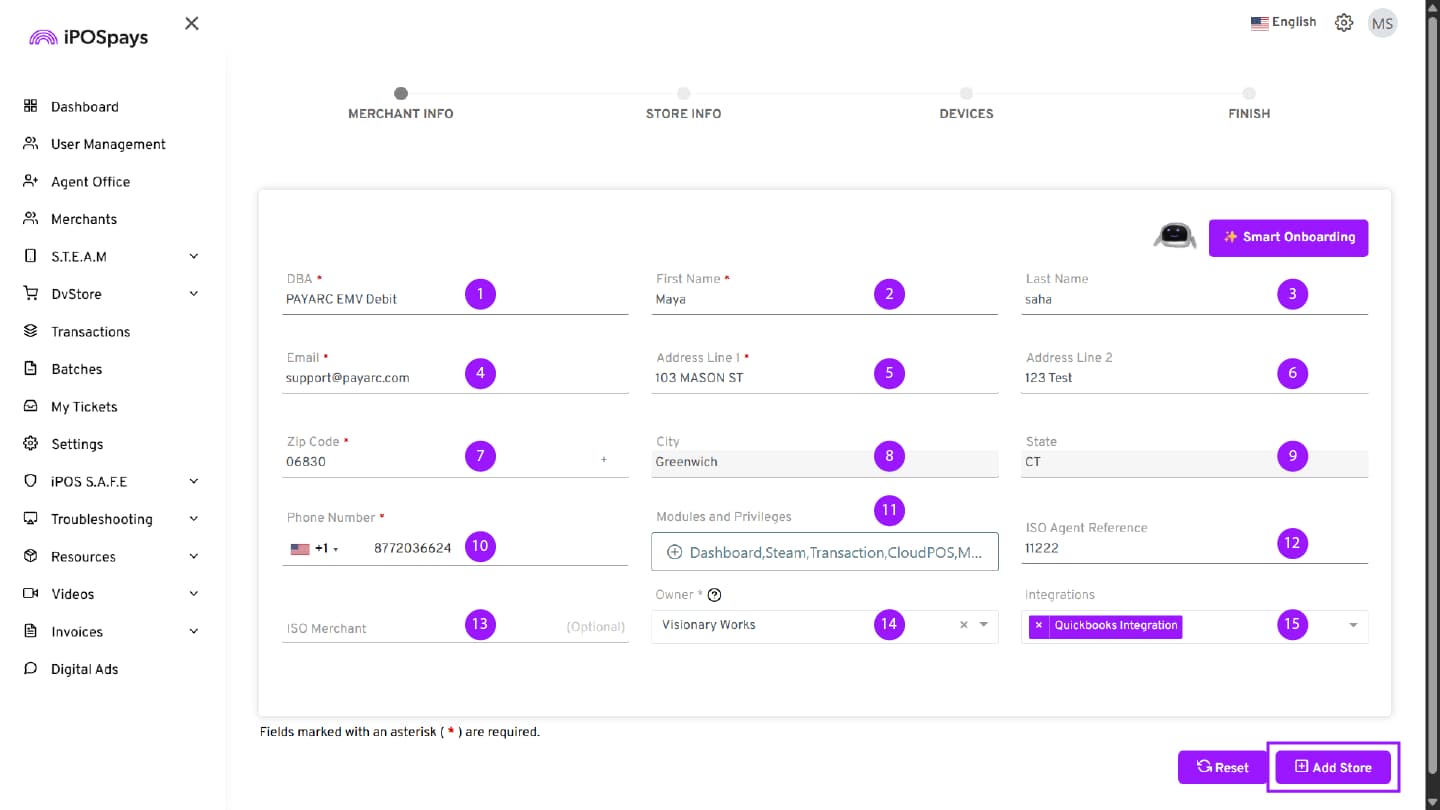
Fields marked with an asterisk (*) are mandatory.
STORE INFO
The extracted details from the VAR sheet automatically populate the relevant fields in the Store Info section. Verify and complete the following details:
-
MCC
-
First Name
-
Last Name
-
DBA
-
Address Line 1
-
Address Line 2
-
ZIP Code
-
City
-
State
-
Email
-
Phone Number
-
Merchant VAT Reg. No.
-
Merchant Verification Value
-
EBT
-
Enable ACH Transactions
-
Once all the details are entered, click Add Device.
-
A Confirm MCC prompt appears. Click Confirm to proceed.
-
Once all the information is verified, click Add Device.
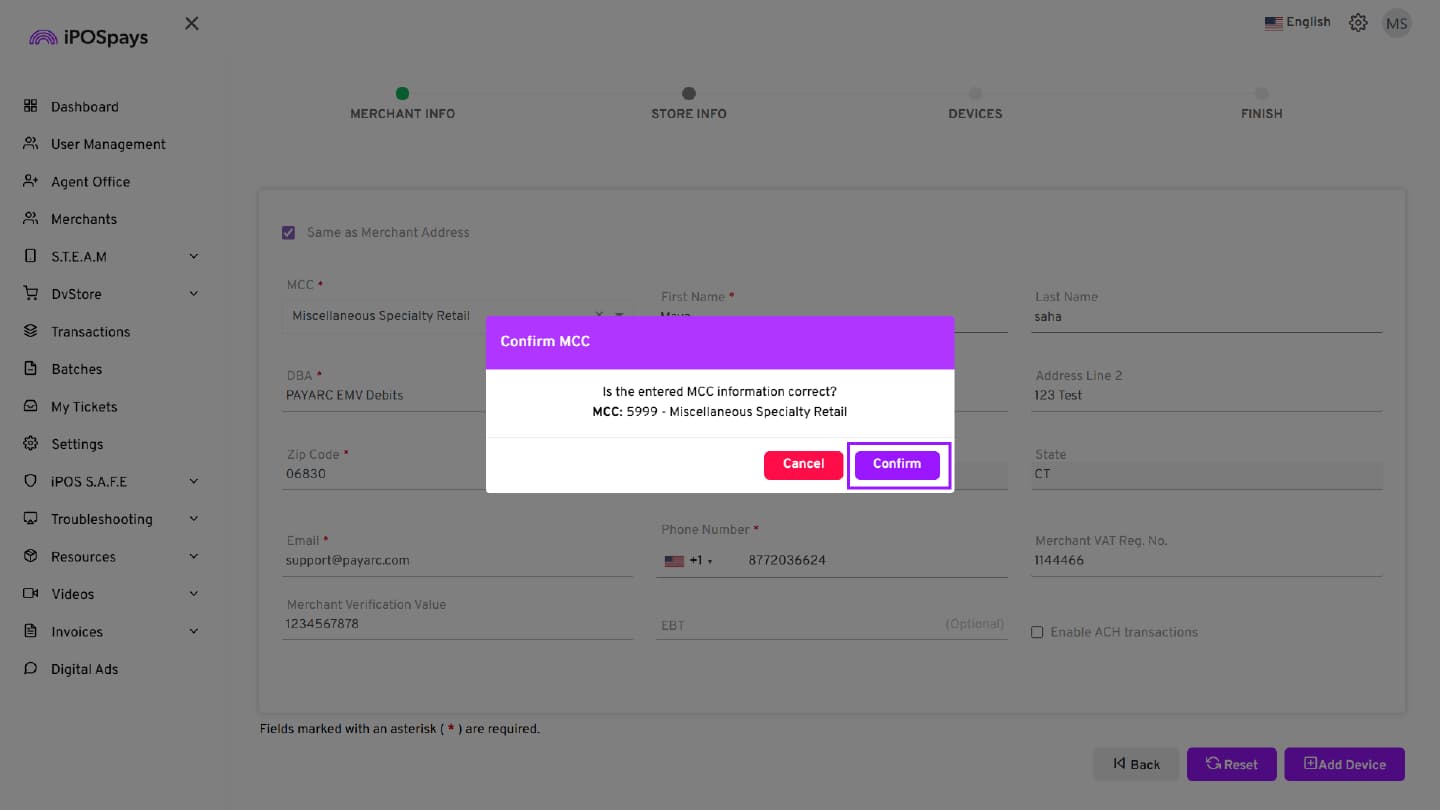
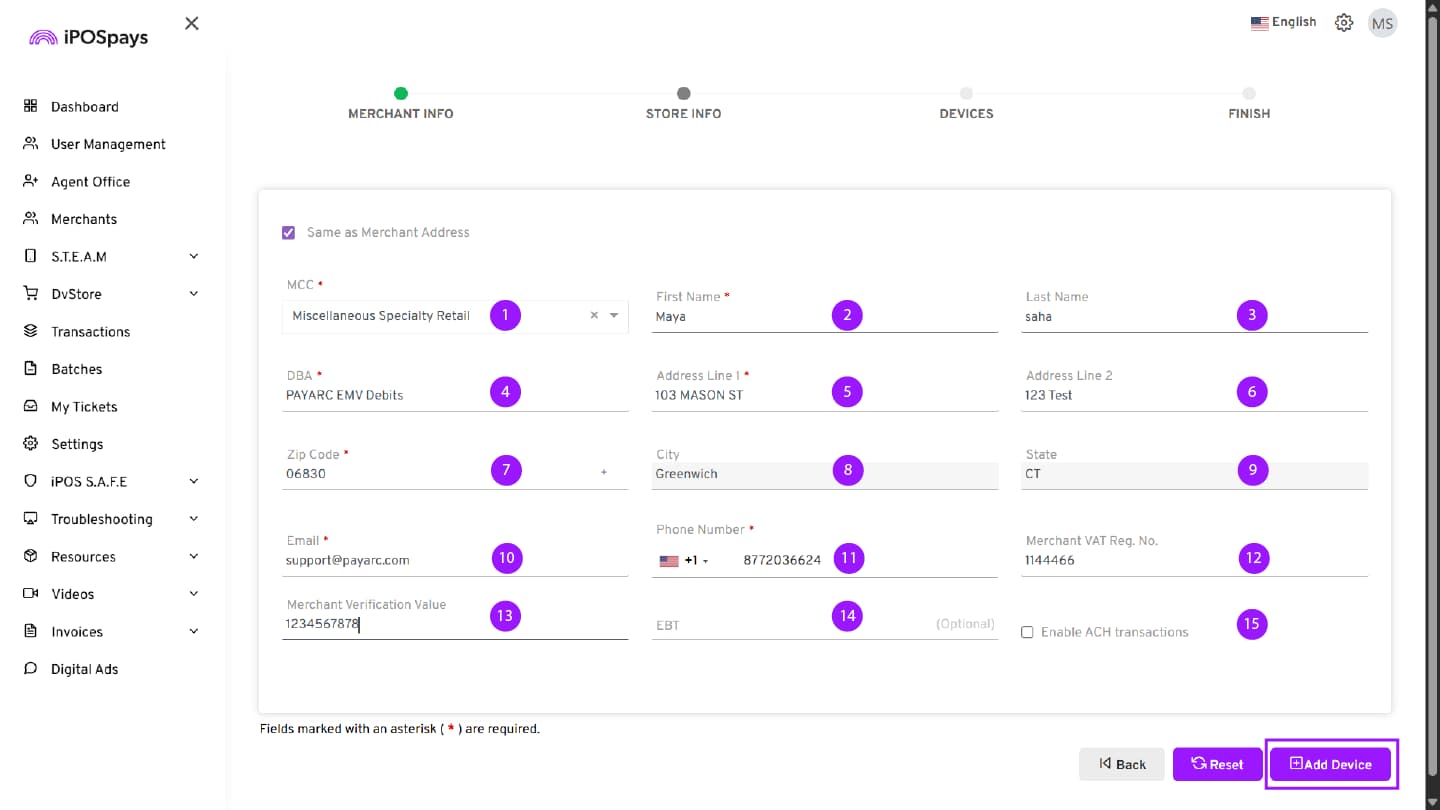
Fields marked with an asterisk (*) are mandatory.
DEVICES
Enter and verify the required device details:
-
Manufacturer
-
Device Model
-
Application Sign
-
Assign Template
-
Routing Type
-
Processor
-
TPNs
-
Device Label
-
BIN
-
Promo Code
-
Profile – Select With Fee or Without Fee from the drop-down.
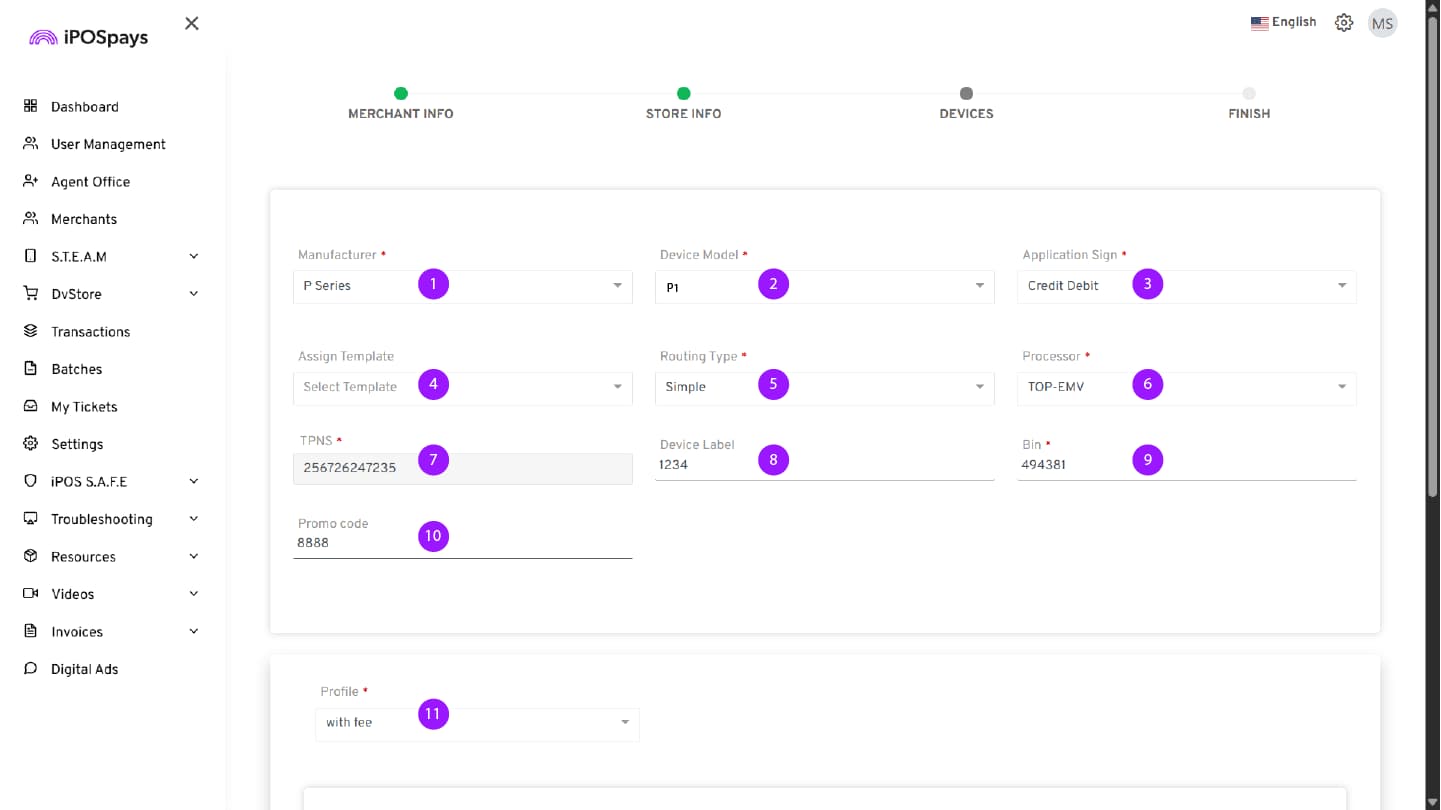
When a profile is selected, the following fields appear:
-
MID
-
Agent
-
Chain
-
Store
-
Term No.
-
Term ID
-
ABA No.
-
SETT.Agent #
-
Debit Sharing Grp.
-
The Manufacturer and Device Model must be selected manually.
-
Once all the details are entered, click Finish.
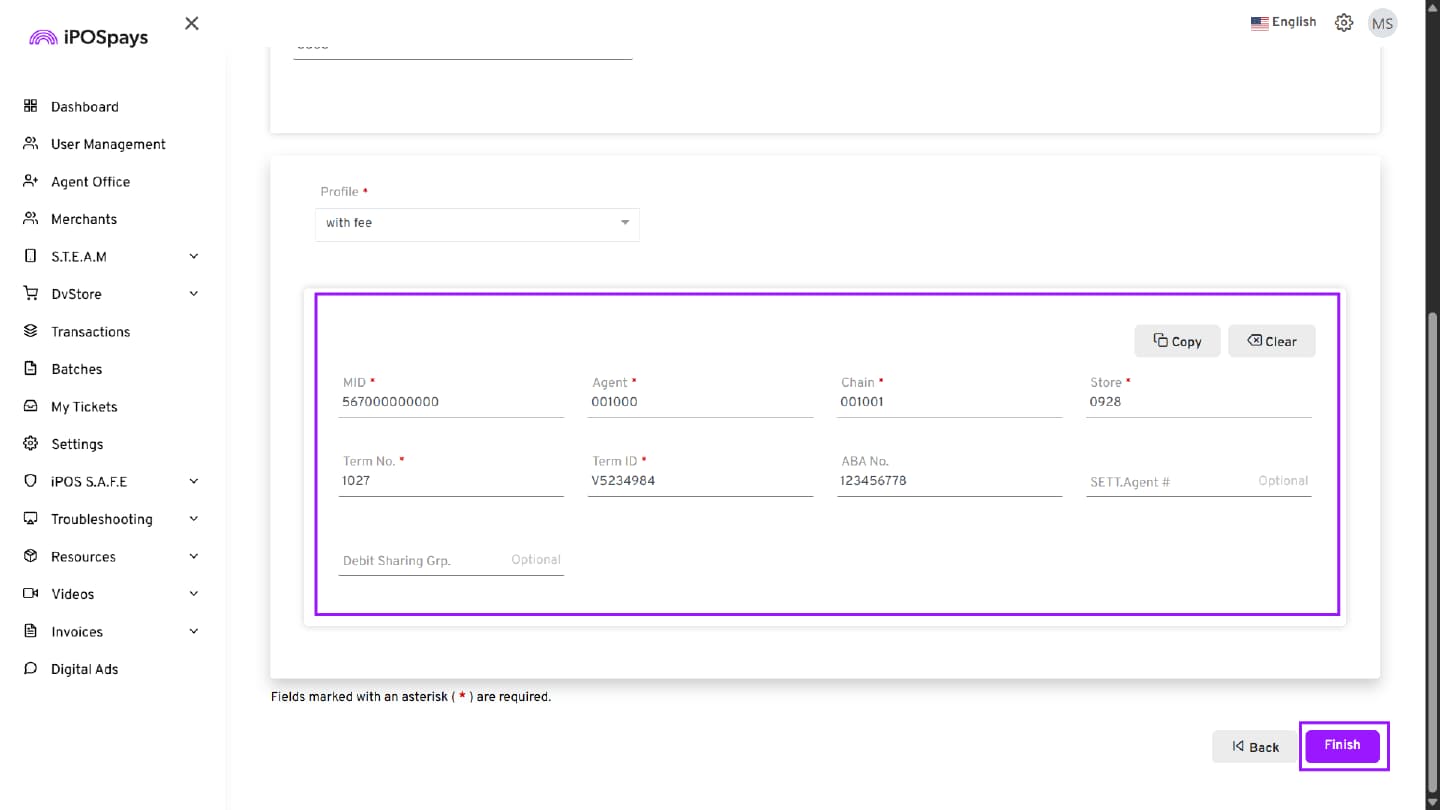
After the device configuration is completed, an Add-on Features pop-up appears.
You can enable additional features for the merchant:
-
3D Secure
-
WooCommerce
-
Loyalty
-
Click Proceed to enable the selected features.
-
Click Skip if no add-on features are required.
Fields marked with an asterisk (*) are mandatory.
FINISH
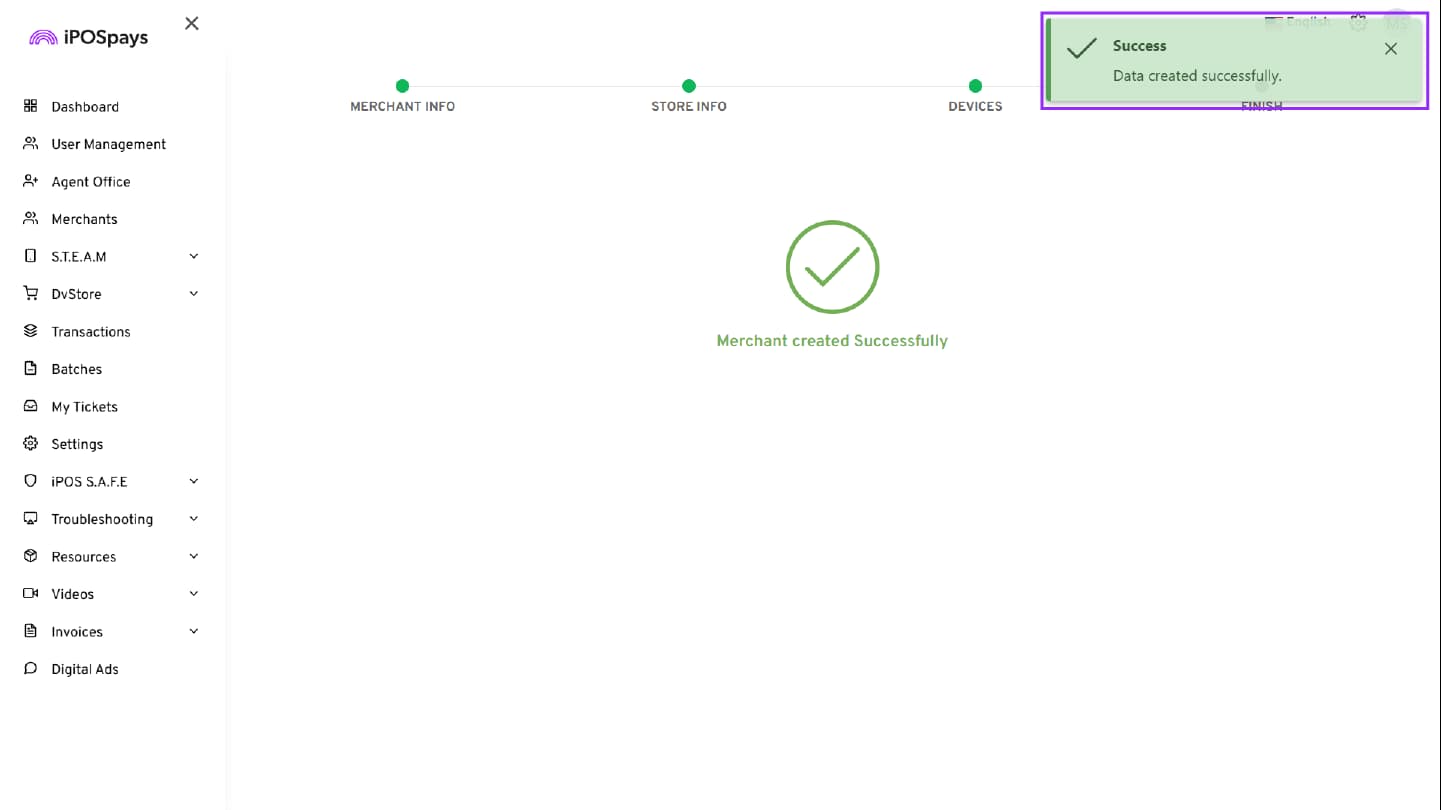
- After completing all required fields, click Finish.
The Merchant and Device are successfully created, and the Terminal Profile Number (TPN) is generated automatically.
If any information is missing or requires manual entry, or if you need further clarification on merchant, store, or device details, refer to How to Onboard Merchant on iPOSpays for detailed onboarding instructions.