How to Add Third-Party Applications on iPOSpays
iPOSpays allows an ISO to function as an ISV and access ISV-specific capabilities. When an ISO is configured to act as an ISV, it can access ISV functionality, including the ability to manage and upload third-party applications. Third-party applications can be made available in DVStore after review and approval.
This document explains how an ISO can add a new third-party application through the iPOSpays Portal.
Prerequisites
- The ISO must be configured to act as an ISV by the System Admin.
- An ISV ID must be generated for the ISO.
If the ISO has not been configured to act as an ISV, contact your Dejavoo relationship manager for assistance.
Access ISV Functionality
Once the ISO is configured to act as an ISV and an ISV ID is generated, the ISO can access the available ISV functionality using its existing ISO credentials.
To access the application management functionality:
- Log in to the iPOSpays portal using your ISO credentials.
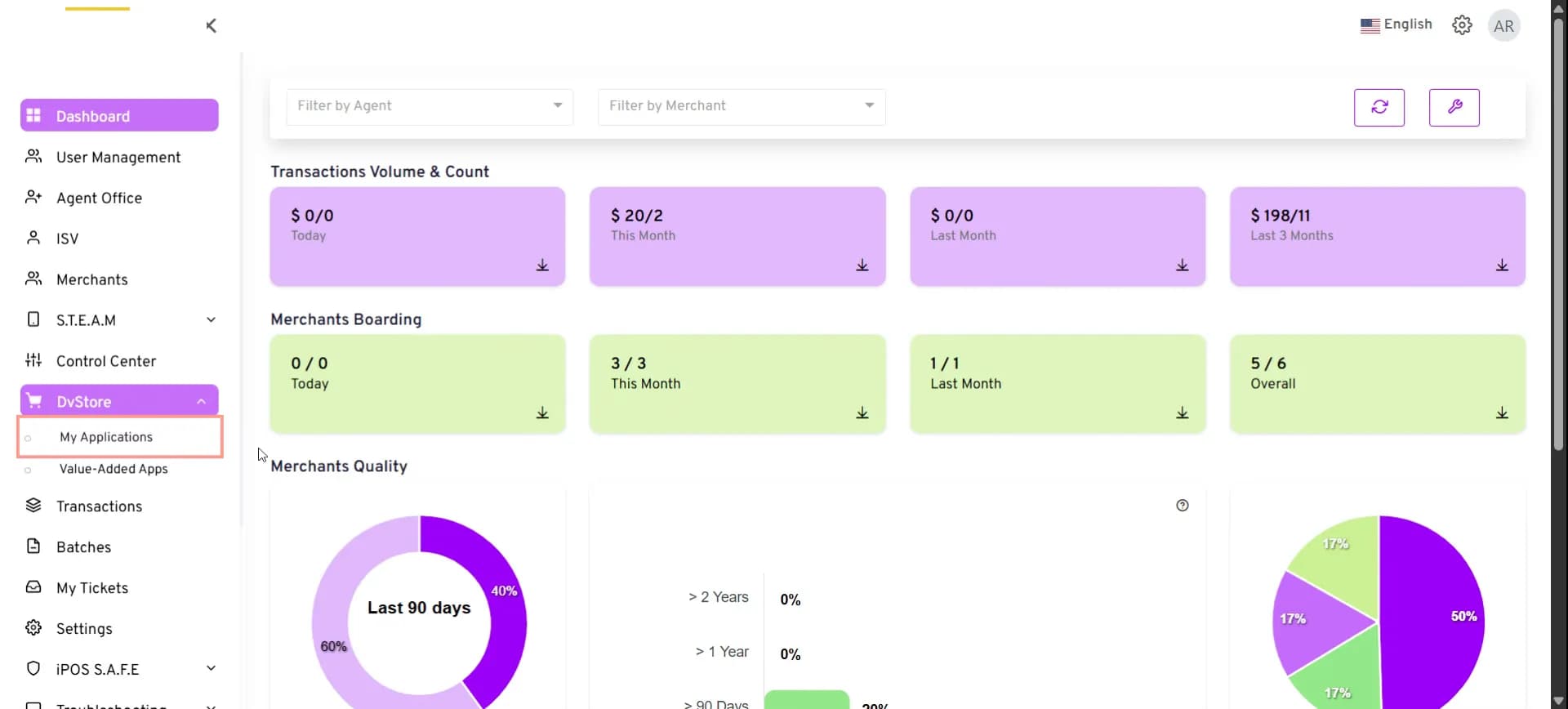
- From the left-hand menu, click DVStore.
- Under DVStore, click My Applications.
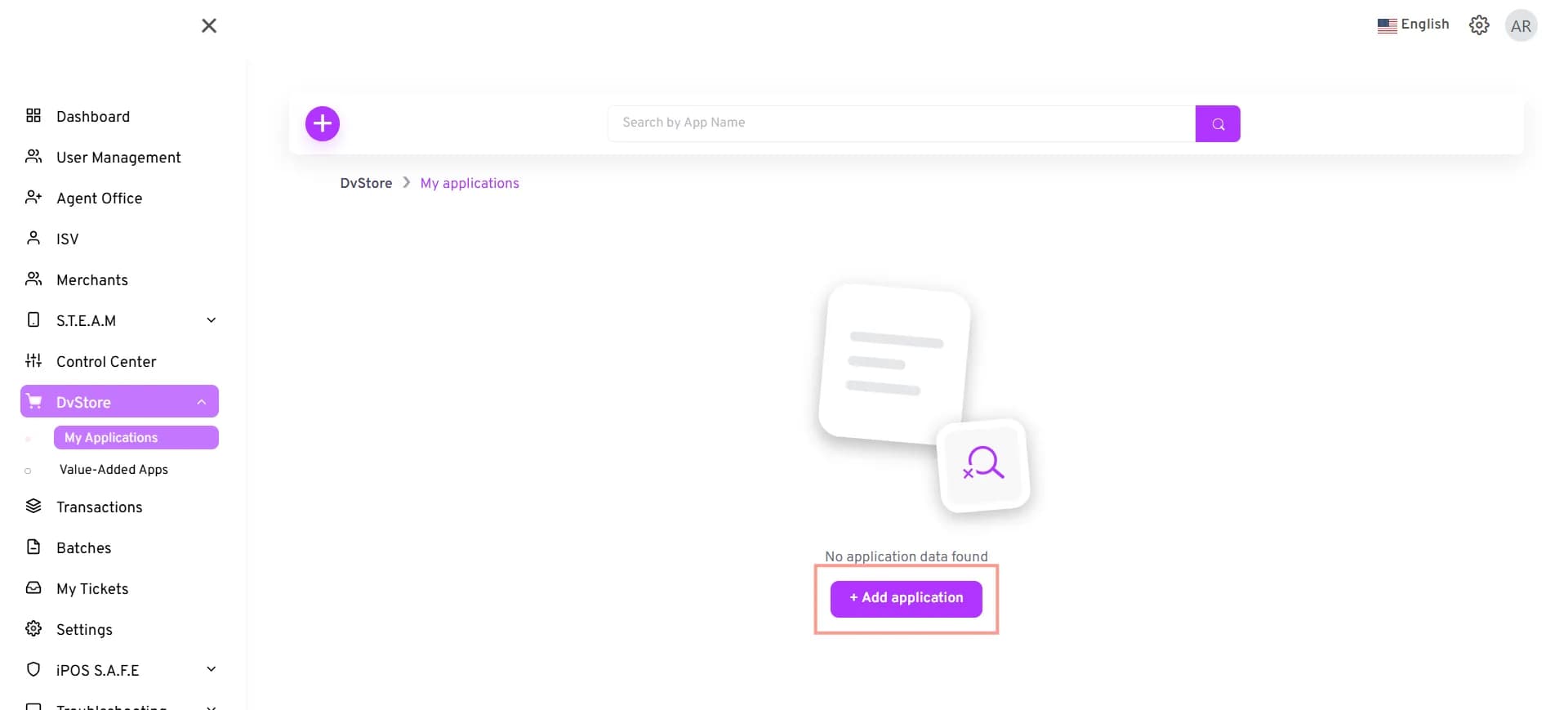
- Click the + (Add) icon.
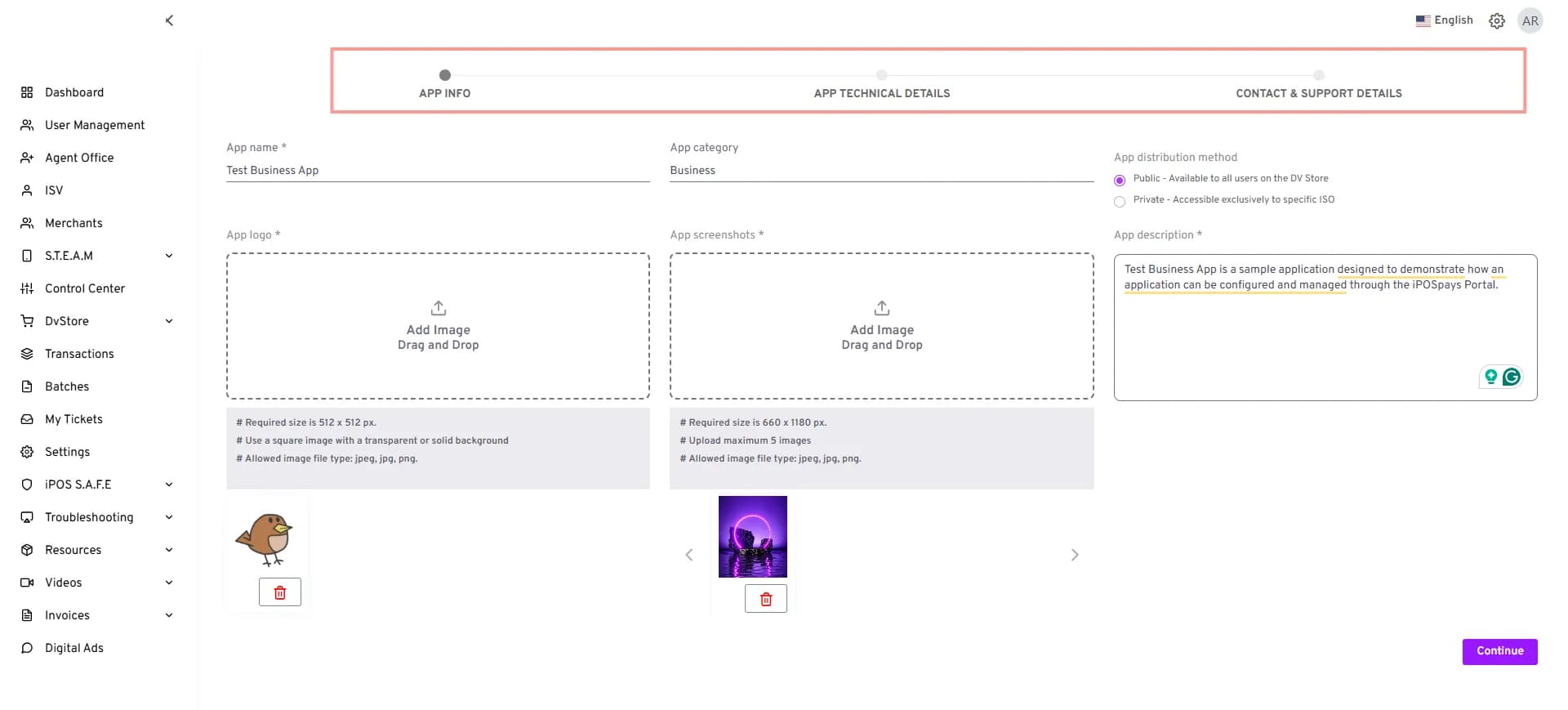
- The App Info page opens.
Add a New Application
To add a new application, complete the following three steps:
- Enter App Information
- Enter App Technical Details
- Enter Contact & Support Details
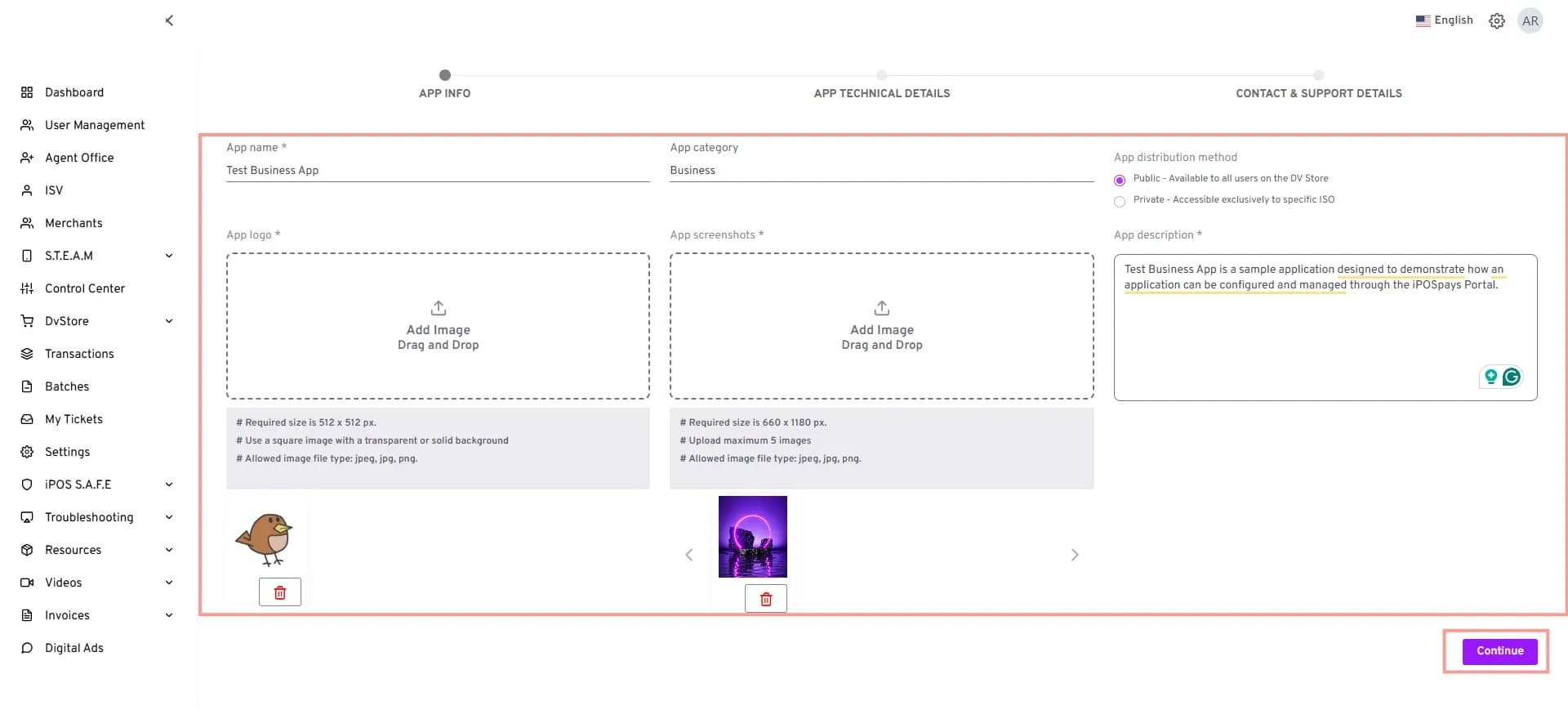
Step 1: Enter App Information
- Enter the App Name.
- Enter the App Category. (Optional)
- Under App Logo, click Add Image and upload the app logo (required size: 512 × 512 px).
- Under App Screenshots, click Add Image and upload the required screenshots (required size: 660 × 1180 px; maximum 5 images).
- Under App Distribution Method, select Public or Private.
- Enter the App Description (minimum 50 characters).
- Click Continue.
Fields marked with an asterisk (*) are mandatory.
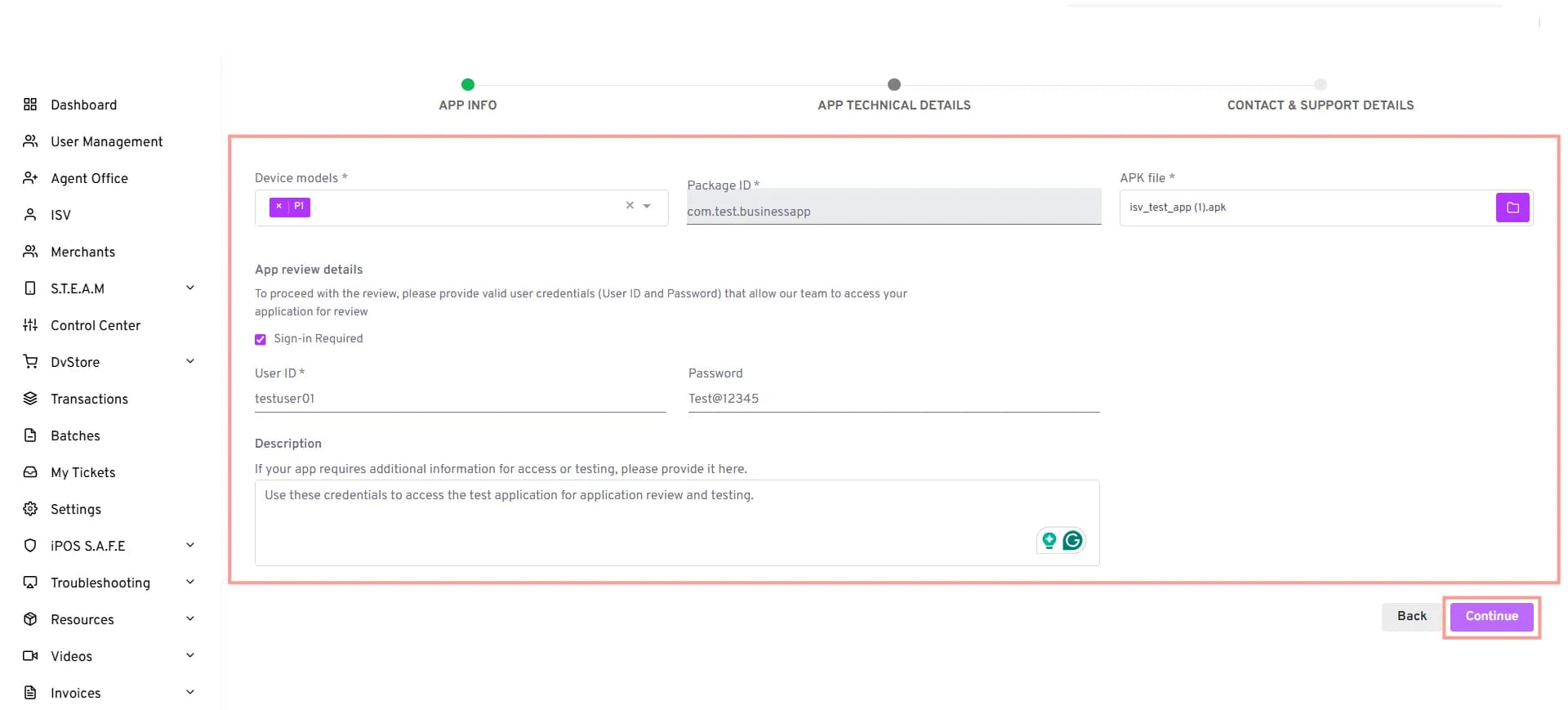
Step 2: Enter App Technical Details
- Select the required Device Model.
- Enter the Package ID.
- Under APK File, click the folder icon and upload the required APK file.
- Under App Review Details, if the review team needs to sign in to access the application, select the Sign-in Required checkbox and provide valid test credentials to allow the review team to access and test the application.
- Enter the User ID and Password.
- Enter any additional information required for application access or testing in the Description field.
- Click Continue.
Fields marked with an asterisk (*) are mandatory.
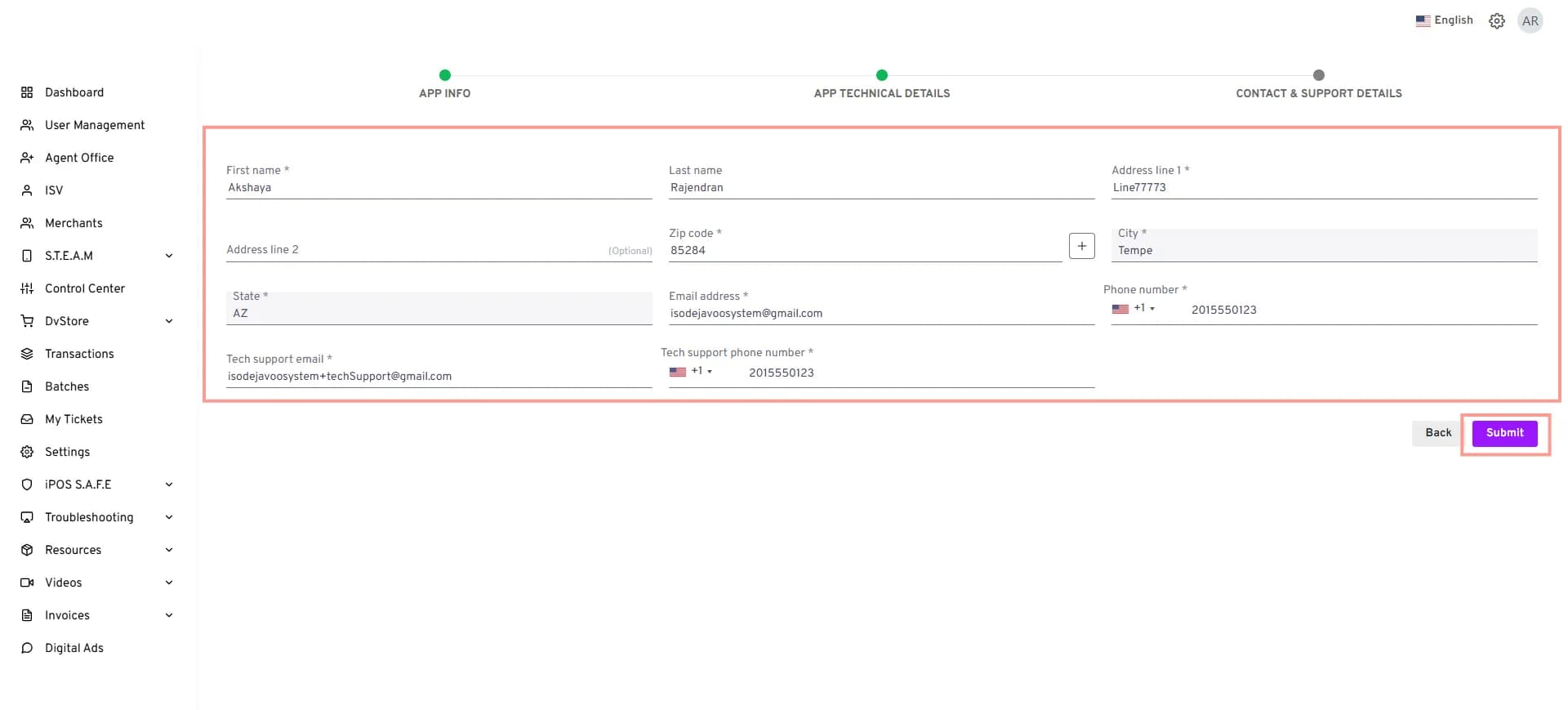
Step 3: Enter Contact & Support Details
- Enter the First Name.
- Enter the Last Name.
- Enter Address Line 1.
- Enter Address Line 2. (Optional)
- Enter the City.
- Enter the State.
- Enter the ZIP Code.
- Enter the Email Address.
- Enter the Phone Number.
- Enter the Tech Support Email.
- Enter the Tech Support Phone Number.
- Enter the Notify Email. (Optional)
- Click Submit.
- A success notification appears confirming that the application has been added successfully.
Fields marked with an asterisk (*) are mandatory.
The application is now listed under My Applications.
The My Applications option is available when the ISO has been configured with the required ISV application functionality.
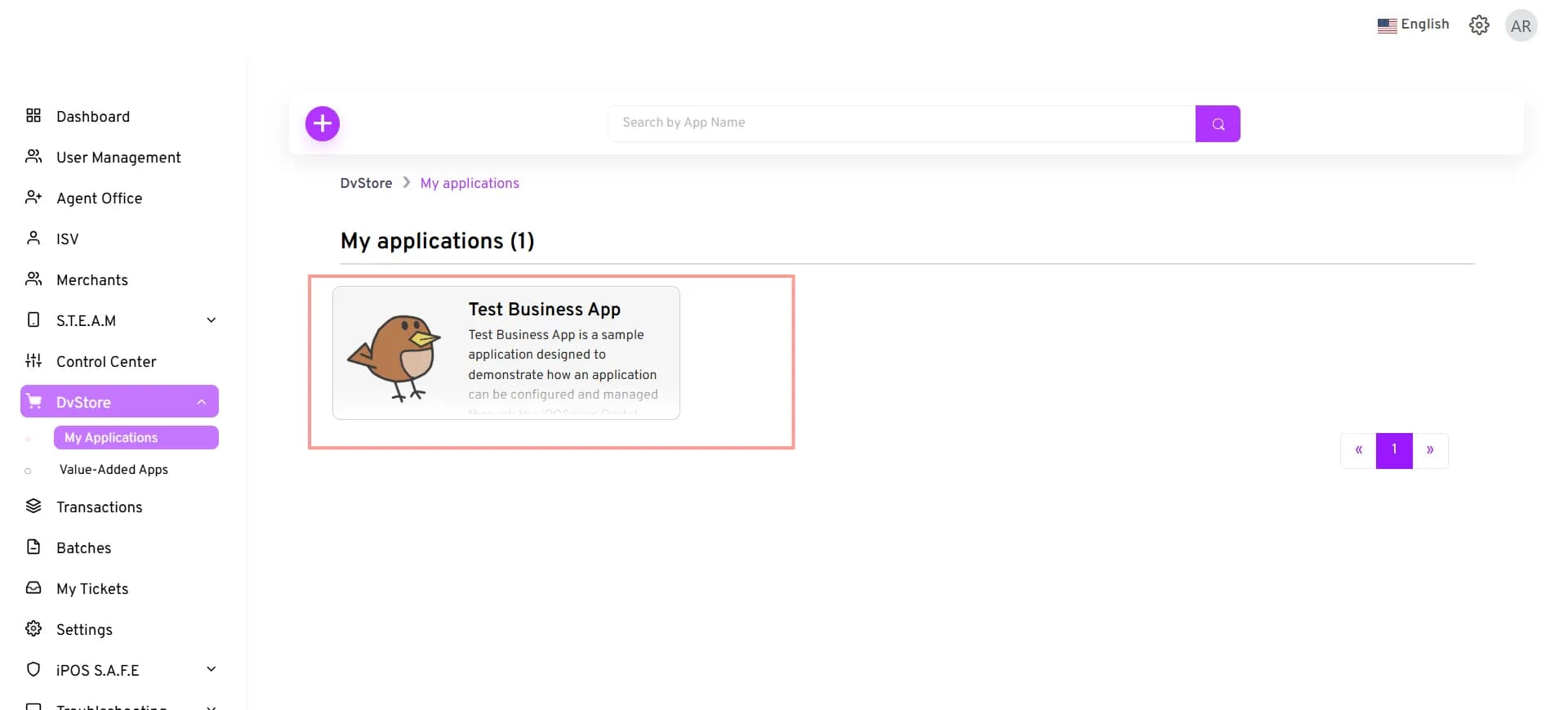
Adding a third-party application through My Applications initiates the process for making the application available in DVStore. The application must complete the required review and approval process before it is available in DVStore.
Related Documentation
For information about mapping TPNs to ISVs and configuring ISV privileges, see: