How to Map TPNs to ISVs and Configure Privileges on iPOSpays
iPOSpays allows ISOs to manage ISV access by mapping merchant TPNs to ISVs and configuring the modules and privileges available to them. These configurations determine the ISV functionality available for the mapped TPNs.
This document explains how to map a merchant TPN to an ISV and configure the modules and privileges for the ISV from an ISO account in the iPOSpays Portal.
Prerequisites
- The required ISV must be mapped to your ISO account.
- The required ISV ID must be available.
If the ISV is not mapped to the ISO, contact your Dejavoo relationship manager for assistance.
Map a Merchant TPN to an ISV
An ISO can map an existing merchant’s TPN to an ISV. Once the TPN is mapped, transactions processed through that TPN are associated with the ISV.
This allows the transaction information to be available to both the ISO and the ISV through their respective portal transaction sections.
To Map a Merchant TPN to an ISV:
- Log in to the iPOSpays Portal using your ISO credentials.
- From the left navigation menu, select Merchants.
- Search for and select the required merchant.
- On the right side, under Devices, locate the required TPN. If the merchant has multiple TPNs, select the appropriate TPN, click it, and then select Edit Processor info.
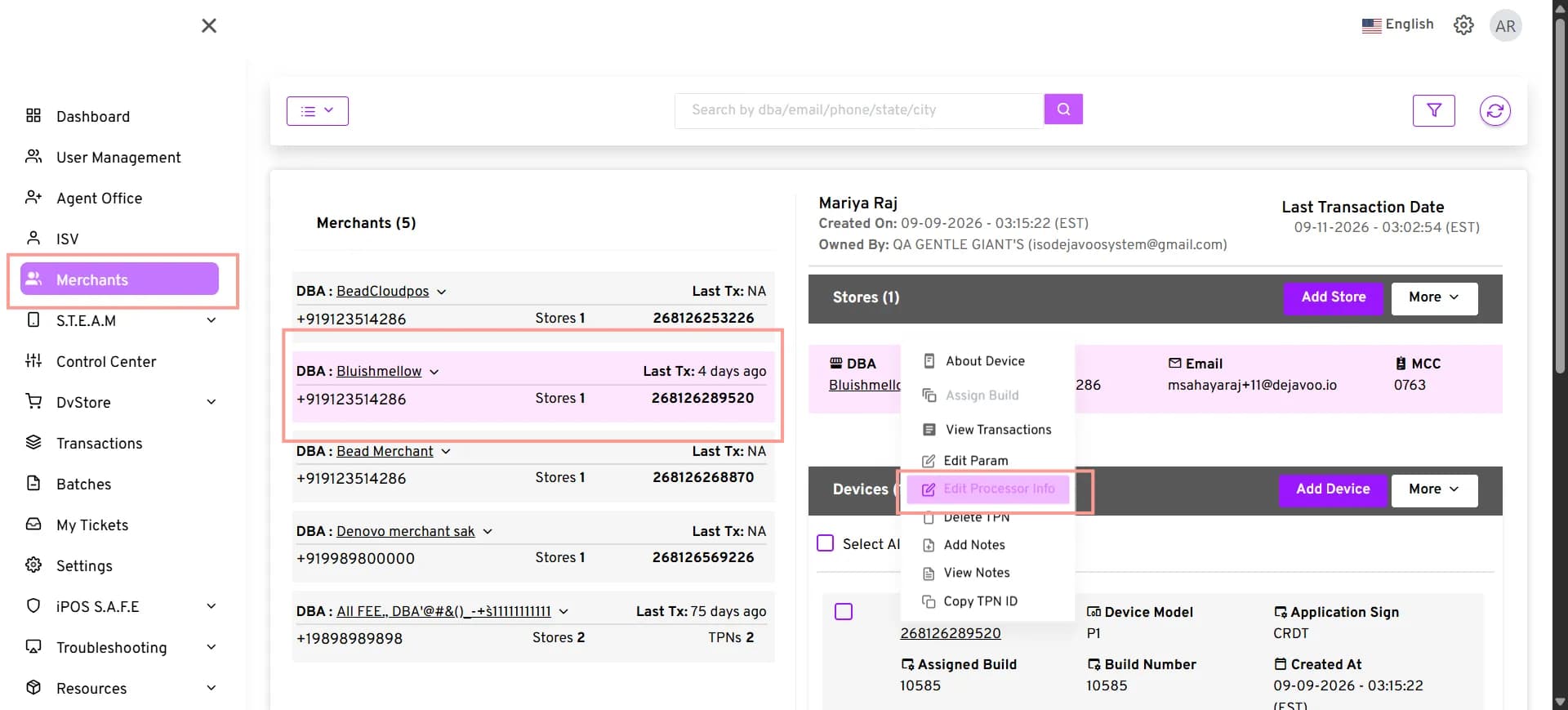
- The Store Info page opens.
- Under ISV, click Tag ISV.
- In the Tag ISV window, select the required ISV Name from the list of ISVs mapped to the ISO.
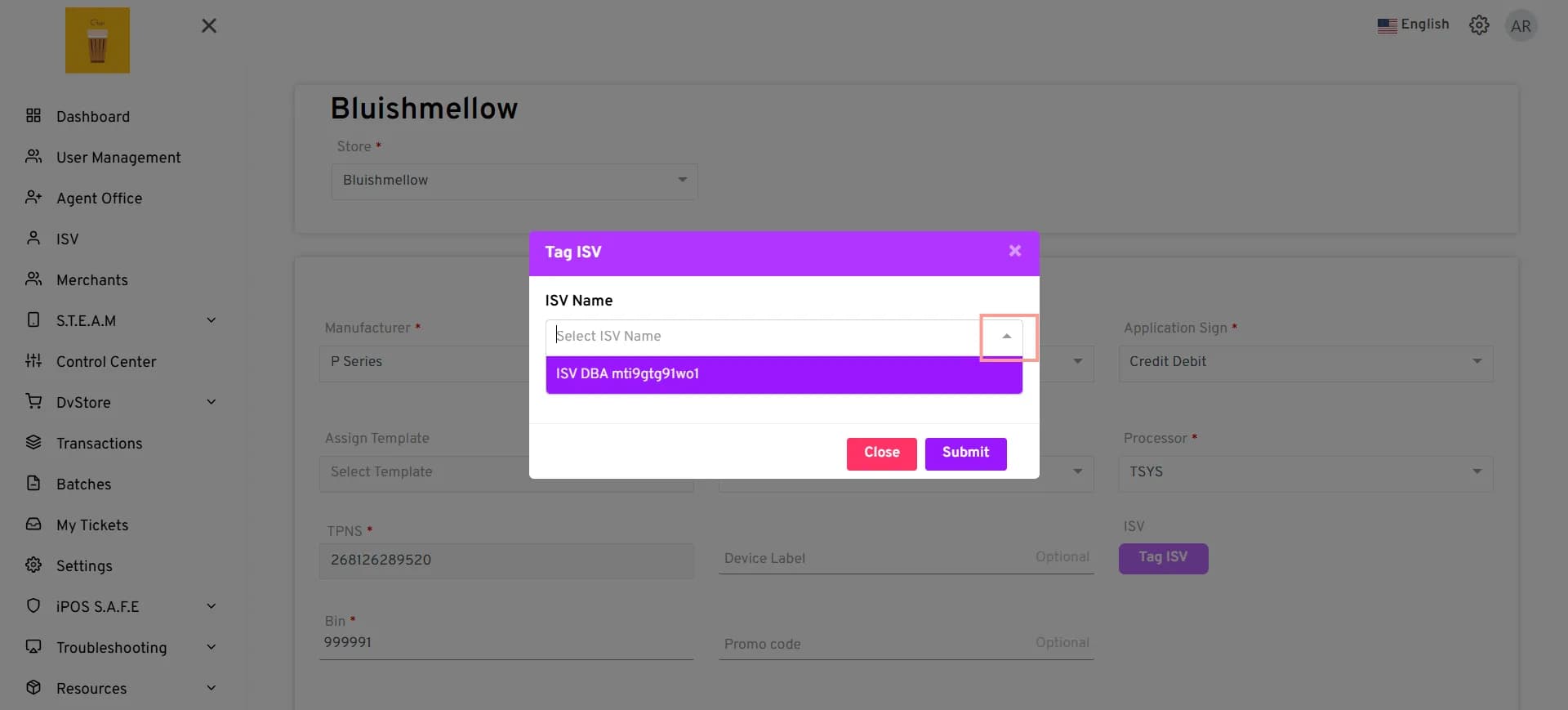
- If the required ISV is not listed, select Others (Not in the list) to search for and map an unmapped ISV or a feature-created ISV.
- Select Submit.
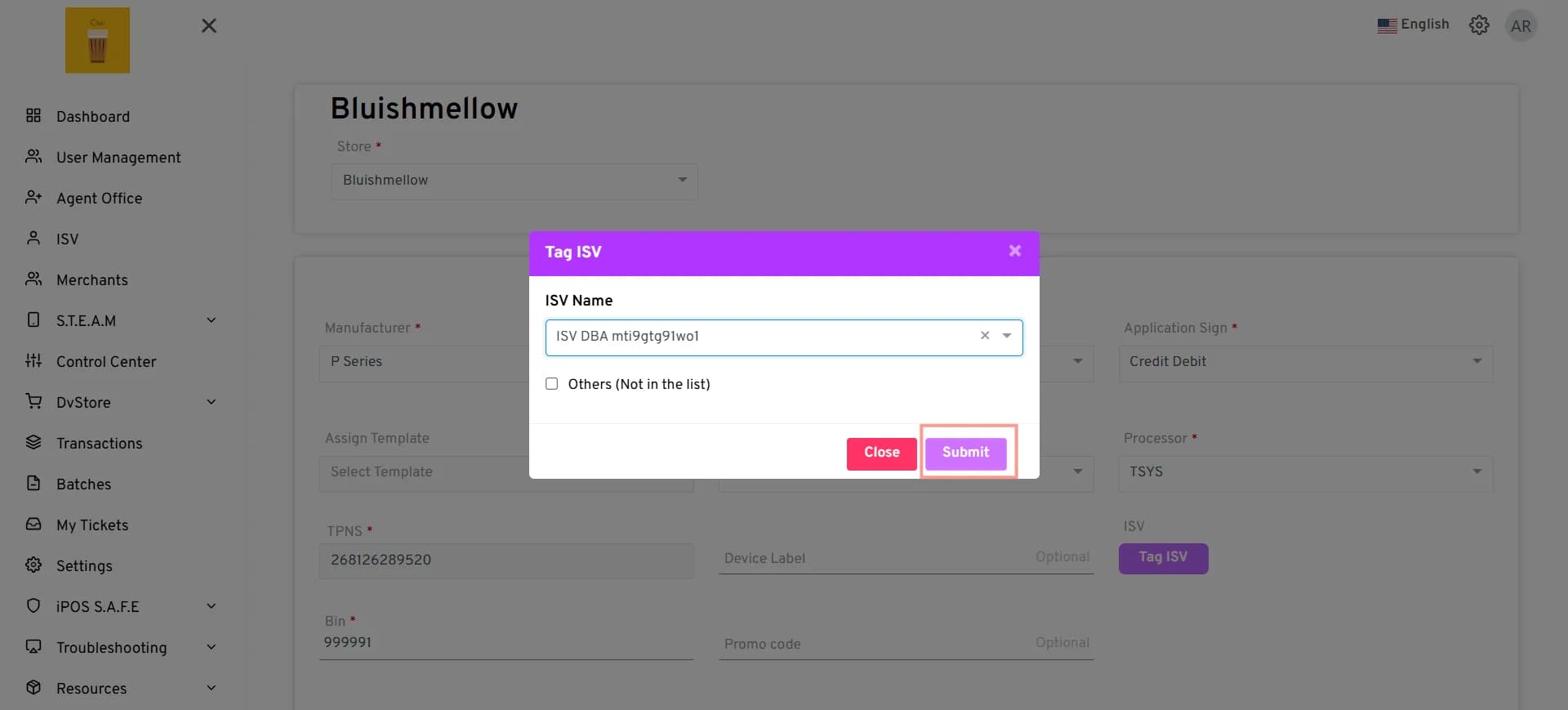
- Verify that the selected ISV is displayed in the ISV field for the TPN.
- Click Save.
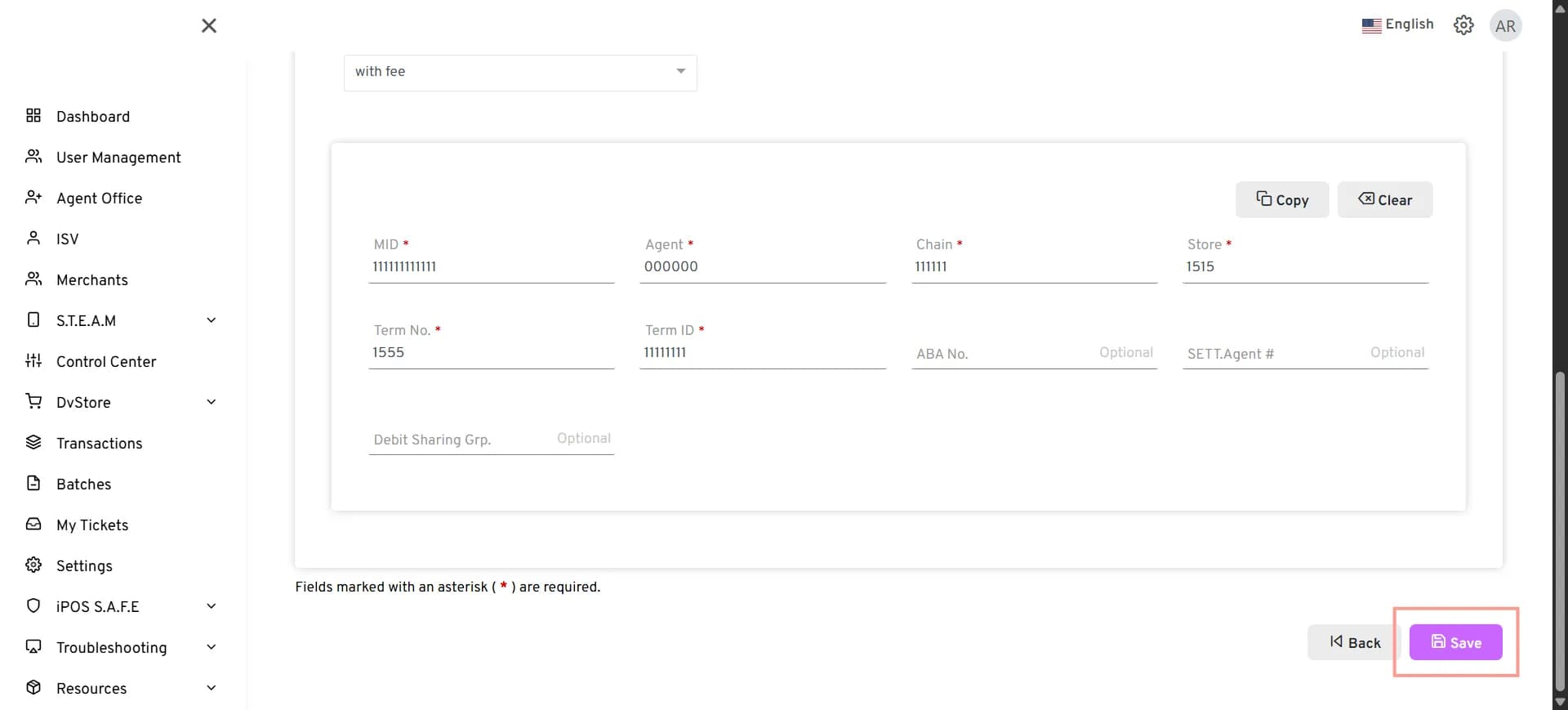
Note: For new merchants, follow the steps in How to Onboard a Merchant on iPOSpays and map the required ISV to the TPN in the Add Store section.
Configure ISV Modules and Privileges
Once an ISV has been mapped to your ISO account, you can control the modules and privileges available to that ISV from the ISO Portal.
To Configure ISV Modules and Privileges:
- Log in to the iPOSpays Portal using your ISO credentials.
- From the left navigation menu, select ISV.
- Search for and select the required ISV.
- On the ISV details page, select Modules and Privileges.
- Select the required modules and expand each module to view its available privileges.
- Enable the required modules and privileges for the ISV.
- Review the selected privileges.
- Save the changes.
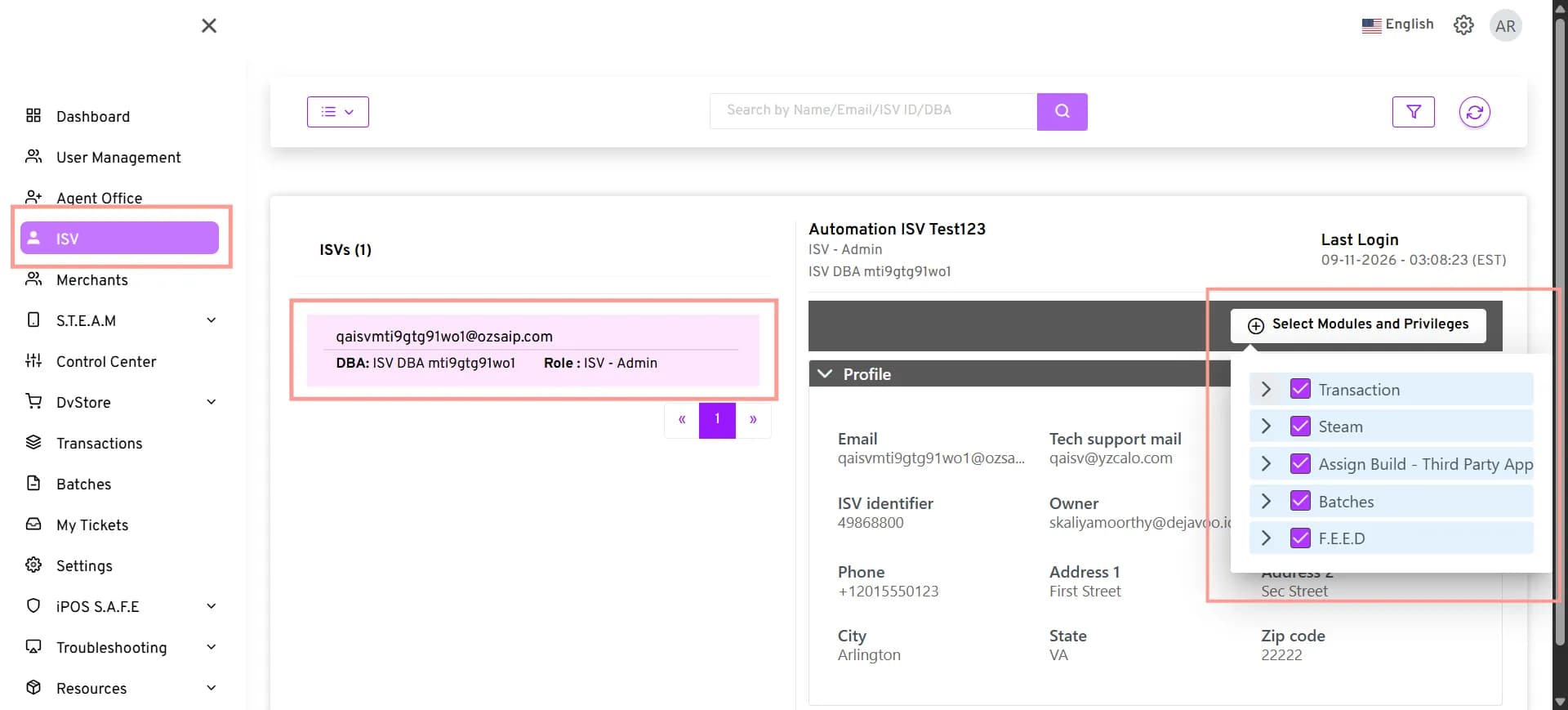
Available Modules and Privileges
The following modules and privileges are available for configuration:
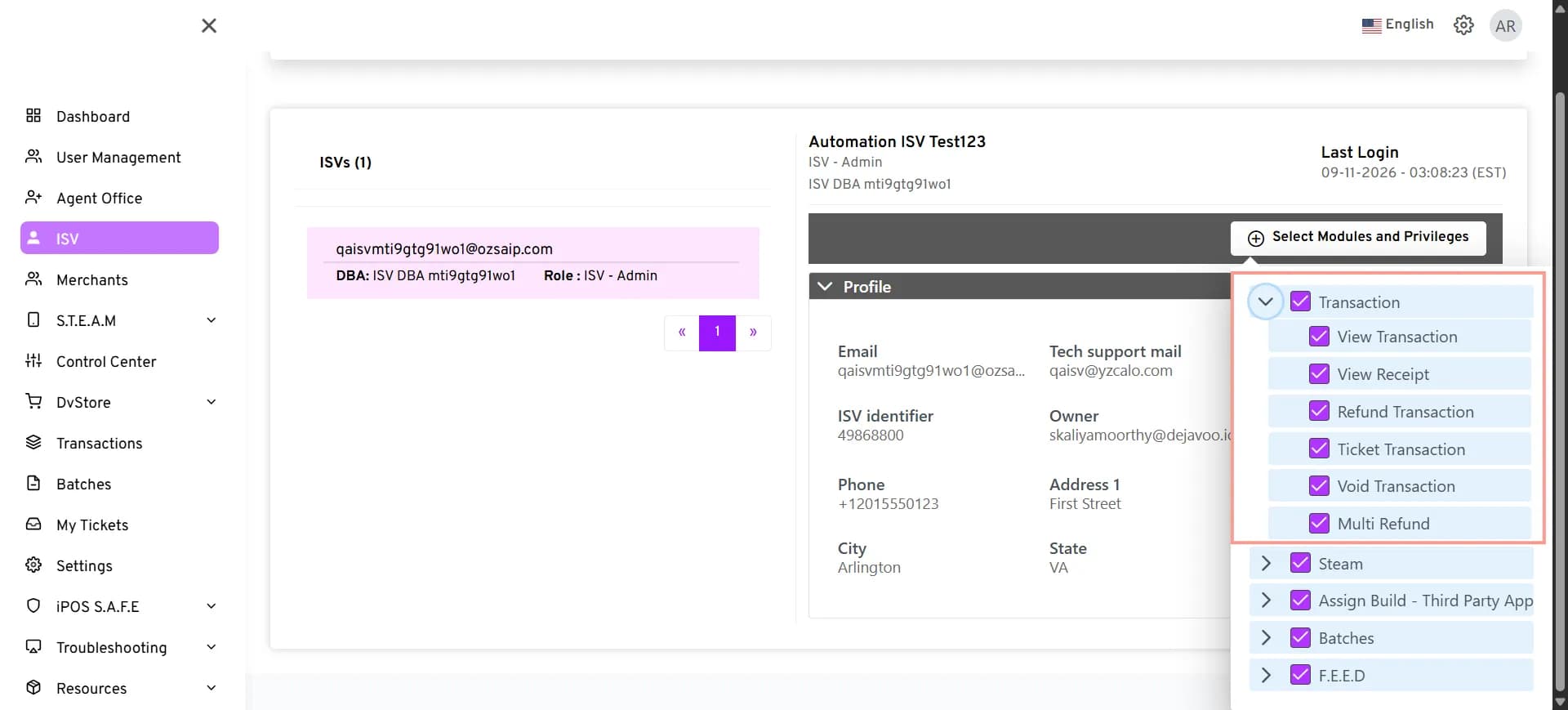
Transaction
- View Transaction
- View Receipt
- Refund Transaction
- Ticket Transaction
- Void Transaction
- Multi Refund
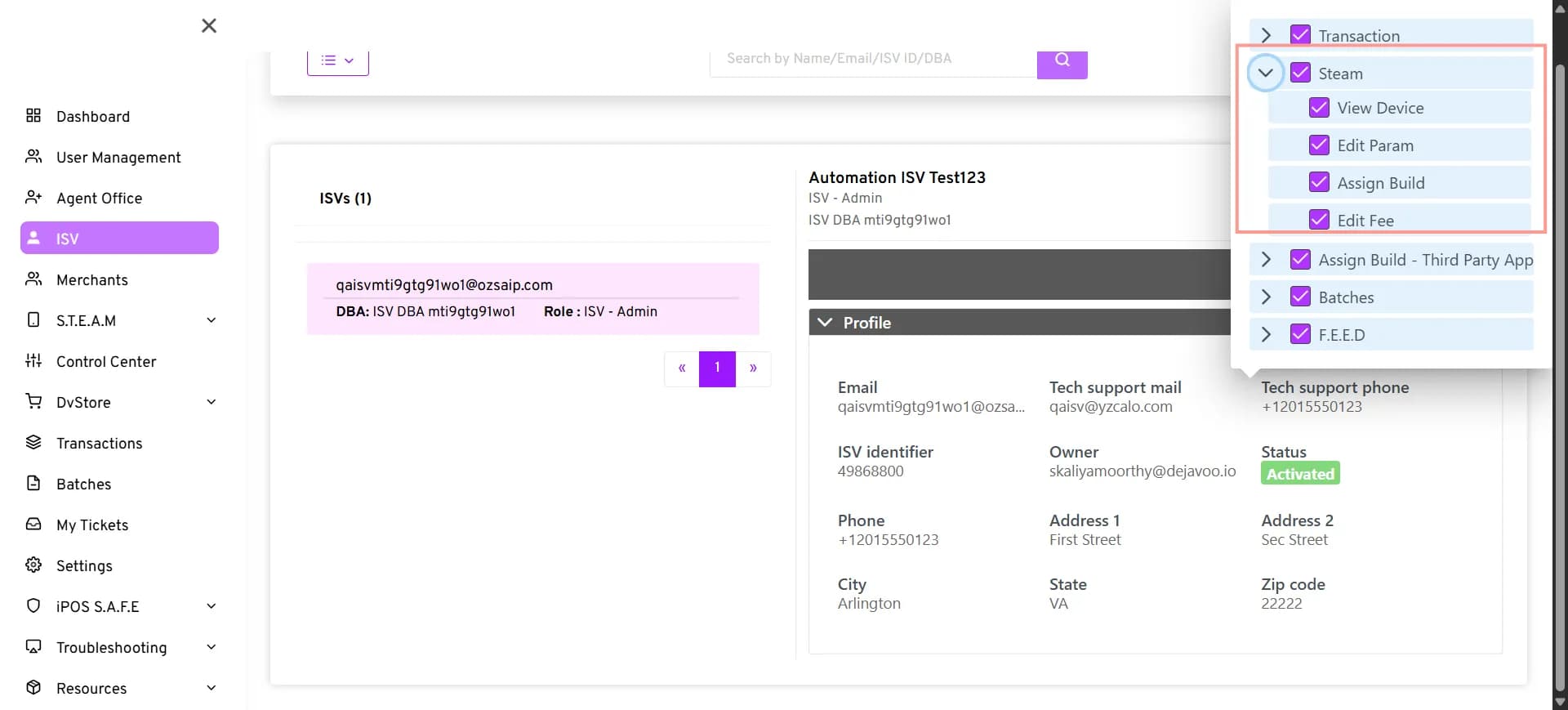
Steam
- View Device
- Edit Param
- Assign Build
- Edit Fee
Assign Build - Third Party App
- Assign Build (Value-Added Apps)
Batches
- View Batches
- Settle Batch
F.E.E.D
- Activate F.E.E.D
Agent Office Access
Agent Office users with the required privileges can also configure ISV modules and privileges. Follow the same steps described above to configure the available modules and privileges from an Agent Office account.