How to Set Up BEAD Integration on iPOSpays
The Bead integration enables merchants to offer alternative payment methods through iPOSpays, giving customers more flexibility at checkout. With Bead enabled, merchants can accept supported digital wallets, digital assets, and Buy Now, Pay Later (BNPL) payment methods through POS, CloudPOS, Send Payment Link, and E-commerce.
This guide explains how to enable and configure Bead at the merchant and TPN levels, process Bead payments, and view Bead transaction details and receipts in iPOSpays.
Availability
This feature is currently available as part of a Pilot Program. ISOs interested in participating in the pilot rollout should contact their Relationship Manager (RM) for onboarding and enablement details.
Feature Compatibility
-
Minimum Required POS Build: To be announced
-
Supported Channels: POS, CloudPOS, Send Payment Link, and E-commerce
-
Supported Payment Methods:
- Bitcoin
- Bitcoin Lightning
- USDC
- PayPal
- Venmo
- Klarna (Buy Now, Pay Later)
-
Availability: Pilot
Prerequisites
- Before enabling Bead for a merchant, the ISO must ensure that the merchant has completed the required Bead onboarding and that the required Bead credentials are available.
- The ISO must enable Bead at both the merchant level and the TPN level.
How to Enable Bead at the Merchant Level
For Existing Merchants
- Log in to the iPOSpays portal using your ISO admin credentials.
- Go to Merchants.
- Use the search box to find and select the merchant.
- On the right-hand side, click the merchant’s DBA.
- Click Add-on Features.
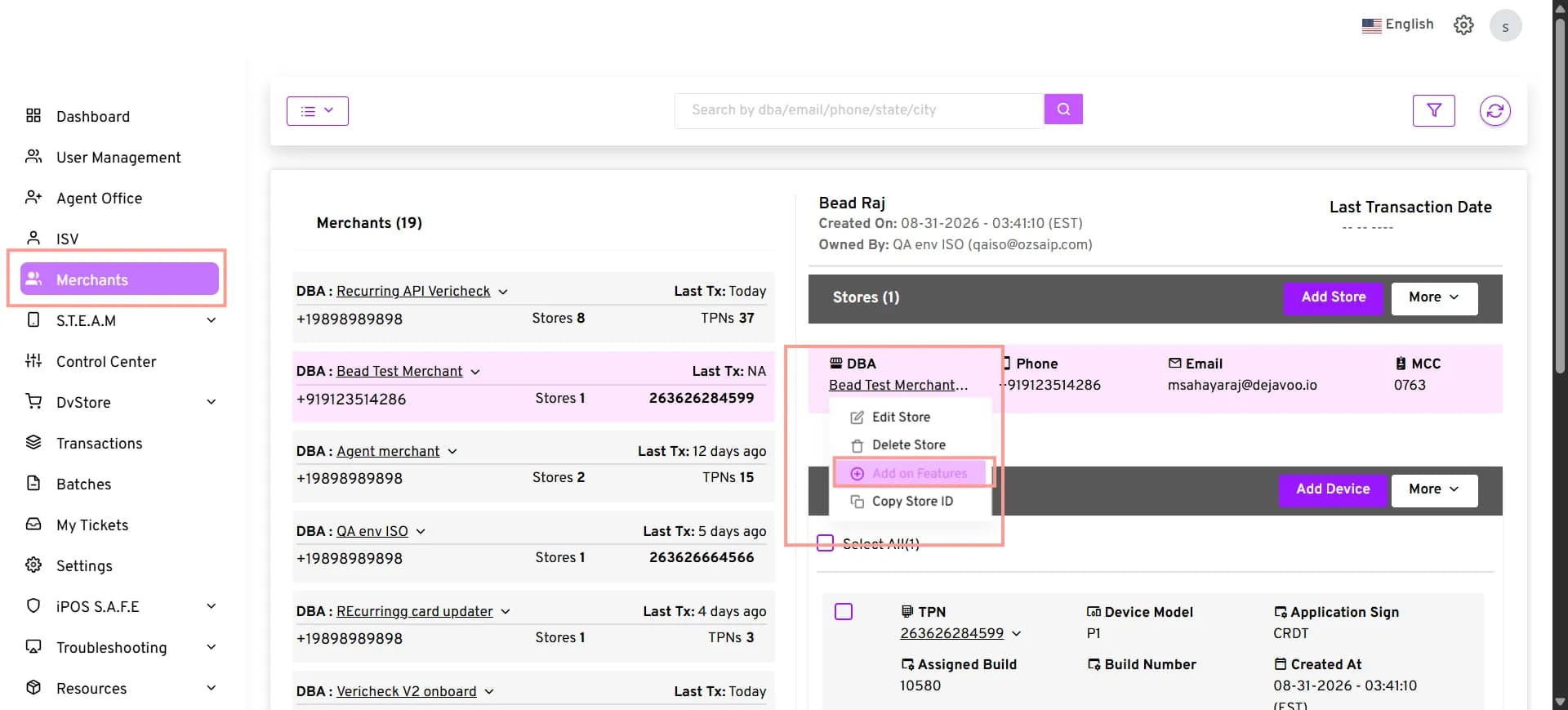
- In the Add-on Features section, locate Alternative Payment Flow.
- Enable Alternative Payment Flow.
- Click the drop-down menu associated with Alternative Payment Flow.
- Select Bead.
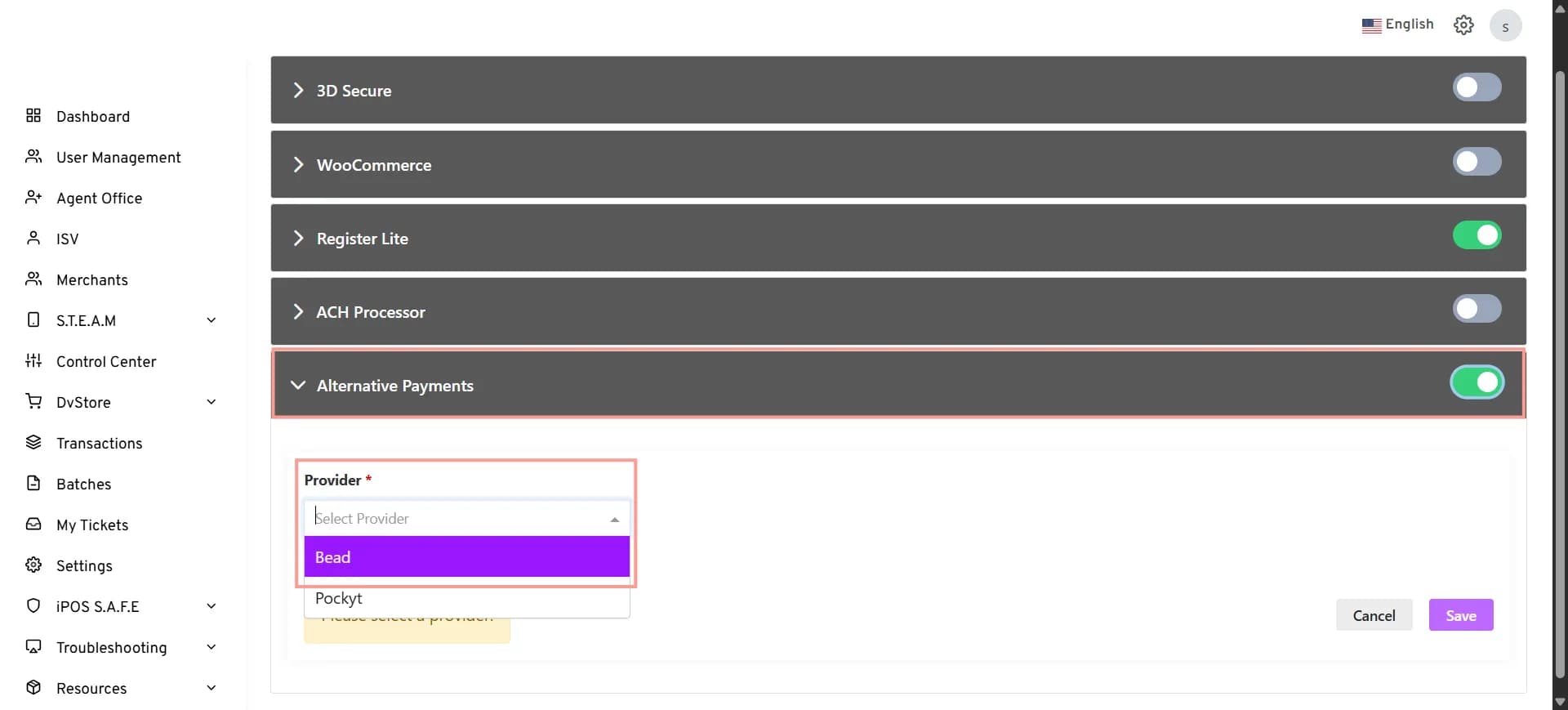
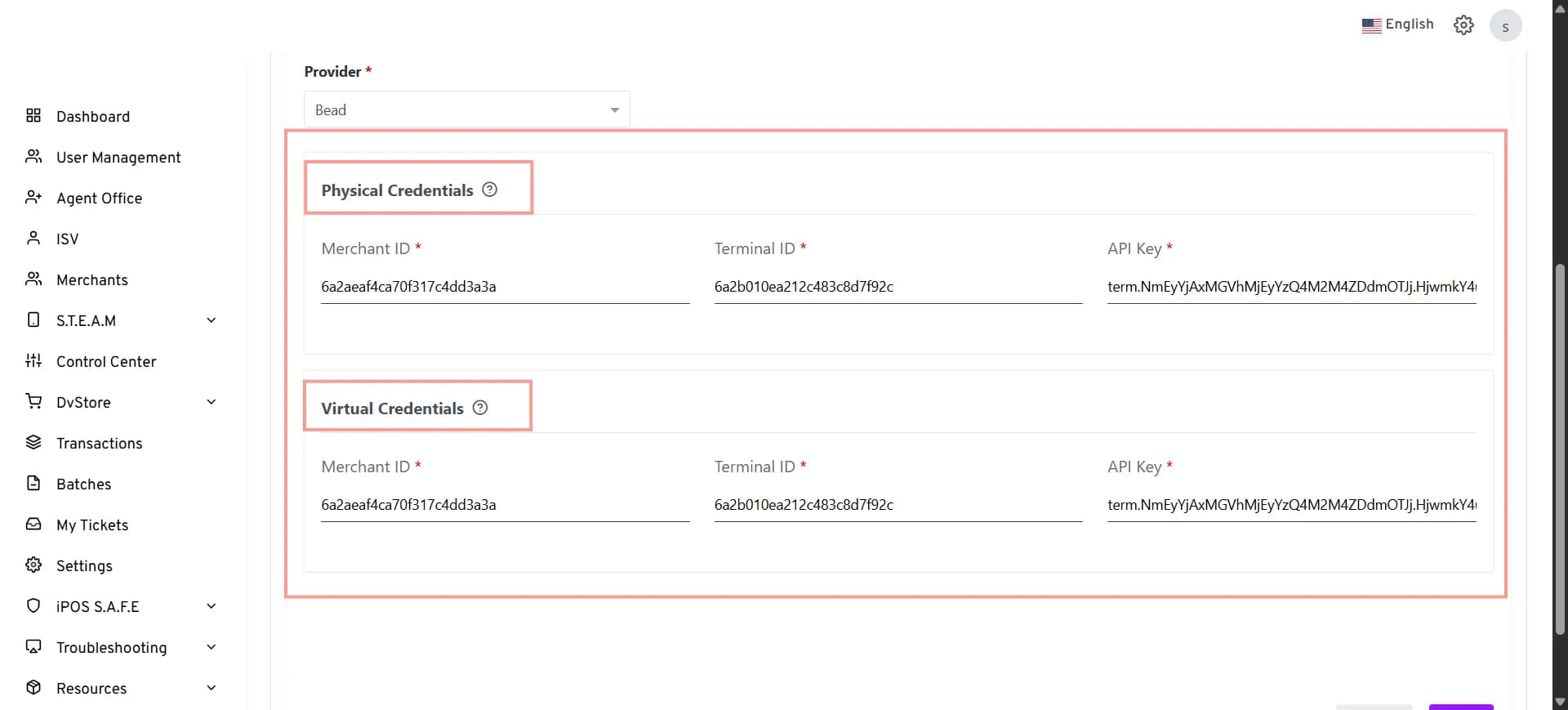
- After selecting Bead, the Physical Credentials and Virtual Credentials sections are displayed.
Configure Bead Credentials
Configure the credentials provided by Bead based on the payment channel the merchant uses.
Physical Credentials
Physical Credentials are used for Bead transactions processed through POS terminals.
Under Physical Credentials, enter the following credentials provided by Bead:
- Merchant ID – Enter the Merchant ID provided by Bead.
- Terminal ID – Enter the Terminal ID provided by Bead.
- API Key – Enter the API Key provided by Bead.
Virtual Credentials
Virtual Credentials are used for Bead transactions processed through virtual payment channels, including:
- CloudPOS
- Send Payment Link
- E-commerce
Under Virtual Credentials, enter the following credentials provided by Bead:
- Merchant ID – Enter the Merchant ID provided by Bead.
- Terminal ID – Enter the Terminal ID provided by Bead.
- API Key – Enter the API Key provided by Bead.
Save the Configuration
- Review the entered Physical Credentials and/or Virtual Credentials.
- Click Save to apply the configuration.
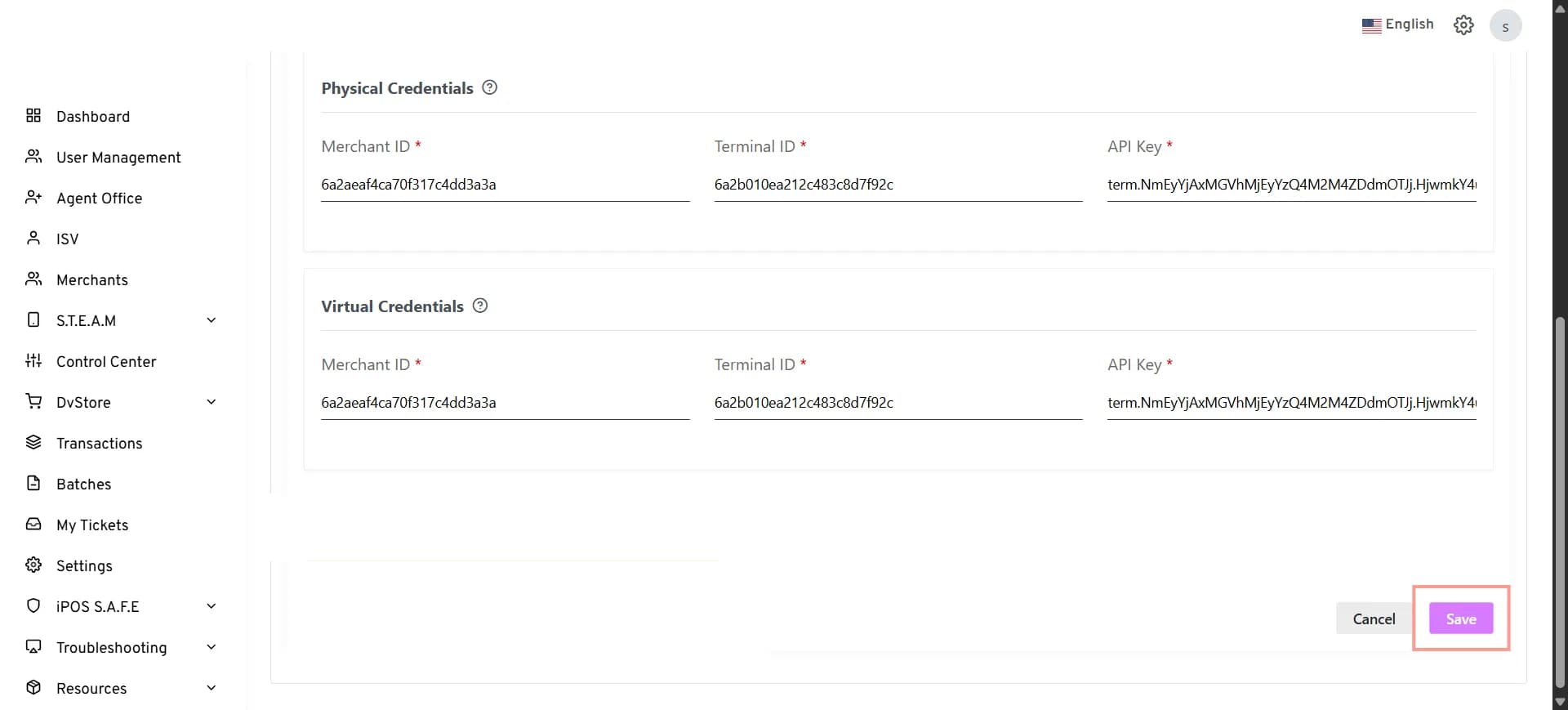
After completing the merchant-level configuration, proceed to Configure Bead at the TPN Level to enable Bead for the applicable TPN.
Enable Bead for a New Merchant During Onboarding
If you are onboarding a new merchant, first complete the standard Merchant Onboarding process.
Once the merchant and device are successfully created, the Add-on Features pop-up appears.
- In the Add-on Features pop-up, click Proceed.
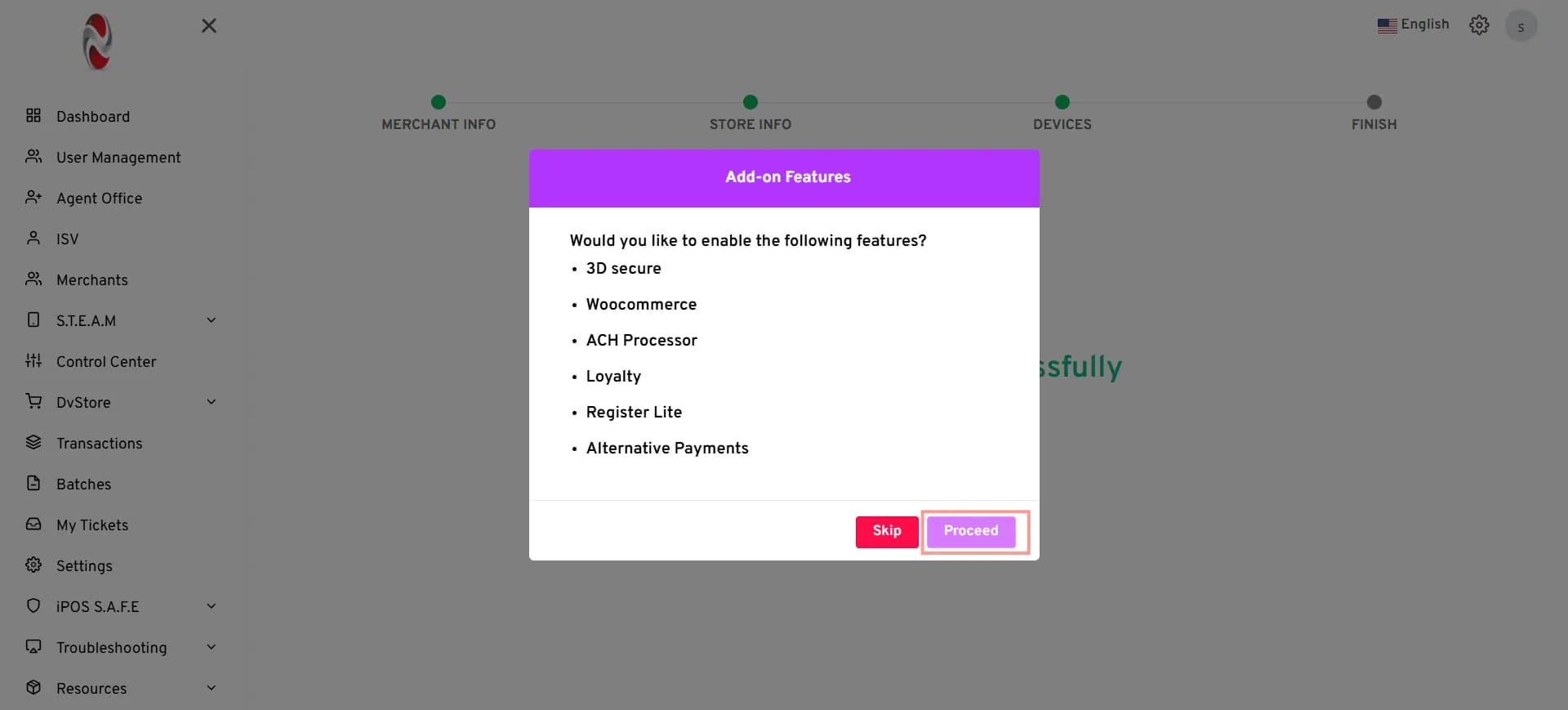
- In the Add-on Features screen, follow the steps described in For Existing Merchants, starting from Step 6, to enable Alternative Payment Flow, select Bead, configure the required Physical Credentials and/or Virtual Credentials, and save the configuration.
After completing the merchant-level configuration, proceed to Configure Bead at the TPN Level to enable Bead for the applicable TPN.
Reference: For complete onboarding steps, refer to How to Onboard a Merchant on iPOSpays
Configure Bead at the TPN Level
After enabling Bead and configuring the required merchant-level credentials, enable Bead for the applicable TPN.
Enable Bead for a TPN
- Log in to the iPOSpays portal using your ISO credentials.
- Go to S.T.E.A.M.
- Select Edit Parameters.
- Use the search option to find and select the required TPN.
- On the right-hand side, click Edit Parameters.
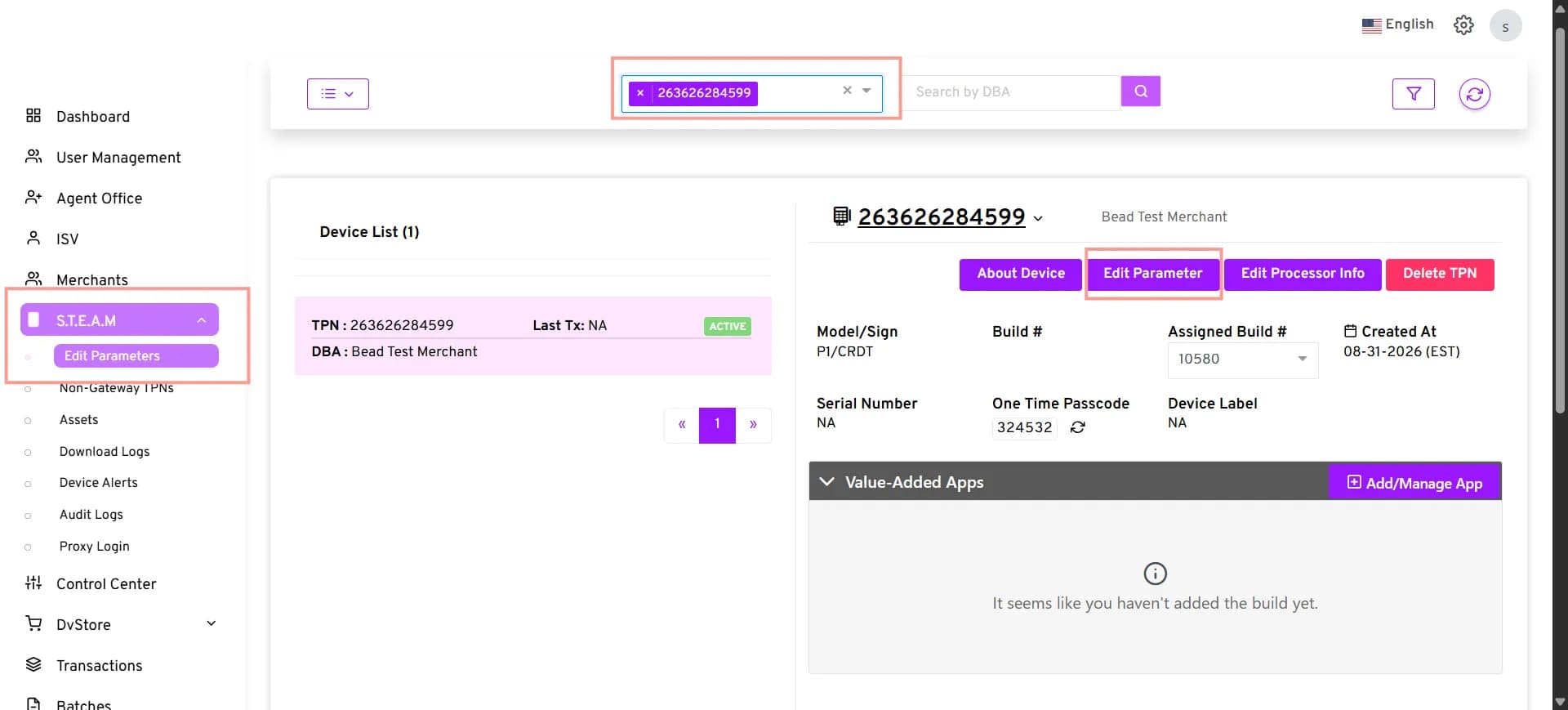
- Go to the Integration tab.
- Locate the Wallet section.
- Under Wallet, enable Alternative Payments.
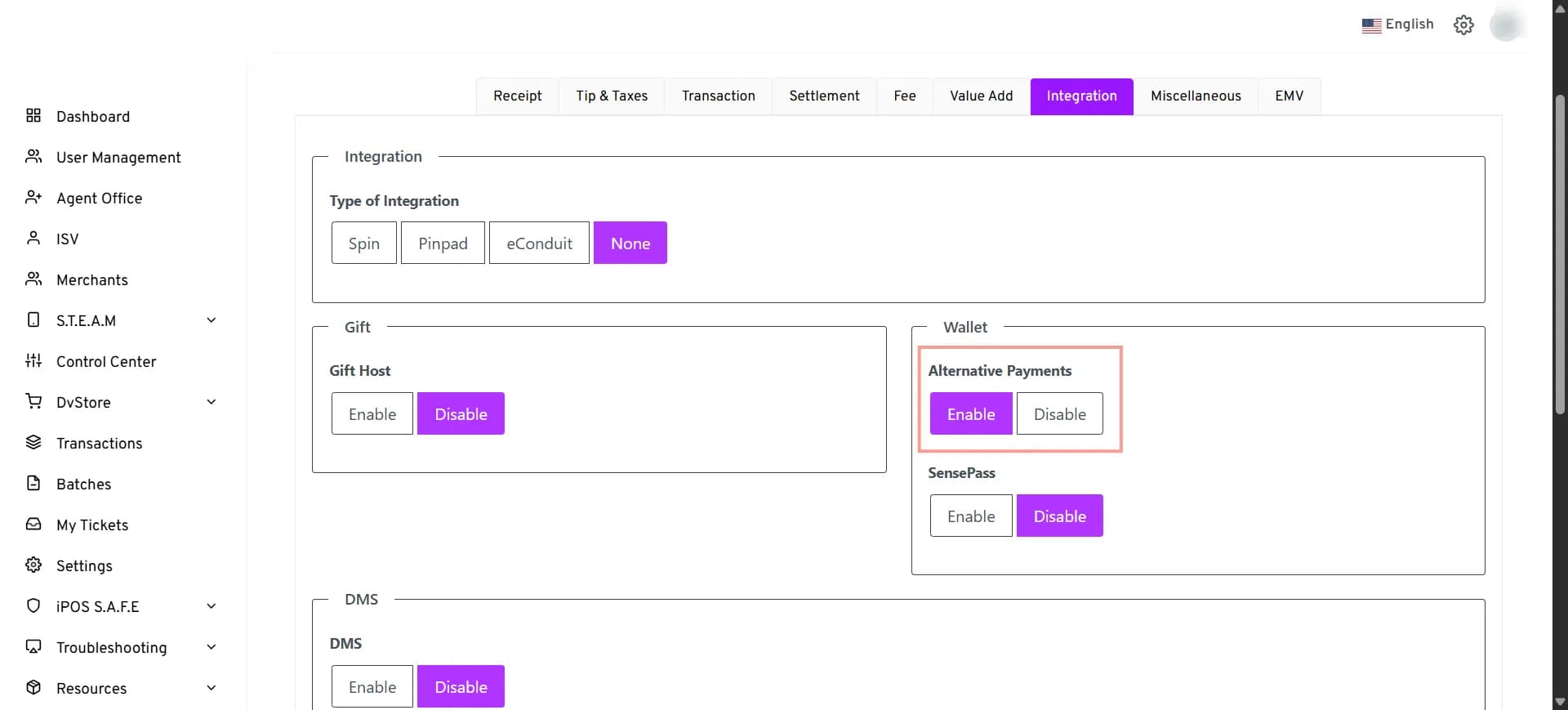
Save or Save as a Template
Once all the required parameters are enabled, click Save or Save as Template.
If the same configuration needs to be applied to multiple TPNs, select Save as Template to save the configuration as a reusable template instead of configuring each TPN individually.
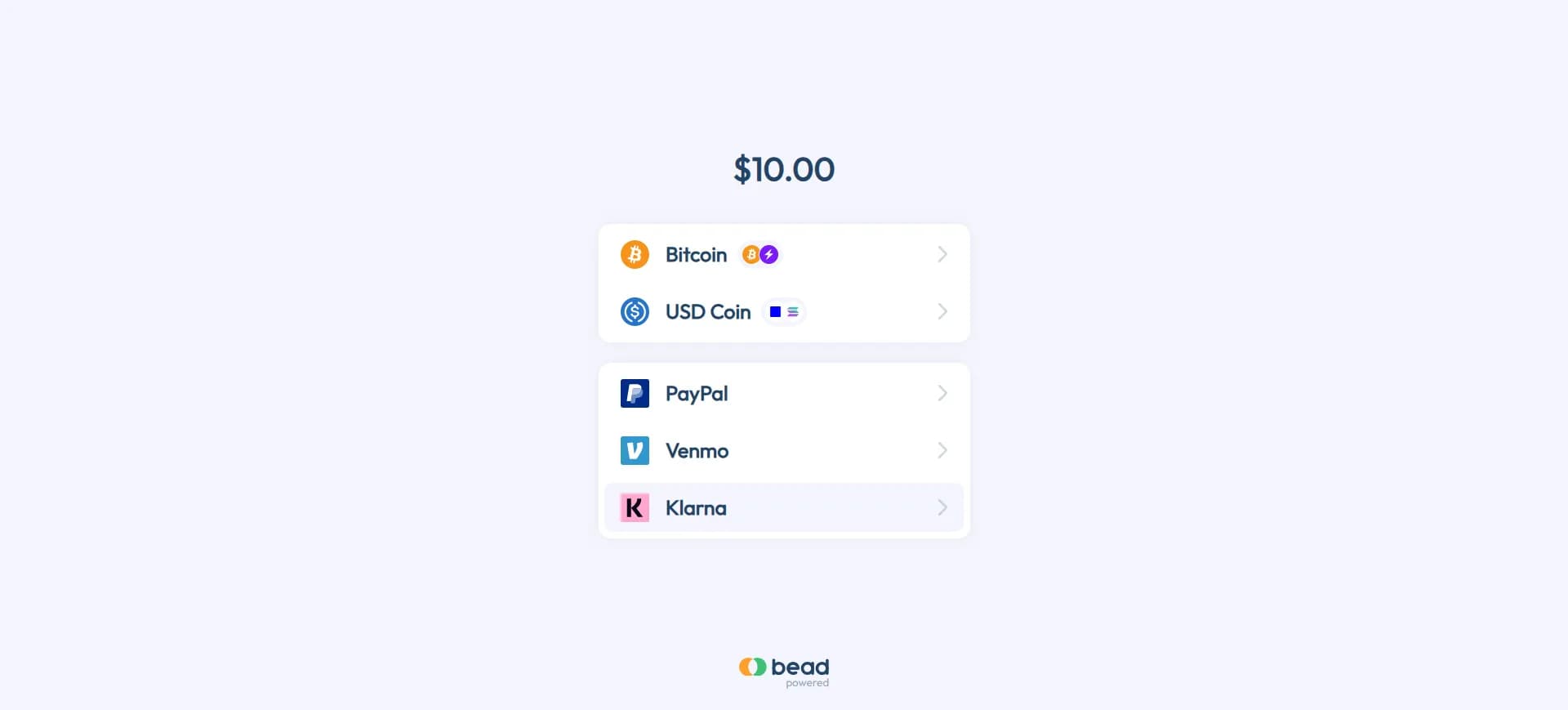
Only the Bead payment methods enabled for the merchant are displayed to customers during checkout. Payment methods can be enabled or disabled based on the merchant’s requirements.
How This Reflects on CloudPOS → Send Payment Link and Generic Hosted Payment Page
- On the payment page, the customer selects Other Payments.
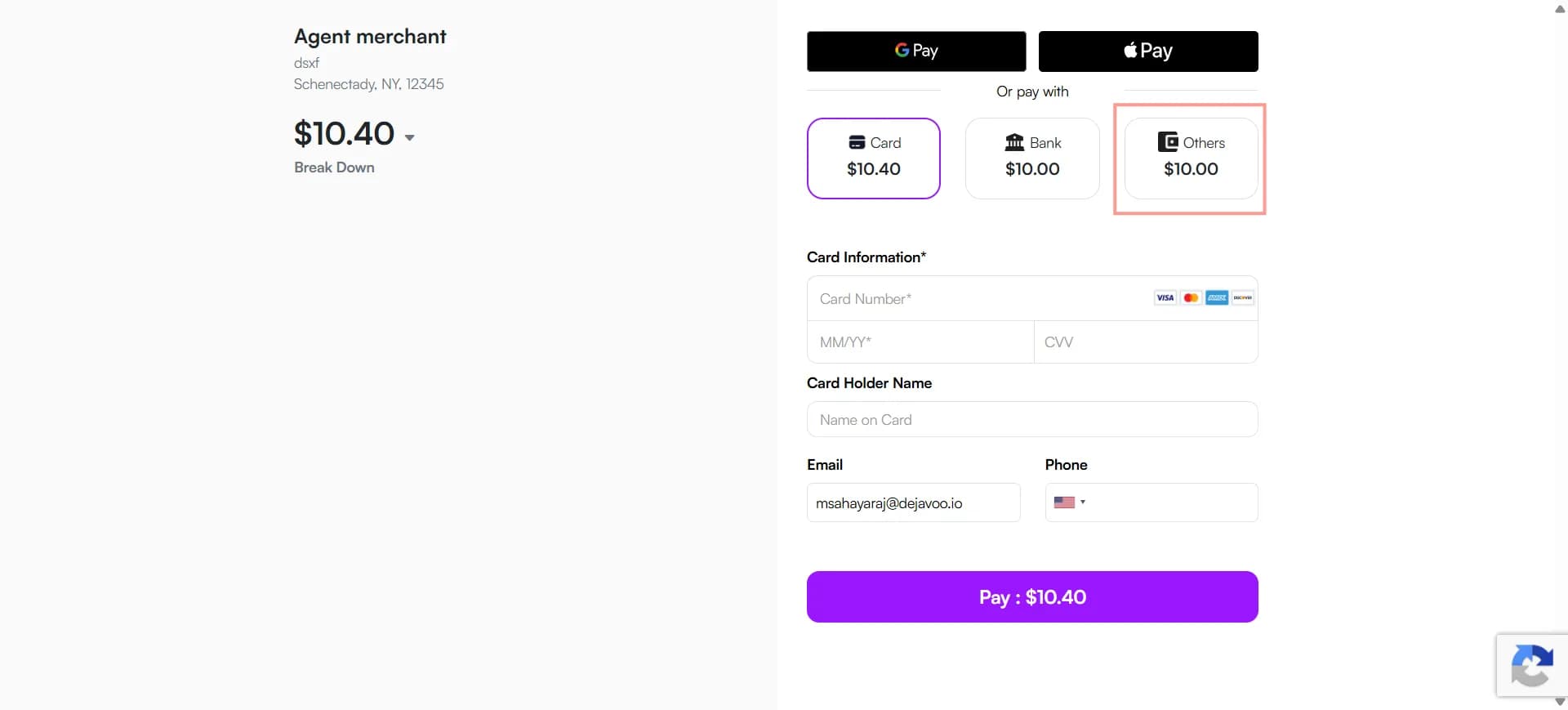
- Under Other Payments, the customer selects a supported payment option and completes the payment.
How This Reflects on POS
- On the payment screen, the customer selects OTHERS under Other Options.
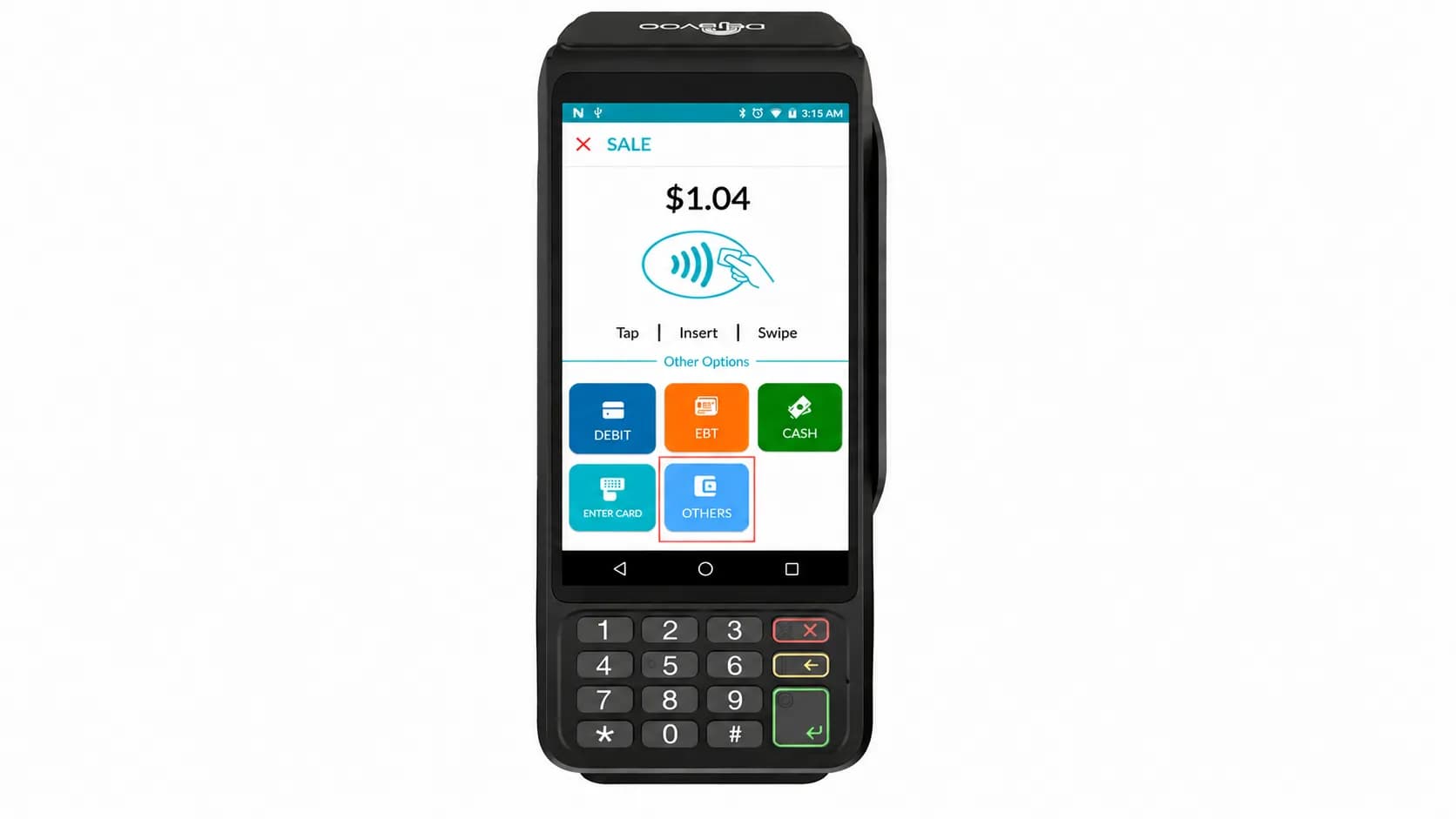
- A QR code is displayed. The customer scans the QR code using their mobile device.
- Choose the supported Bead payment method and complete the payment.
View Bead Transaction Details
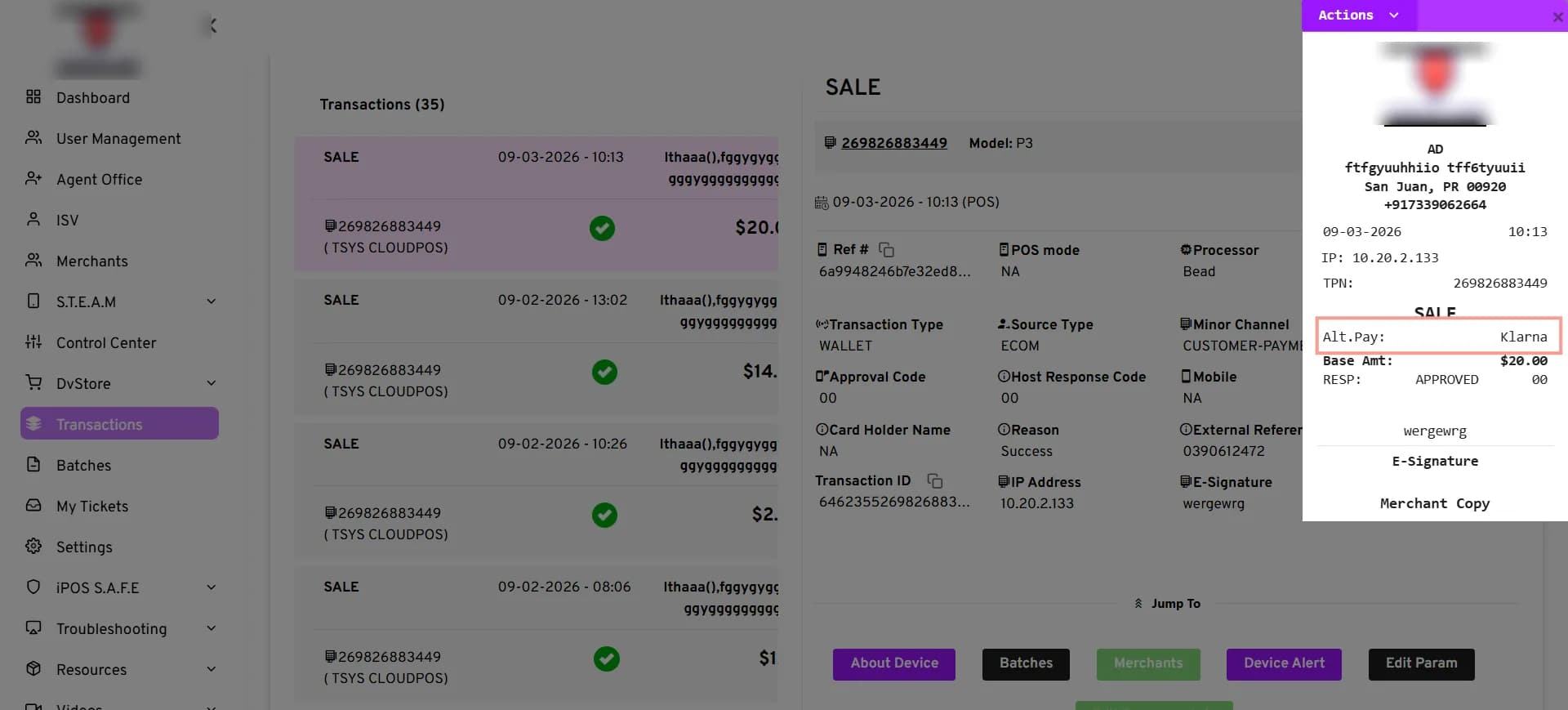
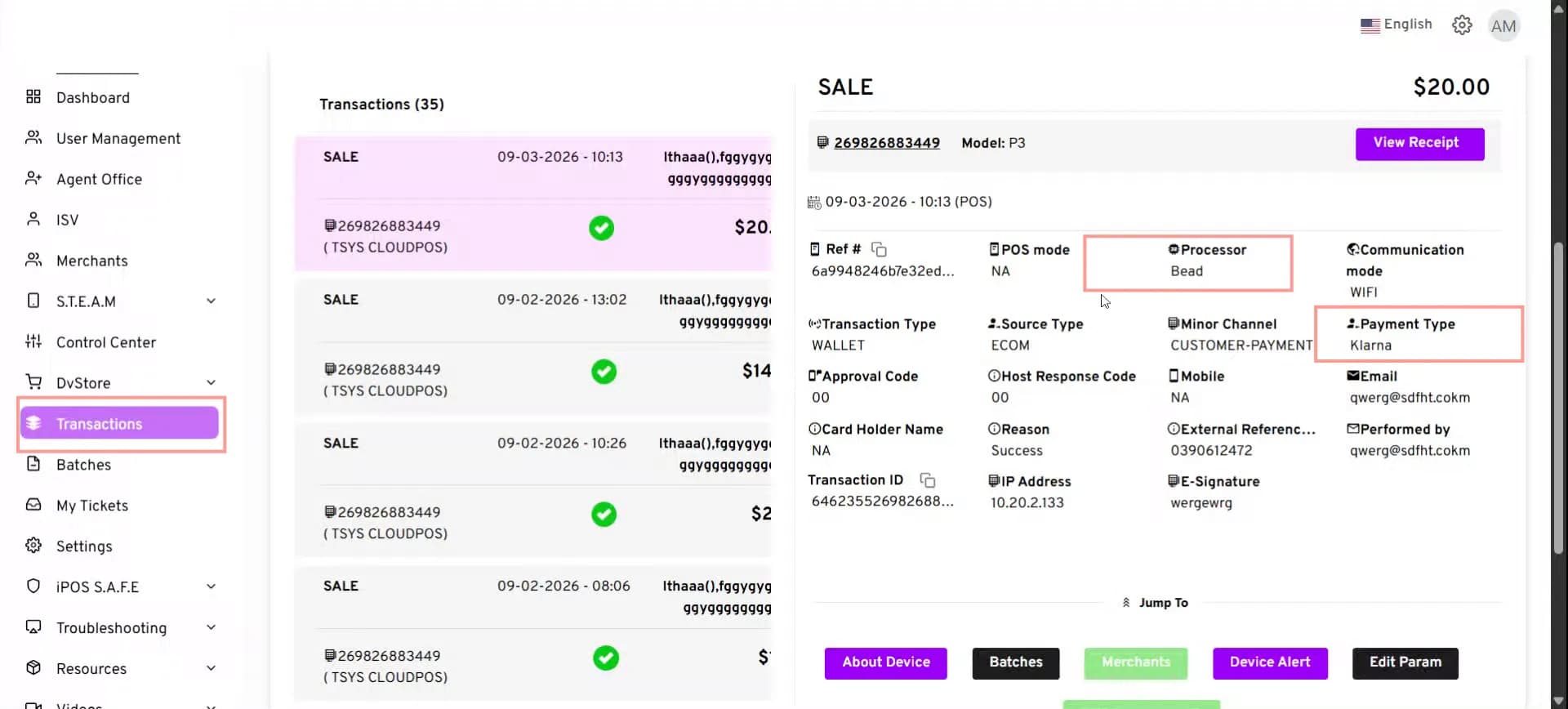
Once the transaction is completed, go to Transactions to view the transaction details. The transaction details show Bead as the Processor and the customer’s selected Bead payment method under Payment Type (for example, Klarna).
View the Transaction Receipt
Click Merchant Copy or Customer Copy to view the transaction receipt. The receipt displays the transaction type and shows the selected payment method under Alt. Pay (for example, Klarna).