Register Lite
Register Lite is a simplified, built-in cash register experience available on all Dejavoo Gateway-powered payment terminals and iPOSgo!(iOS). It enables merchants to efficiently manage inventory, apply pricing rules, and process itemized transactions—all from the payment terminal itself.
With Register Lite, merchants can:
-
Add products manually or by scanning barcodes (If using a Dejavoo device with a built-in scanner or the camera of their iPhone)
-
Build and manage inventory
-
Apply taxes, discounts, and all supported fee types
-
Generate itemized bills with both cash and card prices
Register Lite ensures transactions are fast, accurate, and compliant—especially for businesses using fee-based pricing models.
Feature Compatibility
-
Minimum Required POS Build - 10107 and above
-
Minimum Required iPOSgo! App (iOS) Versions: 1.0.93 and above
-
Supported Processors: Not applicable for Register Lite. However, the iPOSgo! app (iOS) only supports TSYS and Fiserv Omaha
-
Supported Fee Types: Supported by all fee types
-
Supported Terminals: Compatible with Dejavoo P Series and QD Series devices, as well as iPOSgo! (iOS).
Key Features
-
Centralized inventory that syncs across POS, CloudPOS, and Tap to Pay on iPhone With iPOSgo!
-
Itemized receipts clearly showing Dual Pricing breakdowns
-
Supports Level 2 and Level 3 data for reduced interchange fees on transactions made with eligible cards.
-
Seamless integration with Master + PIN pad setups using True Cash Discount (TCD)
-
Minimum required POS build: 10107
-
Compatible with all major fee types:
-
Custom Fee
-
Surcharge
-
Tender-Based Pricing (TBP)
-
Dual Pricing
-
True Cash Discount (TCD)
-
Receipt layouts vary slightly based on fee type.
Benefits
-
Efficiency and Speed: Add items to the cart quickly, reducing checkout times and keeping lines moving. This improves customer experience and allows staff to serve more people.
-
Accuracy: Eliminate the possibility of human error in manually calculating change or totals. This reduces the risk of giving incorrect change to customers and ensures accurate accounting.
-
Simplicity: Designed to be user-friendly, making them easy for employees to learn and operate. This reduces training time and ensures smooth operation.
-
Cost Saving: Eliminates the need for a separate cash register by offering inventory management and transaction processing in a single payment terminal. No need to maintain separate receipts. Access all of them from a single place using the payment terminal.
-
Portability: Lightweight and convenient to carry, allowing merchants to process transactions or manage inventory on the go, anytime, anywhere.
Overall, Register Lite is a versatile tool that can streamline checkout processes and improve accuracy.
Where to Enable Register Lite (ISO Access)
The setup steps remain the same for Register Lite on both iPOSgo! (iOS) and Dejavoo terminals.
Watch this video for a visual walkthrough of the steps mentioned in this document.
-
Log in to the iPOSpays portal using an ISO account.
-
Then, go to S.T.E.A.M → Edit Parameters.
-
Search and select the POS/Apple Pay TPN from the search box.
-
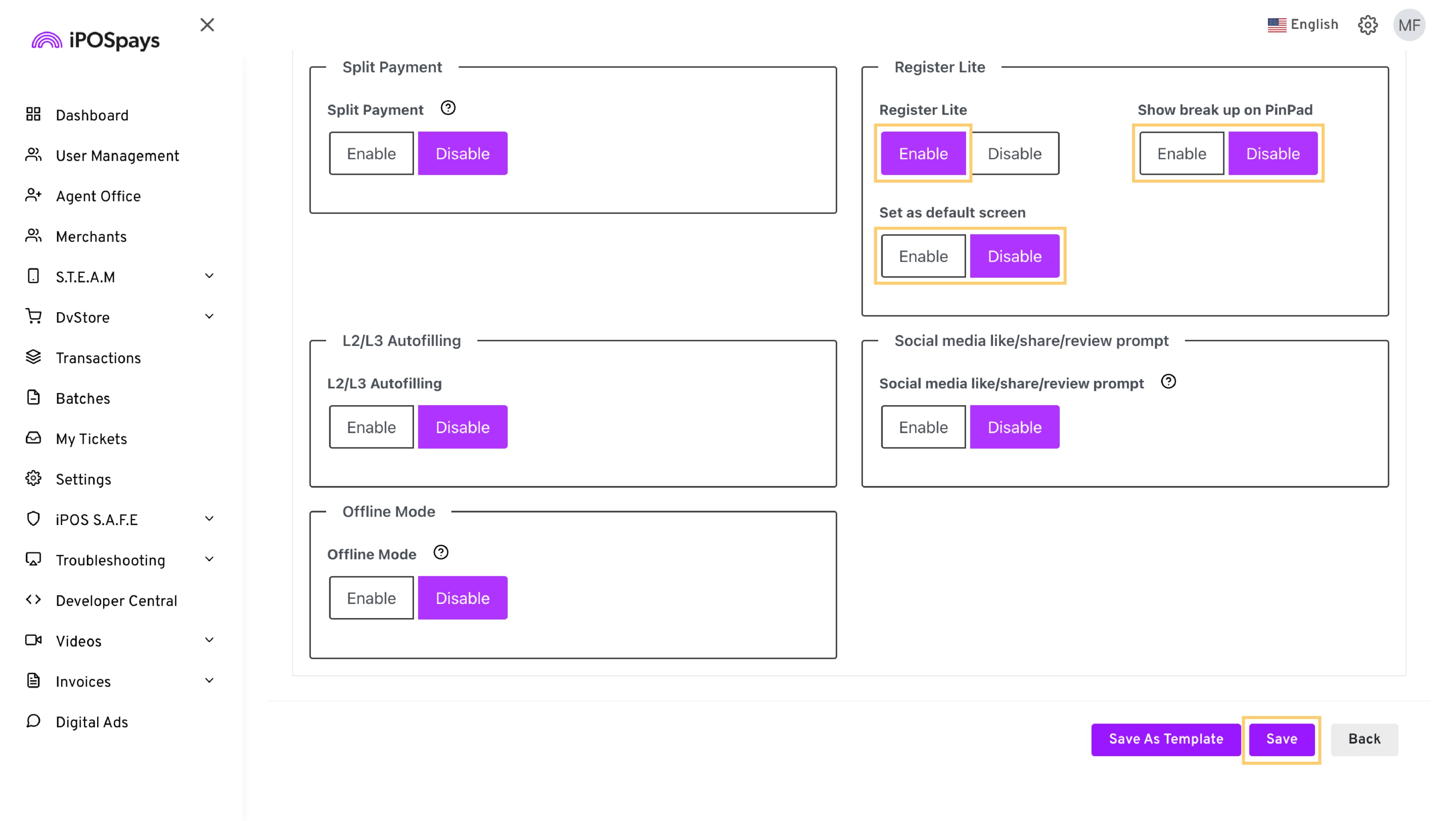
Edit Parameter → Value Add → enable Register Lite.
Additional Settings:
-
Show breakup on PinPad – Displays the price breakdown on a connected PIN pad
-
Set as default screen – Makes Register Lite the default screen on the terminal
Perform a parameter update on the payment terminal for changes to take effect.
It’s important to note that the fee percentage and tax set in the ISO account of the iPOSpays portal don’t apply to Register Lite. This percentage is specifically for standalone payment terminal transactions.
Setting Up Register Lite (Merchant Access)
Step 1: Configure Pricing Settings
-
Log in to the iPOSpays portal with a merchant account
-
Click on Inventory
-
Select your store from the drop-down (if multiple stores are present)
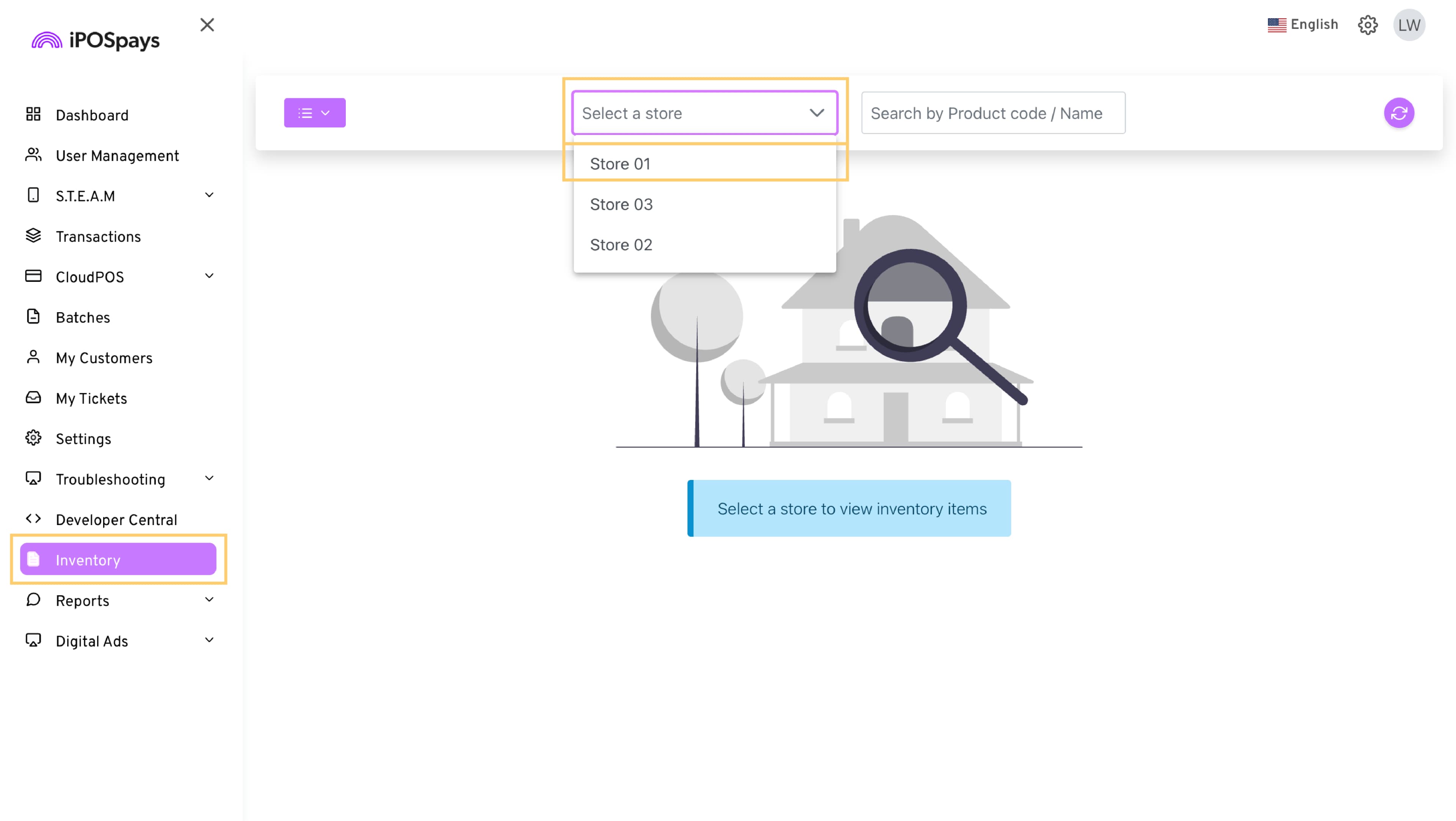
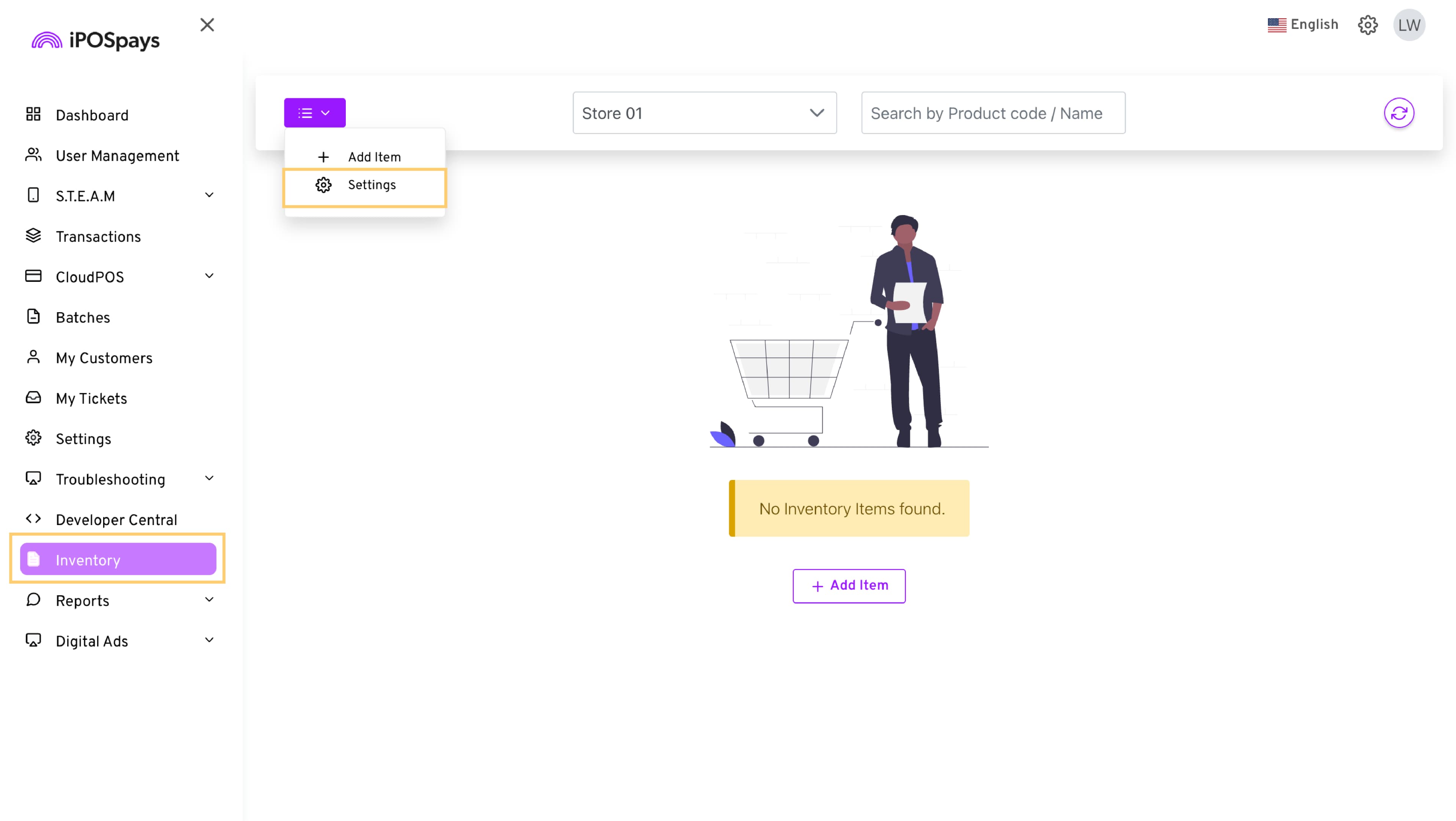
- Click Configure Inventory or go to Menu → Settings
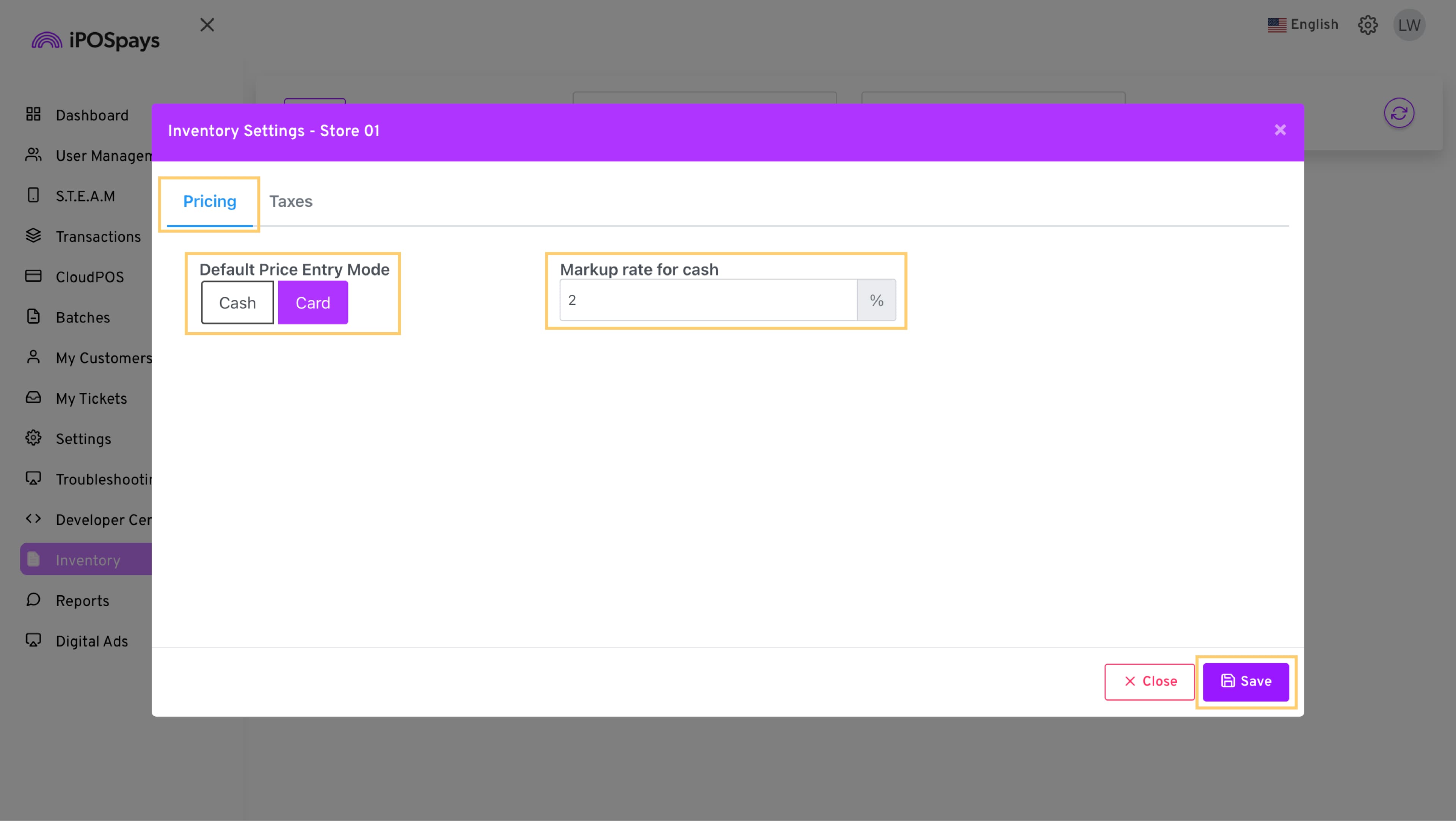
- Under Inventory Settings → Pricing, set the Default Price Entry Mode:
-
For Custom Fee, Surcharge, TBP, Dual Pricing → select Cash
-
For True Cash Discount (TCD) → select Card
-
Enter the markup rate for card (percentage)
-
Click Save
Step 2: Configure Taxes
-
Go to Inventory Settings → Taxes
-
Enter a custom tax name and percentage
-
Designate it as State or Local
-
Click + to add another tax (if needed)
-
Click Save
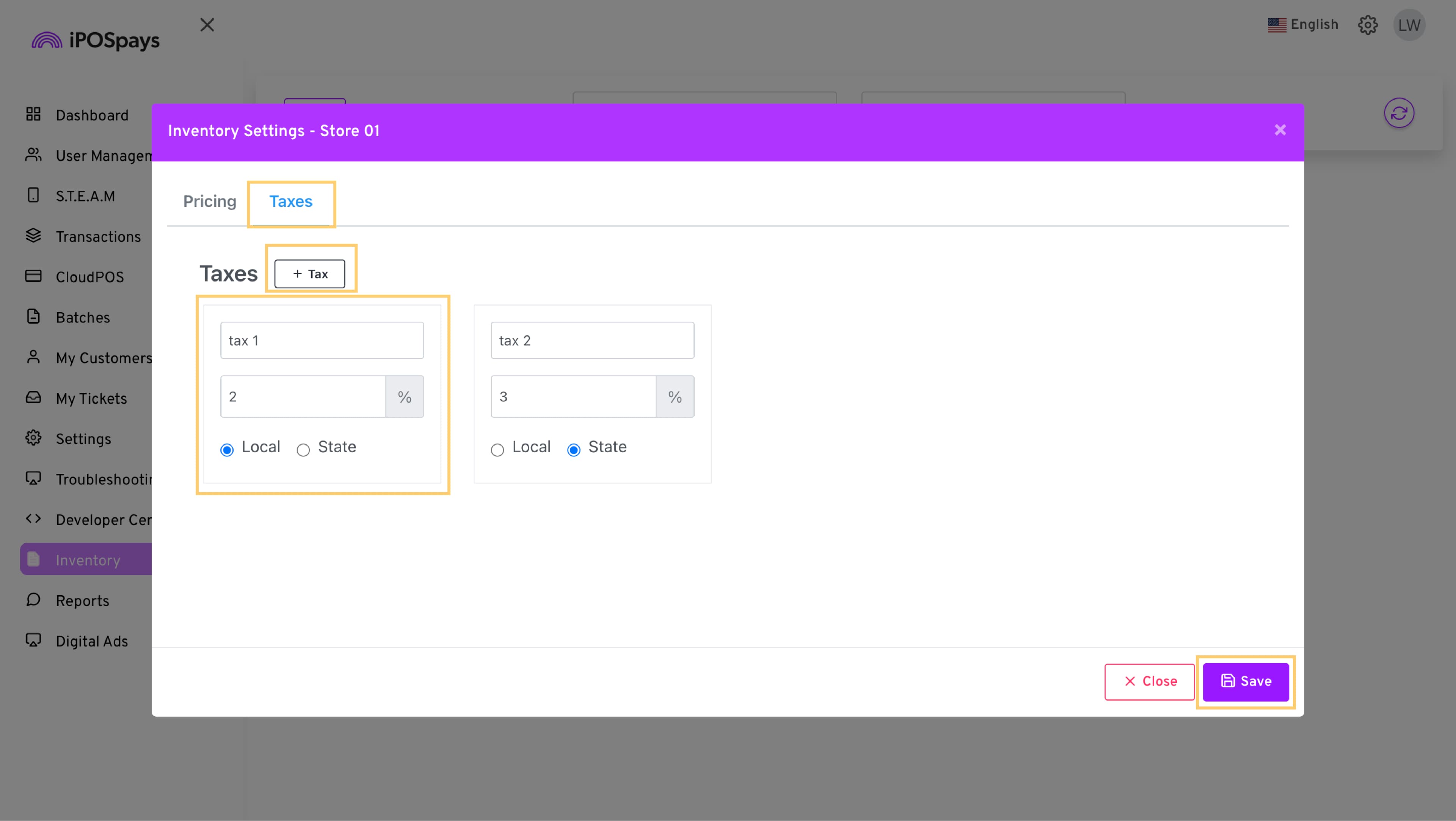
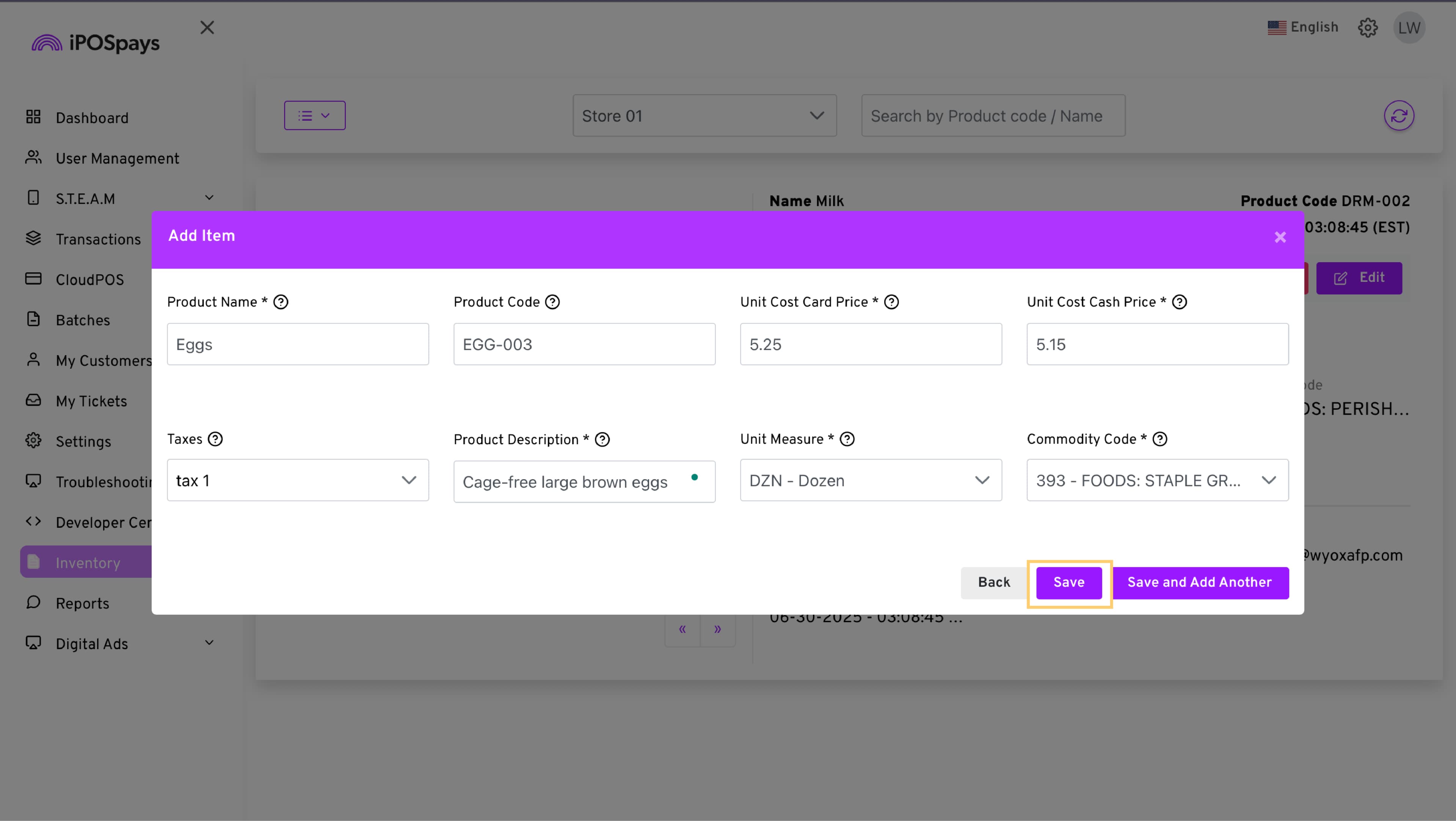
Step 3: Add Items to Inventory
-
Go to Menu → Add Item
-
Enter:
-
Product name
-
Product code
-
Cash price (card price is auto-calculated)
-
Tax, unit of measure, commodity code
-
Optional description
- Click Save or Save and Add Another to add another item
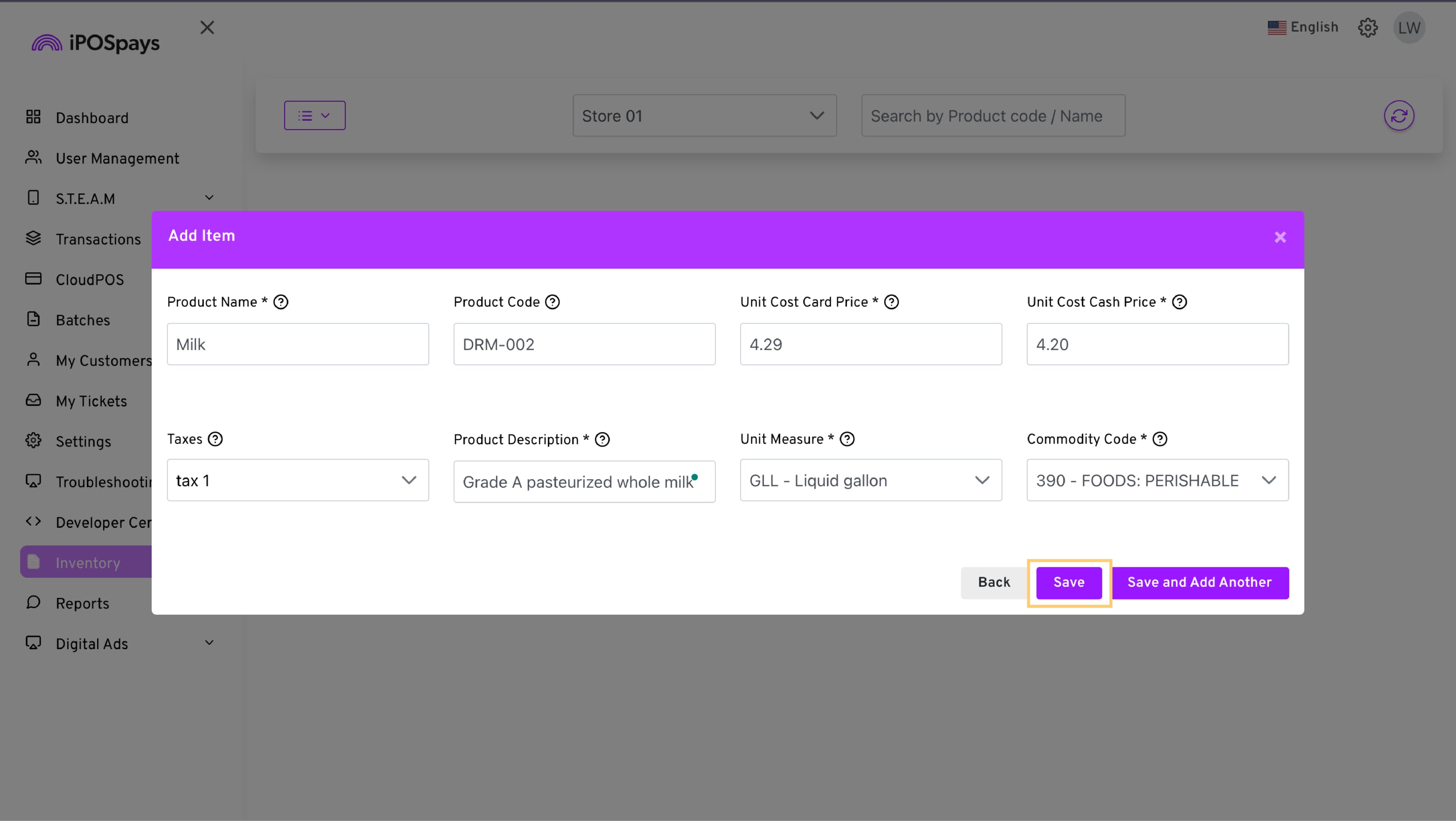
After items are added, you can edit or delete them from the Inventory module.
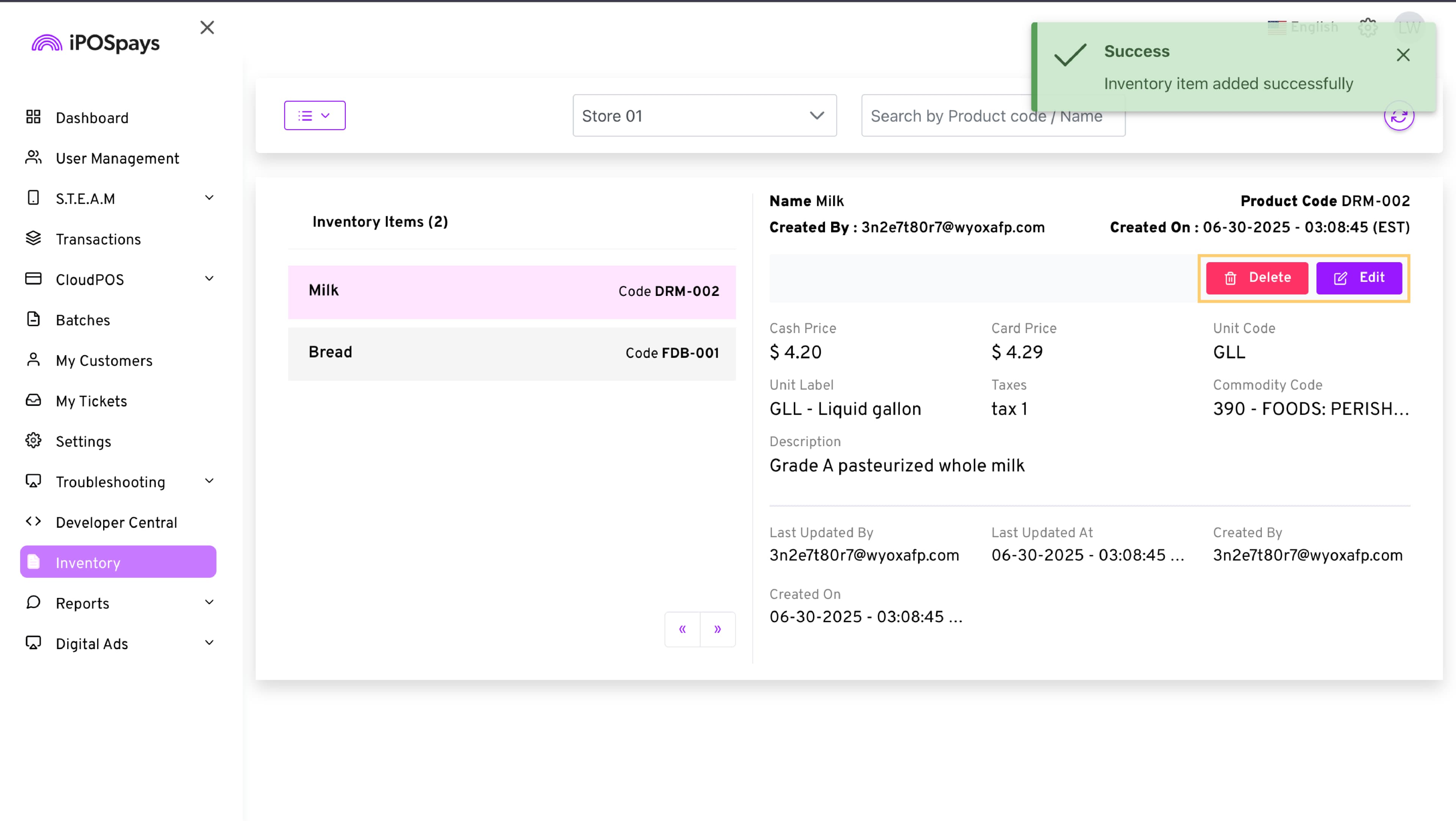
After the items have been added to the inventory, you can edit or delete the items from the Inventory module.
Using Register Lite on the Terminal
1. Launch Register Lite
- From the payment screen, tap the cart icon to open Register Lite.
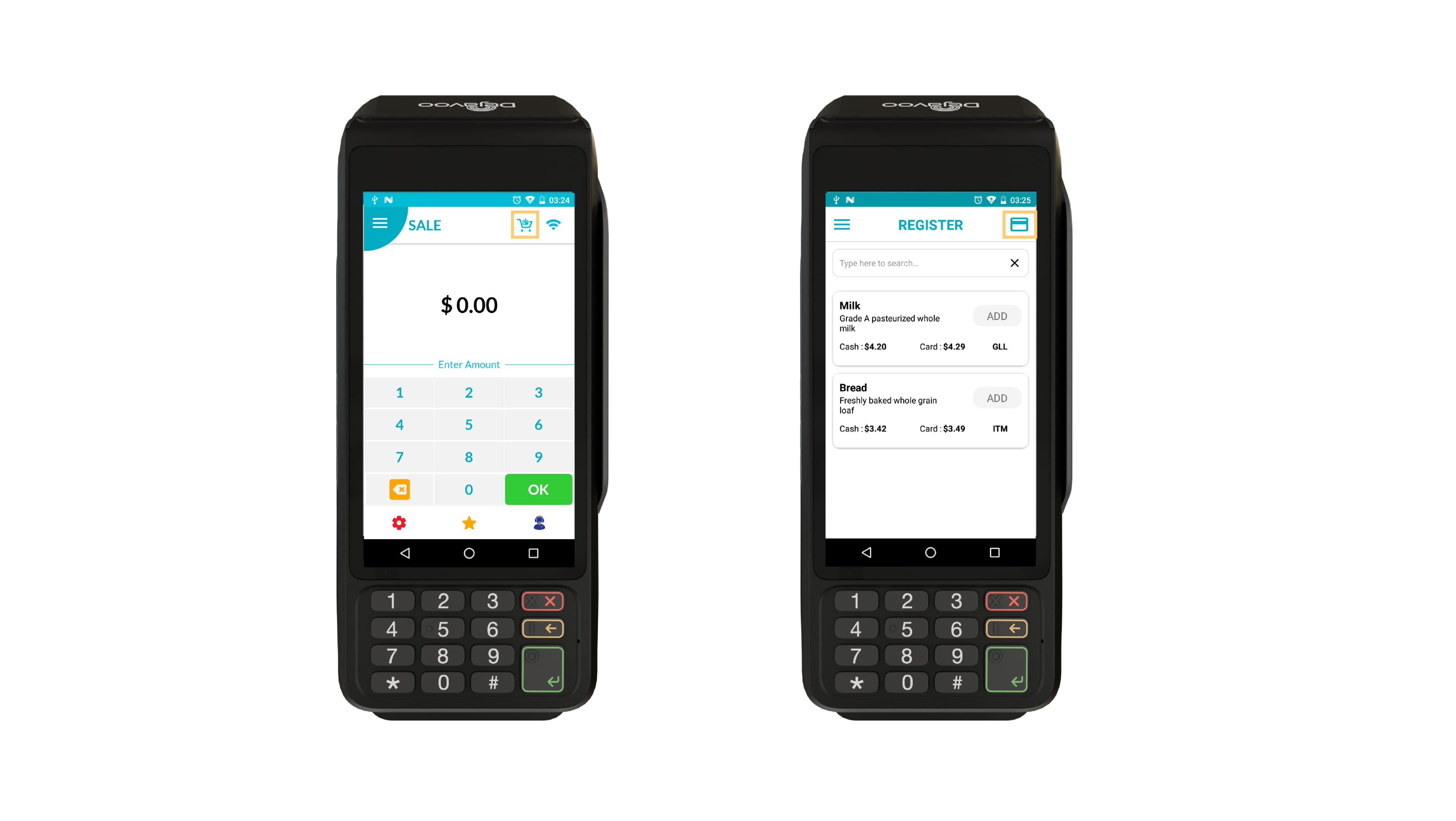
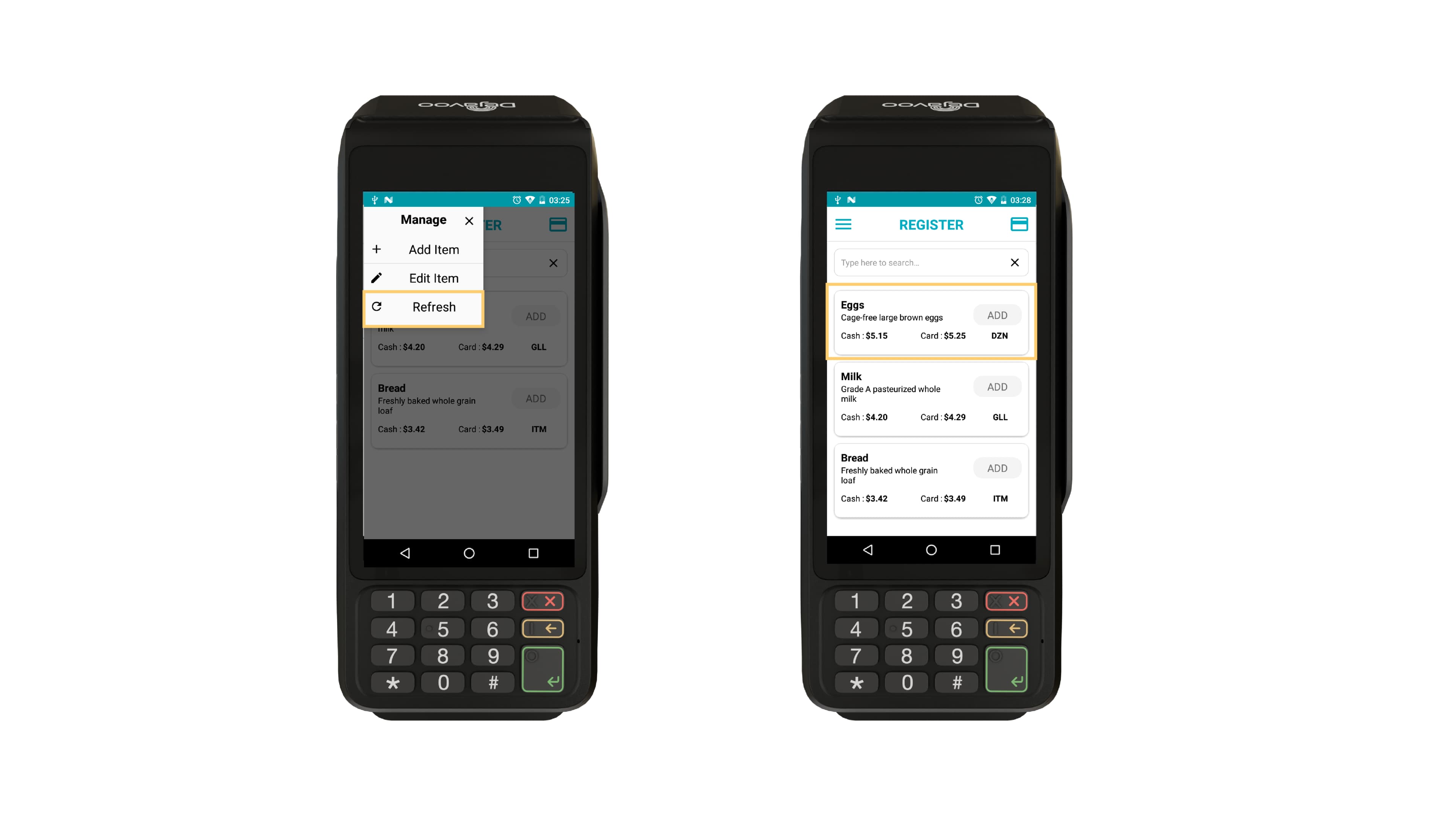
2. Sync Newly Added Inventory
- Tap the menu button → Refresh to sync any items recently added to the inventory from the iPOSpays portal.
3. Edit Inventory Items (From the Terminal)
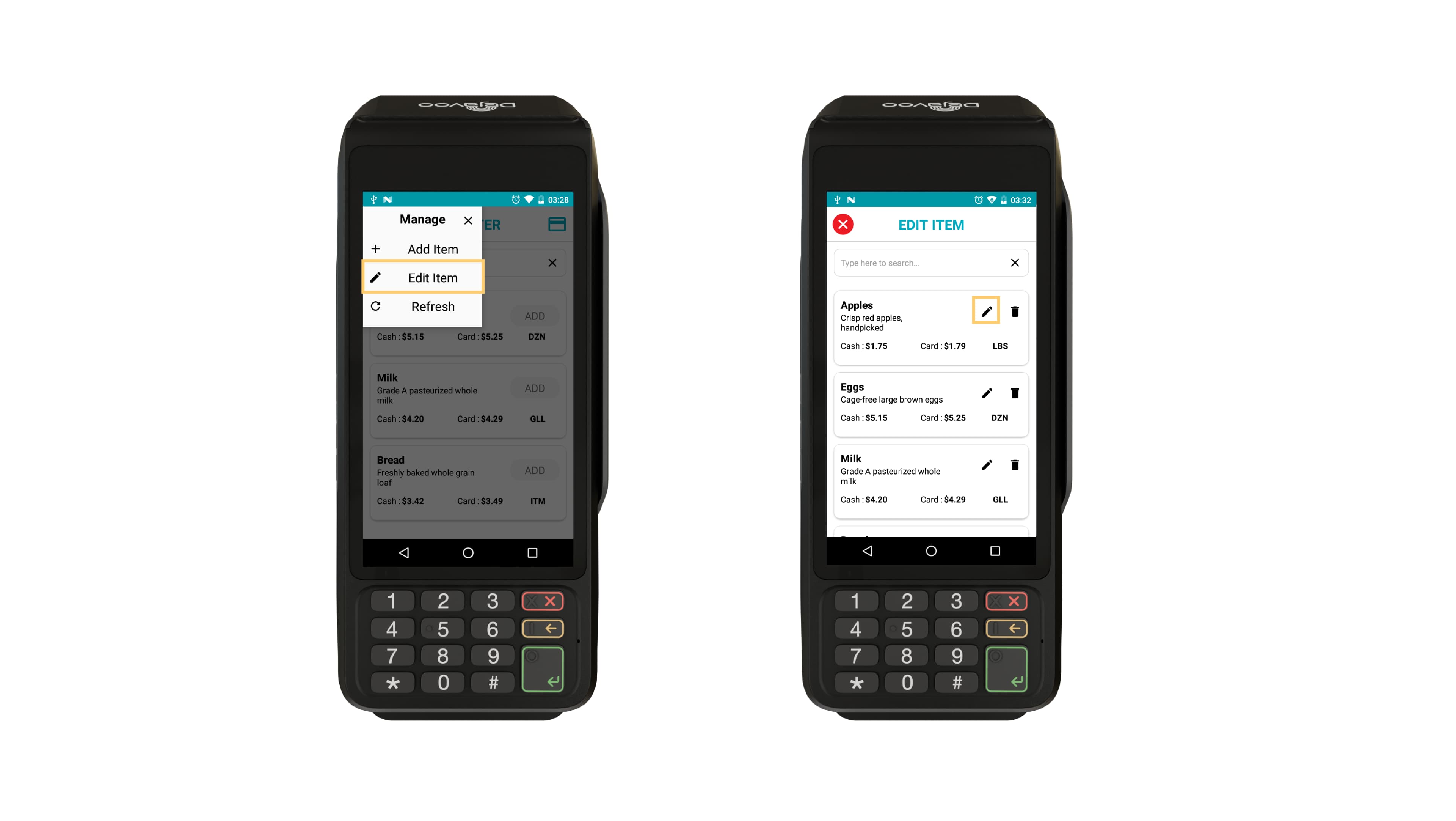
-
Tap the menu button → Edit Item
-
Click on the pen icon to edit the items
4. Add Items to Inventory (From the Terminal)
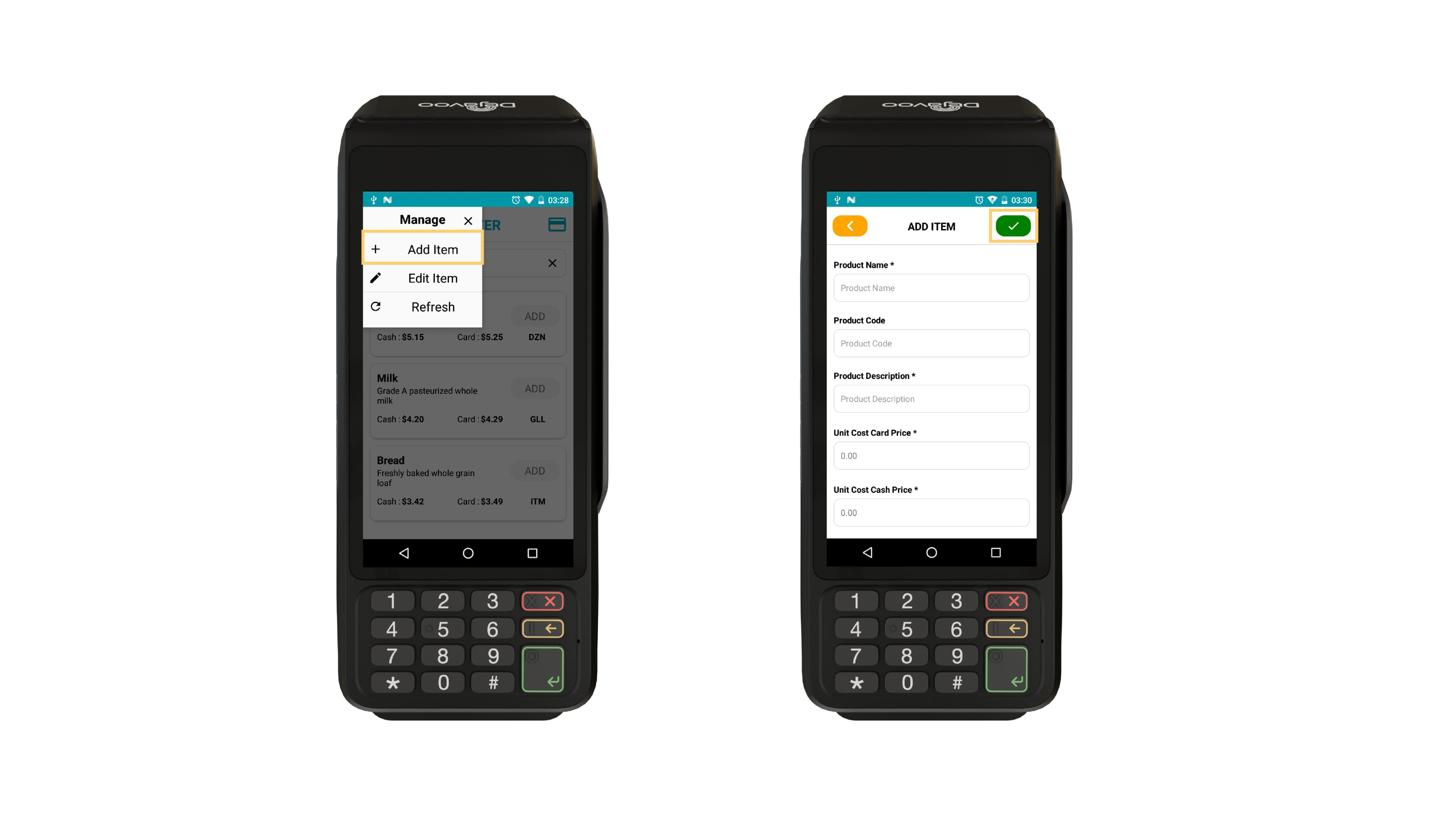
-
Tap the menu button → Add Item
-
Enter the product name and product code manually or scan the barcode by tapping on the scanner icon.
-
Enter the card price (the system will auto-calculate the cash price if TCD is enabled)
-
Select the appropriate:
Unit of measure Tax Commodity code
- Tap ✅ to save the item to the terminal’s inventory
5. Make a Sale Transaction
-
From the Register screen, tap Add to add items to the cart
-
If the item is sold by quantity (e.g., in lbs), enter the desired quantity
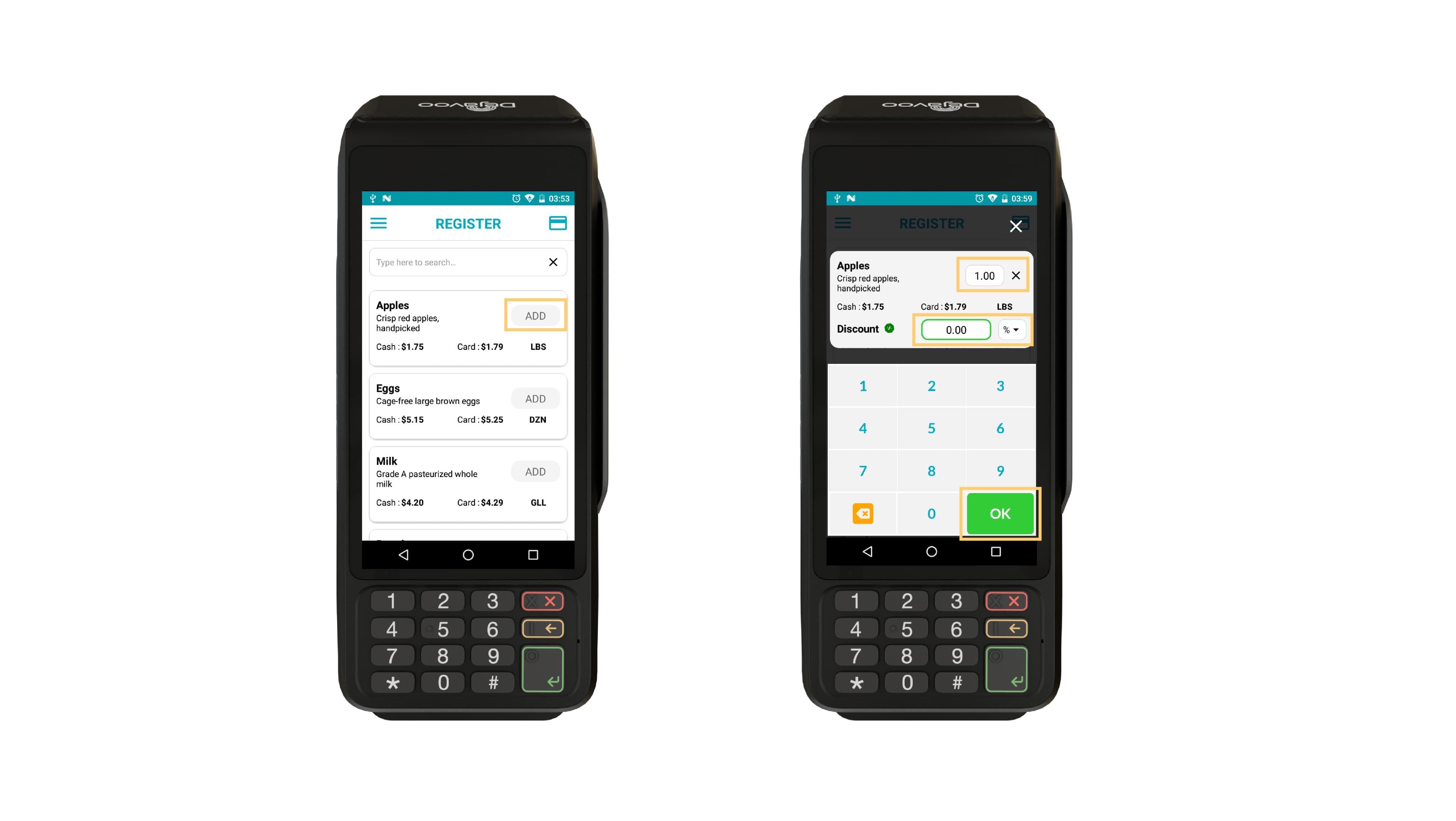
-
Tap Discount to apply a discount (either as a percentage or fixed amount)
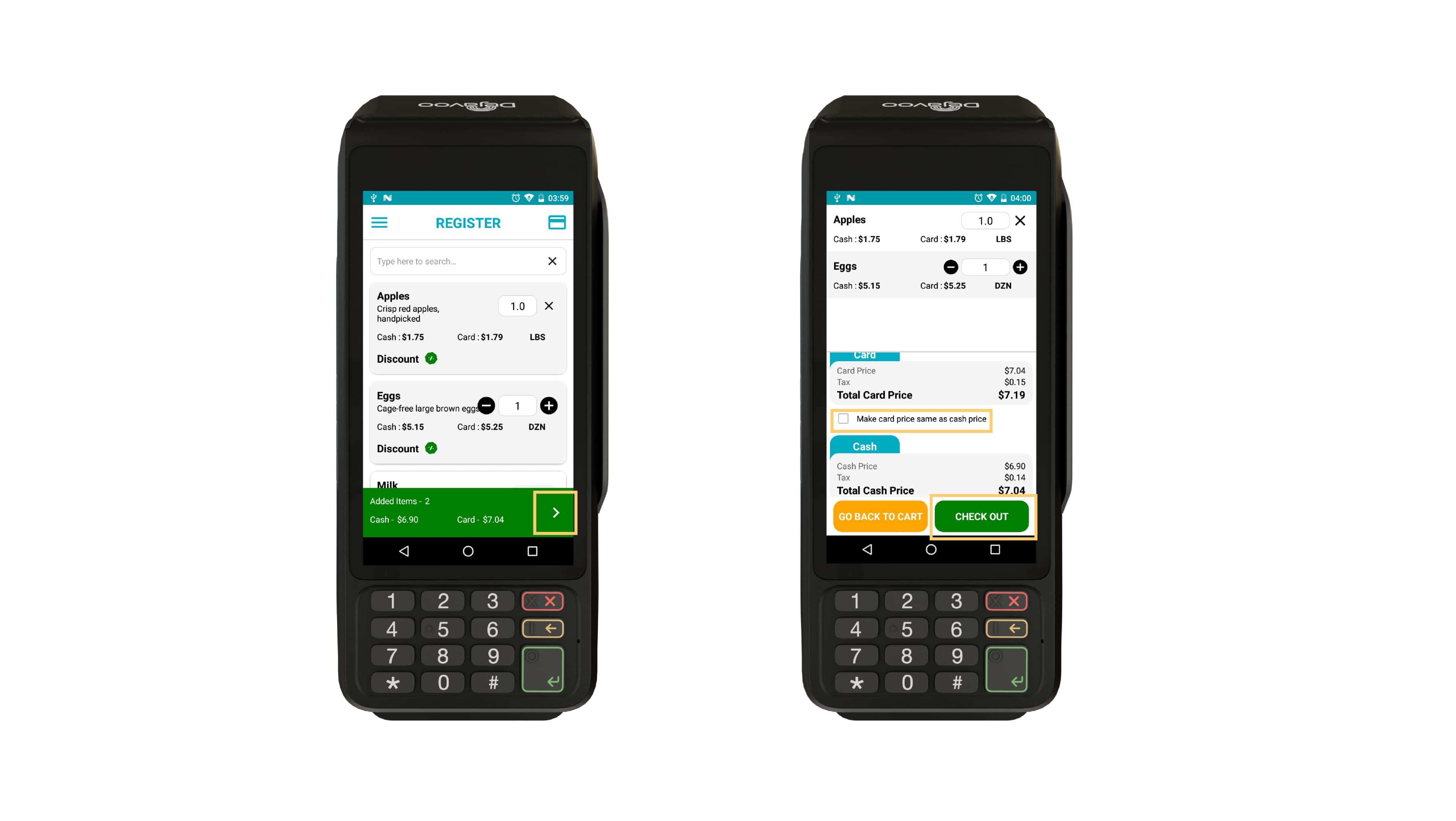
-
If you wish, you can enable Make card price as cash price to provide a discount on the card price
-
Tap › to proceed to checkout
6. Customer Checkout Flow
-
Present the terminal to the customer
-
On the breakup screen, the customer will see:
Card Price Cash Price
-
Tap CHECK OUT to continue
-
The customer selects their preferred payment method
-
Complete the transaction as usual
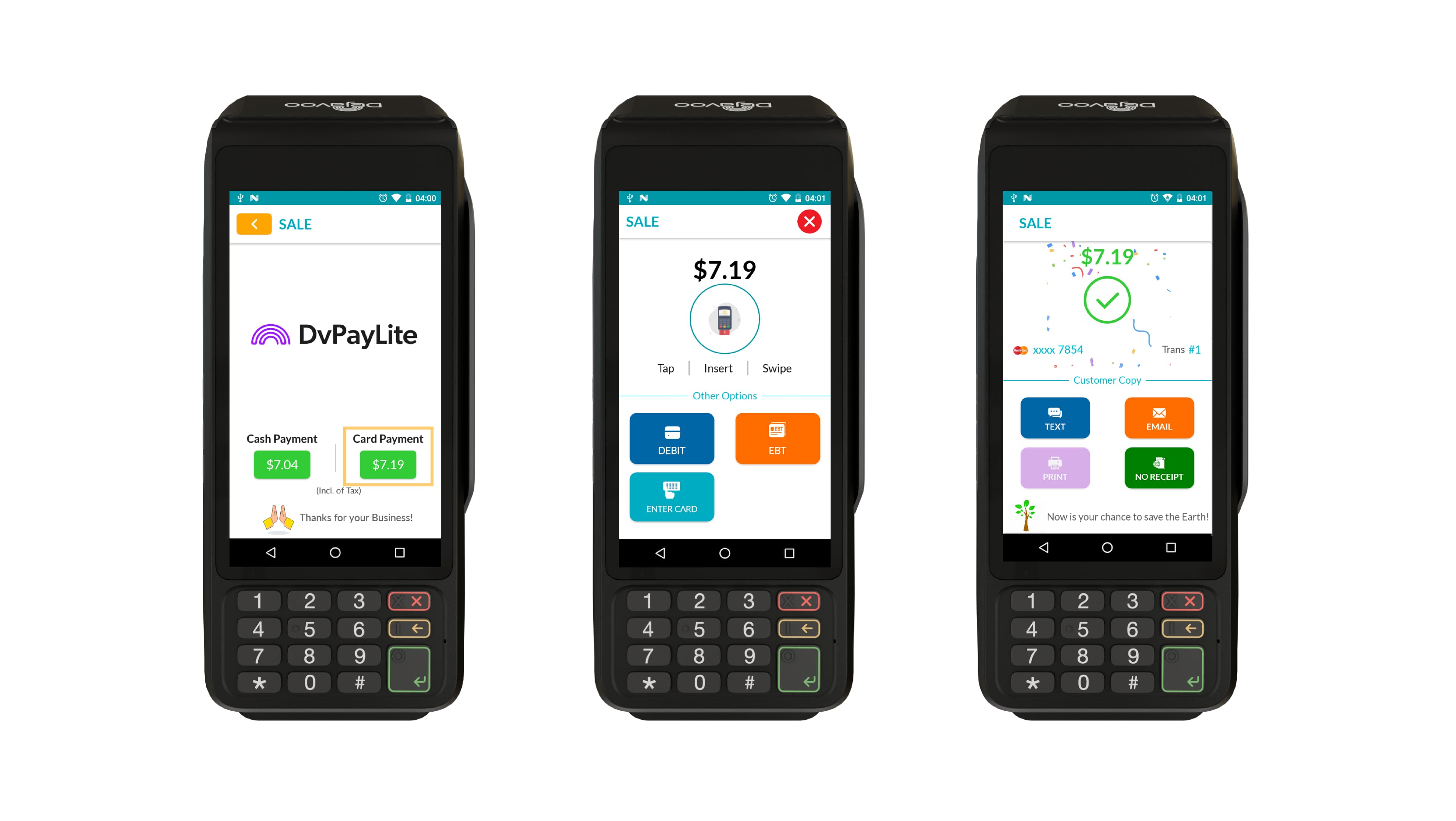
With True Cash Discount, a discount is automatically applied when the customer selects cash.