Loyalty Programs with Enroll and Pay on iPOSpays
iPOSpays has partnered with Enroll & Pay to enable ISOs and merchants to offer an easy-to-use, card-based loyalty program directly on Dejavoo Gateway-powered payment terminals. This integration allows customers to enroll, earn rewards, and receive discounts during checkout—without requiring a separate app or account.
Feature Compatibility
-
Minimum Required POS Build: 10156
-
Supported Terminals: Dejavoo Gateway-powered P Series Payment Terminals
-
Supported Payment Processors: Supported by all processors
-
Supported Fee Types: Supports all fee types
-
Requires Registration With Enroll & Pay
How It Works
ISO Registration
The ISO must coordinate with Enroll & Pay to obtain a registration link. This link is specific to each ISO.
Merchant Registration
Once the registration link is provided by Enroll & Pay, the ISO can onboard their merchants using that link. After onboarding, the merchant can add the TPNs on which they wish to use the loyalty programs.
ISO Enablement
After registration, the ISO enables Enroll & Pay for the merchant:
-
Navigate to the Add-On Features section in the iPOSpays portal.
-
Enable Enroll & Pay for the desired store.
-
Once enabled, the feature automatically applies to all TPNs (terminals) associated with that store.
Merchant Dashboard
After setup, merchants can access the Enroll & Pay Dashboard to:
-
View and manage loyalty transactions
-
Add or remove supported terminals (TPNs)
-
Configure reward percentages or discount offers
-
Track enrolled customers and loyalty performance
Customer Enrollment Experience
-
When a customer uses their card for the first time, the terminal prompts them to enter their phone number.
-
The phone number and card are securely linked to the loyalty program.
-
Customers receive a welcome reward or discount upon enrollment.
-
Future purchases using the same phone number automatically earn rewards.
How to Enable Enroll & Pay
Enroll & Pay must be activated at the ISO level first. Contact your Dejavoo representative to request access.
Step 1: Enable the Add-On Feature
-
Log in to the iPOSpays portal using your ISO account.
-
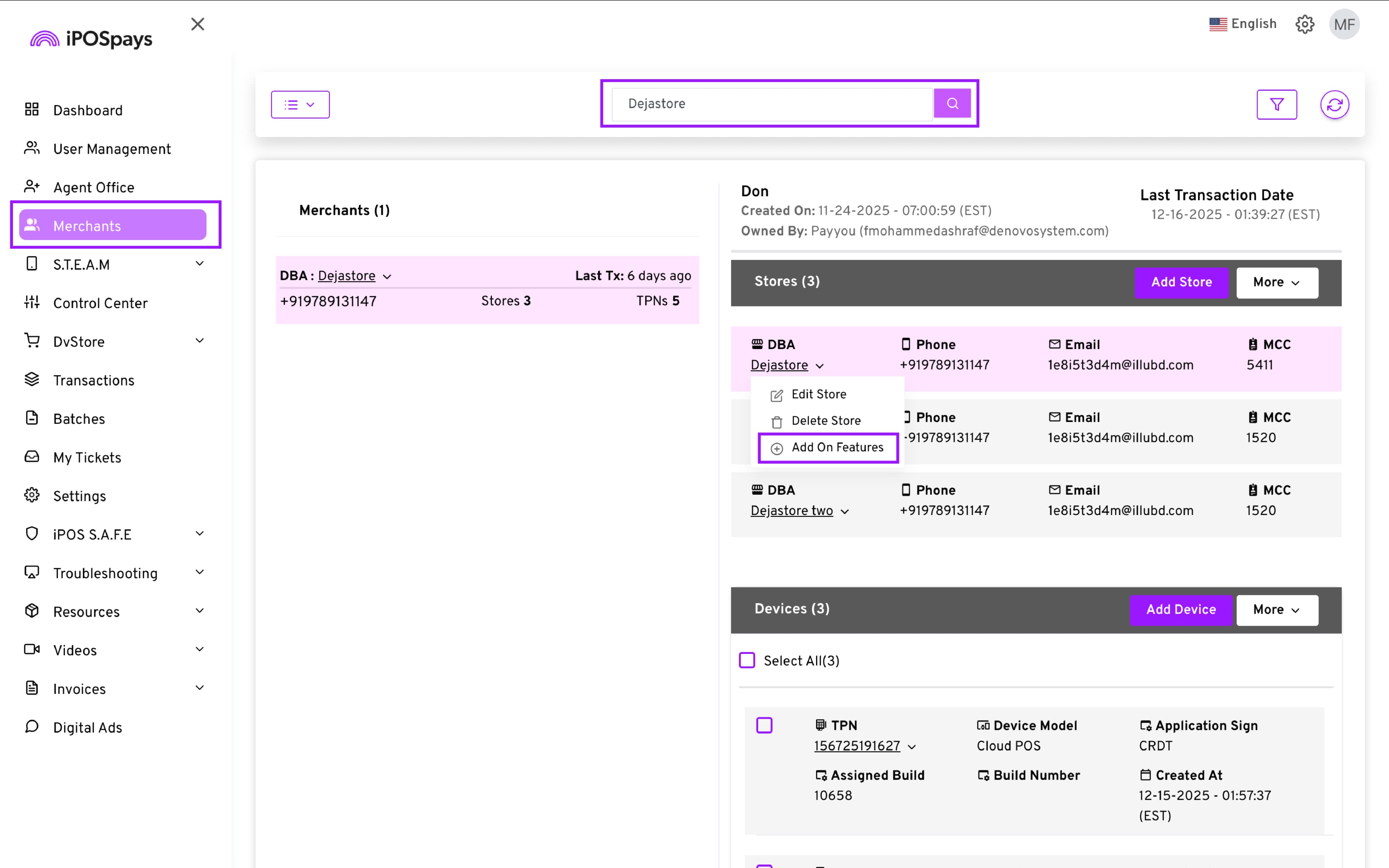
Go to Merchants → Search and select the merchant → Store DBA → Add-On Features.
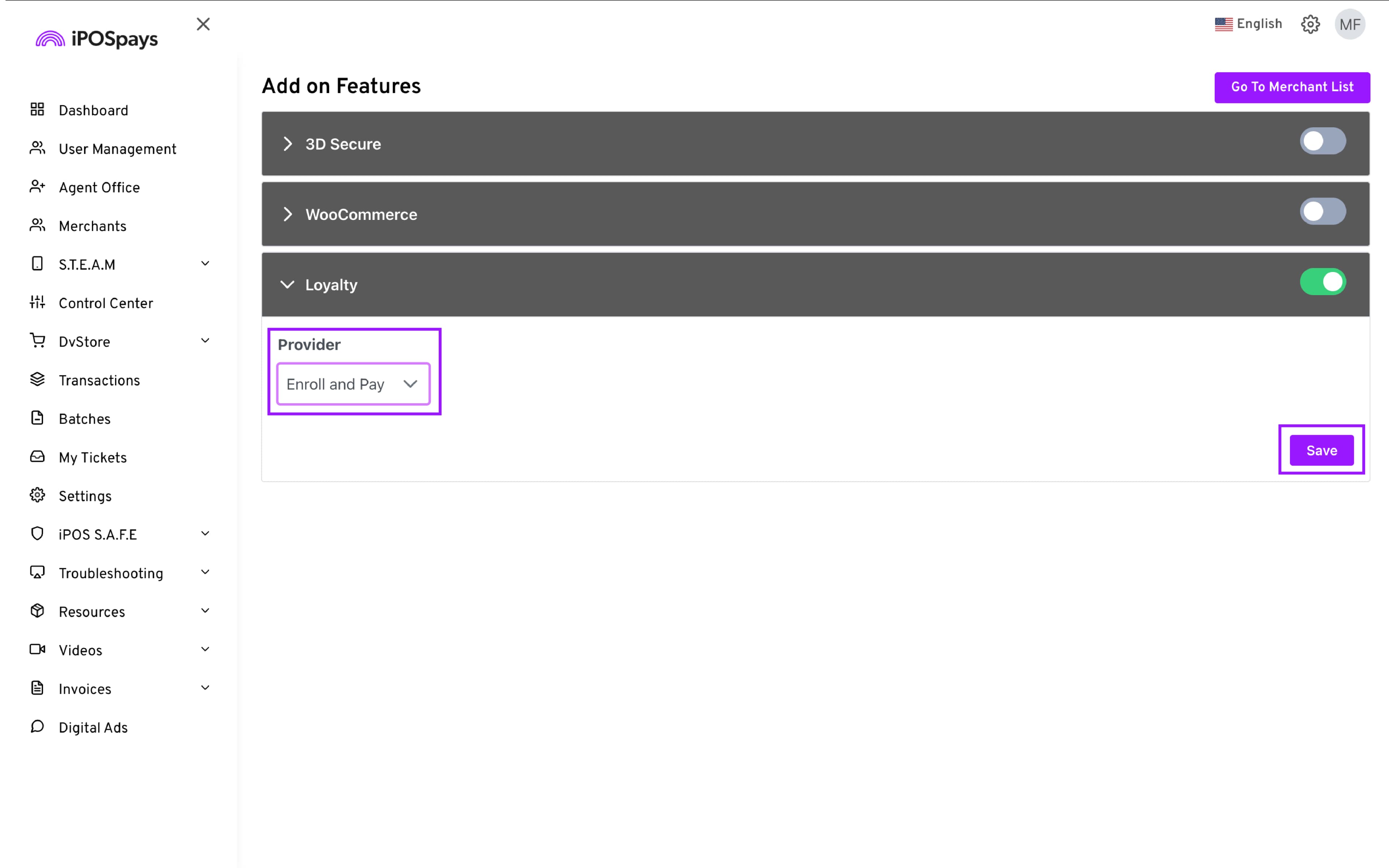
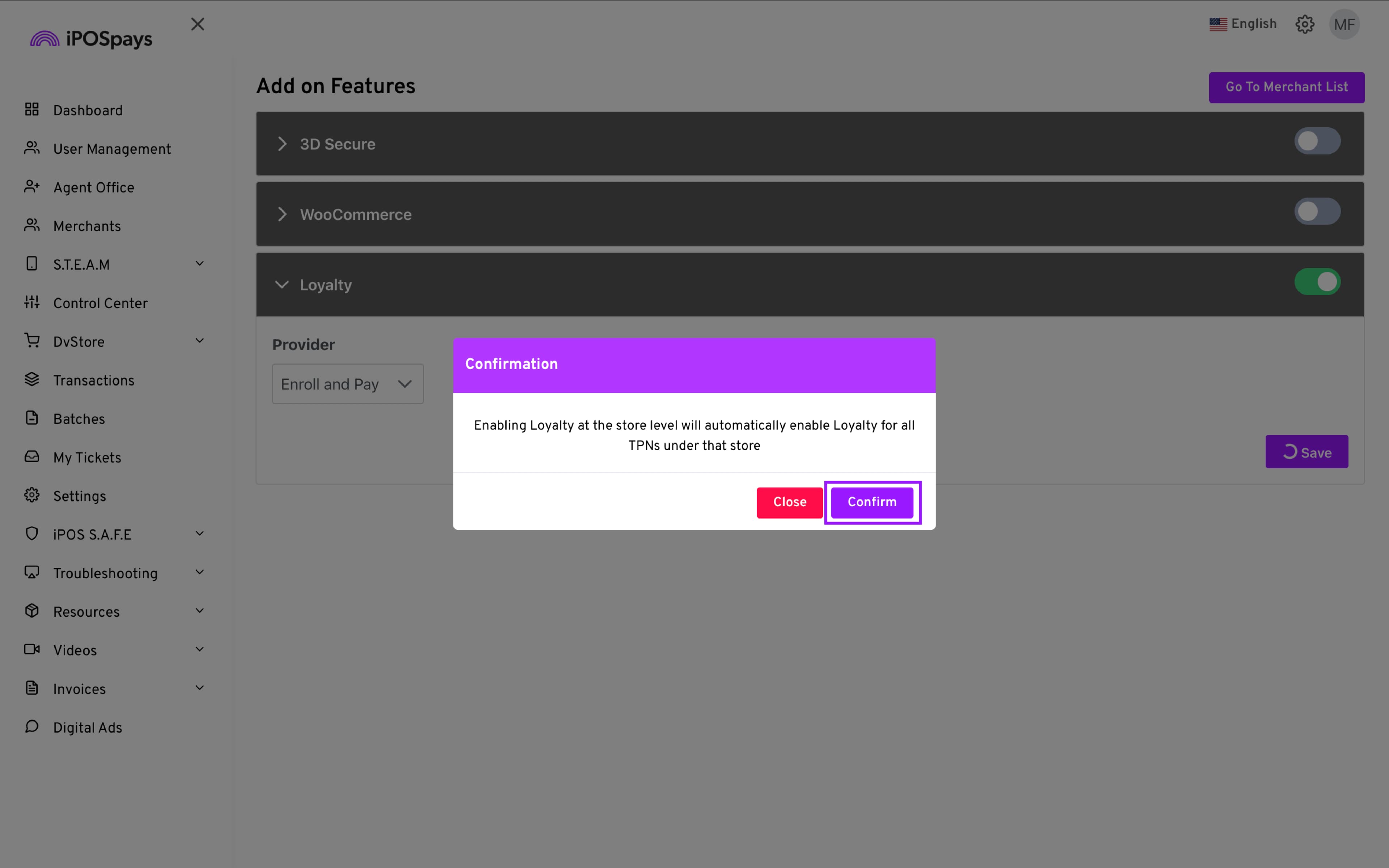
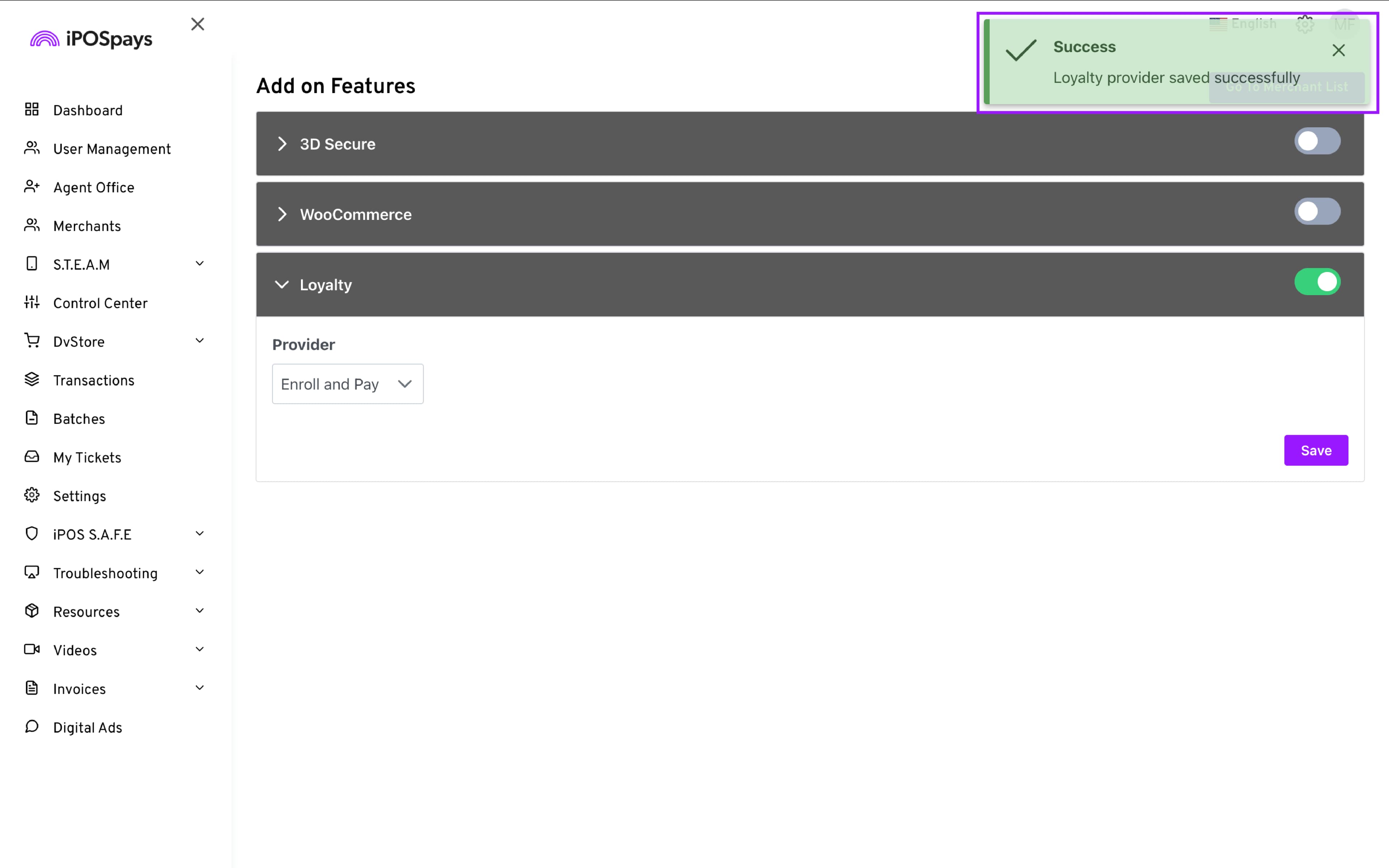
- Under Enable Loyalty → Provider, select Enroll & Pay.
-
Click Save.
-
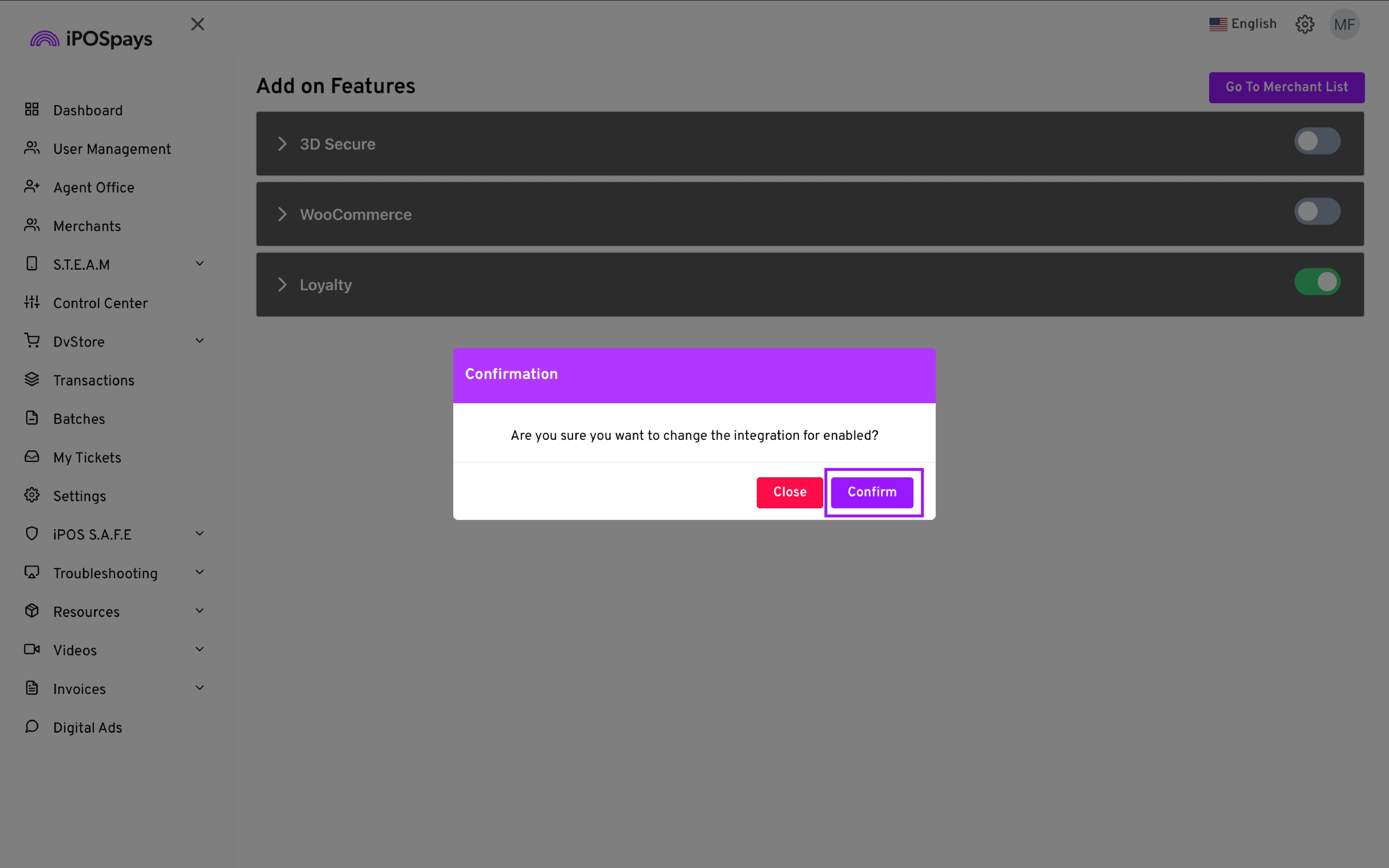
Confirm the prompt acknowledging that the feature will apply to all terminals (TPNs) for the store.
Step 2: Terminal Setup
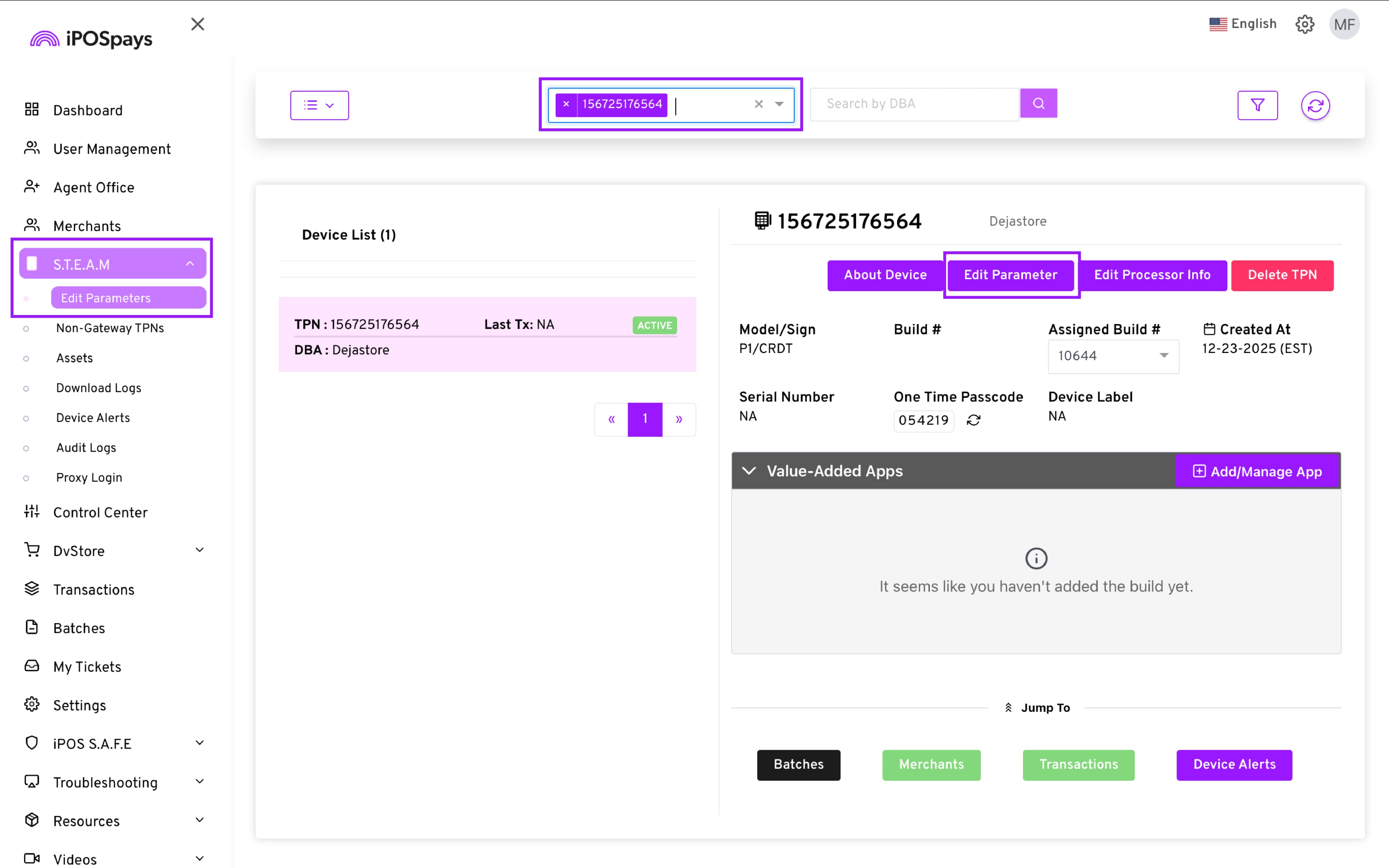
- From your ISO account, go to S.T.E.A.M → Edit Parameters.
-
If needed, assign the compatible build (10157 and above) number to enable the Enroll & Pay configurations.
-
click Edit Parameter.
-
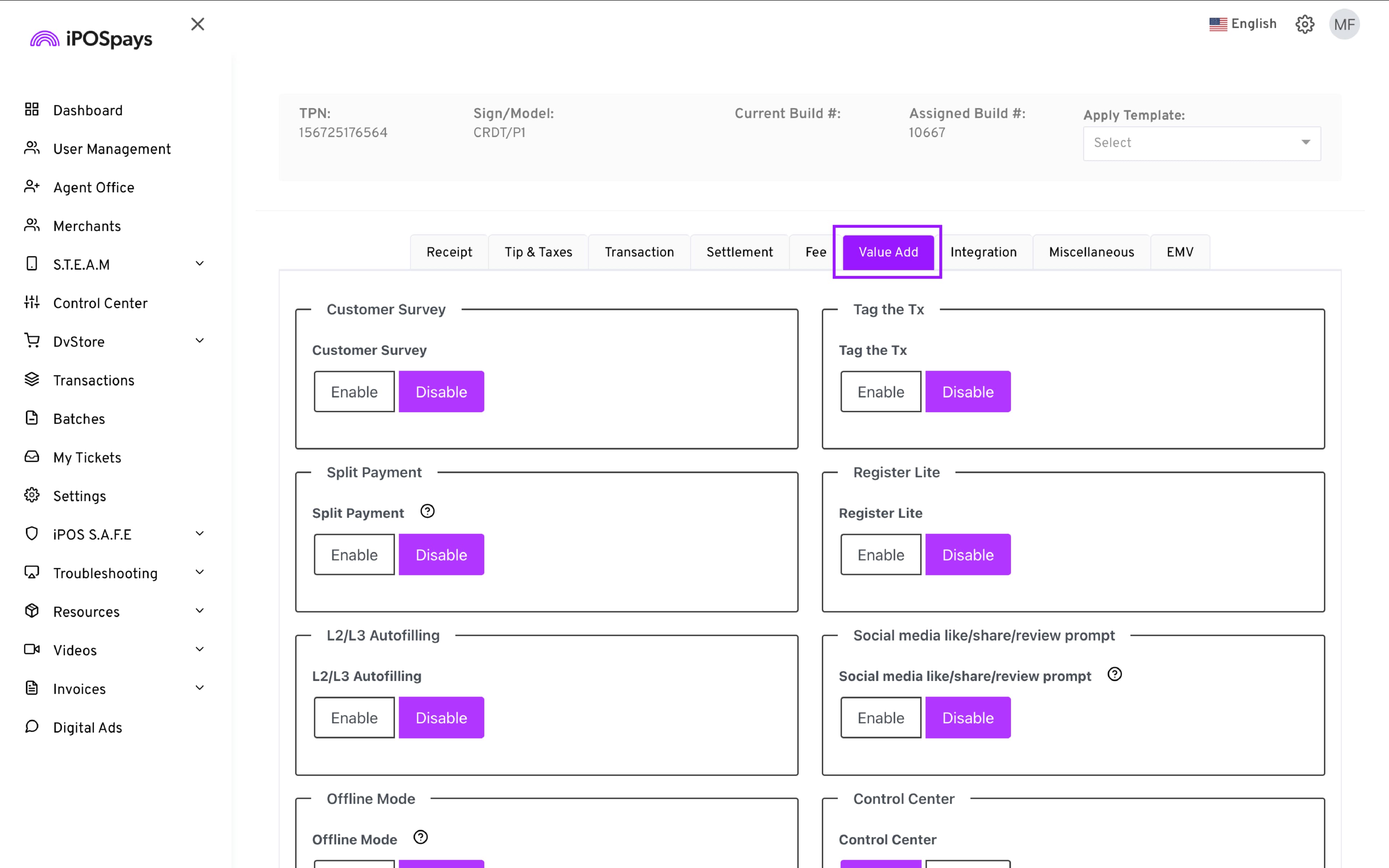
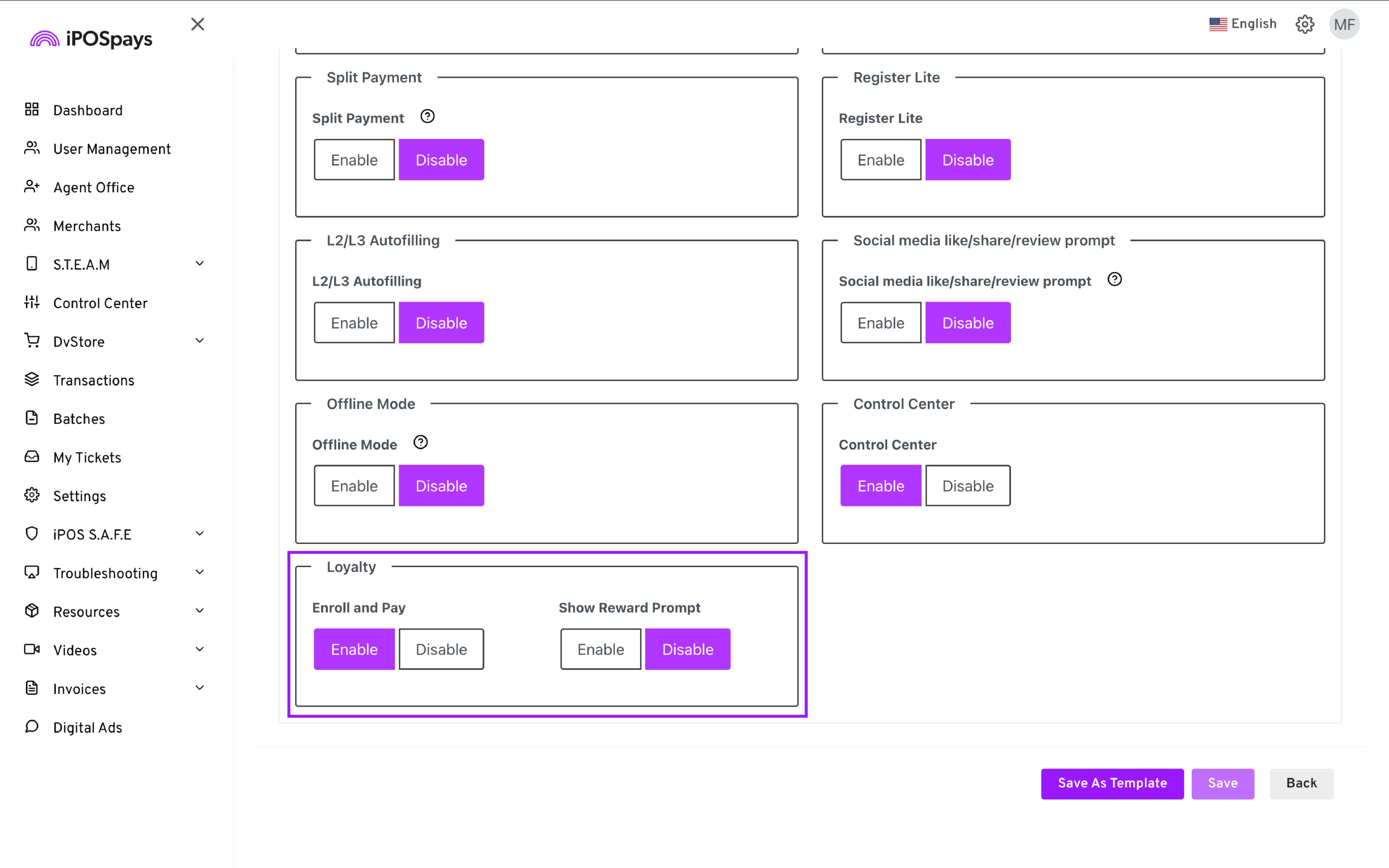
Navigate to Value Add → Loyalty and enable Enroll & Pay.
-
(Optional) Enable or disable the reward confirmation prompt shown after a successful transaction.
-
Click Save and perform a parameter update on the terminal.
Card Enrollment Behavior
-
Multiple cards can be linked to a single loyalty account using the same phone number.
-
Tap and Manual Entry transactions:
Customers must enter their phone number each time to enroll or earn rewards.
- Chip and Swipe transactions:
Customers only need to enroll once; the same enrollment applies to both methods.
How to Use Enroll & Pay on the Terminal
-
Open the DvPayLite app on the payment terminal.
-
Enter the enrolled TPN and download parameters.
-
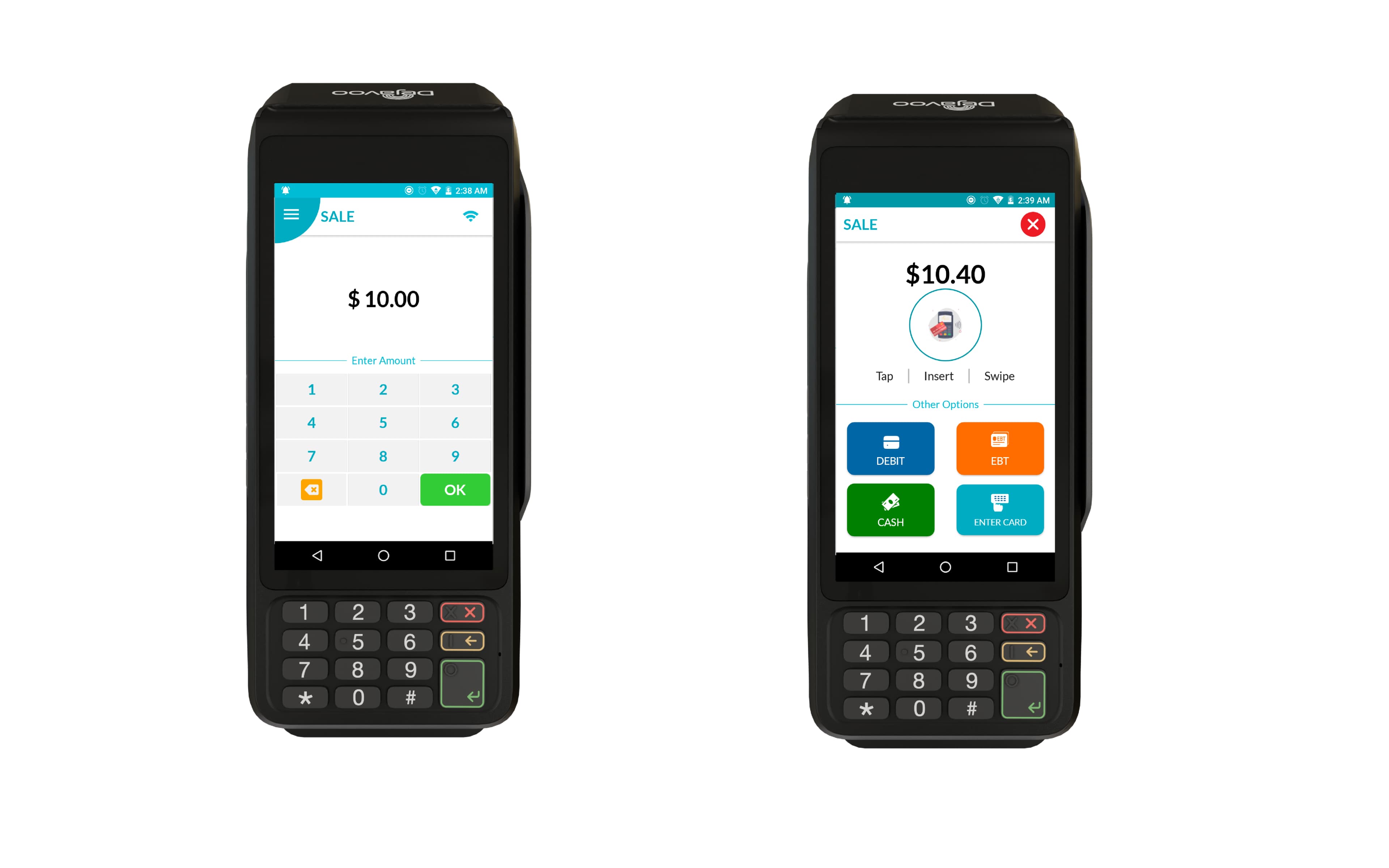
Once the app reloads, enter the transaction amount and tap OK.
-
On the Sale screen, the customer taps, swipes, inserts, or manually enters their card.
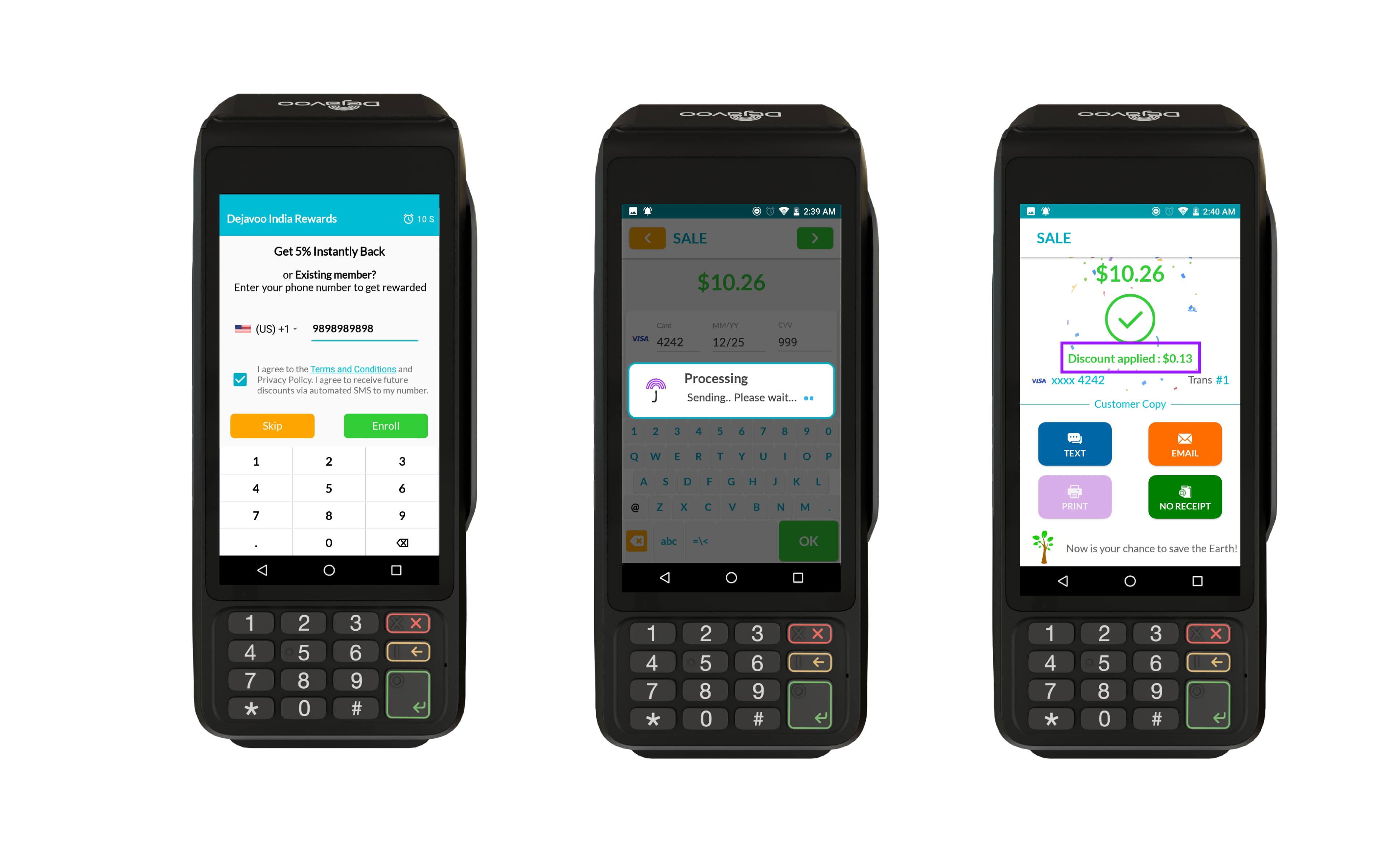
- When a new card is detected, the loyalty enrollment screen appears automatically.
-
Enter the customer’s phone number and tap Enroll to join the loyalty program, or Skip to proceed without enrolling.
-
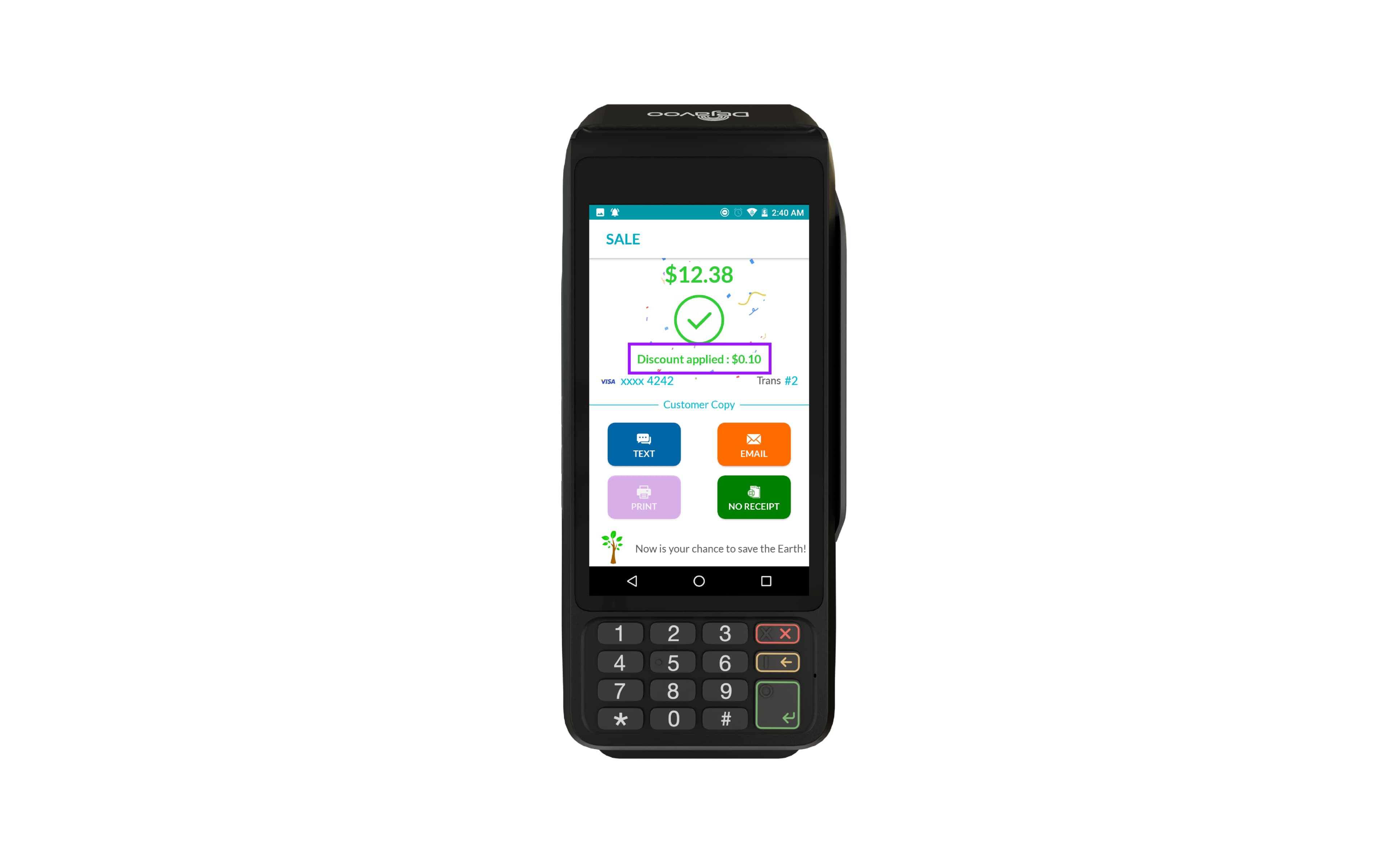
For new customers, the enrollment discount is applied automatically.
-
For returning customers, the configured loyalty discount is applied whenever the same card is used.