How to set up iPOSgo! (iOS) on Your iPhone
iPOSgo! is a mobile payment application that transforms a smartphone into a secure contactless payment terminal. It enables merchants to accept credit and debit cards, Apple Pay, and other supported digital wallets using Tap to Pay—without any additional hardware. iPOSgo! supports essential transaction features such as sales, refunds, tips, and settlements, while maintaining PCI compliance and secure card data handling.
Feature Compatibility
-
Minimum Required iOS Version: iOS 16.0 or later. It’s recommended to use the latest version for optimal performance.
-
Supported Devices: iPhone XS and later (Tap to Pay on iPhone supported devices)
-
Supported Transaction Types:
-
Sale
-
Refund
-
Pre-Auth
-
Ticket
-
Void
-
Tip
-
Tip Adjust
-
Batch Settlement
-
Send Payment Link Bank
-
-
Supported Payment Methods:
-
Contactless Card Payments
-
Bank
-
Cash
-
Apple Pay
-
Other supported NFC wallets
-
QR Code scanning
-
-
Supported Processors:
-
TSYS
-
Fiserv Omaha
-
-
Supported Fee Types: All Fee Types
Watch the video to learn how to enable and accept Bank payments on Send Payment Link and QR.
Prerequisites
Before setting up iPOSgo!, ensure the following requirements are met:
-
A supported iPhone (iPhone XS or later)
-
iOS version 16.0 or later
-
An active iPOSpays merchant account
-
A valid Apple Pay TPN (Terminal Profile Number) is assigned to your merchant
-
Internet connection (Wi-Fi or mobile data)
-
Device region set to United States (required for Tap to Pay on iPhone)
If you do not have a TPN, contact your ISO or Merchant Services Provider.
Steps to set up and activate iPOSgo! (iOS) on iPhone
Step 1: Download the iPOSgo! App
-
Open the App Store on your iPhone.
-
Search for iPOSgo!

- Download and install the app.
Step 2: Launch the App
- Open the iPOSgo! app after installation.
Step 3: Launch iPOSgo! and Enter TPN
-
Open the iPOSgo! app on your iPhone.
-
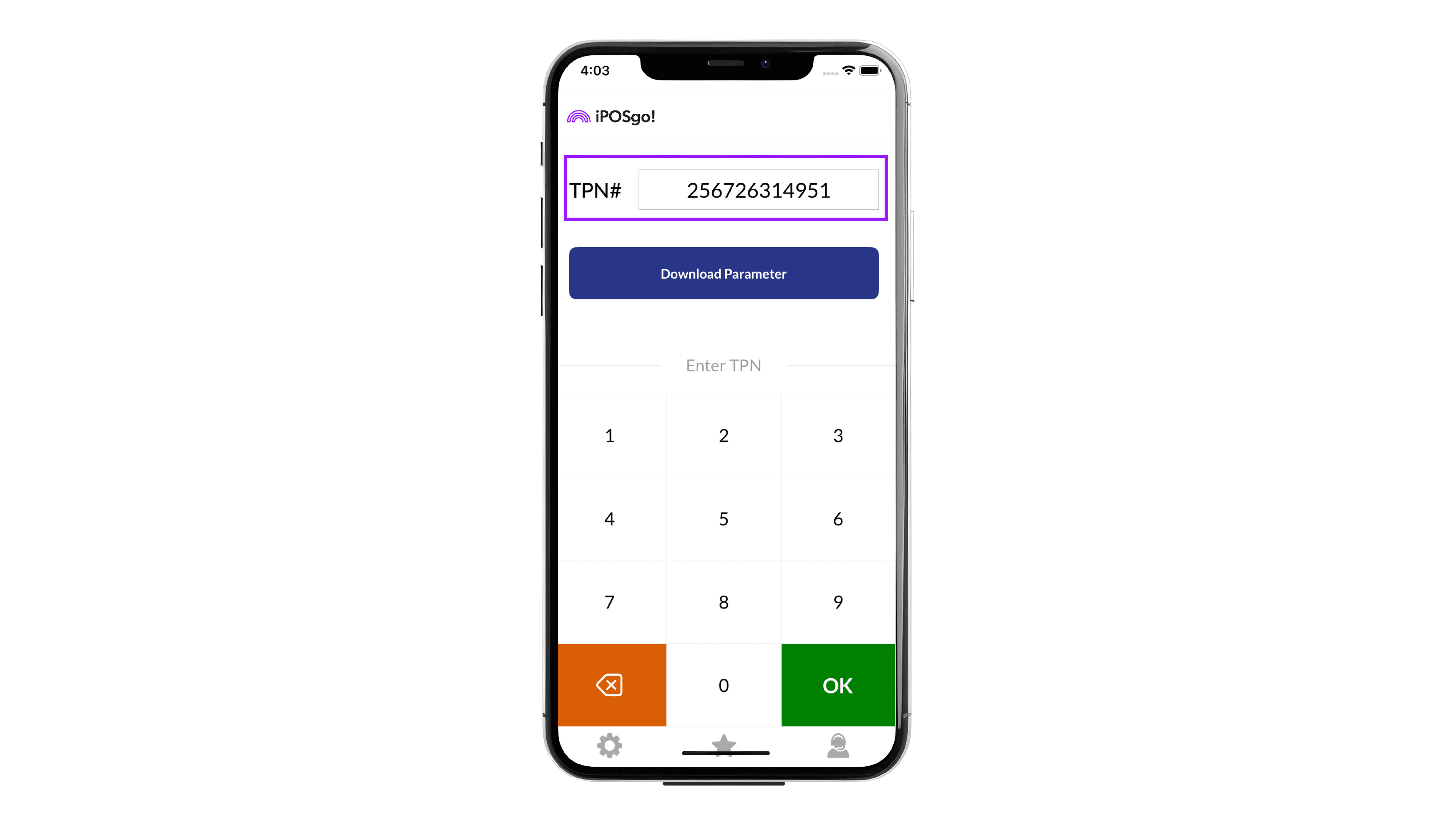
Enter the assigned TPN in the TPN field.
Step 4: Download Device Parameters
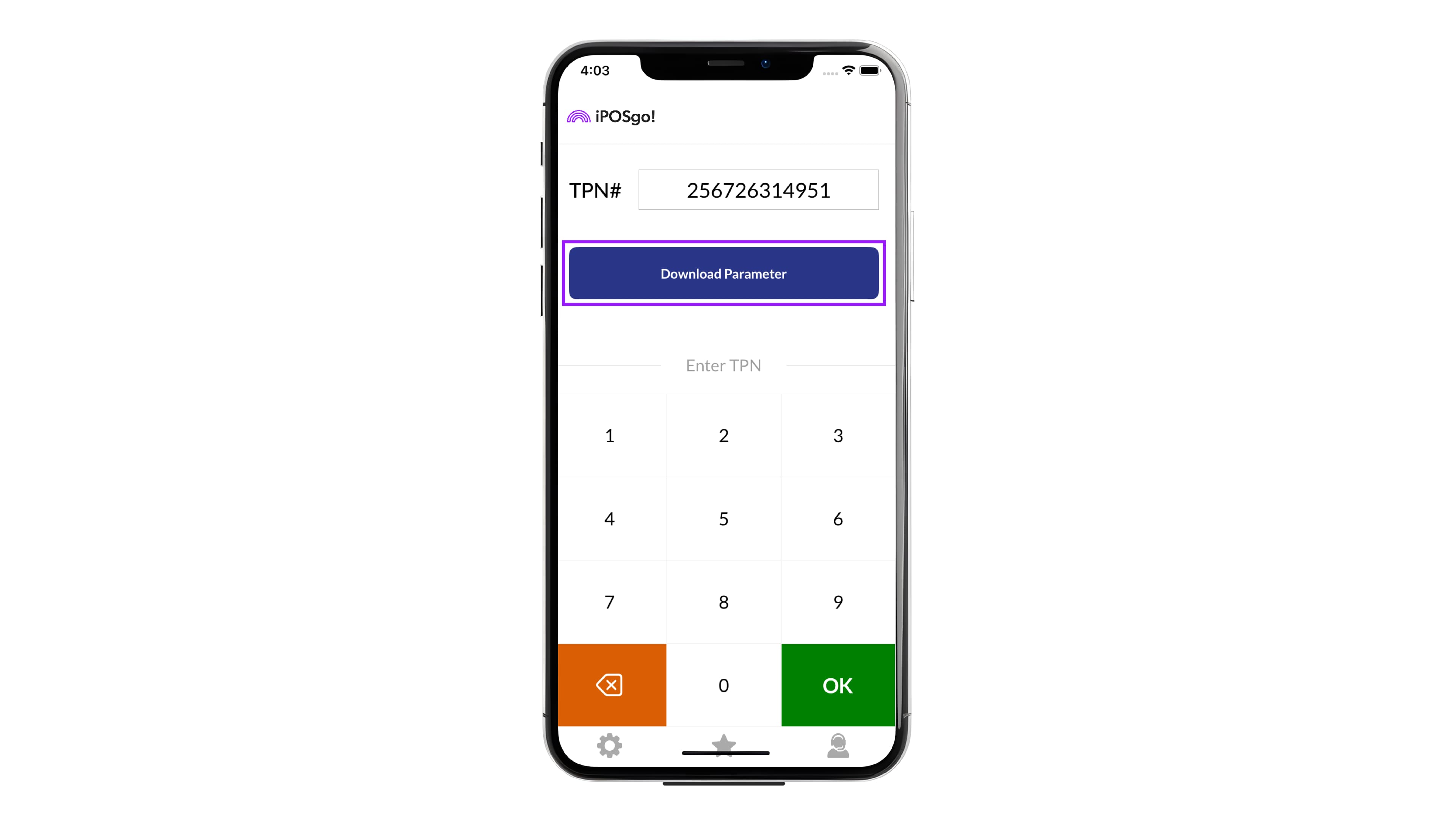
Tap Download Parameter to fetch the device configuration linked to the entered TPN.
Step 5: Enter One-Time Passcode (OTP) from iPOSpays Portal (ISO)
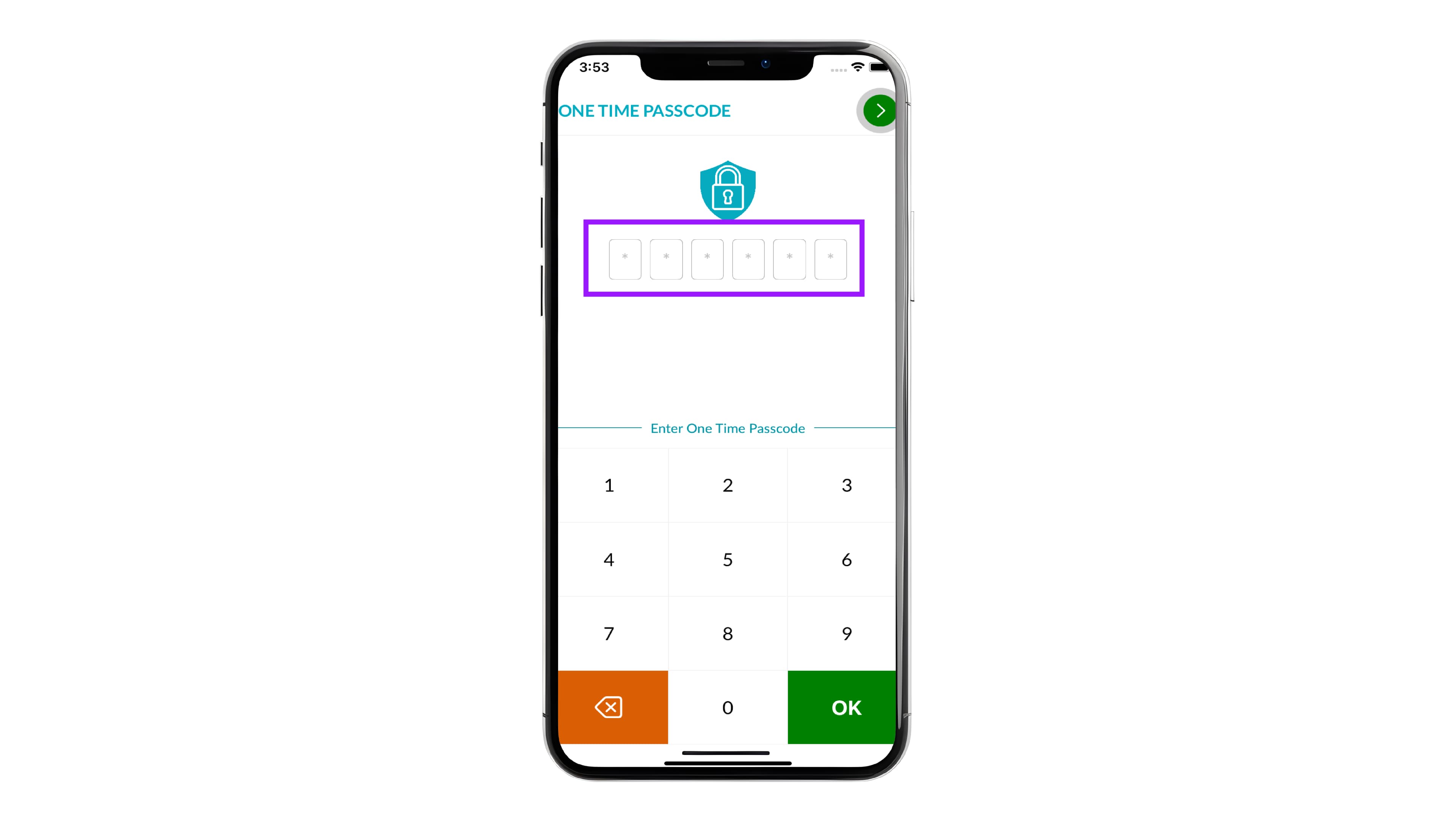
After tapping the Download Parameter, the One-Time Passcode (OTP) screen appears on the iPOSgo! App.
Steps to Get One-Time Passcode (OTP) from iPOSpays ISO Portal
-
Log in to the iPOSpays Portal using ISO credentials.
-
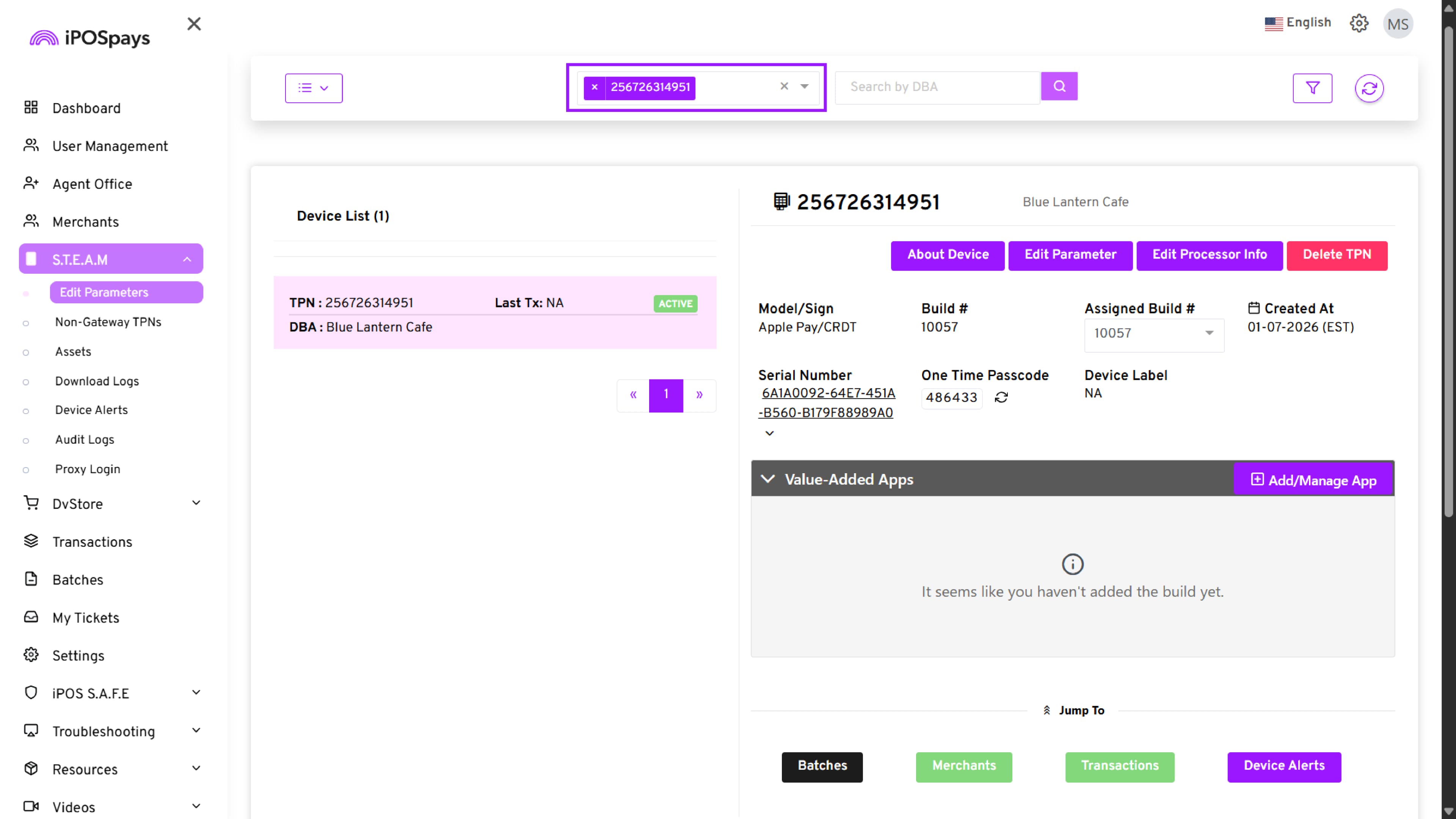
From the left-hand navigation menu, go to S.T.E.A.M.→Edit Parameters.
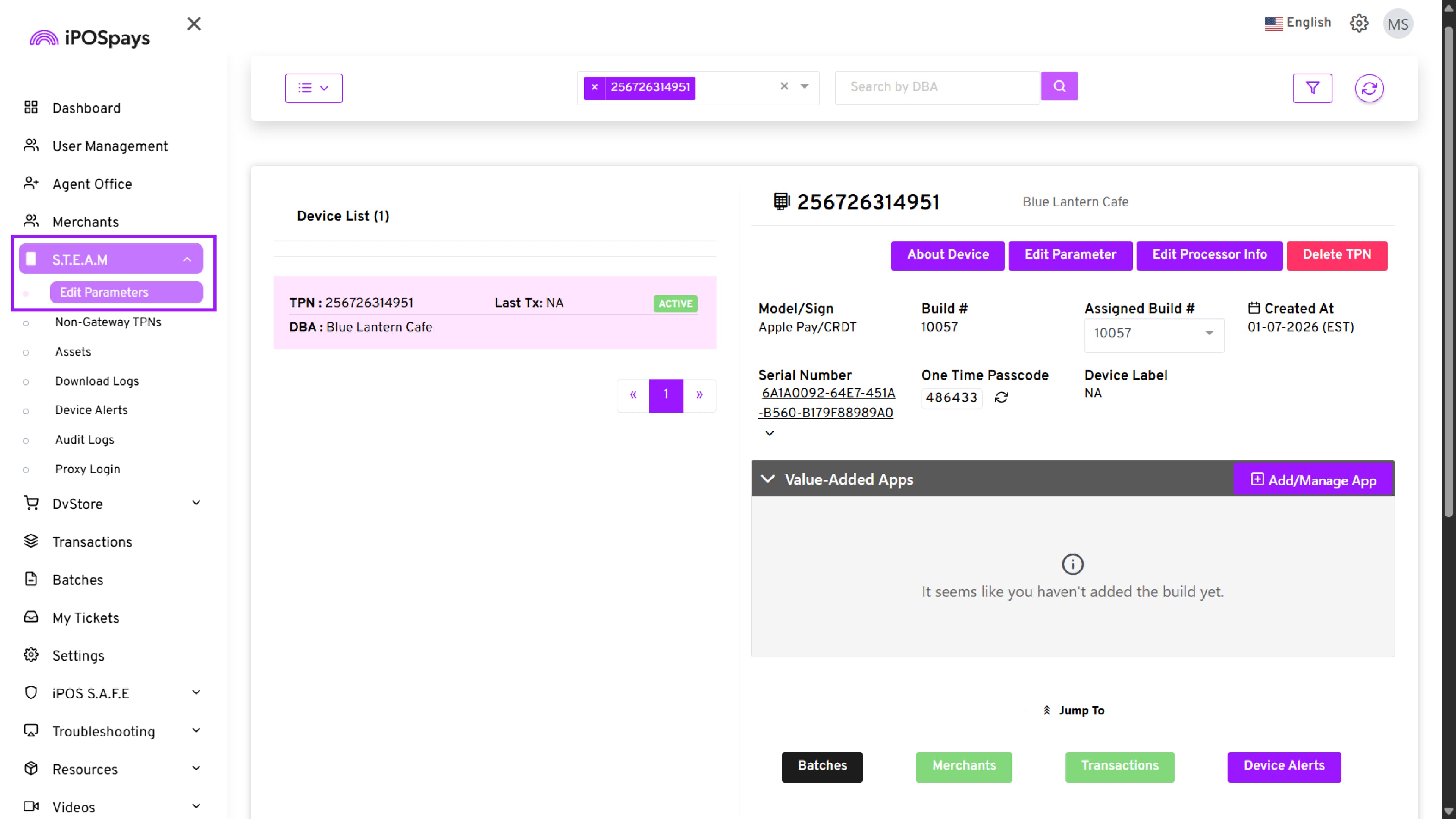
- In the search box at the top, enter the TPN of the device and select it from the results.
-
Once the TPN is selected, the Device Details screen opens on the right side.
-
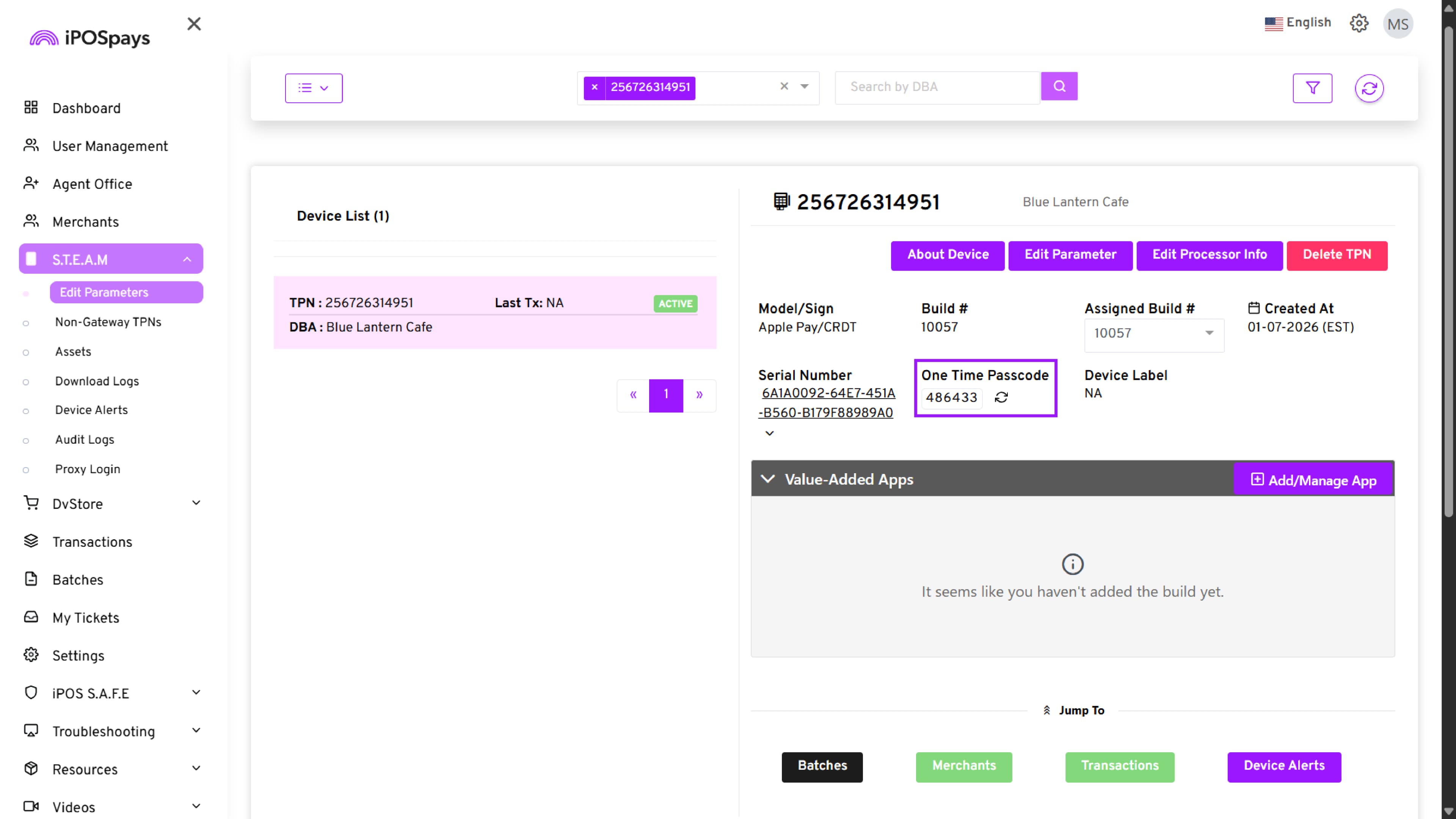
Locate the One Time Passcode field on the right panel of the device details section.
-
The One-Time Passcode (OTP) is displayed next to the label and can be refreshed using the refresh icon if required.
Step 6: Tap to Pay on iPhone – Introduction
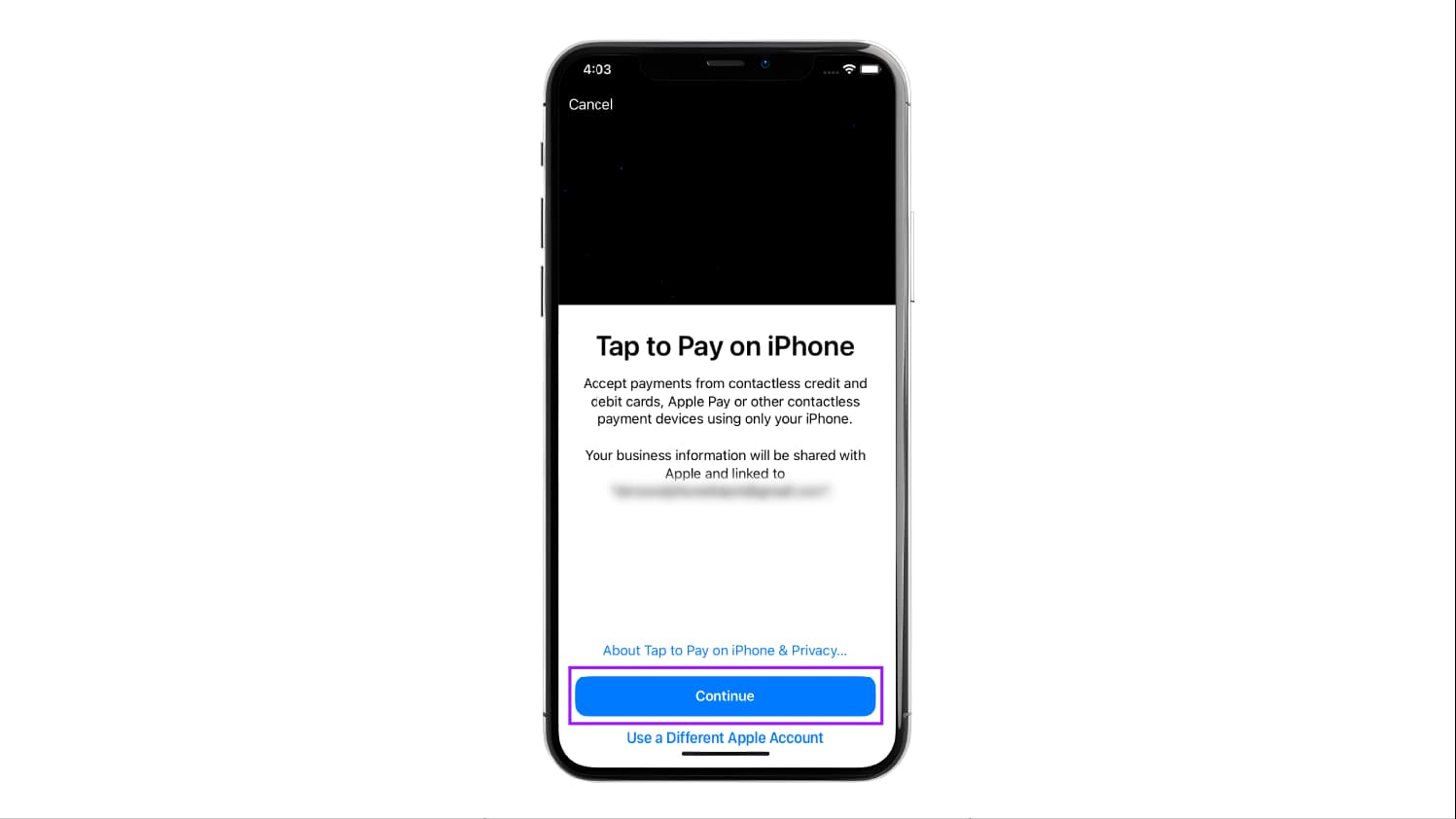
The Tap to Pay on iPhone information screen appears. Review the details and tap Continue to proceed.
Step 7: Accept Terms and Conditions
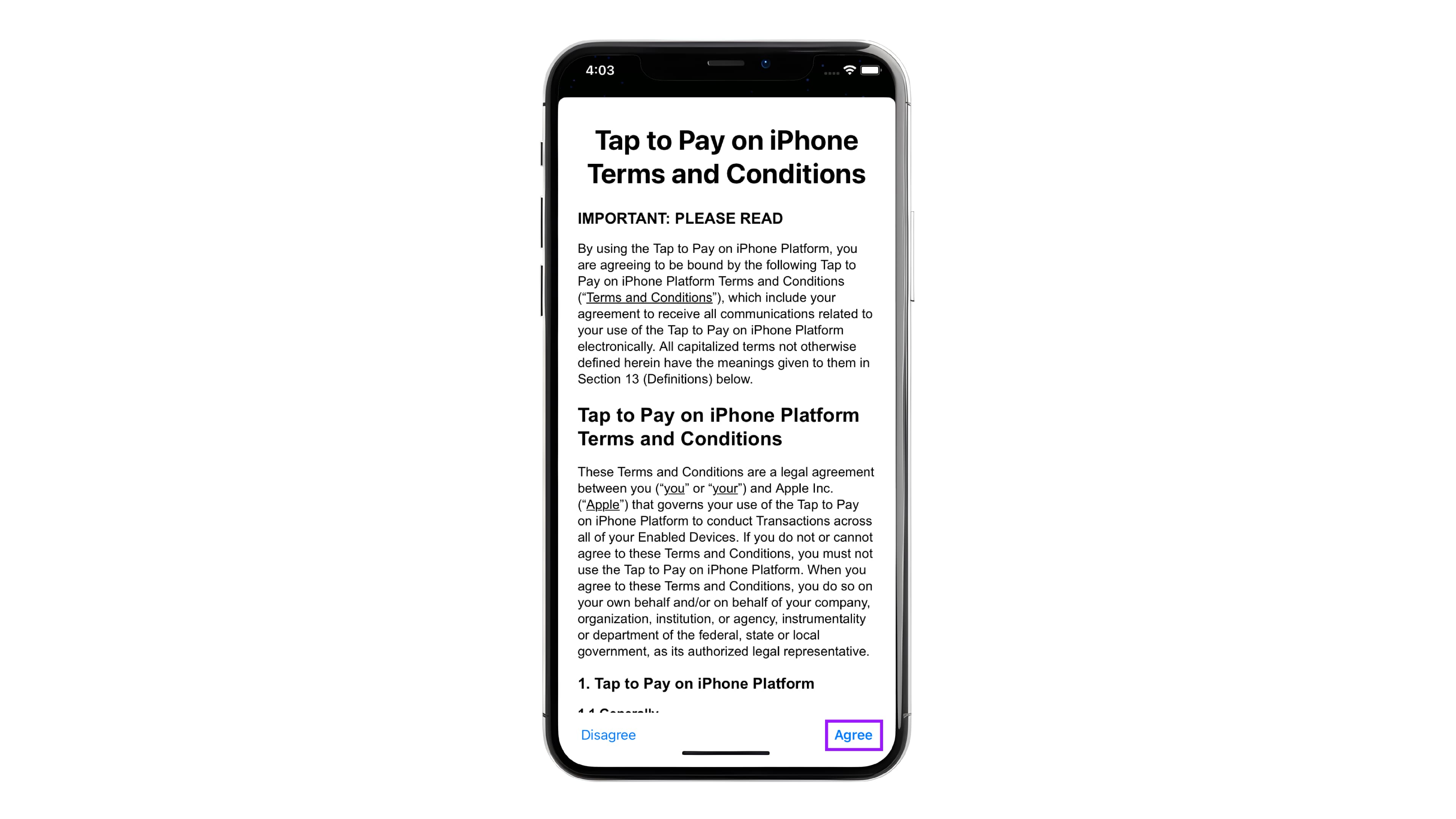
Review the Tap to Pay on iPhone Terms and Conditions. Tap Agree to accept and continue.
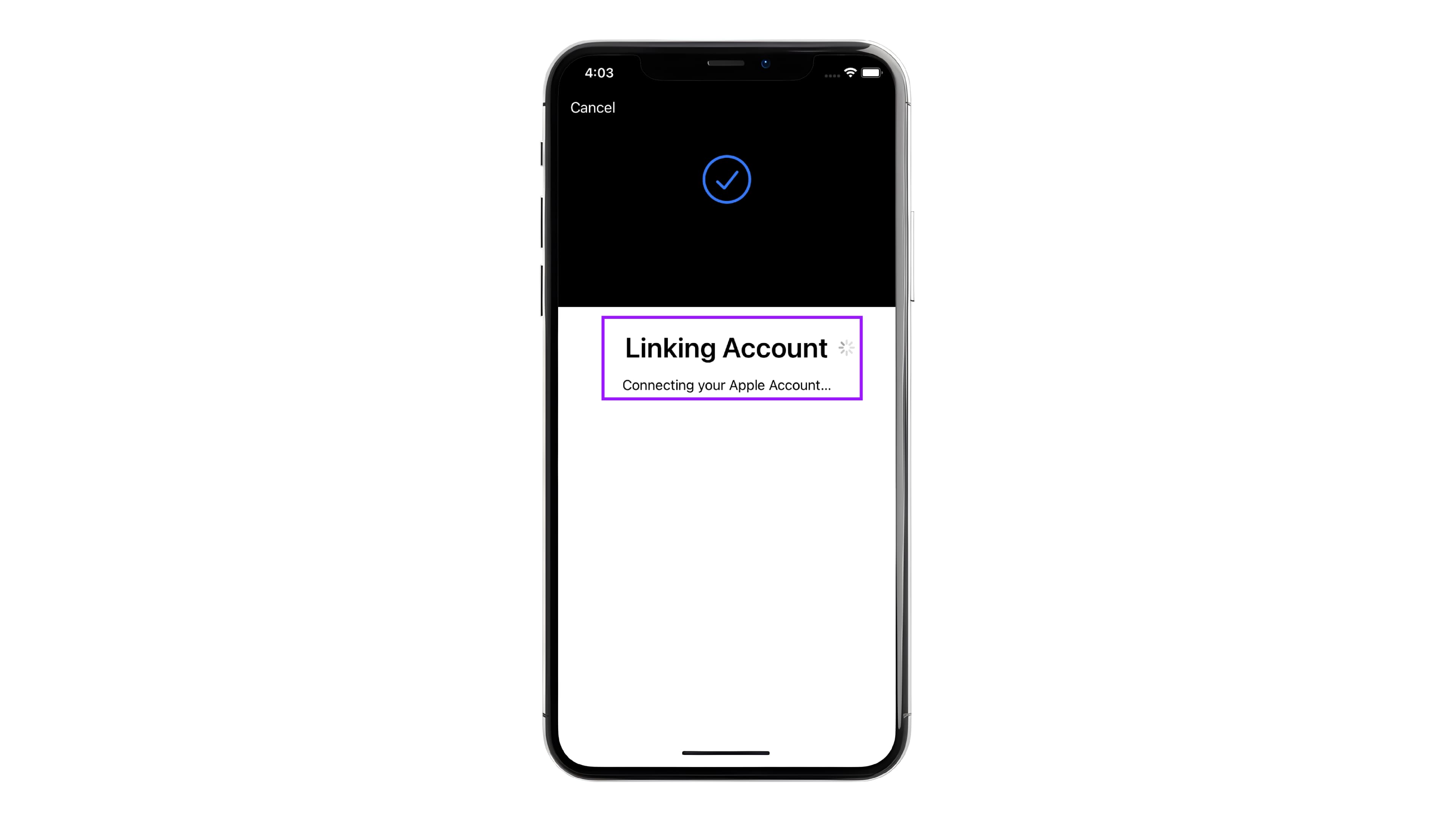
Step 8: Link Apple Account
The app begins linking your Apple account, required for Tap to Pay on iPhone. Wait while the account linking process completes.
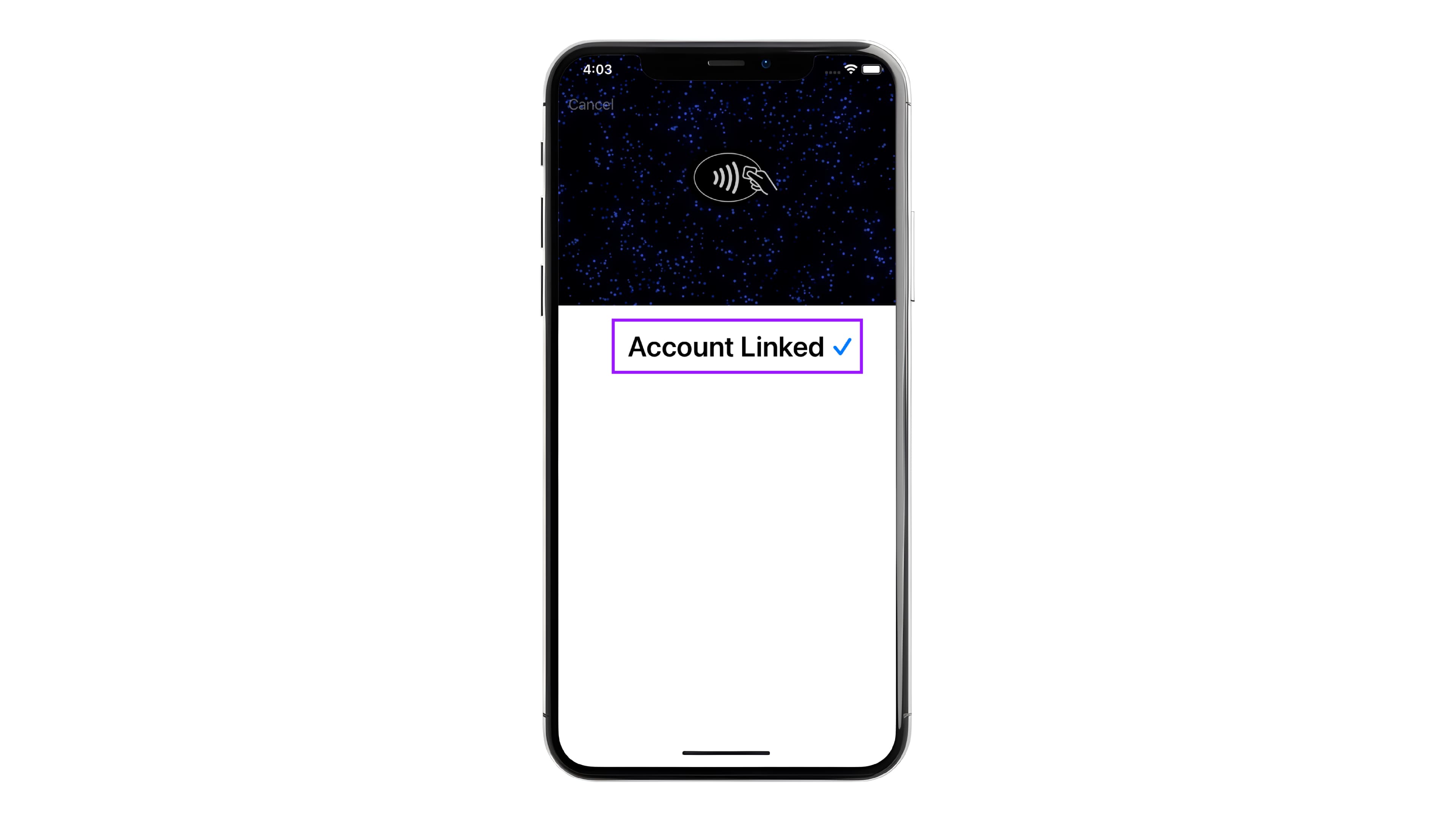
Step 9: Account Linked Successfully
A confirmation screen displays Account Linked ✓, indicating successful Apple account integration.
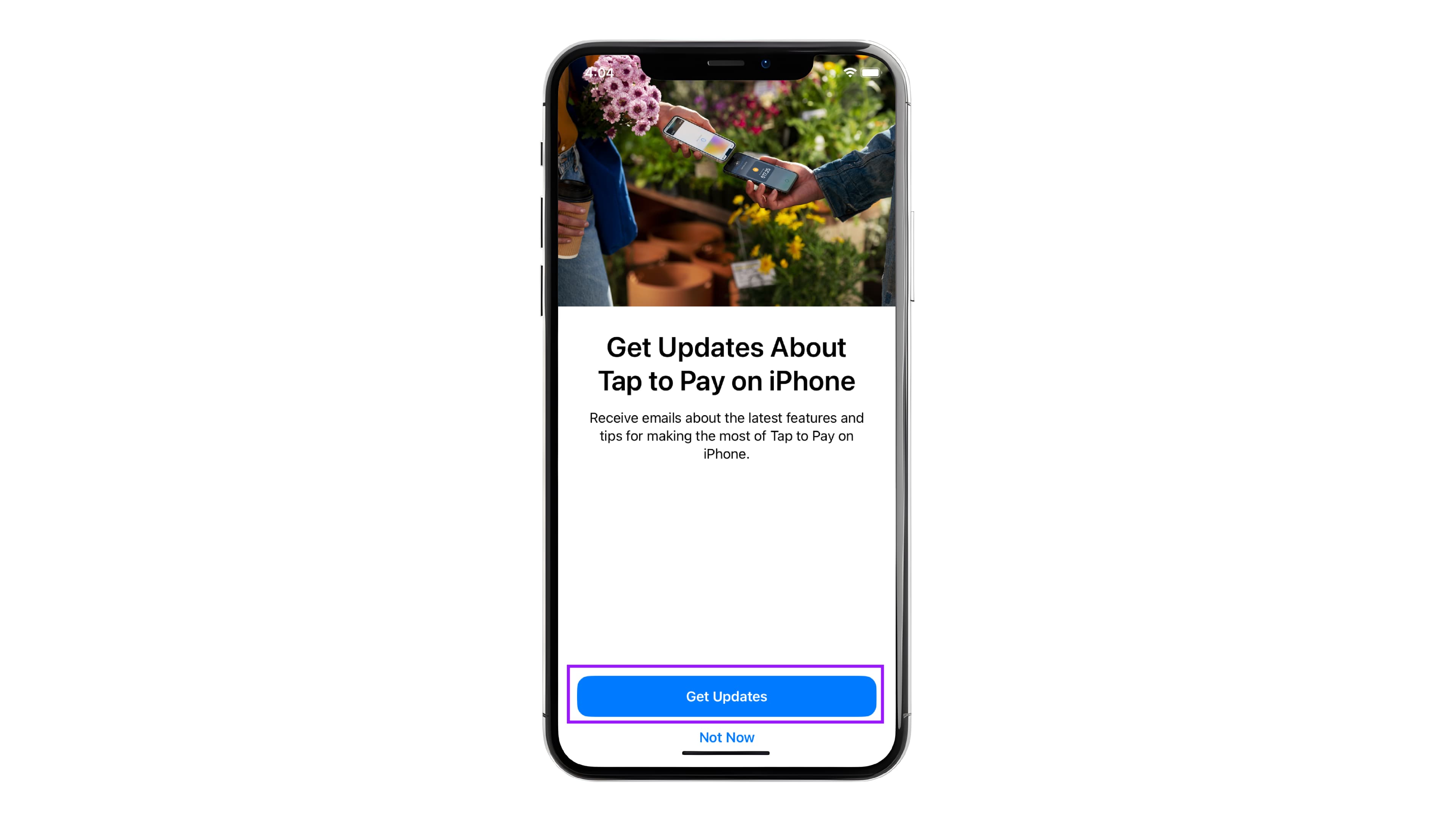
Step 10: Tap to Pay Updates (Optional)
On the Get Updates About Tap to Pay on iPhone screen:
-
Tap Get Updates to receive notifications, or
-
Tap Not Now to skip.
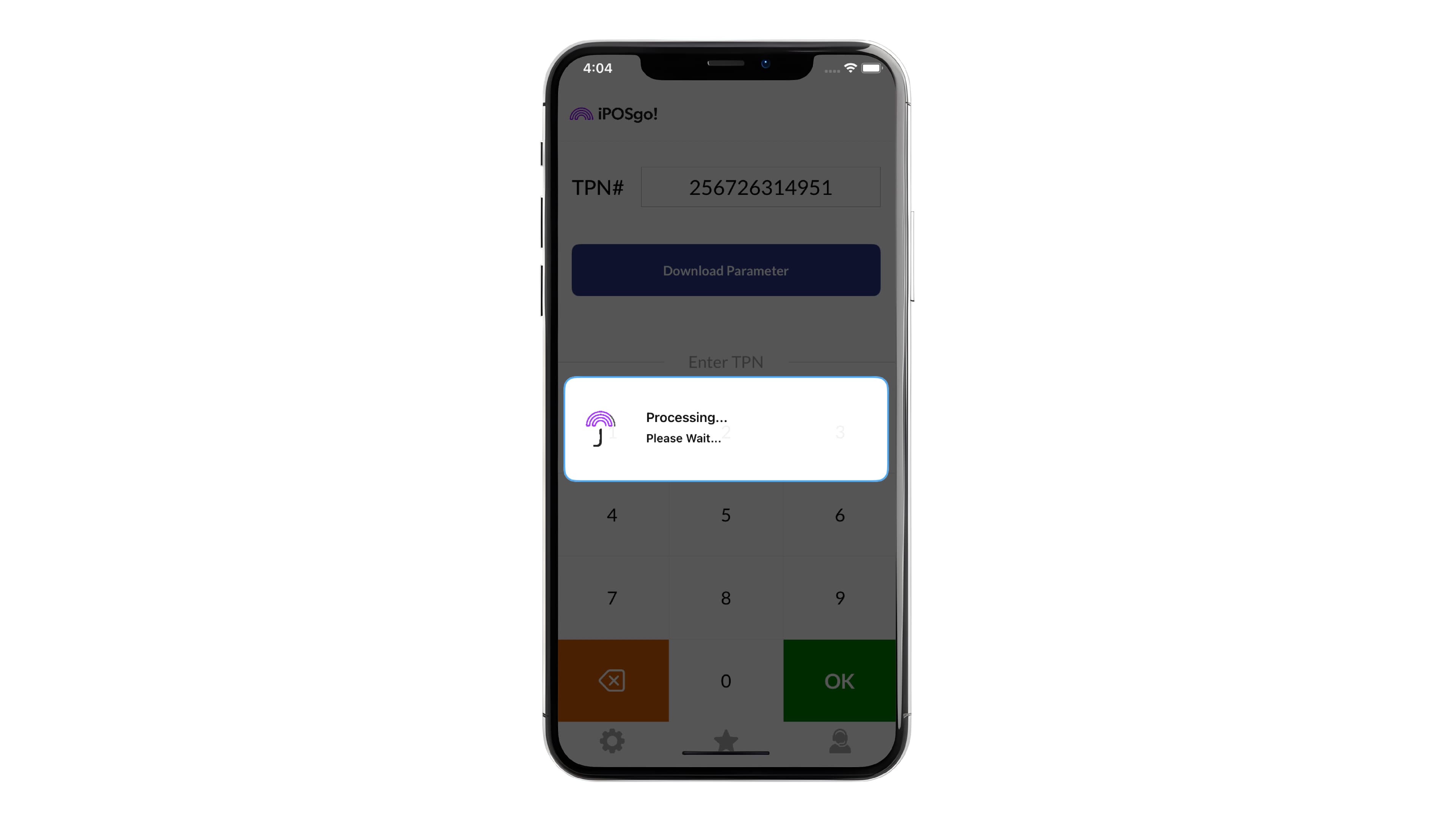
Step 11: Processing Device Configuration
The app displays a Processing – Please wait for a message while device parameters are applied.
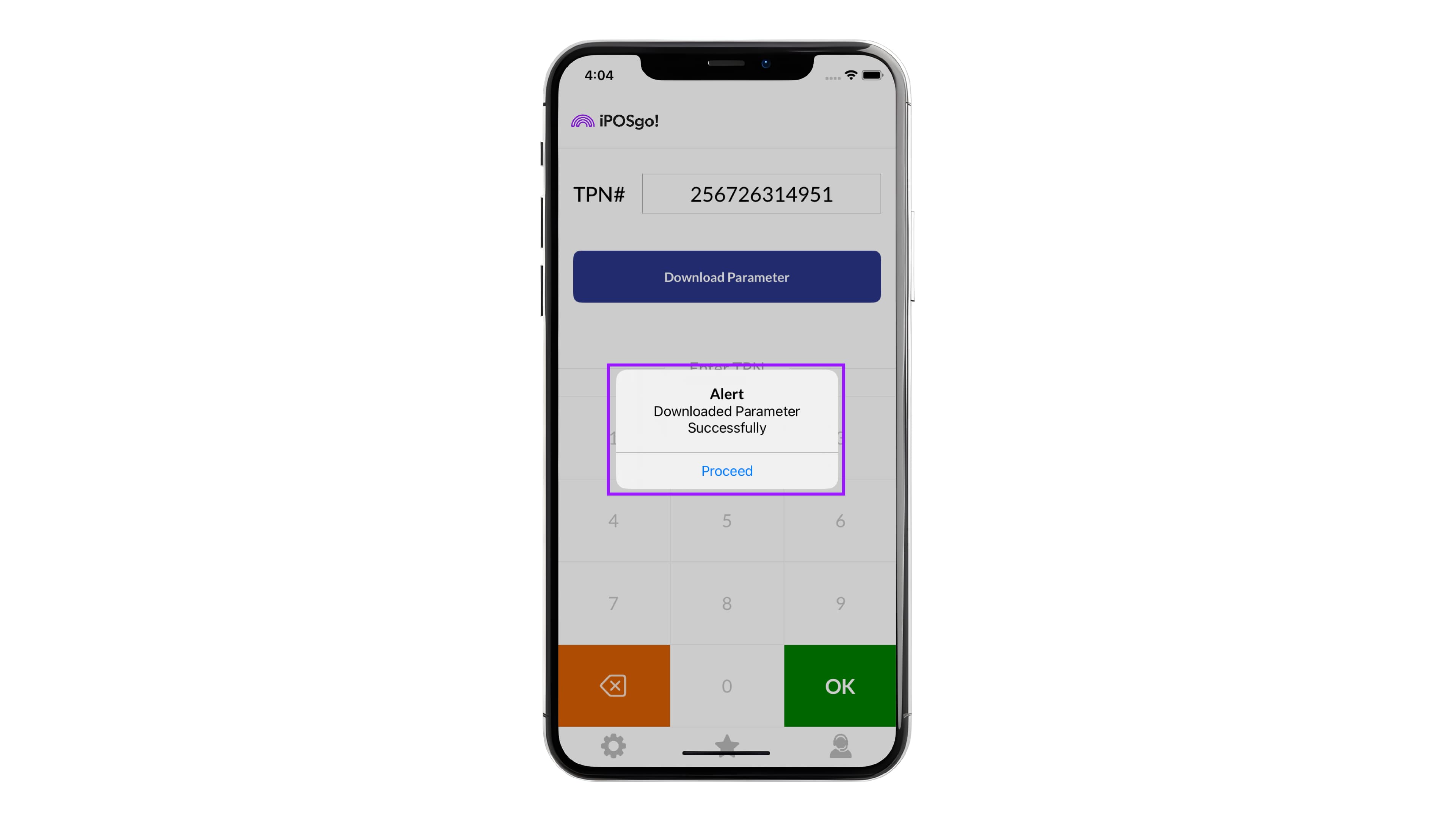
Step 12: Parameters Downloaded Successfully
A confirmation message appears indicating Download Parameter Successfully. Tap Proceed to continue.
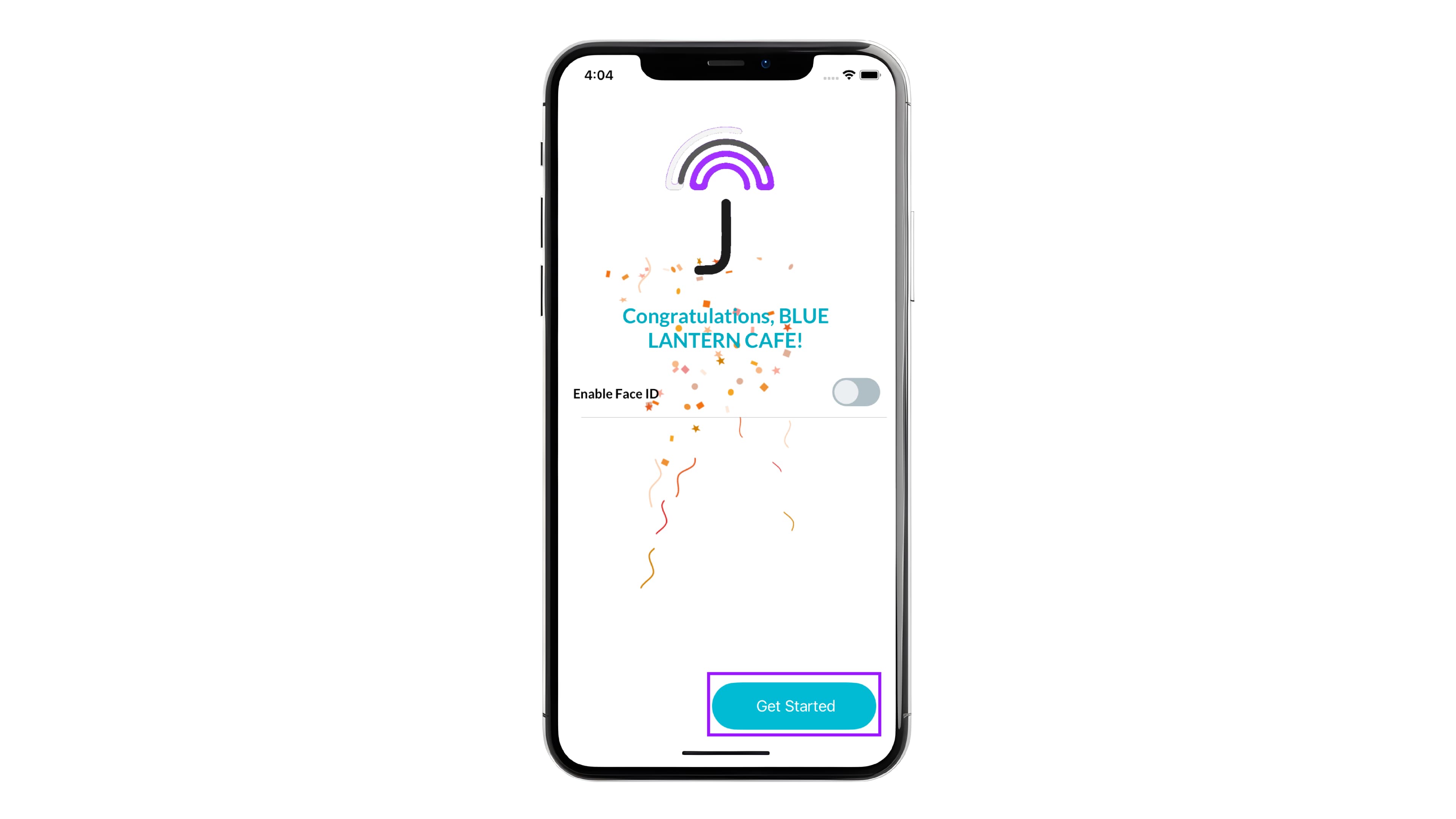
Step 13: Setup Complete
A success screen displays Congratulations! with the merchant name. Optionally enable Face ID for quick access.
Tap Get Started to begin accepting payments.
Step 14: Setup Completed
-
Once setup is successful, you are redirected to the iPOSgo! home screen/dashboard.
-
The app is now ready to accept payments.
Step 15: Start a Transaction
-
Tap New Sale.
-
Enter the transaction amount and proceed with payment.