How to Manage TPNs and Devices in the ISV Portal
The iPOSpays ISV Portal allows ISVs to manage assigned TPNs and configure device settings, including receipts, tips, taxes, transactions, fees, and other features. This document explains how to access and edit TPN parameters in the ISV Portal and provides links to related Knowledge Base documents for detailed instructions on configuring specific settings.
Prerequisites
Before managing TPNs and device parameters, ensure that:
- You have valid ISV login credentials for the iPOSpays Portal.
- You have the required privileges to access S.T.E.A.M and edit TPN parameters.
- The TPN you want to manage is assigned to your ISV account.
Access and Edit TPN Parameters
- Log in to the iPOSpays Portal using your ISV login credentials.
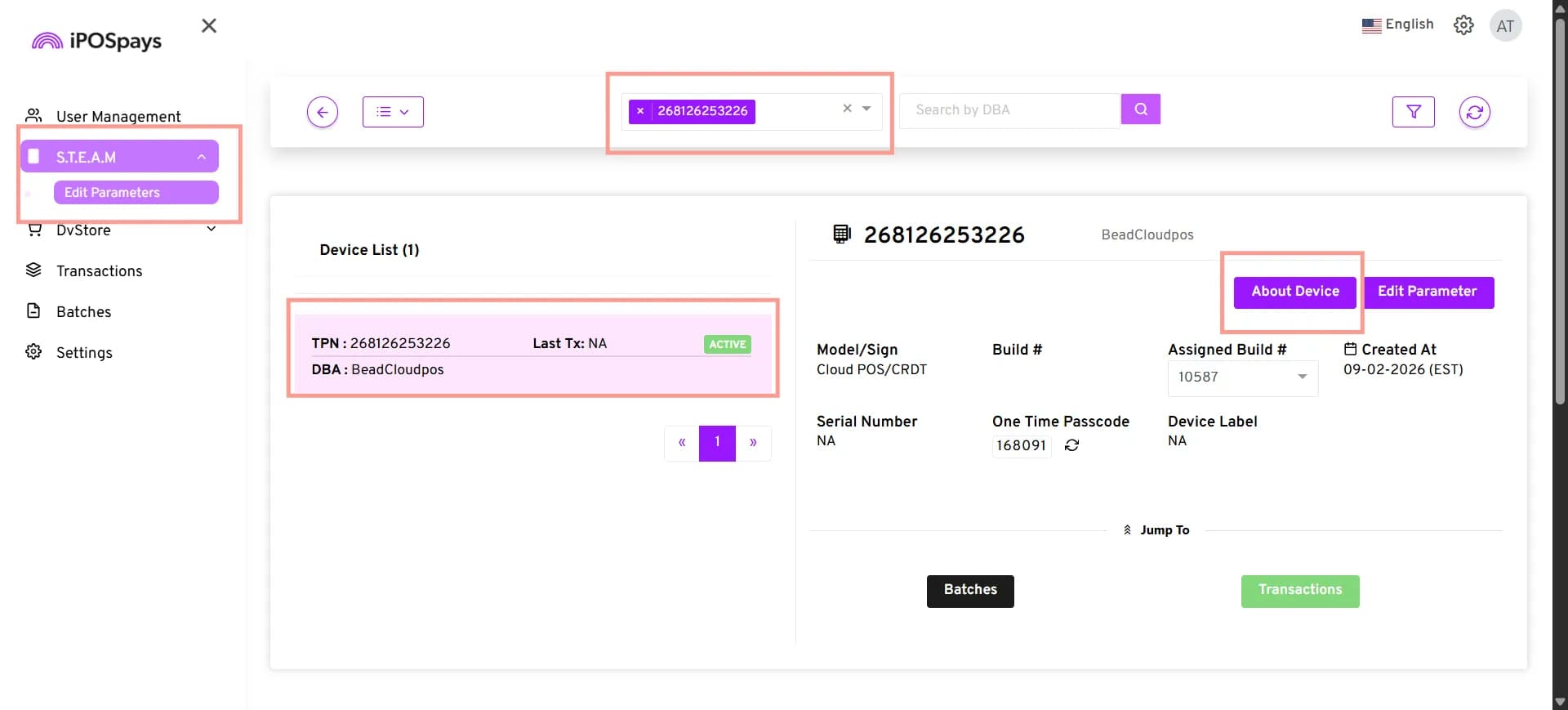
- Navigate to S.T.E.A.M from the left navigation menu.
- Click Edit Parameters.
- On the Edit Parameters page, search for the required TPN.
- Select the TPN you want to manage from the search results.
- Click Edit Parameter.
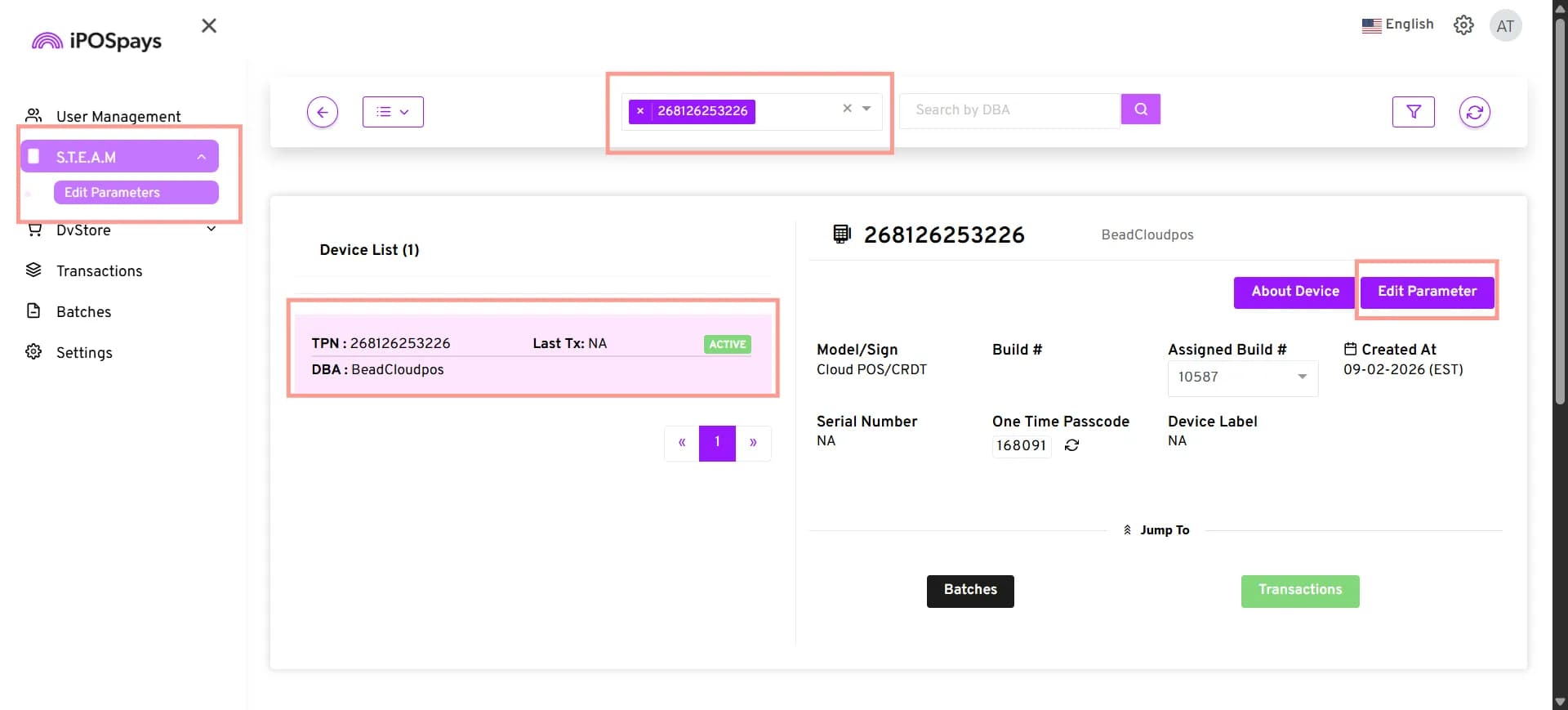
The TPN Edit Parameters page opens, displaying the available configuration settings for the selected TPN. The page provides the same parameter configuration interface available in the ISO Portal, subject to your access privileges.
Managing TPN Parameters
The TPN Edit Parameters page contains multiple tabs for configuring different device settings. Select the relevant tab to view and manage its available parameters.
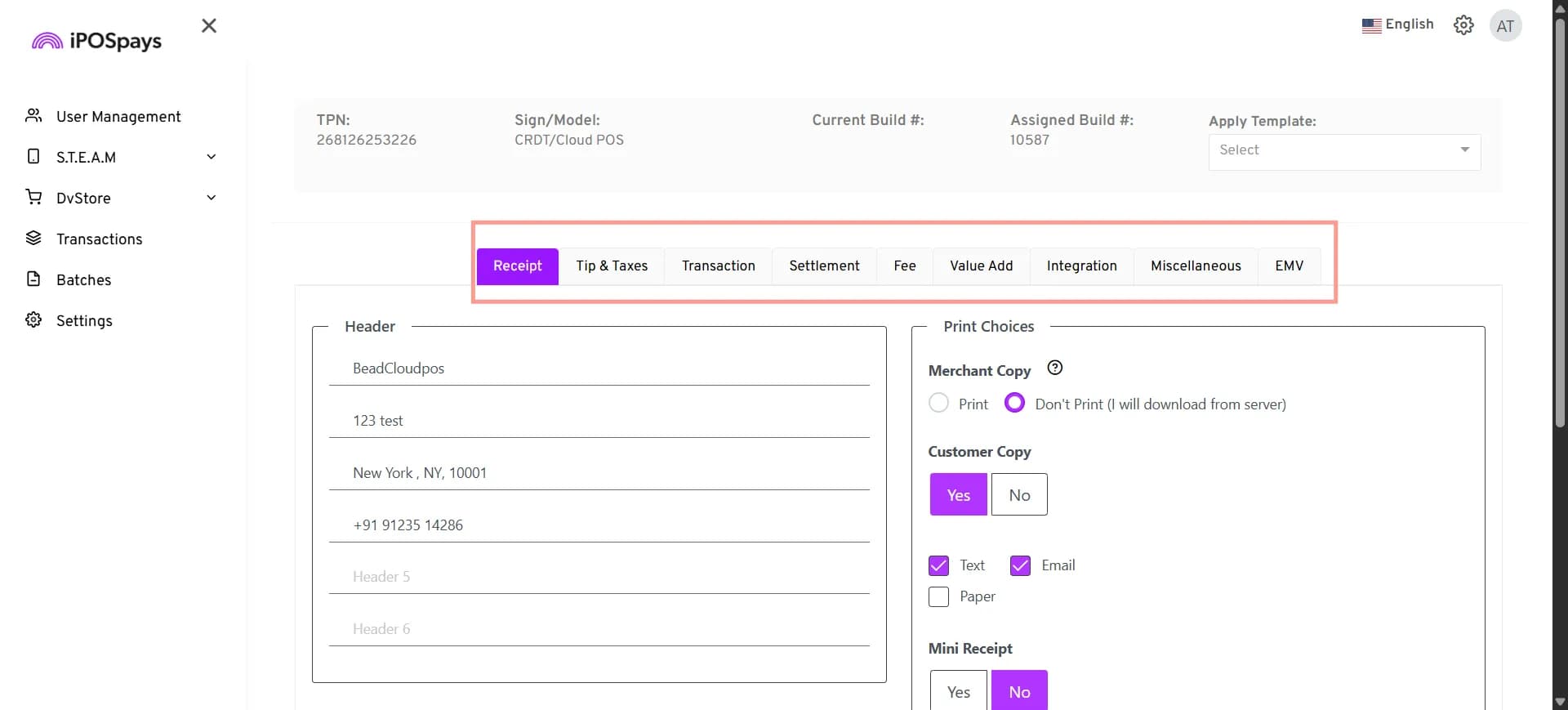
1. Receipt
Configure receipt headers, print preferences, customer copies, and e-receipt settings for your merchants’ TPNs.
For detailed instructions on configuring specific settings, refer to the corresponding Knowledge Base document below.
2. Tip & Taxes
Manage tip and tax settings for your merchants’ TPNs.
Tips
For detailed instructions on enabling and configuring tips, refer to:
For instructions on adjusting existing tip settings, refer to:
Watch the video: How to Enable Tip Adjust by Store for Your Merchant’s Payment Terminals
Taxes
For detailed instructions on enabling and configuring taxes, refer to:
3. Transaction
Configure transaction types, Address Verification Service (AVS), card entry modes, and Level 3 (L3) item information for your merchants’ TPNs.
For detailed instructions, refer to the following Knowledge Base documents:
Learn how to enable or disable supported transaction types for your merchants’ TPNs.
Learn how to configure Address Verification Service (AVS) settings for your merchants’ TPNs.
Learn how to configure the supported card entry modes for your merchants’ TPNs.
Learn how to configure Level 3 (L3) item information for your merchants’ payment terminals.
4. Settlement
Manage the available batch settlement settings for your merchants’ TPNs.
Select the Settlement tab to view the settlement parameters available for the selected TPN.
5. Fee
Enable and configure fee types and process transactions using different fee types across supported payment channels.
For detailed instructions, refer to the following Knowledge Base documents:
Learn how to enable and configure fee types for your merchants’ TPNs on the iPOSpays Portal.
Learn how to process transactions using different fee types on Dejavoo POS devices.
Learn how to process transactions using different fee types through the iPOSgo! application.
Learn how to process transactions using different fee types on CloudPOS.
6. Value Add
Configure and manage value-added features available for your merchants’ TPNs. These features include Register Lite, social media prompts, Offline Mode, and Enroll & Pay.
For detailed instructions, refer to the following Knowledge Base documents:
Learn how to enable and configure Register Lite for your merchants.
Watch the video: How to Enable Register Lite for Your Merchants
Learn how to configure social media prompts that allow customers to like, share, or review your business.
Learn how to enable and configure Offline Mode on your merchants’ POS devices.
Learn how to configure and use the Enroll & Pay feature for your merchants.
Watch the video: How to Enable Enroll & Pay for Your Merchants on iPOSpays
7. Integration
Manage integration-related settings for your merchants’ TPNs. Select the Integration tab to view and configure the supported integration parameters for the selected TPN.
For detailed instructions, refer to the applicable Knowledge Base documents.
Integration
Watch the video: How to Integrate a Master Terminal With a PIN Pad
Watch the video: How to Integrate a Merchant’s CloudPOS With a PIN Pad
Loyalty
Security
8. Miscellaneous
Manage other supported device parameters that do not fall under the existing configuration categories. Select the Miscellaneous tab to view and configure the available settings for the selected TPN.
For detailed instructions, refer to the applicable Knowledge Base document.
9. EMV
Configure EMV settings for your merchants’ payment terminals to manage supported EMV parameters.
For detailed instructions, refer to the following Knowledge Base document:
Learn how to access and configure EMV settings for your merchants’ payment terminals through the iPOSpays Portal.
Saving Parameter Changes
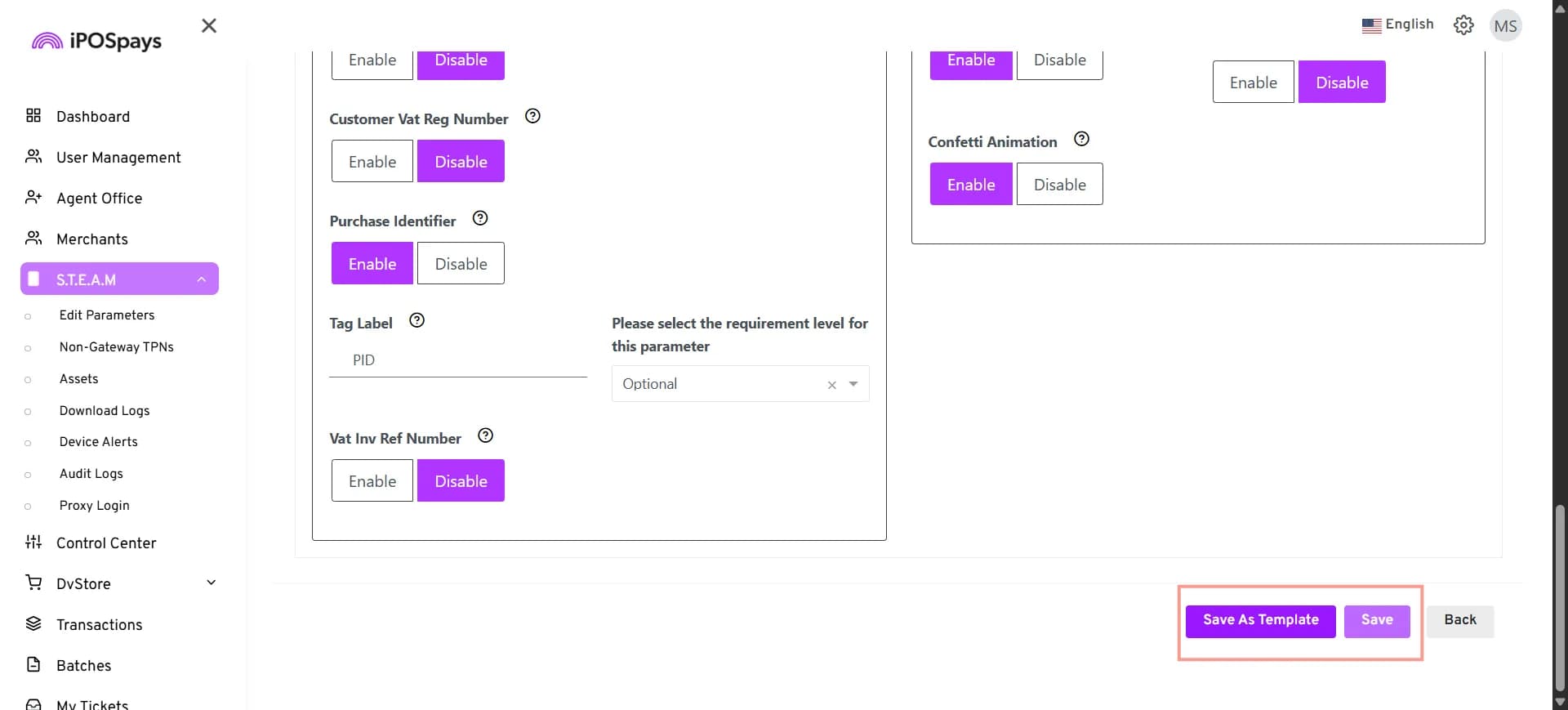
Once you have configured the required parameters, you have two options:
- Save → Applies the current parameter configuration directly to the selected TPN.
- Save as Template → Saves the current parameter configuration as a reusable template.
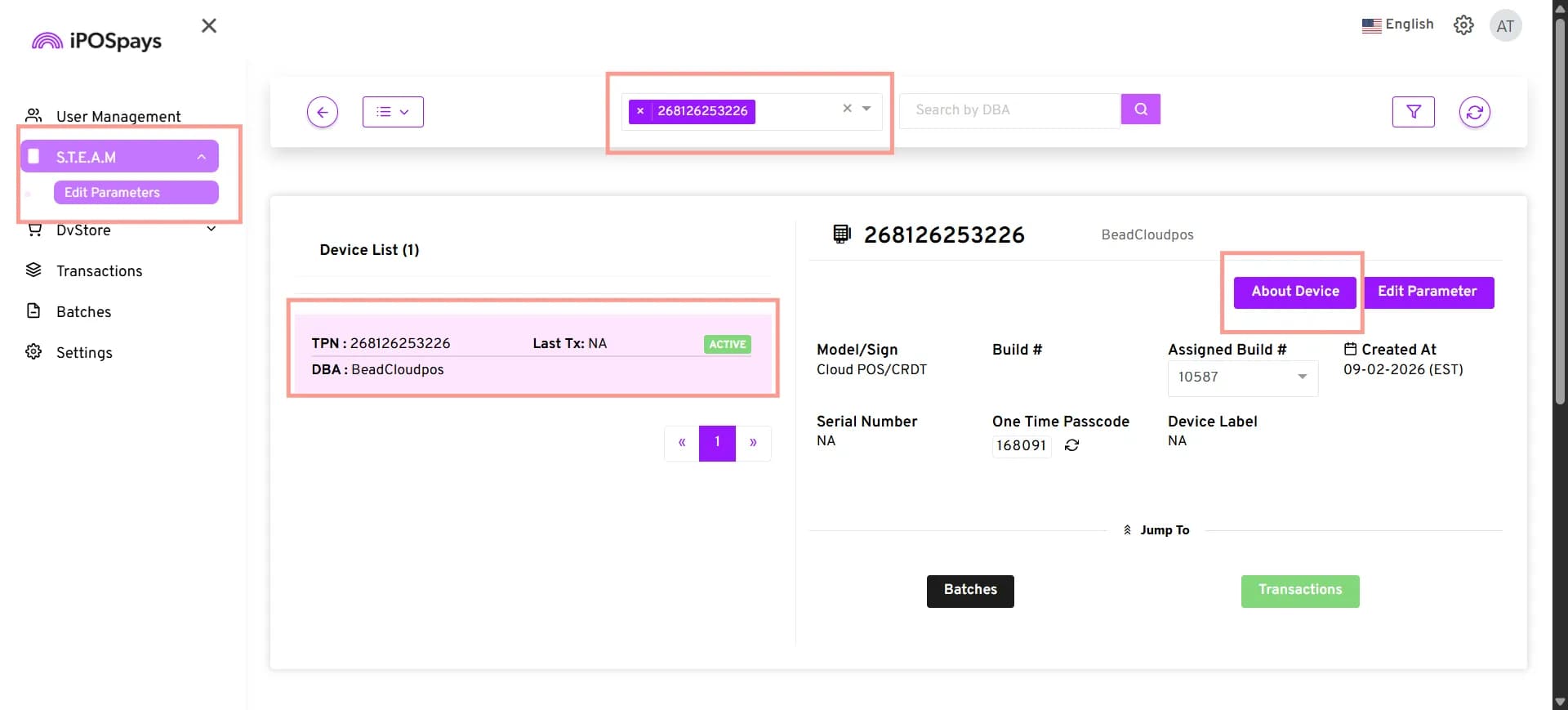
To View Device Information
- Navigate to S.T.E.A.M → Edit Parameters.
- Select the required TPN using the search box.
- In the device details panel, click About Device.
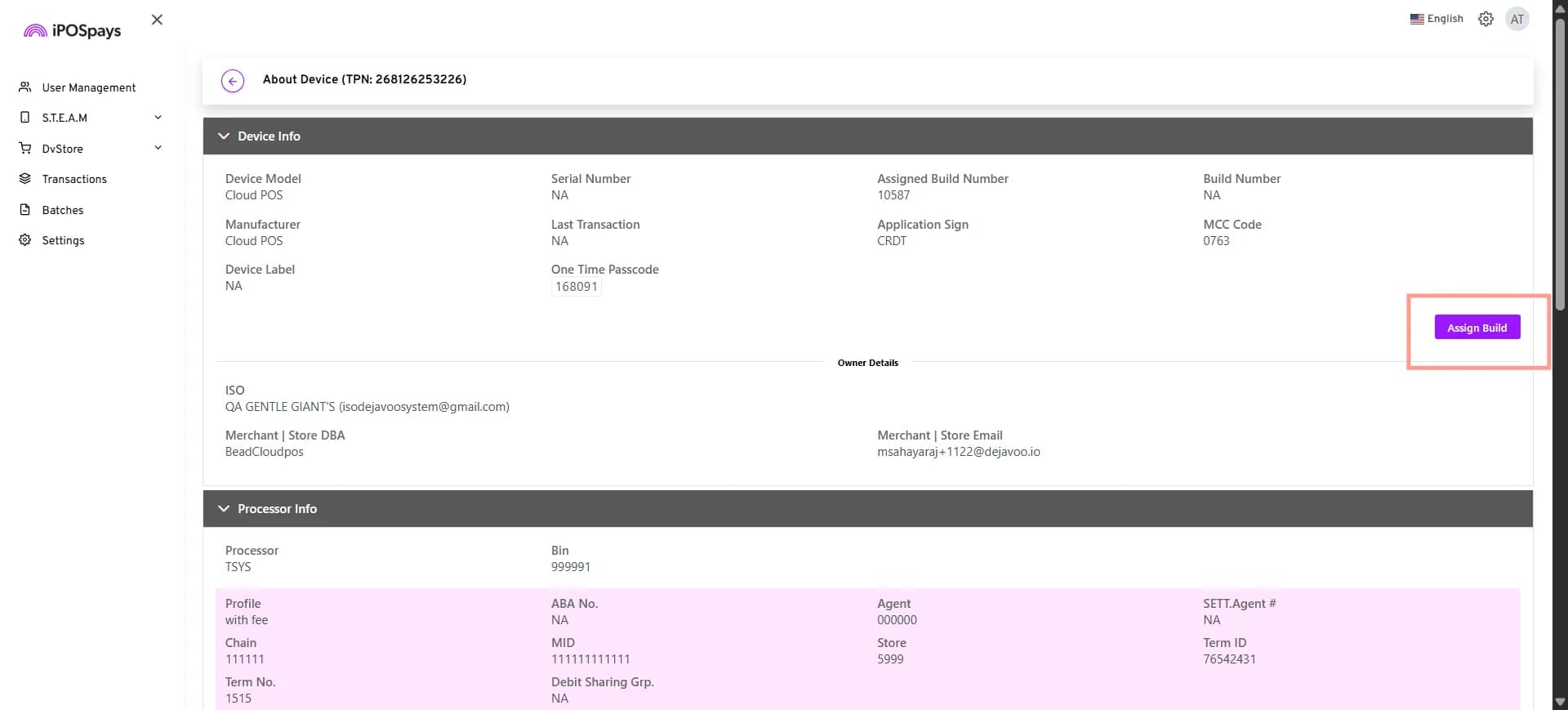
- The About Device page opens, displaying the following information:
- Device Info: Device Model, Manufacturer, Serial Number, Assigned Build Number, Build Number, Device Label, Last Transaction, Application Sign, MCC Code, and One-Time Passcode.
- Owner Details: ISO information, Merchant/Store DBA, and Merchant/Store Email.
- Processor Info: Processor, BIN, Profile, Chain, MID, Agent, Store, Term No., Term ID, and other available processor-related configuration details.
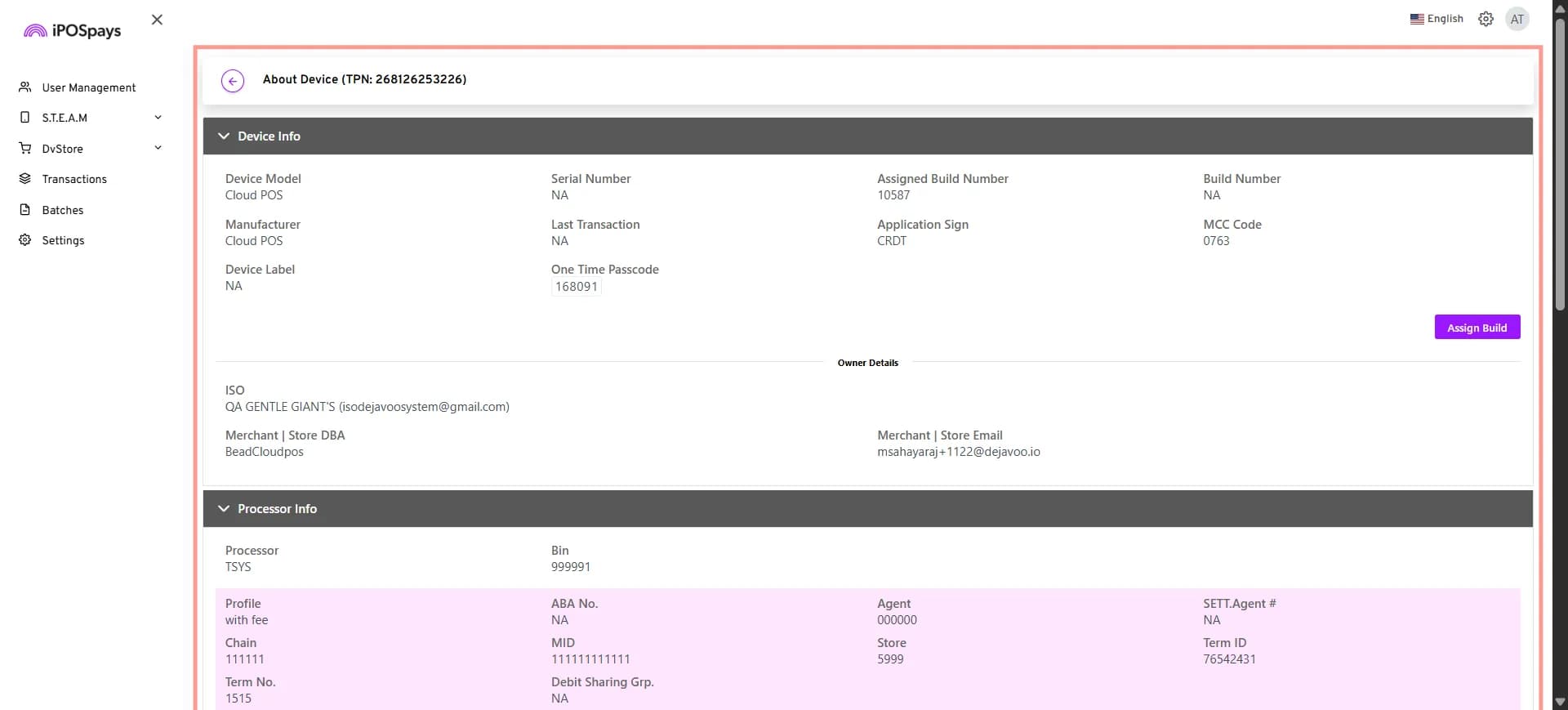
- Review the available device, owner, and processor information.
To Assign a Build to a TPN
You can assign a build directly from the Edit Parameters page or navigate to the build assignment section through the About Device page.
- Navigate to S.T.E.A.M → Edit Parameters.
- Select the required TPN from the Device List.
- Under the Assigned Build # section, click the Build drop-down.
- Select the required Build Number.
- Click Assign Build to apply the selected build to the TPN.
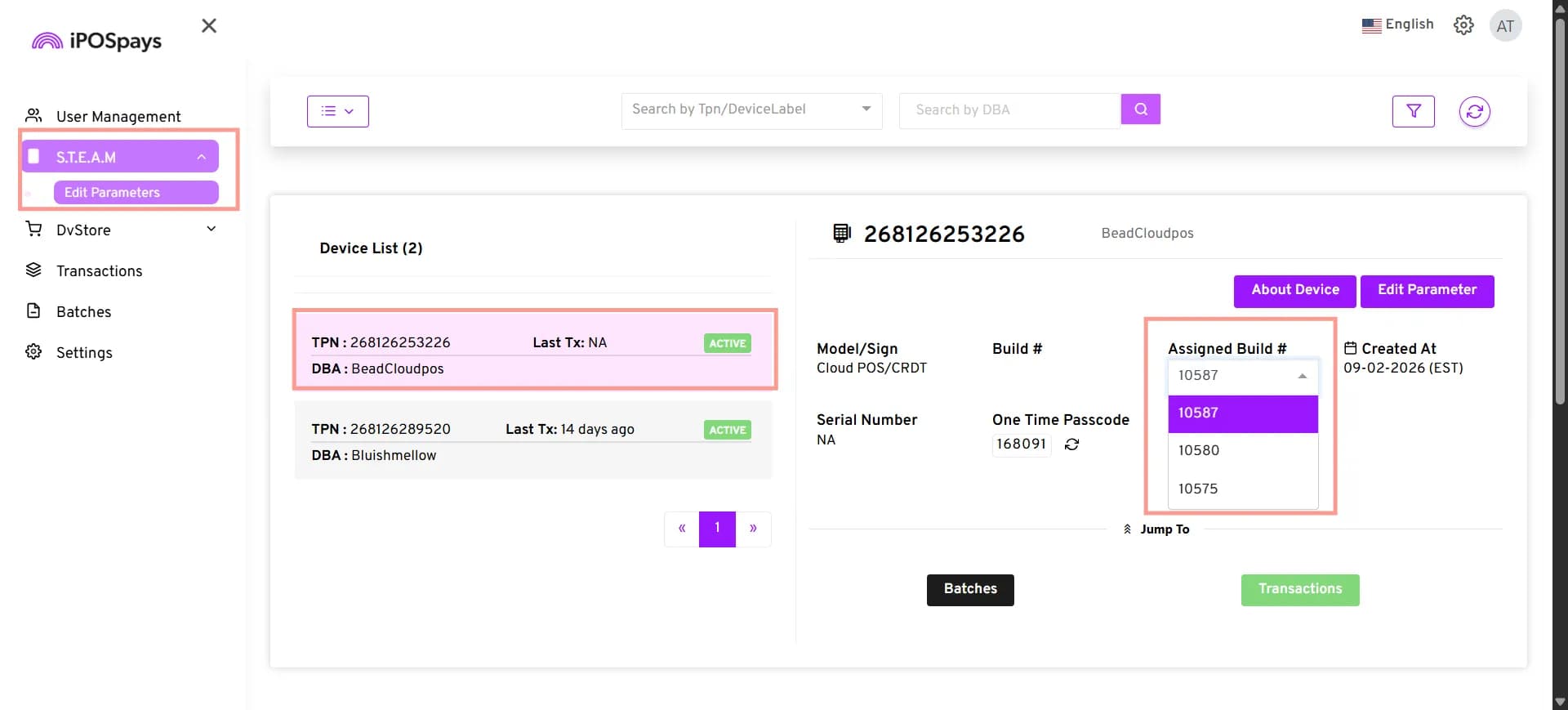
Only build versions available under your ISO account are displayed in the Build drop-down.
Alternatively, click About Device for the selected TPN, then click Assign Build to navigate to the build assignment page. Select the required build and click Assign Build to apply it to the TPN.