How to Enable and Set Up Bank Payments (ACH) on iPOSpays
Bank Payments (ACH) enable merchants to accept payments directly from a customer’s bank account through supported terminals and channels, including CloudPOS, Send Payment Link (via POS, CloudPOS, and iPOSgo!), and the Generic Hosted Payment Page (via merchant login on iPOSpays). This document explains how to enable and configure Bank Payments (ACH) at the ISO, Merchant, and TPN levels, and how merchants can process Bank (ACH) transactions across all supported payment channels.
Feature Compatibility
-
Minimum Required POS Build: Not Applicable
-
Supported ACH Processors: Paya ACH
-
Supported Fee Types: Supported by All Fee Types
-
Supported Channels:
-
CloudPOS
— Pay Now
— Send Payment Link
-
POS (SEND LINK)
-
iPOSgo! (iOS & Android) (SEND LINK)
-
Generic Hosted Payment Page (via Merchant login on iPOSpays)
-
Prerequisites
-
Bank Payments (ACH) must be activated for the ISO before they can enable it for their merchants.
-
The merchant must be registered with Paya. After registration, Paya will provide the required IDs. (Contact your Dejavoo executive for assistance with merchant registration through Paya.)
-
The following IDs must be available:
-
WEB ID
-
TEL ID
-
PPD ID
-
CCD ID
-
-
A valid TPN must exist.
If Bank Payments (ACH) is not yet enabled for your ISO, you must contact: sales@dejavoo.io
Enable Bank Payments (ACH) at the Merchant Level
During merchant onboarding, the ISO must enable Bank Payments (ACH) in the Store section if the merchant requires ACH processing. This should be completed before Device configuration.
If Bank Payments (ACH) were not enabled during onboarding, complete the steps below to enable the feature at the merchant level.
Steps to Enable Bank Payments (ACH) at the Merchant Level
-
Log in to the iPOSpays Portal using ISO credentials.
-
Navigate to Merchants.
-
Search for the Merchant/Store.
-
If the merchant has Multiple stores, select the specific store where Bank Payments (ACH) needs to be enabled.
-
Click the drop-down arrow next to the DBA.
-
Select Edit Store.
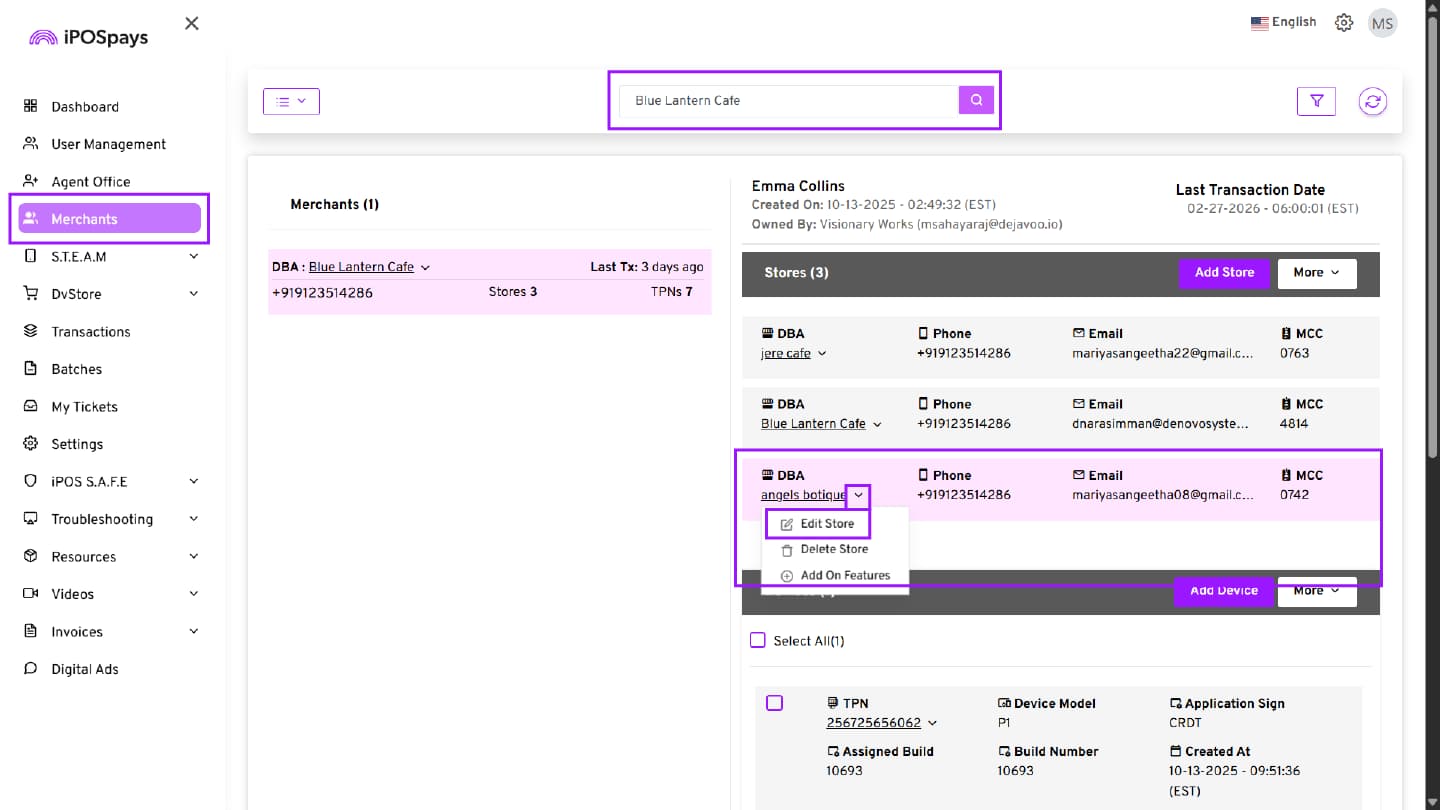
-
The Edit Store page will open. Select the Enable ACH transactions checkbox.
-
Upon selection, the ACH Processor and Terminal ID configuration fields will be displayed below.
-
ACH Processor – This field is auto-selected as ACH by default.
10 Enter the following IDs in their respective fields (as provided by Paya after registering your merchant with them):
-
WEB ID
-
TEL ID
-
PPD ID
-
CCD ID
Configure only the required IDs, as each ID supports a specific ACH transaction type, and the option will appear only if the corresponding ID is entered.
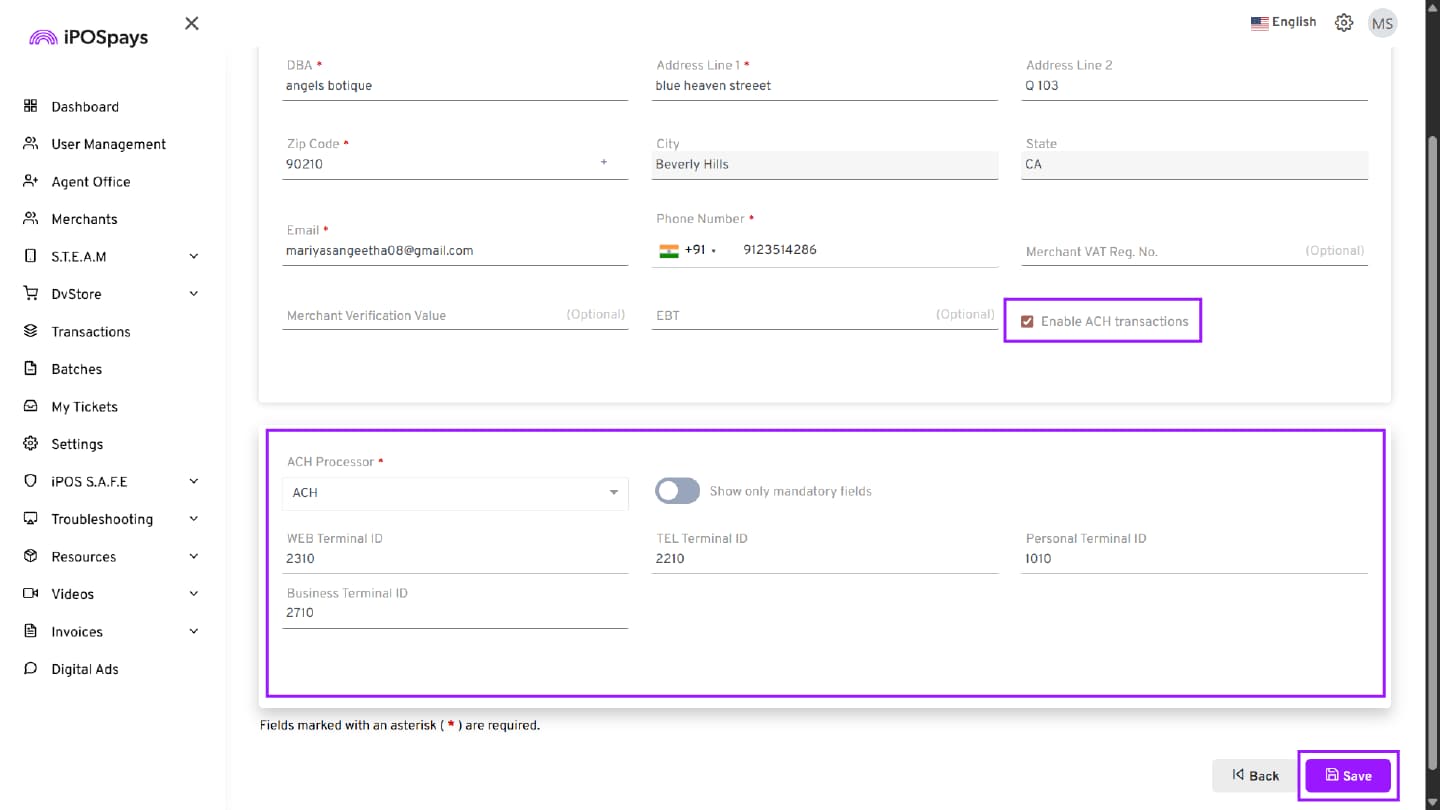
This enables Bank Payments(ACH) at the Merchant level.
Enable Bank Payments(ACH) at the TPN Level
Bank Payments(ACH) must also be enabled at the TPN level for the option to appear in CloudPOS.
Steps to Enable Bank Payments (ACH) at the TPN Level
-
Log in to the iPOSpays Portal using ISO credentials.
-
Click on S.T.E.A.M. → Edit Parameters.
-
Search and select the required TPN for which Bank Payments (ACH) have already been activated at the Merchant level.
-
Click Edit Parameter.
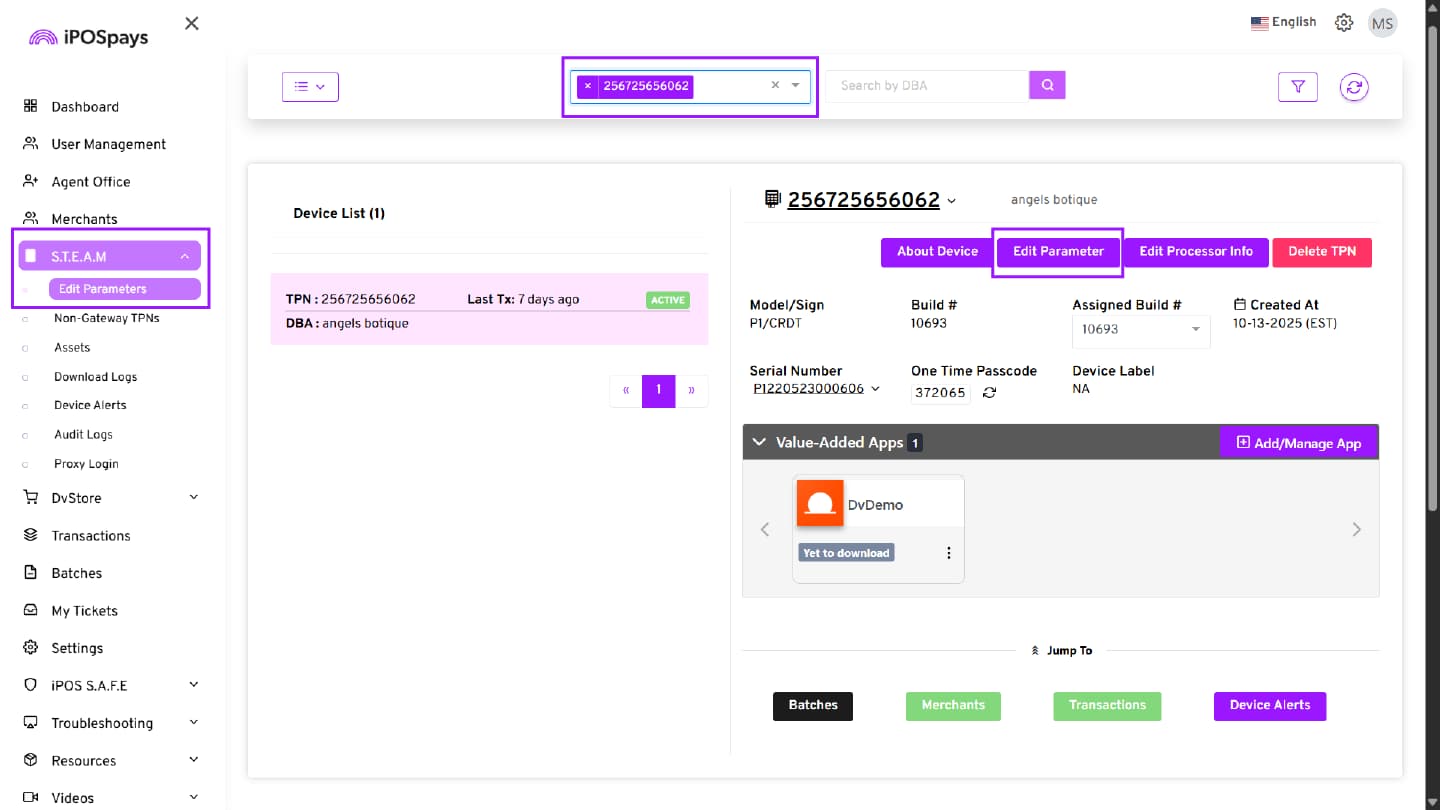
-
Select the Transaction tab.
-
Under Card Type, enable ACH (Bank Payments).
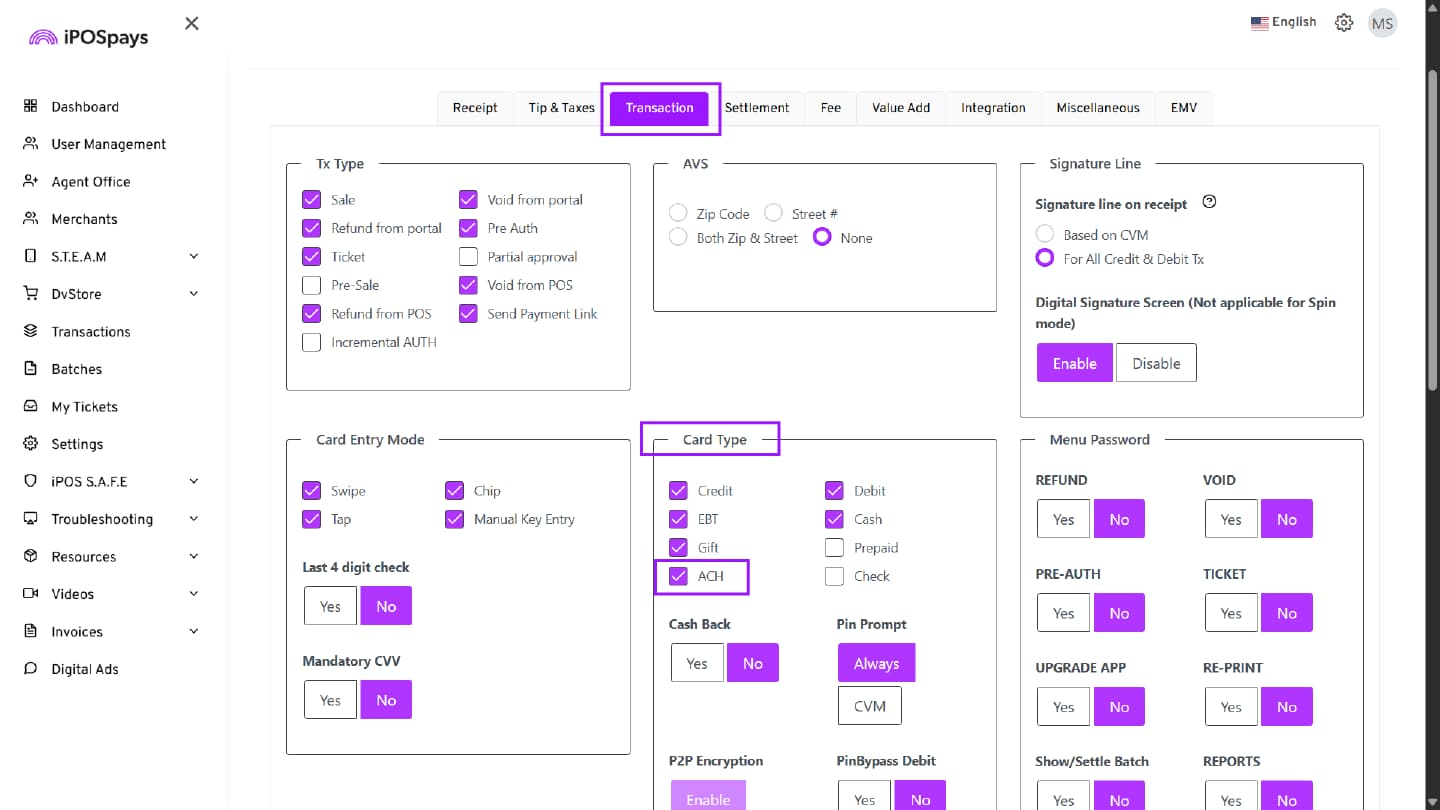
- Scroll down and click Save to apply the current parameter configurations directly to the selected TPN, or select Save as Template to store the configuration as a reusable template.
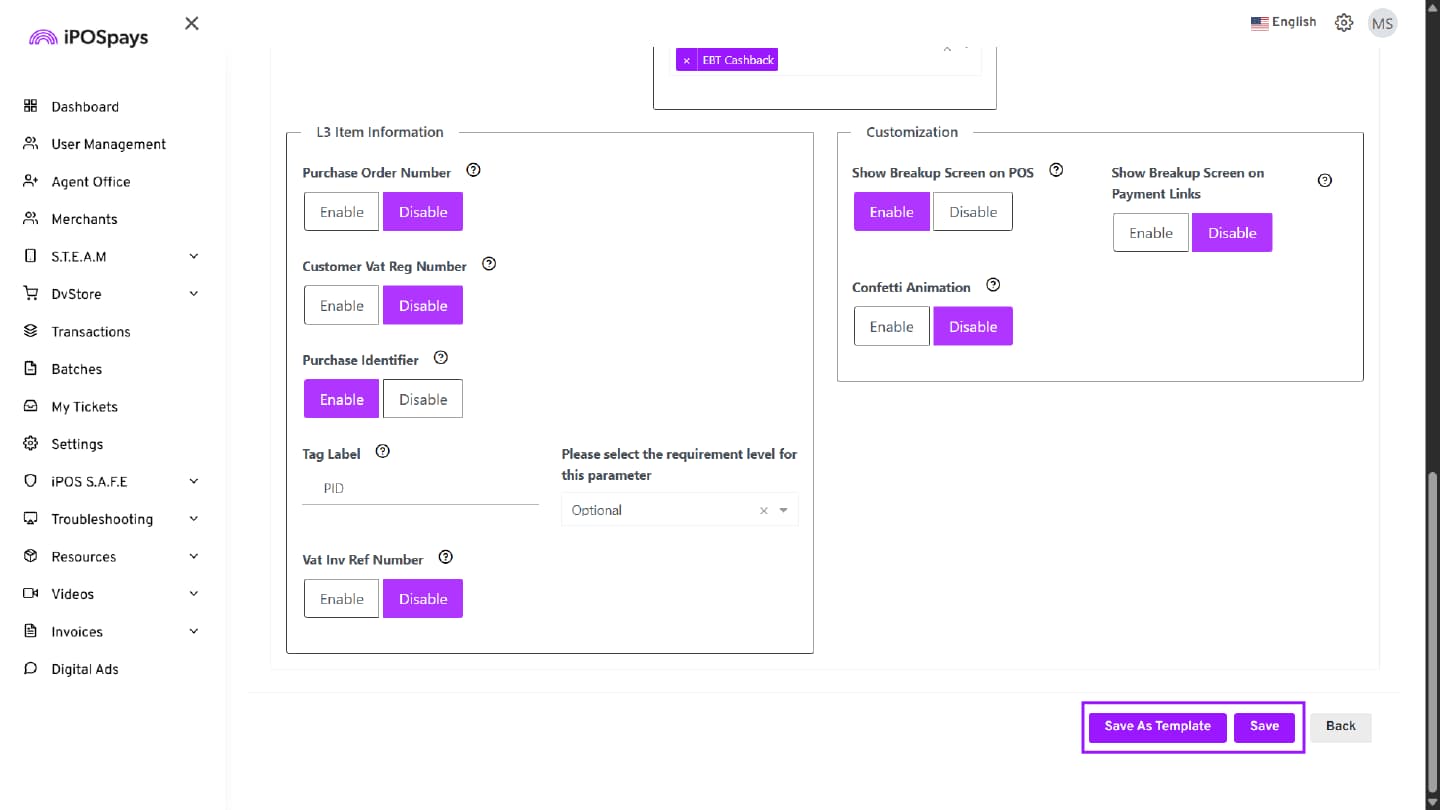
- Once saved, Bank Payments (ACH) will be available in CloudPOS.
Process Bank Payment Transactions
1. CloudPOS
Pay Now
Refer to the User Guide to Merchant CloudPOS Transactions → Pay Now – Sale Transactions → Bank section for detailed information on CloudPOS Pay Now (ACH) transactions.
Send Payment Link
Refer to the User Guide to Merchant CloudPOS Transactions → Send Payment Link Transactions section for detailed information on CloudPOS Send Payment Link transactions.
2. Send Payment Link – Using a Payment Terminal
Step 1: Open the DvPayLite app on your device
-
Enter the transaction amount.
-
Click OK to continue.
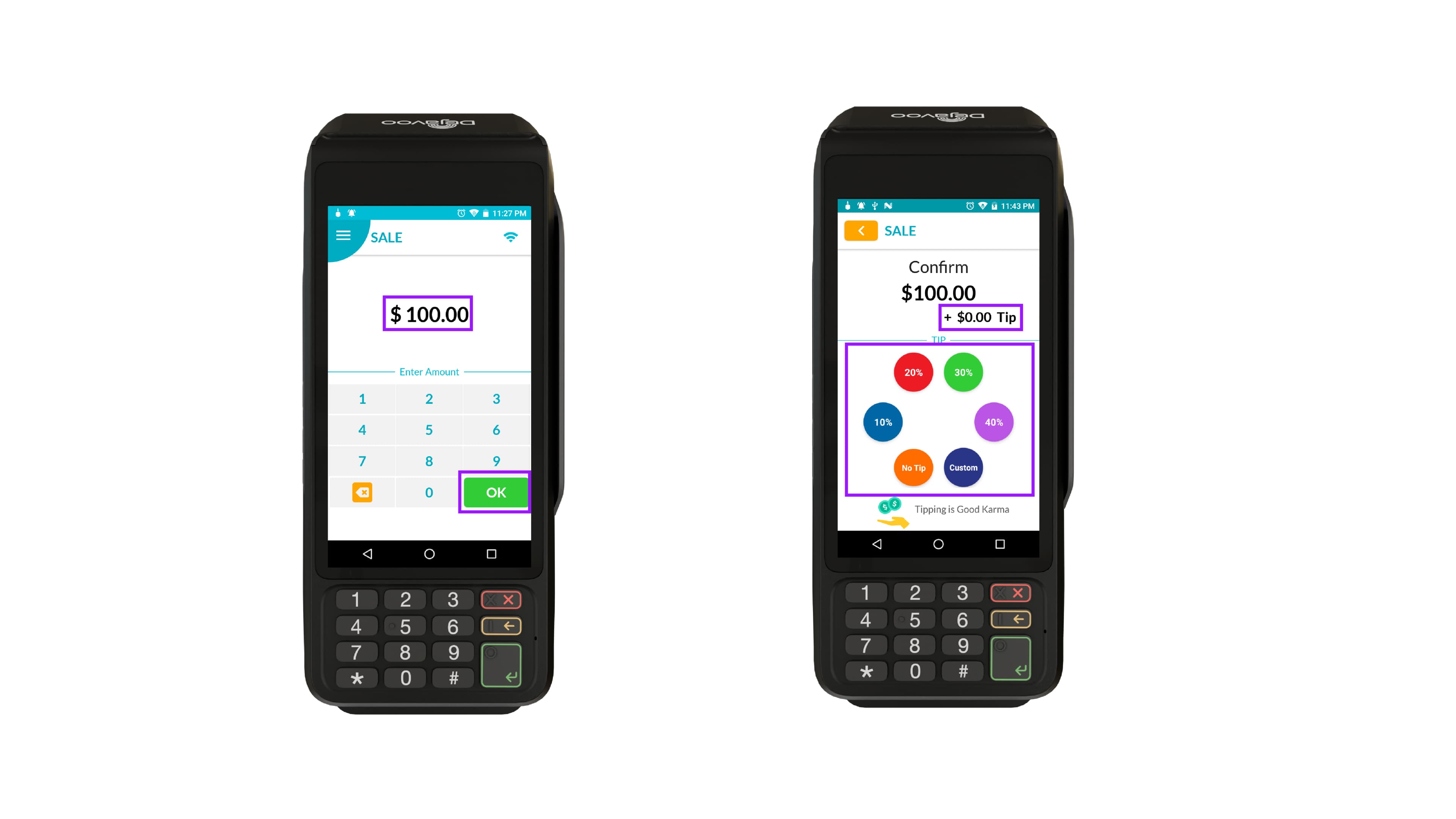
Step 2: Add a Tip
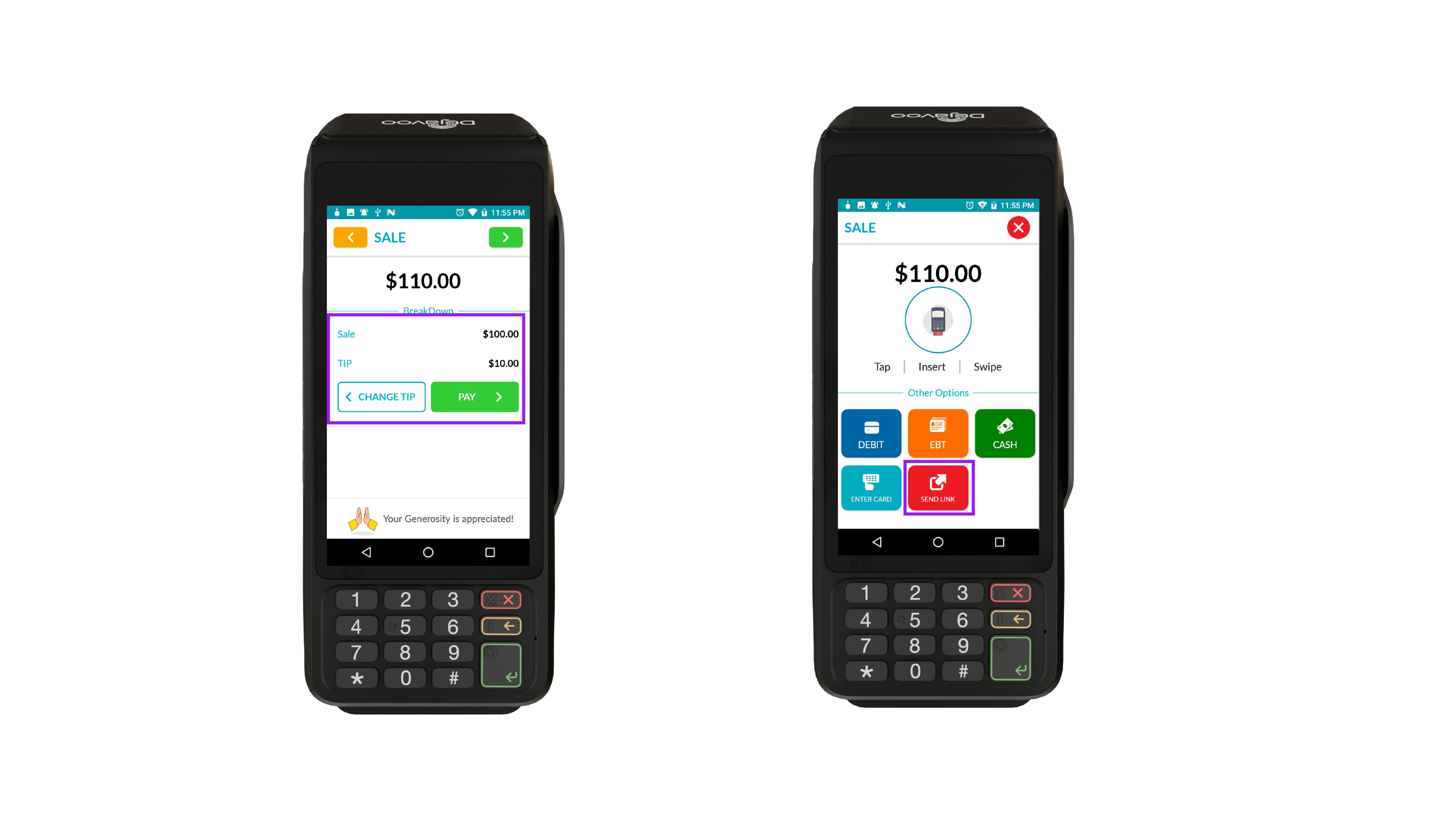
If tip is enabled for the TPN, select the desired tip option (Custom Tip, No Tip, or Percentage-based Tip) and proceed with payment by clicking the PAY button.
Step 3: Click SEND LINK
Once the tip has been added, tap the “SEND LINK” option on the payment terminal.
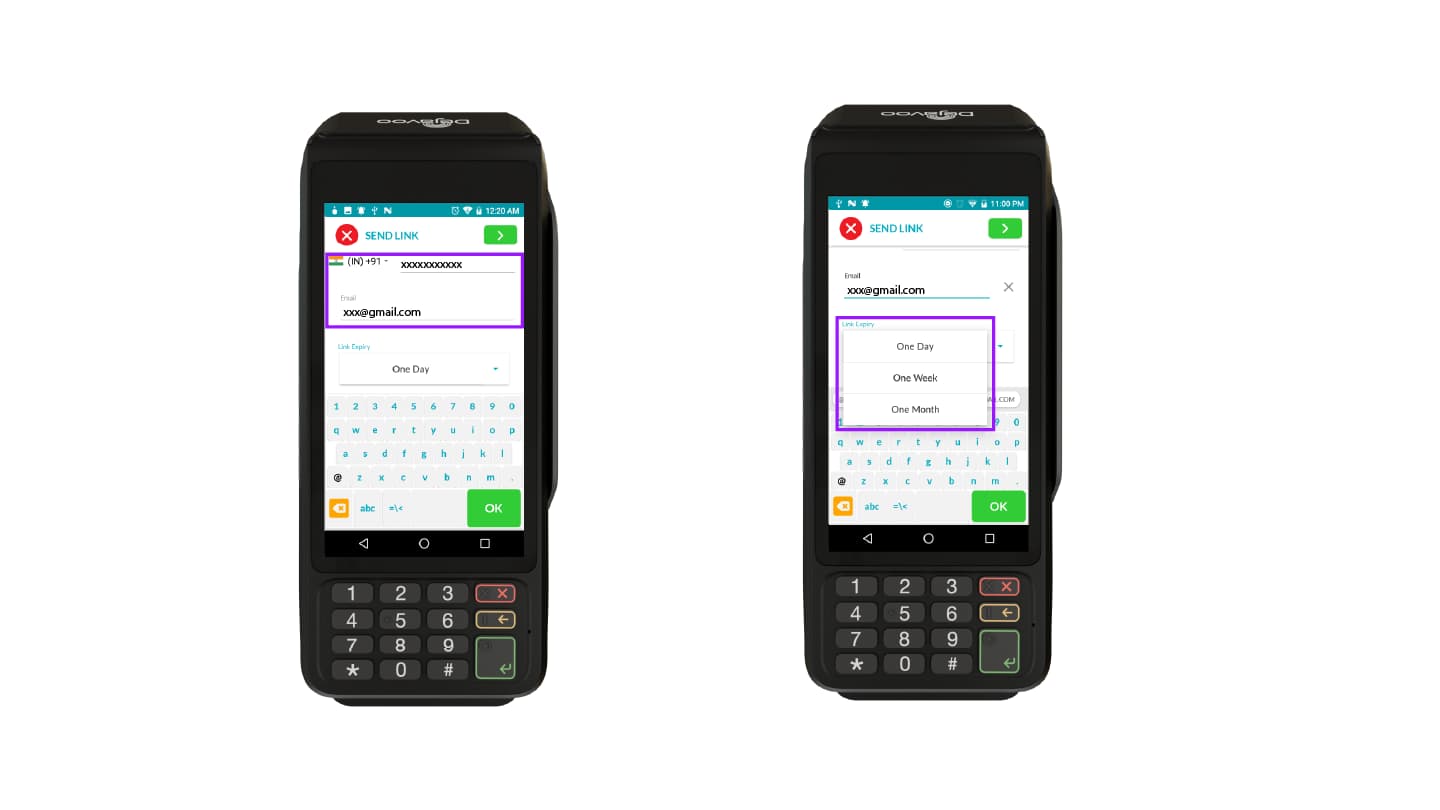
Step 4: Enter Customer Details
-
Enter the customer’s mobile number and email address.
-
Choose a Link Expiry:
-
One Day
-
One Week
-
One Month
-
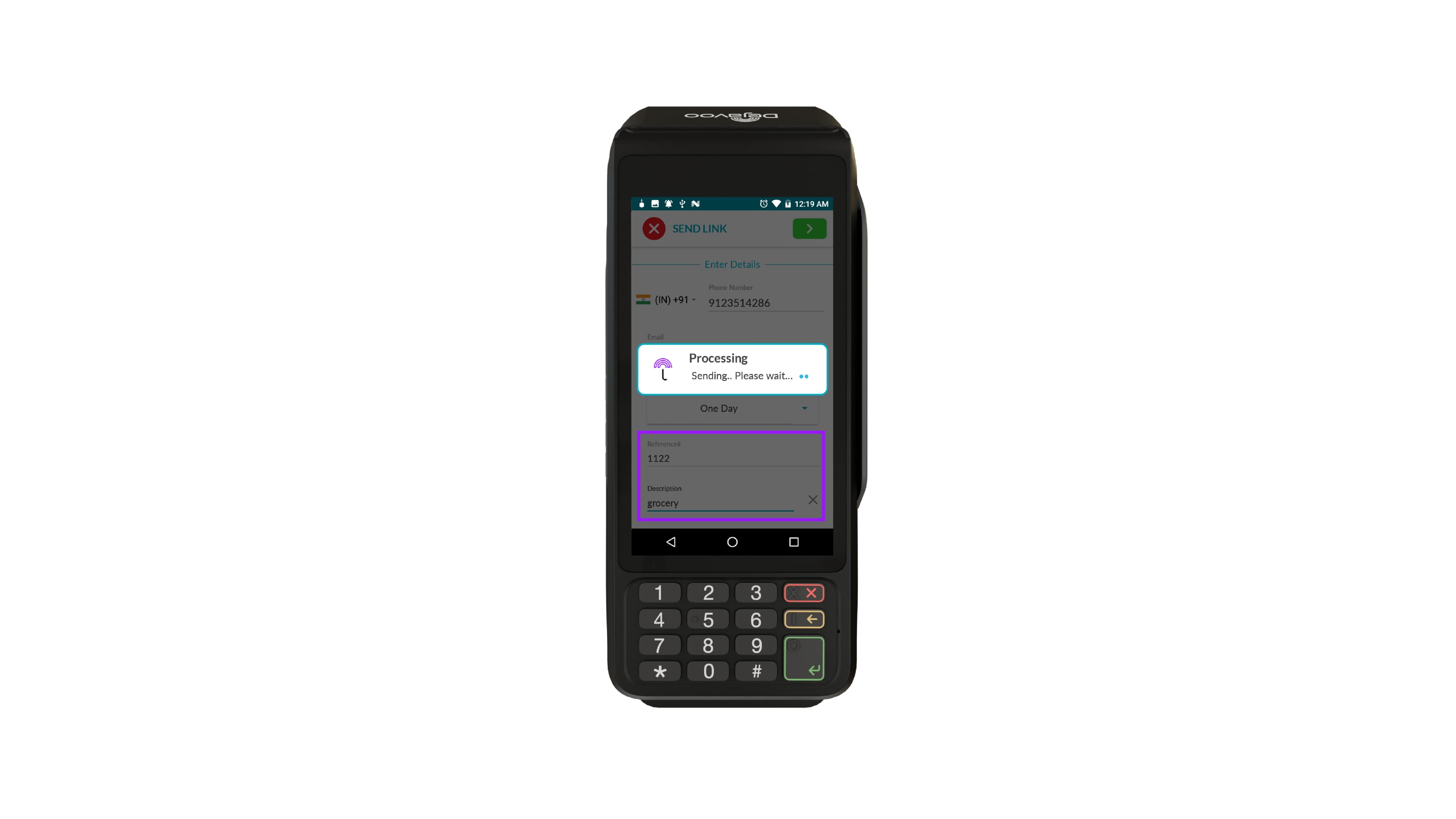
Step 5: Add optional Transaction details
You will see two additional fields:
a. Reference
-
Internal ID to match the payment link to a specific order/invoice.
-
helps with reconciliation (e.g., identifying which payment corresponds to which bill).
b. Description
- Short text describing the purpose of the payment (helps both merchant and customer recognise it later).
Step 6: Send the Payment Link
-
After entering all details, tap OK to send the payment link.
-
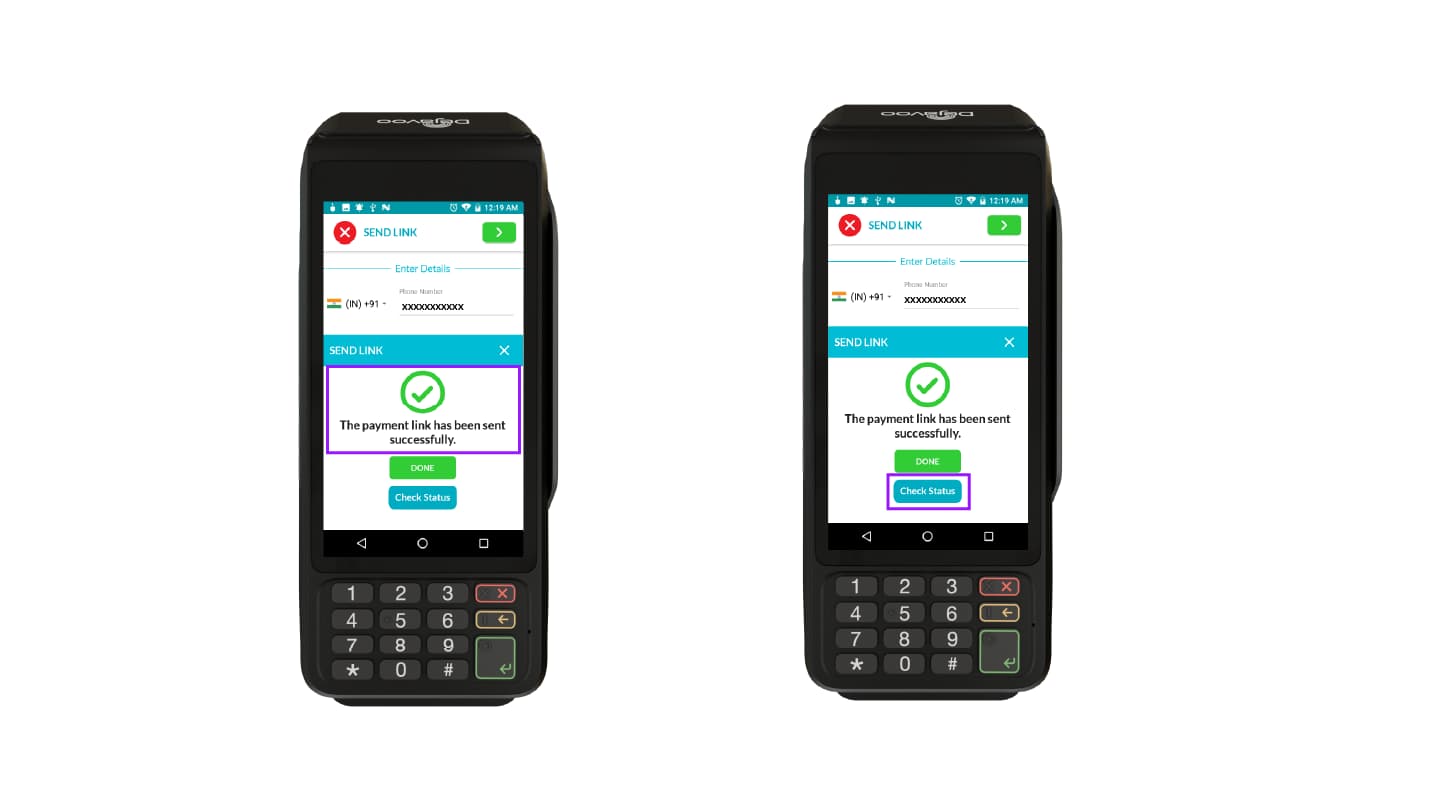
A notification will appear to confirm whether the link was successfully sent or not.
Step 7: Check Payment Status
- Tap “Check Status” on the payment terminal to view the current status.
-
You can search by:
-
Mobile number
-
Email address
-
Reference ID
-
-
The screen displays the Recent Transaction and its status.
Step 8: Customer Completes the Payment
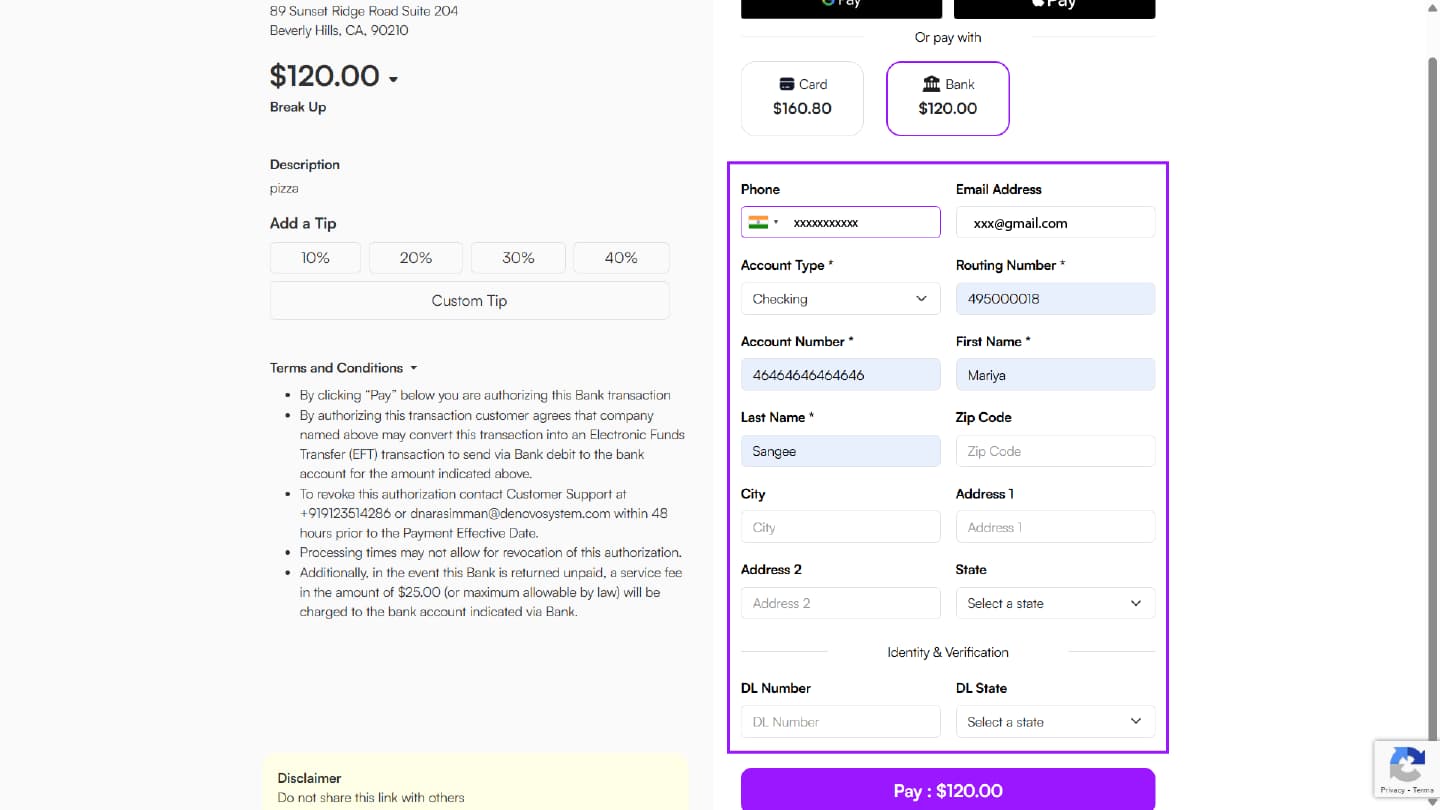
When the customer receives the link, they:
-
Open the secure payment page.
-
Select Bank as the Payment Method.
-
Enter the following information:
-
Card information/Bank details
-
Cardholder name
-
Email
-
Phone Number
-
Reference Number
-
Customer Name
-
-
Once all the required details are filled in, tap Pay to finish the transaction.
3. Send Payment Link – Using iPOSgo! (iOS & Android)
Step 1: Open the App
Open the iPOSgo! app on your mobile device.
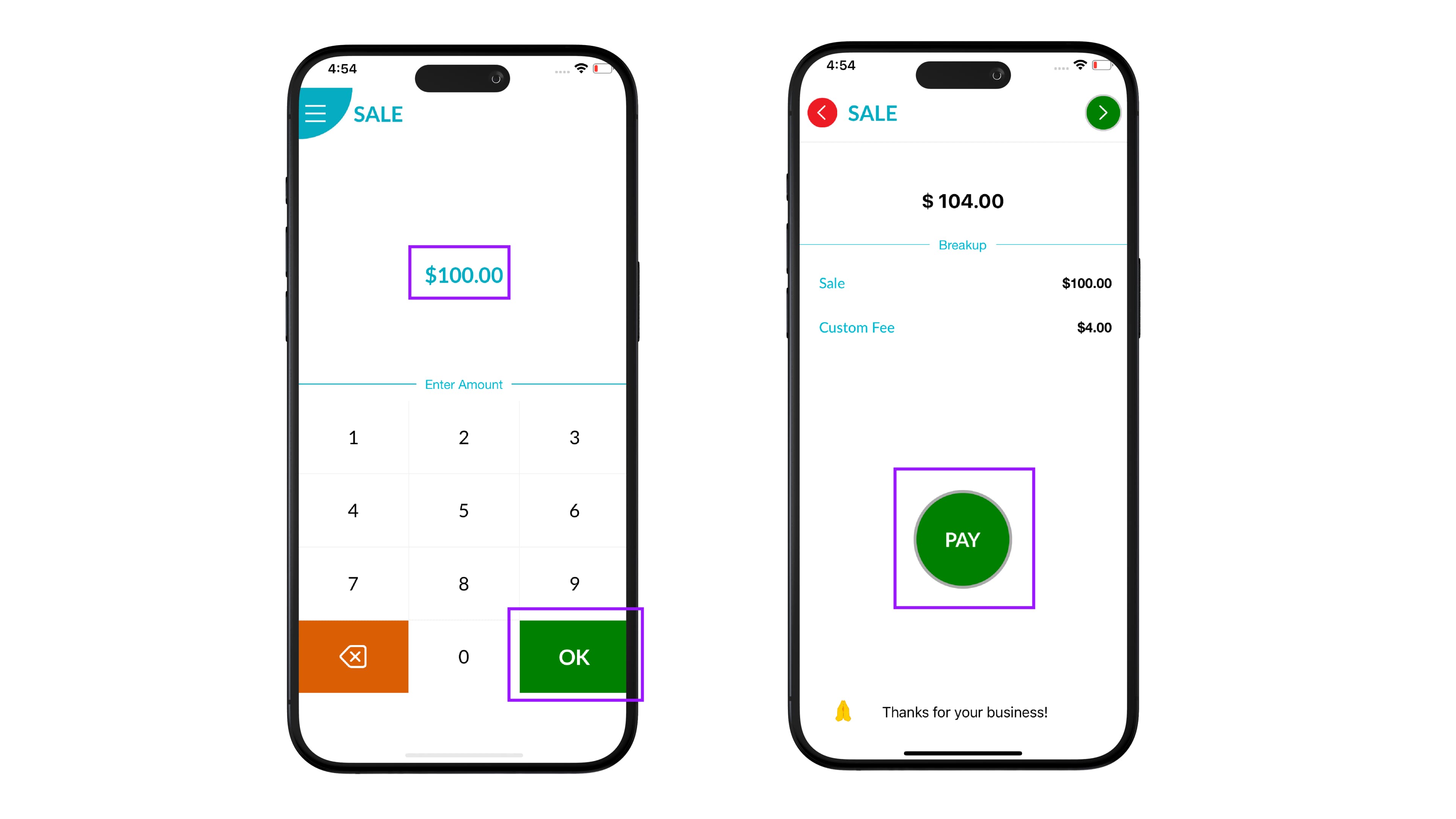
Step 2: Enter the Amount
-
Enter the amount and tap OK.
-
The total amount will appear on the screen along with a Break Up view showing detailed charges such as the sale amount, custom fee, and taxes (if applicable).
Step 3: Tap Pay
- Tap PAY to continue.
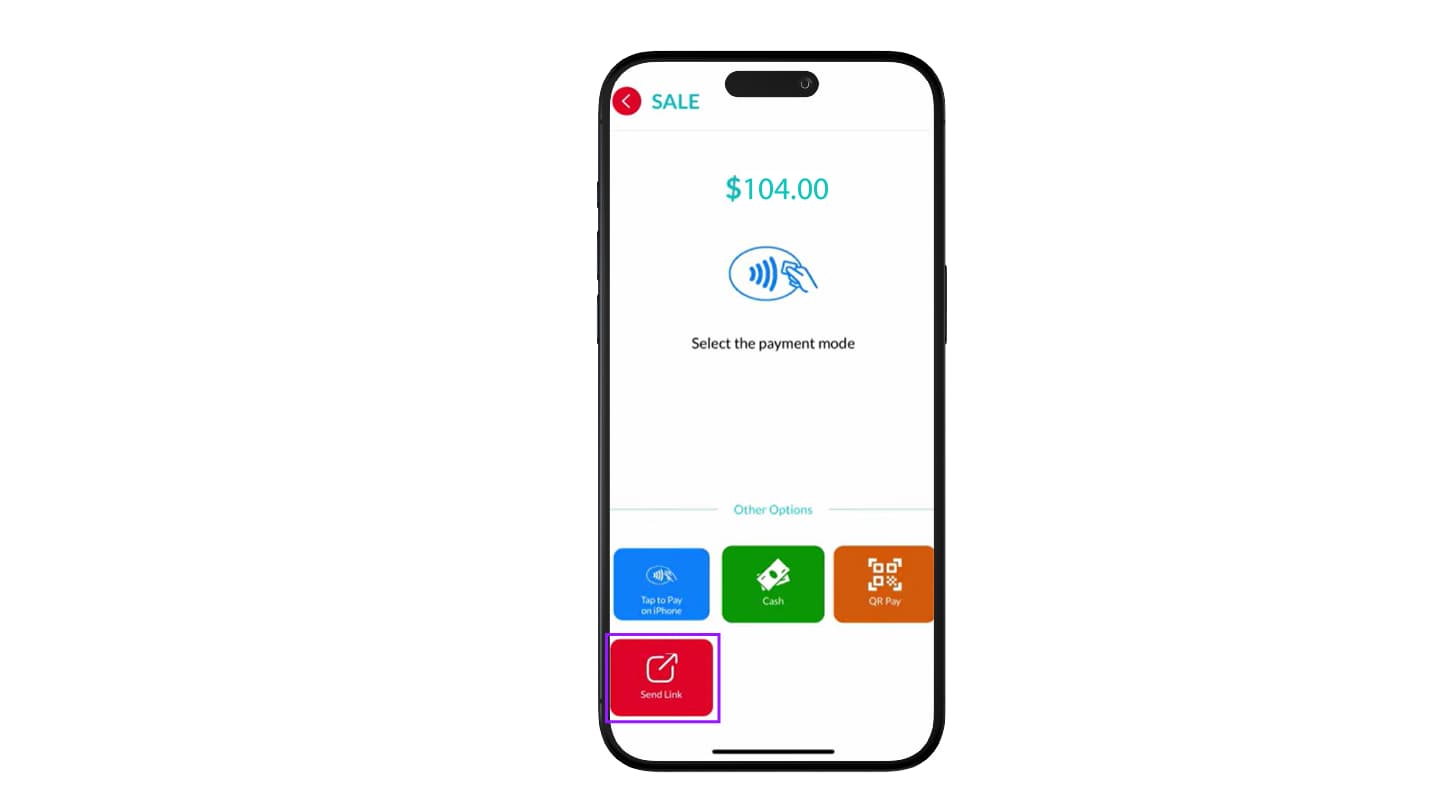
Step 4: Choose Payment Mode
Tap Send Link to proceed with generating the payment link for the customer.
Step 5: Enter Customer & Payment Link Details
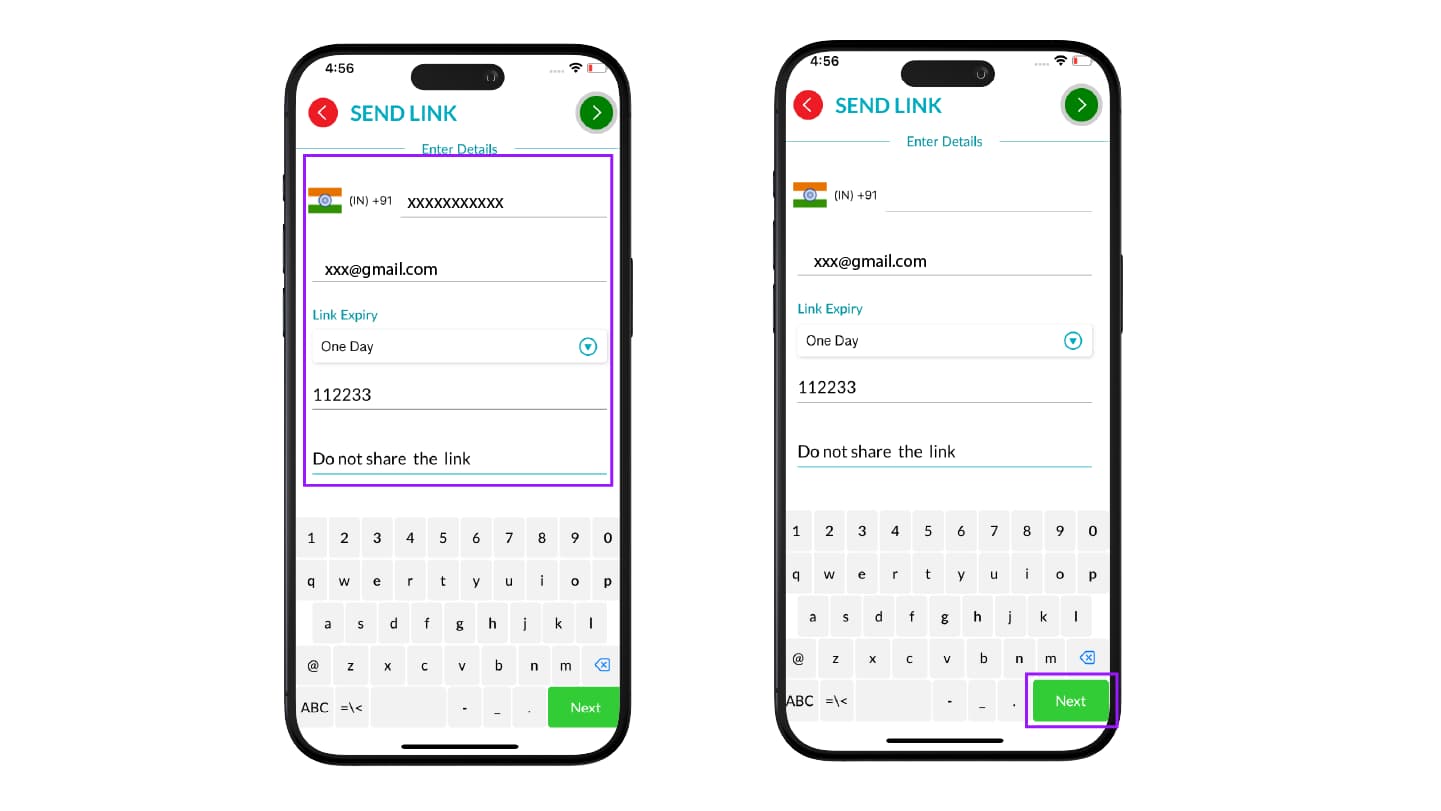
1. Customer Contact Information
-
Enter the customer’s mobile number.
-
Enter the customer’s email address.
2. Set Link Expiration Time
Choose how long the payment link should remain valid from the dropdown options:
-
One Day
-
One Month
-
One Year
3. Add Reference(Optional but Recommended)
-
Enter an internal merchant identifier to link the payment to a specific invoice or order.
-
Helps with tracking, reconciliation, and record matching.
4. Add Description
-
Add a short note explaining the purpose of the payment.
-
Helps the merchant or reviewer understand the context clearly.
Step 6: Send the Payment Link
-
Once all details are entered, tap the Next button to send the link.
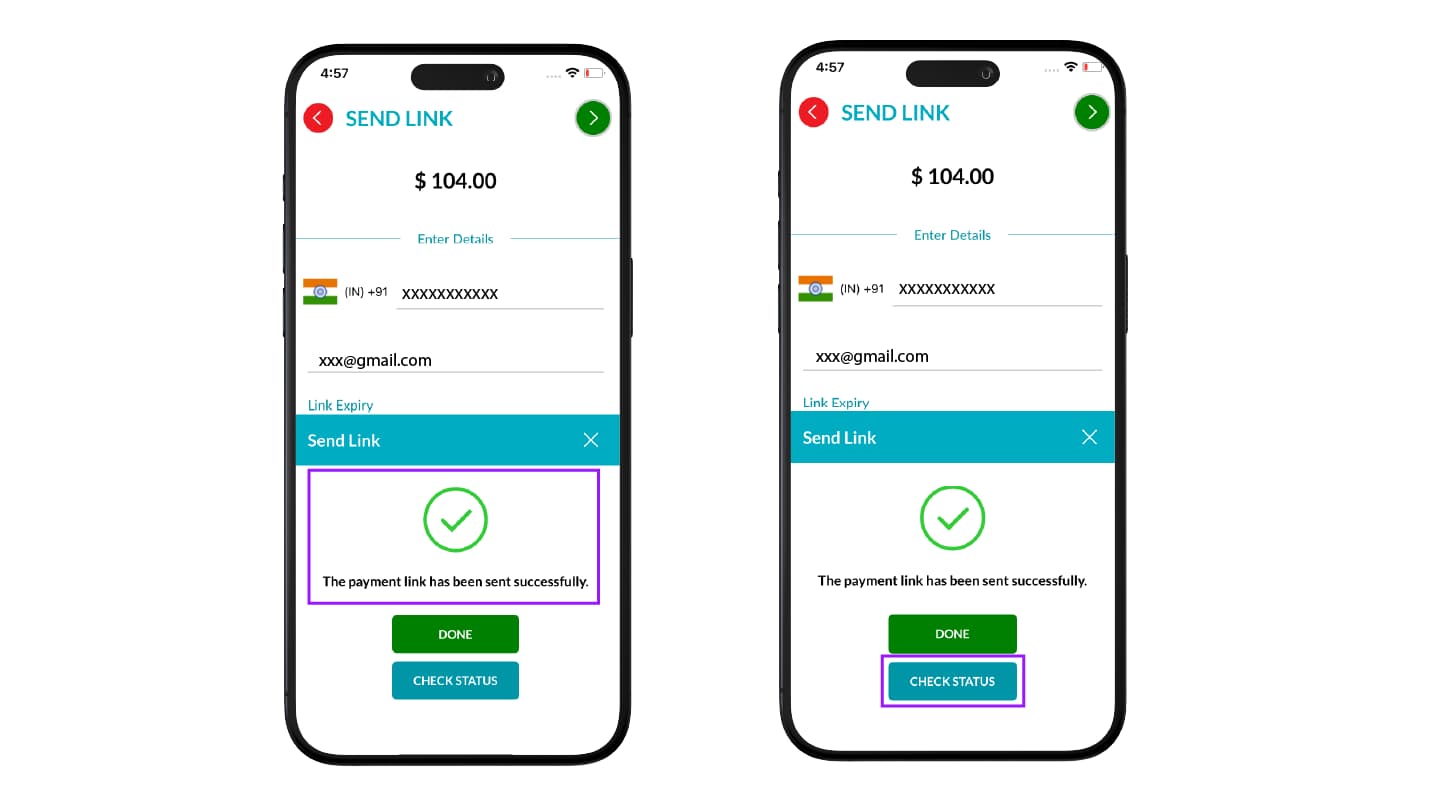
-
You will receive an immediate success or failure notification.
Step 7: Customer Completes Payment
-
The customer opens the link, enters their Card information/Bank Details, and completes the payment.
-
An e-receipt will be sent to the customer’s phone number or email address used to send the payment link.
Step 8: Check Instant Status
Tap Check Status to view instant updates on the payment status.
4. Generic Hosted Payment Page (GHPP)
Merchants can generate a URL for the Generic Hosted Payment Page (GHPP) in their iPOSpays account to accept Bank Payments (ACH) from their customers.
Refer to the Generate Payment Form on iPOSpays for detailed information on GHPP URL generation and customer payment workflow.